
Programming with Microsoft Visual Basic 2017 Chapter 3
Programming with Microsoft Visual Basic 2017 Chapter 3 Coding with Variables, Named Constants, and Calculations

FOCUS ON THE CONCEPTS LESSON (1 of 2) Concepts covered in this lesson: l Variables and named constants l Determine a memory location’s scope and lifetime l Procedure-level variables and named constants l Try. Parse method Arithmetic expressions Assigning a value to an existing variable To. String method Option statements l l 2
Variables • A variable is a computer memory location where a programmer can temporarily store an item of data while an application is running. – The memory location is called a variable because its contents can change (vary) during run time. • Storing the data in a variable allows the programmer to – control the preciseness of the data, – verify that the data meets certain requirements, and – save the data for later use within the application’s code. • Dim statement declare a variable within the procedure that needs it. 3

Selecting an Appropriate Data Type (1 of 2) A variable’s data type indicates the type of data—for example, numeric or textual—the variable will store. • Variables assigned the Integer data type can store integers, which are positive or negative. • The two data types Decimal or Double data type: – differ in the range of numbers each can store and the amount of memory each needs to store the numbers. – Calculations involving Double variables execute faster than those involving Decimal variables. 4
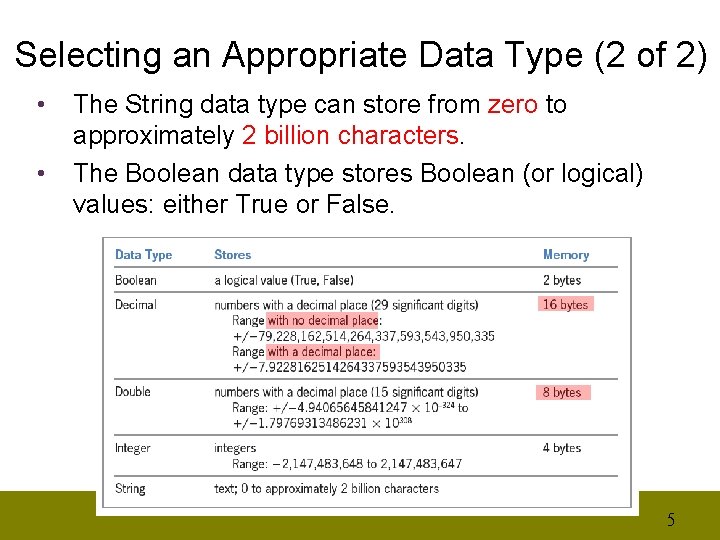
Selecting an Appropriate Data Type (2 of 2) • • The String data type can store from zero to approximately 2 billion characters. The Boolean data type stores Boolean (or logical) values: either True or False. 5
Selecting an Appropriate Name (1 of 2) • • A variable’s name, also called its identifier, should describe (identify) its contents. A good variable name is meaningful right after you finish a program and also years later when the program needs to be modified. The name allows the programmer to refer to the variable using one or more descriptive words, rather than its cryptic numeric address, in code. Descriptive words are easier to remember and serve to self-document your code. 6
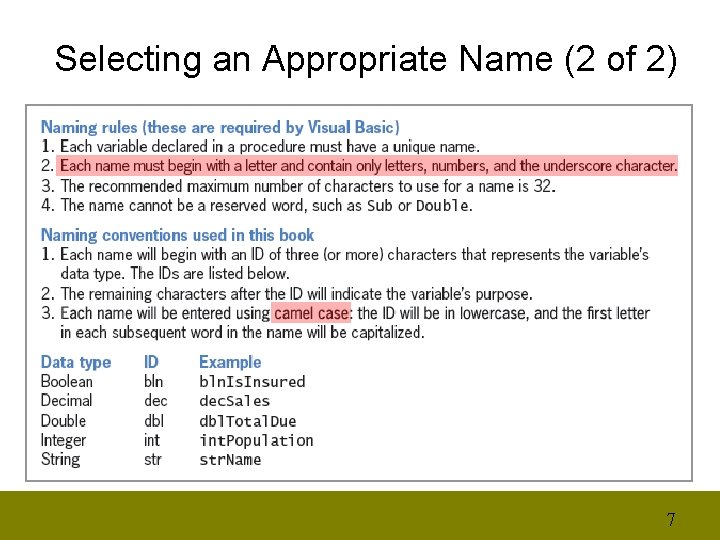
Selecting an Appropriate Name (2 of 2) 7
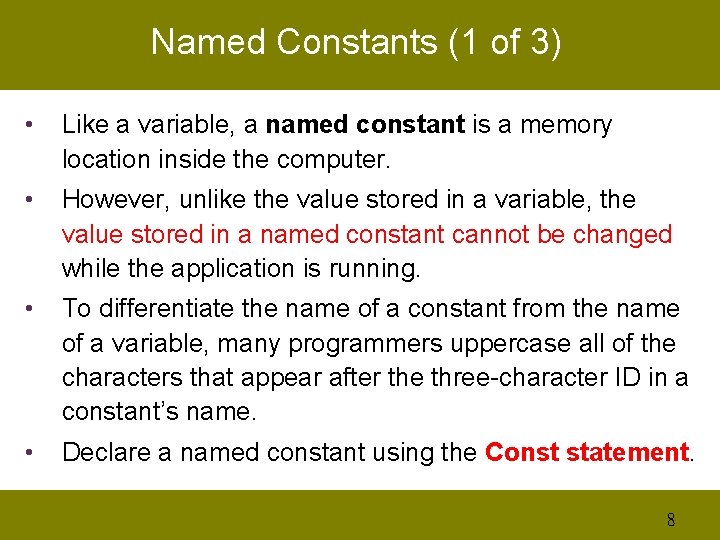
Named Constants (1 of 3) • Like a variable, a named constant is a memory location inside the computer. • However, unlike the value stored in a variable, the value stored in a named constant cannot be changed while the application is running. • To differentiate the name of a constant from the name of a variable, many programmers uppercase all of the characters that appear after the three-character ID in a constant’s name. • Declare a named constant using the Const statement. 8
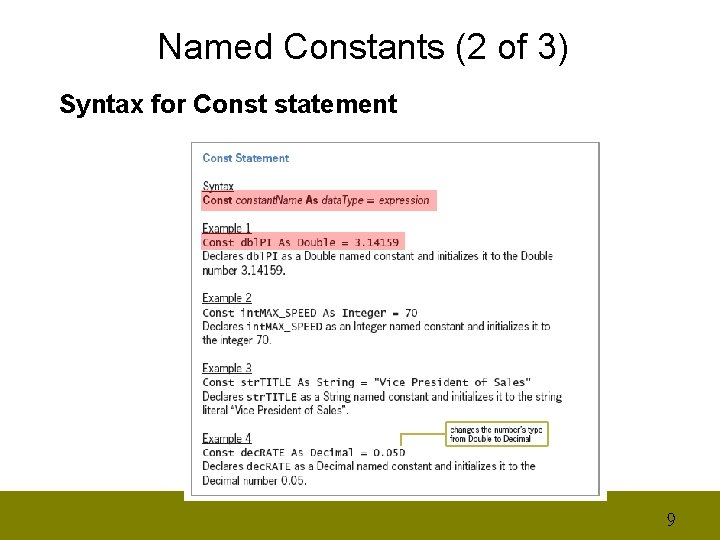
Named Constants (2 of 3) Syntax for Const statement 9
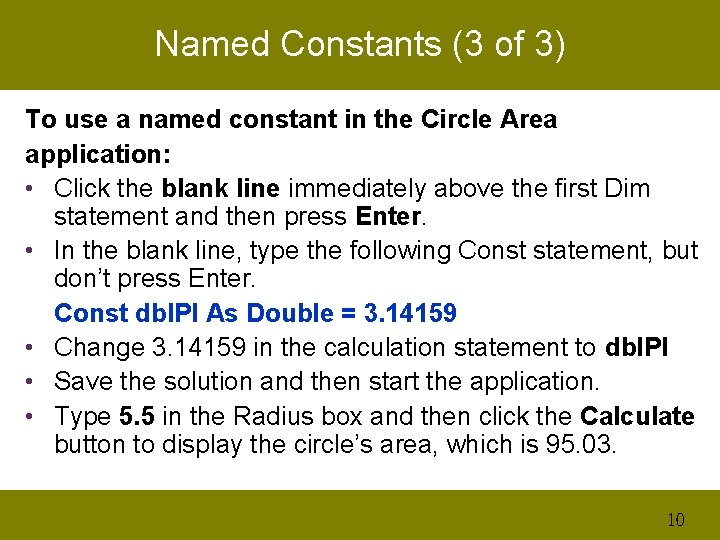
Named Constants (3 of 3) To use a named constant in the Circle Area application: • Click the blank line immediately above the first Dim statement and then press Enter. • In the blank line, type the following Const statement, but don’t press Enter. Const dbl. PI As Double = 3. 14159 • Change 3. 14159 in the calculation statement to dbl. PI • Save the solution and then start the application. • Type 5. 5 in the Radius box and then click the Calculate button to display the circle’s area, which is 95. 03. 10
Determine a Memory Location’s Scope and Lifetime (1 of 2) • The scope indicates where the declared variables or named constants can be used in an application’s code. • The lifetime indicates how long the variable or named constant remains in the computer’s main memory. • The scope and lifetime are determined by where you declare the variables or named constants in your code. 11
Determine a Memory Location’s Scope and Lifetime (2 of 2) • Variables or named constants declared in a procedure have procedure scope and are called procedure-level variables and procedure-level named constants. • Variables or named constants declared in a form class’ declarations section, but outside of any procedures, have class scope and are referred to as class-level variables and class-level named constants. 12
Procedure-Level Variables & Named Constants • Procedure-level variables are typically declared at the beginning of a procedure, and they can be used only after their declaration statement within the procedure. – The variables remain in the computer’s main memory only while the procedure is running, and they are removed from memory when the procedure ends. • Like procedure-level variables, procedure-level named constants are declared at the beginning of a procedure, and they can be used only after their declaration statement within the procedure. 13
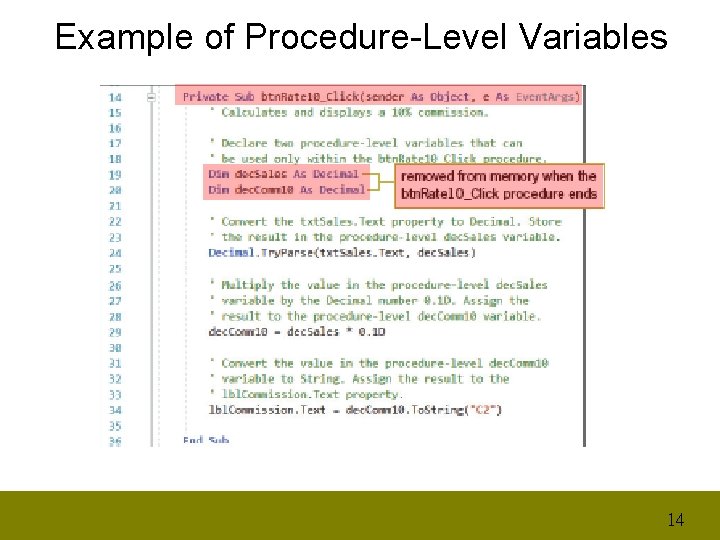
Example of Procedure-Level Variables 14
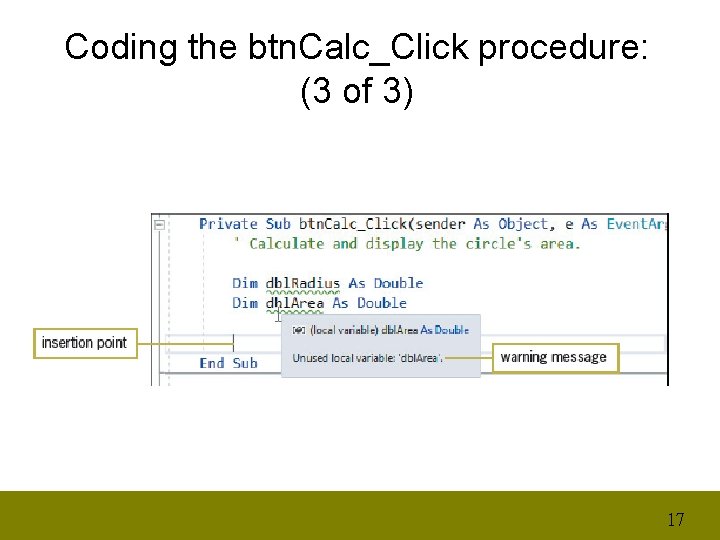
Coding the btn. Calc_Click procedure: (1 of 3) • Open the Circle Solution. sln file contained in the VB 2017Chap 03Circle Solution folder. – If the designer window is not open, double-click Main Form. vb in the Solution Explorer window. • Open the Code Editor window and locate the btn. Calc_Click procedure. – Click the blank line immediately above the End Sub clause and then enter the following two Dim statements. Dim dbl. Radius As Double Dim dbl. Area As Double • Press Enter twice after typing the second Dim statement. 15
Coding the btn. Calc_Click procedure: (2 of 3) • Place your mouse pointer on the green squiggle (彎 曲的線) below dbl. Area. – A warning message box appears and alerts you that the dbl. Area variable has not been used yet. – The squiggle will disappear when you include the variable name in another statement within the procedure. 16
Coding the btn. Calc_Click procedure: (3 of 3) 17
Try. Parse Method (1 of 3) • When the user enters data in a text box during run time, the computer stores the data in the control’s Text property. • Every numeric data type in Visual Basic has a Try. Parse method that converts a string to that particular data type. • The Integer data type’s Try. Parse method converts a string to an integer. 18
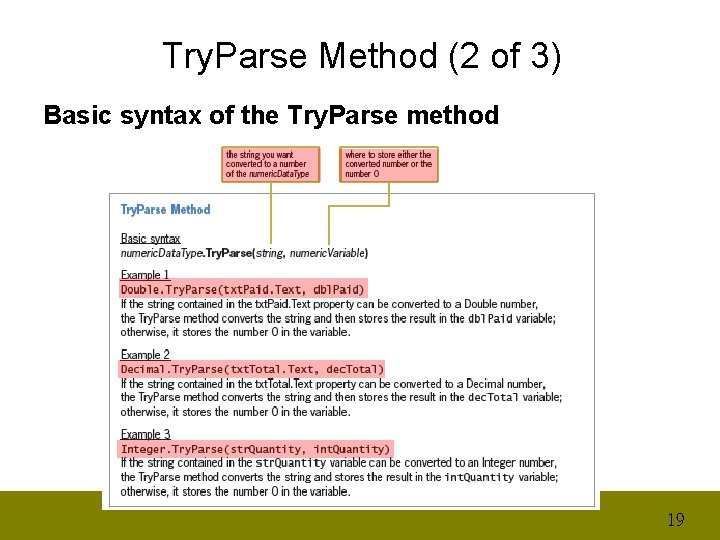
Try. Parse Method (2 of 3) Basic syntax of the Try. Parse method 19
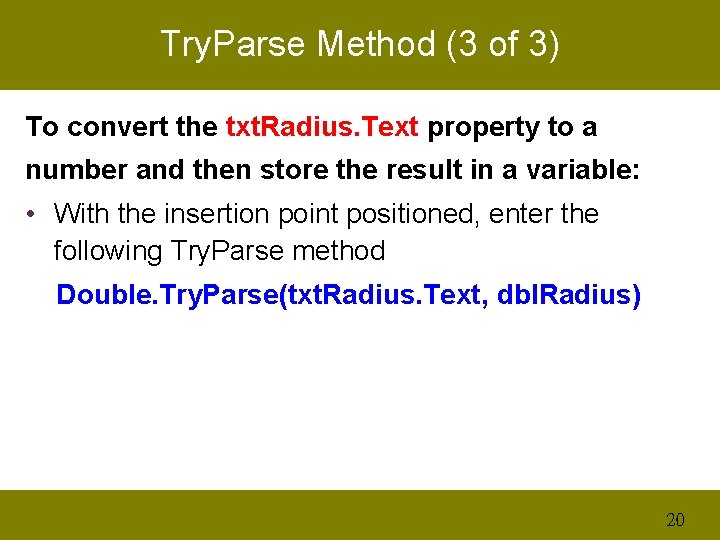
Try. Parse Method (3 of 3) To convert the txt. Radius. Text property to a number and then store the result in a variable: • With the insertion point positioned, enter the following Try. Parse method Double. Try. Parse(txt. Radius. Text, dbl. Radius) 20
Arithmetic Expressions (1 of 2) We instruct the computer to perform a calculation using an arithmetic expression, which is an expression that contains one or more arithmetic operators. • The integer division operator () divides two integers and then returns the result as an integer. • The modulus operator (sometimes referred to as the remainder operator) also divides two numbers, but the numbers do not have to be integers. – After dividing the numbers, the modulus operator returns the remainder of the division. 21
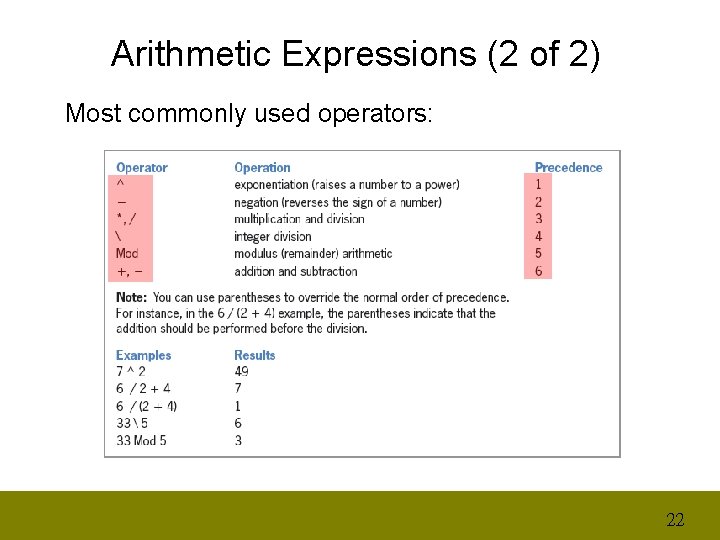
Arithmetic Expressions (2 of 2) Most commonly used operators: 22
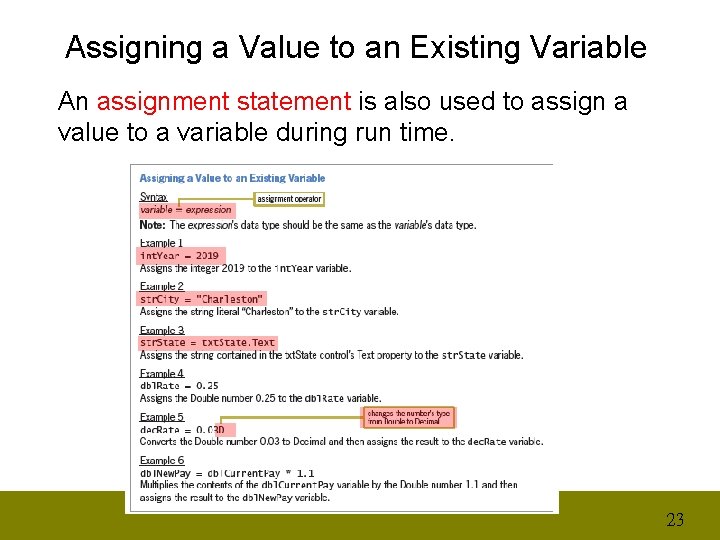
Assigning a Value to an Existing Variable An assignment statement is also used to assign a value to a variable during run time. 23
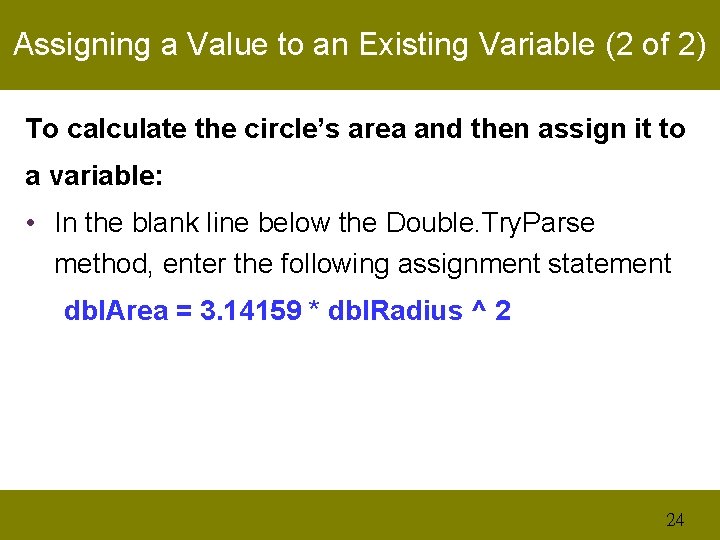
Assigning a Value to an Existing Variable (2 of 2) To calculate the circle’s area and then assign it to a variable: • In the blank line below the Double. Try. Parse method, enter the following assignment statement dbl. Area = 3. 14159 * dbl. Radius ^ 2 24
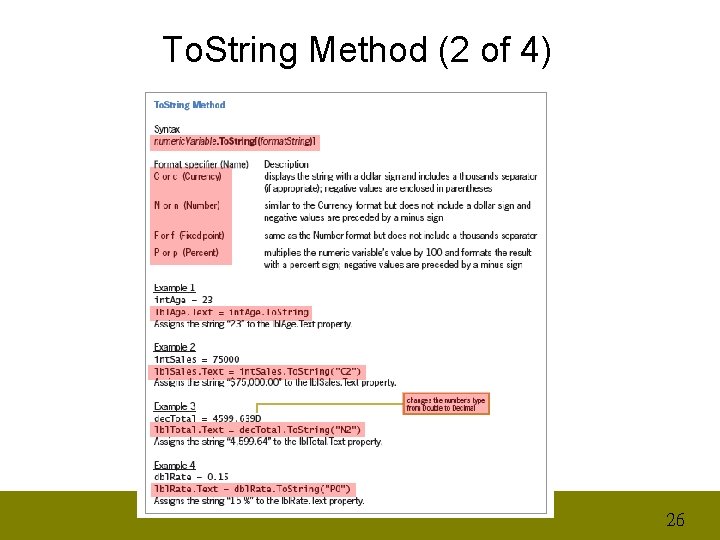
To. String Method (1 of 4) • The To. String method also allows to format the value, which means to specify the number of decimal places and the special characters to display. – In the syntax, numeric. Variable is the name of a numeric variable. • The To. String method formats a copy of the value stored in the numeric variable and then returns the result as a string. 25
To. String Method (2 of 4) 26
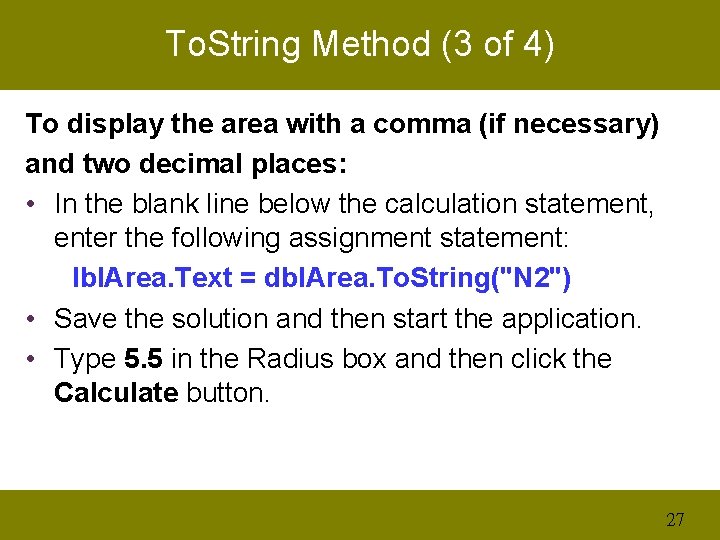
To. String Method (3 of 4) To display the area with a comma (if necessary) and two decimal places: • In the blank line below the calculation statement, enter the following assignment statement: lbl. Area. Text = dbl. Area. To. String("N 2") • Save the solution and then start the application. • Type 5. 5 in the Radius box and then click the Calculate button. 27
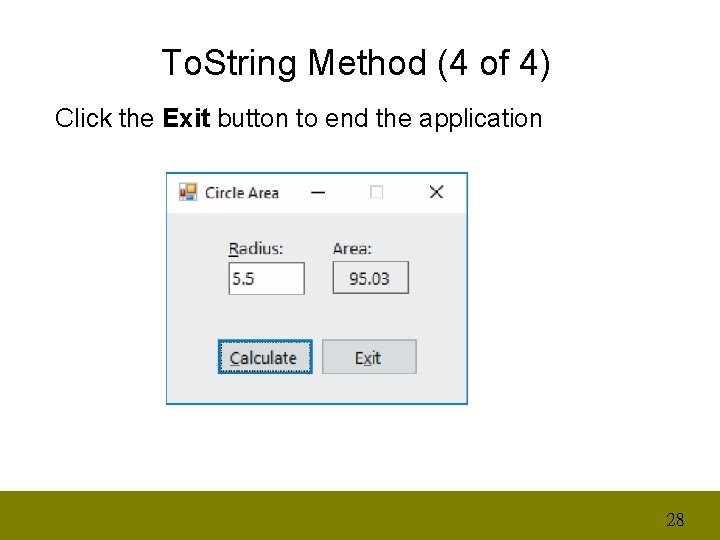
To. String Method (4 of 4) Click the Exit button to end the application 28
Option Statements (1 of 5) • A variable’s declaration statement is important because it allows you to control the variable’s data type; it also makes your code more self-documenting. • Visual Basic provides a statement that tells the Code Editor to flag any undeclared variables: – Option Explicit On • When the Option Infer Off statement is entered, the Code Editor ensures that every variable is declared with a data type. 29
Option Statements (2 of 5) • • • If a value’s data type does not match the memory location’s data type, VB uses implicit type conversion to convert the value to fit the memory location. When a value is converted from one data type to another data type that stores either larger numbers or numbers with greater precision, the value is said to be promoted. When a value is converted from one data type to another data type that stores only smaller numbers or numbers with less precision, the value is said to be demoted. 30
Option Statements (3 of 5) • If the value’s data type does not match the memory location’s data type, VB does implicit type conversion to convert the value to fit the memory location. • When the Option Strict On statement is entered, VB disables implicit type conversion 31
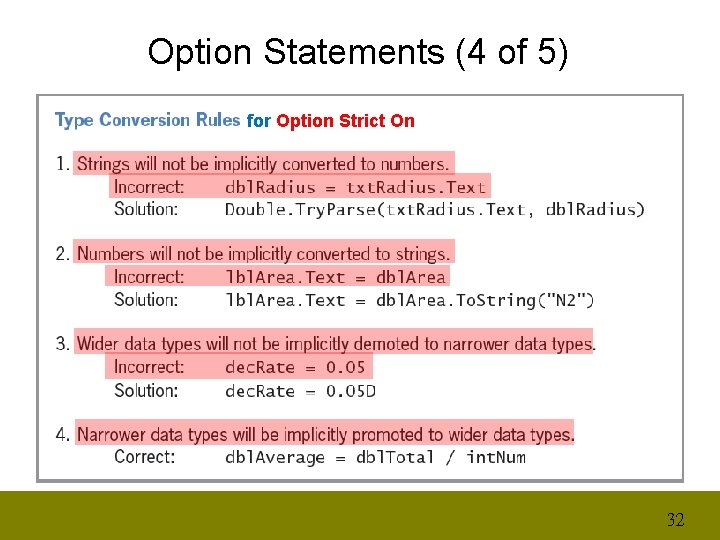
Option Statements (4 of 5) for Option Strict On 32
Option Statements (5 of 5) To enter the Option Explicit and Option Infer statements in the Circle Area application: • Click the blank line immediately above the Public Class clause and then press Enter. • Enter the following two Option statements: Option Explicit On Option Infer Off To enter the Option Strict statement : • Insert a blank line below the Option Explicit On statement. • Type Option Strict On, but don’t press Enter. 33
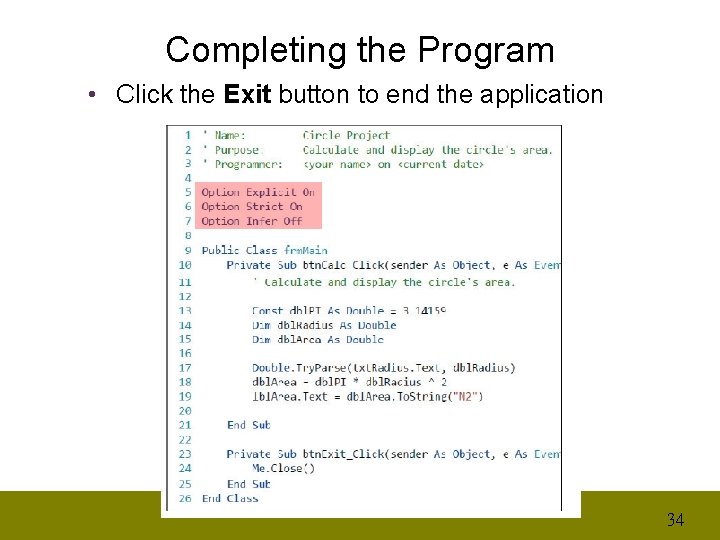
Completing the Program • Click the Exit button to end the application 34
APPLY THE CONCEPTS LESSON After studying this lesson, you should be able to: l Use a class-level variable l Use a static variable l Use a class-level named constant l Professionalize your application’s interface 35
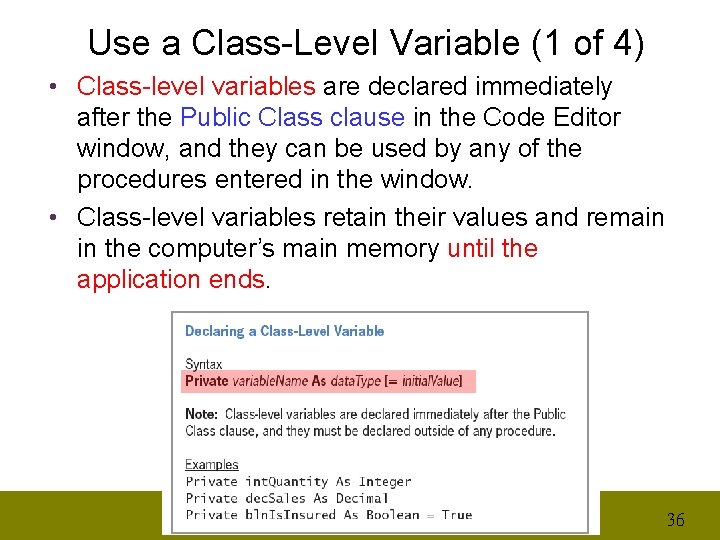
Use a Class-Level Variable (1 of 4) • Class-level variables are declared immediately after the Public Class clause in the Code Editor window, and they can be used by any of the procedures entered in the window. • Class-level variables retain their values and remain in the computer’s main memory until the application ends. 36
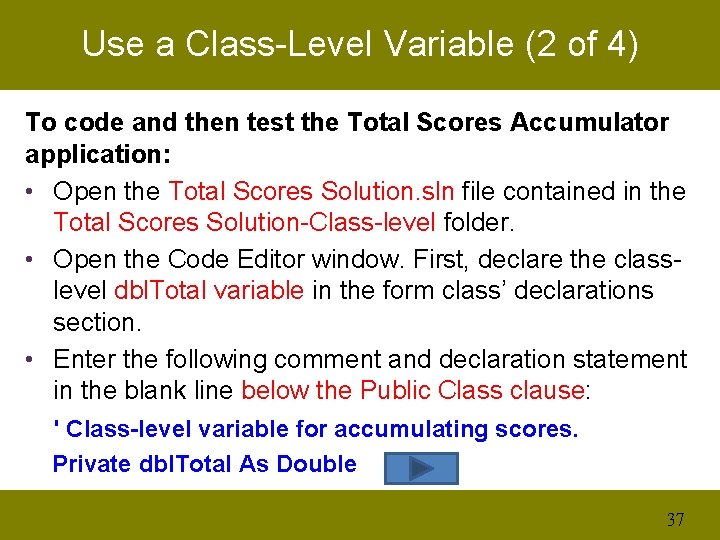
Use a Class-Level Variable (2 of 4) To code and then test the Total Scores Accumulator application: • Open the Total Scores Solution. sln file contained in the Total Scores Solution-Class-level folder. • Open the Code Editor window. First, declare the classlevel dbl. Total variable in the form class’ declarations section. • Enter the following comment and declaration statement in the blank line below the Public Class clause: ' Class-level variable for accumulating scores. Private dbl. Total As Double 37
Use a Class-Level Variable (3 of 4) • • Locate the code template for the btn. Add_Click procedure. Save the solution and then start the application. – Type 89 in the Score box, and then click the Add to total button. § The number 89 appears in the Total scores box. – Change the score to 75, and then click the Add to total button. § The number 164 appears in the Total scores box. – Change the score to 100, and then click the Add to total button. § The number 164 appears in the Total scores box. • Click the Exit button. 38
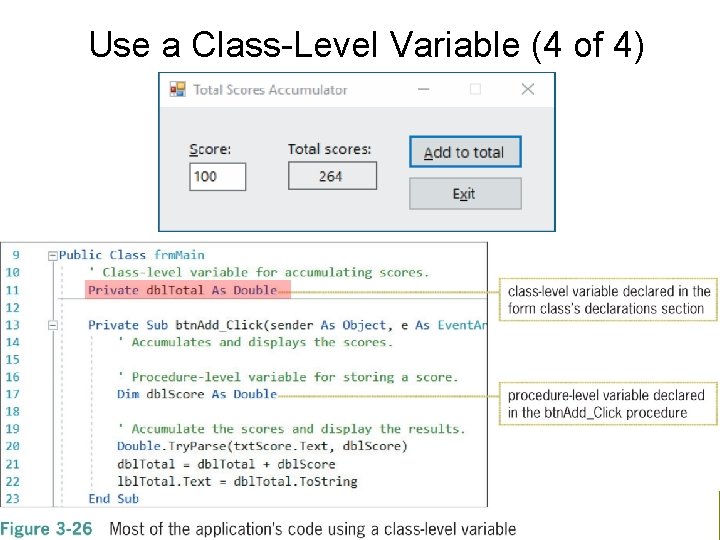
Use a Class-Level Variable (4 of 4) 39
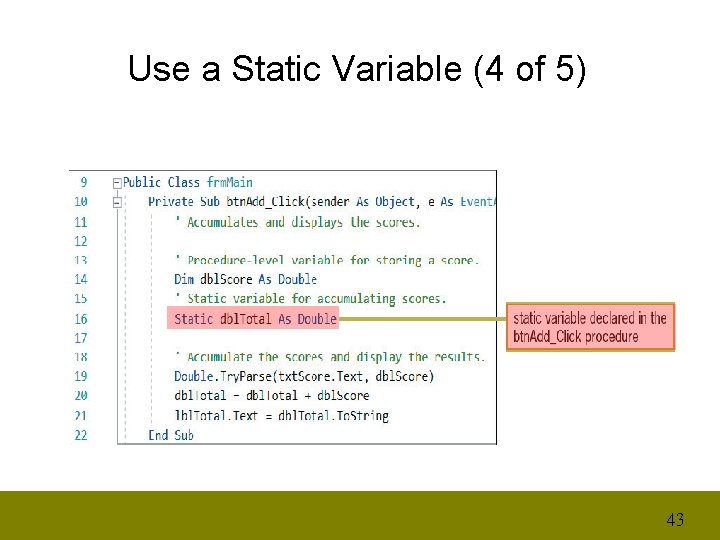
Use a Static Variable (1 of 5) • Static variable – A procedure-level variable with an extended lifetime § § remains in memory, retains its value even when the procedure ends. – Static keyword § used to declare a static variable. – Static variables act like class-level variables to accumulate the scores. – Static Keyword can be used only in a procedure. 40
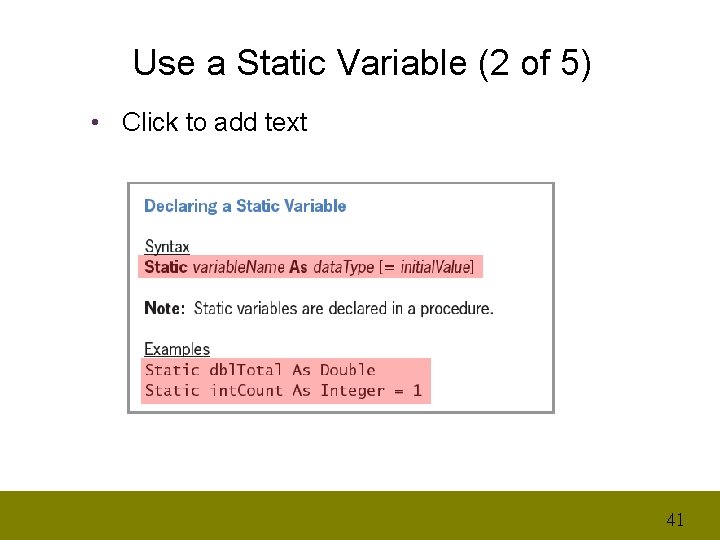
Use a Static Variable (2 of 5) • Click to add text 41
Use a Static Variable (3 of 5) To use a static variable in the Total Scores Accumulator application: • Open the Total Scores Solution. sln file contained in the Total Scores Solution-Static folder. – Open the Code Editor window. Delete the comment and the Private declaration statement (Class-level variable) entered in the form class’ declarations section. – Locate the btn. Add_Click procedure and then click the blank line below the Dim statement. Enter the following comment and declaration statement: ' Static variable for accumulating scores. Static dbl. Total As Double 42
Use a Static Variable (4 of 5) 43
Use a Static Variable (5 of 5) • Save the solution and then start the application. • Use the application to total the following three scores: 89, 75, and 100. – Be sure to click the Add to total button after typing each score. – Also be sure to delete the previous score before entering the next score. • Click the Exit button. 44
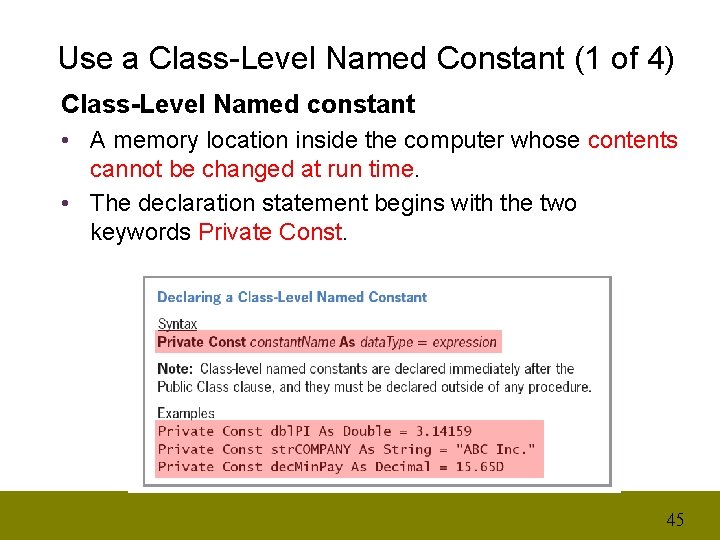
Use a Class-Level Named Constant (1 of 4) Class-Level Named constant • A memory location inside the computer whose contents cannot be changed at run time. • The declaration statement begins with the two keywords Private Const. 45
Use a Class-Level Named Constant (2 of 4) To use a class-level named constant in the Circle Area application: • Open the Circle Solution. sln file contained in the Circle Solution-Class-level folder. • Open the Code Editor window and locate the btn. Calc_Click procedure. – Highlight (select) the entire Const statement in the btn. Calc_Click procedure and then press Ctrl+x to cut the statement from the procedure. – Click the blank line below the ' Class-level named constant. comment and then press Ctrl+v to paste the 46
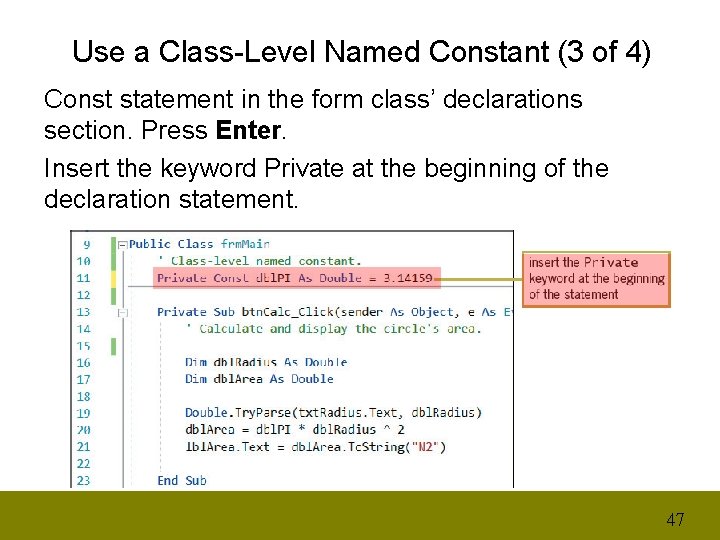
Use a Class-Level Named Constant (3 of 4) Const statement in the form class’ declarations section. Press Enter. Insert the keyword Private at the beginning of the declaration statement. 47
Use a Class-Level Named Constant (4 of 4) • • Save the solution and then start the application. Type 15 in the Radius box, and then click the Calculate button to display the circle’s area, which is 706. 86. Click the Exit button to end the application. Close the Code Editor window and then close the solution. 48
Professionalize Your Application’s Interface (1 of 7) To open the Circle Area application: • Open the Circle Solution. sln file contained in the Circle Solution-Text. Changed and Enter folder. • Start the application. – Type 2 in the Radius box and then click the Calculate button. § The Area box shows 12. 57. – Now change the radius to 25. § Notice that the Area box still shows 12. 57. The area will not be recalculated until you click the Calculate button again. • Click the Exit button. 49
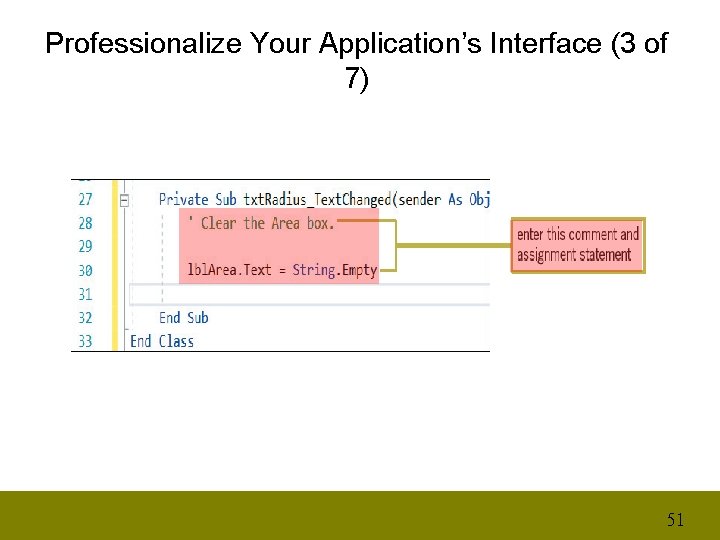
Professionalize Your Application’s Interface (2 of 7) Coding the Text. Changed Event Procedure • Text. Changed Event occurs each time when the value in the Text property of a Text Box changes. • Coding the txt. Radius_Text. Changed procedure so that it clears the contents of the Area box when the event occurs. • To code the txt. Radius_Text. Changed event procedure: – Open the Code Editor window, and then open the code template for the txt. Radius_ Text. Changed event procedure. – Enter the comment and assignment statement. 50
Professionalize Your Application’s Interface (3 of 7) 51
Professionalize Your Application’s Interface (4 of 7) • • Save the solution and then start the application. Type 2 in the Radius box and then click the Calculate button. – The Area box shows 12. 57. • • Change the radius to 25. The txt. Radius_Text. Changed procedure clears the contents of the Area box. Click the Calculate button again. – The Area box shows 1, 963. 49. • • Now press the Tab key twice to send the focus to the Radius box. Click the Exit button. 52
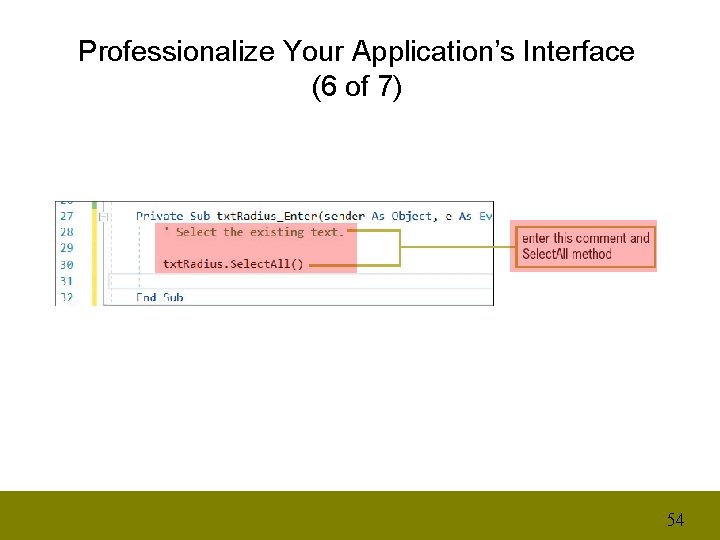
Professionalize Your Application’s Interface (5 of 7) Coding the Enter Event Procedure A text box’s Enter event occurs when the text box receives the focus, Coding the txt. Radius_Enter procedure so that it selects (highlights) the contents of the text box when the event occurs. To code the txt. Radius_Enter event procedure: • Open the Code template for the txt. Radius_ Text. Changed event procedure. • Enter the comment and Select. All method. 53
Professionalize Your Application’s Interface (6 of 7) 54
Professionalize Your Application’s Interface (7 of 7) • • • Save the solution and then start the application. Type 15 in the Radius box and then press the Tab key three times. Click the Exit button. 55
Summary (1 of 7) • Variables are memory locations used by programmers to store data during run time. The value stored in a variable can change while the application is running. • User-provided items included in a calculation should be stored in variables. The results of calculations made by the application should also be stored in variables. • In most procedures, the Dim statement is used to declare a variable. • The value stored in a control’s Text property is always treated as a string. • You can use the Try. Parse method to convert a string to a number. 56
Summary (2 of 7) • • • The arithmetic operators have an order of precedence. You can use parentheses to override the normal order of precedence. The integer division () operator divides two integers and then returns the result as an integer. The modulus (Mod) operator divides two numbers and then returns the remainder of the division. When an expression contains more than one operator with the same precedence number, those operators are evaluated from left to right. Arithmetic expressions should not contain dollar signs, commas, or percent signs. 57
Summary (3 of 7) • • • The data type of the expression assigned to a variable should match the variable’s data type. You can use the literal type character D to convert a Double number to the Decimal data type. You can use the To. String method to convert a numeric value to a string. – The method also allows you to specify the number of decimal places and the special characters to include in the string. • To ensure that all of your variables have been declared, enter the Option Explicit On statement above the Public Class clause in the Code Editor window. 58
Summary (4 of 7) • To prevent the computer from inferring a variable’s data type, enter the Option Infer Off statement above the Public Class clause in the Code Editor window. • To prevent the computer from making implicit type conversions that may result in a loss of data, enter the Option Strict On statement above the Public Class clause in the Code Editor window. 59
Summary (5 of 7) • You use the Const statement to declare a named constant. • A memory location’s scope indicates where the variable or named constant can be used in an application’s code. • A memory location’s lifetime indicates how long the variable or named constant remains in the computer’s main memory. • Variables and named constants declared in a procedure have procedure scope and can be used only after their declaration statement in the procedure. 60
Summary (6 of 7) • You should use the Private keyword to declare classlevel memory locations (variables and named constants). • You can use the Static keyword to declare a procedurelevel variable that retains its value even after the declaring procedure ends. 61
Summary (7 of 7) • Variables and named constants declared in a form class’ declarations section have class scope and can be used by all of the procedures in the class. • A control’s Text. Changed event occurs each time the value in its Text property changes. • A control’s Enter event occurs when the control receives the focus. • You can use the Select. All method to select the text contained in a text box. 62
- Slides: 63