
Programming with Microsoft Visual Basic 2015 Chapter 2
Programming with Microsoft Visual Basic 2015 Chapter 2: Designing Applications © 2016 Cengage Learning®. May not be scanned, copied or duplicated, or posted to a publicly accessible website, in whole or in part.
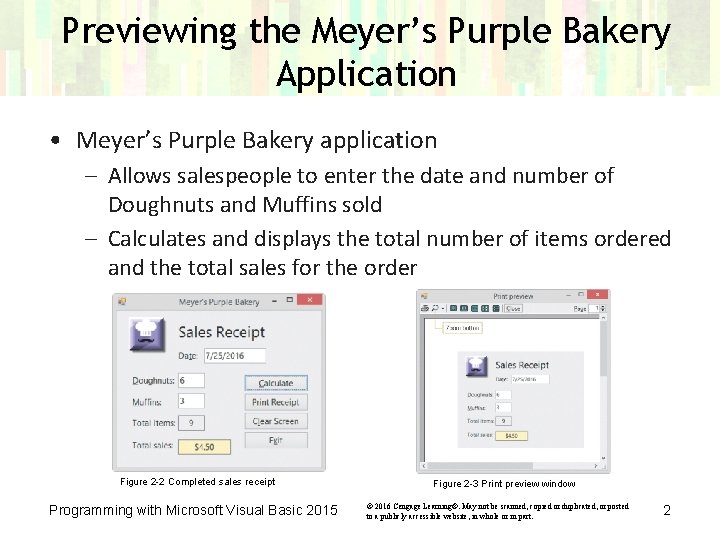
Previewing the Meyer’s Purple Bakery Application • Meyer’s Purple Bakery application – Allows salespeople to enter the date and number of Doughnuts and Muffins sold – Calculates and displays the total number of items ordered and the total sales for the order Figure 2 -2 Completed sales receipt Programming with Microsoft Visual Basic 2015 Figure 2 -3 Print preview window © 2016 Cengage Learning®. May not be scanned, copied or duplicated, or posted to a publicly accessible website, in whole or in part. 2
Lesson A Objectives After studying Lesson A, you should be able to: • Plan an object-oriented Windows application in Visual Basic 2015 • Complete a TOE (Task, Object, Event) chart • Follow the Windows standards regarding the layout and labeling of controls Programming with Microsoft Visual Basic 2015 © 2016 Cengage Learning®. May not be scanned, copied or duplicated, or posted to a publicly accessible website, in whole or in part. 3
Creating an Object-Oriented Application �Developing an application is like building a home �The role of the programmer is analogous to that of a builder �Bugs are problems that affect application functions Programming with Microsoft Visual Basic 2015 © 2016 Cengage Learning®. May not be scanned, copied or duplicated, or posted to a publicly accessible website, in whole or in part. 4
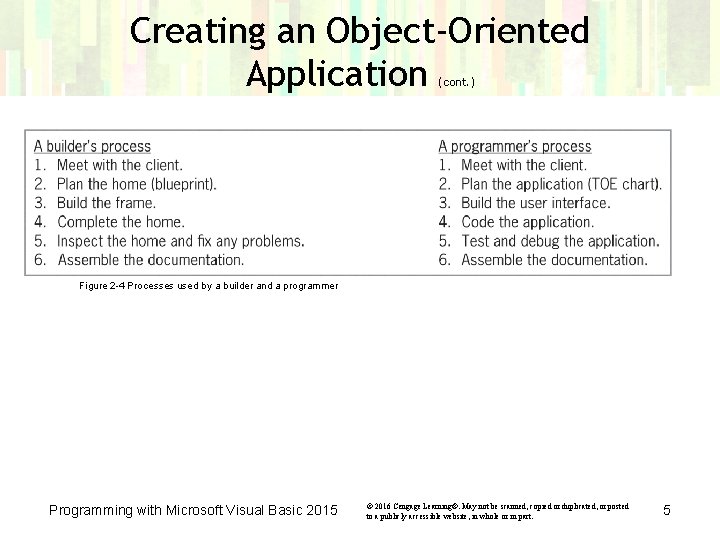
Creating an Object-Oriented Application (cont. ) Figure 2 -4 Processes used by a builder and a programmer Programming with Microsoft Visual Basic 2015 © 2016 Cengage Learning®. May not be scanned, copied or duplicated, or posted to a publicly accessible website, in whole or in part. 5
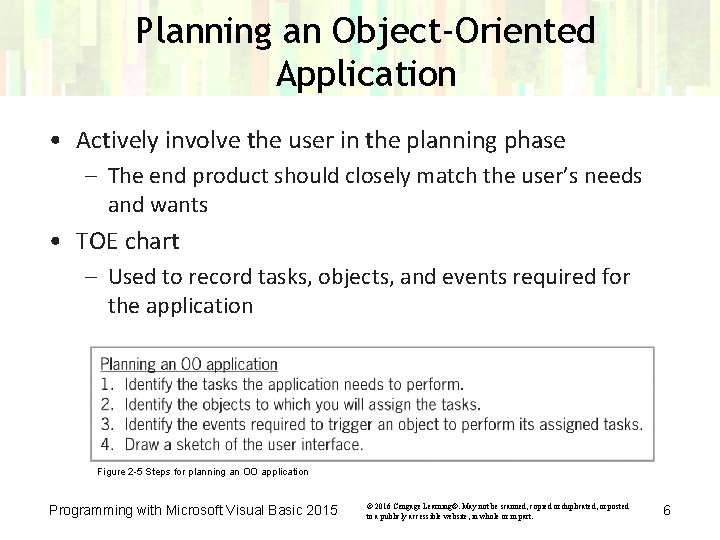
Planning an Object-Oriented Application • Actively involve the user in the planning phase – The end product should closely match the user’s needs and wants • TOE chart – Used to record tasks, objects, and events required for the application Figure 2 -5 Steps for planning an OO application Programming with Microsoft Visual Basic 2015 © 2016 Cengage Learning®. May not be scanned, copied or duplicated, or posted to a publicly accessible website, in whole or in part. 6
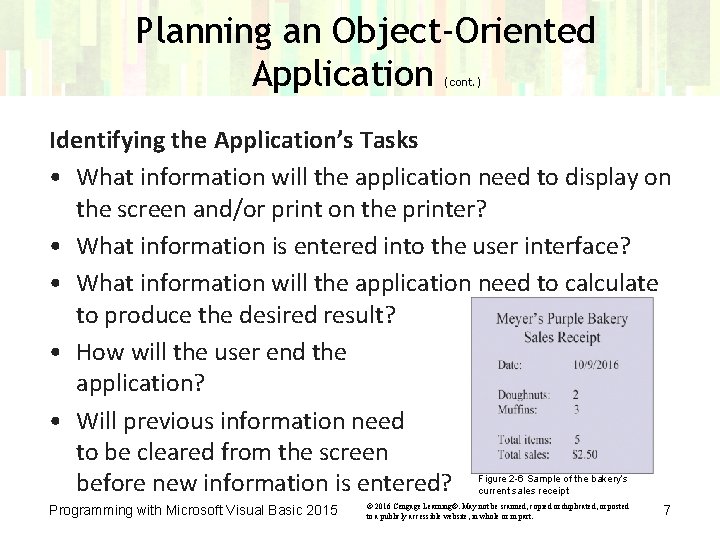
Planning an Object-Oriented Application (cont. ) Identifying the Application’s Tasks • What information will the application need to display on the screen and/or print on the printer? • What information is entered into the user interface? • What information will the application need to calculate to produce the desired result? • How will the user end the application? • Will previous information need to be cleared from the screen before new information is entered? Figure 2 -6 Sample of the bakery’s current sales receipt Programming with Microsoft Visual Basic 2015 © 2016 Cengage Learning®. May not be scanned, copied or duplicated, or posted to a publicly accessible website, in whole or in part. 7
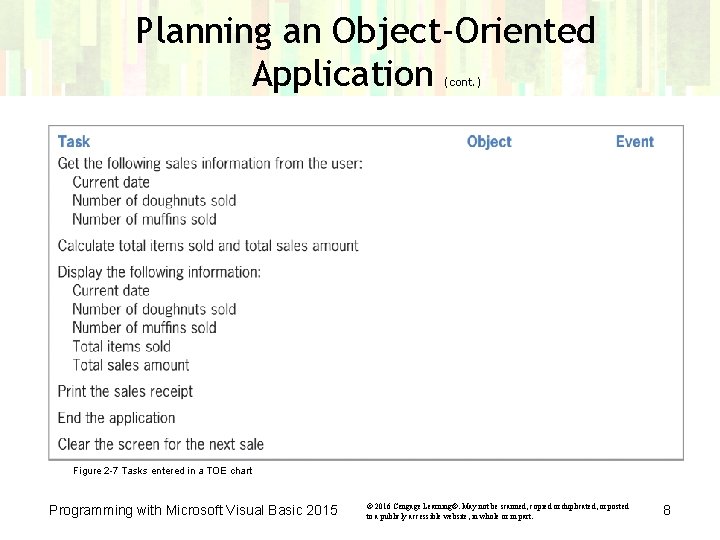
Planning an Object-Oriented Application (cont. ) Figure 2 -7 Tasks entered in a TOE chart Programming with Microsoft Visual Basic 2015 © 2016 Cengage Learning®. May not be scanned, copied or duplicated, or posted to a publicly accessible website, in whole or in part. 8
Planning an Object-Oriented Application (cont. ) Identifying the Objects • Assign each task to an object in the user interface • Objects used here: – Label control • Displays information that the user should not change – Button control • Performs an action immediately after a Click event – Text box • Provides an area for the user to enter data Programming with Microsoft Visual Basic 2015 © 2016 Cengage Learning®. May not be scanned, copied or duplicated, or posted to a publicly accessible website, in whole or in part. 9
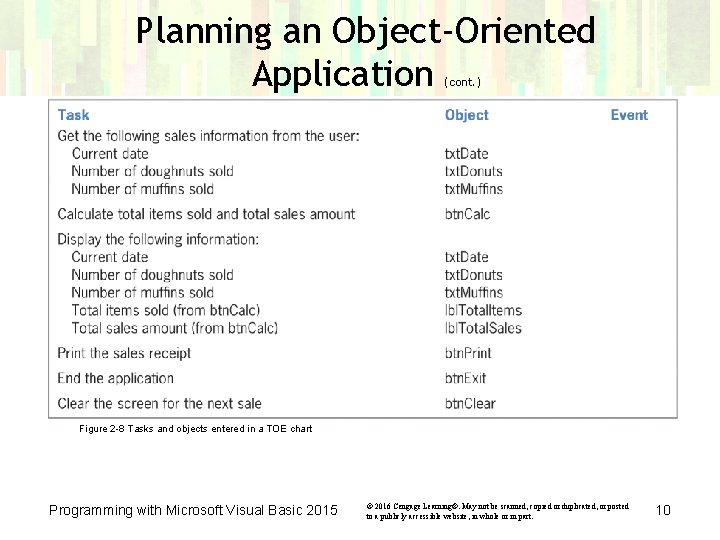
Planning an Object-Oriented Application (cont. ) Figure 2 -8 Tasks and objects entered in a TOE chart Programming with Microsoft Visual Basic 2015 © 2016 Cengage Learning®. May not be scanned, copied or duplicated, or posted to a publicly accessible website, in whole or in part. 10
Planning an Object-Oriented Application (cont. ) Identifying the Events • Determine which event (if any) must occur for an object to carry out its assigned task • Text boxes and label controls – No special event is needed • btn. Calc, btn. Clear, and btn. Exit buttons – Perform assigned tasks when clicked Programming with Microsoft Visual Basic 2015 © 2016 Cengage Learning®. May not be scanned, copied or duplicated, or posted to a publicly accessible website, in whole or in part. 11
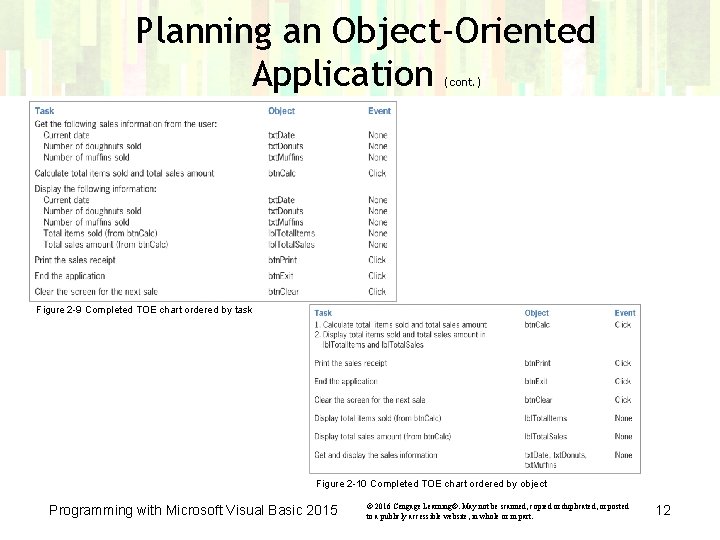
Planning an Object-Oriented Application (cont. ) Figure 2 -9 Completed TOE chart ordered by task Figure 2 -10 Completed TOE chart ordered by object Programming with Microsoft Visual Basic 2015 © 2016 Cengage Learning®. May not be scanned, copied or duplicated, or posted to a publicly accessible website, in whole or in part. 12
Planning an Object-Oriented Application (cont. ) Drawing a Sketch of the User Interface • Follow Windows standards for designing the interface • In Western countries, information flows either vertically or horizontally – Vertical arrangement: • Information flows from top to bottom, with essential information located in the first column – Horizontal arrangement: • Information flows from left to right, with essential information placed in the first row Programming with Microsoft Visual Basic 2015 © 2016 Cengage Learning®. May not be scanned, copied or duplicated, or posted to a publicly accessible website, in whole or in part. 13
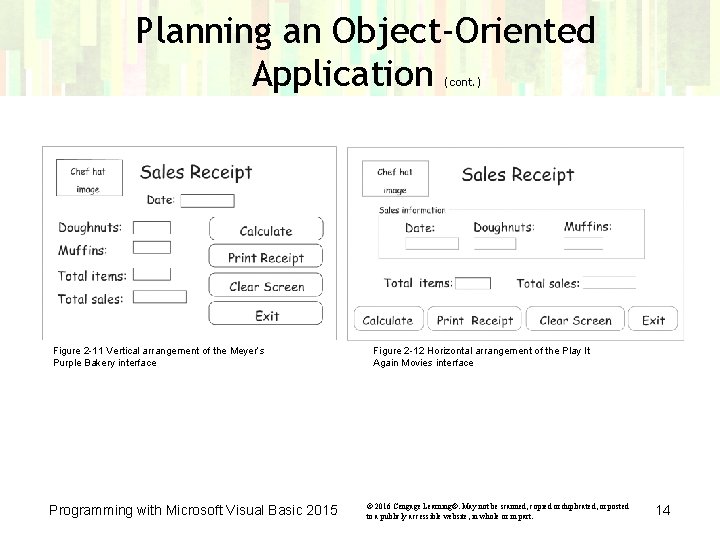
Planning an Object-Oriented Application (cont. ) Figure 2 -11 Vertical arrangement of the Meyer’s Purple Bakery interface Programming with Microsoft Visual Basic 2015 Figure 2 -12 Horizontal arrangement of the Play It Again Movies interface © 2016 Cengage Learning®. May not be scanned, copied or duplicated, or posted to a publicly accessible website, in whole or in part. 14
Planning an Object-Oriented Application (cont. ) • White space or containers may be used to group related controls • Containers – Objects used to group related controls – Examples: Group. Box, Panel, Table. Layout. Panel • Label controls that display output should have meaningful names – Example: “Total Sales” identifies the lbl. Total. Sales label • Identifying labels should end with a colon (: ) – Example: “Total Sales: ” Programming with Microsoft Visual Basic 2015 © 2016 Cengage Learning®. May not be scanned, copied or duplicated, or posted to a publicly accessible website, in whole or in part. 15
Planning an Object-Oriented Application (cont. ) • Sentence capitalization – Only the first letter in the first word is capitalized – Use for identifying labels • Book title capitalization – Capitalize the first letter of each word except articles, conjunctions, and prepositions – Use for button text • Buttons should be aligned – Also same height and width • Group related controls close to each other Programming with Microsoft Visual Basic 2015 © 2016 Cengage Learning®. May not be scanned, copied or duplicated, or posted to a publicly accessible website, in whole or in part. 16
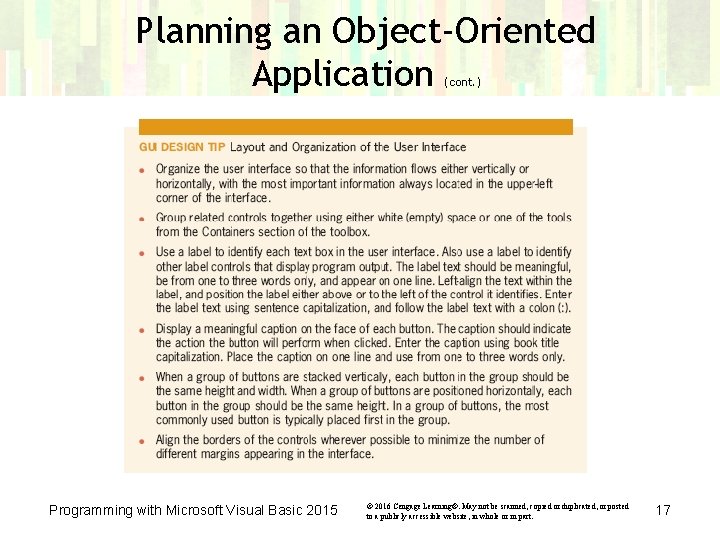
Planning an Object-Oriented Application (cont. ) Programming with Microsoft Visual Basic 2015 © 2016 Cengage Learning®. May not be scanned, copied or duplicated, or posted to a publicly accessible website, in whole or in part. 17
Lesson A Summary • Steps to create an OO application: – Meet with the client – Plan the application • Identify needed tasks, objects, and events • Identify information needed as input to produce the desired result – – Build the user interface Code the application Test and debug the application Assemble the documentation Programming with Microsoft Visual Basic 2015 © 2016 Cengage Learning®. May not be scanned, copied or duplicated, or posted to a publicly accessible website, in whole or in part. 18
Lesson B Objectives After studying Lesson B, you should be able to: • Build the user interface using your TOE chart and sketch • Follow the Windows standards regarding the use of graphics, fonts, and color • Set a control’s Border. Style, Auto. Size, and Text. Align properties • Add a text box to a form • Lock the controls on the form • Assign access keys to controls • Set the Tab. Index property Programming with Microsoft Visual Basic 2015 © 2016 Cengage Learning®. May not be scanned, copied or duplicated, or posted to a publicly accessible website, in whole or in part. 19
Building the User Interface • Use the TOE chart and sketch as guides when building the user interface – Place appropriate controls on forms – Set applicable properties of controls • Features of the UI used in this lesson’s application: – Information is arranged vertically – Controls are aligned and appropriately labeled • Try to create an interface that no one notices Programming with Microsoft Visual Basic 2015 © 2016 Cengage Learning®. May not be scanned, copied or duplicated, or posted to a publicly accessible website, in whole or in part. 20
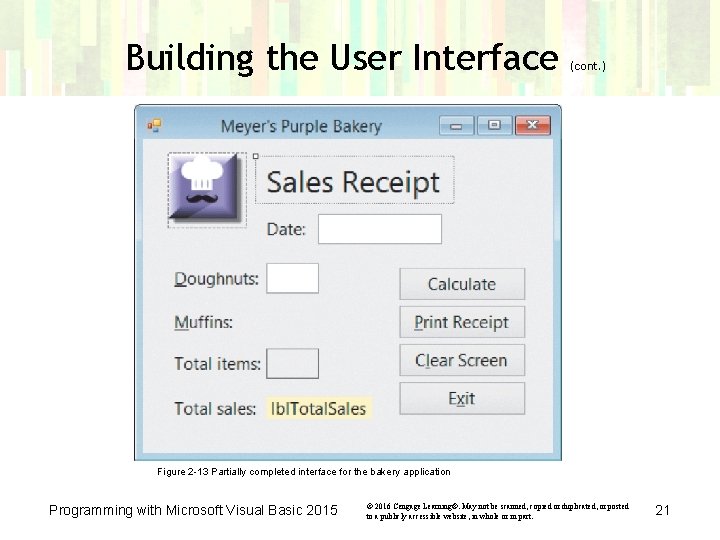
Building the User Interface (cont. ) Figure 2 -13 Partially completed interface for the bakery application Programming with Microsoft Visual Basic 2015 © 2016 Cengage Learning®. May not be scanned, copied or duplicated, or posted to a publicly accessible website, in whole or in part. 21
Building the User Interface (cont. ) Including Graphics in the User Interface • Graphics – Icons or pictures added to an interface – Used to emphasize or clarify a portion of the screen, or for aesthetic purposes • The human eye is attracted to pictures before text – Include graphics sparingly – Graphics for aesthetic use should be small and positioned to avoid distracting the user Programming with Microsoft Visual Basic 2015 © 2016 Cengage Learning®. May not be scanned, copied or duplicated, or posted to a publicly accessible website, in whole or in part. 22
Building the User Interface (cont. ) Selecting Fonts for the Interface • GUI DESIGN TIP: Selecting Font Types, Styles, and Sizes – Use only one font type—typically Segoe UI (pronounced “see-go”)—for all of the text in the interface – Use no more than two different font sizes in the interface – Avoid using italics and underlining because both font styles make text difficult to read – Limit the use of bold text to titles, headings, and key items that you want to emphasize Programming with Microsoft Visual Basic 2015 © 2016 Cengage Learning®. May not be scanned, copied or duplicated, or posted to a publicly accessible website, in whole or in part. 23
Building the User Interface (cont. ) Adding Color to the Interface • Build the interface using black, white, and gray; only add color if you have a good reason to do so • Use white, off-white, or light gray for the background; use black for the text • Never use a dark color for the background or a light color for the text; a dark background is hard on the eyes, and lightcolored text can appear blurry • Limit the number of colors in an interface to three, not including white, black, and gray; the colors you choose should complement each other • Never use color as the only means of identifying an element in the interface Programming with Microsoft Visual Basic 2015 © 2016 Cengage Learning®. May not be scanned, copied or duplicated, or posted to a publicly accessible website, in whole or in part. 24
Building the User Interface (cont. ) The Border. Style, Auto. Size, and Text. Align Properties • The Border. Style property can be set to None, Fixed. Single, or Fixed 3 D – None is used for labels – Fixed. Single surrounds the control with a thin line • Used for labels that display program output – Fixed 3 D gives the control a three-dimensional appearance • Used for text boxes • The Auto. Size property determines if a control automatically sizes to fit its current contents – Typically set to false for label controls that display program output • The Text. Align property can be set to nine different values Programming with Microsoft Visual Basic 2015 © 2016 Cengage Learning®. May not be scanned, copied or duplicated, or posted to a publicly accessible website, in whole or in part. 25
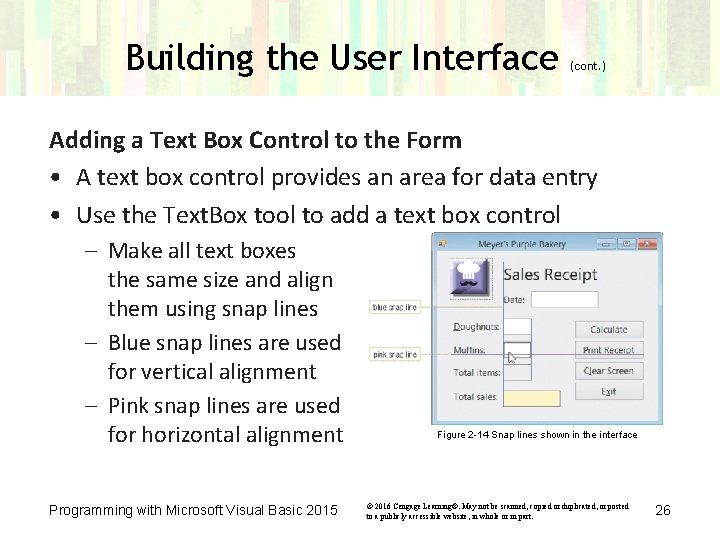
Building the User Interface (cont. ) Adding a Text Box Control to the Form • A text box control provides an area for data entry • Use the Text. Box tool to add a text box control – Make all text boxes the same size and align them using snap lines – Blue snap lines are used for vertical alignment – Pink snap lines are used for horizontal alignment Programming with Microsoft Visual Basic 2015 Figure 2 -14 Snap lines shown in the interface © 2016 Cengage Learning®. May not be scanned, copied or duplicated, or posted to a publicly accessible website, in whole or in part. 26
Locking the Controls on a Form • Lock controls after they are properly placed to avoid inadvertently moving them • A locked control is identified by a small lock • To lock controls: – Right-click the form (or any control on the form) – Click Lock Controls on the FORMAT menu • Follow the same procedure to unlock controls Programming with Microsoft Visual Basic 2015 © 2016 Cengage Learning®. May not be scanned, copied or duplicated, or posted to a publicly accessible website, in whole or in part. 27
Assigning Access Keys • Access key – Enables an object to be selected using the keyboard – Key combination: Alt key + letter or number • Each access key must be unique • Shown in the interface as an underlined letter • To assign an access key, include an ampersand (&) in the control’s caption – Example: “&Calculate” assigns ‘C’ to the button Programming with Microsoft Visual Basic 2015 © 2016 Cengage Learning®. May not be scanned, copied or duplicated, or posted to a publicly accessible website, in whole or in part. 28
Assigning Access Keys (cont. ) • Reasons to assign access keys: – Allow the user to work even if the mouse does not – Allow fast typists to keep their hands on the keyboard – Allow people with disabilities that prevent them from using a mouse to be able to use an application • Follow Windows standards for assigning commonly used access keys Programming with Microsoft Visual Basic 2015 © 2016 Cengage Learning®. May not be scanned, copied or duplicated, or posted to a publicly accessible website, in whole or in part. 29
Controlling the Tab Order • Focus – The state in which a control is ready to accept user input or action – Pressing the Tab key or access key shifts the focus • Tab. Index property – A number representing the order in which a control will receive the focus when the user presses the Tab key – A control with a Tab. Index of 0 receives the focus first • Set Tab. Index using the Properties window or the Tab Order option on the VIEW menu – Make a list of objects to determine the proper order Programming with Microsoft Visual Basic 2015 © 2016 Cengage Learning®. May not be scanned, copied or duplicated, or posted to a publicly accessible website, in whole or in part. 30
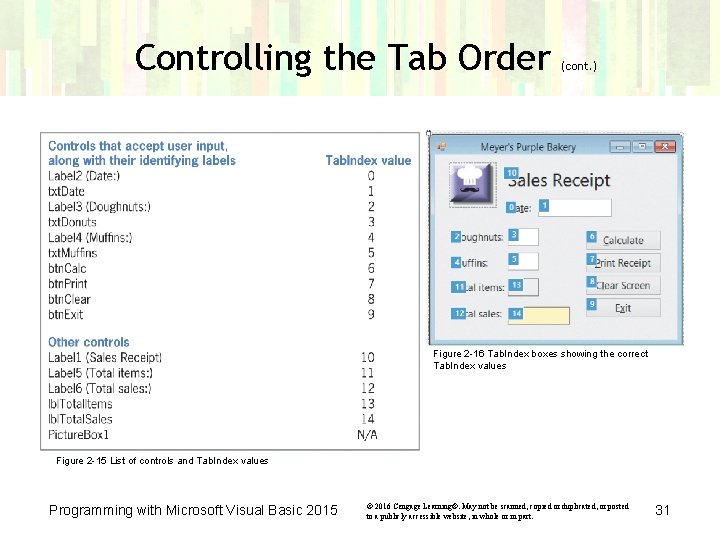
Controlling the Tab Order (cont. ) Figure 2 -16 Tab. Index boxes showing the correct Tab. Index values Figure 2 -15 List of controls and Tab. Index values Programming with Microsoft Visual Basic 2015 © 2016 Cengage Learning®. May not be scanned, copied or duplicated, or posted to a publicly accessible website, in whole or in part. 31
Lesson B Summary • Use appropriate graphics, fonts, and colors in an interface • Set the Border. Style, Auto. Size, and Text. Align properties • To lock/unlock controls on a form, use the Lock Controls option on the FORMAT menu • To assign an access key to a control, type an ampersand (&) in the Text property of the control or identifying label • To set the tab order, set the Tab. Index property to a number that represents the order in which you want the control to receive the focus Programming with Microsoft Visual Basic 2015 © 2016 Cengage Learning®. May not be scanned, copied or duplicated, or posted to a publicly accessible website, in whole or in part. 32
Lesson C Objectives After studying Lesson C, you should be able to: • • • Code an application using its TOE chart Plan an object’s code using either pseudocode or a flowchart Write an assignment statement Send the focus to a control during run time Include internal documentation in the code Print an interface from code Show and hide a control during run time Write arithmetic expressions Use the Val and Format functions Locate and correct syntax errors Programming with Microsoft Visual Basic 2015 © 2016 Cengage Learning®. May not be scanned, copied or duplicated, or posted to a publicly accessible website, in whole or in part. 33
Coding the Application • Code – Instructions added to an application • Coding is done after planning and building the interface • TOE charts show which objects and events need to be coded • Meyer’s Purple Bakery application code requirements: – Four buttons associated with Click events Programming with Microsoft Visual Basic 2015 © 2016 Cengage Learning®. May not be scanned, copied or duplicated, or posted to a publicly accessible website, in whole or in part. 34
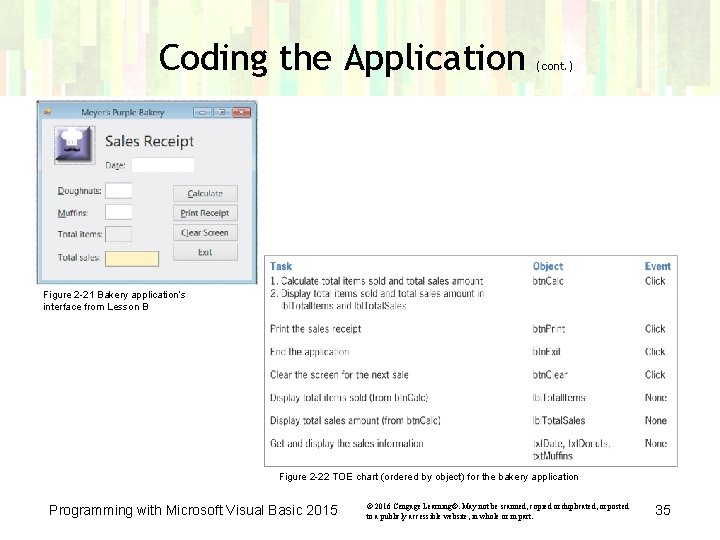
Coding the Application (cont. ) Figure 2 -21 Bakery application’s interface from Lesson B Figure 2 -22 TOE chart (ordered by object) for the bakery application Programming with Microsoft Visual Basic 2015 © 2016 Cengage Learning®. May not be scanned, copied or duplicated, or posted to a publicly accessible website, in whole or in part. 35
Coding the Application (cont. ) Using Pseudocode to Plan a Procedure • Pseudocode – Short phrases used to describe the steps a procedure must take to accomplish its goal – Travel directions are a type of pseudocode • btn. Calc Click event procedure – Calculates the total number of phones ordered and the total price – Displays the results at run time Programming with Microsoft Visual Basic 2015 © 2016 Cengage Learning®. May not be scanned, copied or duplicated, or posted to a publicly accessible website, in whole or in part. 36
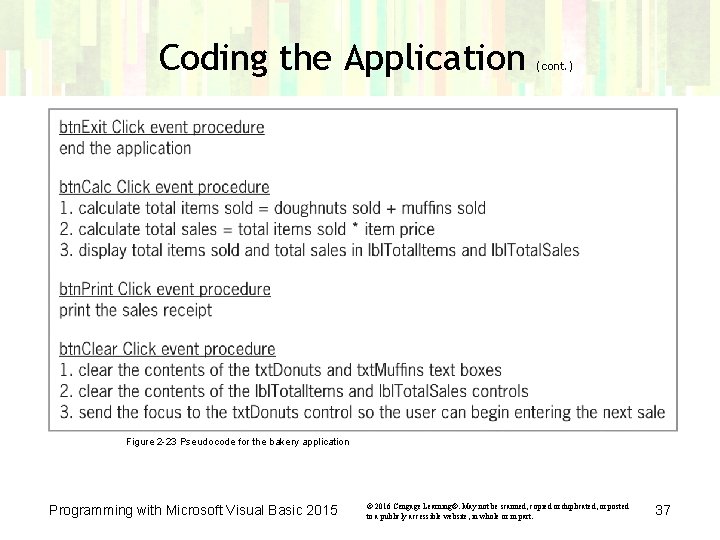
Coding the Application (cont. ) Figure 2 -23 Pseudocode for the bakery application Programming with Microsoft Visual Basic 2015 © 2016 Cengage Learning®. May not be scanned, copied or duplicated, or posted to a publicly accessible website, in whole or in part. 37
Coding the Application (cont. ) Using a Flowchart to Plan a Procedure • A flowchart shows program logic using standardized symbols – – Oval: Start/stop symbol Rectangle: Process symbol; represents a task Parallelogram: Input/output symbol Flowlines connect the symbols • Flowcharts depict the same logic as pseudocode Programming with Microsoft Visual Basic 2015 © 2016 Cengage Learning®. May not be scanned, copied or duplicated, or posted to a publicly accessible website, in whole or in part. 38
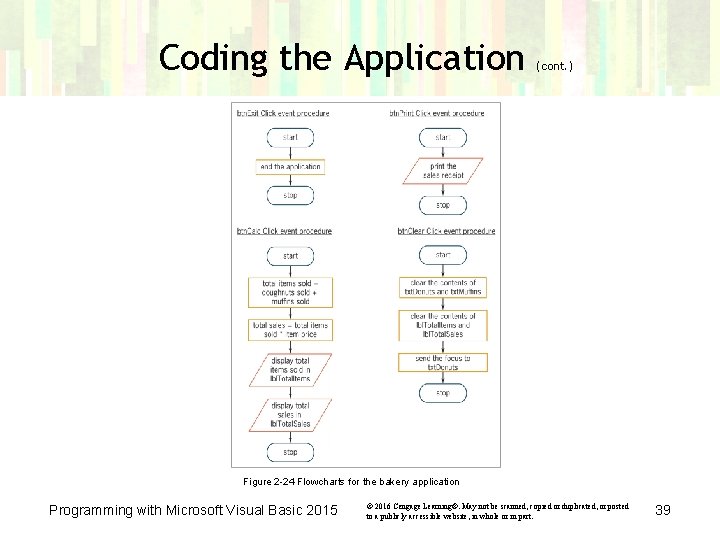
Coding the Application (cont. ) Figure 2 -24 Flowcharts for the bakery application Programming with Microsoft Visual Basic 2015 © 2016 Cengage Learning®. May not be scanned, copied or duplicated, or posted to a publicly accessible website, in whole or in part. 39
Coding the btn. Clear_Click Procedure • btn. Clear control’s task – Clear the screen for the next order • String – Zero or more characters enclosed in quotation marks ("") • Zero-length string (or empty string) – A pair of quotation marks with nothing between them ("") • Two ways to remove the control contents at run time: – Assign a zero-length string to the control’s Text property – Assign String. Empty to the control’s Text property Programming with Microsoft Visual Basic 2015 © 2016 Cengage Learning®. May not be scanned, copied or duplicated, or posted to a publicly accessible website, in whole or in part. 40
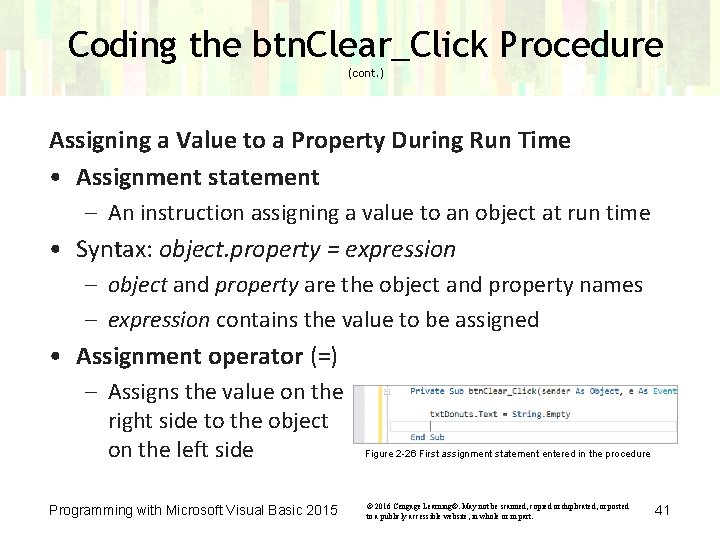
Coding the btn. Clear_Click Procedure (cont. ) Assigning a Value to a Property During Run Time • Assignment statement – An instruction assigning a value to an object at run time • Syntax: object. property = expression – object and property are the object and property names – expression contains the value to be assigned • Assignment operator (=) – Assigns the value on the right side to the object on the left side Programming with Microsoft Visual Basic 2015 Figure 2 -26 First assignment statement entered in the procedure © 2016 Cengage Learning®. May not be scanned, copied or duplicated, or posted to a publicly accessible website, in whole or in part. 41
Coding the btn. Clear_Click Procedure (cont. ) Using the Focus Method • Allows you to move the focus to a specified control during run time • Syntax: object. Focus() – object is the name of the control that receives the focus Programming with Microsoft Visual Basic 2015 © 2016 Cengage Learning®. May not be scanned, copied or duplicated, or posted to a publicly accessible website, in whole or in part. 42
Coding the btn. Clear_Click Procedure (cont. ) Internally Documenting the Program Code • Comments – Internal documentation in a program – Used by programmers to document a procedure’s purpose or explain sections of code – Help make code readable • To create a comment, place an apostrophe (’) before a statement – The computer ignores all characters after the apostrophe for the rest of the line • Comments are color-coded in the IDE Programming with Microsoft Visual Basic 2015 © 2016 Cengage Learning®. May not be scanned, copied or duplicated, or posted to a publicly accessible website, in whole or in part. 43
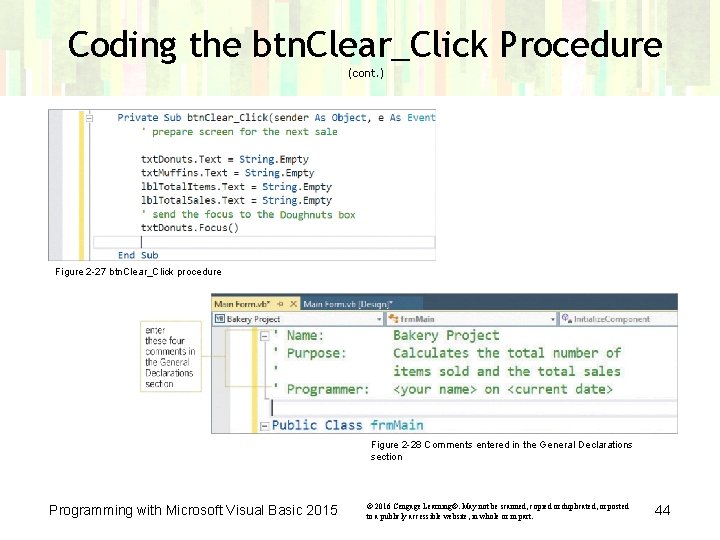
Coding the btn. Clear_Click Procedure (cont. ) Figure 2 -27 btn. Clear_Click procedure Figure 2 -28 Comments entered in the General Declarations section Programming with Microsoft Visual Basic 2015 © 2016 Cengage Learning®. May not be scanned, copied or duplicated, or posted to a publicly accessible website, in whole or in part. 44
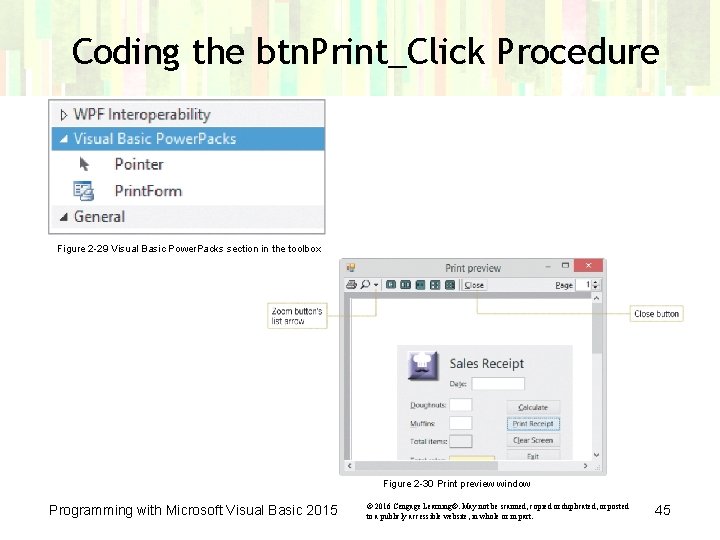
Coding the btn. Print_Click Procedure Figure 2 -29 Visual Basic Power. Packs section in the toolbox Figure 2 -30 Print preview window Programming with Microsoft Visual Basic 2015 © 2016 Cengage Learning®. May not be scanned, copied or duplicated, or posted to a publicly accessible website, in whole or in part. 45
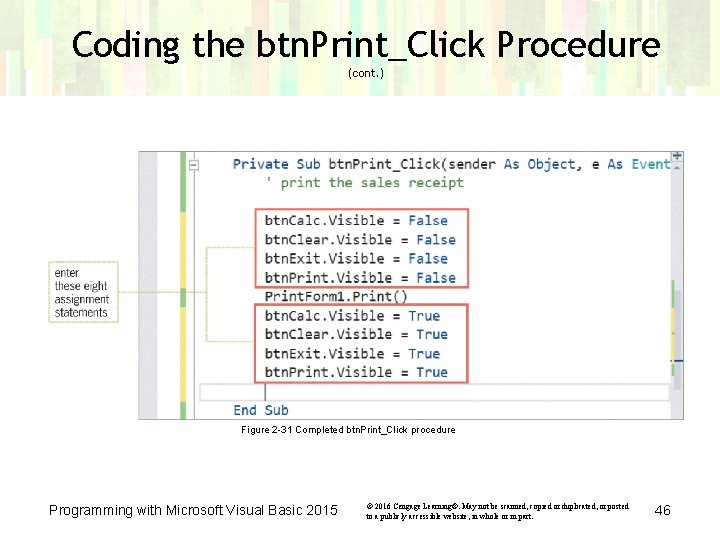
Coding the btn. Print_Click Procedure (cont. ) Figure 2 -31 Completed btn. Print_Click procedure Programming with Microsoft Visual Basic 2015 © 2016 Cengage Learning®. May not be scanned, copied or duplicated, or posted to a publicly accessible website, in whole or in part. 46
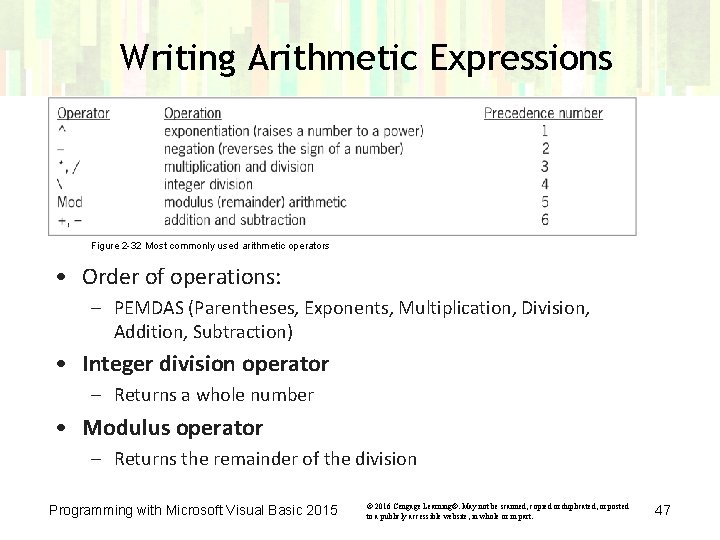
Writing Arithmetic Expressions Figure 2 -32 Most commonly used arithmetic operators • Order of operations: – PEMDAS (Parentheses, Exponents, Multiplication, Division, Addition, Subtraction) • Integer division operator – Returns a whole number • Modulus operator – Returns the remainder of the division Programming with Microsoft Visual Basic 2015 © 2016 Cengage Learning®. May not be scanned, copied or duplicated, or posted to a publicly accessible website, in whole or in part. 47
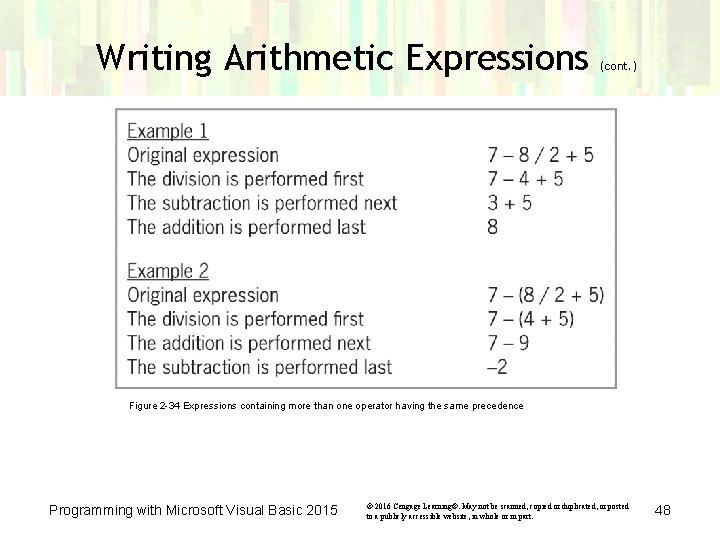
Writing Arithmetic Expressions (cont. ) Figure 2 -34 Expressions containing more than one operator having the same precedence Programming with Microsoft Visual Basic 2015 © 2016 Cengage Learning®. May not be scanned, copied or duplicated, or posted to a publicly accessible website, in whole or in part. 48
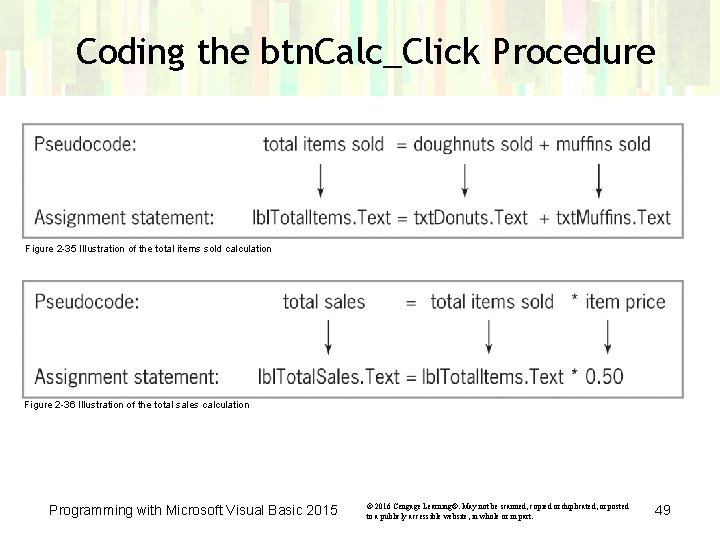
Coding the btn. Calc_Click Procedure Figure 2 -35 Illustration of the total items sold calculation Figure 2 -36 Illustration of the total sales calculation Programming with Microsoft Visual Basic 2015 © 2016 Cengage Learning®. May not be scanned, copied or duplicated, or posted to a publicly accessible website, in whole or in part. 49
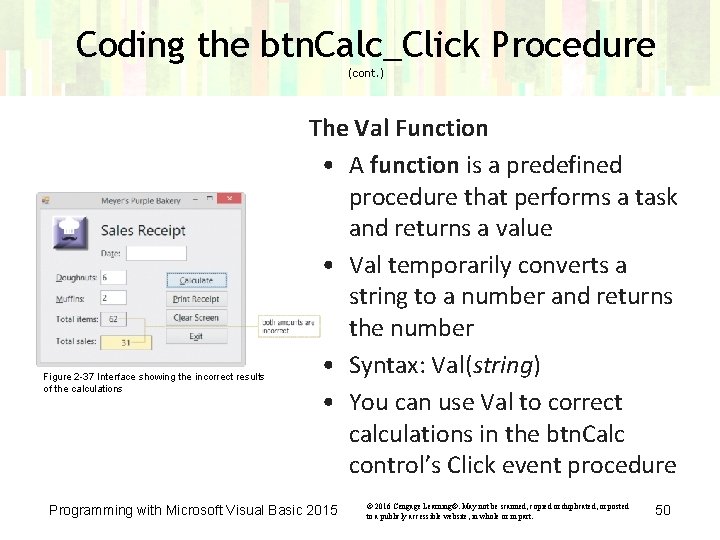
Coding the btn. Calc_Click Procedure (cont. ) Figure 2 -37 Interface showing the incorrect results of the calculations The Val Function • A function is a predefined procedure that performs a task and returns a value • Val temporarily converts a string to a number and returns the number • Syntax: Val(string) • You can use Val to correct calculations in the btn. Calc control’s Click event procedure Programming with Microsoft Visual Basic 2015 © 2016 Cengage Learning®. May not be scanned, copied or duplicated, or posted to a publicly accessible website, in whole or in part. 50
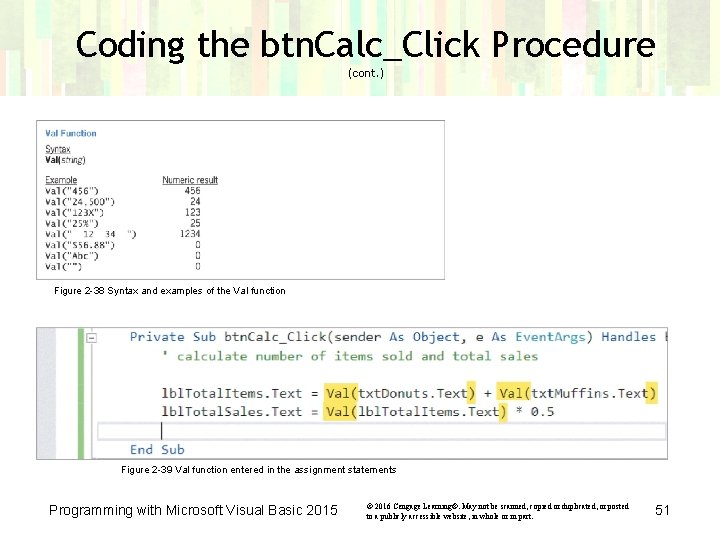
Coding the btn. Calc_Click Procedure (cont. ) Figure 2 -38 Syntax and examples of the Val function Figure 2 -39 Val function entered in the assignment statements Programming with Microsoft Visual Basic 2015 © 2016 Cengage Learning®. May not be scanned, copied or duplicated, or posted to a publicly accessible website, in whole or in part. 51
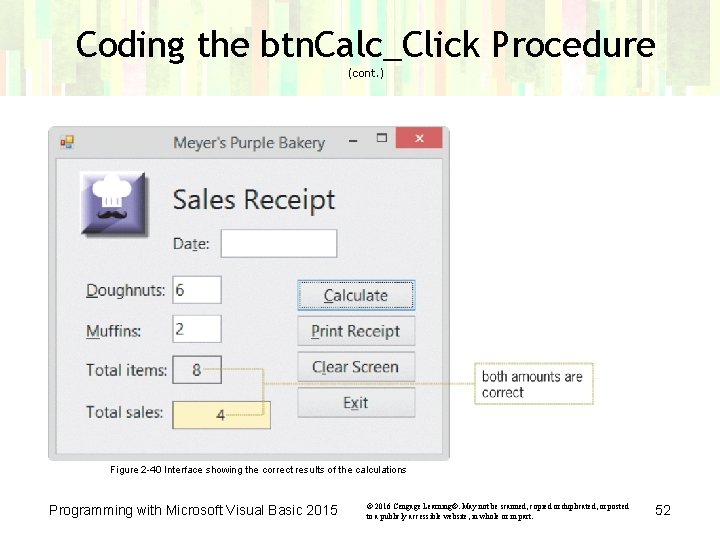
Coding the btn. Calc_Click Procedure (cont. ) Figure 2 -40 Interface showing the correct results of the calculations Programming with Microsoft Visual Basic 2015 © 2016 Cengage Learning®. May not be scanned, copied or duplicated, or posted to a publicly accessible website, in whole or in part. 52
Coding the btn. Calc_Click Procedure (cont. ) The Format Function • Improves the appearance of numbers • Syntax: Format(expression, style) – expression: Specifies the number, date, time, or string to format – style: A predefined or user-defined format style • Currency: Example of a format style that displays a number with a dollar sign and two decimal places Programming with Microsoft Visual Basic 2015 © 2016 Cengage Learning®. May not be scanned, copied or duplicated, or posted to a publicly accessible website, in whole or in part. 53
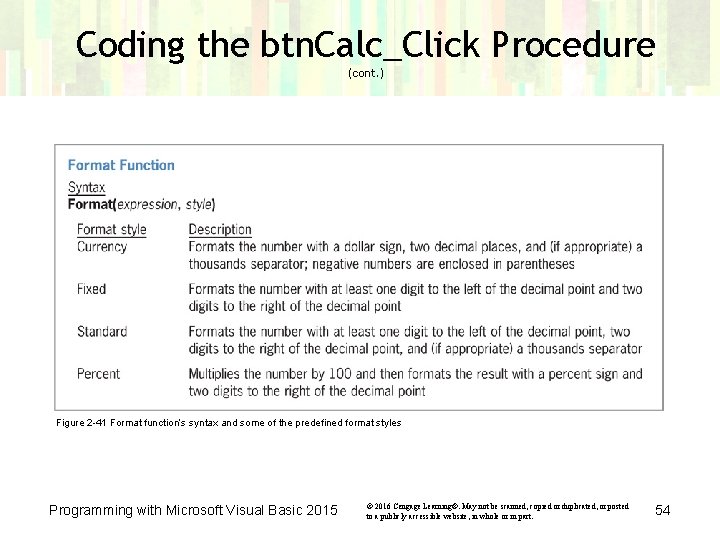
Coding the btn. Calc_Click Procedure (cont. ) Figure 2 -41 Format function’s syntax and some of the predefined format styles Programming with Microsoft Visual Basic 2015 © 2016 Cengage Learning®. May not be scanned, copied or duplicated, or posted to a publicly accessible website, in whole or in part. 54
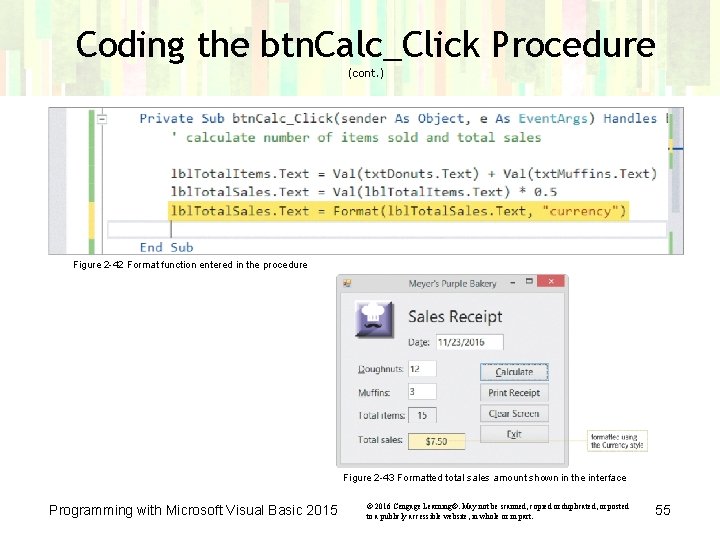
Coding the btn. Calc_Click Procedure (cont. ) Figure 2 -42 Format function entered in the procedure Figure 2 -43 Formatted total sales amount shown in the interface Programming with Microsoft Visual Basic 2015 © 2016 Cengage Learning®. May not be scanned, copied or duplicated, or posted to a publicly accessible website, in whole or in part. 55
Testing and Debugging the Application • Test an application using some sample data – Use both valid and invalid data • Valid data – Data that the application is expecting • Invalid data – Data that the application is not expecting • Debugging – The process of locating and correcting errors in a program – Errors can be related to either syntax or logic Programming with Microsoft Visual Basic 2015 © 2016 Cengage Learning®. May not be scanned, copied or duplicated, or posted to a publicly accessible website, in whole or in part. 56
Testing and Debugging the Application (cont. ) • Syntax error – Occurs when a rule of a programming language is broken – Typos • Logic error – Occurs when the syntax is correct, but the outcome is not what was desired – Causes may include missing instructions, instructions out of order, or the wrong type of instruction • Run time error – Occurs when an application is running and the application stops Programming with Microsoft Visual Basic 2015 © 2016 Cengage Learning®. May not be scanned, copied or duplicated, or posted to a publicly accessible website, in whole or in part. 57
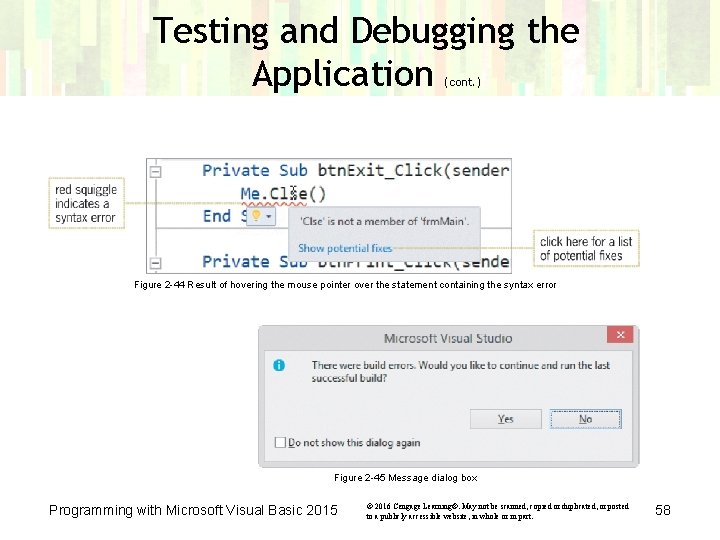
Testing and Debugging the Application (cont. ) Figure 2 -44 Result of hovering the mouse pointer over the statement containing the syntax error Figure 2 -45 Message dialog box Programming with Microsoft Visual Basic 2015 © 2016 Cengage Learning®. May not be scanned, copied or duplicated, or posted to a publicly accessible website, in whole or in part. 58
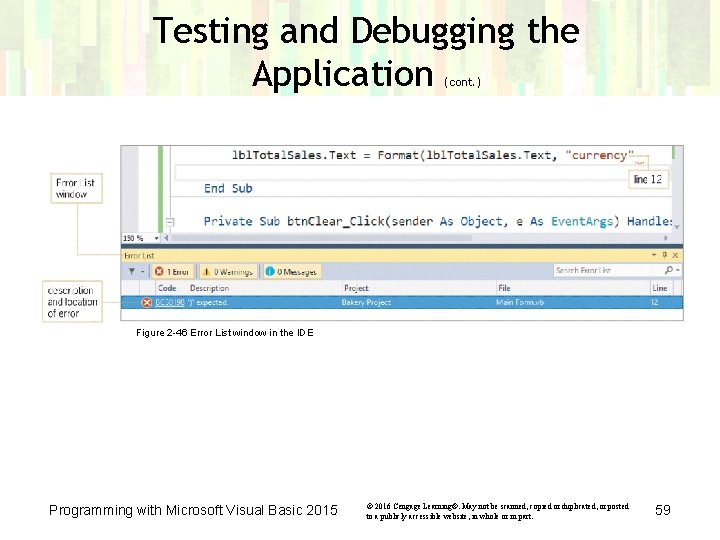
Testing and Debugging the Application (cont. ) Figure 2 -46 Error List window in the IDE Programming with Microsoft Visual Basic 2015 © 2016 Cengage Learning®. May not be scanned, copied or duplicated, or posted to a publicly accessible website, in whole or in part. 59
Assembling the Documentation • Important documentation – Planning tools – Printout of the application’s interface and code • Your planning tools include: – TOE chart – Sketch of interface – Flowcharts and/or pseudocode Programming with Microsoft Visual Basic 2015 © 2016 Cengage Learning®. May not be scanned, copied or duplicated, or posted to a publicly accessible website, in whole or in part. 60
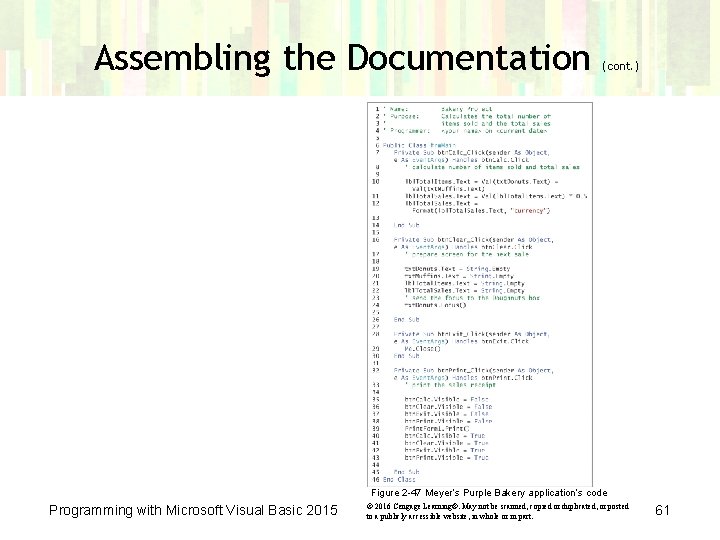
Assembling the Documentation (cont. ) Figure 2 -47 Meyer’s Purple Bakery application’s code Programming with Microsoft Visual Basic 2015 © 2016 Cengage Learning®. May not be scanned, copied or duplicated, or posted to a publicly accessible website, in whole or in part. 61
Lesson C Summary • Use pseudocode or a flowchart to plan an object’s code • To assign a value to the property of an object while an application is running, use an assignment statement with the syntax object. property = expression • To create comments, begin the comment text with an apostrophe (’) • Use the integer division operator () to divide and return an integer result Programming with Microsoft Visual Basic 2015 © 2016 Cengage Learning®. May not be scanned, copied or duplicated, or posted to a publicly accessible website, in whole or in part. 62
Lesson C Summary (cont. ) • Use the modulus operator to divide two numbers and return the remainder • Use the Print. Form tool to print the form • To temporarily convert a string to a number, use the Val function • Use the Format function to improve the appearance of numbers • The application should be tested with both valid and invalid data Programming with Microsoft Visual Basic 2015 © 2016 Cengage Learning®. May not be scanned, copied or duplicated, or posted to a publicly accessible website, in whole or in part. 63
- Slides: 63