
Programming with Microsoft Visual Basic 2012 Chapter 12
Programming with Microsoft Visual Basic 2012 Chapter 12: Web Applications
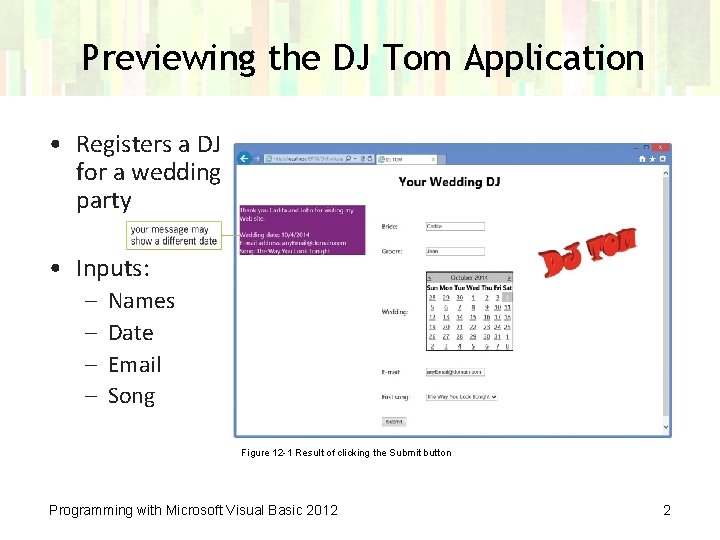
Previewing the DJ Tom Application • Registers a DJ for a wedding party • Inputs: – – Names Date Email Song Figure 12 -1 Result of clicking the Submit button Programming with Microsoft Visual Basic 2012 2
Lesson A Objectives After studying Lesson A, you should be able to: • Define basic Web terminology • Create a Web application • Add Web pages to an application • Customize a Web page • Add static text to a Web page • Format a Web page’s static text Programming with Microsoft Visual Basic 2012 3
Lesson A Objectives • • • (cont. ) View a Web page in full screen view Add a link button and an image to a Web page Start a Web application Close and open a Web application Reposition a control on a Web page Programming with Microsoft Visual Basic 2012 4
Web Applications • Web server – A computer that contains special software that “serves up” Web pages in response to requests from client computers • Web pages – Documents stored on a Web server • Client computer – A computer that requests information from a Web server Programming with Microsoft Visual Basic 2012 5
Web Applications (cont. ) • Browser – A program that allows users to view Web pages • Static Web page – A document whose purpose is merely to display information to the viewer – Static Web pages are not interactive • Dynamic Web page – An interactive page that can accept information from the user and also retrieve information for the user Programming with Microsoft Visual Basic 2012 6
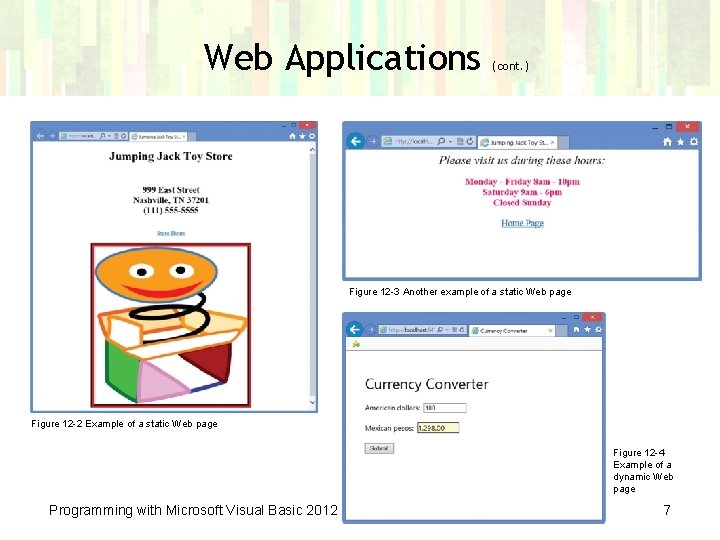
Web Applications (cont. ) Figure 12 -3 Another example of a static Web page Figure 12 -2 Example of a static Web page Figure 12 -4 Example of a dynamic Web page Programming with Microsoft Visual Basic 2012 7
Web Applications (cont. ) • ASP – – Active server page A technology used to create Web pages All ASP pages contain HTML tags formatting Many ASP pages contain: • ASP tags for controls included on a page • Code for objects to respond to user actions – ASP pages communicate with the Web server to provide data requested by users Programming with Microsoft Visual Basic 2012 8
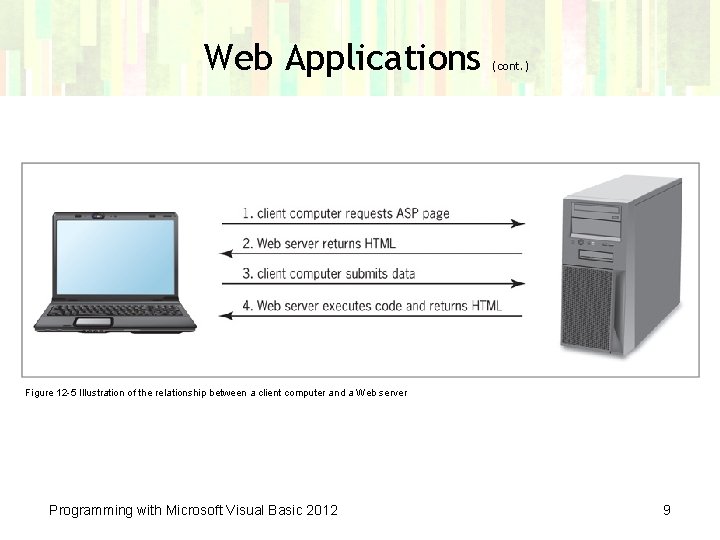
Web Applications (cont. ) Figure 12 -5 Illustration of the relationship between a client computer and a Web server Programming with Microsoft Visual Basic 2012 9

Creating a Web Application • Web applications in Visual Basic are created using Visual Studio 2012 for Web – Available as a stand-alone product (called Visual Studio Express 2012 for Web) – Available as part of Visual Studio 2012 – Free download of Visual Studio Express 2012 for Web from Microsoft’s Web site Programming with Microsoft Visual Basic 2012 10
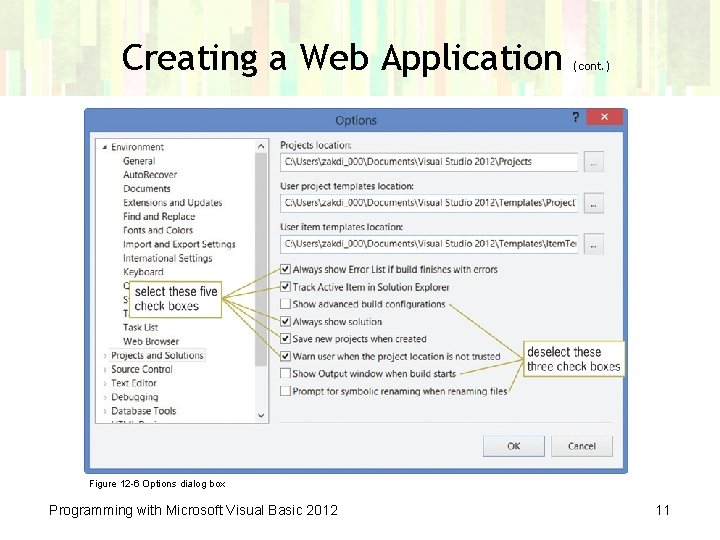
Creating a Web Application (cont. ) Figure 12 -6 Options dialog box Programming with Microsoft Visual Basic 2012 11
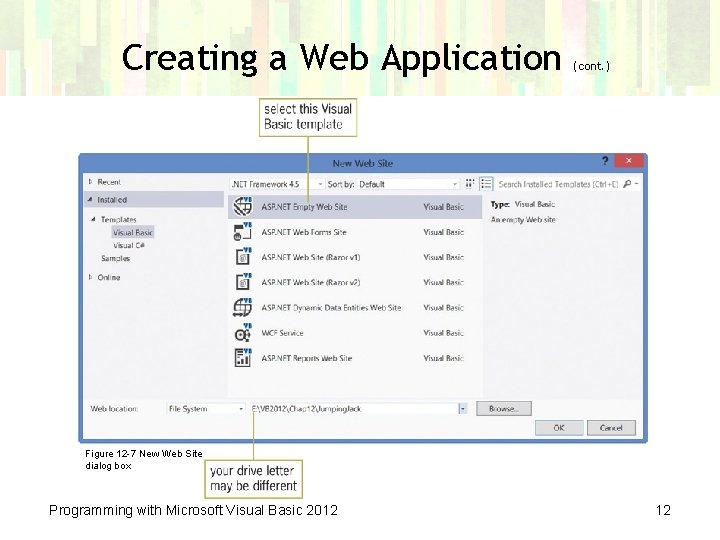
Creating a Web Application (cont. ) Figure 12 -7 New Web Site dialog box Programming with Microsoft Visual Basic 2012 12
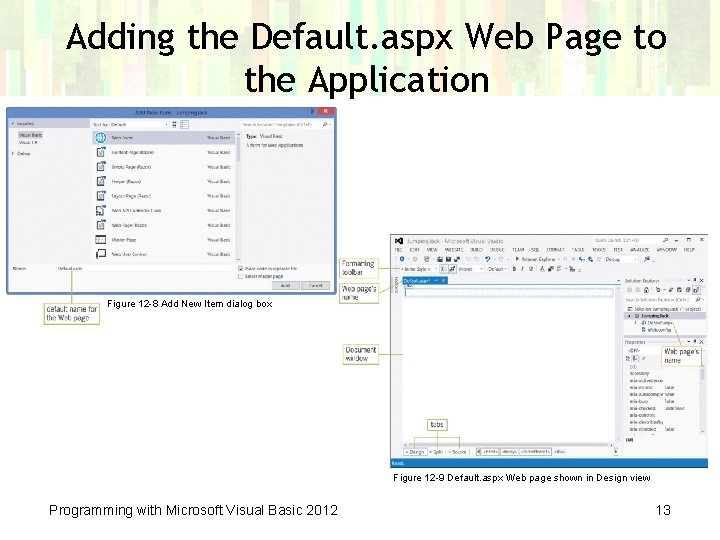
Adding the Default. aspx Web Page to the Application Figure 12 -8 Add New Item dialog box Figure 12 -9 Default. aspx Web page shown in Design view Programming with Microsoft Visual Basic 2012 13
Adding the Default. aspx Web Page to the Application (cont. ) Including a Title on a Web Page • Use the Properties window to include a title on a Web page – The properties appear in the Properties window when you select DOCUMENT in the window’s Object box Adding Static Text to a Web Page • Static text cannot be changed by the user • You can add static text to a Web page by simply typing the text on the page itself; or you can use a label control that you dragged to the Web page from the Toolbox window Programming with Microsoft Visual Basic 2012 14
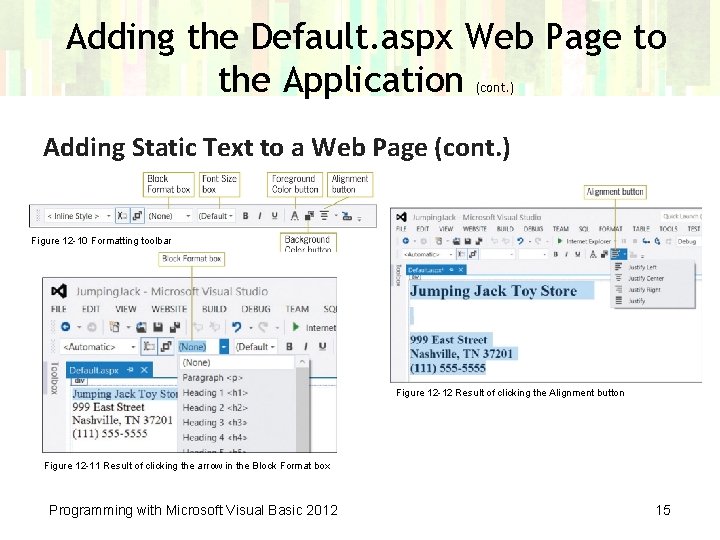
Adding the Default. aspx Web Page to the Application (cont. ) Adding Static Text to a Web Page (cont. ) Figure 12 -10 Formatting toolbar Figure 12 -12 Result of clicking the Alignment button Figure 12 -11 Result of clicking the arrow in the Block Format box Programming with Microsoft Visual Basic 2012 15
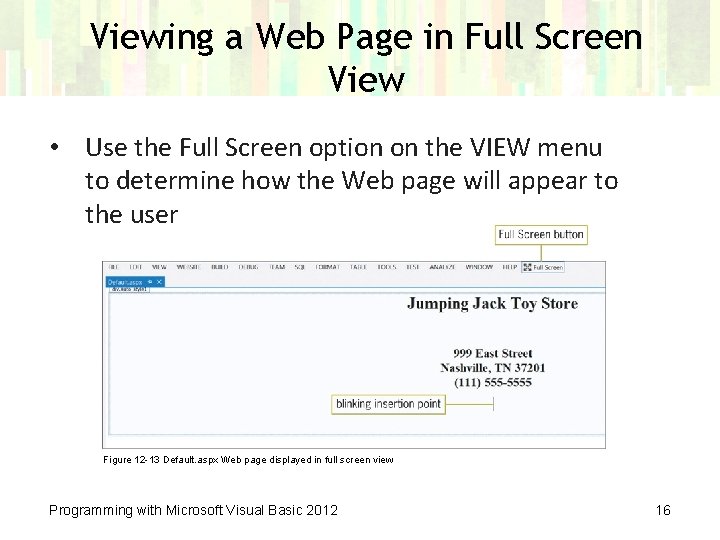
Viewing a Web Page in Full Screen View • Use the Full Screen option on the VIEW menu to determine how the Web page will appear to the user Figure 12 -13 Default. aspx Web page displayed in full screen view Programming with Microsoft Visual Basic 2012 16
Adding Another Web Page to the Application • Click WEBSITE on the menu bar and then click Add New Item • If necessary, click Visual Basic in the Installed list and then (if necessary) click Web Form in the middle column of the dialog box Programming with Microsoft Visual Basic 2012 17
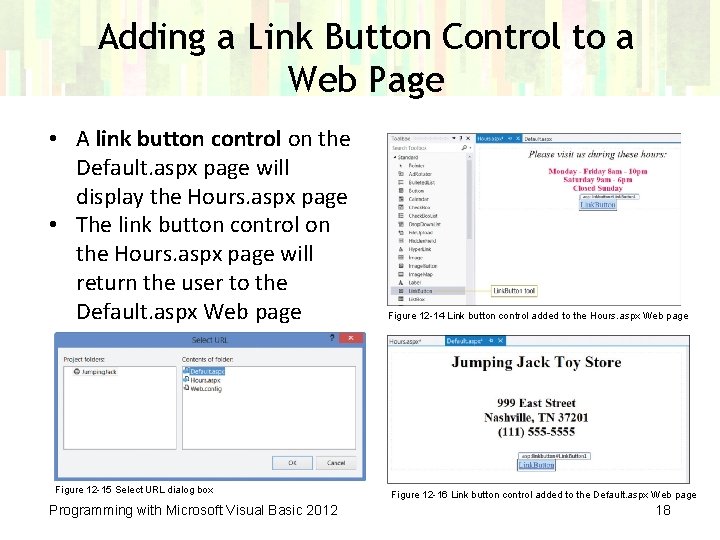
Adding a Link Button Control to a Web Page • A link button control on the Default. aspx page will display the Hours. aspx page • The link button control on the Hours. aspx page will return the user to the Default. aspx Web page Figure 12 -15 Select URL dialog box Programming with Microsoft Visual Basic 2012 Figure 12 -14 Link button control added to the Hours. aspx Web page Figure 12 -16 Link button control added to the Default. aspx Web page 18
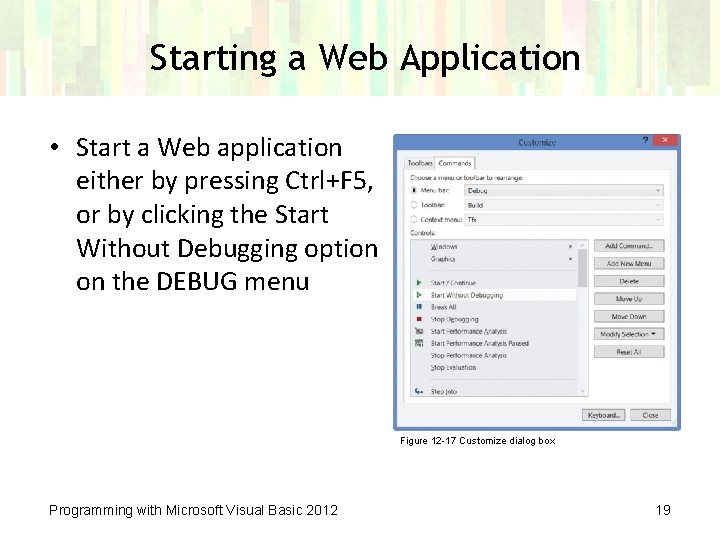
Starting a Web Application • Start a Web application either by pressing Ctrl+F 5, or by clicking the Start Without Debugging option on the DEBUG menu Figure 12 -17 Customize dialog box Programming with Microsoft Visual Basic 2012 19
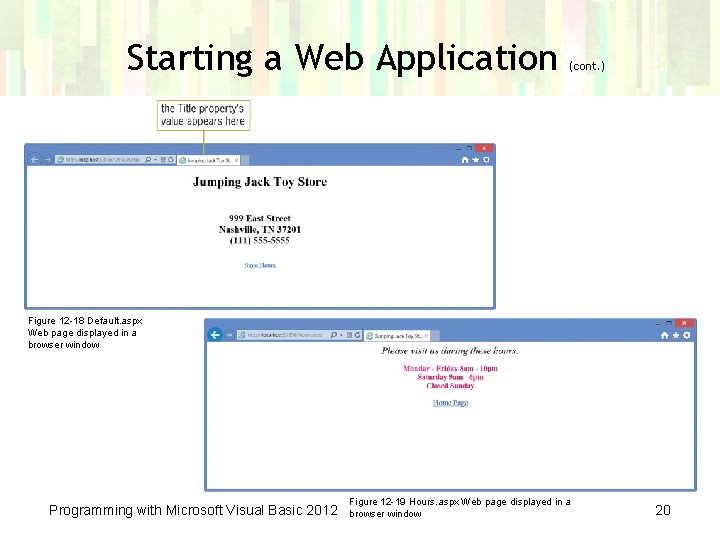
Starting a Web Application (cont. ) Figure 12 -18 Default. aspx Web page displayed in a browser window Programming with Microsoft Visual Basic 2012 Figure 12 -19 Hours. aspx Web page displayed in a browser window 20
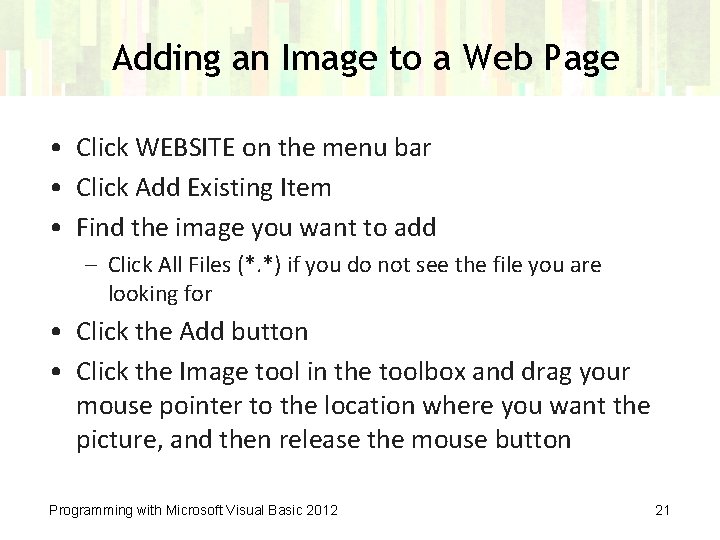
Adding an Image to a Web Page • Click WEBSITE on the menu bar • Click Add Existing Item • Find the image you want to add – Click All Files (*. *) if you do not see the file you are looking for • Click the Add button • Click the Image tool in the toolbox and drag your mouse pointer to the location where you want the picture, and then release the mouse button Programming with Microsoft Visual Basic 2012 21
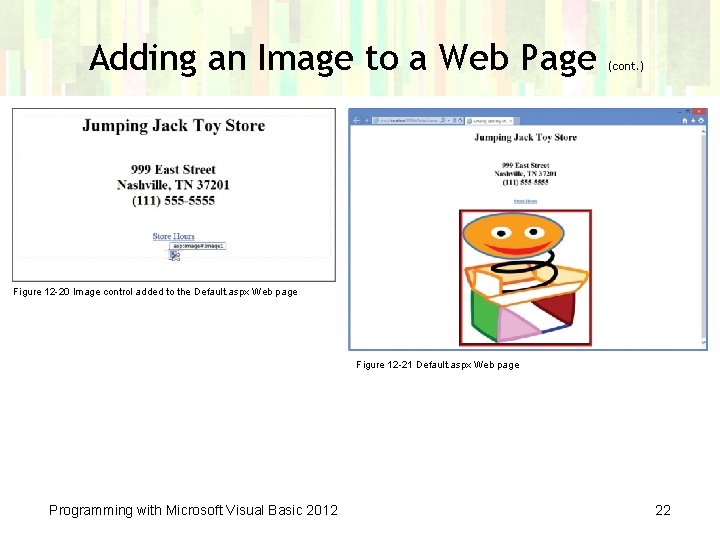
Adding an Image to a Web Page (cont. ) Figure 12 -20 Image control added to the Default. aspx Web page Figure 12 -21 Default. aspx Web page Programming with Microsoft Visual Basic 2012 22
Closing and Opening an Existing Web Application • To close: – Click FILE on the menu bar and then click Close Solution to close the application • To open: – Click FILE on the menu bar and then click Open Web Site to open the Open Web Site dialog box – If necessary, click the File System button; and if necessary, click the Yes button to use IIS Express – Right-click in the Solution Explorer window on the file you want to open and then click View Designer Programming with Microsoft Visual Basic 2012 23
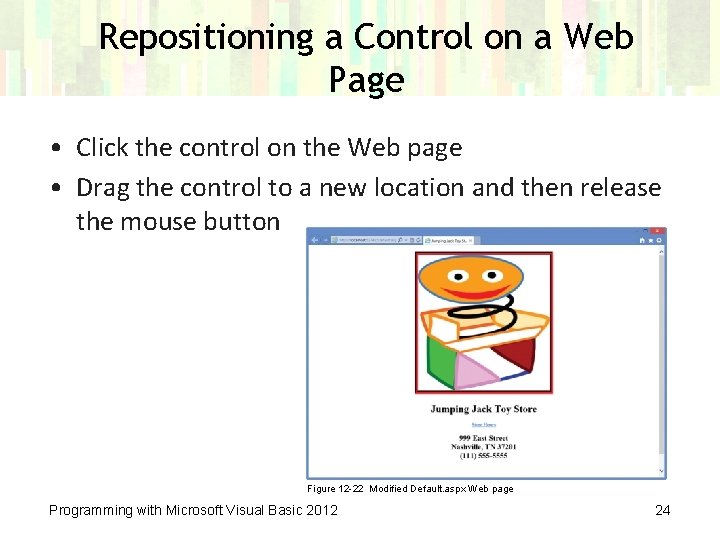
Repositioning a Control on a Web Page • Click the control on the Web page • Drag the control to a new location and then release the mouse button Figure 12 -22 Modified Default. aspx Web page Programming with Microsoft Visual Basic 2012 24
Lesson A Summary • Use the New Web Site command on the FILE menu to create a Web application • Use the F 5 key to start the Web application and display the Web page • Set the DOCUMENT object’s Title property to add a title to a Web page • Static text can be entered directly on the Web page or by using a label control Programming with Microsoft Visual Basic 2012 25
Lesson A Summary (cont. ) • Use the Full Screen command on the VIEW menu to display the page in full screen view • Use the Link. Button tool to add a link button control to a Web page • Use the Close Solution command on the FILE menu to close a Web application • Use the Open Web Site command on the FILE menu to open an existing Web application • Drag a control to reposition it on a Web page Programming with Microsoft Visual Basic 2012 26
Lesson B Objectives After studying Lesson B, you should be able to: • Add a text box, a label, and a button to a Web page • Code a control on a Web page • Use a Required. Field. Validator control Programming with Microsoft Visual Basic 2012 27
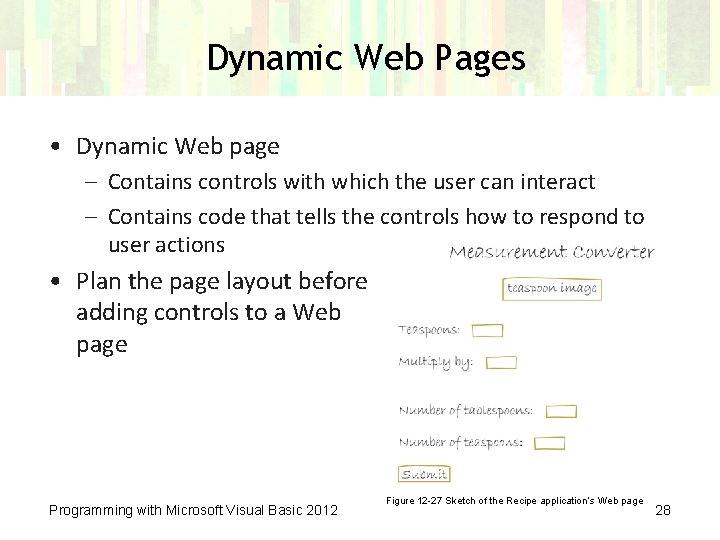
Dynamic Web Pages • Dynamic Web page – Contains controls with which the user can interact – Contains code that tells the controls how to respond to user actions • Plan the page layout before adding controls to a Web page Programming with Microsoft Visual Basic 2012 Figure 12 -27 Sketch of the Recipe application’s Web page 28
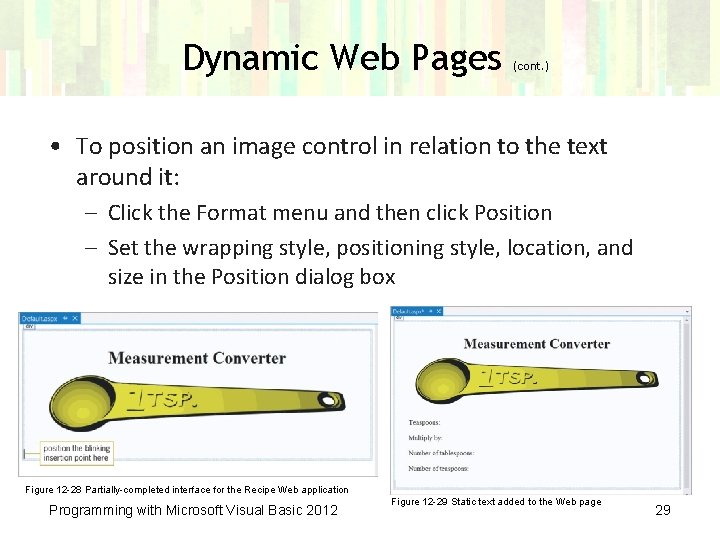
Dynamic Web Pages (cont. ) • To position an image control in relation to the text around it: – Click the Format menu and then click Position – Set the wrapping style, positioning style, location, and size in the Position dialog box Figure 12 -28 Partially-completed interface for the Recipe Web application Programming with Microsoft Visual Basic 2012 Figure 12 -29 Static text added to the Web page 29
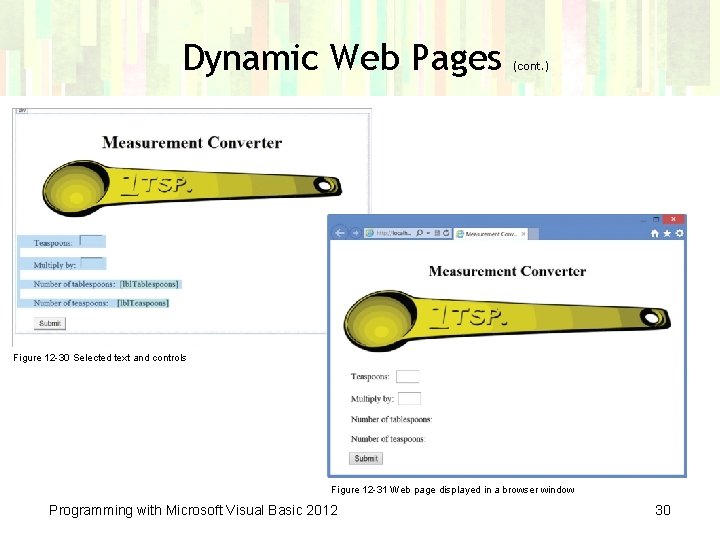
Dynamic Web Pages (cont. ) Figure 12 -30 Selected text and controls Figure 12 -31 Web page displayed in a browser window Programming with Microsoft Visual Basic 2012 30
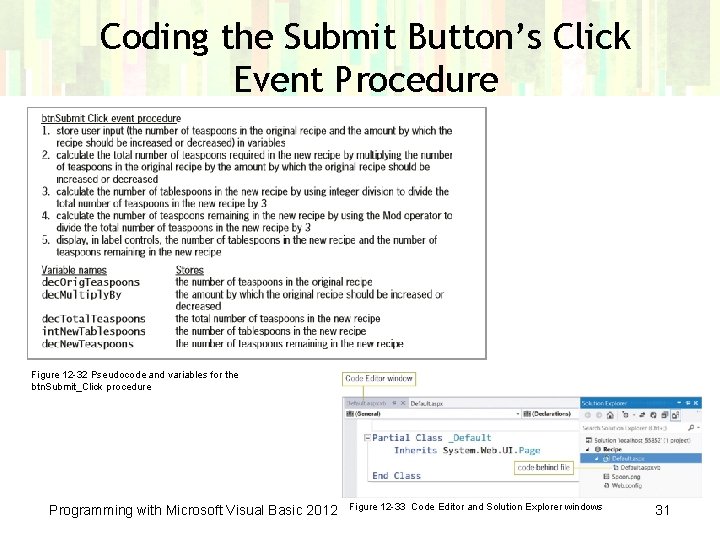
Coding the Submit Button’s Click Event Procedure Figure 12 -32 Pseudocode and variables for the btn. Submit_Click procedure Programming with Microsoft Visual Basic 2012 Figure 12 -33 Code Editor and Solution Explorer windows 31
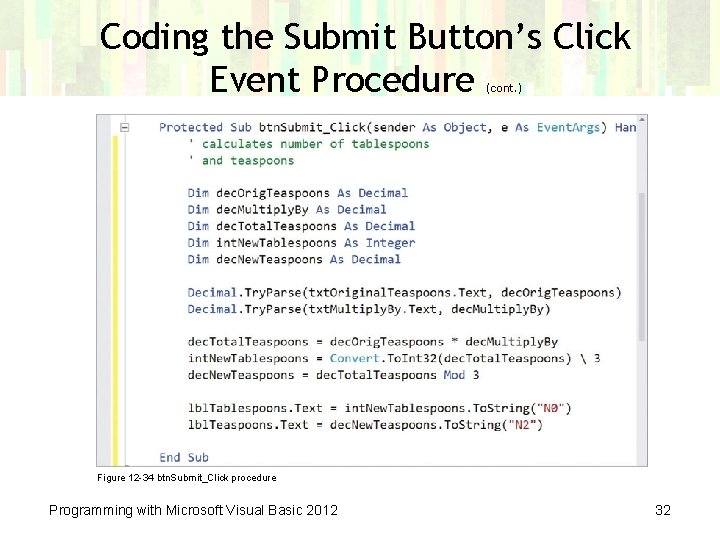
Coding the Submit Button’s Click Event Procedure (cont. ) Figure 12 -34 btn. Submit_Click procedure Programming with Microsoft Visual Basic 2012 32
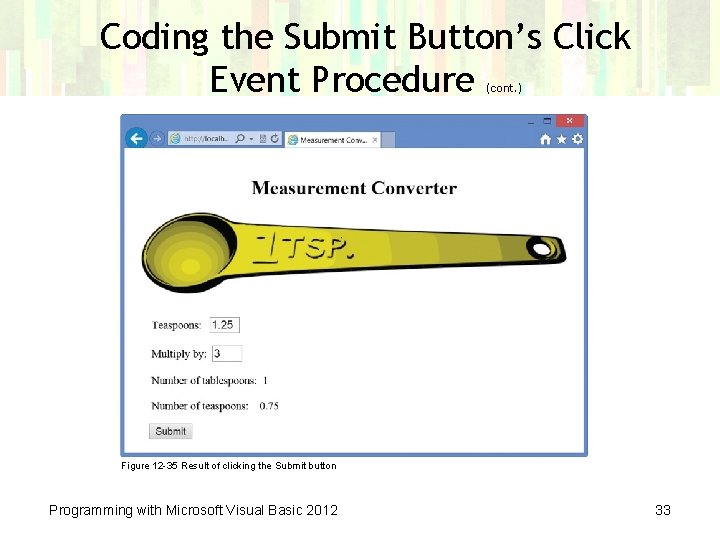
Coding the Submit Button’s Click Event Procedure (cont. ) Figure 12 -35 Result of clicking the Submit button Programming with Microsoft Visual Basic 2012 33
Validating User Input • Validation section of the toolbox contains tools for validating user input • Validator tools – Each has a purpose and validates a particular type of input • Validation. Summary tool – Used to display all validation error messages in a single location on a Web page Programming with Microsoft Visual Basic 2012 34
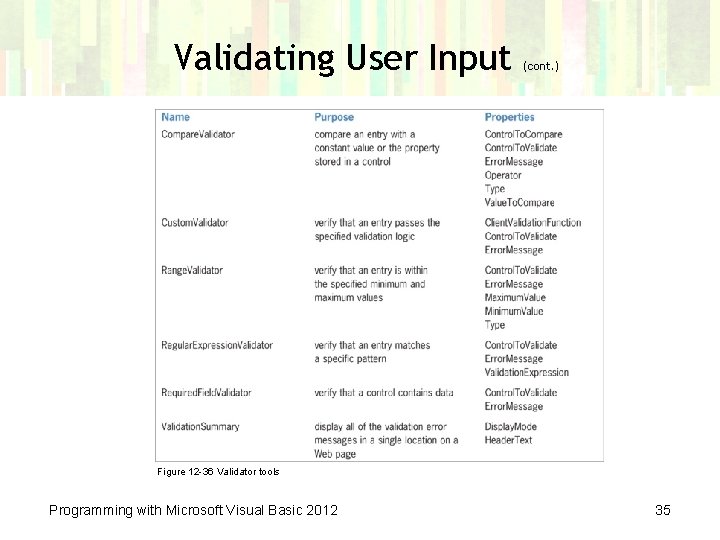
Validating User Input (cont. ) Figure 12 -36 Validator tools Programming with Microsoft Visual Basic 2012 35
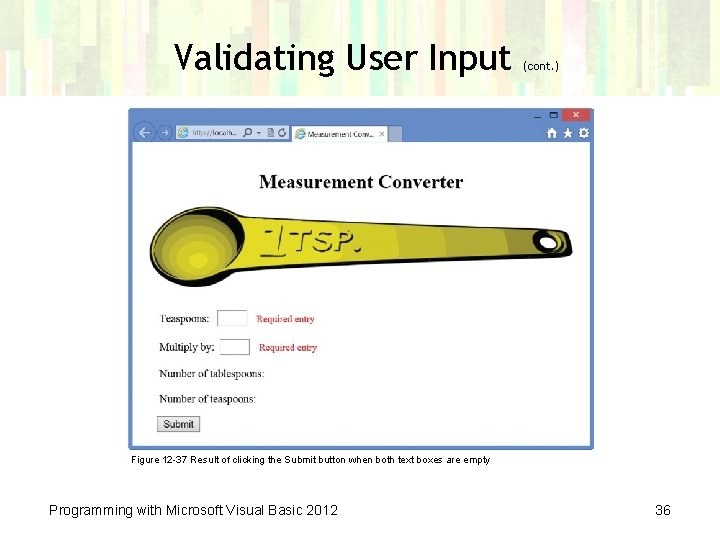
Validating User Input (cont. ) Figure 12 -37 Result of clicking the Submit button when both text boxes are empty Programming with Microsoft Visual Basic 2012 36
Lesson B Summary • Use the Position command on the Format menu to wrap text around an image control • Use the Code Editor window to code a control on a Web page • Use validator tools to validate user input on a Web page Programming with Microsoft Visual Basic 2012 37
Lesson C Objectives After studying Lesson C, you should be able to: • • • Make changes to the Web page in Source view Create columns using the <div> tag Utilize an ASP table in a Web page Add a calendar to a Web page Add a drop-down list box to a Web page Create a new line using the tag Programming with Microsoft Visual Basic 2012 38
Creating the DJ Tom Application • DJ Tom application – Allows the user to enter the names of the bride and groom, the wedding date, an e-mail address, and the name of the first song – Should provide a Submit button that displays a message on the page containing the information entered • font-family property – Used to set the font for the Web page – Set in the <body> tag to affect all text on the Web page Programming with Microsoft Visual Basic 2012 39
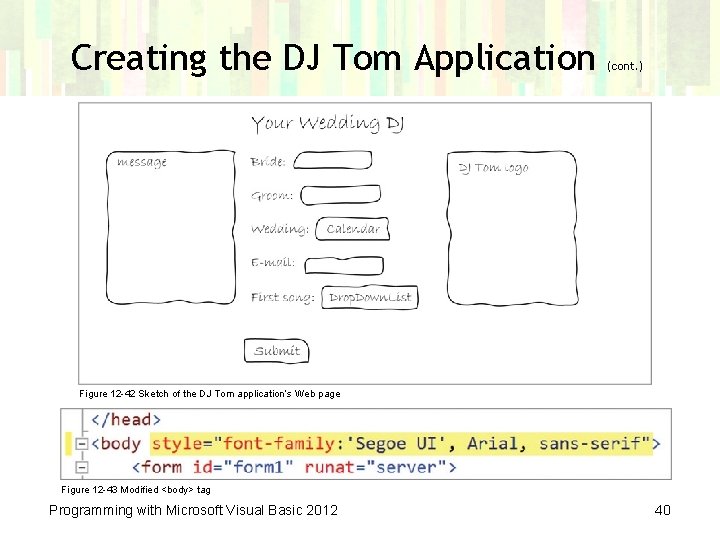
Creating the DJ Tom Application (cont. ) Figure 12 -42 Sketch of the DJ Tom application’s Web page Figure 12 -43 Modified <body> tag Programming with Microsoft Visual Basic 2012 40
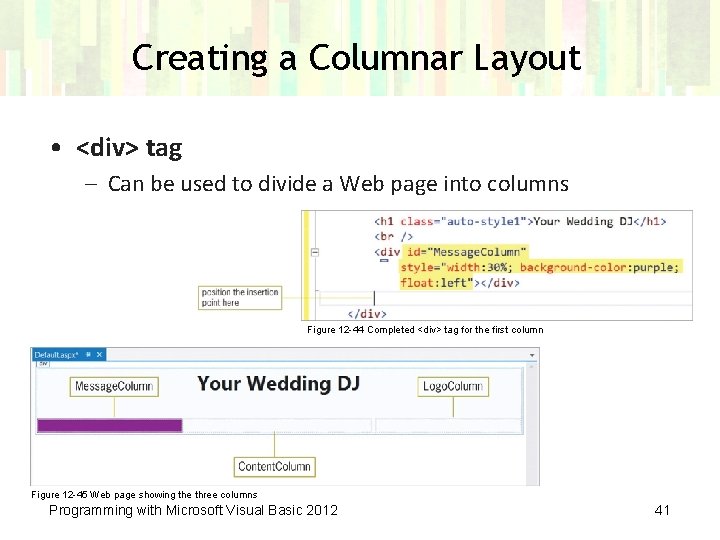
Creating a Columnar Layout • <div> tag – Can be used to divide a Web page into columns Figure 12 -44 Completed <div> tag for the first column Figure 12 -45 Web page showing the three columns Programming with Microsoft Visual Basic 2012 41
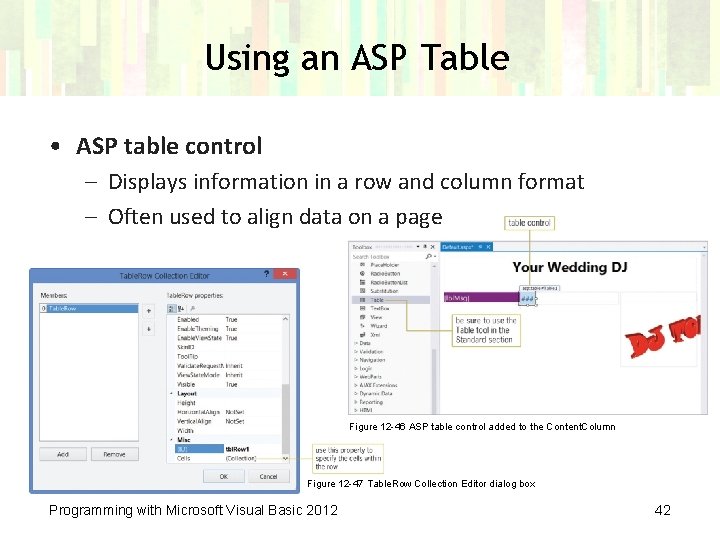
Using an ASP Table • ASP table control – Displays information in a row and column format – Often used to align data on a page Figure 12 -46 ASP table control added to the Content. Column Figure 12 -47 Table. Row Collection Editor dialog box Programming with Microsoft Visual Basic 2012 42
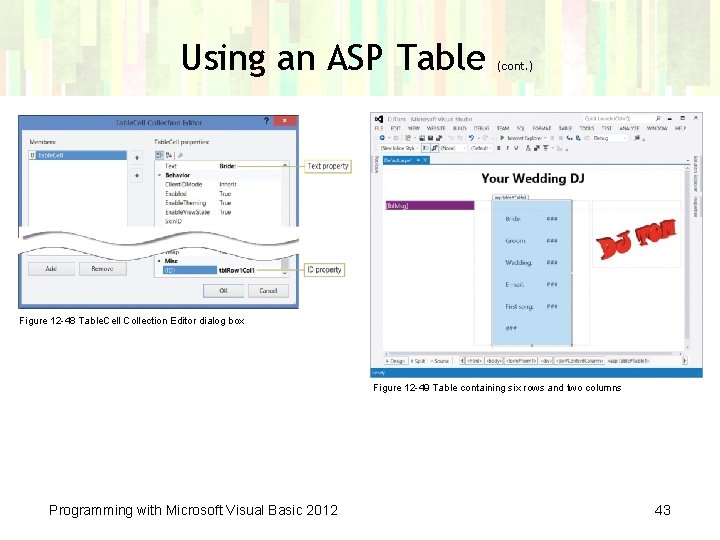
Using an ASP Table (cont. ) Figure 12 -48 Table. Cell Collection Editor dialog box Figure 12 -49 Table containing six rows and two columns Programming with Microsoft Visual Basic 2012 43
Using an ASP Table (cont. ) • Use the Rows property to display the Table. Row Collection Editor dialog box – Add a row, then set the cells for the row • Use the Cells property of a row to display the Table. Cell Collection Editor dialog box – Add cells and set their properties Dragging Controls in Source View • To drag controls in Source view: – Deselect the table control and then click the Source tab – Using the appropriate tool for the control, drag the control into the desired cell in the table in Source view Programming with Microsoft Visual Basic 2012 44
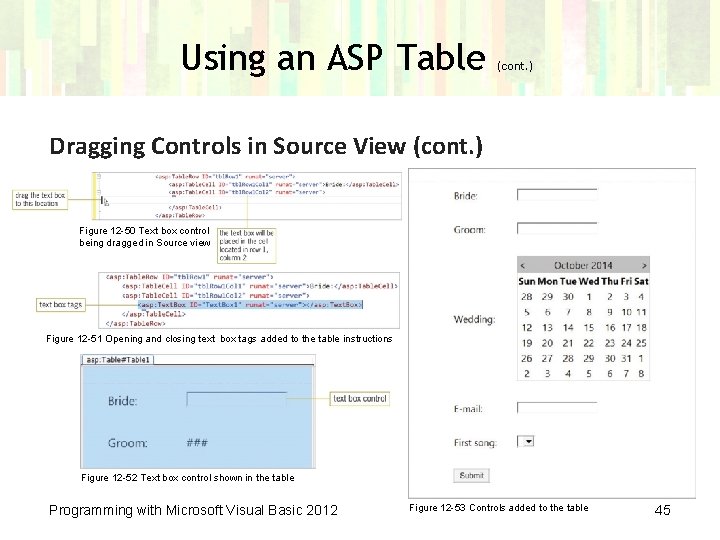
Using an ASP Table (cont. ) Dragging Controls in Source View (cont. ) Figure 12 -50 Text box control being dragged in Source view Figure 12 -51 Opening and closing text box tags added to the table instructions Figure 12 -52 Text box control shown in the table Programming with Microsoft Visual Basic 2012 Figure 12 -53 Controls added to the table 45
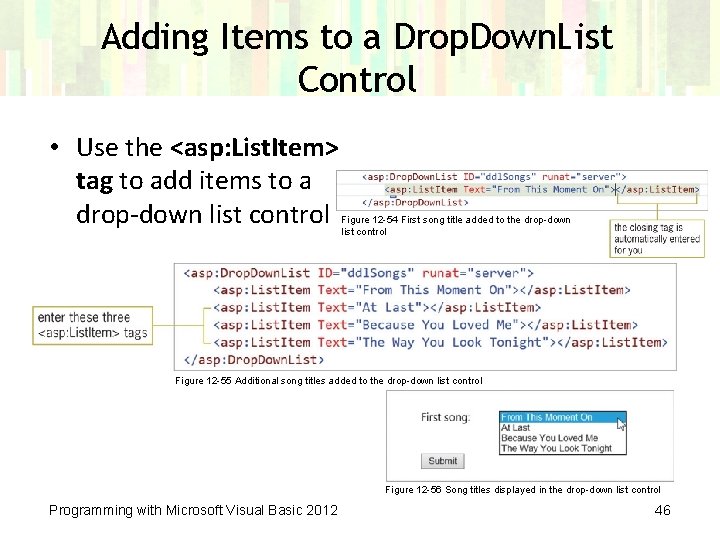
Adding Items to a Drop. Down. List Control • Use the <asp: List. Item> tag to add items to a drop-down list control Figure 12 -54 First song title added to the drop-down list control Figure 12 -55 Additional song titles added to the drop-down list control Figure 12 -56 Song titles displayed in the drop-down list control Programming with Microsoft Visual Basic 2012 46
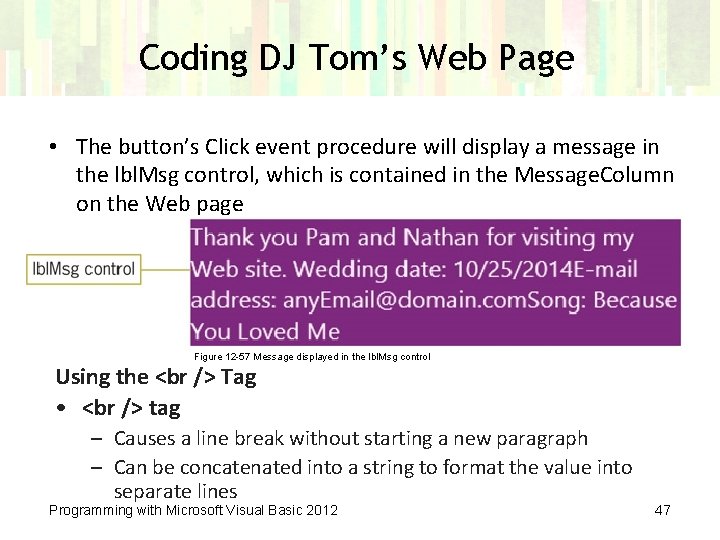
Coding DJ Tom’s Web Page • The button’s Click event procedure will display a message in the lbl. Msg control, which is contained in the Message. Column on the Web page Figure 12 -57 Message displayed in the lbl. Msg control Using the Tag • tag – Causes a line break without starting a new paragraph – Can be concatenated into a string to format the value into separate lines Programming with Microsoft Visual Basic 2012 47
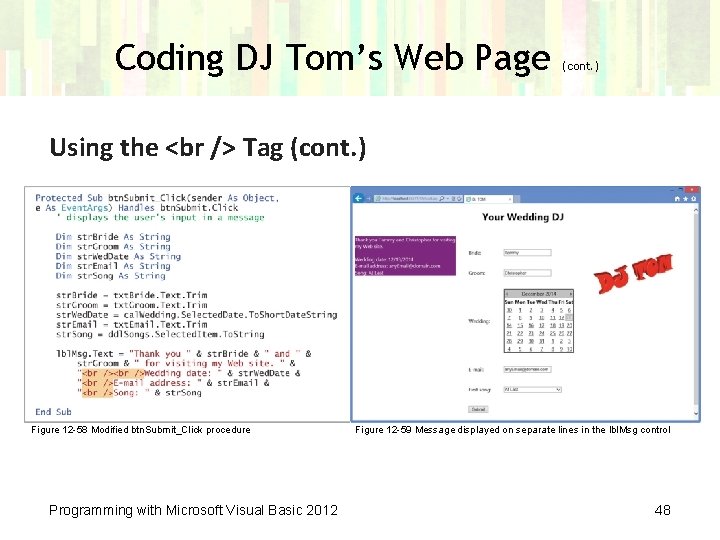
Coding DJ Tom’s Web Page (cont. ) Using the Tag (cont. ) Figure 12 -58 Modified btn. Submit_Click procedure Programming with Microsoft Visual Basic 2012 Figure 12 -59 Message displayed on separate lines in the lbl. Msg control 48
Lesson C Summary • Use the font-family property in the <body> tag to set the font for text on a Web page • Use the <div> tag to divide a Web page into columns • Use the Rows property of an ASP table control to set up the cells for each row • Drag a control into the table’s cell in Source view to place it in the table • Use the <asp: List. Item> tag to add items to a drop-down list control Programming with Microsoft Visual Basic 2012 49
Lesson C Summary (cont. ) • Use the Calendar control’s Selected. Date property to determine the date selected by the user • Use the Calendar control’s To. Short. Date. String method to format a date as mm/dd/yyyy • Use the Selected. Item property of a drop-down list control to determine the item selected by the user • Use the tag to create a new line on a Web page Programming with Microsoft Visual Basic 2012 50
- Slides: 50