
Programming with Java 1 Chapter 7 Making Selections
- Slides: 35
Programming with Java 1 Chapter 7 Making Selections with Check Boxes and Option Buttons Mc. Graw-Hill/Irwin © 2002 The Mc. Graw-Hill Companies, Inc. All rights reserved.
Programming with Java 2 Objectives • Allow the user to enter yes/no responses using check boxes. • Combine check boxes in a group to act as option buttons. • Test integer conditions with a switch statement. • Incorporate Swing components into an applet. Mc. Graw-Hill/Irwin © 2002 The Mc. Graw-Hill Companies, Inc. All rights reserved.
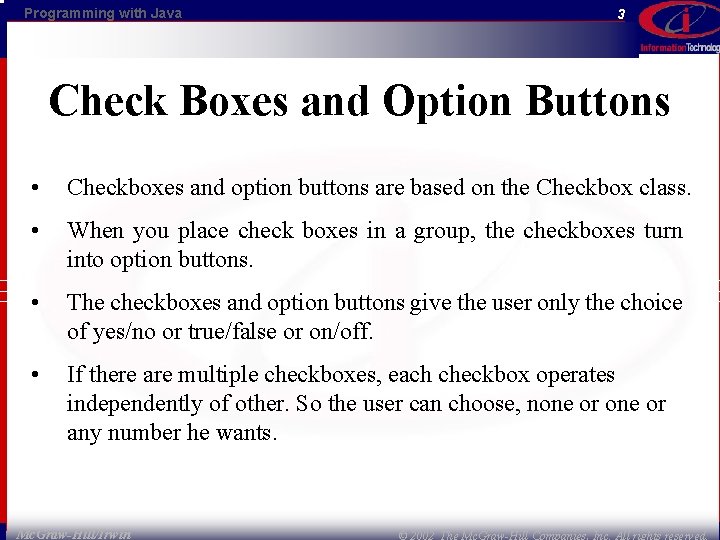
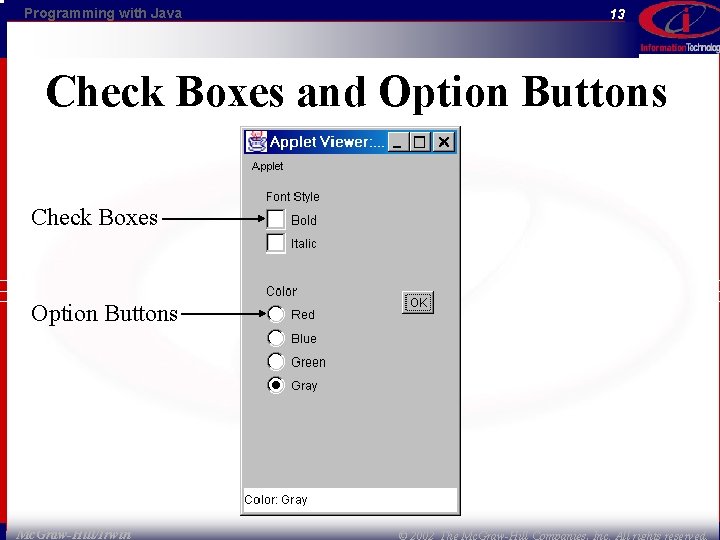
Programming with Java 3 Check Boxes and Option Buttons • Checkboxes and option buttons are based on the Checkbox class. • When you place check boxes in a group, the checkboxes turn into option buttons. • The checkboxes and option buttons give the user only the choice of yes/no or true/false or on/off. • If there are multiple checkboxes, each checkbox operates independently of other. So the user can choose, none or any number he wants. Mc. Graw-Hill/Irwin © 2002 The Mc. Graw-Hill Companies, Inc. All rights reserved.
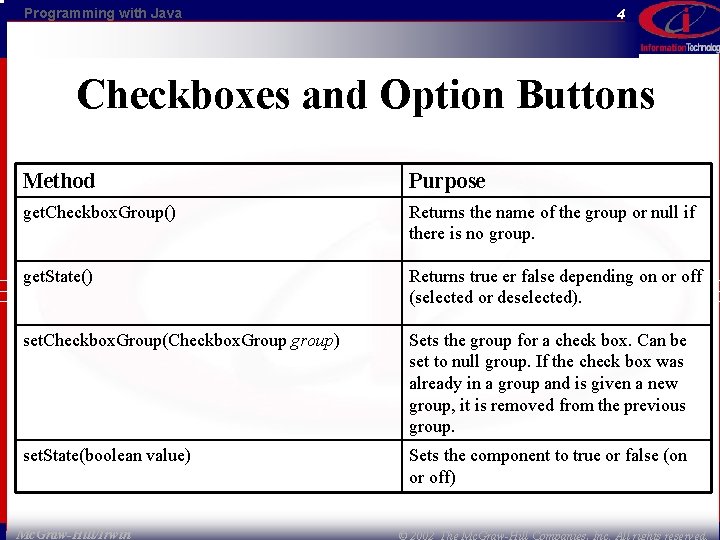
Programming with Java 4 Checkboxes and Option Buttons Method Purpose get. Checkbox. Group() Returns the name of the group or null if there is no group. get. State() Returns true er false depending on or off (selected or deselected). set. Checkbox. Group(Checkbox. Group group) Sets the group for a check box. Can be set to null group. If the check box was already in a group and is given a new group, it is removed from the previous group. set. State(boolean value) Sets the component to true or false (on or off) Mc. Graw-Hill/Irwin © 2002 The Mc. Graw-Hill Companies, Inc. All rights reserved.
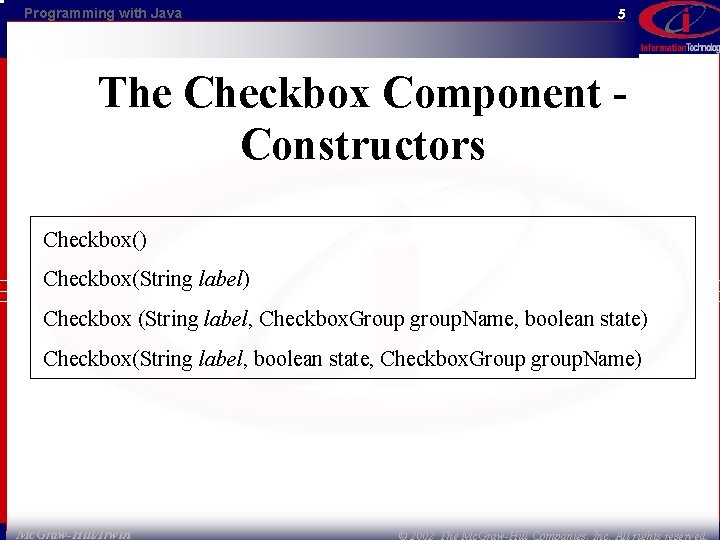
Programming with Java 5 The Checkbox Component - Constructors Checkbox() Checkbox(String label) Checkbox (String label, Checkbox. Group group. Name, boolean state) Checkbox(String label, boolean state, Checkbox. Group group. Name) Mc. Graw-Hill/Irwin © 2002 The Mc. Graw-Hill Companies, Inc. All rights reserved.
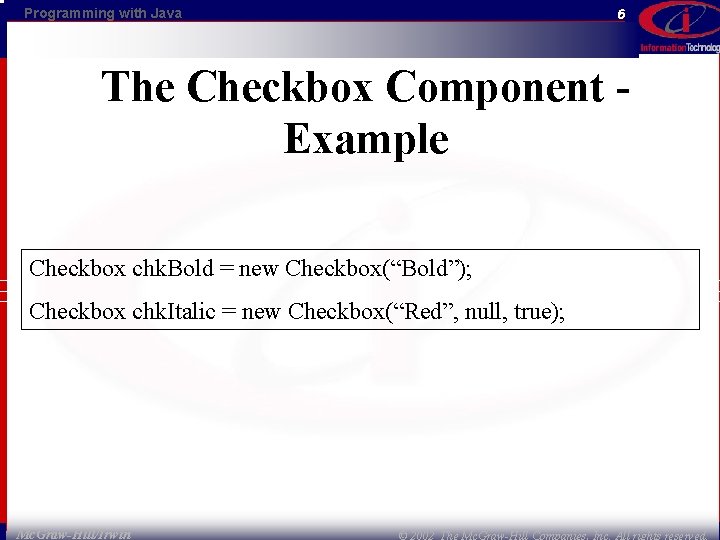
Programming with Java 6 The Checkbox Component - Example Checkbox chk. Bold = new Checkbox(“Bold”); Checkbox chk. Italic = new Checkbox(“Red”, null, true); Mc. Graw-Hill/Irwin © 2002 The Mc. Graw-Hill Companies, Inc. All rights reserved.
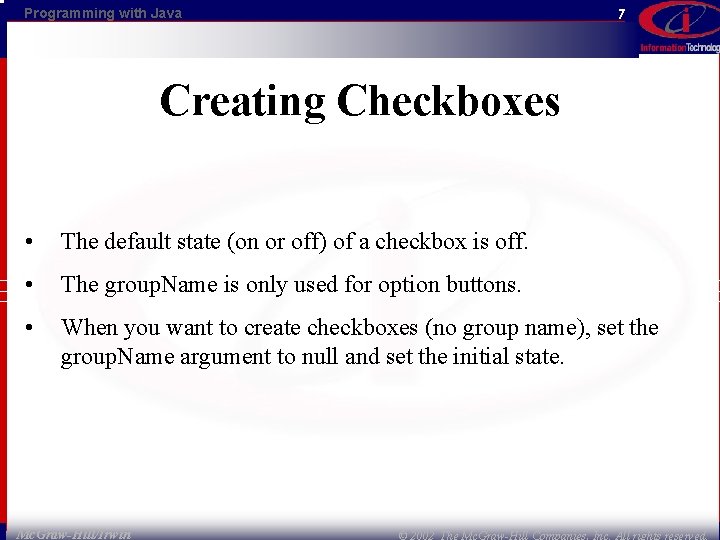
Programming with Java 7 Creating Checkboxes • The default state (on or off) of a checkbox is off. • The group. Name is only used for option buttons. • When you want to create checkboxes (no group name), set the group. Name argument to null and set the initial state. Mc. Graw-Hill/Irwin © 2002 The Mc. Graw-Hill Companies, Inc. All rights reserved.
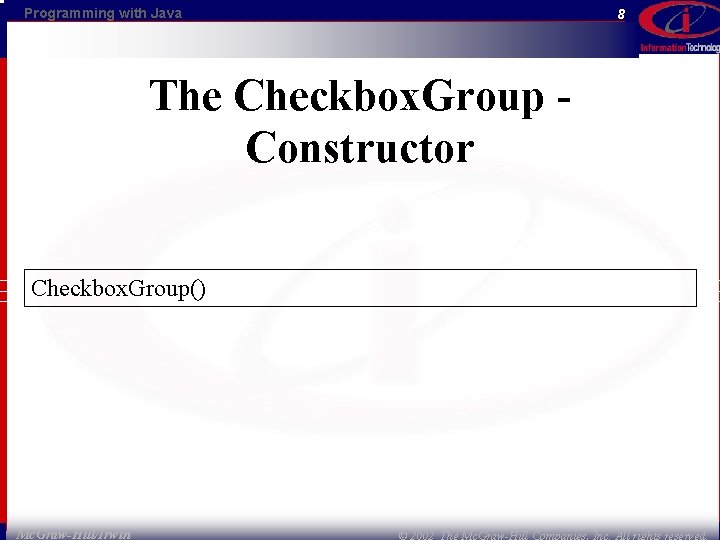
Programming with Java 8 The Checkbox. Group - Constructor Checkbox. Group() Mc. Graw-Hill/Irwin © 2002 The Mc. Graw-Hill Companies, Inc. All rights reserved.
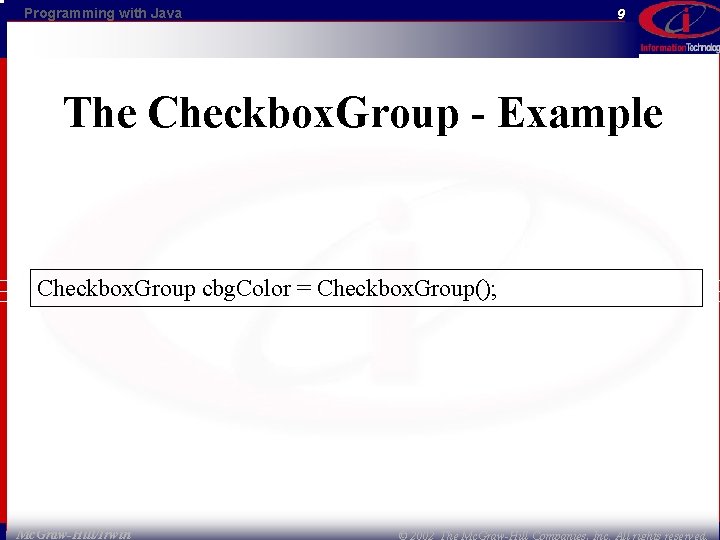
Programming with Java 9 The Checkbox. Group - Example Checkbox. Group cbg. Color = Checkbox. Group(); Mc. Graw-Hill/Irwin © 2002 The Mc. Graw-Hill Companies, Inc. All rights reserved.
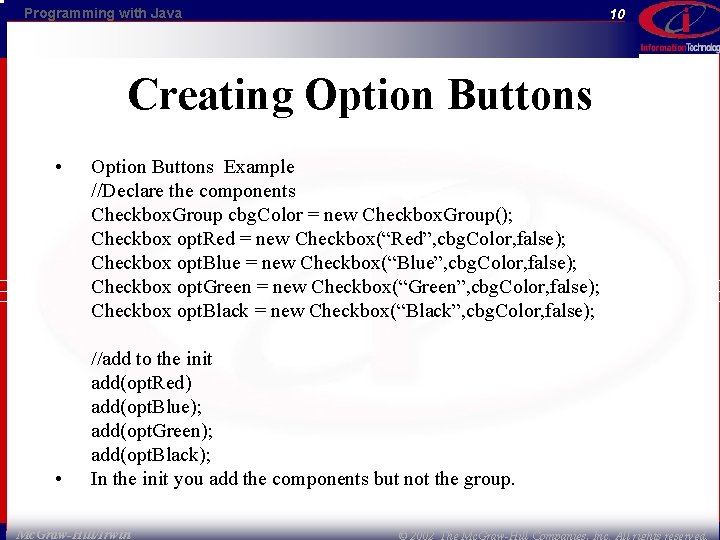
Programming with Java 10 Creating Option Buttons • Option Buttons Example //Declare the components Checkbox. Group cbg. Color = new Checkbox. Group(); Checkbox opt. Red = new Checkbox(“Red”, cbg. Color, false); Checkbox opt. Blue = new Checkbox(“Blue”, cbg. Color, false); Checkbox opt. Green = new Checkbox(“Green”, cbg. Color, false); Checkbox opt. Black = new Checkbox(“Black”, cbg. Color, false); • //add to the init add(opt. Red) add(opt. Blue); add(opt. Green); add(opt. Black); In the init you add the components but not the group. Mc. Graw-Hill/Irwin © 2002 The Mc. Graw-Hill Companies, Inc. All rights reserved.
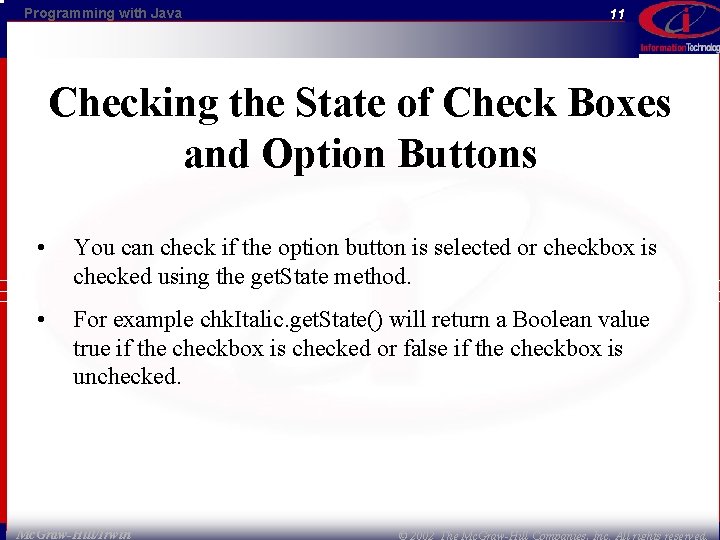
Programming with Java 11 Checking the State of Check Boxes and Option Buttons • You can check if the option button is selected or checkbox is checked using the get. State method. • For example chk. Italic. get. State() will return a Boolean value true if the checkbox is checked or false if the checkbox is unchecked. Mc. Graw-Hill/Irwin © 2002 The Mc. Graw-Hill Companies, Inc. All rights reserved.
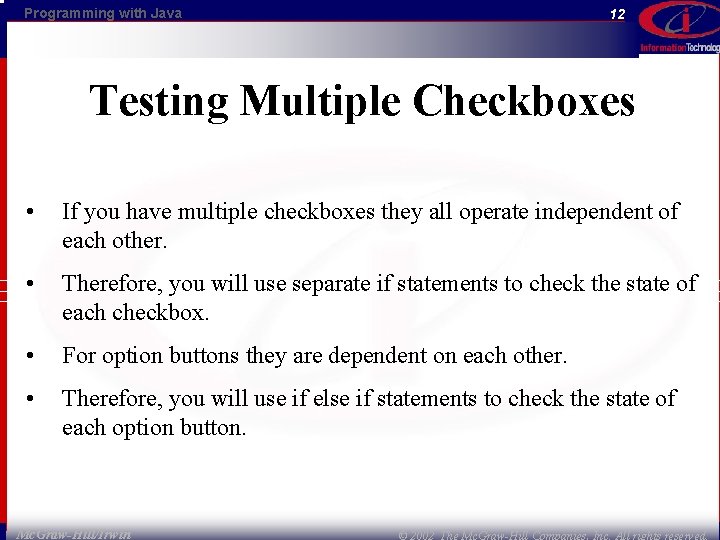
Programming with Java 12 Testing Multiple Checkboxes • If you have multiple checkboxes they all operate independent of each other. • Therefore, you will use separate if statements to check the state of each checkbox. • For option buttons they are dependent on each other. • Therefore, you will use if else if statements to check the state of each option button. Mc. Graw-Hill/Irwin © 2002 The Mc. Graw-Hill Companies, Inc. All rights reserved.
Programming with Java 13 Check Boxes and Option Buttons Check Boxes Option Buttons Mc. Graw-Hill/Irwin © 2002 The Mc. Graw-Hill Companies, Inc. All rights reserved.
Programming with Java 14 Item. Listener • You can an Item. Listener to each checkbox or option button that you want to check the change. • Every time the state of a component is changed an event is triggered. • Like Action. Listener, you must implement the Item. Listener interface and add an item. Listener to one or more components. • Then write the code for the item. State. Changed method. • When the user clicks in a checkbox component, the code in the item. State. Changed method executed immediately. Mc. Graw-Hill/Irwin © 2002 The Mc. Graw-Hill Companies, Inc. All rights reserved.
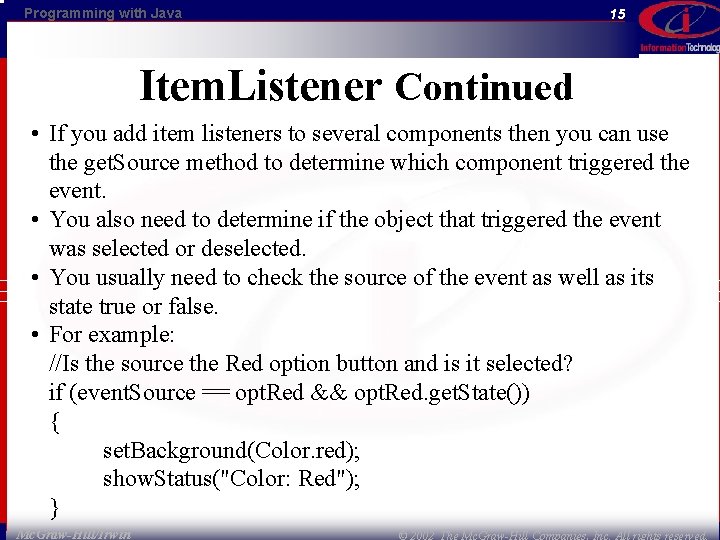
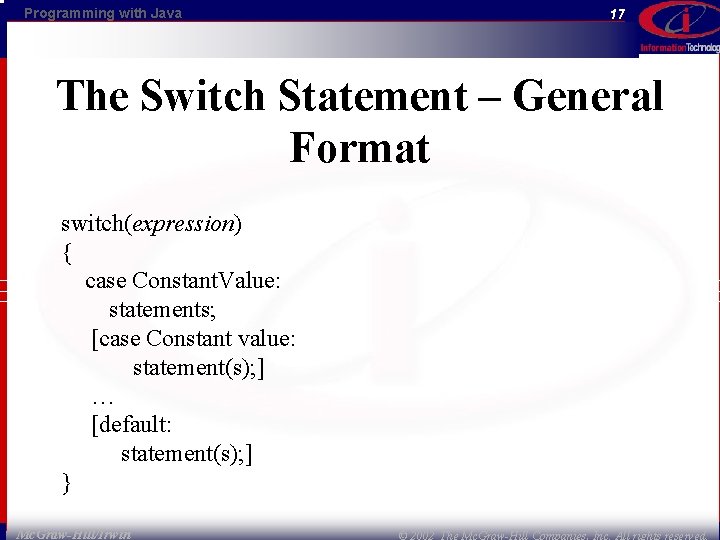
Programming with Java 15 Item. Listener Continued • If you add item listeners to several components then you can use the get. Source method to determine which component triggered the event. • You also need to determine if the object that triggered the event was selected or deselected. • You usually need to check the source of the event as well as its state true or false. • For example: //Is the source the Red option button and is it selected? if (event. Source == opt. Red && opt. Red. get. State()) { set. Background(Color. red); show. Status("Color: Red"); } Mc. Graw-Hill/Irwin © 2002 The Mc. Graw-Hill Companies, Inc. All rights reserved.
Programming with Java 16 The switch Statement • Whenever you want to test a single variable or expression for multiple values, the switch statement provides a flexible and powerful solution. • It is easier and cleared to read than nested if statements. • Java switch statement works only with int, char, shor, or byte expressions. • You can check for an integer or a single character. • The expression can be (int. Count – 1). The body of the switch statement must be in braces. Mc. Graw-Hill/Irwin © 2002 The Mc. Graw-Hill Companies, Inc. All rights reserved.
Programming with Java 17 The Switch Statement – General Format switch(expression) { case Constant. Value: statements; [case Constant value: statement(s); ] … [default: statement(s); ] } Mc. Graw-Hill/Irwin © 2002 The Mc. Graw-Hill Companies, Inc. All rights reserved.
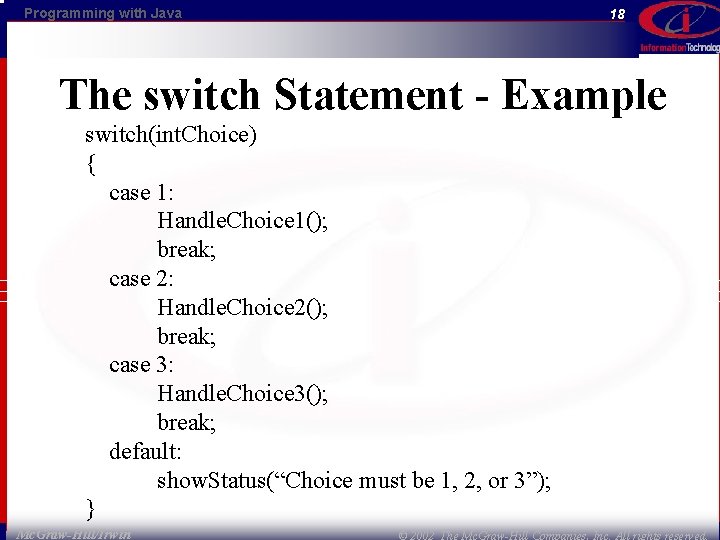
Programming with Java 18 The switch Statement - Example switch(int. Choice) { case 1: Handle. Choice 1(); break; case 2: Handle. Choice 2(); break; case 3: Handle. Choice 3(); break; default: show. Status(“Choice must be 1, 2, or 3”); } Mc. Graw-Hill/Irwin © 2002 The Mc. Graw-Hill Companies, Inc. All rights reserved.
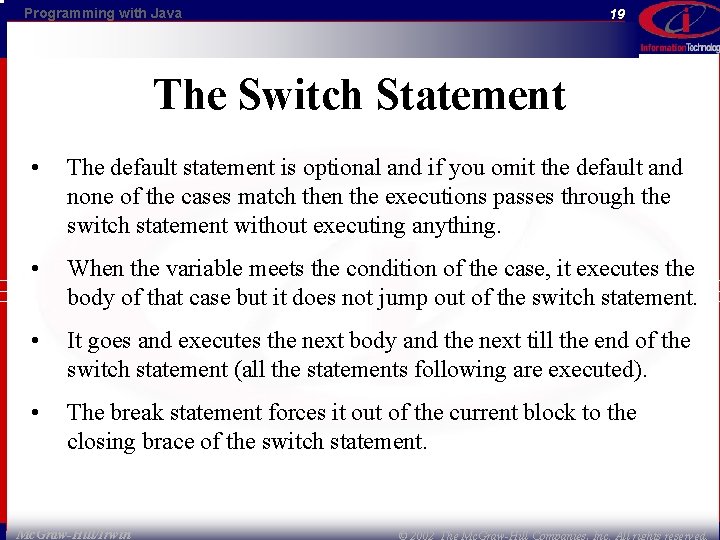
Programming with Java 19 The Switch Statement • The default statement is optional and if you omit the default and none of the cases match then the executions passes through the switch statement without executing anything. • When the variable meets the condition of the case, it executes the body of that case but it does not jump out of the switch statement. • It goes and executes the next body and the next till the end of the switch statement (all the statements following are executed). • The break statement forces it out of the current block to the closing brace of the switch statement. Mc. Graw-Hill/Irwin © 2002 The Mc. Graw-Hill Companies, Inc. All rights reserved.
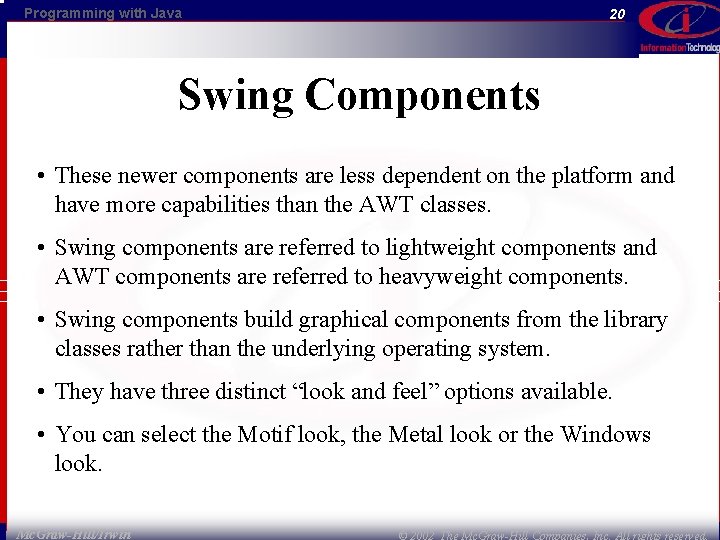
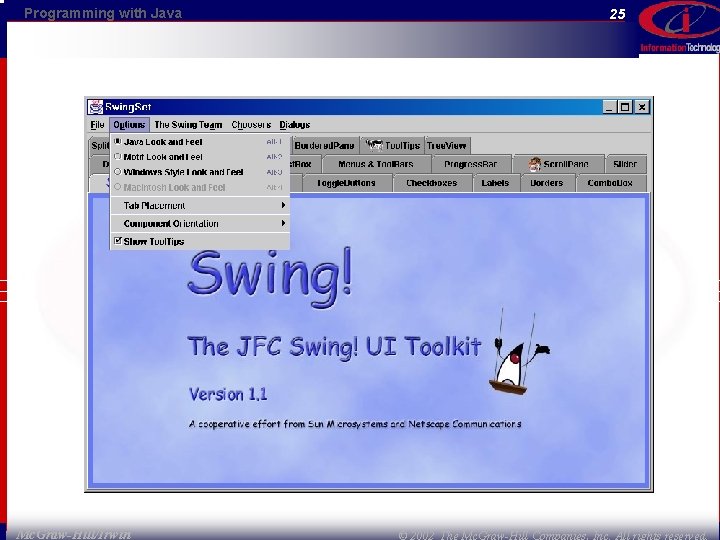
Programming with Java 20 Swing Components • These newer components are less dependent on the platform and have more capabilities than the AWT classes. • Swing components are referred to lightweight components and AWT components are referred to heavyweight components. • Swing components build graphical components from the library classes rather than the underlying operating system. • They have three distinct “look and feel” options available. • You can select the Motif look, the Metal look or the Windows look. Mc. Graw-Hill/Irwin © 2002 The Mc. Graw-Hill Companies, Inc. All rights reserved.
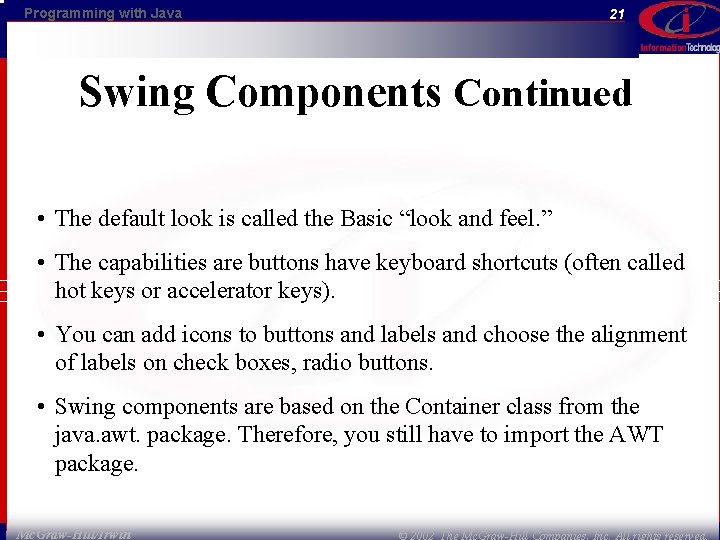
Programming with Java 21 Swing Components Continued • The default look is called the Basic “look and feel. ” • The capabilities are buttons have keyboard shortcuts (often called hot keys or accelerator keys). • You can add icons to buttons and labels and choose the alignment of labels on check boxes, radio buttons. • Swing components are based on the Container class from the java. awt. package. Therefore, you still have to import the AWT package. Mc. Graw-Hill/Irwin © 2002 The Mc. Graw-Hill Companies, Inc. All rights reserved.
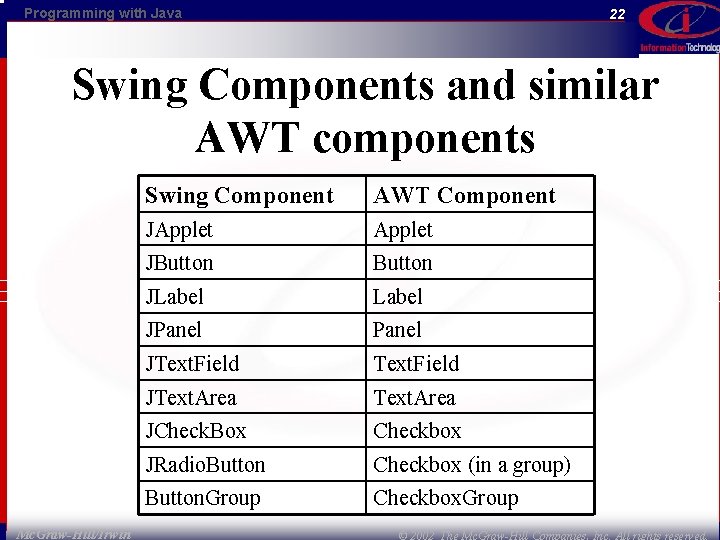
Programming with Java 22 Swing Components and similar AWT components Mc. Graw-Hill/Irwin Swing Component AWT Component JApplet JButton JLabel JPanel JText. Field JText. Area JCheck. Box Checkbox JRadio. Button Checkbox (in a group) Button. Group Checkbox. Group © 2002 The Mc. Graw-Hill Companies, Inc. All rights reserved.
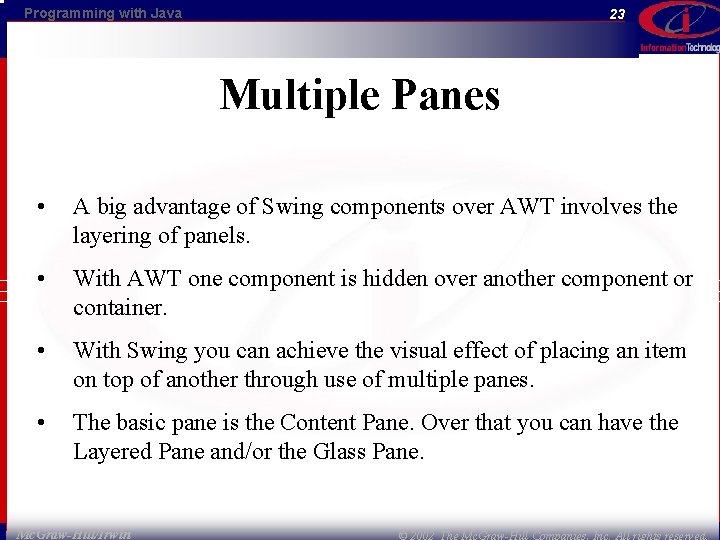
Programming with Java 23 Multiple Panes • A big advantage of Swing components over AWT involves the layering of panels. • With AWT one component is hidden over another component or container. • With Swing you can achieve the visual effect of placing an item on top of another through use of multiple panes. • The basic pane is the Content Pane. Over that you can have the Layered Pane and/or the Glass Pane. Mc. Graw-Hill/Irwin © 2002 The Mc. Graw-Hill Companies, Inc. All rights reserved.
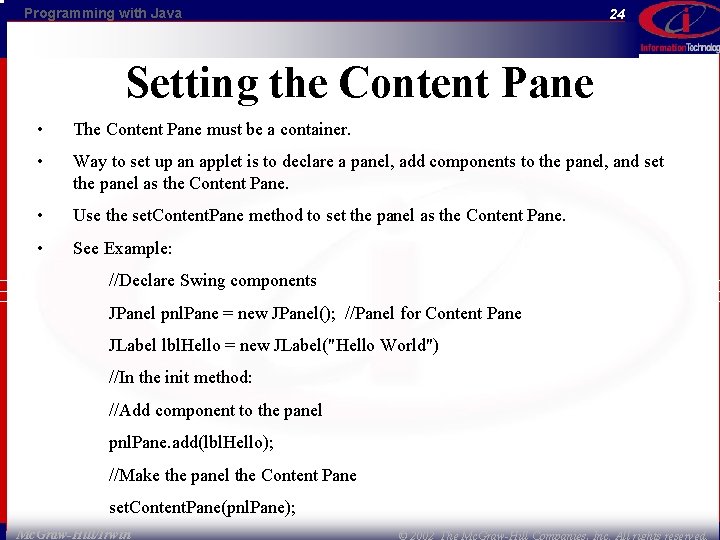
Programming with Java 24 Setting the Content Pane • The Content Pane must be a container. • Way to set up an applet is to declare a panel, add components to the panel, and set the panel as the Content Pane. • Use the set. Content. Pane method to set the panel as the Content Pane. • See Example: //Declare Swing components JPanel pnl. Pane = new JPanel(); //Panel for Content Pane JLabel lbl. Hello = new JLabel("Hello World") //In the init method: //Add component to the panel pnl. Pane. add(lbl. Hello); //Make the panel the Content Pane set. Content. Pane(pnl. Pane); Mc. Graw-Hill/Irwin © 2002 The Mc. Graw-Hill Companies, Inc. All rights reserved.
Programming with Java Mc. Graw-Hill/Irwin 25 © 2002 The Mc. Graw-Hill Companies, Inc. All rights reserved.
Programming with Java 26 Setting the Content Pane Continued • An alternative is to skip creating the panel and add the components directly to the Content Pane. • You can use the get. Content. Pane method which returns the object that is the Content. Pane. • For example : get. Content. Pane(). add(lbl. Hello); Mc. Graw-Hill/Irwin © 2002 The Mc. Graw-Hill Companies, Inc. All rights reserved.
Programming with Java 27 Using Swing Components • To use swing components, you must import both java. awt. * and javax. swing. * Mc. Graw-Hill/Irwin © 2002 The Mc. Graw-Hill Companies, Inc. All rights reserved.
Programming with Java 28 Running Swing Applet in a Browser • Most browsers cannot run swing components. • Internet Explorer and Netscape Navigator can run swing components if they have a plug-in installed. • The plug-in has to installed only once on a computer, and then applet can run in either browser assuming the paths are set correctly. • The plug-in cause the browser to use the Java Runtime Environment in JDK folder rather than the browser JVM. • You will find the plug-in in the Run. Swing. Applet. htm. Mc. Graw-Hill/Irwin © 2002 The Mc. Graw-Hill Companies, Inc. All rights reserved.
Programming with Java 29 Using Enhanced Properties of Swing Components • Some of the reasons for using Swing components rather than AWT components are: • Swing has a more complete set of components. • Swing components have more functionality. • Swing components require fewer system resources. • Swing components more nearly have the look and feel of the destination system. With most Swing components, you can add icons, Tool. Tips, keyboard shortcuts, and control the look of the borders. Mc. Graw-Hill/Irwin © 2002 The Mc. Graw-Hill Companies, Inc. All rights reserved.
Programming with Java 30 Tool. Tips • To add a Tooltip use the set. Tool. Tip. Text method. • Example : chk. Bold. set. Tool. Tip. Text("Change the Font Style label bold"); Mc. Graw-Hill/Irwin © 2002 The Mc. Graw-Hill Companies, Inc. All rights reserved.
Programming with Java 31 Keyboard Shortcuts • Keyboard Shortcuts are also called access keys or hot keys and allow the user to select an option of the keyboard or the mouse. • Use the set. Mnemonic method to set the single letter used for keyboard access. • Example: btn. OK. set. Mnemonic('o'); • In this example, the O of OK on the button's label appears underlined. The user can select the button by pressing Alt + O (uppercase or lowercase). Mc. Graw-Hill/Irwin © 2002 The Mc. Graw-Hill Companies, Inc. All rights reserved.
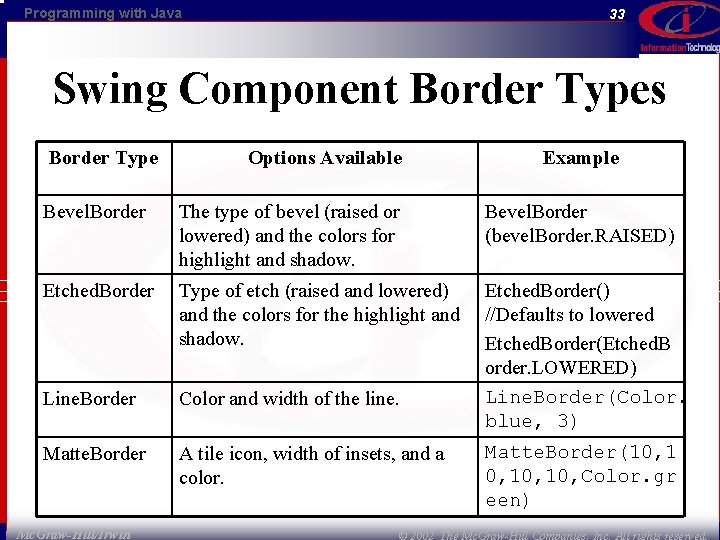
Programming with Java 32 Borders • To add a border to your component, you must import the border package. • import javax. swing. border. *; . • You can choose from among several types of borders. • Here are examples of some of the possibilities: pnl. Choices. set. Border(new Bevel. Border(Bevel. Border. RAISED)); btn. OK. set. Border(new Etched. Border()); btn. OK. set. Border(new Line. Border(Color. black, 3)); Mc. Graw-Hill/Irwin © 2002 The Mc. Graw-Hill Companies, Inc. All rights reserved.
Programming with Java 33 Swing Component Border Types Border Type Options Available Example Bevel. Border The type of bevel (raised or lowered) and the colors for highlight and shadow. Bevel. Border (bevel. Border. RAISED) Etched. Border Type of etch (raised and lowered) and the colors for the highlight and shadow. Line. Border Color and width of the line. Etched. Border() //Defaults to lowered Etched. Border(Etched. B order. LOWERED) Line. Border(Color. blue, 3) Matte. Border A tile icon, width of insets, and a color. Mc. Graw-Hill/Irwin Matte. Border(10, 10, Color. gr een) © 2002 The Mc. Graw-Hill Companies, Inc. All rights reserved.
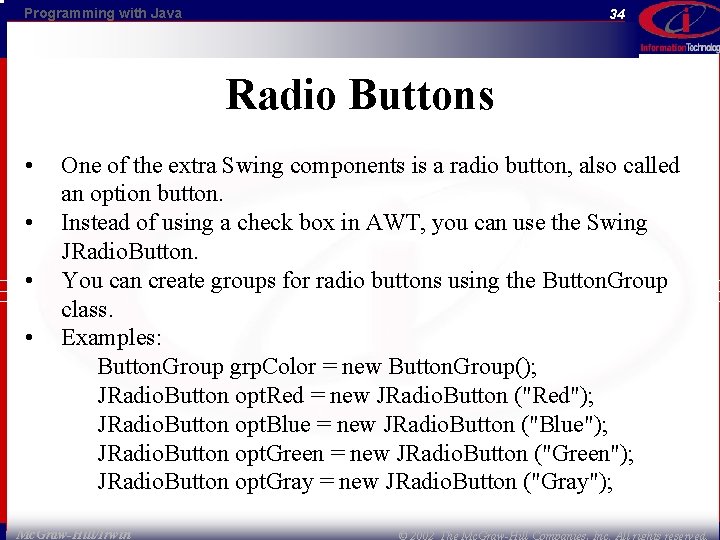
Programming with Java 34 Radio Buttons • • One of the extra Swing components is a radio button, also called an option button. Instead of using a check box in AWT, you can use the Swing JRadio. Button. You can create groups for radio buttons using the Button. Group class. Examples: Button. Group grp. Color = new Button. Group(); JRadio. Button opt. Red = new JRadio. Button ("Red"); JRadio. Button opt. Blue = new JRadio. Button ("Blue"); JRadio. Button opt. Green = new JRadio. Button ("Green"); JRadio. Button opt. Gray = new JRadio. Button ("Gray"); Mc. Graw-Hill/Irwin © 2002 The Mc. Graw-Hill Companies, Inc. All rights reserved.
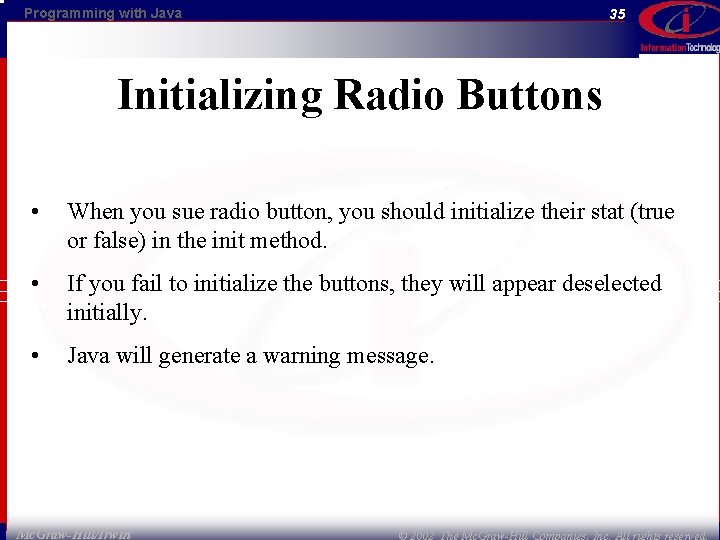
Programming with Java 35 Initializing Radio Buttons • When you sue radio button, you should initialize their stat (true or false) in the init method. • If you fail to initialize the buttons, they will appear deselected initially. • Java will generate a warning message. Mc. Graw-Hill/Irwin © 2002 The Mc. Graw-Hill Companies, Inc. All rights reserved.