
Programming Interface Controls ISYS 350 User Interface Controls

- Slides: 43
Programming Interface Controls ISYS 350
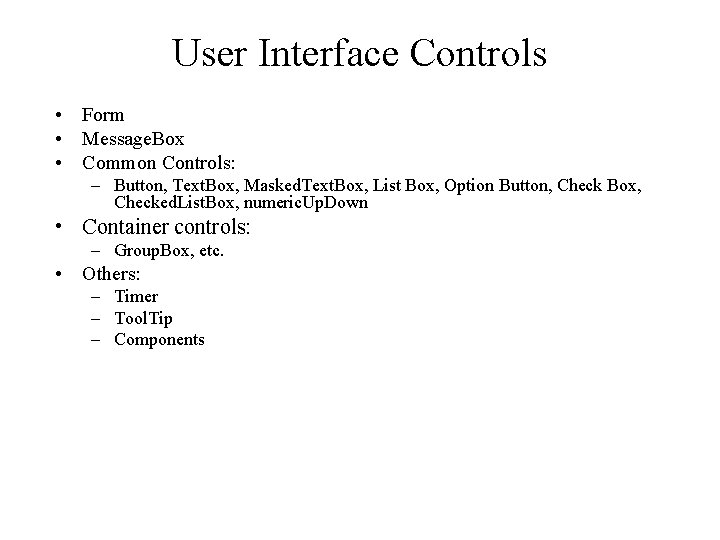
User Interface Controls • Form • Message. Box • Common Controls: – Button, Text. Box, Masked. Text. Box, List Box, Option Button, Check Box, Checked. List. Box, numeric. Up. Down • Container controls: – Group. Box, etc. • Others: – Timer – Tool. Tip – Components
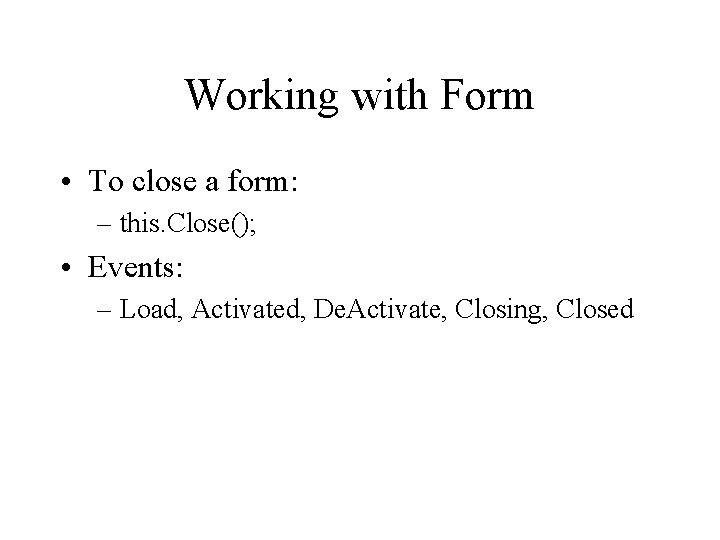
Working with Form • To close a form: – this. Close(); • Events: – Load, Activated, De. Activate, Closing, Closed
Form Closing Event private void Form 2_Form. Closing(object sender, Form. Closing. Event. Args e) { if (Message. Box. Show("Are you sure? ", "Warning", Message. Box. Buttons. Yes. No) == Dialog. Result. No) { e. Cancel = true; } } Note: sender – object that triggers the event; e – event argument that provides actions to handle the event.
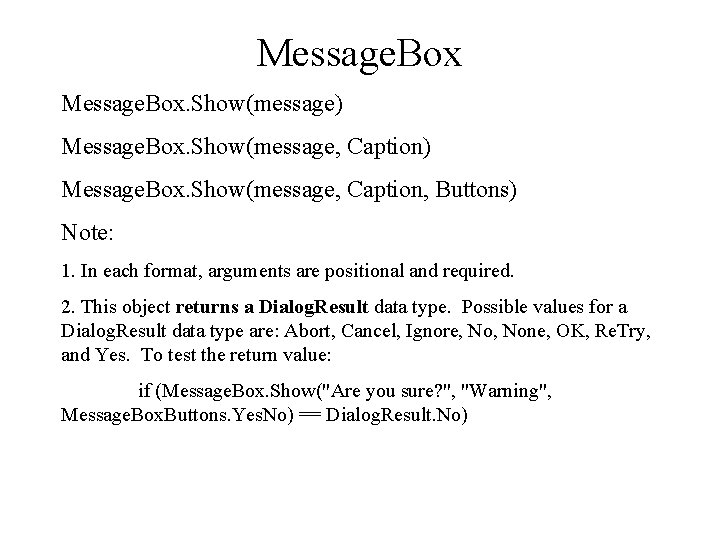
Message. Box. Show(message) Message. Box. Show(message, Caption, Buttons) Note: 1. In each format, arguments are positional and required. 2. This object returns a Dialog. Result data type. Possible values for a Dialog. Result data type are: Abort, Cancel, Ignore, None, OK, Re. Try, and Yes. To test the return value: if (Message. Box. Show("Are you sure? ", "Warning", Message. Box. Buttons. Yes. No) == Dialog. Result. No)
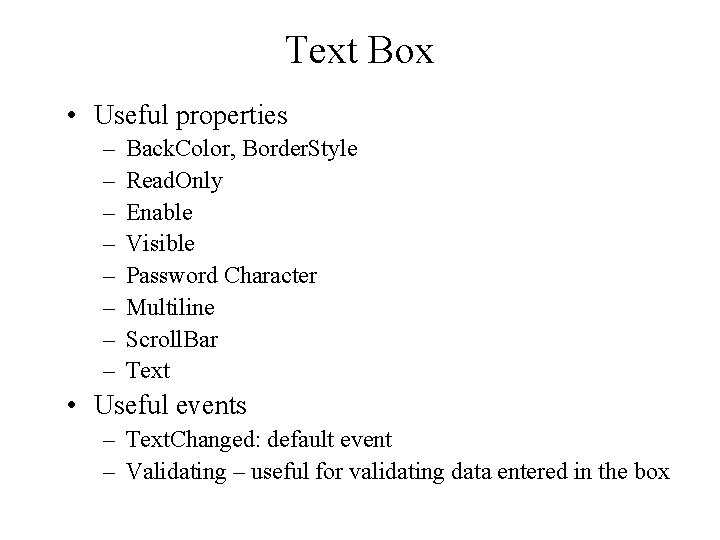
Text Box • Useful properties – – – – Back. Color, Border. Style Read. Only Enable Visible Password Character Multiline Scroll. Bar Text • Useful events – Text. Changed: default event – Validating – useful for validating data entered in the box
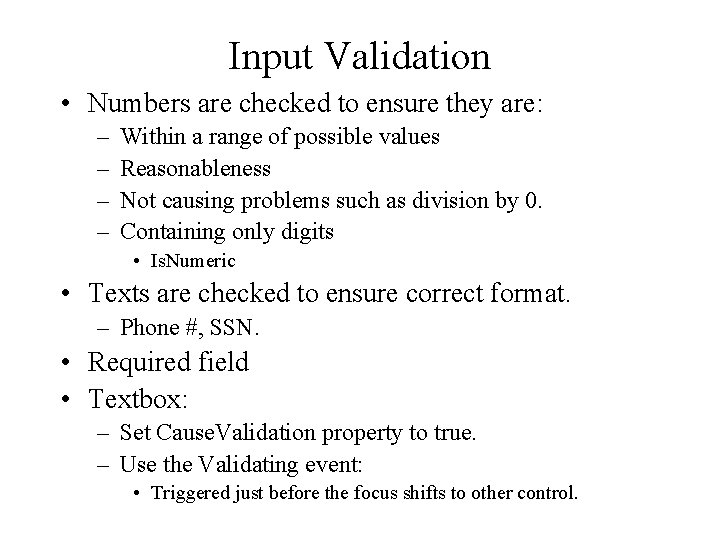
Input Validation • Numbers are checked to ensure they are: – – Within a range of possible values Reasonableness Not causing problems such as division by 0. Containing only digits • Is. Numeric • Texts are checked to ensure correct format. – Phone #, SSN. • Required field • Textbox: – Set Cause. Validation property to true. – Use the Validating event: • Triggered just before the focus shifts to other control.
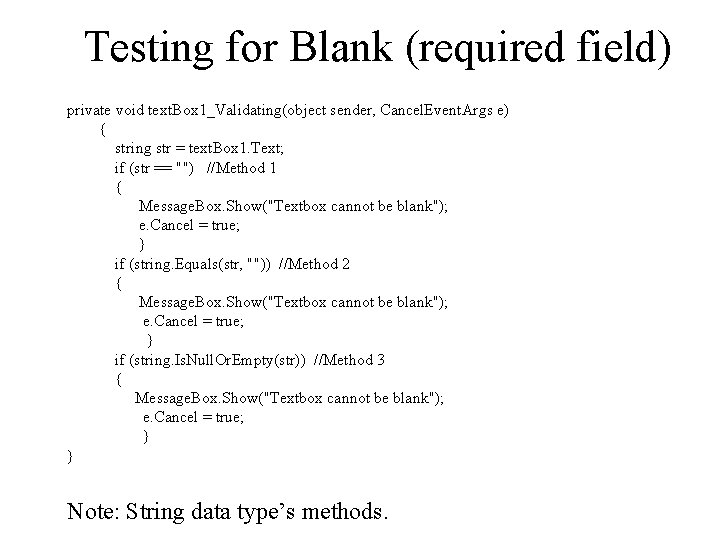
Testing for Blank (required field) private void text. Box 1_Validating(object sender, Cancel. Event. Args e) { string str = text. Box 1. Text; if (str == "") //Method 1 { Message. Box. Show("Textbox cannot be blank"); e. Cancel = true; } if (string. Equals(str, "")) //Method 2 { Message. Box. Show("Textbox cannot be blank"); e. Cancel = true; } if (string. Is. Null. Or. Empty(str)) //Method 3 { Message. Box. Show("Textbox cannot be blank"); e. Cancel = true; } } Note: String data type’s methods.
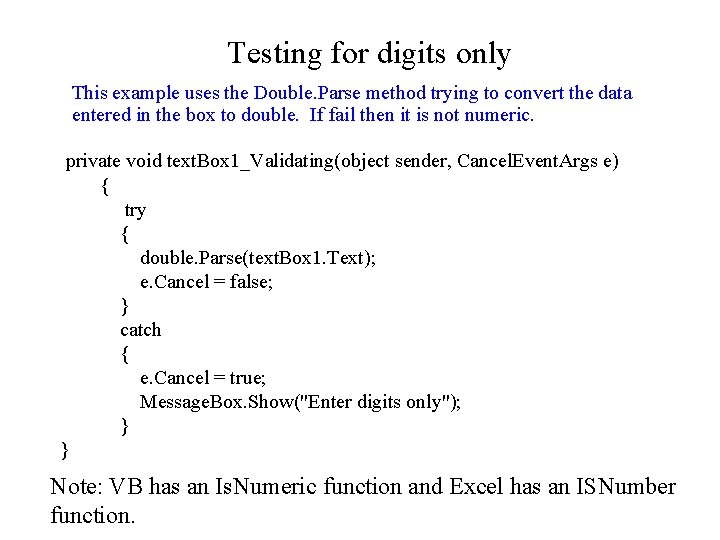
Testing for digits only This example uses the Double. Parse method trying to convert the data entered in the box to double. If fail then it is not numeric. private void text. Box 1_Validating(object sender, Cancel. Event. Args e) { try { double. Parse(text. Box 1. Text); e. Cancel = false; } catch { e. Cancel = true; Message. Box. Show("Enter digits only"); } } Note: VB has an Is. Numeric function and Excel has an ISNumber function.
Group Box • It is a container control. • Controls in a Group Box should move with the box.
Radio Button • Radio buttons must be grouped together inside a container such as a Group. Box or a form. • When the user selects an option all other options in the same group are deselected. • Properties: – Checked: True/False. • Default button: Set the Checked property to true at the design time. • Events: – Checked. Changed
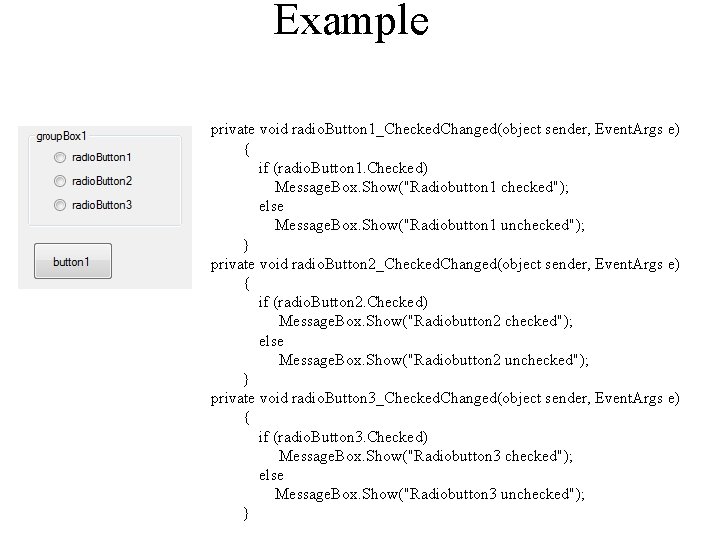
Example private void radio. Button 1_Checked. Changed(object sender, Event. Args e) { if (radio. Button 1. Checked) Message. Box. Show("Radiobutton 1 checked"); else Message. Box. Show("Radiobutton 1 unchecked"); } private void radio. Button 2_Checked. Changed(object sender, Event. Args e) { if (radio. Button 2. Checked) Message. Box. Show("Radiobutton 2 checked"); else Message. Box. Show("Radiobutton 2 unchecked"); } private void radio. Button 3_Checked. Changed(object sender, Event. Args e) { if (radio. Button 3. Checked) Message. Box. Show("Radiobutton 3 checked"); else Message. Box. Show("Radiobutton 3 unchecked"); }
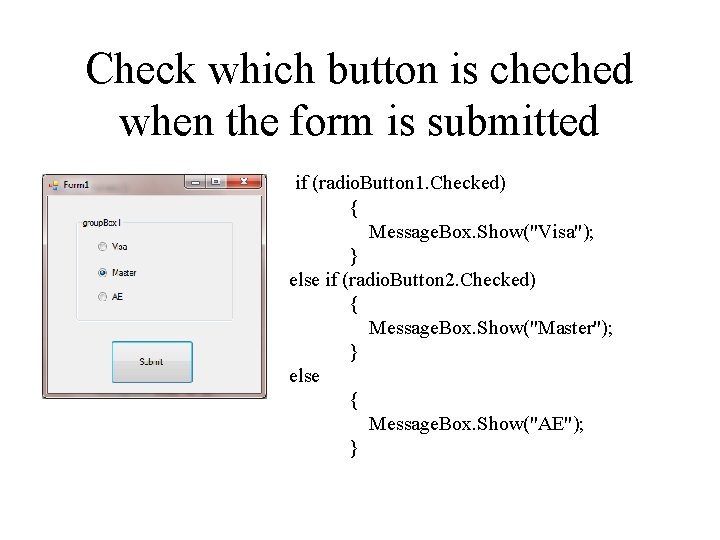
Check which button is cheched when the form is submitted if (radio. Button 1. Checked) { Message. Box. Show("Visa"); } else if (radio. Button 2. Checked) { Message. Box. Show("Master"); } else { Message. Box. Show("AE"); }
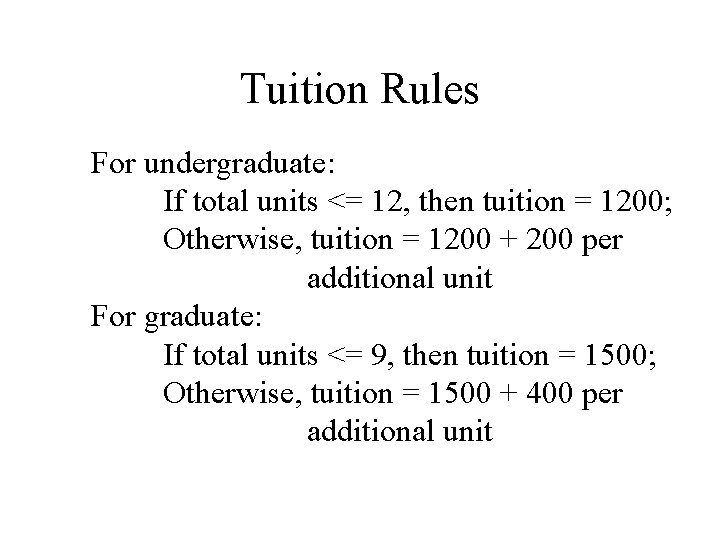
Tuition Rules For undergraduate: If total units <= 12, then tuition = 1200; Otherwise, tuition = 1200 + 200 per additional unit For graduate: If total units <= 9, then tuition = 1500; Otherwise, tuition = 1500 + 400 per additional unit
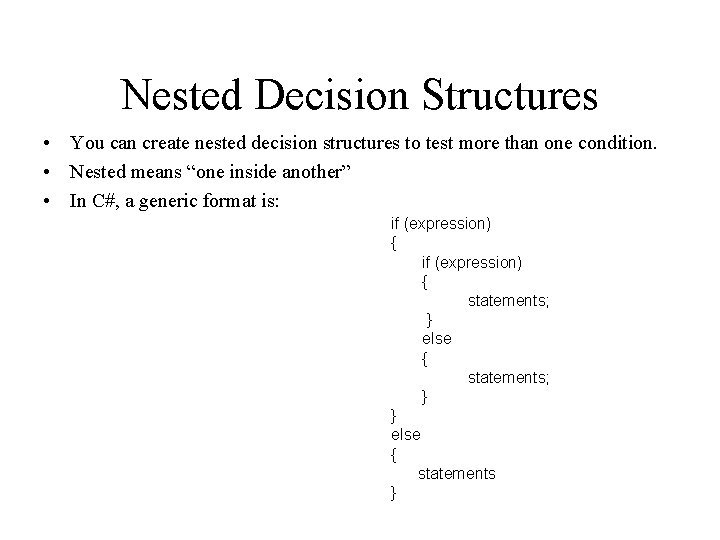
Nested Decision Structures • You can create nested decision structures to test more than one condition. • Nested means “one inside another” • In C#, a generic format is: if (expression) { statements; } else { statements; } } else { statements }
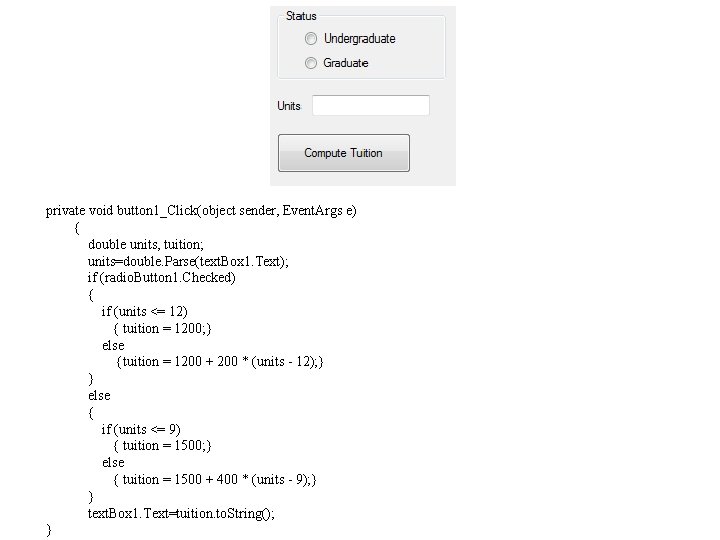
private void button 1_Click(object sender, Event. Args e) { double units, tuition; units=double. Parse(text. Box 1. Text); if (radio. Button 1. Checked) { if (units <= 12) { tuition = 1200; } else {tuition = 1200 + 200 * (units - 12); } } else { if (units <= 9) { tuition = 1500; } else { tuition = 1500 + 400 * (units - 9); } } text. Box 1. Text=tuition. to. String(); }
Check Box • Check boxes do not belong to a group even when they are grouped in a Group Box. • Checked property and checked. Changed event
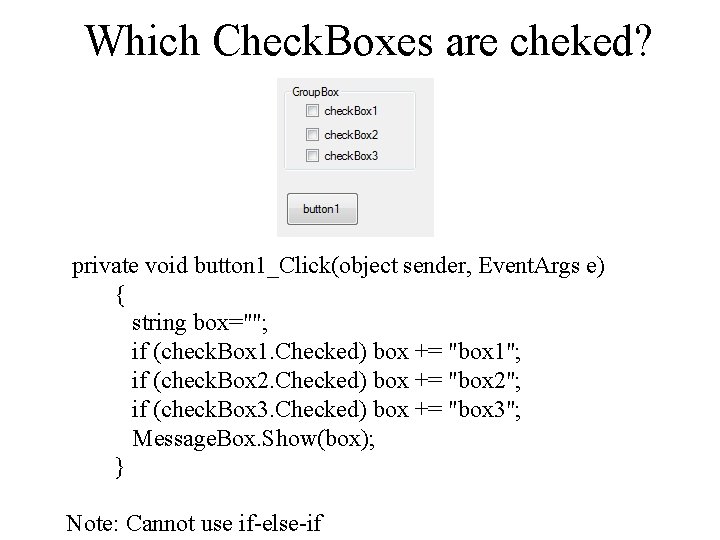
Which Check. Boxes are cheked? private void button 1_Click(object sender, Event. Args e) { string box=""; if (check. Box 1. Checked) box += "box 1"; if (check. Box 2. Checked) box += "box 2"; if (check. Box 3. Checked) box += "box 3"; Message. Box. Show(box); } Note: Cannot use if-else-if
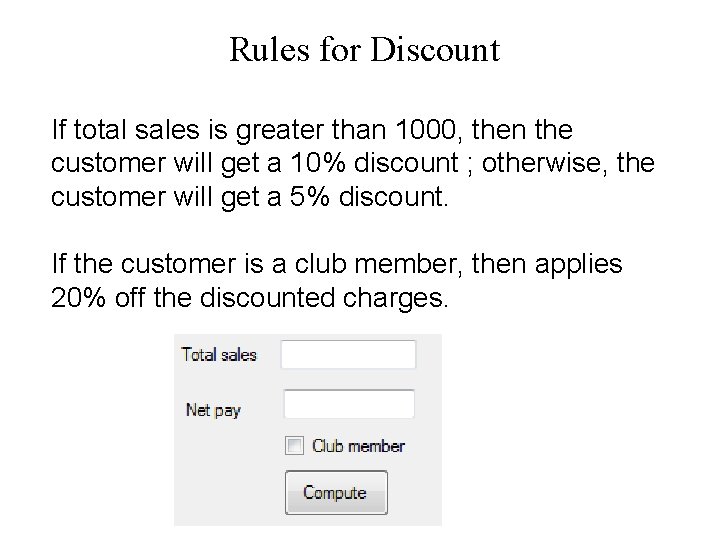
Rules for Discount If total sales is greater than 1000, then the customer will get a 10% discount ; otherwise, the customer will get a 5% discount. If the customer is a club member, then applies 20% off the discounted charges.
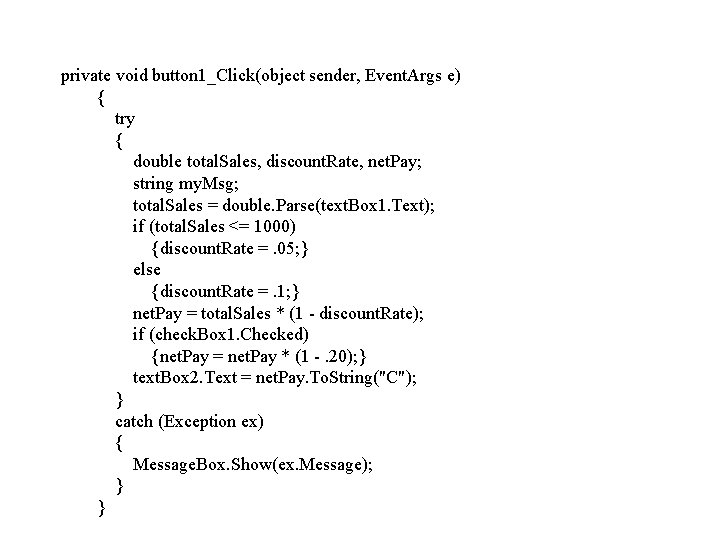
private void button 1_Click(object sender, Event. Args e) { try { double total. Sales, discount. Rate, net. Pay; string my. Msg; total. Sales = double. Parse(text. Box 1. Text); if (total. Sales <= 1000) {discount. Rate =. 05; } else {discount. Rate =. 1; } net. Pay = total. Sales * (1 - discount. Rate); if (check. Box 1. Checked) {net. Pay = net. Pay * (1 -. 20); } text. Box 2. Text = net. Pay. To. String("C"); } catch (Exception ex) { Message. Box. Show(ex. Message); } }
List Box • Useful properties – Items: The items in the list. Box. It is a collection strcture. Items can be entered at the design time or entered in code. • 0 -based index – Selection. Mode: one or multi selection – Selected. Item – Selected. Index • Methods – Add – Clear • Event: Selected. Index. Change
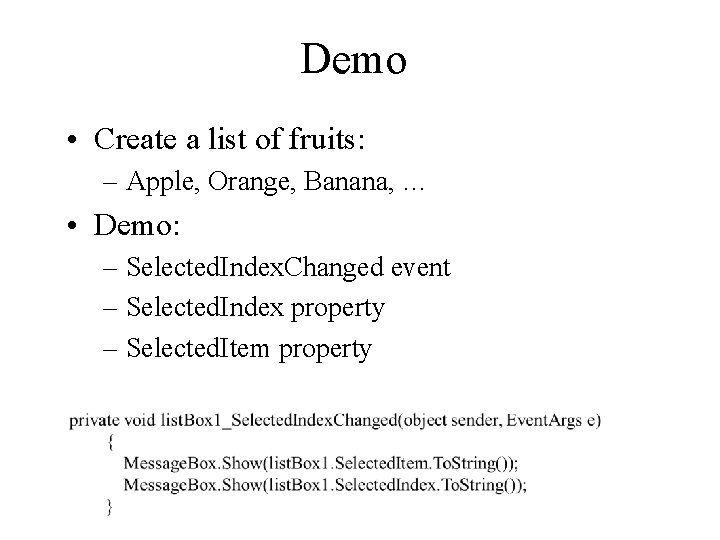
Demo • Create a list of fruits: – Apple, Orange, Banana, … • Demo: – Selected. Index. Changed event – Selected. Index property – Selected. Item property
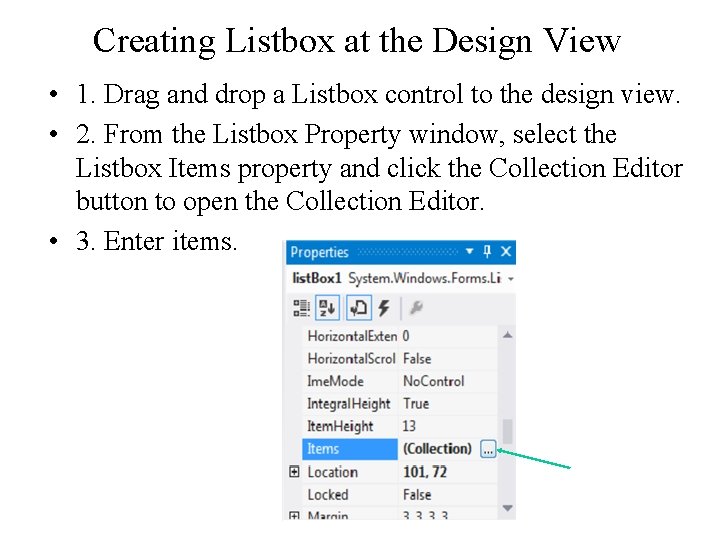
Creating Listbox at the Design View • 1. Drag and drop a Listbox control to the design view. • 2. From the Listbox Property window, select the Listbox Items property and click the Collection Editor button to open the Collection Editor. • 3. Enter items.
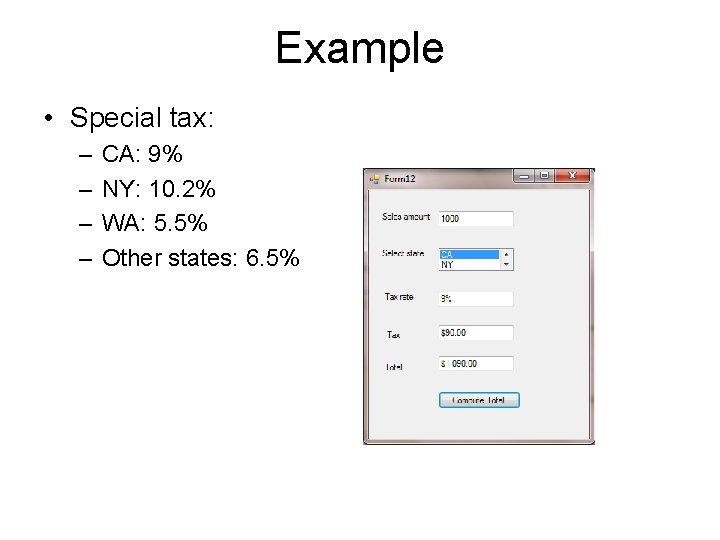
Example • Special tax: – – CA: 9% NY: 10. 2% WA: 5. 5% Other states: 6. 5%
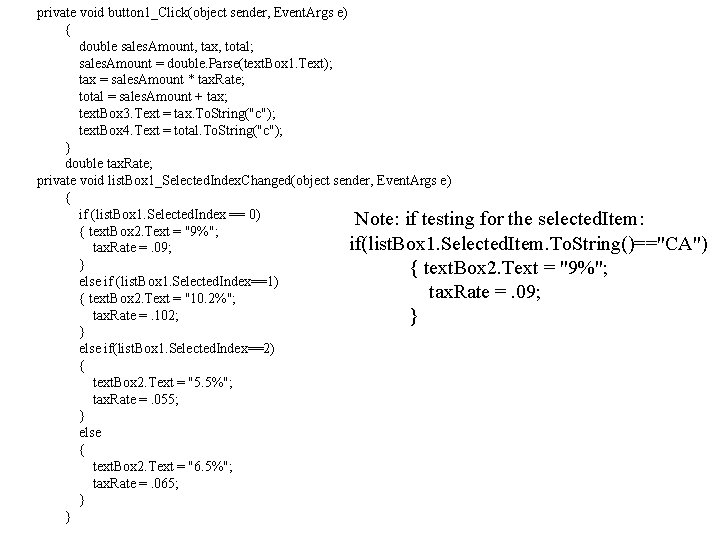
private void button 1_Click(object sender, Event. Args e) { double sales. Amount, tax, total; sales. Amount = double. Parse(text. Box 1. Text); tax = sales. Amount * tax. Rate; total = sales. Amount + tax; text. Box 3. Text = tax. To. String("c"); text. Box 4. Text = total. To. String("c"); } double tax. Rate; private void list. Box 1_Selected. Index. Changed(object sender, Event. Args e) { if (list. Box 1. Selected. Index == 0) Note: if testing for the selected. Item: { text. Box 2. Text = "9%"; if(list. Box 1. Selected. Item. To. String()=="CA") tax. Rate =. 09; } { text. Box 2. Text = "9%"; else if (list. Box 1. Selected. Index==1) tax. Rate =. 09; { text. Box 2. Text = "10. 2%"; tax. Rate =. 102; } } else if(list. Box 1. Selected. Index==2) { text. Box 2. Text = "5. 5%"; tax. Rate =. 055; } else { text. Box 2. Text = "6. 5%"; tax. Rate =. 065; } }
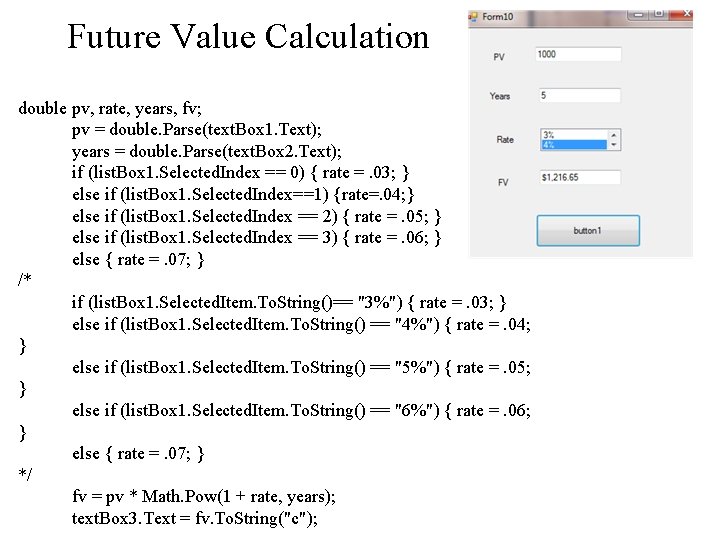
Future Value Calculation double pv, rate, years, fv; pv = double. Parse(text. Box 1. Text); years = double. Parse(text. Box 2. Text); if (list. Box 1. Selected. Index == 0) { rate =. 03; } else if (list. Box 1. Selected. Index==1) {rate=. 04; } else if (list. Box 1. Selected. Index == 2) { rate =. 05; } else if (list. Box 1. Selected. Index == 3) { rate =. 06; } else { rate =. 07; } /* if (list. Box 1. Selected. Item. To. String()== "3%") { rate =. 03; } else if (list. Box 1. Selected. Item. To. String() == "4%") { rate =. 04; } else if (list. Box 1. Selected. Item. To. String() == "5%") { rate =. 05; } else if (list. Box 1. Selected. Item. To. String() == "6%") { rate =. 06; } else { rate =. 07; } */ fv = pv * Math. Pow(1 + rate, years); text. Box 3. Text = fv. To. String("c");
List. Box Items Collection Structure • Methods: – ADD: List. Box 1. Items. Add("Apple") – Item: Retrieve an object from Items • List. Box 1. Items. Item(Index) or List. Box 1. Items(Index) • 0 -based index – Insert: List. Box. Items. Insert(Index, item) – Remove: Delete an object with a position index or key. • List. Box. Items. Remove(Item) • List. Box. Items. Remove. At(Index) – Clear: List. Box. Items. Clear() – Count: Return the number of objects in a collection. • List. Box. Items. Count
Adding Items Using Code private void Form 11_Load(object sender, Event. Args e) { list. Box 1. Items. Add("Apple"); list. Box 1. Items. Add("Orange"); list. Box 1. Items. Add("Banana"); list. Box 1. Items. Add("Strawberry"); list. Box 1. Items. Add("Kiwi"); } private void list. Box 1_Selected. Index. Changed(object sender, Event. Args e) { Message. Box. Show(list. Box 1. Selected. Item. To. String()); Message. Box. Show(list. Box 1. Selected. Index. To. String()); }
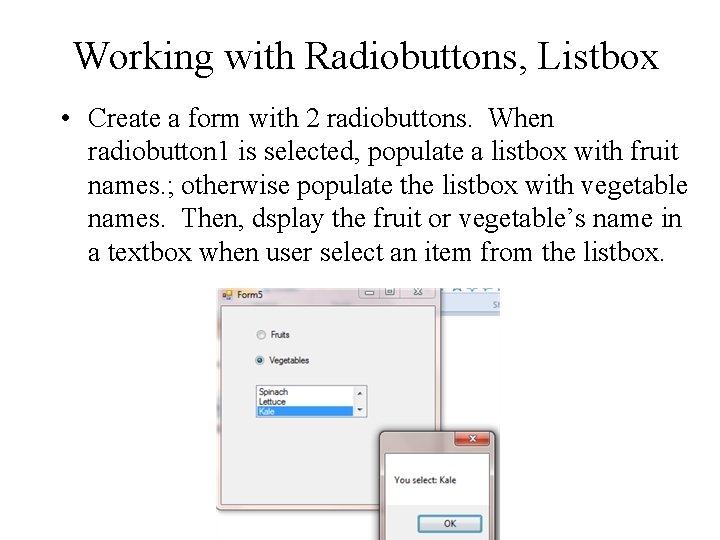
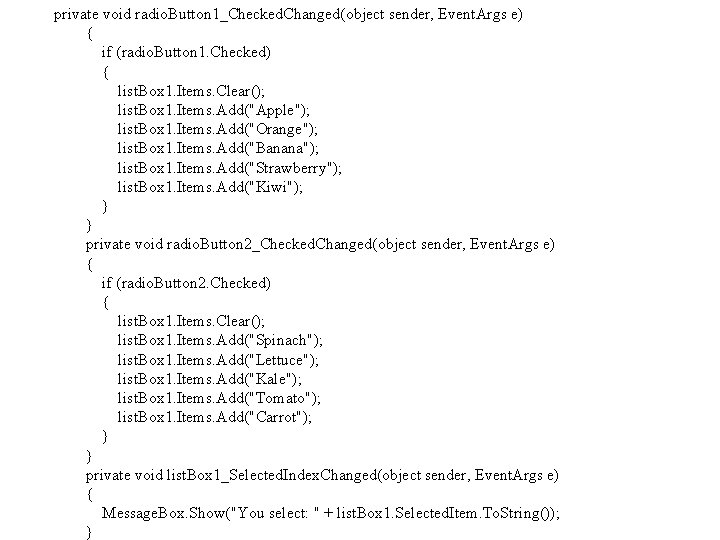
Working with Radiobuttons, Listbox • Create a form with 2 radiobuttons. When radiobutton 1 is selected, populate a listbox with fruit names. ; otherwise populate the listbox with vegetable names. Then, dsplay the fruit or vegetable’s name in a textbox when user select an item from the listbox.
private void radio. Button 1_Checked. Changed(object sender, Event. Args e) { if (radio. Button 1. Checked) { list. Box 1. Items. Clear(); list. Box 1. Items. Add("Apple"); list. Box 1. Items. Add("Orange"); list. Box 1. Items. Add("Banana"); list. Box 1. Items. Add("Strawberry"); list. Box 1. Items. Add("Kiwi"); } } private void radio. Button 2_Checked. Changed(object sender, Event. Args e) { if (radio. Button 2. Checked) { list. Box 1. Items. Clear(); list. Box 1. Items. Add("Spinach"); list. Box 1. Items. Add("Lettuce"); list. Box 1. Items. Add("Kale"); list. Box 1. Items. Add("Tomato"); list. Box 1. Items. Add("Carrot"); } } private void list. Box 1_Selected. Index. Changed(object sender, Event. Args e) { Message. Box. Show("You select: " + list. Box 1. Selected. Item. To. String()); }
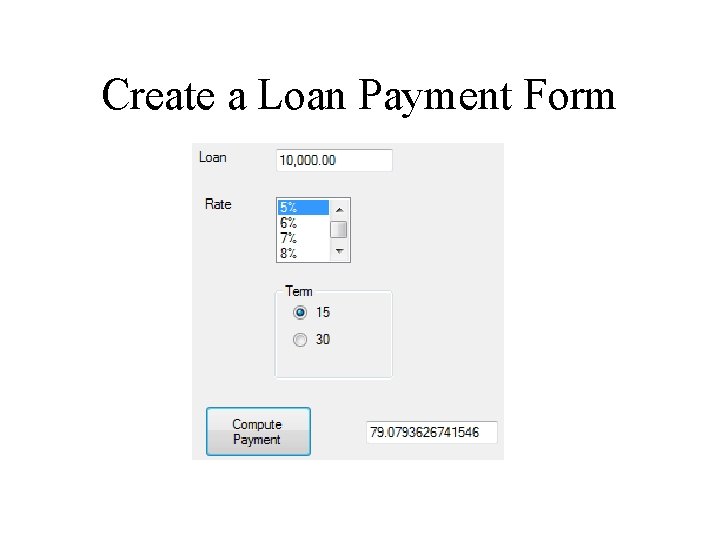
Create a Loan Payment Form
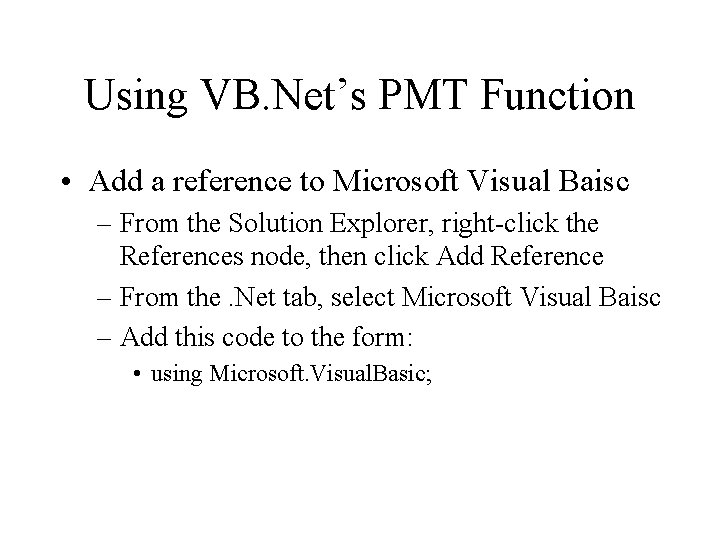
Using VB. Net’s PMT Function • Add a reference to Microsoft Visual Baisc – From the Solution Explorer, right-click the References node, then click Add Reference – From the. Net tab, select Microsoft Visual Baisc – Add this code to the form: • using Microsoft. Visual. Basic;
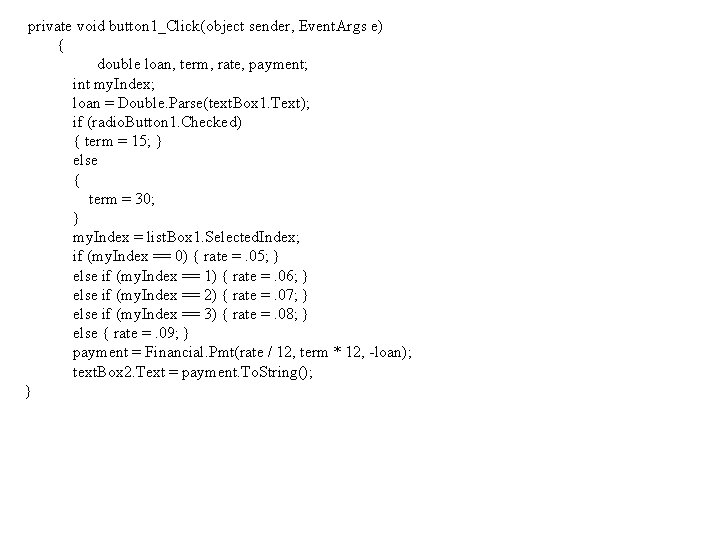
private void button 1_Click(object sender, Event. Args e) { double loan, term, rate, payment; int my. Index; loan = Double. Parse(text. Box 1. Text); if (radio. Button 1. Checked) { term = 15; } else { term = 30; } my. Index = list. Box 1. Selected. Index; if (my. Index == 0) { rate =. 05; } else if (my. Index == 1) { rate =. 06; } else if (my. Index == 2) { rate =. 07; } else if (my. Index == 3) { rate =. 08; } else { rate =. 09; } payment = Financial. Pmt(rate / 12, term * 12, -loan); text. Box 2. Text = payment. To. String(); }
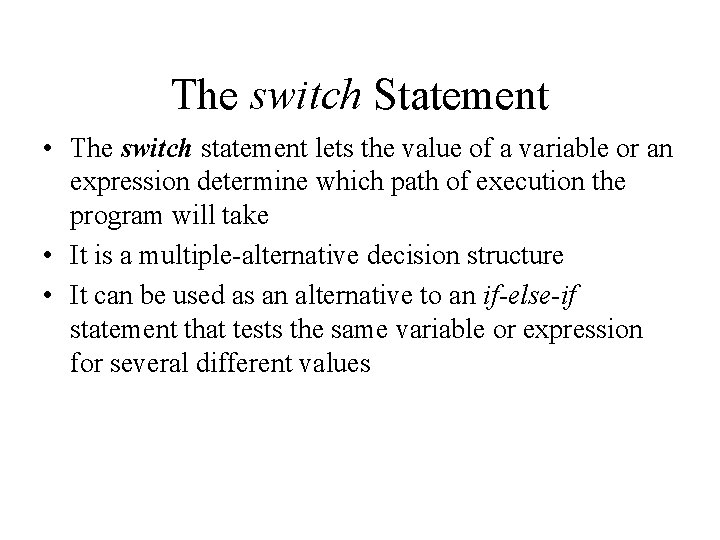
The switch Statement • The switch statement lets the value of a variable or an expression determine which path of execution the program will take • It is a multiple-alternative decision structure • It can be used as an alternative to an if-else-if statement that tests the same variable or expression for several different values
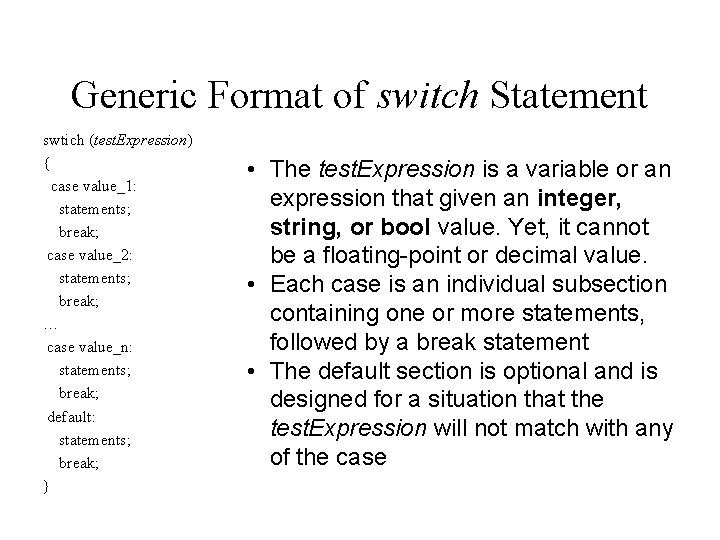
Generic Format of switch Statement swtich (test. Expression) { case value_1: statements; break; case value_2: statements; break; … case value_n: statements; break; default: statements; break; } • The test. Expression is a variable or an expression that given an integer, string, or bool value. Yet, it cannot be a floating-point or decimal value. • Each case is an individual subsection containing one or more statements, followed by a break statement • The default section is optional and is designed for a situation that the test. Expression will not match with any of the case
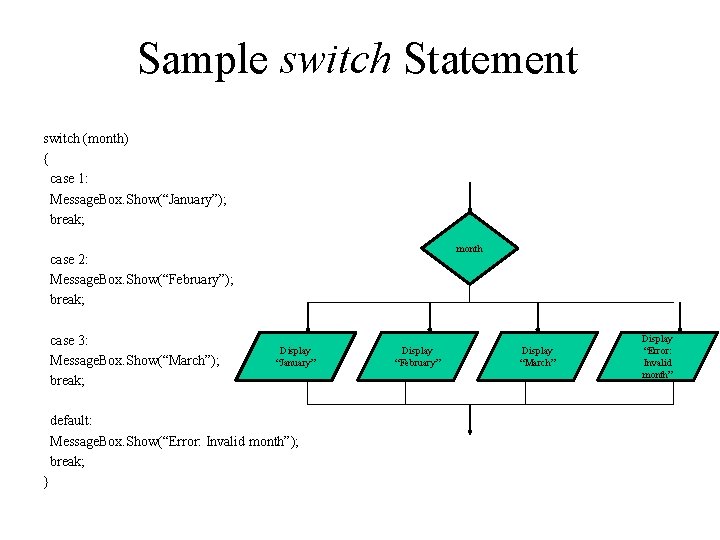
Sample switch Statement switch (month) { case 1: Message. Box. Show(“January”); break; month case 2: Message. Box. Show(“February”); break; case 3: Message. Box. Show(“March”); break; Display “January” default: Message. Box. Show(“Error: Invalid month”); break; } Display “February” Display “March” Display “Error: Invalid month”
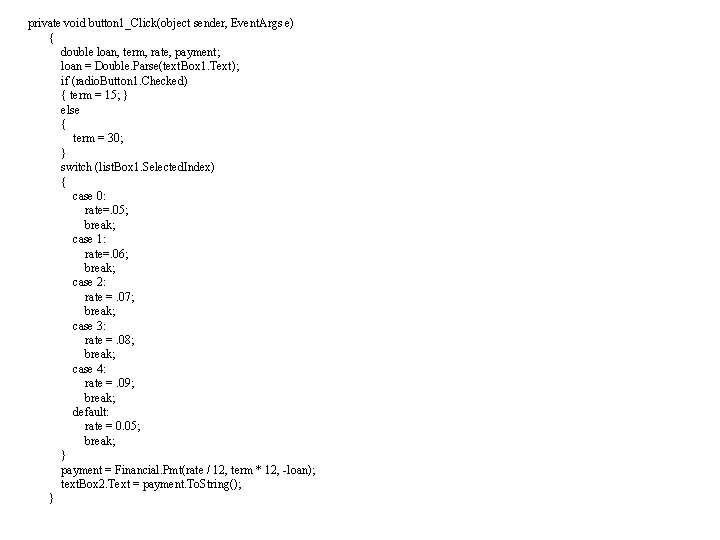
private void button 1_Click(object sender, Event. Args e) { double loan, term, rate, payment; loan = Double. Parse(text. Box 1. Text); if (radio. Button 1. Checked) { term = 15; } else { term = 30; } switch (list. Box 1. Selected. Index) { case 0: rate=. 05; break; case 1: rate=. 06; break; case 2: rate =. 07; break; case 3: rate =. 08; break; case 4: rate =. 09; break; default: rate = 0. 05; break; } payment = Financial. Pmt(rate / 12, term * 12, -loan); text. Box 2. Text = payment. To. String(); }
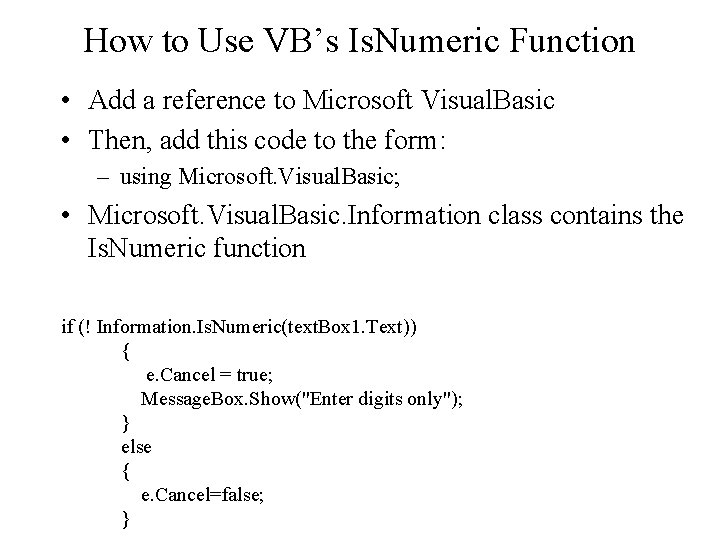
How to Use VB’s Is. Numeric Function • Add a reference to Microsoft Visual. Basic • Then, add this code to the form: – using Microsoft. Visual. Basic; • Microsoft. Visual. Basic. Information class contains the Is. Numeric function if (! Information. Is. Numeric(text. Box 1. Text)) { e. Cancel = true; Message. Box. Show("Enter digits only"); } else { e. Cancel=false; }
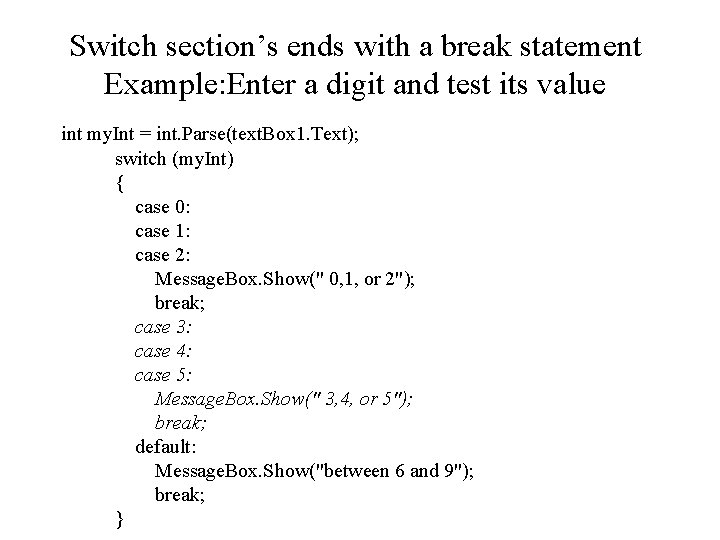
Switch section’s ends with a break statement Example: Enter a digit and test its value int my. Int = int. Parse(text. Box 1. Text); switch (my. Int) { case 0: case 1: case 2: Message. Box. Show(" 0, 1, or 2"); break; case 3: case 4: case 5: Message. Box. Show(" 3, 4, or 5"); break; default: Message. Box. Show("between 6 and 9"); break; }
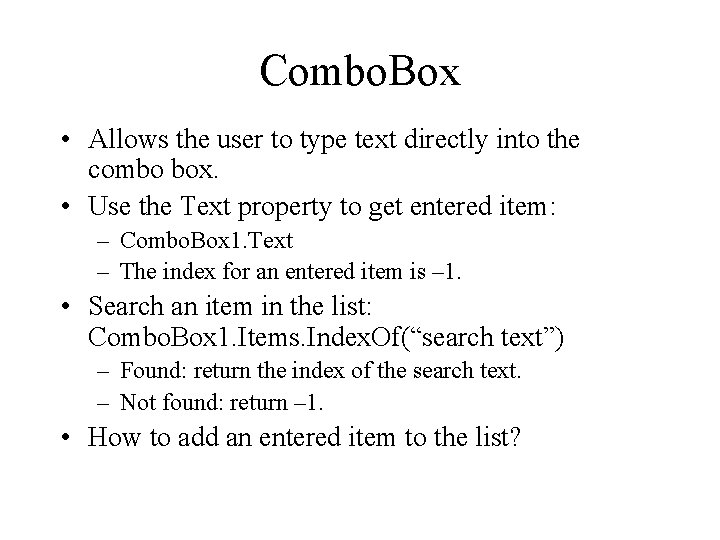
Combo. Box • Allows the user to type text directly into the combo box. • Use the Text property to get entered item: – Combo. Box 1. Text – The index for an entered item is – 1. • Search an item in the list: Combo. Box 1. Items. Index. Of(“search text”) – Found: return the index of the search text. – Not found: return – 1. • How to add an entered item to the list?
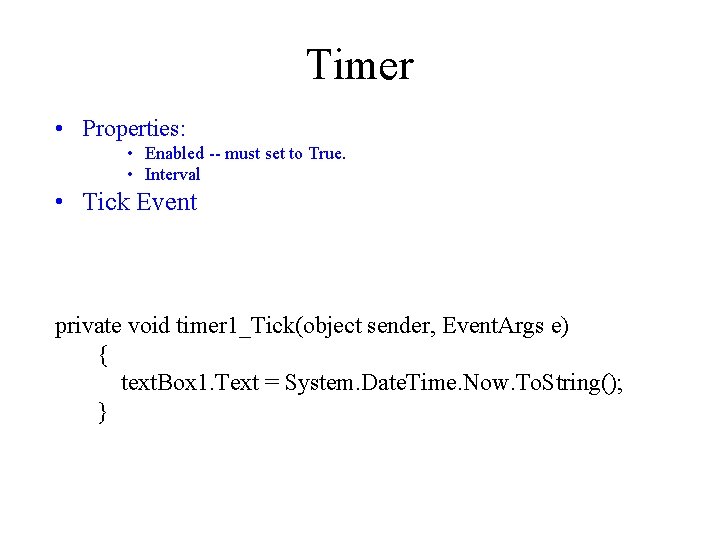
Timer • Properties: • Enabled -- must set to True. • Interval • Tick Event private void timer 1_Tick(object sender, Event. Args e) { text. Box 1. Text = System. Date. Time. Now. To. String(); }
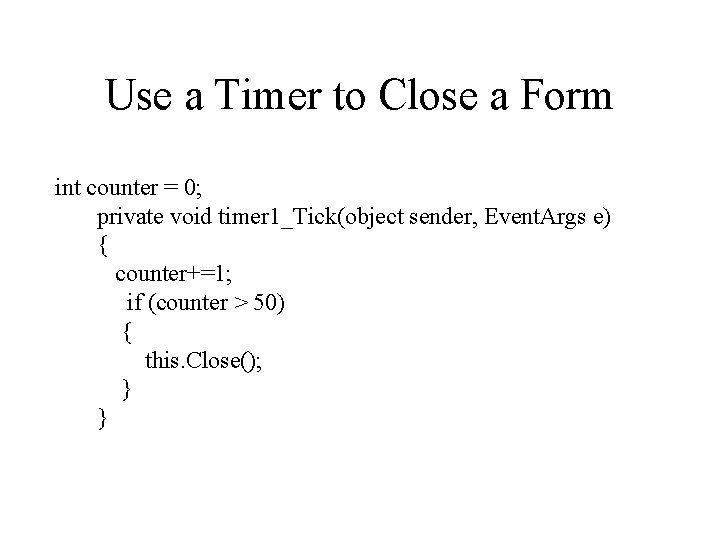
Use a Timer to Close a Form int counter = 0; private void timer 1_Tick(object sender, Event. Args e) { counter+=1; if (counter > 50) { this. Close(); } }
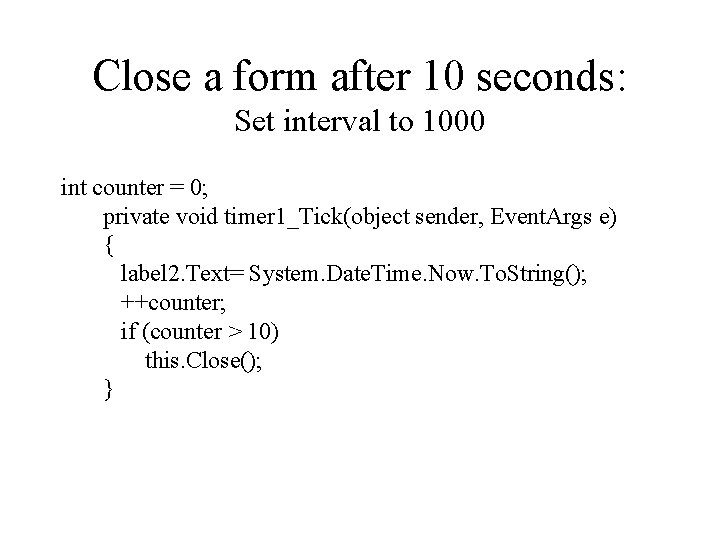
Close a form after 10 seconds: Set interval to 1000 int counter = 0; private void timer 1_Tick(object sender, Event. Args e) { label 2. Text= System. Date. Time. Now. To. String(); ++counter; if (counter > 10) this. Close(); }