
Procurement Services Training Presented by Christine Palma Director
Procurement Services Training Presented by: Christine Palma, Director of Procurement Services – Goods & Services Erskine Shoulars – Procurement Administrator Becky Pataki -ERP Systems Trainer February 22, 2017 1
Agenda § MSU overview § Procurement overview § How the University acquires its goods/services § FMS overview § Proper entry of requisitions in FMS § Procurement steps – request through payment 2

MSU Overview • As of Spring 2017 - 19, 670 students, 3, 599 FT/PT faculty, 1, 753 FT/PT staff • Expected growth over the next five years is approximately 700 students per academic year • Projected growth by 2021 is to reach 24, 200 students • Value of MSU assets is $1. 2 billion • Fiscal Year 2017 total expenditures were $60. 1 million 3
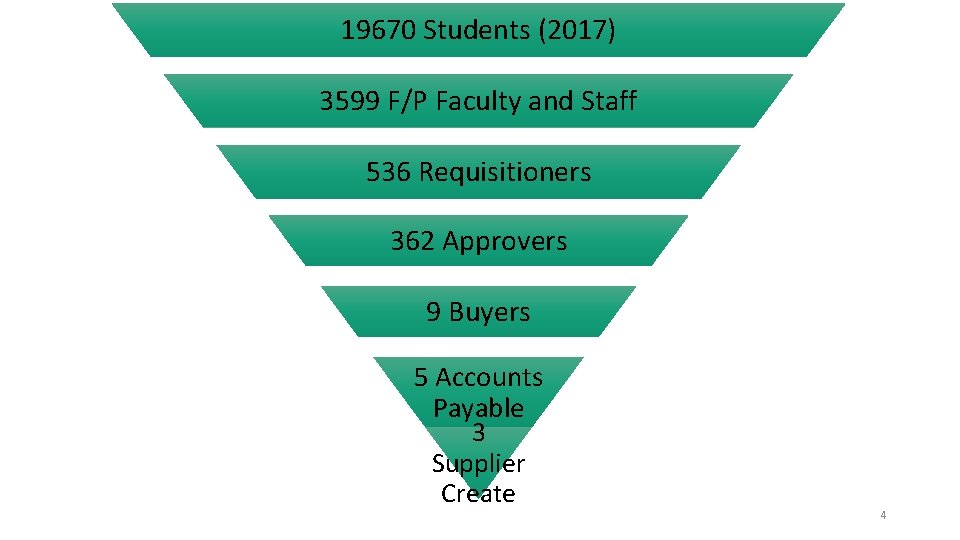
19670 Students (2017) 3599 F/P Faculty and Staff 536 Requisitioners 362 Approvers 9 Buyers 5 Accounts Payable 3 Supplier Create 4
Procurement Overview • MSU must adhere to the Montclair State University Act 4969 and other New Jersey State regulations, as well as its own policies • FMS allows the Finance and Treasury Department to keep track of $4 million worth of transactions related to acquisition of goods and services • FMS processed 29, 943 requisitions during its first two years • FMS maintains 8, 576 active suppliers, and creates/maintains supplier files each month • Processed approximately 95, 716 payments to suppliers & students during its first two years 5
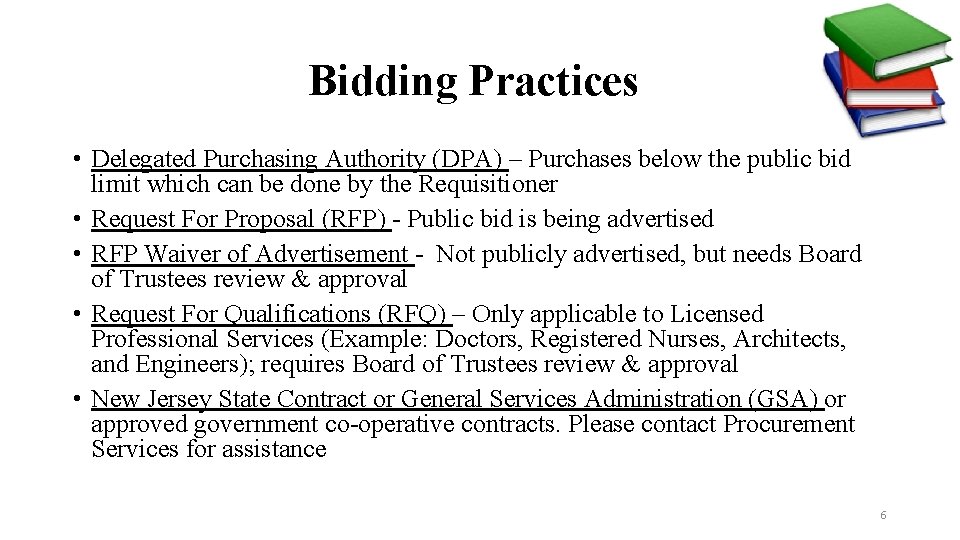
Bidding Practices • Delegated Purchasing Authority (DPA) – Purchases below the public bid limit which can be done by the Requisitioner • Request For Proposal (RFP) - Public bid is being advertised • RFP Waiver of Advertisement - Not publicly advertised, but needs Board of Trustees review & approval • Request For Qualifications (RFQ) – Only applicable to Licensed Professional Services (Example: Doctors, Registered Nurses, Architects, and Engineers); requires Board of Trustees review & approval • New Jersey State Contract or General Services Administration (GSA) or approved government co-operative contracts. Please contact Procurement Services for assistance 6
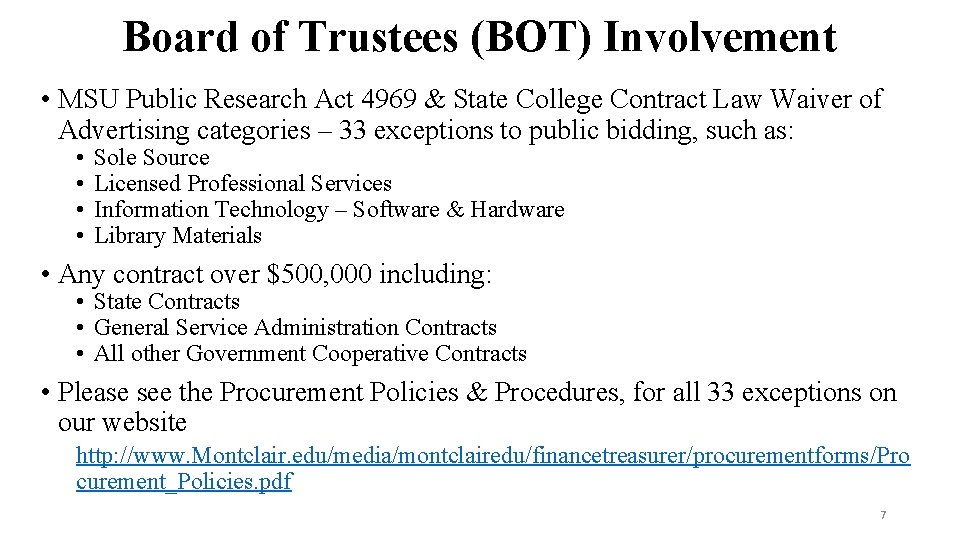
Board of Trustees (BOT) Involvement • MSU Public Research Act 4969 & State College Contract Law Waiver of Advertising categories – 33 exceptions to public bidding, such as: • • Sole Source Licensed Professional Services Information Technology – Software & Hardware Library Materials • Any contract over $500, 000 including: • State Contracts • General Service Administration Contracts • All other Government Cooperative Contracts • Please see the Procurement Policies & Procedures, for all 33 exceptions on our website http: //www. Montclair. edu/media/montclairedu/financetreasurer/procurementforms/Pro curement_Policies. pdf 7

FMS System • The Financial Management Solutions (FMS) system is used by Finance to capture all requests for goods & services purchased by MSU. • It involves all areas of the University, such as Departments, Grants, Procurement Services, Accounts Payable, Budget 8
Requisition Process 9
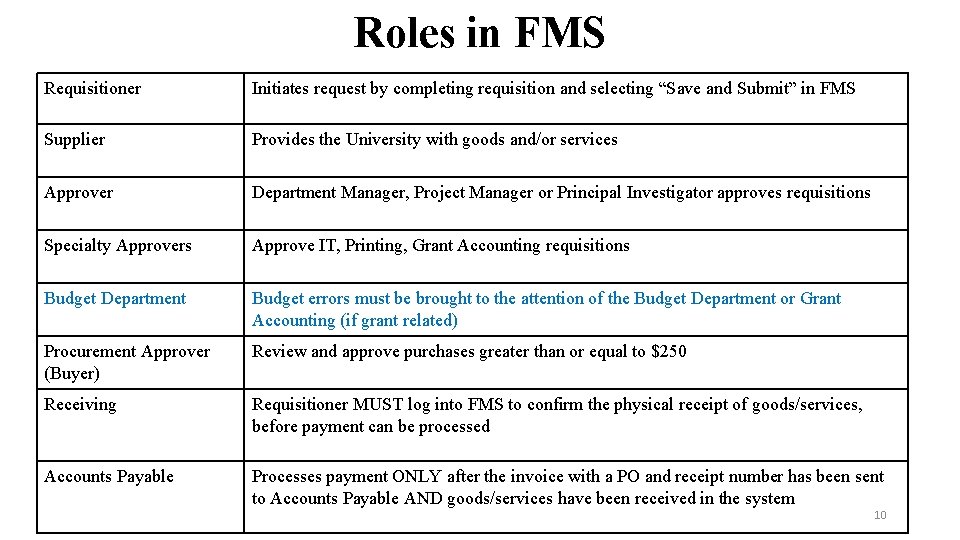
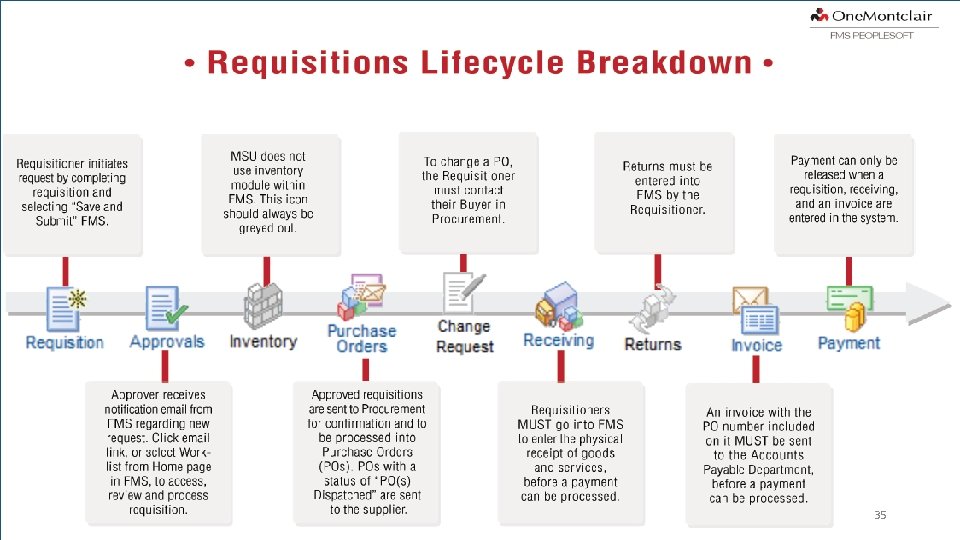
Roles in FMS Requisitioner Initiates request by completing requisition and selecting “Save and Submit” in FMS Supplier Provides the University with goods and/or services Approver Department Manager, Project Manager or Principal Investigator approves requisitions Specialty Approvers Approve IT, Printing, Grant Accounting requisitions Budget Department Budget errors must be brought to the attention of the Budget Department or Grant Accounting (if grant related) Procurement Approver (Buyer) Review and approve purchases greater than or equal to $250 Receiving Requisitioner MUST log into FMS to confirm the physical receipt of goods/services, before payment can be processed Accounts Payable Processes payment ONLY after the invoice with a PO and receipt number has been sent to Accounts Payable AND goods/services have been received in the system 10
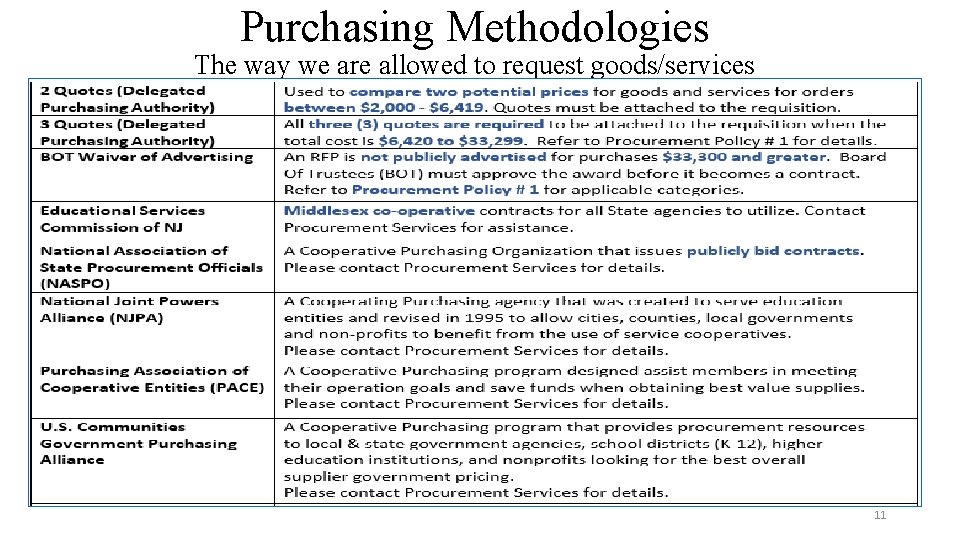
Purchasing Methodologies The way we are allowed to request goods/services 11
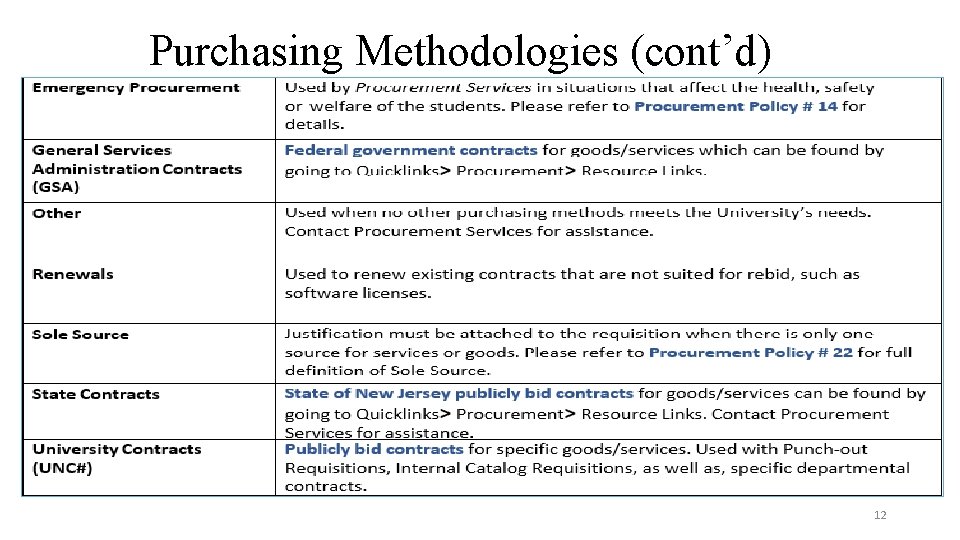
Purchasing Methodologies (cont’d) 12
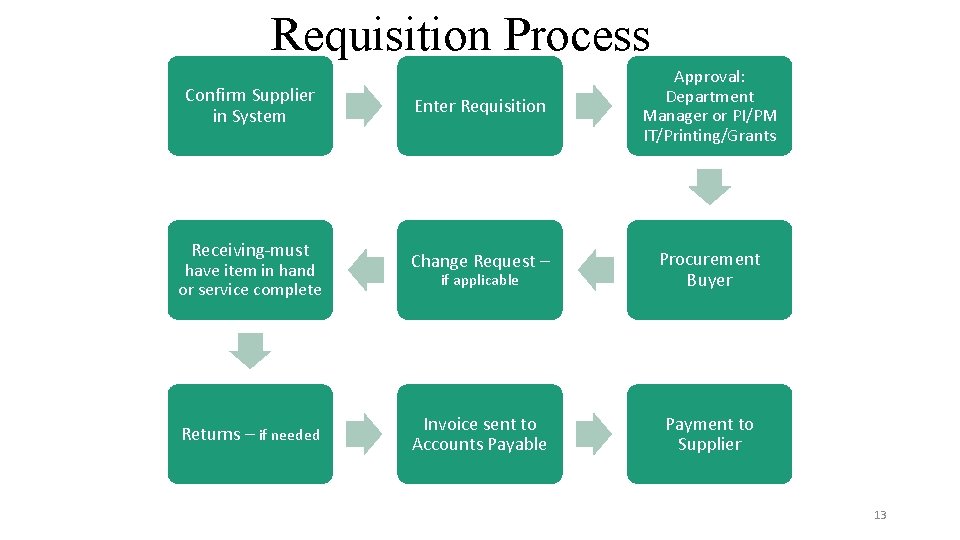
Requisition Process Confirm Supplier in System Receiving-must have item in hand or service complete Returns – if needed Enter Requisition Approval: Department Manager or PI/PM IT/Printing/Grants Change Request – if applicable Procurement Buyer Invoice sent to Accounts Payable Payment to Supplier 13
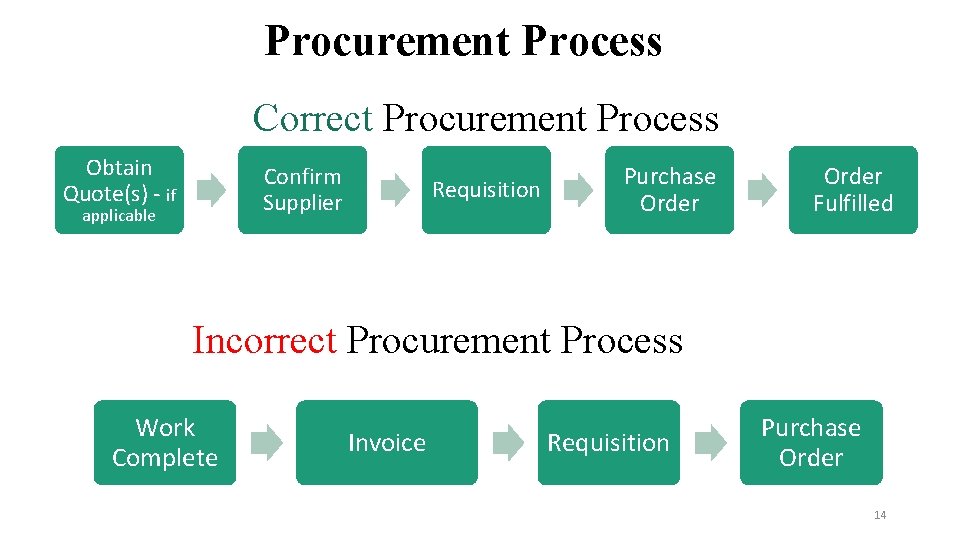
Procurement Process Correct Procurement Process Obtain Quote(s) - if Confirm Supplier applicable Requisition Purchase Order Fulfilled Incorrect Procurement Process Work Complete Invoice Requisition Purchase Order 14
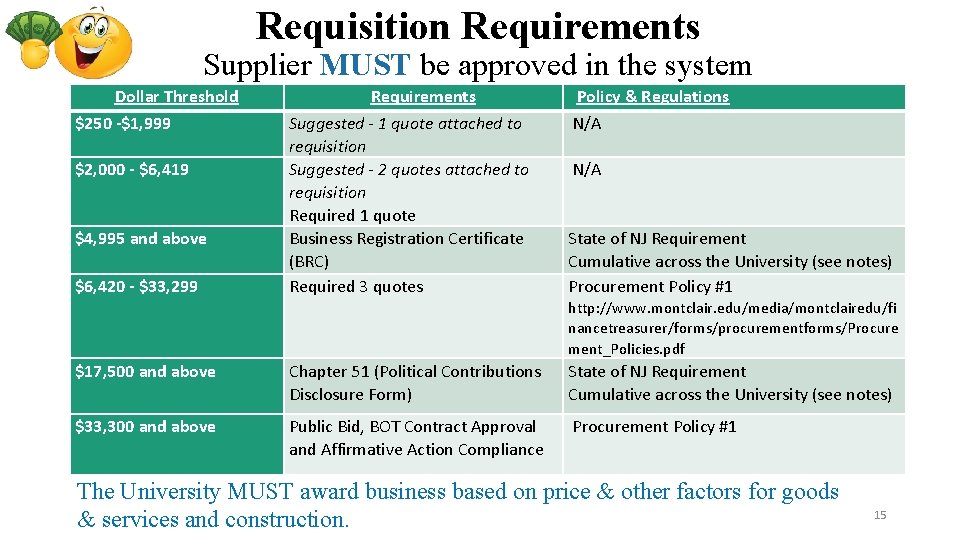
Requisition Requirements Supplier MUST be approved in the system Dollar Threshold $250 -$1, 999 $2, 000 - $6, 419 $4, 995 and above $6, 420 - $33, 299 Requirements Suggested - 1 quote attached to requisition Suggested - 2 quotes attached to requisition Required 1 quote Business Registration Certificate (BRC) Required 3 quotes Policy & Regulations N/A State of NJ Requirement Cumulative across the University (see notes) Procurement Policy #1 http: //www. montclair. edu/media/montclairedu/fi nancetreasurer/forms/procurementforms/Procure ment_Policies. pdf $17, 500 and above Chapter 51 (Political Contributions Disclosure Form) State of NJ Requirement Cumulative across the University (see notes) $33, 300 and above Public Bid, BOT Contract Approval and Affirmative Action Compliance Procurement Policy #1 The University MUST award business based on price & other factors for goods & services and construction. 15
Suppliers 17
Verify Supplier Is In FMS Determine whether your Supplier is already approved in the system How ? ? ? 18
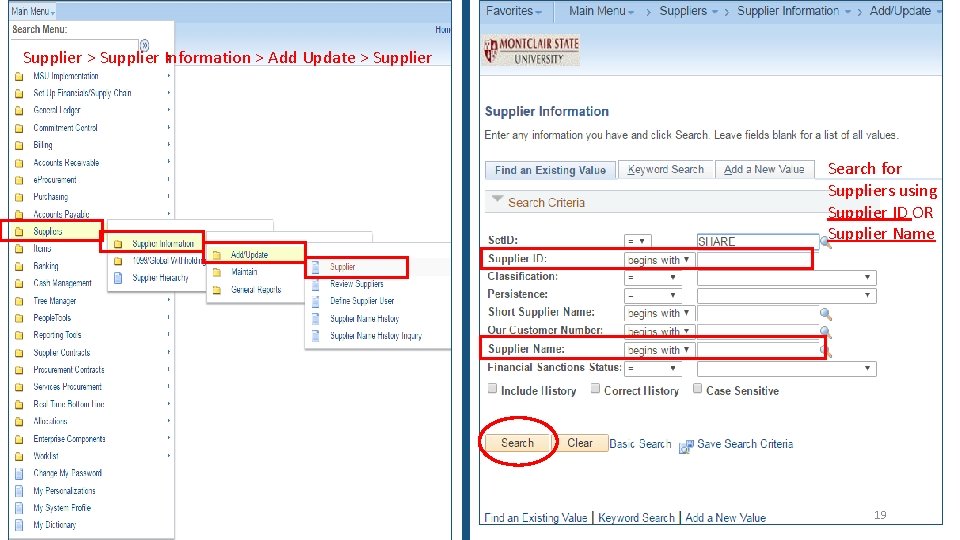
Supplier > Supplier Information > Add Update > Supplier Search for Suppliers using Supplier ID OR Supplier Name 19
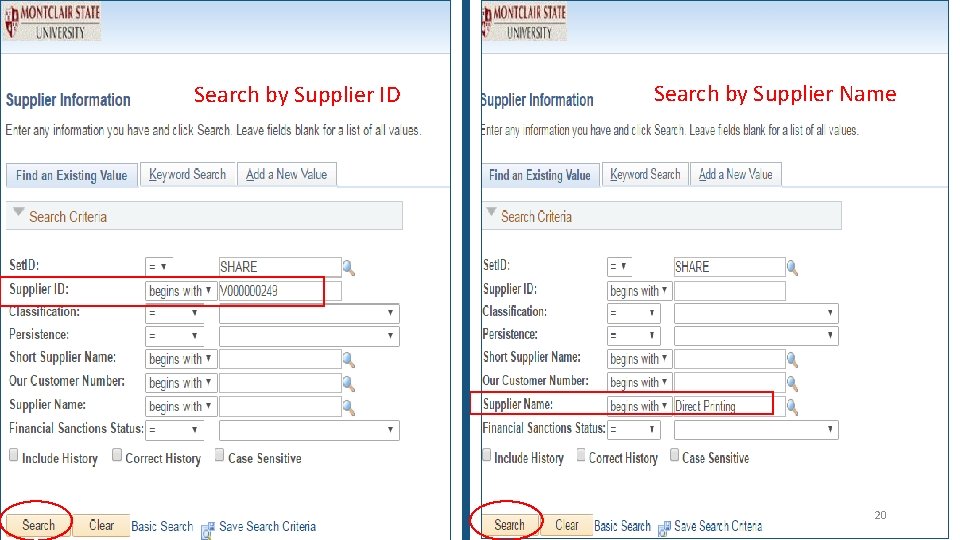
Search by Supplier ID Search by Supplier Name 20
If Supplier Not In FMS 1. Requisitioner MUST complete shaded fields in top of the Supplier Create/Maintenance Form 2. Send the form to the Supplier to complete and return with a copy of their W 9 (or W 8 if an international supplier) to the Supplier Create Team: suppliercreate@montclair. edu 3. NOTE: Upon receipt of complete documentation, allow up to 5 business days for supplier to be created • Do not complete this form on behalf of the supplier • The Supplier Create/Maintenance Form can be found at: http: //www. montclair. edu/media/montclairedu/financetreasurer/for ms/procurementforms/Supplier-Create-Maintain-Form-Final-Rev-6 -122017 -1. pdf 21
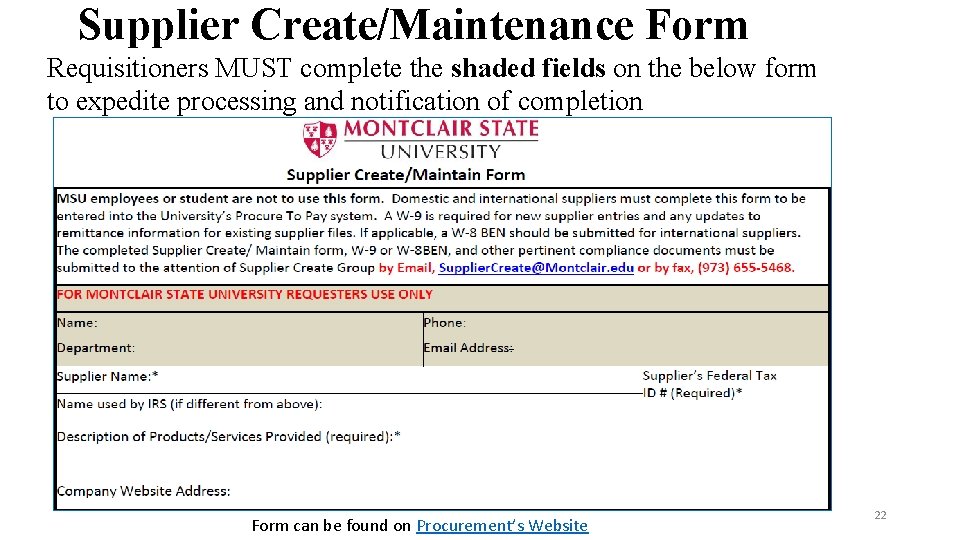
Supplier Create/Maintenance Form Requisitioners MUST complete the shaded fields on the below form to expedite processing and notification of completion Form can be found on Procurement’s Website 22
If Supplier Is In FMS • In the system please confirm: 1. 2. 3. 4. Summary tab – Order Address, Remit To Address, & Status Contacts tab – Contact Name, Email, & Phone Number Custom tab – Year to Date Spend (YTD) Identifying Information tab – Government Classification for NJ State required documents • If you find anything is incorrect, please submit a Supplier Create/Maintenance form to have the supplier information corrected. 23
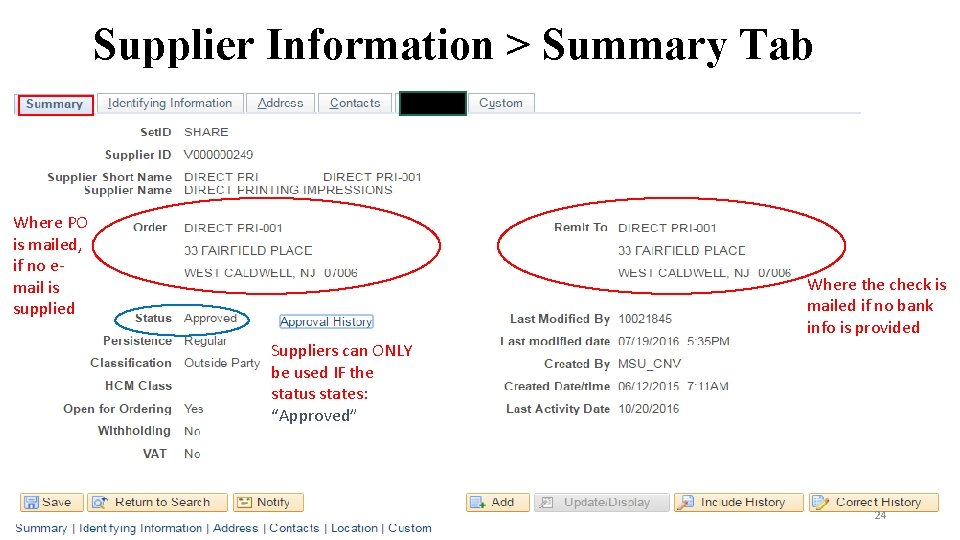
Supplier Information > Summary Tab Where PO is mailed, if no email is supplied Where the check is mailed if no bank info is provided Suppliers can ONLY be used IF the status states: “Approved” 24
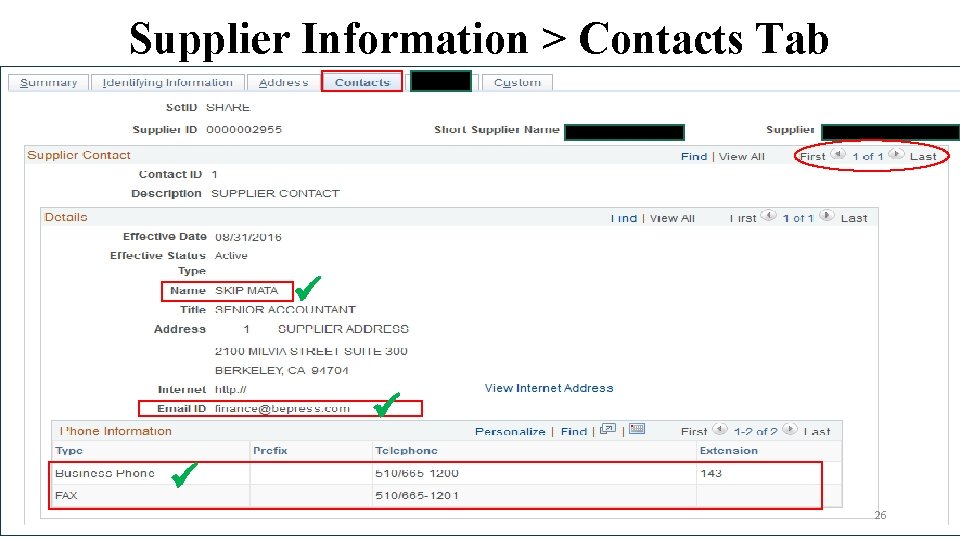
Supplier Information > Contacts Tab 26
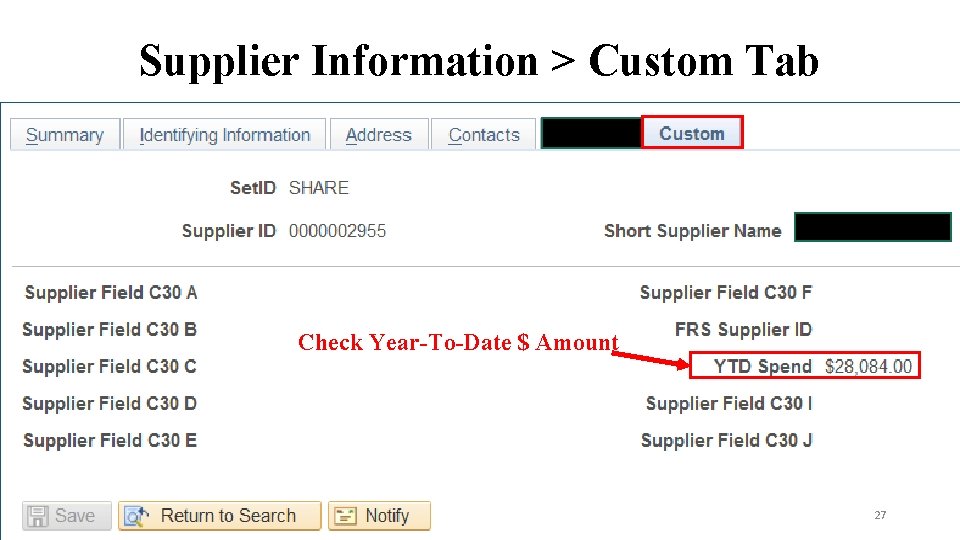
Supplier Information > Custom Tab Check Year-To-Date $ Amount 27
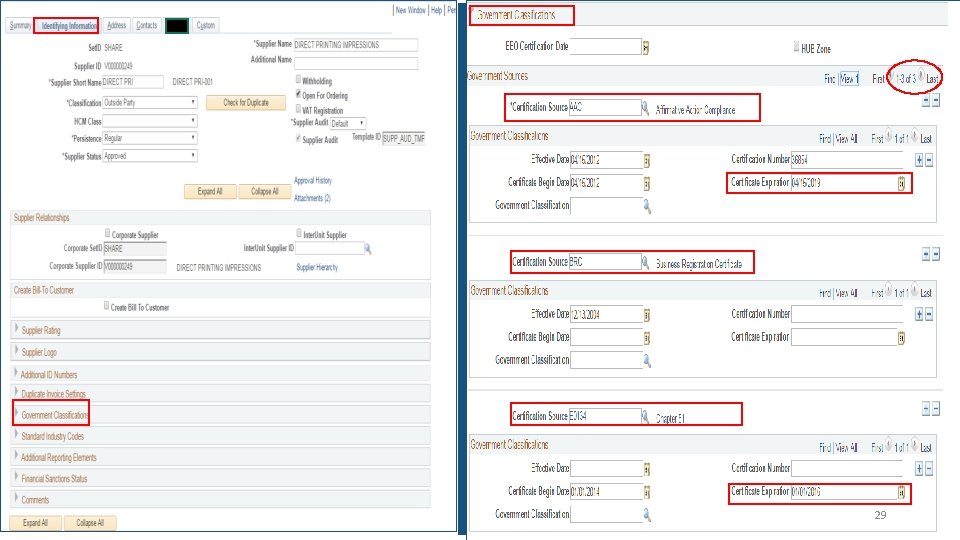
Supplier Information > Identification Tab Requisition Requirements • $4, 950 and above – Business Registration Certificate (BRC) • $17, 500 and above – Chapter 51 (Political Contribution Disclosure) • $33, 300 and above – Affirmative Action Certificate (AAC) • Expand the Government Classification arrow • Identify submitted certifications 28
29
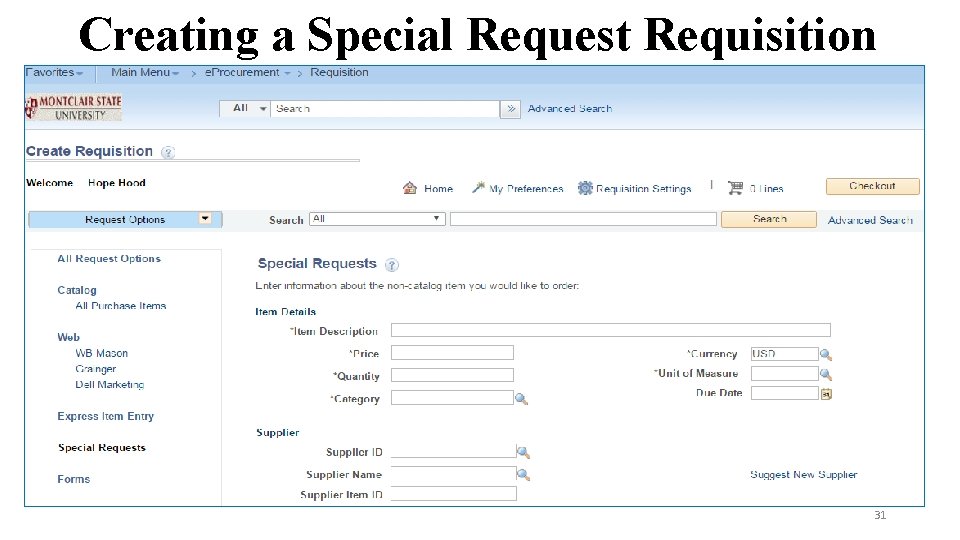
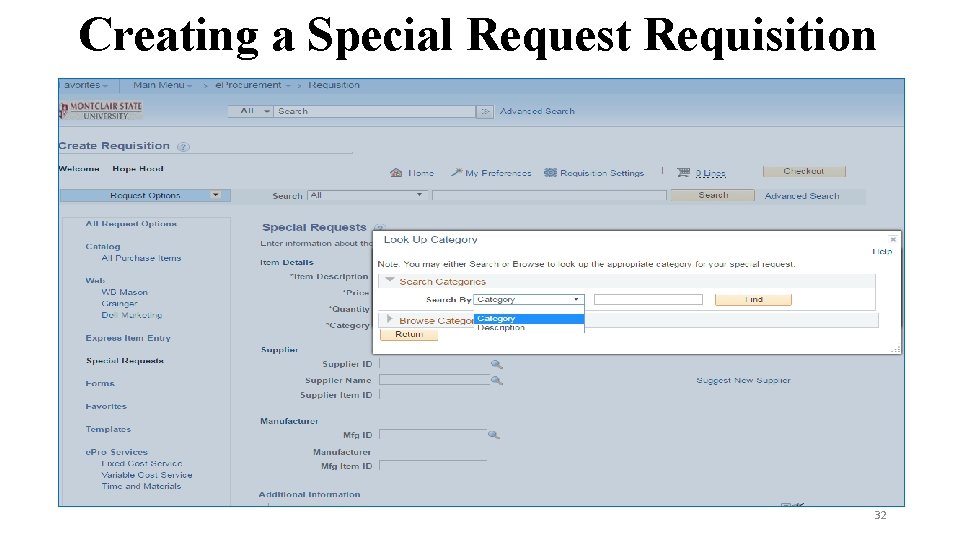
Creating a “Special Request Requisition” • Get quote(s) from supplier(s) – If applicable • Determine the Supplier is in FMS • Create requisition BASED ON the supplier’s quote 1. 2. 3. 4. 5. 6. Line items (goods/services being ordered) Description (MUST be detailed) Quantities (number of goods/services for EACH item) Supporting documents MUST be attached to the LINE of a requisition The “Ship To” field must be selected “Attention To” field must contain your name/bldg. code and room number/extension (30 character limit) information 7. Select Purchasing Methodology (Include number) 8. If you have a specific comment for the buyer, enter it in the “Approval Justification” field 30
Creating a Special Request Requisition 31
Creating a Special Request Requisition 32
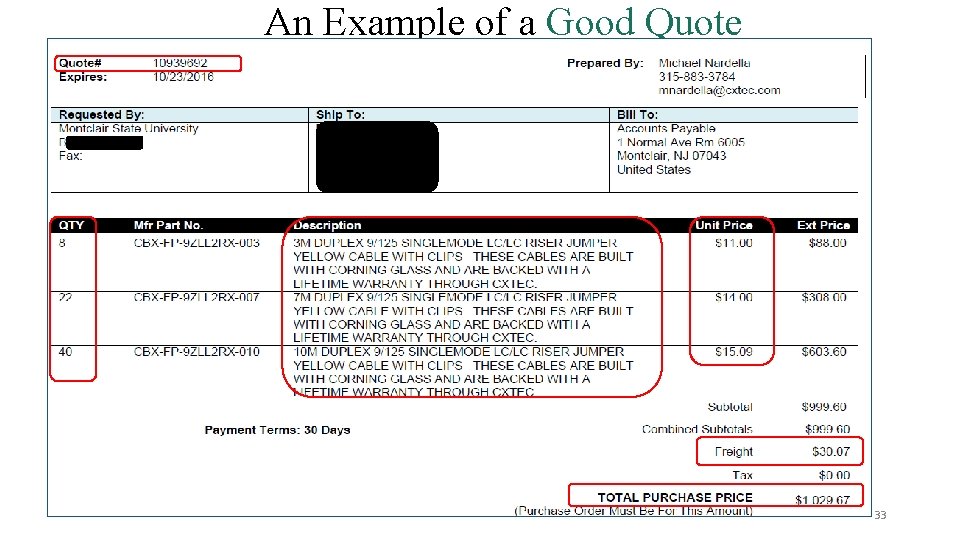
An Example of a Good Quote 33
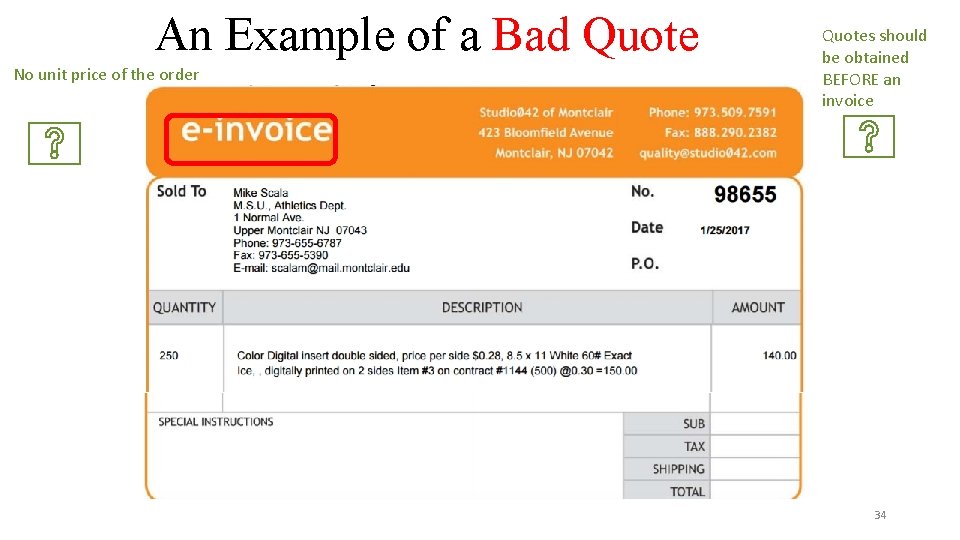
An Example of a Bad Quote No unit price of the order Quotes should be obtained BEFORE an invoice 34
35
Steps to Approval • Submit requisition for approval • Requisitions up to $249. 99 are routed only to your Approver; $250 or greater are routed to your Approver(s) AND a Buyer • Once approved, a PO is created then dispatched and a confirming email is sent to the Requisitioner • If not approved, an email is sent to the Requisitioner indicating that either the requisition has been put on Hold (documentation is needed) or Denied for non-compliance with Procurement Policies 36
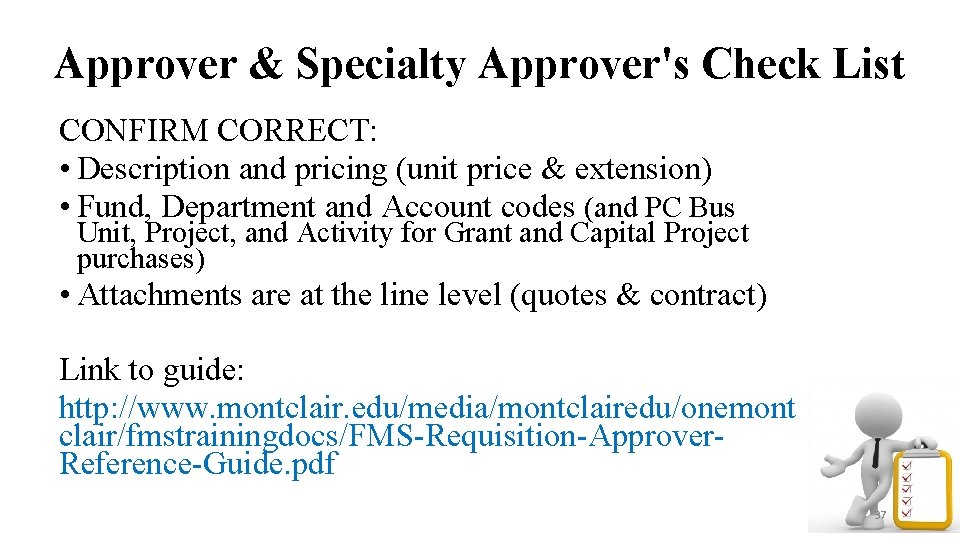
Approver & Specialty Approver's Check List CONFIRM CORRECT: • Description and pricing (unit price & extension) • Fund, Department and Account codes (and PC Bus Unit, Project, and Activity for Grant and Capital Project purchases) • Attachments are at the line level (quotes & contract) Link to guide: http: //www. montclair. edu/media/montclairedu/onemont clair/fmstrainingdocs/FMS-Requisition-Approver. Reference-Guide. pdf 37
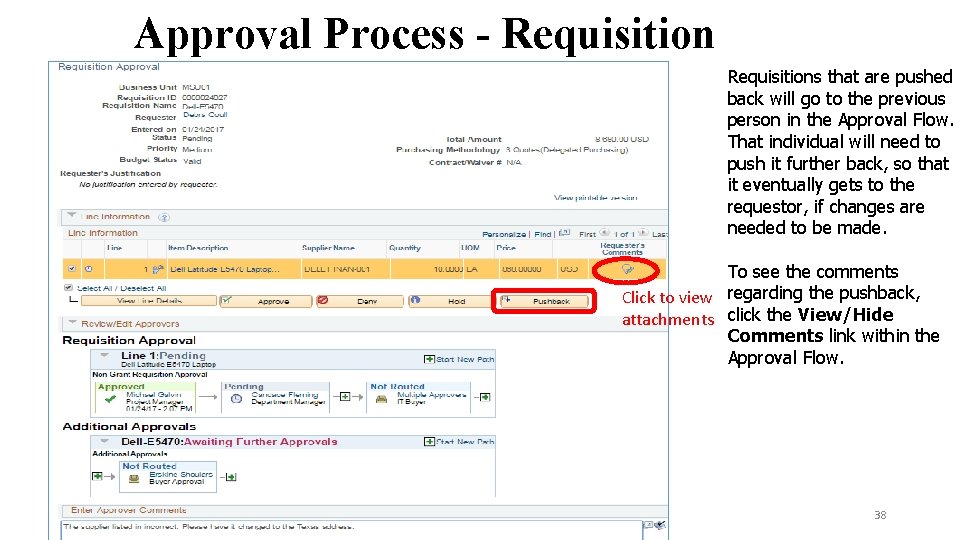
Approval Process - Requisitions that are pushed back will go to the previous person in the Approval Flow. That individual will need to push it further back, so that it eventually gets to the requestor, if changes are needed to be made. To see the comments Click to view regarding the pushback, attachments click the View/Hide Comments link within the Approval Flow. 38
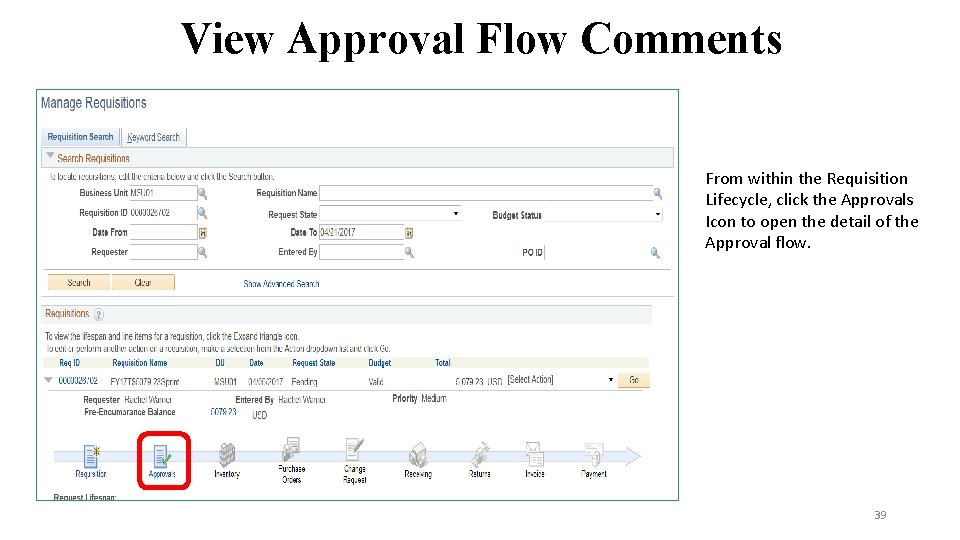
View Approval Flow Comments From within the Requisition Lifecycle, click the Approvals Icon to open the detail of the Approval flow. 39
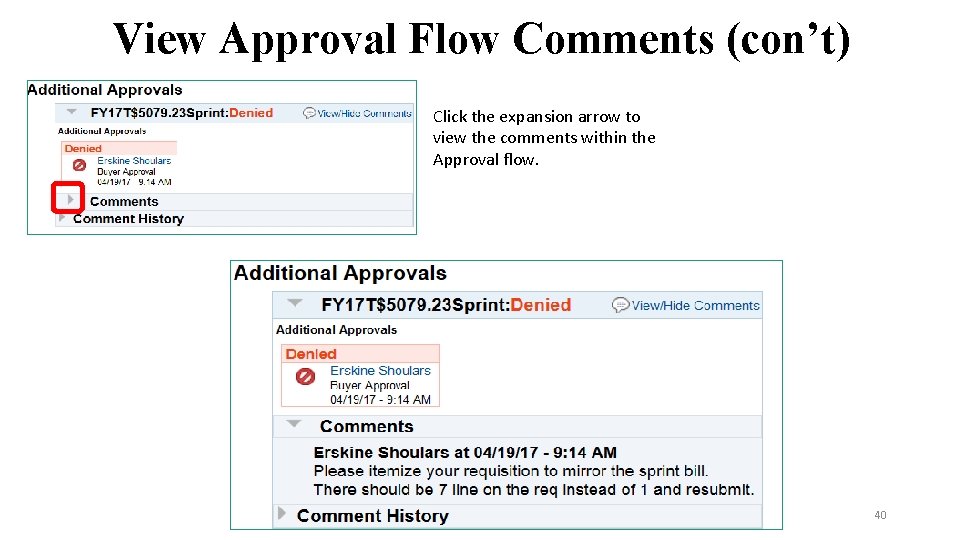
View Approval Flow Comments (con’t) Click the expansion arrow to view the comments within the Approval flow. 40
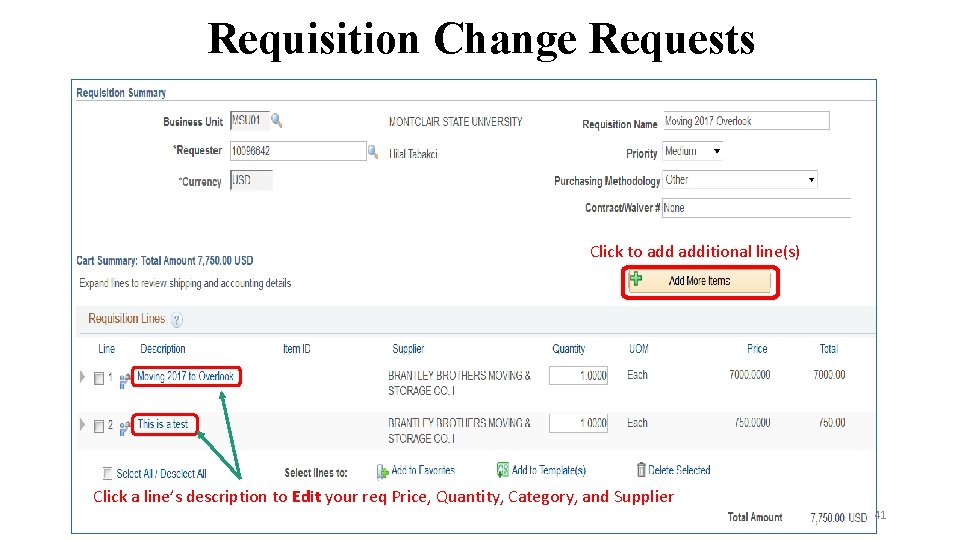
Requisition Change Requests Click to additional line(s) Click a line’s description to Edit your req Price, Quantity, Category, and Supplier 41
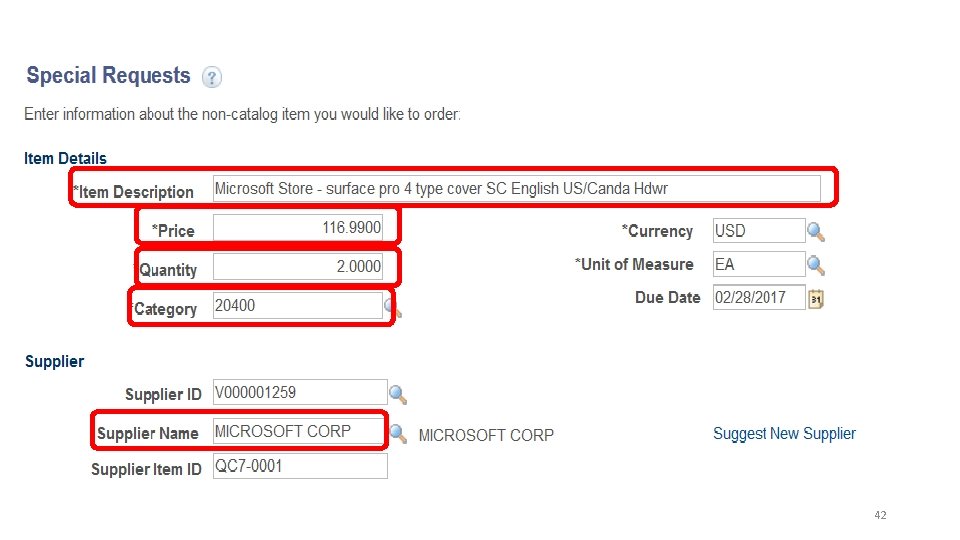
42
Purchase Order Change Order • Only the Procurement Buyer can add new lines to a dispatched purchase order • Purchase Order Adjustment Form at: http: //www. montclair. edu/finance-andtreasury/procurement/forms • Requisitioners must change other information (pricing, quantity, description) on a purchase order via Manage Requisitions > Edit > Go 43
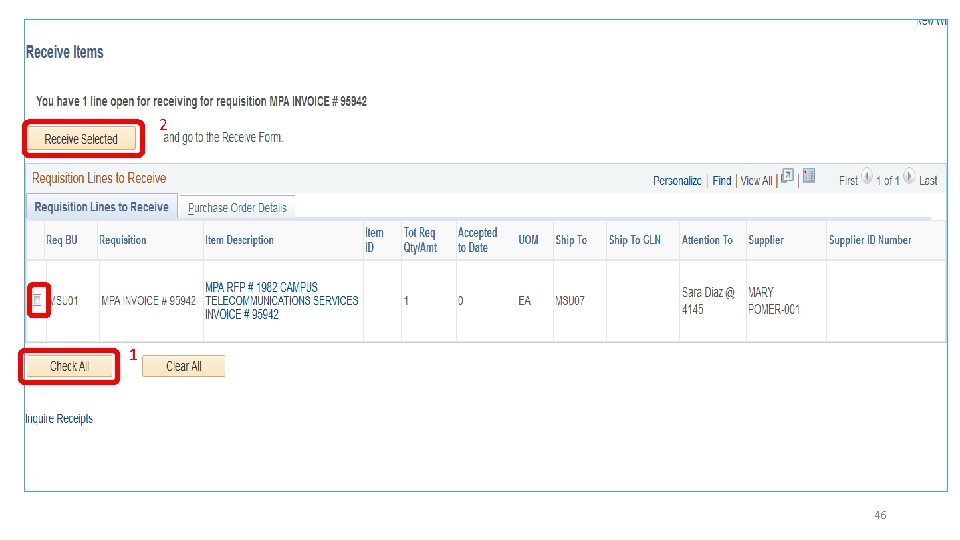
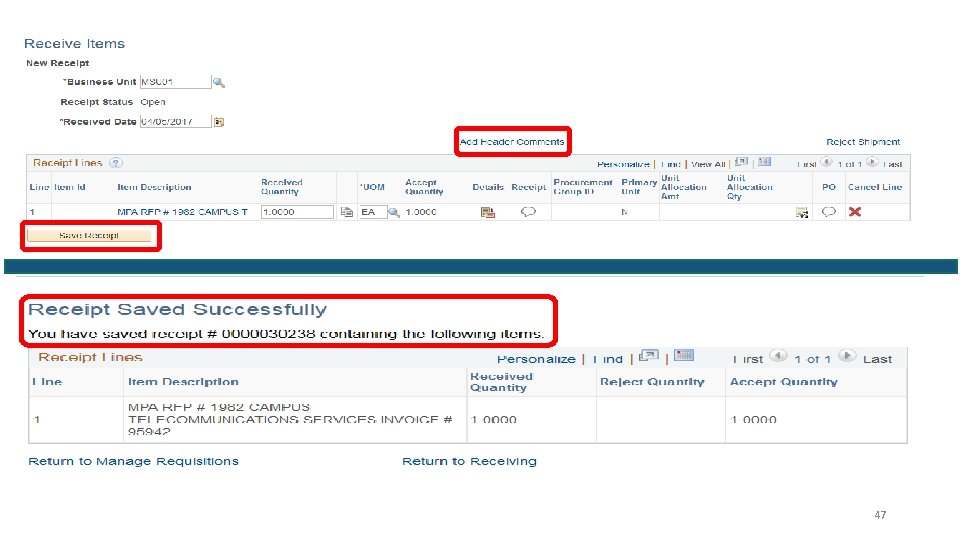
Receiving your Merchandise/Services • All purchase orders for goods/services must be received before payment can be released • Receiving can either be partial or full • Update system receiving for each delivery or completed service 44
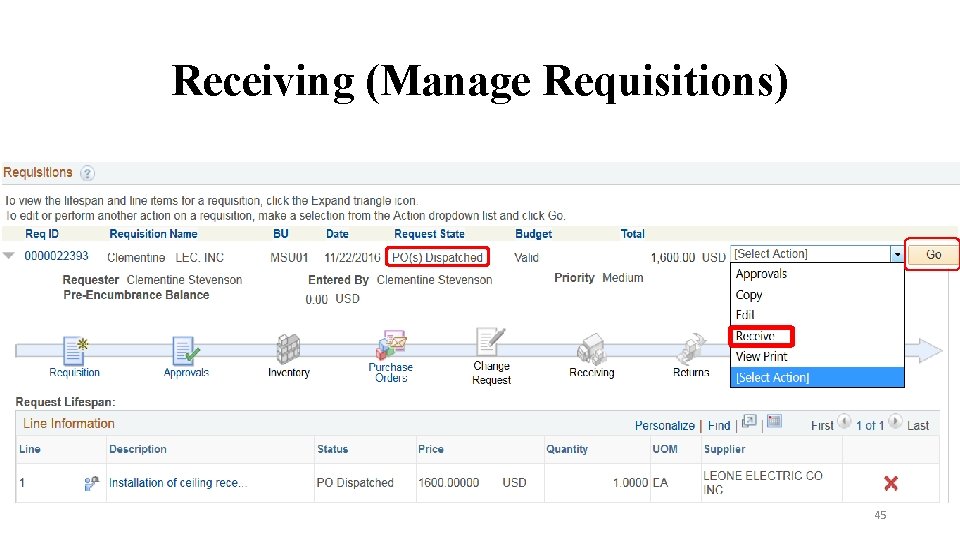
Receiving (Manage Requisitions) 45
2 1 46
47
Accounts Payable 48
Invoicing • Invoice(s) MUST be submitted by the supplier, with PO# listed, to Accounts Payable via invoices@montclair. edu • If a requisitioner receives the invoice it MUST be sent to invoices@montclair. edu and it MUST include: PO number, receipt number, AND user’s name and phone extension 49
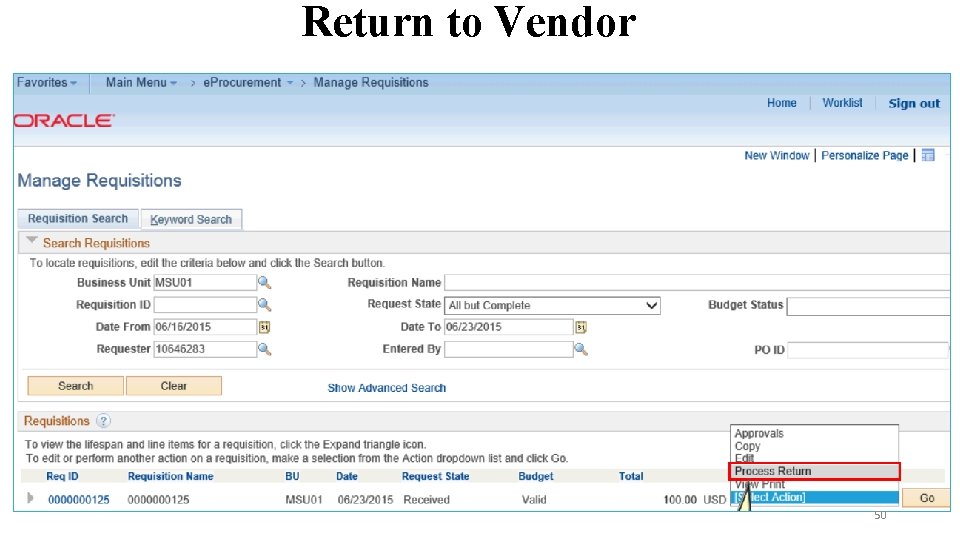
Return to Vendor 50
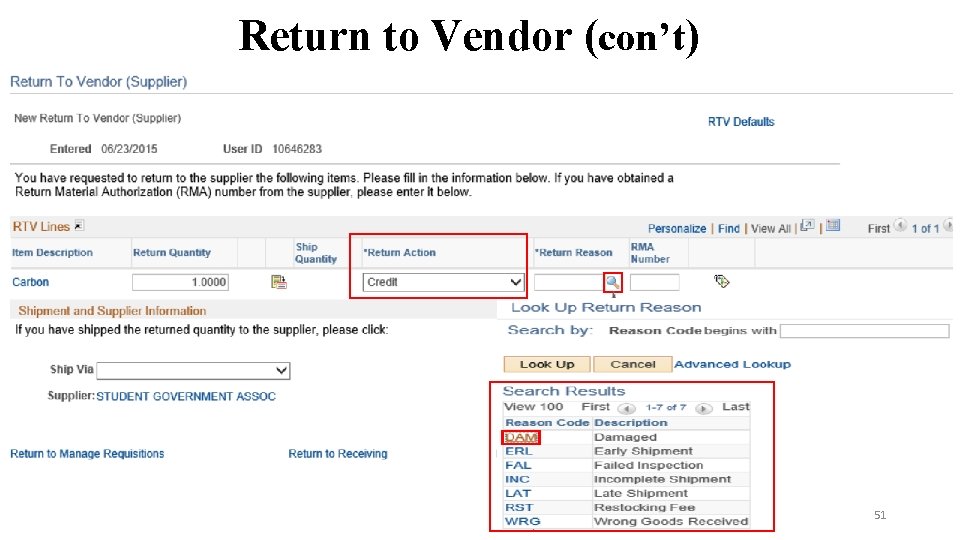
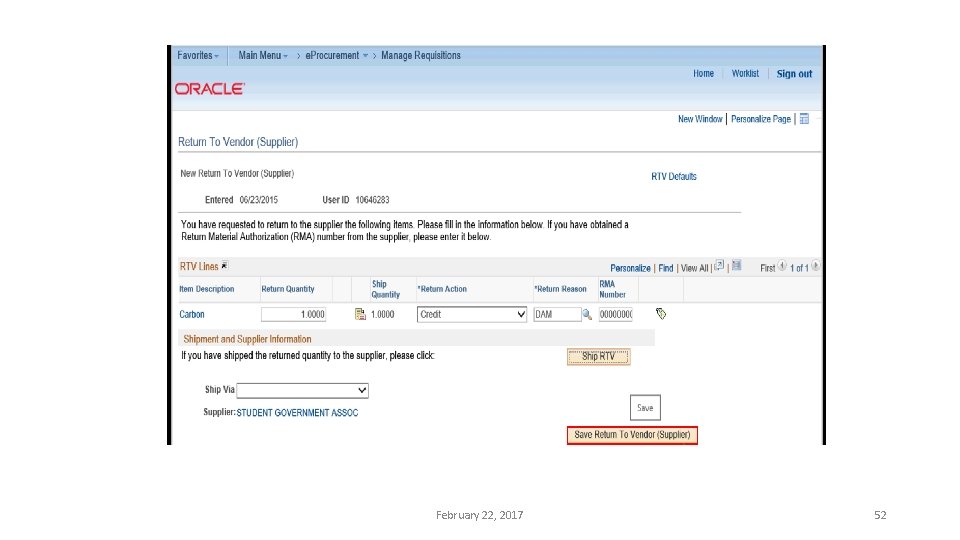
Return to Vendor (con’t) 51
February 22, 2017 52
Manage Your Requisition Queue • Required to be done on a quarterly basis. Regular maintenance is an on-going task. Please reference the “Managing Your Requisition Queue” guide. • Managed queues release unused, but reserved, budget dollars back to the department. • Updated queues allow for better reporting and tracking of requests for goods and services. 53
Quick Links 54
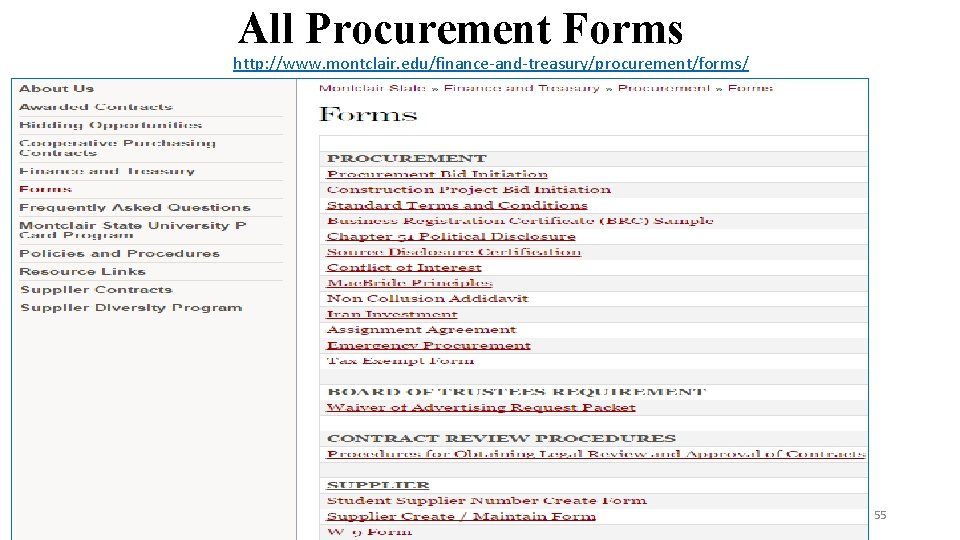
All Procurement Forms http: //www. montclair. edu/finance-and-treasury/procurement/forms/ 55
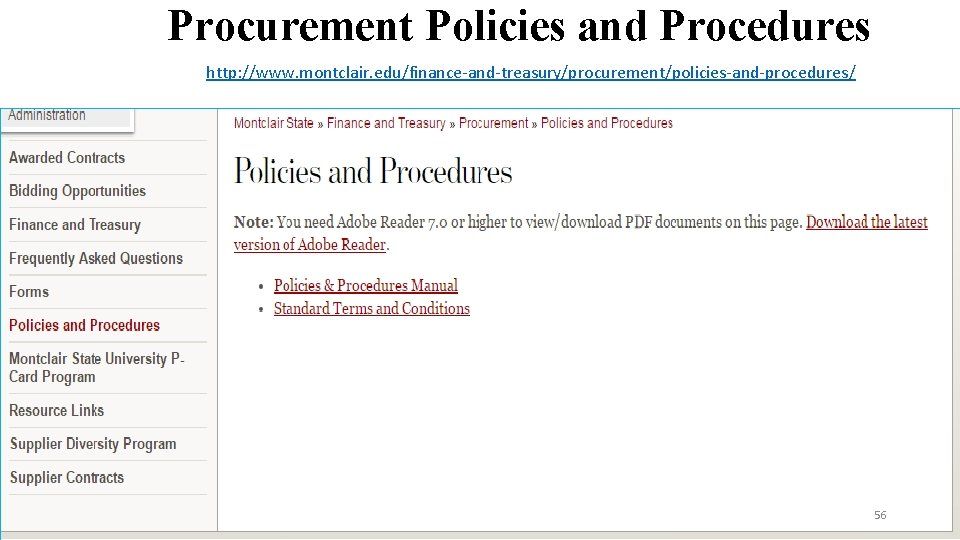
Procurement Policies and Procedures http: //www. montclair. edu/finance-and-treasury/procurement/policies-and-procedures/ 56
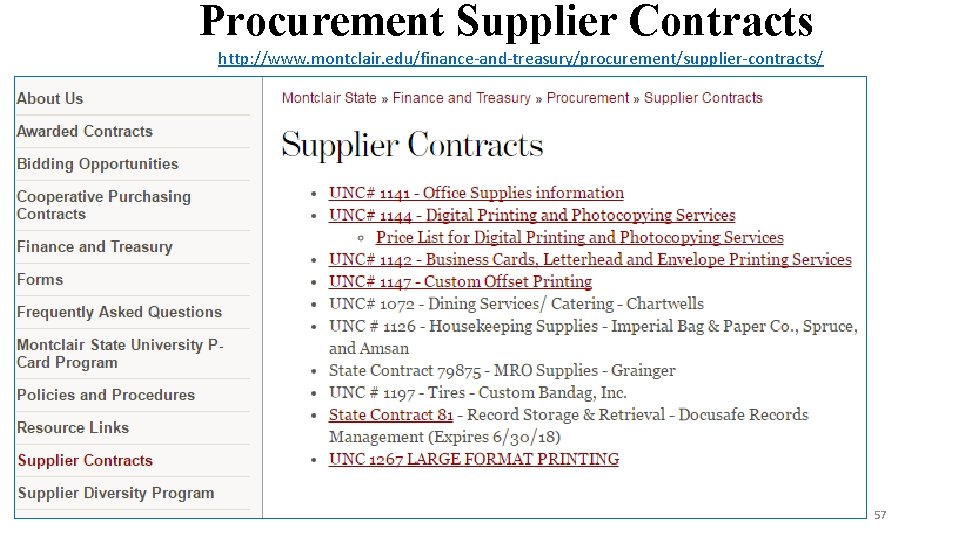
Procurement Supplier Contracts http: //www. montclair. edu/finance-and-treasury/procurement/supplier-contracts/ 57
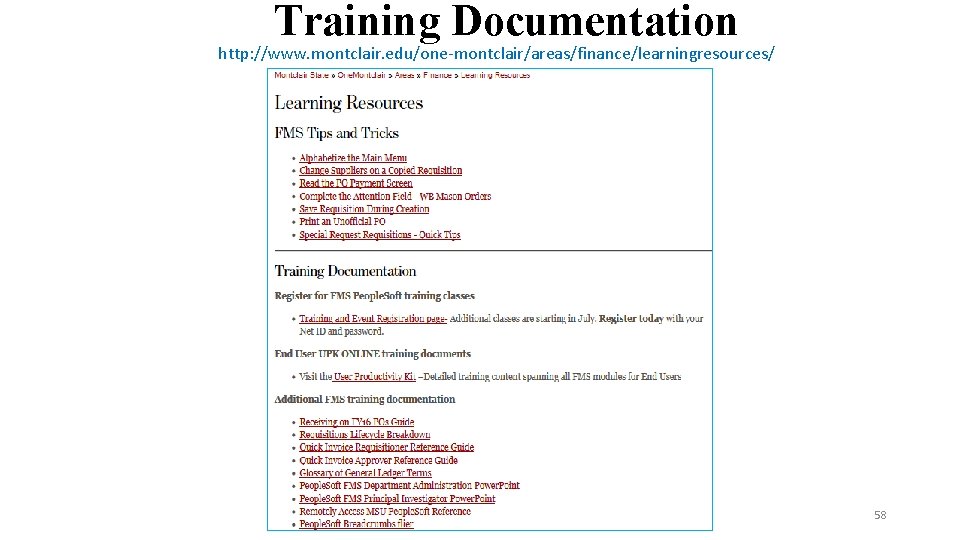
Training Documentation http: //www. montclair. edu/one-montclair/areas/finance/learningresources/ 58
Need Additional Support? UPK On-Line Training https: //pstraining. Montclair. edu/UPK 1/data/toc. html IT Service Desk Phone - (973) 655 -7971, Option 2 Email –itservicedesk@mail. Montclair. edu Chat –www. Montclair. edu/oit 59

Questions? 60
- Slides: 58