
Procurement Desktop Defense PD Creating an Indefinite Delivery
- Slides: 69
Procurement Desktop Defense (PD²) Creating an Indefinite Delivery Contract SPS Spotlight Series February 2014 INFORMATION DEPLOYED. SOLUTIONS ADVANCED. MISSIONS ACCOMPLISHED.
§ PD² allows for the creation of several different types of contracts. This is in line with FAR Part 16. § We will concentrate on the creation of an Indefinite Delivery Contract. 2 | CACI Information Solutions and Services | Date | CACI Proprietary Information
Indefinite Delivery Contracts An Indefinite Delivery Contract (also called delivery order contract) is a contract for supplies or services, that is not for a specified quantity or amount, other than a specified minimum or maximum. 3 | CACI Information Solutions and Services | Date | CACI Proprietary Information
Indefinite Delivery Contracts There are three types of Indefinite Delivery Contracts: Requirements, Indefinite Quantity, and Definite Quantity. For a complete explanation of each, please see FAR Part 16. 4 | CACI Information Solutions and Services | Date | CACI Proprietary Information
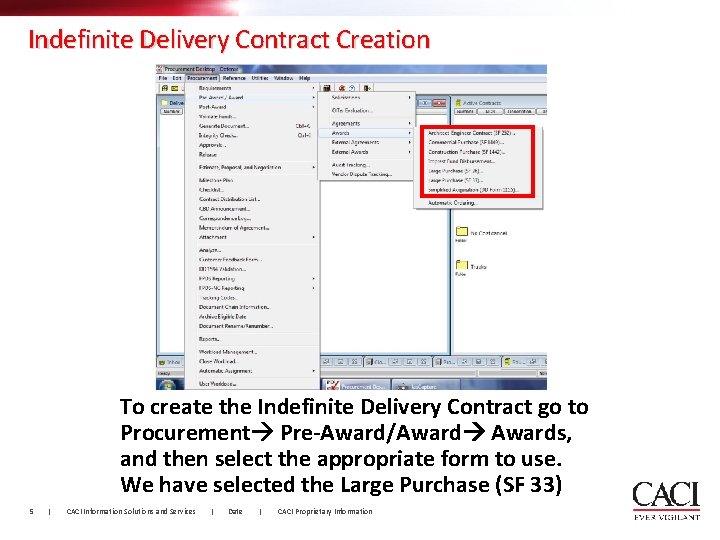
Indefinite Delivery Contract Creation To create the Indefinite Delivery Contract go to Procurement Pre-Award/Awards, and then select the appropriate form to use. We have selected the Large Purchase (SF 33) 5 | CACI Information Solutions and Services | Date | CACI Proprietary Information
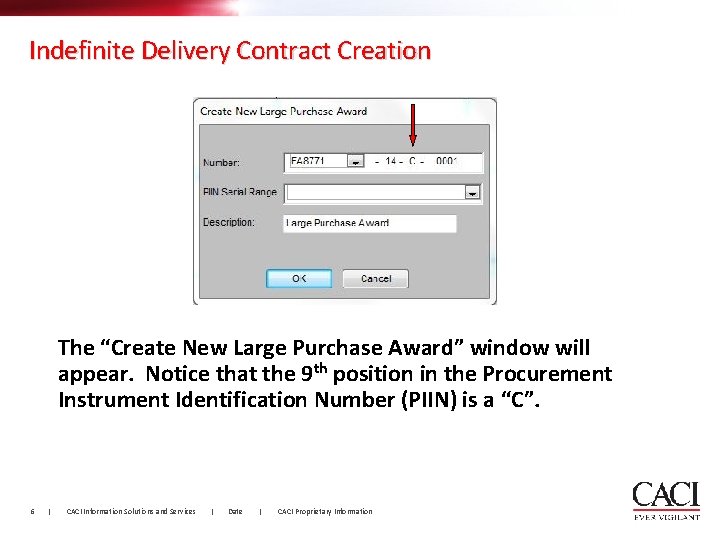
Indefinite Delivery Contract Creation The “Create New Large Purchase Award” window will appear. Notice that the 9 th position in the Procurement Instrument Identification Number (PIIN) is a “C”. 6 | CACI Information Solutions and Services | Date | CACI Proprietary Information
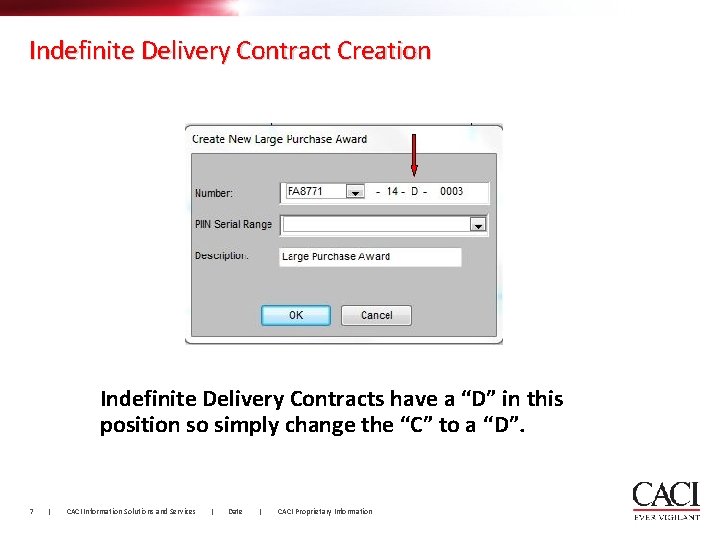
Indefinite Delivery Contract Creation Indefinite Delivery Contracts have a “D” in this position so simply change the “C” to a “D”. 7 | CACI Information Solutions and Services | Date | CACI Proprietary Information
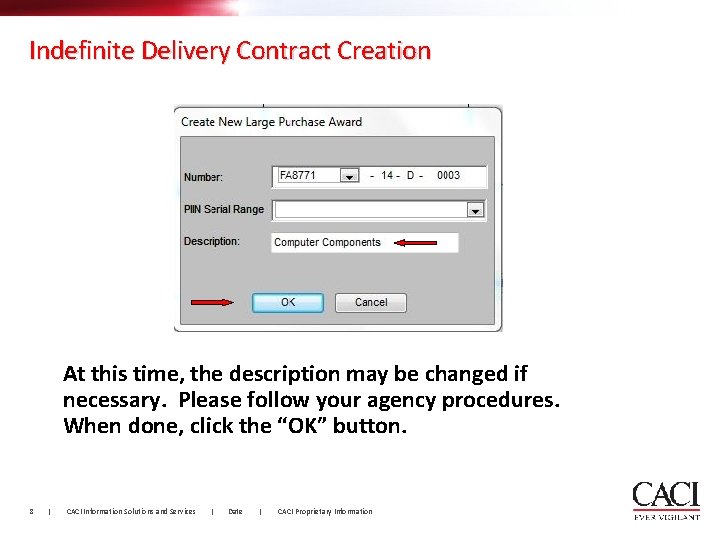
Indefinite Delivery Contract Creation At this time, the description may be changed if necessary. Please follow your agency procedures. When done, click the “OK” button. 8 | CACI Information Solutions and Services | Date | CACI Proprietary Information
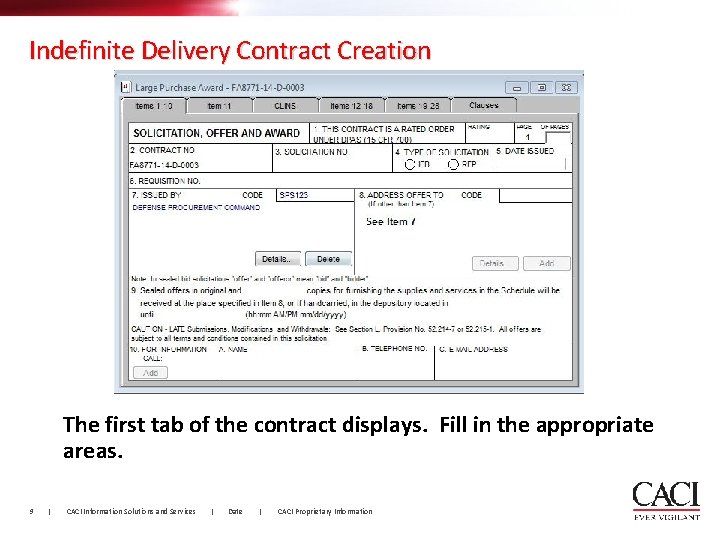
Indefinite Delivery Contract Creation The first tab of the contract displays. Fill in the appropriate areas. 9 | CACI Information Solutions and Services | Date | CACI Proprietary Information
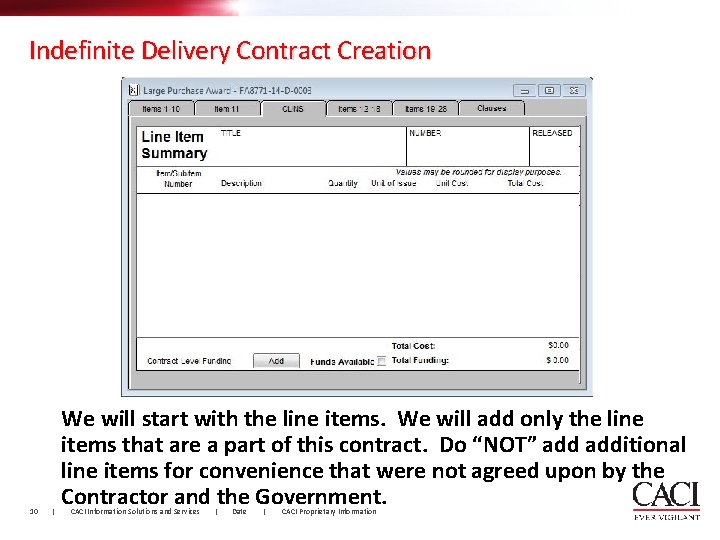
Indefinite Delivery Contract Creation 10 | We will start with the line items. We will add only the line items that are a part of this contract. Do “NOT” additional line items for convenience that were not agreed upon by the Contractor and the Government. CACI Information Solutions and Services | Date | CACI Proprietary Information
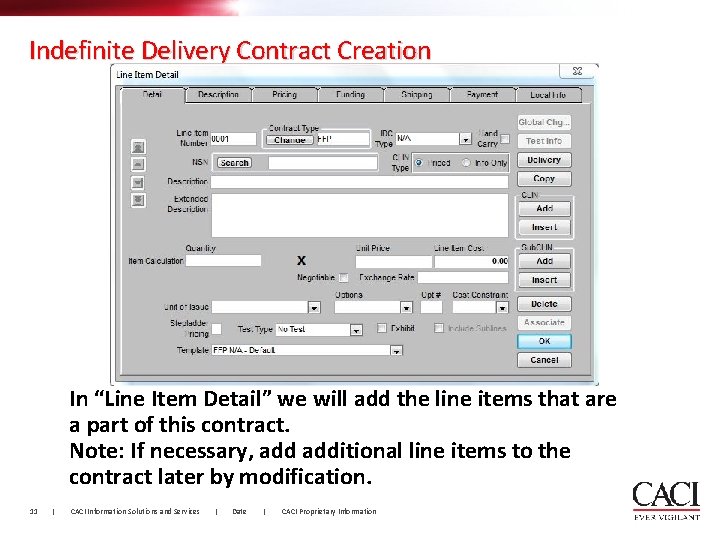
Indefinite Delivery Contract Creation In “Line Item Detail” we will add the line items that are a part of this contract. Note: If necessary, additional line items to the contract later by modification. 11 | CACI Information Solutions and Services | Date | CACI Proprietary Information
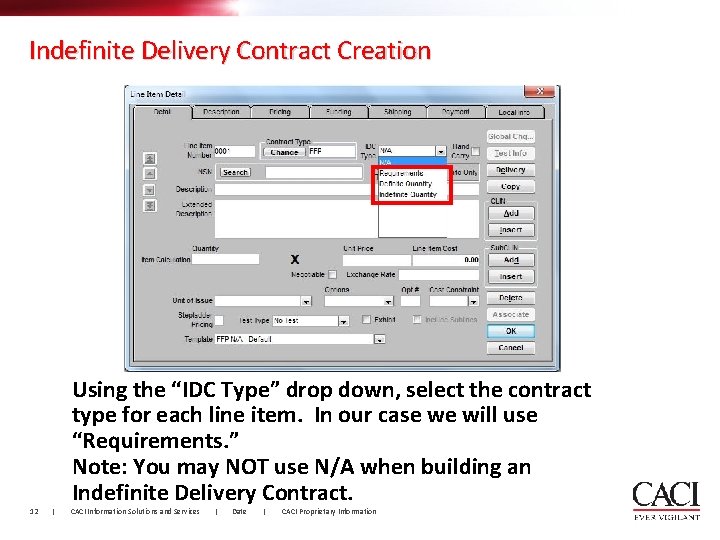
Indefinite Delivery Contract Creation 12 | Using the “IDC Type” drop down, select the contract type for each line item. In our case we will use “Requirements. ” Note: You may NOT use N/A when building an Indefinite Delivery Contract. CACI Information Solutions and Services | Date | CACI Proprietary Information
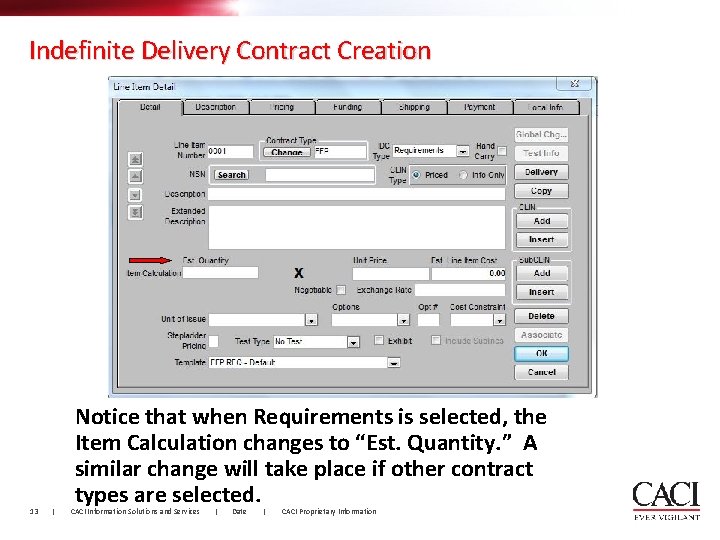
Indefinite Delivery Contract Creation 13 | Notice that when Requirements is selected, the Item Calculation changes to “Est. Quantity. ” A similar change will take place if other contract types are selected. CACI Information Solutions and Services | Date | CACI Proprietary Information
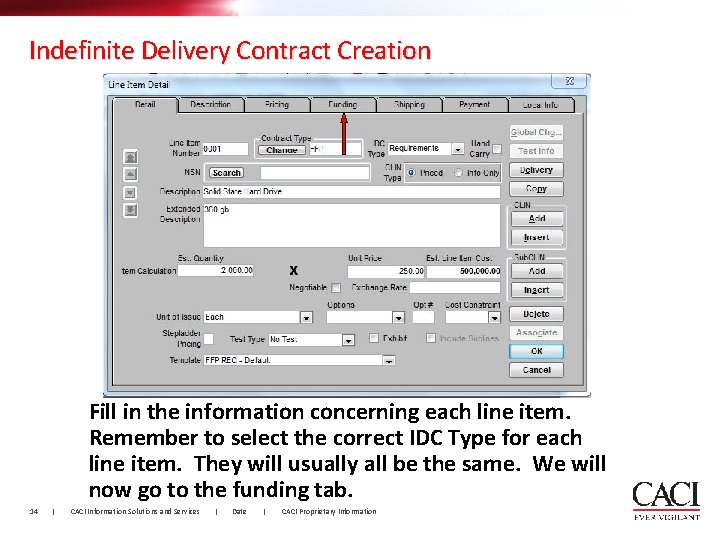
Indefinite Delivery Contract Creation Fill in the information concerning each line item. Remember to select the correct IDC Type for each line item. They will usually all be the same. We will now go to the funding tab. 14 | CACI Information Solutions and Services | Date | CACI Proprietary Information
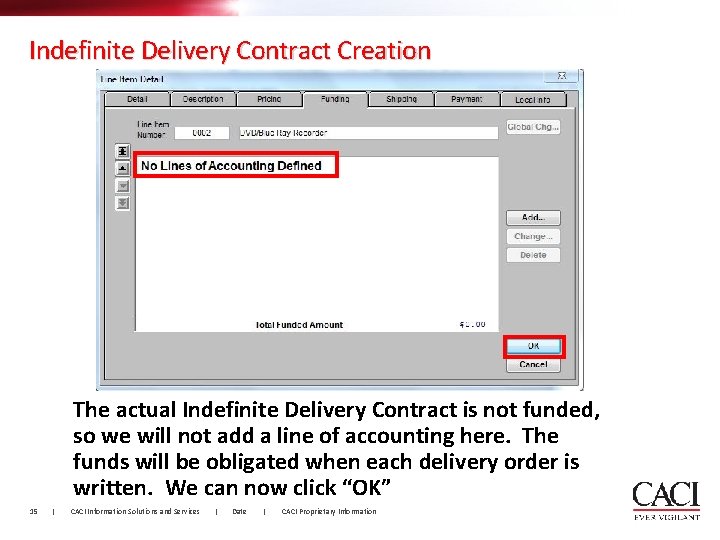
Indefinite Delivery Contract Creation The actual Indefinite Delivery Contract is not funded, so we will not add a line of accounting here. The funds will be obligated when each delivery order is written. We can now click “OK” 15 | CACI Information Solutions and Services | Date | CACI Proprietary Information
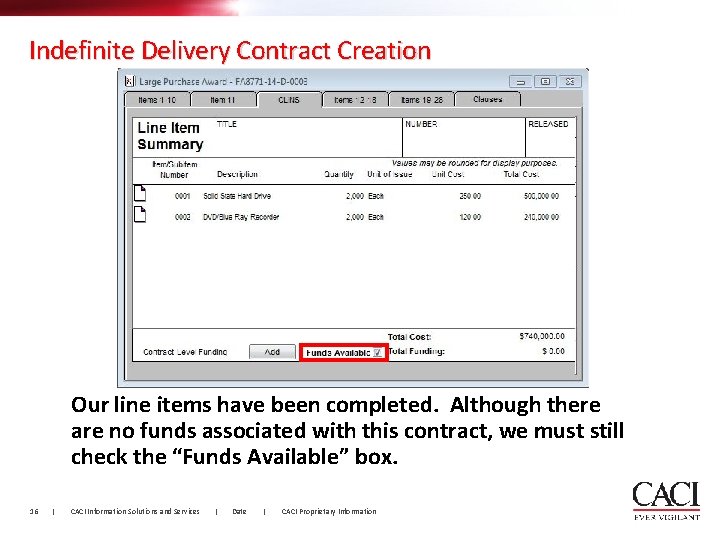
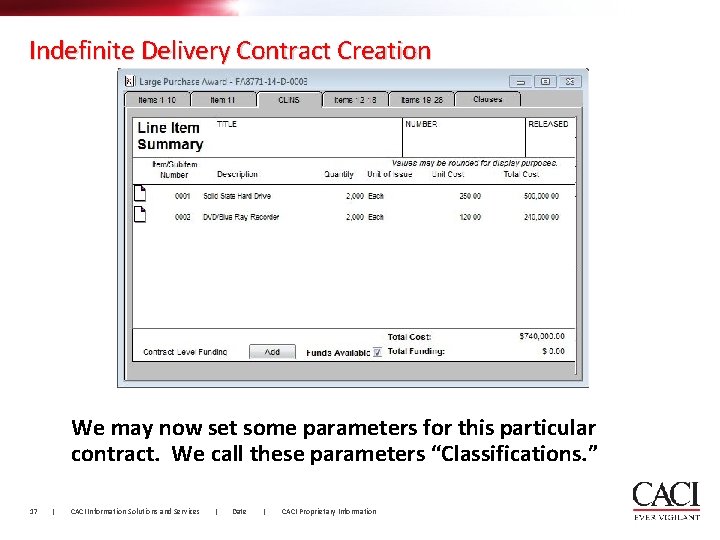
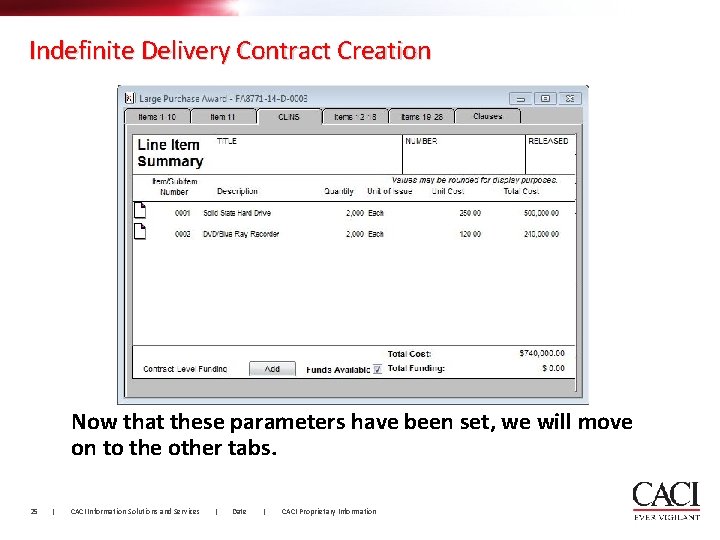
Indefinite Delivery Contract Creation Our line items have been completed. Although there are no funds associated with this contract, we must still check the “Funds Available” box. 16 | CACI Information Solutions and Services | Date | CACI Proprietary Information
Indefinite Delivery Contract Creation We may now set some parameters for this particular contract. We call these parameters “Classifications. ” 17 | CACI Information Solutions and Services | Date | CACI Proprietary Information
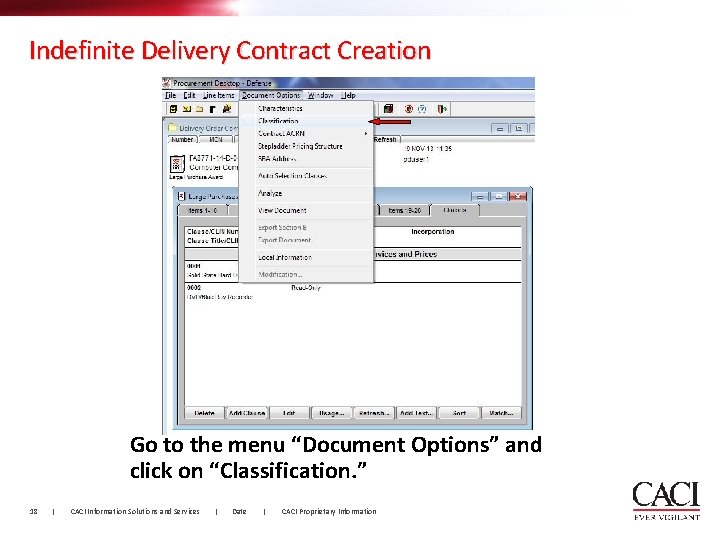
Indefinite Delivery Contract Creation Go to the menu “Document Options” and click on “Classification. ” 18 | CACI Information Solutions and Services | Date | CACI Proprietary Information
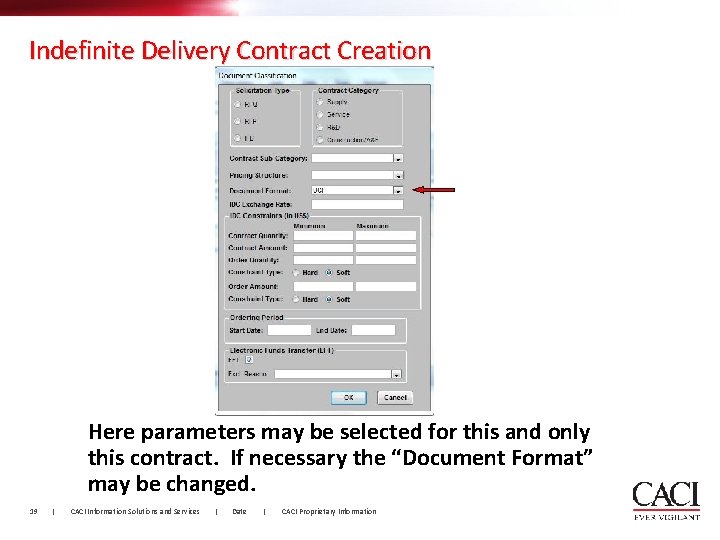
Indefinite Delivery Contract Creation Here parameters may be selected for this and only this contract. If necessary the “Document Format” may be changed. 19 | CACI Information Solutions and Services | Date | CACI Proprietary Information
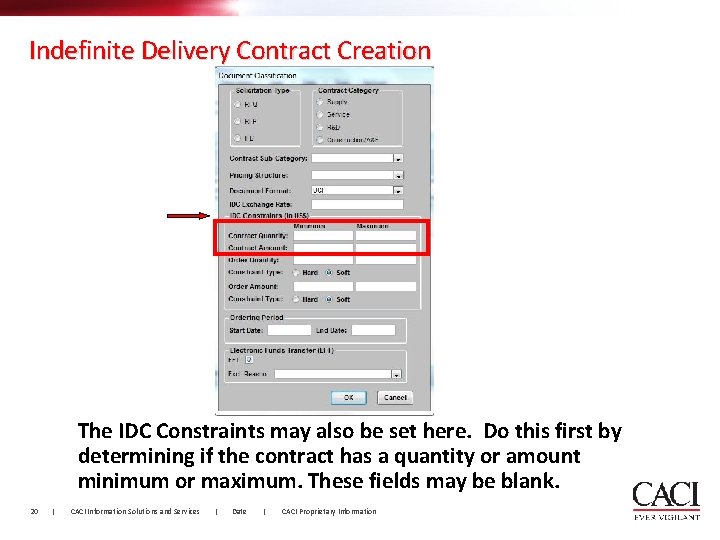
Indefinite Delivery Contract Creation The IDC Constraints may also be set here. Do this first by determining if the contract has a quantity or amount minimum or maximum. These fields may be blank. 20 | CACI Information Solutions and Services | Date | CACI Proprietary Information
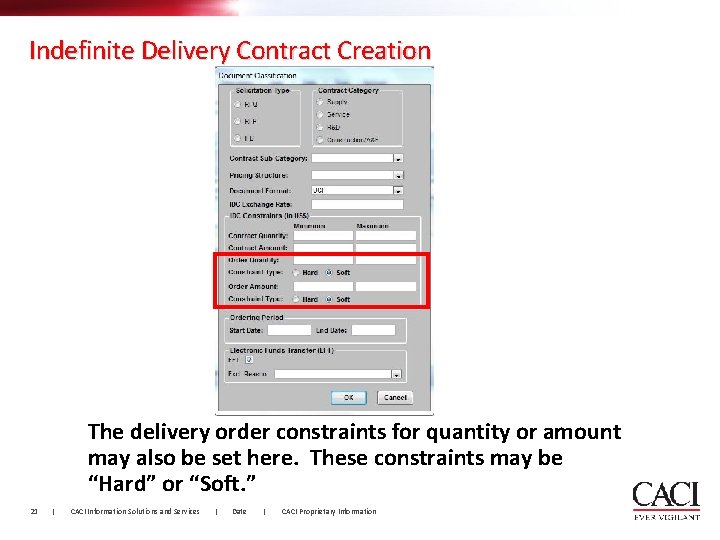
Indefinite Delivery Contract Creation The delivery order constraints for quantity or amount may also be set here. These constraints may be “Hard” or “Soft. ” 21 | CACI Information Solutions and Services | Date | CACI Proprietary Information
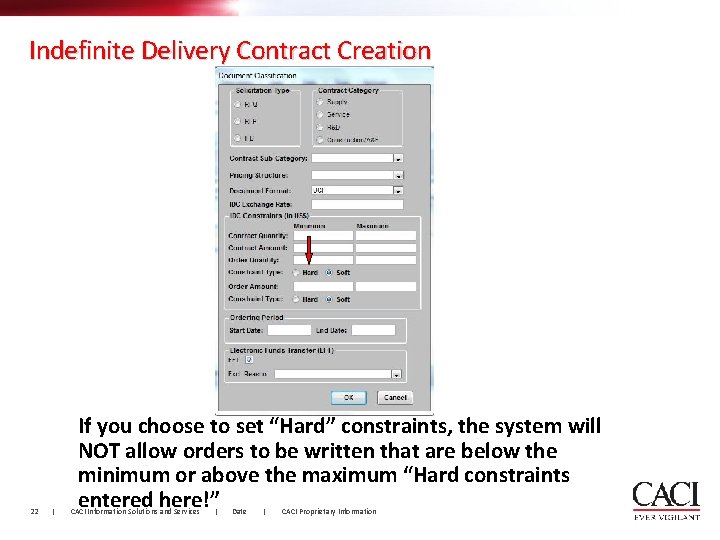
Indefinite Delivery Contract Creation 22 | If you choose to set “Hard” constraints, the system will NOT allow orders to be written that are below the minimum or above the maximum “Hard constraints entered here!” CACI Information Solutions and Services | Date | CACI Proprietary Information
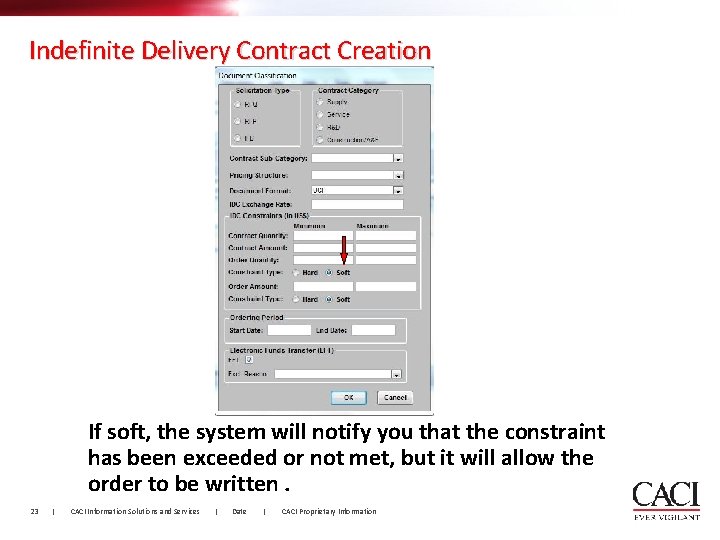
Indefinite Delivery Contract Creation If soft, the system will notify you that the constraint has been exceeded or not met, but it will allow the order to be written. 23 | CACI Information Solutions and Services | Date | CACI Proprietary Information
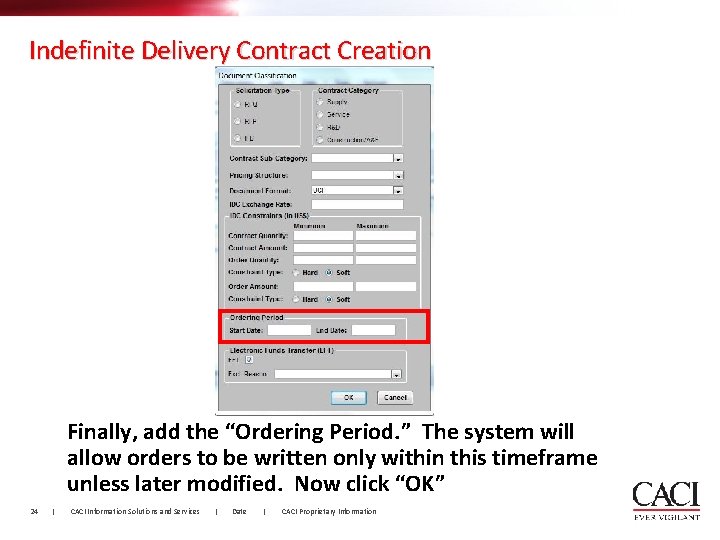
Indefinite Delivery Contract Creation Finally, add the “Ordering Period. ” The system will allow orders to be written only within this timeframe unless later modified. Now click “OK” 24 | CACI Information Solutions and Services | Date | CACI Proprietary Information
Indefinite Delivery Contract Creation Now that these parameters have been set, we will move on to the other tabs. 25 | CACI Information Solutions and Services | Date | CACI Proprietary Information
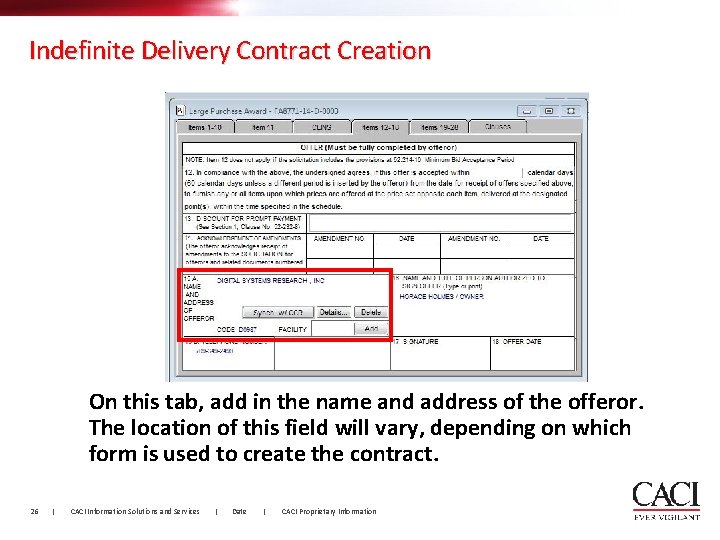
Indefinite Delivery Contract Creation On this tab, add in the name and address of the offeror. The location of this field will vary, depending on which form is used to create the contract. 26 | CACI Information Solutions and Services | Date | CACI Proprietary Information
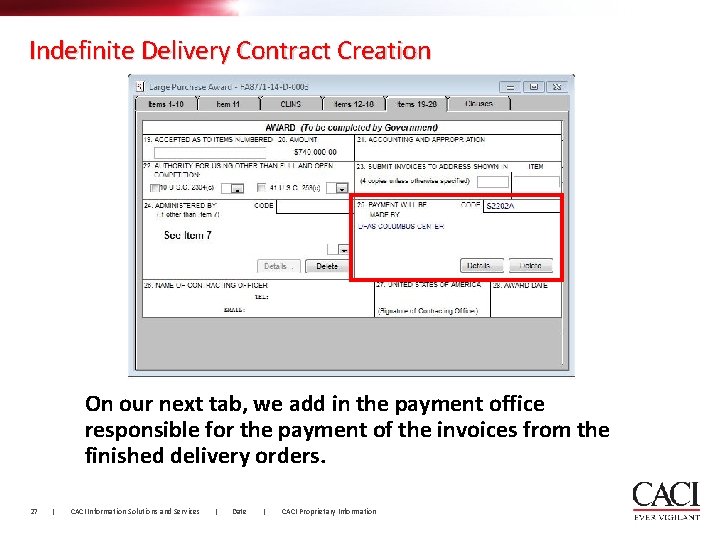
Indefinite Delivery Contract Creation On our next tab, we add in the payment office responsible for the payment of the invoices from the finished delivery orders. 27 | CACI Information Solutions and Services | Date | CACI Proprietary Information
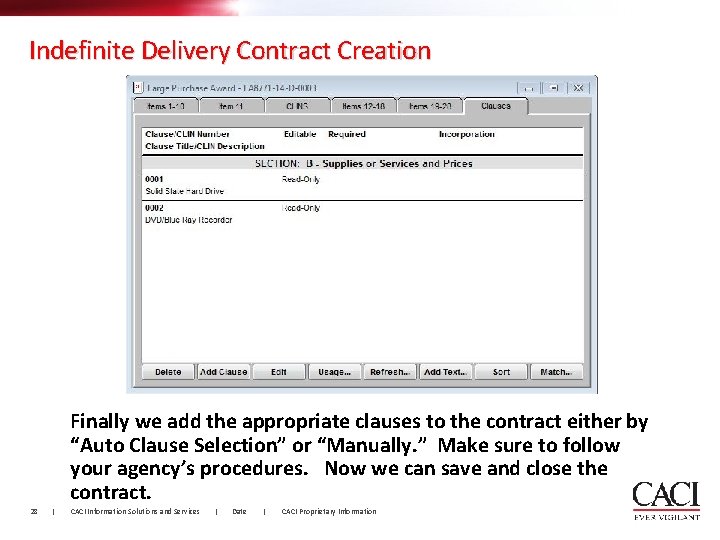
Indefinite Delivery Contract Creation Finally we add the appropriate clauses to the contract either by “Auto Clause Selection” or “Manually. ” Make sure to follow your agency’s procedures. Now we can save and close the contract. 28 | CACI Information Solutions and Services | Date | CACI Proprietary Information
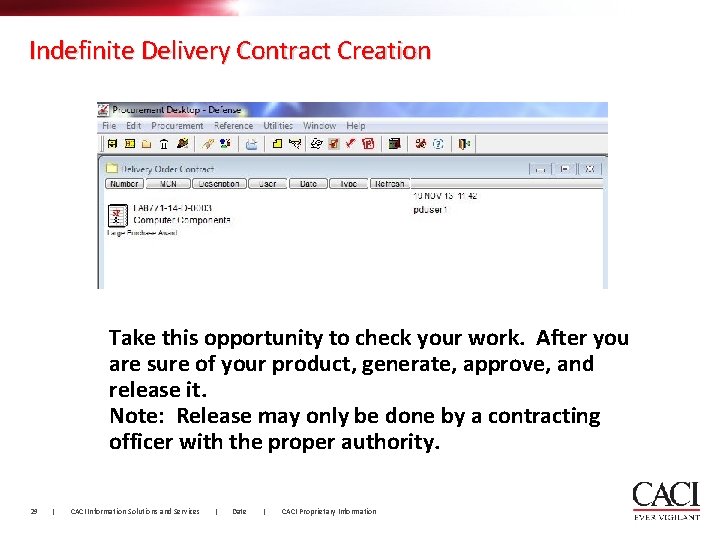
Indefinite Delivery Contract Creation Take this opportunity to check your work. After you are sure of your product, generate, approve, and release it. Note: Release may only be done by a contracting officer with the proper authority. 29 | CACI Information Solutions and Services | Date | CACI Proprietary Information
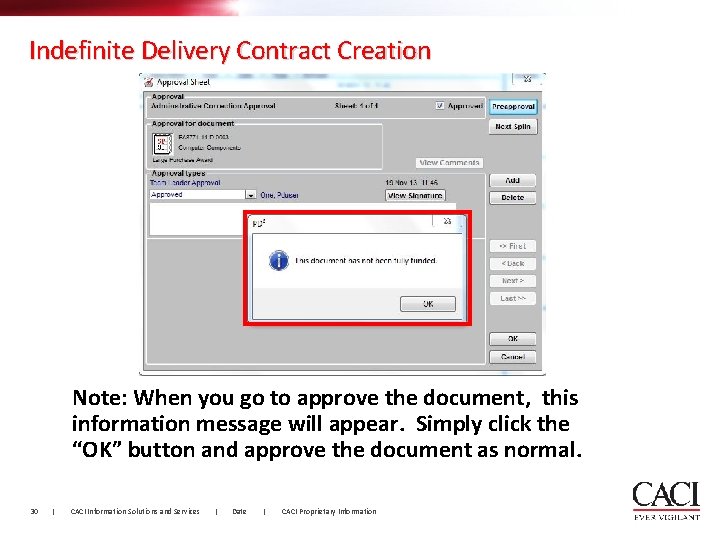
Indefinite Delivery Contract Creation Note: When you go to approve the document, this information message will appear. Simply click the “OK” button and approve the document as normal. 30 | CACI Information Solutions and Services | Date | CACI Proprietary Information
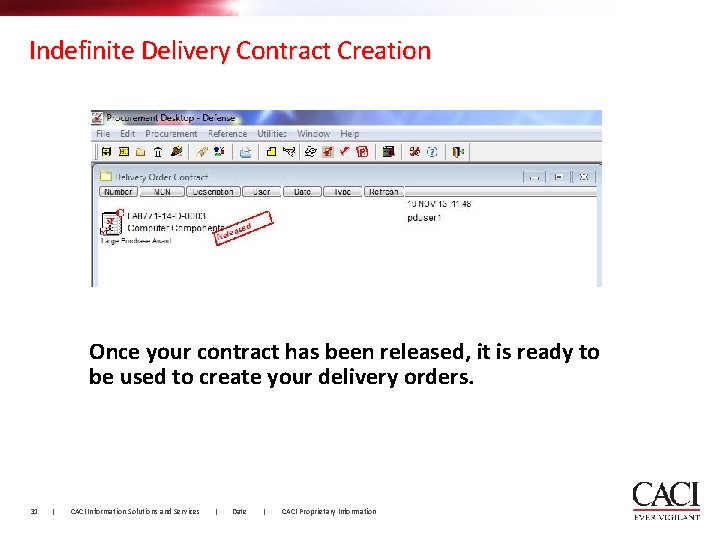
Indefinite Delivery Contract Creation Once your contract has been released, it is ready to be used to create your delivery orders. 31 | CACI Information Solutions and Services | Date | CACI Proprietary Information
Delivery Order Creation § PD² allows for the creation of orders against Indefinite Delivery Contracts. § These orders are usually called “Delivery Orders” or “Task Orders”. 32 | CACI Information Solutions and Services | Date | CACI Proprietary Information
Delivery Order Creation § There are three types of Indefinite Delivery Contracts: Requirements, Indefinite Quantity, and Definite Quantity. § For a complete explanation of each, please see FAR Part 16. 33 | CACI Information Solutions and Services | Date | CACI Proprietary Information
Delivery Order Creation § Here, we will create a delivery order using a “Requirements” contract. § The procedure is the same for any of the three contract types. 34 | CACI Information Solutions and Services | Date | CACI Proprietary Information
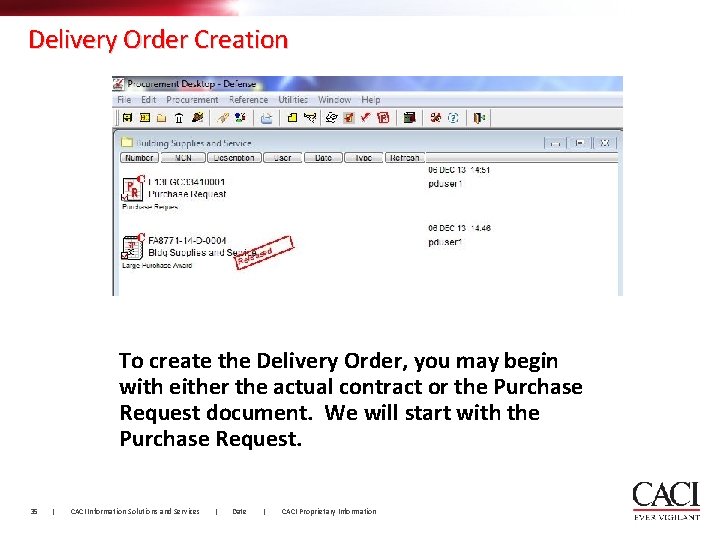
Delivery Order Creation To create the Delivery Order, you may begin with either the actual contract or the Purchase Request document. We will start with the Purchase Request. 35 | CACI Information Solutions and Services | Date | CACI Proprietary Information
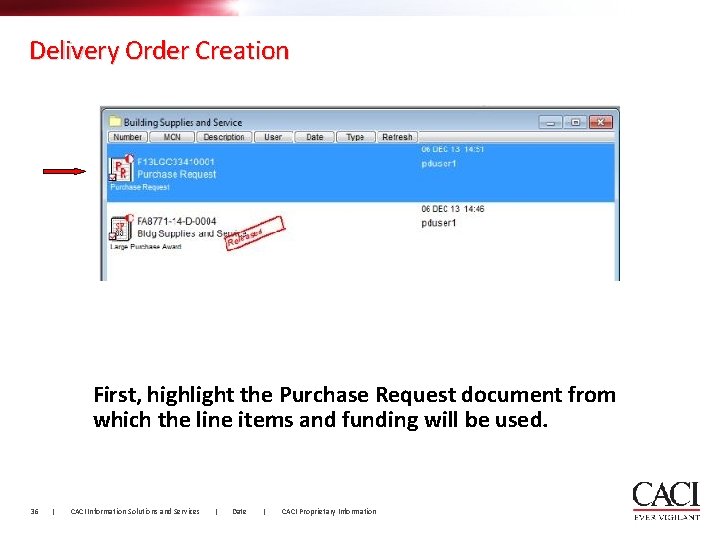
Delivery Order Creation First, highlight the Purchase Request document from which the line items and funding will be used. 36 | CACI Information Solutions and Services | Date | CACI Proprietary Information
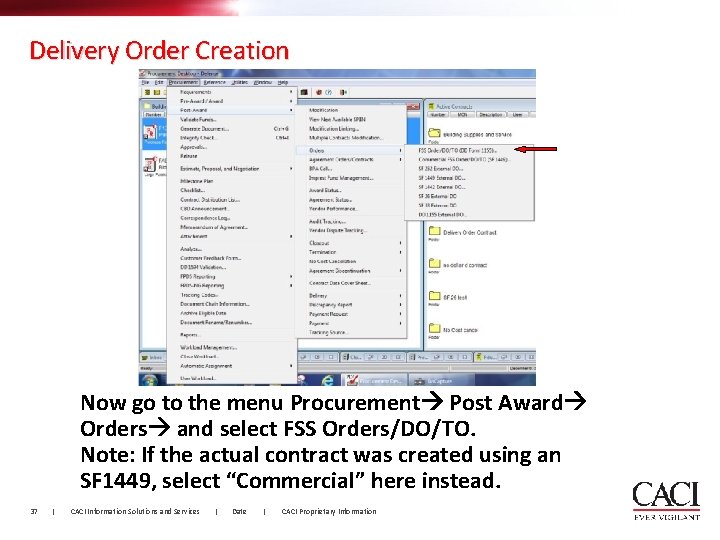
Delivery Order Creation Now go to the menu Procurement Post Award Orders and select FSS Orders/DO/TO. Note: If the actual contract was created using an SF 1449, select “Commercial” here instead. 37 | CACI Information Solutions and Services | Date | CACI Proprietary Information
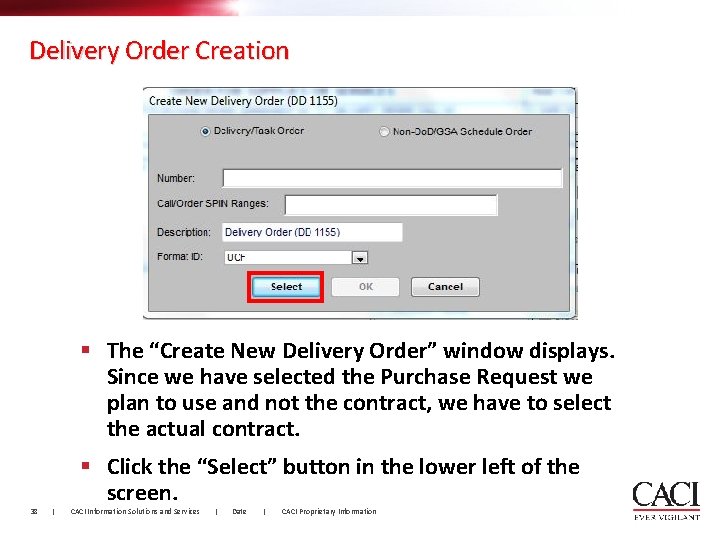
Delivery Order Creation § The “Create New Delivery Order” window displays. Since we have selected the Purchase Request we plan to use and not the contract, we have to select the actual contract. § Click the “Select” button in the lower left of the screen. 38 | CACI Information Solutions and Services | Date | CACI Proprietary Information
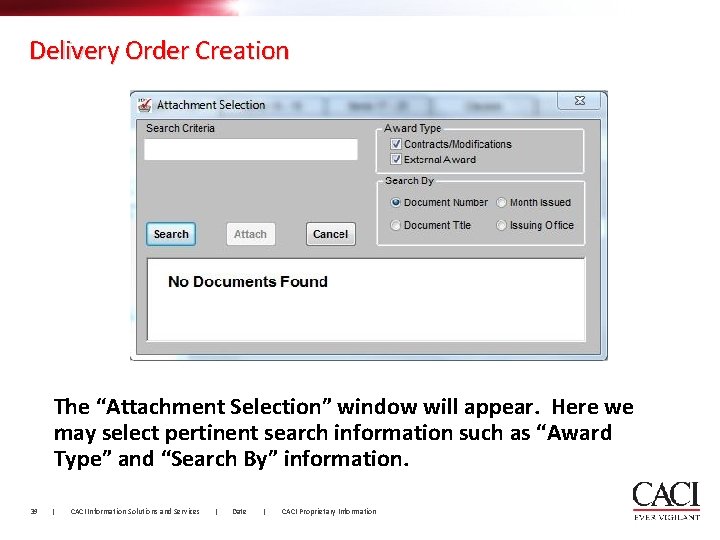
Delivery Order Creation The “Attachment Selection” window will appear. Here we may select pertinent search information such as “Award Type” and “Search By” information. 39 | CACI Information Solutions and Services | Date | CACI Proprietary Information
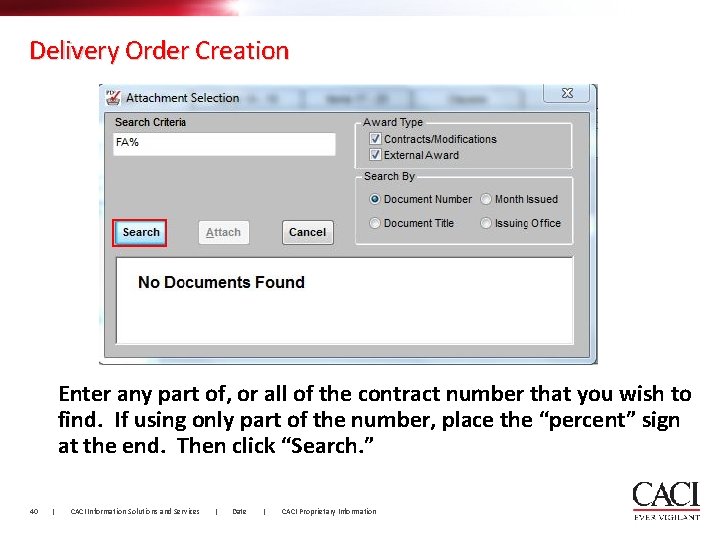
Delivery Order Creation Enter any part of, or all of the contract number that you wish to find. If using only part of the number, place the “percent” sign at the end. Then click “Search. ” 40 | CACI Information Solutions and Services | Date | CACI Proprietary Information
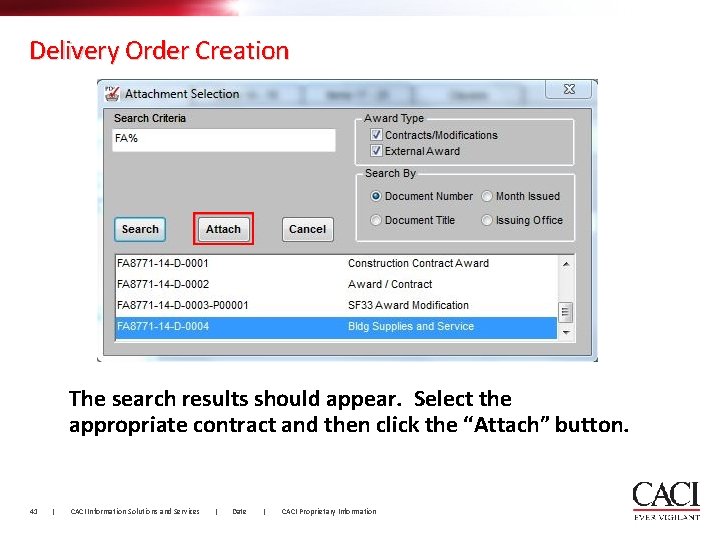
Delivery Order Creation The search results should appear. Select the appropriate contract and then click the “Attach” button. 41 | CACI Information Solutions and Services | Date | CACI Proprietary Information
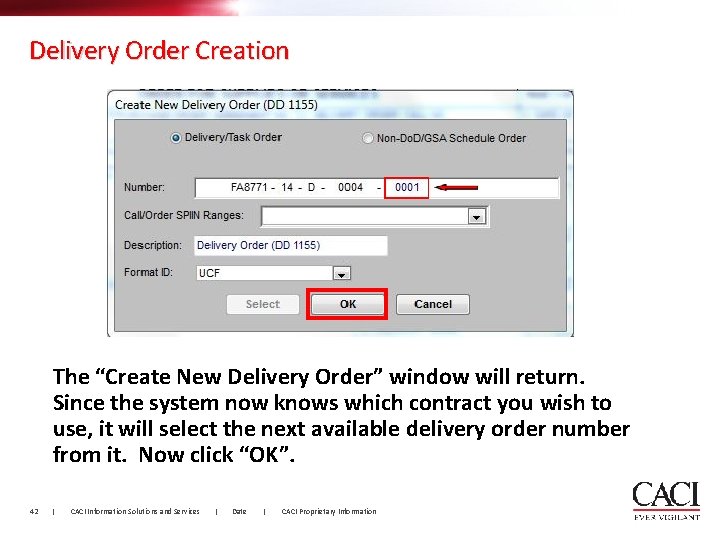
Delivery Order Creation The “Create New Delivery Order” window will return. Since the system now knows which contract you wish to use, it will select the next available delivery order number from it. Now click “OK”. 42 | CACI Information Solutions and Services | Date | CACI Proprietary Information
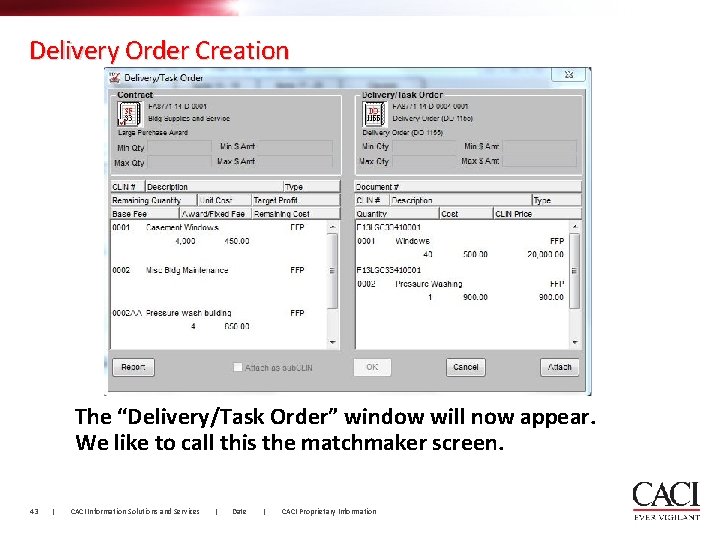
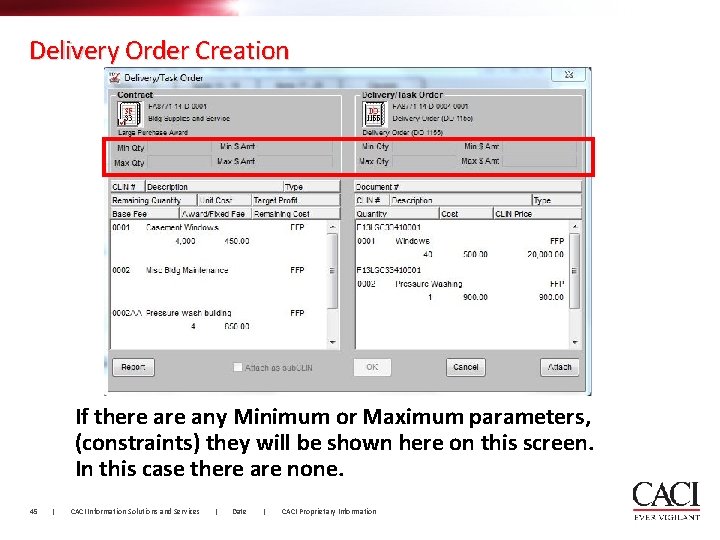
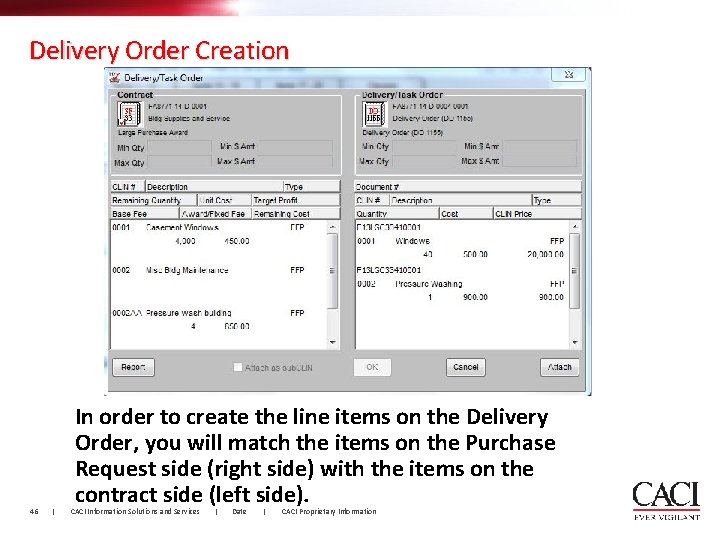
Delivery Order Creation The “Delivery/Task Order” window will now appear. We like to call this the matchmaker screen. 43 | CACI Information Solutions and Services | Date | CACI Proprietary Information
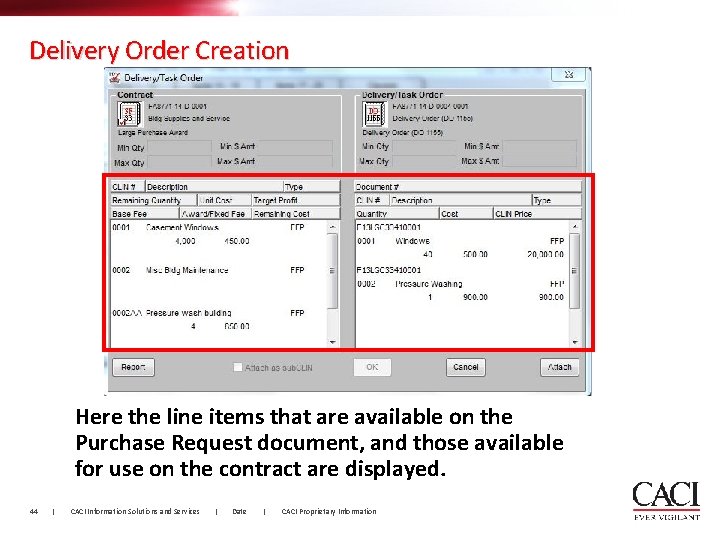
Delivery Order Creation Here the line items that are available on the Purchase Request document, and those available for use on the contract are displayed. 44 | CACI Information Solutions and Services | Date | CACI Proprietary Information
Delivery Order Creation If there any Minimum or Maximum parameters, (constraints) they will be shown here on this screen. In this case there are none. 45 | CACI Information Solutions and Services | Date | CACI Proprietary Information
Delivery Order Creation 46 | In order to create the line items on the Delivery Order, you will match the items on the Purchase Request side (right side) with the items on the contract side (left side). CACI Information Solutions and Services | Date | CACI Proprietary Information
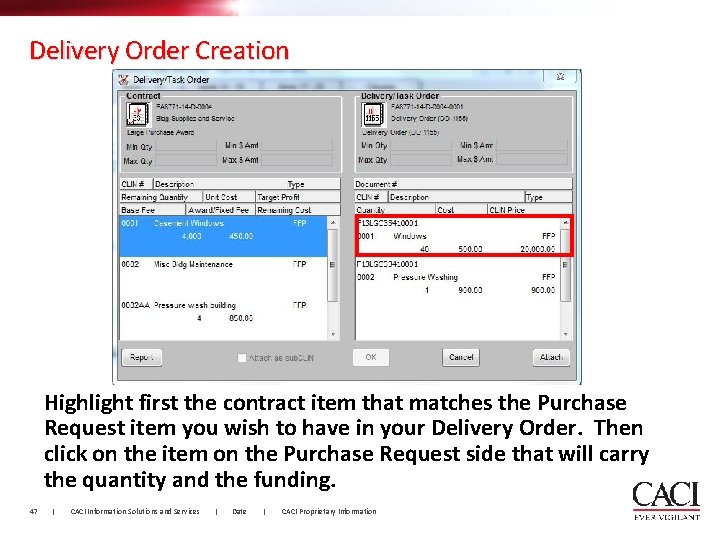
Delivery Order Creation Highlight first the contract item that matches the Purchase Request item you wish to have in your Delivery Order. Then click on the item on the Purchase Request side that will carry the quantity and the funding. 47 | CACI Information Solutions and Services | Date | CACI Proprietary Information
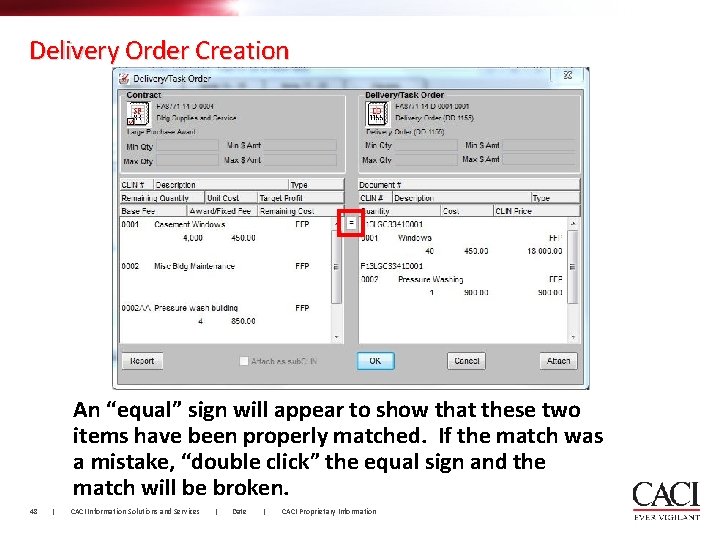
Delivery Order Creation An “equal” sign will appear to show that these two items have been properly matched. If the match was a mistake, “double click” the equal sign and the match will be broken. 48 | CACI Information Solutions and Services | Date | CACI Proprietary Information
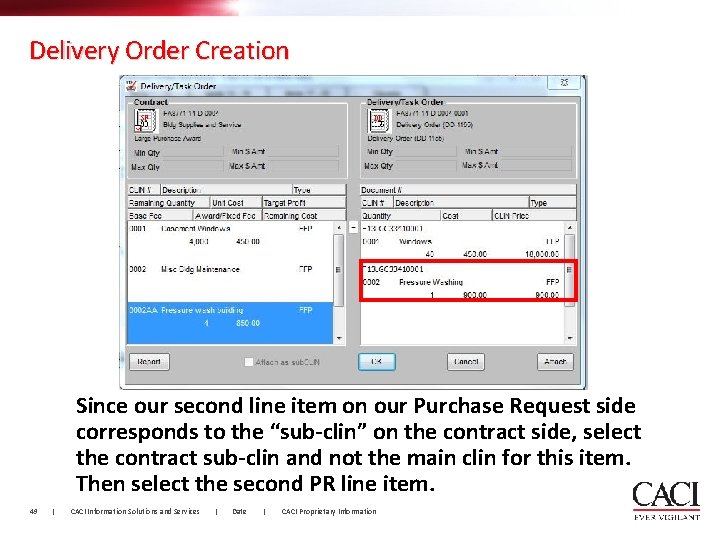
Delivery Order Creation Since our second line item on our Purchase Request side corresponds to the “sub-clin” on the contract side, select the contract sub-clin and not the main clin for this item. Then select the second PR line item. 49 | CACI Information Solutions and Services | Date | CACI Proprietary Information
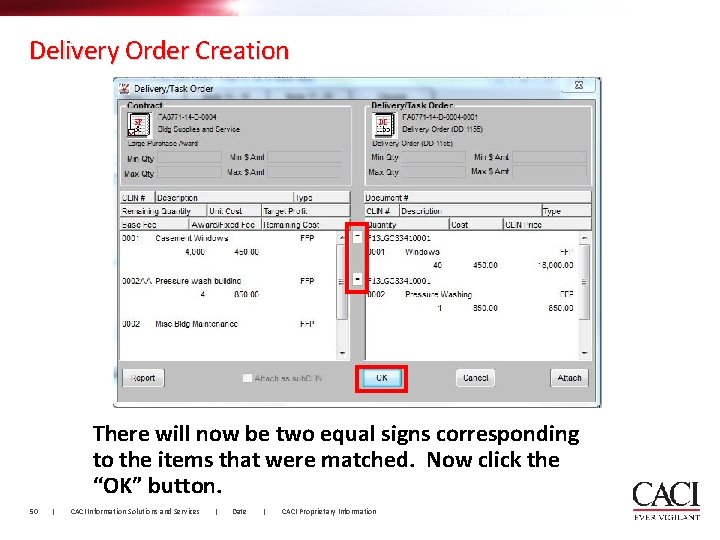
Delivery Order Creation There will now be two equal signs corresponding to the items that were matched. Now click the “OK” button. 50 | CACI Information Solutions and Services | Date | CACI Proprietary Information
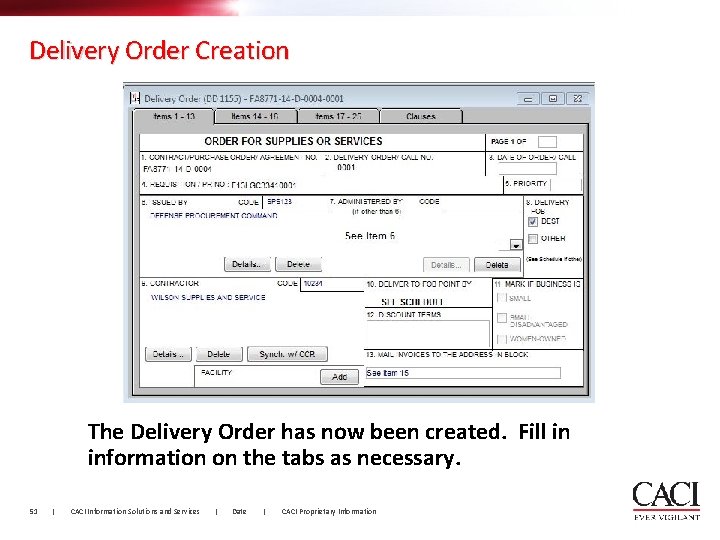
Delivery Order Creation The Delivery Order has now been created. Fill in information on the tabs as necessary. 51 | CACI Information Solutions and Services | Date | CACI Proprietary Information
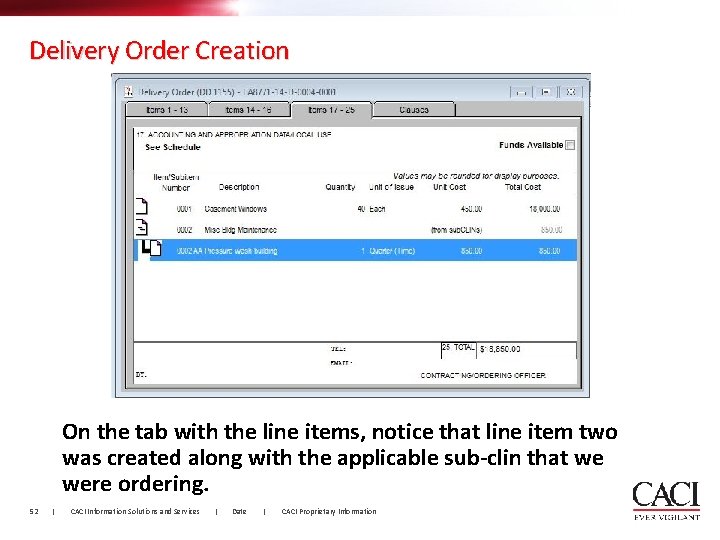
Delivery Order Creation On the tab with the line items, notice that line item two was created along with the applicable sub-clin that we were ordering. 52 | CACI Information Solutions and Services | Date | CACI Proprietary Information
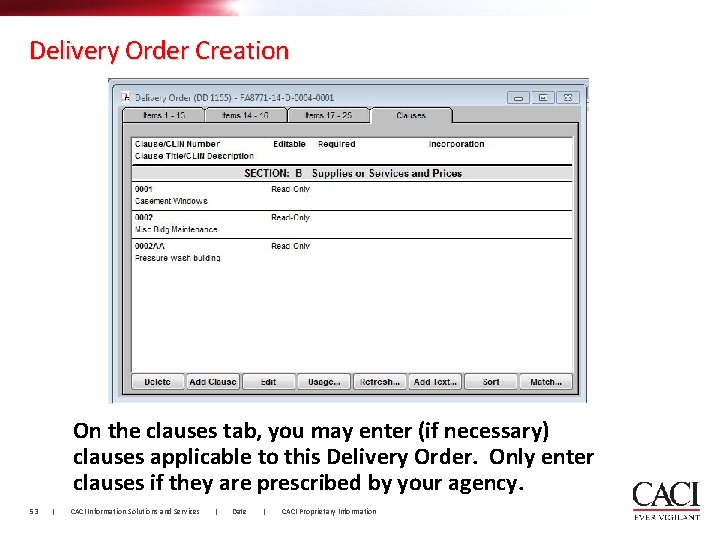
Delivery Order Creation On the clauses tab, you may enter (if necessary) clauses applicable to this Delivery Order. Only enter clauses if they are prescribed by your agency. 53 | CACI Information Solutions and Services | Date | CACI Proprietary Information
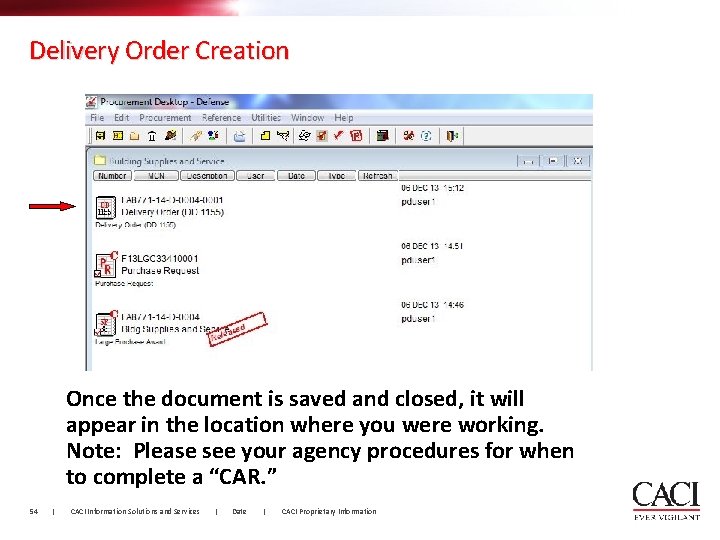
Delivery Order Creation Once the document is saved and closed, it will appear in the location where you were working. Note: Please see your agency procedures for when to complete a “CAR. ” 54 | CACI Information Solutions and Services | Date | CACI Proprietary Information
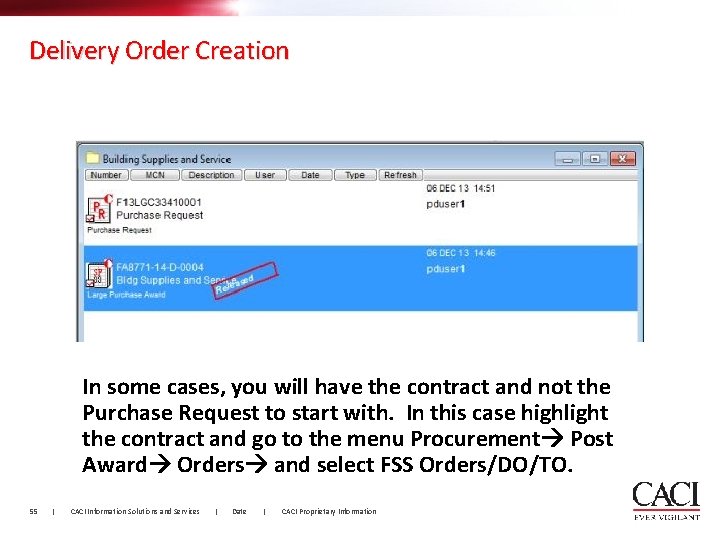
Delivery Order Creation In some cases, you will have the contract and not the Purchase Request to start with. In this case highlight the contract and go to the menu Procurement Post Award Orders and select FSS Orders/DO/TO. 55 | CACI Information Solutions and Services | Date | CACI Proprietary Information
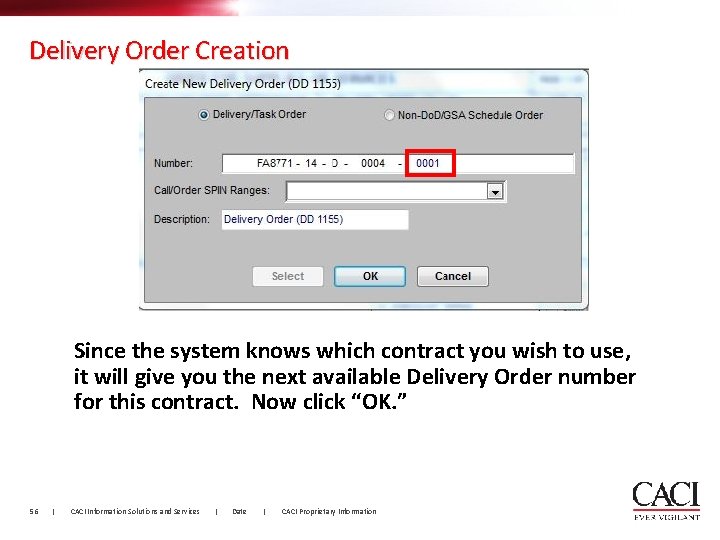
Delivery Order Creation Since the system knows which contract you wish to use, it will give you the next available Delivery Order number for this contract. Now click “OK. ” 56 | CACI Information Solutions and Services | Date | CACI Proprietary Information
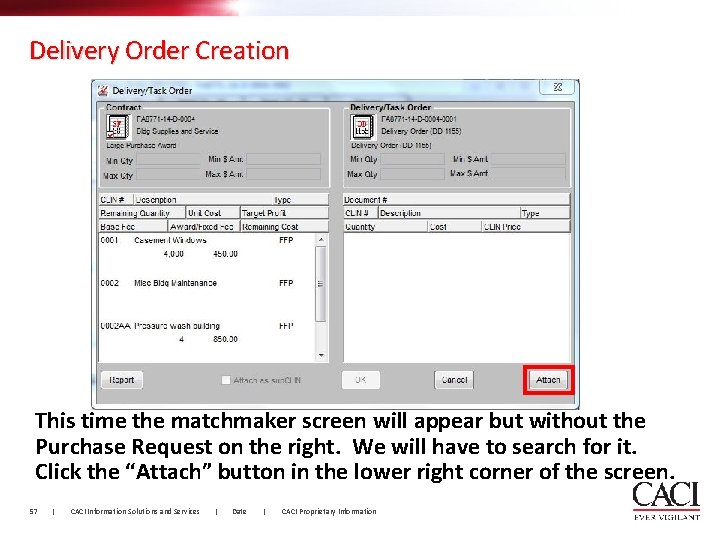
Delivery Order Creation This time the matchmaker screen will appear but without the Purchase Request on the right. We will have to search for it. Click the “Attach” button in the lower right corner of the screen. 57 | CACI Information Solutions and Services | Date | CACI Proprietary Information
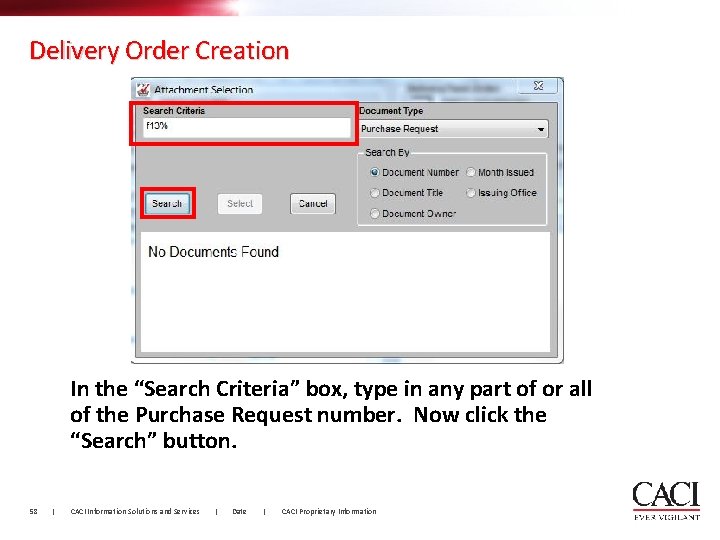
Delivery Order Creation In the “Search Criteria” box, type in any part of or all of the Purchase Request number. Now click the “Search” button. 58 | CACI Information Solutions and Services | Date | CACI Proprietary Information
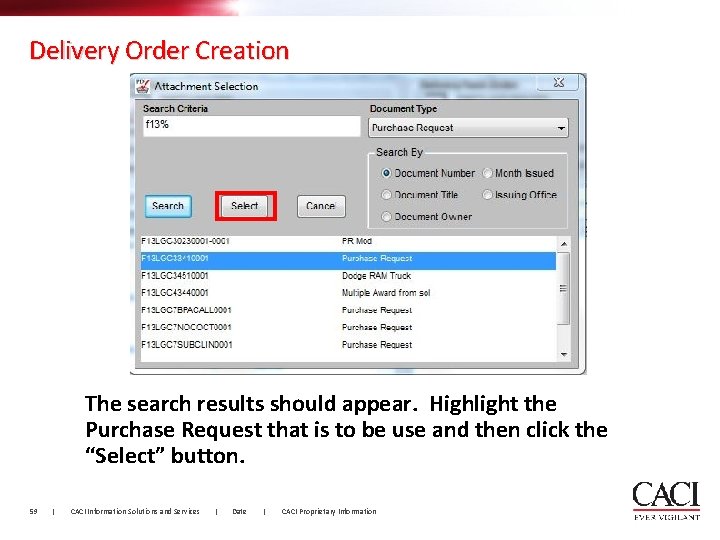
Delivery Order Creation The search results should appear. Highlight the Purchase Request that is to be use and then click the “Select” button. 59 | CACI Information Solutions and Services | Date | CACI Proprietary Information
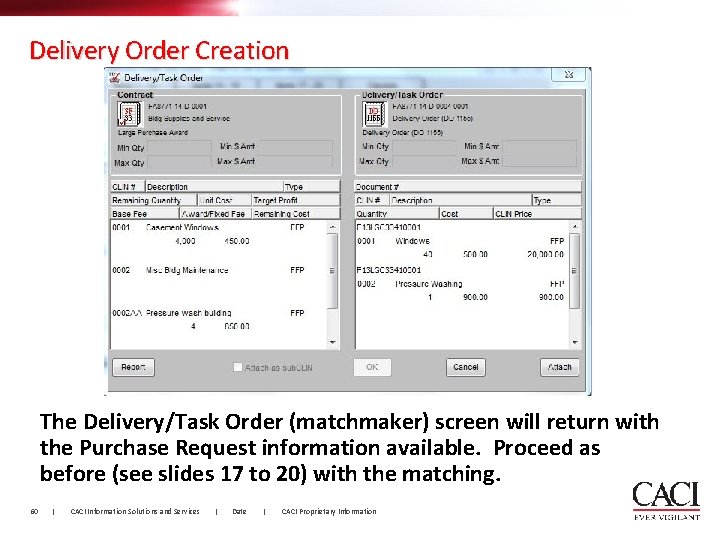
Delivery Order Creation The Delivery/Task Order (matchmaker) screen will return with the Purchase Request information available. Proceed as before (see slides 17 to 20) with the matching. 60 | CACI Information Solutions and Services | Date | CACI Proprietary Information
Questions? 61 | CACI Information Solutions and Services | Date | CACI Proprietary Information
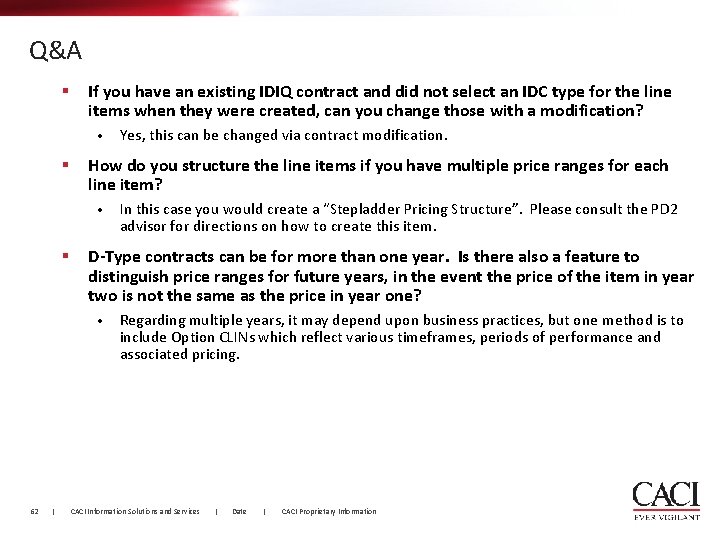
Q&A § If you have an existing IDIQ contract and did not select an IDC type for the line items when they were created, can you change those with a modification? • § How do you structure the line items if you have multiple price ranges for each line item? • § | In this case you would create a “Stepladder Pricing Structure”. Please consult the PD 2 advisor for directions on how to create this item. D-Type contracts can be for more than one year. Is there also a feature to distinguish price ranges for future years, in the event the price of the item in year two is not the same as the price in year one? • 62 Yes, this can be changed via contract modification. Regarding multiple years, it may depend upon business practices, but one method is to include Option CLINs which reflect various timeframes, periods of performance and associated pricing. CACI Information Solutions and Services | Date | CACI Proprietary Information
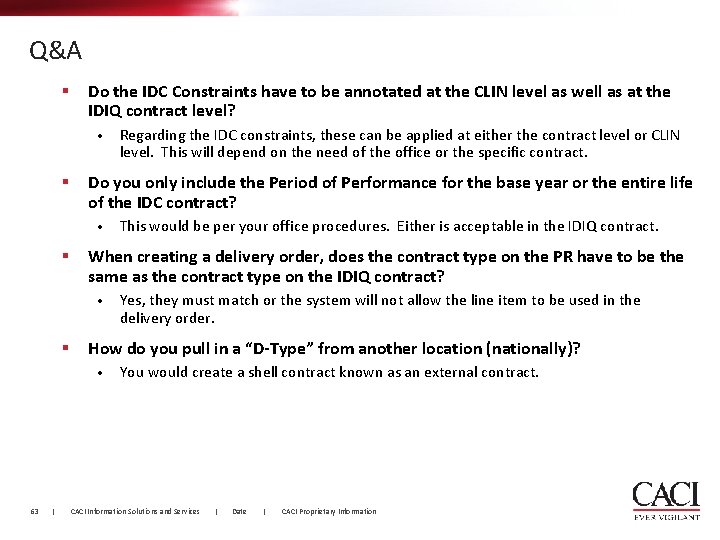
Q&A § Do the IDC Constraints have to be annotated at the CLIN level as well as at the IDIQ contract level? • § Do you only include the Period of Performance for the base year or the entire life of the IDC contract? • § | Yes, they must match or the system will not allow the line item to be used in the delivery order. How do you pull in a “D-Type” from another location (nationally)? • 63 This would be per your office procedures. Either is acceptable in the IDIQ contract. When creating a delivery order, does the contract type on the PR have to be the same as the contract type on the IDIQ contract? • § Regarding the IDC constraints, these can be applied at either the contract level or CLIN level. This will depend on the need of the office or the specific contract. You would create a shell contract known as an external contract. CACI Information Solutions and Services | Date | CACI Proprietary Information
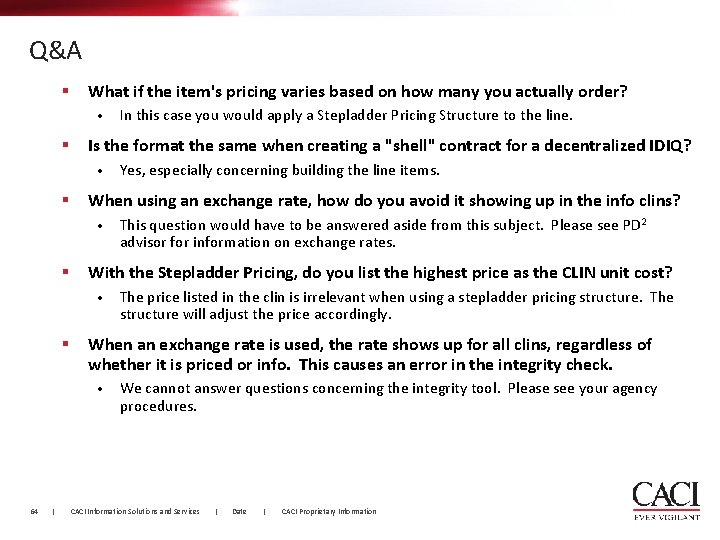
Q&A § What if the item's pricing varies based on how many you actually order? • § Is the format the same when creating a "shell" contract for a decentralized IDIQ? • § | The price listed in the clin is irrelevant when using a stepladder pricing structure. The structure will adjust the price accordingly. When an exchange rate is used, the rate shows up for all clins, regardless of whether it is priced or info. This causes an error in the integrity check. • 64 This question would have to be answered aside from this subject. Please see PD 2 advisor for information on exchange rates. With the Stepladder Pricing, do you list the highest price as the CLIN unit cost? • § Yes, especially concerning building the line items. When using an exchange rate, how do you avoid it showing up in the info clins? • § In this case you would apply a Stepladder Pricing Structure to the line. We cannot answer questions concerning the integrity tool. Please see your agency procedures. CACI Information Solutions and Services | Date | CACI Proprietary Information
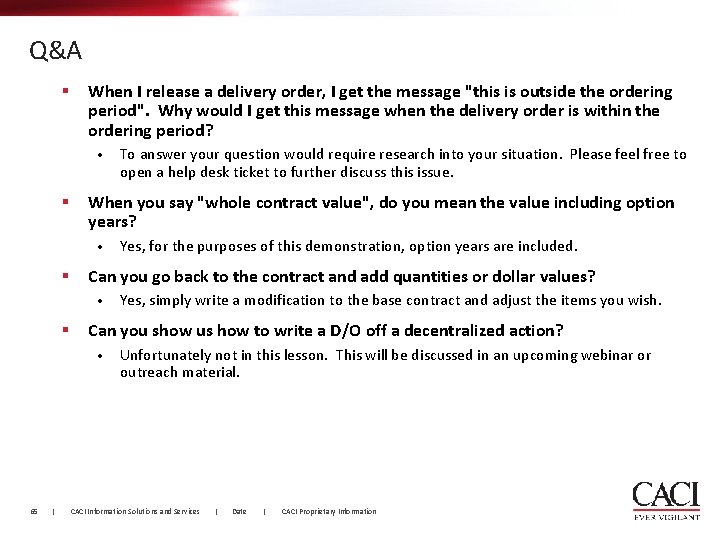
Q&A § When I release a delivery order, I get the message "this is outside the ordering period". Why would I get this message when the delivery order is within the ordering period? • § When you say "whole contract value", do you mean the value including option years? • § | Yes, simply write a modification to the base contract and adjust the items you wish. Can you show us how to write a D/O off a decentralized action? • 65 Yes, for the purposes of this demonstration, option years are included. Can you go back to the contract and add quantities or dollar values? • § To answer your question would require research into your situation. Please feel free to open a help desk ticket to further discuss this issue. Unfortunately not in this lesson. This will be discussed in an upcoming webinar or outreach material. CACI Information Solutions and Services | Date | CACI Proprietary Information
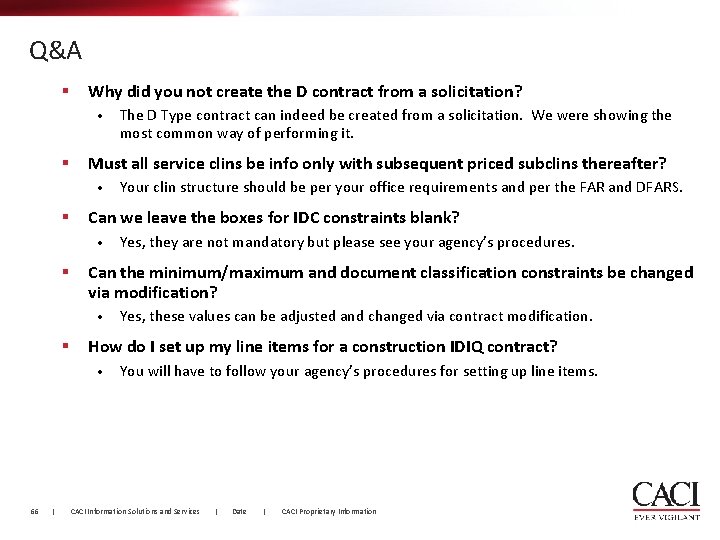
Q&A § Why did you not create the D contract from a solicitation? • § Must all service clins be info only with subsequent priced subclins thereafter? • § | Yes, these values can be adjusted and changed via contract modification. How do I set up my line items for a construction IDIQ contract? • 66 Yes, they are not mandatory but please see your agency’s procedures. Can the minimum/maximum and document classification constraints be changed via modification? • § Your clin structure should be per your office requirements and per the FAR and DFARS. Can we leave the boxes for IDC constraints blank? • § The D Type contract can indeed be created from a solicitation. We were showing the most common way of performing it. You will have to follow your agency’s procedures for setting up line items. CACI Information Solutions and Services | Date | CACI Proprietary Information
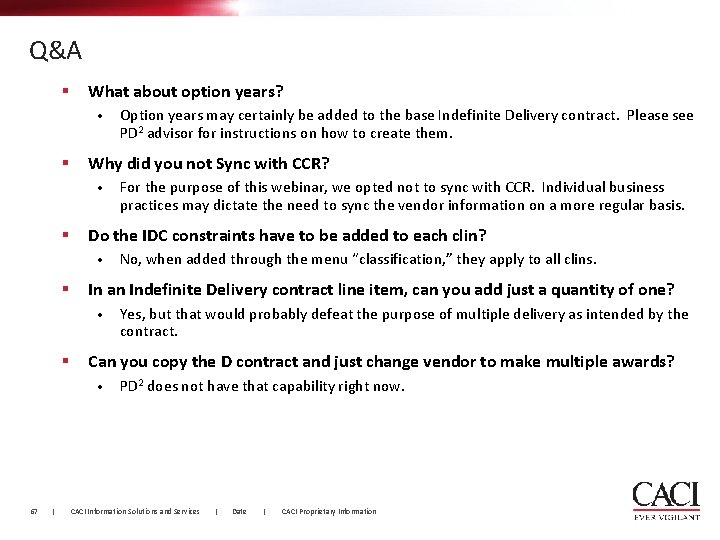
Q&A § What about option years? • § Why did you not Sync with CCR? • § | Yes, but that would probably defeat the purpose of multiple delivery as intended by the contract. Can you copy the D contract and just change vendor to make multiple awards? • 67 No, when added through the menu “classification, ” they apply to all clins. In an Indefinite Delivery contract line item, can you add just a quantity of one? • § For the purpose of this webinar, we opted not to sync with CCR. Individual business practices may dictate the need to sync the vendor information on a more regular basis. Do the IDC constraints have to be added to each clin? • § Option years may certainly be added to the base Indefinite Delivery contract. Please see PD 2 advisor for instructions on how to create them. PD 2 does not have that capability right now. CACI Information Solutions and Services | Date | CACI Proprietary Information
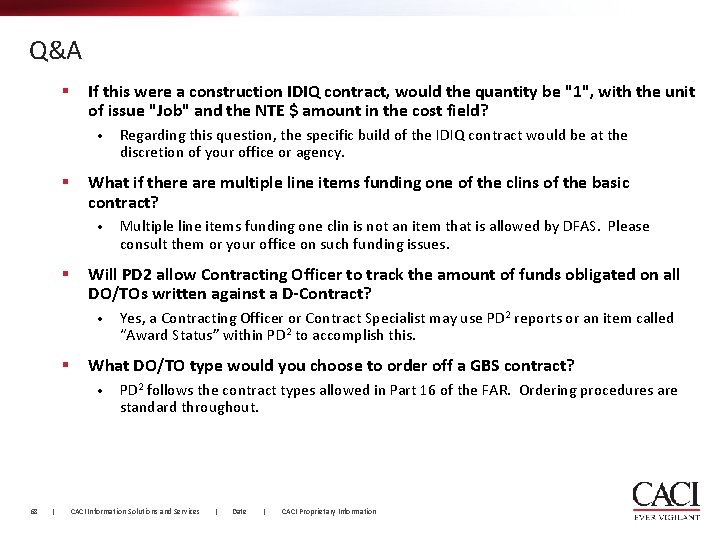
Q&A § If this were a construction IDIQ contract, would the quantity be "1", with the unit of issue "Job" and the NTE $ amount in the cost field? • § What if there are multiple line items funding one of the clins of the basic contract? • § | Yes, a Contracting Officer or Contract Specialist may use PD 2 reports or an item called “Award Status” within PD 2 to accomplish this. What DO/TO type would you choose to order off a GBS contract? • 68 Multiple line items funding one clin is not an item that is allowed by DFAS. Please consult them or your office on such funding issues. Will PD 2 allow Contracting Officer to track the amount of funds obligated on all DO/TOs written against a D-Contract? • § Regarding this question, the specific build of the IDIQ contract would be at the discretion of your office or agency. PD 2 follows the contract types allowed in Part 16 of the FAR. Ordering procedures are standard throughout. CACI Information Solutions and Services | Date | CACI Proprietary Information
Future Webinars § Contract Entry for Successful FPDS-NG Validation § PDS Overview Future Outreach Material § Security Model Overview § Sharing Documents via Teams 69 | CACI Information Solutions and Services | Date | § Review of Desktop Functions § What’s new with SR 15 CACI Proprietary Information