
Processing Signatures The Purpose of Collecting Employees Signatures


- Slides: 16
Processing Signatures
The Purpose of Collecting Employees’ Signatures Our company uses electronic signatures to complete documents. It is the responsibility of our department to obtain these signatures and process them into the necessary file types to allow the user to accomplish this task. In this presentation, we will discuss the following: 1. 2. 3. 4. Acquiring the signature Creating three versions of the image -. png, . pdf, and. bmp Uploading the signature to the Internal Insurance Software (IIS) Deleting signatures from the Internal Insurance Software (IIS) 2
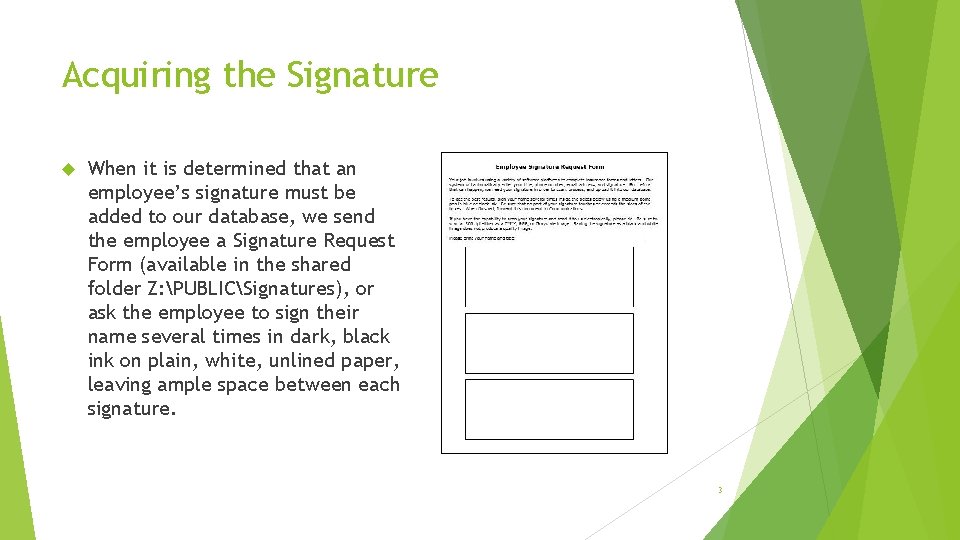
Acquiring the Signature When it is determined that an employee’s signature must be added to our database, we send the employee a Signature Request Form (available in the shared folder Z: PUBLICSignatures), or ask the employee to sign their name several times in dark, black ink on plain, white, unlined paper, leaving ample space between each signature. 3
Acquiring the Signature Upon receipt of the signed form, scan the signature at 300 dpi and save to our department folder – Z: PUBLICSignaturessource signatures. The scanning procedure may vary depending on the type of machine you are using. See your supervisor if you need help with scanning. Sometimes the employee can scan the signature and email us the image file, which saves us the extra step of scanning. If they have this capability, be sure they save the file at 300 dpi either as a CMYK, RGB, or Grayscale image. Saving the signature as a black and white image does not produce a quality image. 4
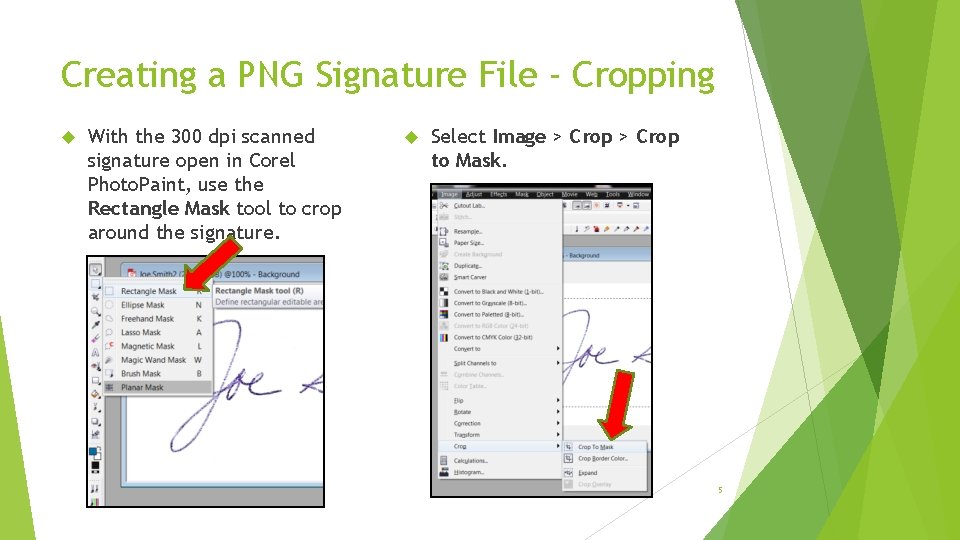
Creating a PNG Signature File - Cropping With the 300 dpi scanned signature open in Corel Photo. Paint, use the Rectangle Mask tool to crop around the signature. Select Image > Crop to Mask. 5
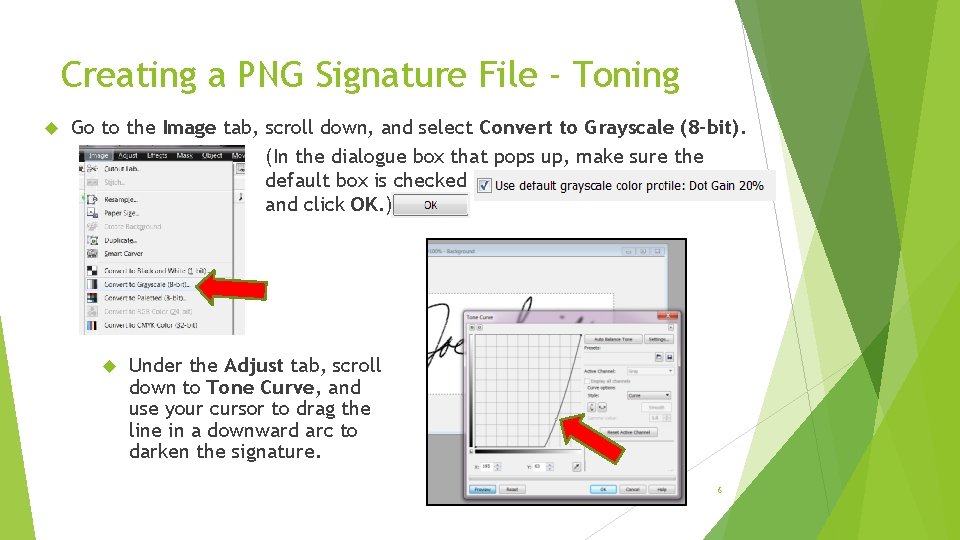
Creating a PNG Signature File - Toning Go to the Image tab, scroll down, and select Convert to Grayscale (8 -bit). (In the dialogue box that pops up, make sure the default box is checked and click OK. ) Under the Adjust tab, scroll down to Tone Curve, and use your cursor to drag the line in a downward arc to darken the signature. 6
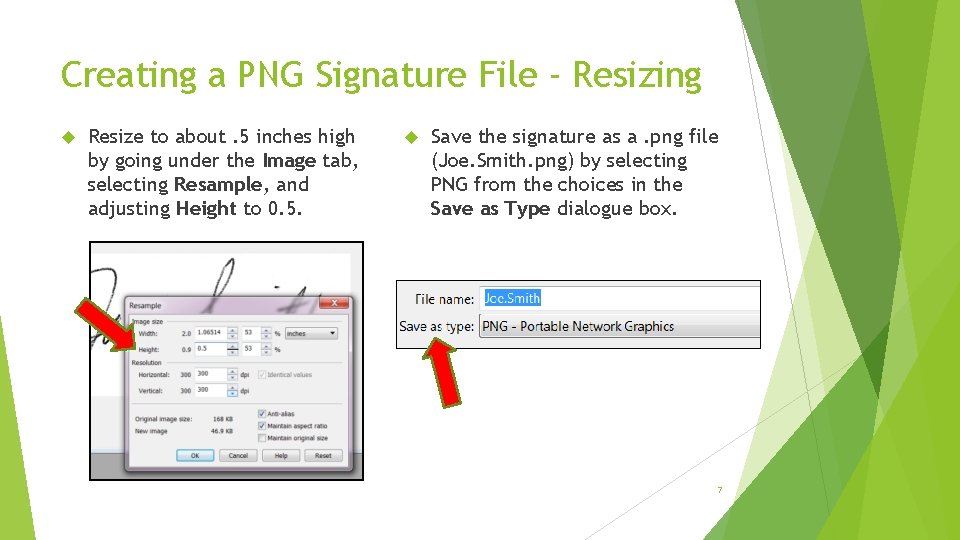
Creating a PNG Signature File - Resizing Resize to about. 5 inches high by going under the Image tab, selecting Resample, and adjusting Height to 0. 5. Save the signature as a. png file (Joe. Smith. png) by selecting PNG from the choices in the Save as Type dialogue box. 7
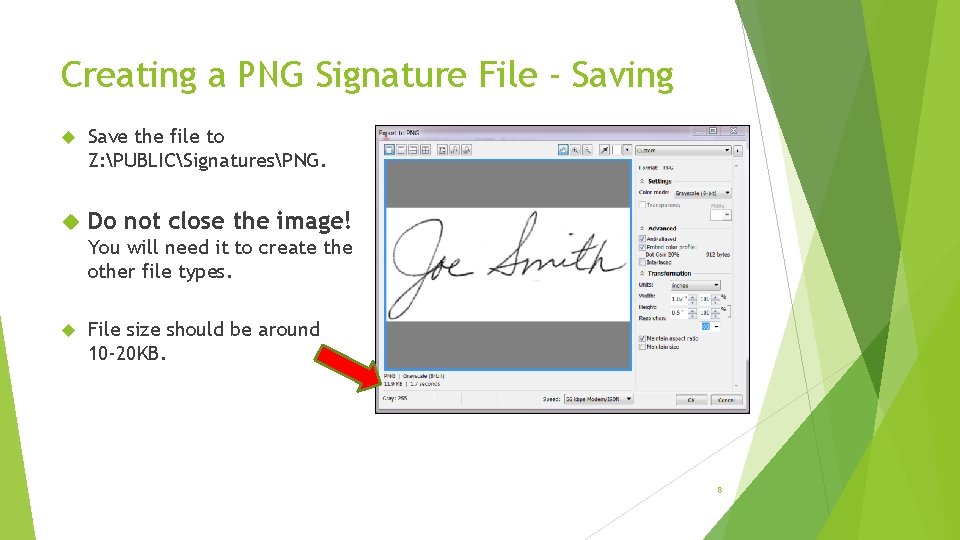
Creating a PNG Signature File - Saving Save the file to Z: PUBLICSignaturesPNG. Do not close the image! You will need it to create the other file types. File size should be around 10 -20 KB. 8
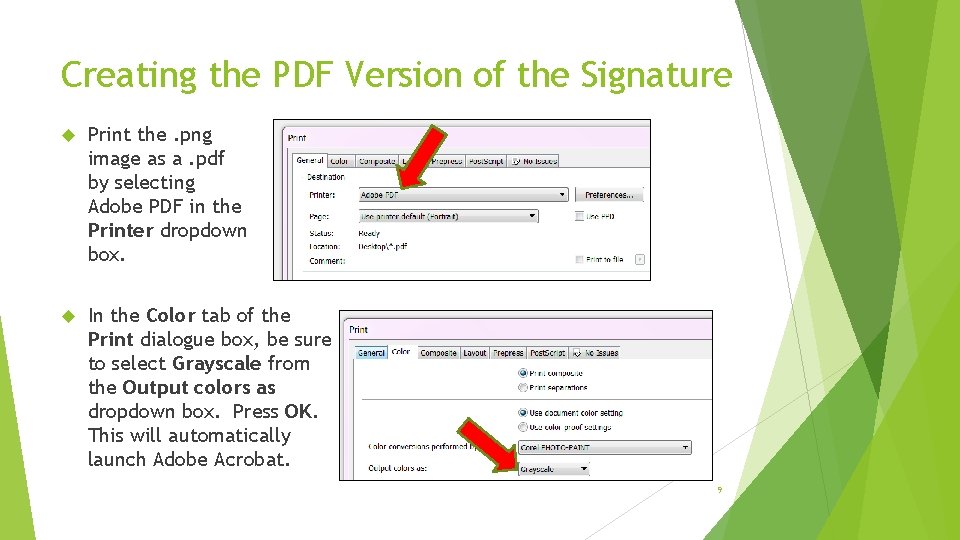
Creating the PDF Version of the Signature Print the. png image as a. pdf by selecting Adobe PDF in the Printer dropdown box. In the Color tab of the Print dialogue box, be sure to select Grayscale from the Output colors as dropdown box. Press OK. This will automatically launch Adobe Acrobat. 9
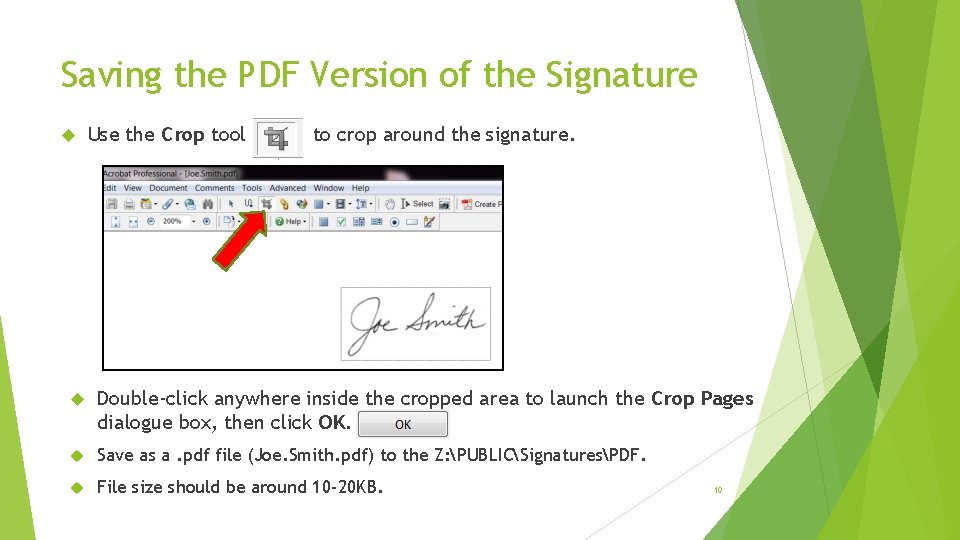
Saving the PDF Version of the Signature Use the Crop tool to crop around the signature. Double-click anywhere inside the cropped area to launch the Crop Pages dialogue box, then click OK. Save as a. pdf file (Joe. Smith. pdf) to the Z: PUBLICSignaturesPDF. File size should be around 10 -20 KB. 10
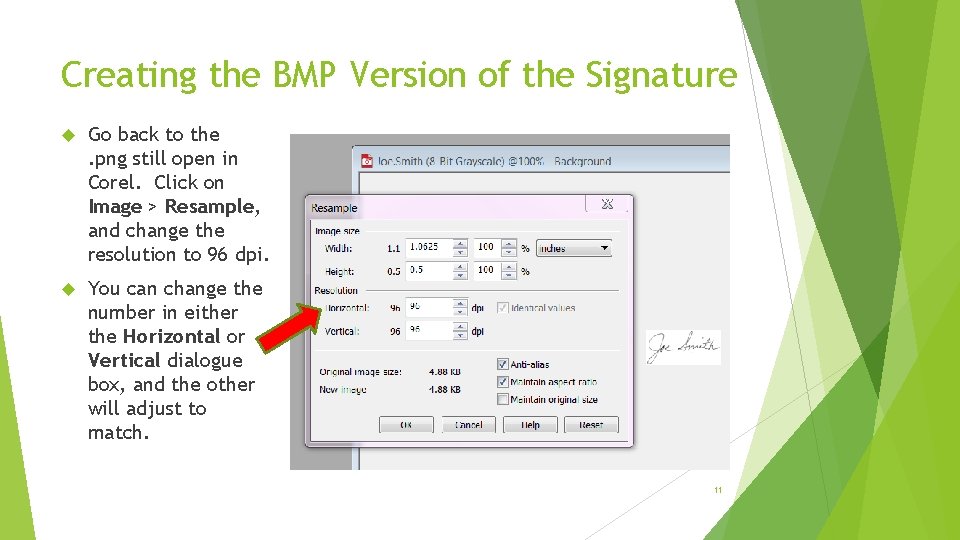
Creating the BMP Version of the Signature Go back to the. png still open in Corel. Click on Image > Resample, and change the resolution to 96 dpi. You can change the number in either the Horizontal or Vertical dialogue box, and the other will adjust to match. 11
Finishing the BMP Version of the Signature It may be necessary to darken the signature again now that you’ve reduced the size. If so, click on Adjust > Tone Curve and use your cursor to drag the adjustment bar down as shown in the. png instructions. Save as a. bmp file (Joe. Smith. bmp) to Z: PUBLICSignaturesBMP. Size should be under 10 KB. 12
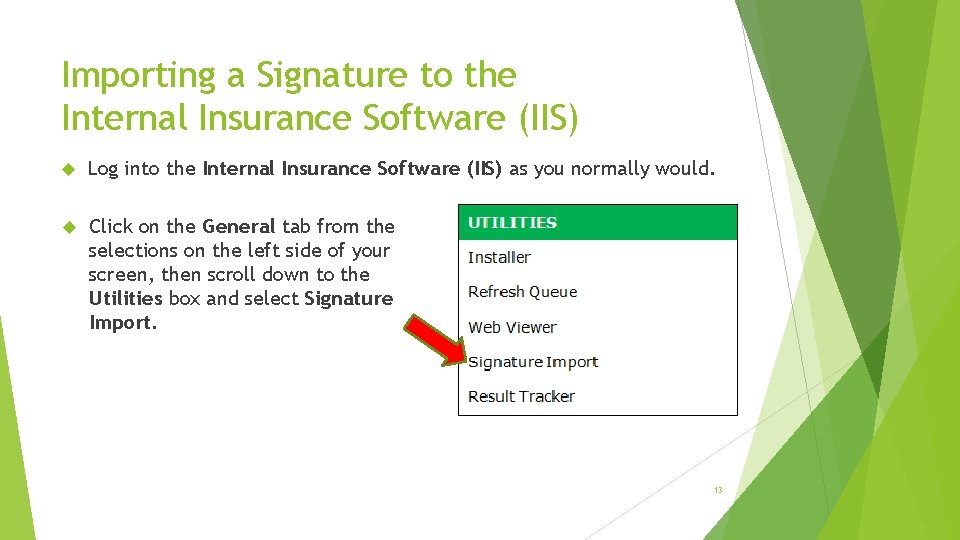
Importing a Signature to the Internal Insurance Software (IIS) Log into the Internal Insurance Software (IIS) as you normally would. Click on the General tab from the selections on the left side of your screen, then scroll down to the Utilities box and select Signature Import. 13
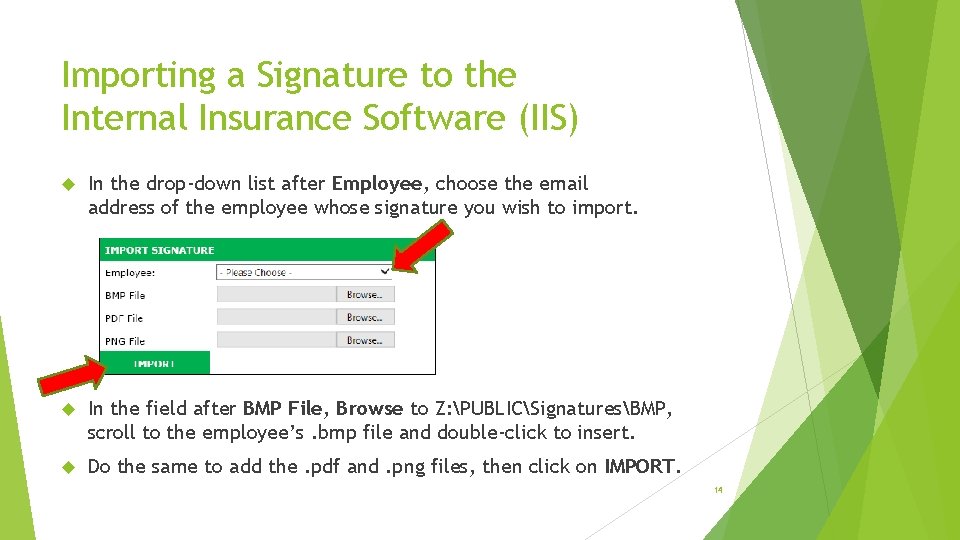
Importing a Signature to the Internal Insurance Software (IIS) In the drop-down list after Employee, choose the email address of the employee whose signature you wish to import. In the field after BMP File, Browse to Z: PUBLICSignaturesBMP, scroll to the employee’s. bmp file and double-click to insert. Do the same to add the. pdf and. png files, then click on IMPORT. 14
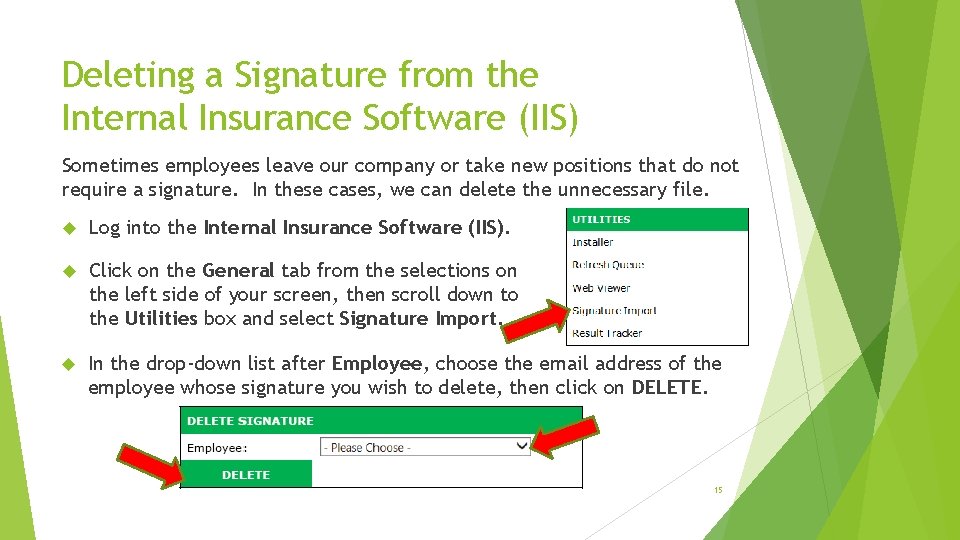
Deleting a Signature from the Internal Insurance Software (IIS) Sometimes employees leave our company or take new positions that do not require a signature. In these cases, we can delete the unnecessary file. Log into the Internal Insurance Software (IIS). Click on the General tab from the selections on the left side of your screen, then scroll down to the Utilities box and select Signature Import. In the drop-down list after Employee, choose the email address of the employee whose signature you wish to delete, then click on DELETE. 15
Questions? 16