
Processing Receipts Slide 1 Processing Receipts on Purchase
- Slides: 11
Processing Receipts Slide 1
Processing Receipts on Purchase Orders • When goods that were ordered using a Purchase Order (PO) are physically received in the department or contractual services ordered on a PO have been performed, you should go into OMNI Financials to process a receipt for the goods and/or services • Since OMNI is our financial system, receipts are processed in OMNI to allow payments to be made from OMNI, even if the requisition was created in Spear. Mart. • By processing a receipt in OMNI, you are certifying that all goods and/or services listed on the receipt are received and/or completed and the supplier is due payment for those items/lines • You only want to process a receipt for the quantity of items shipped or lines for services performed, so FSU does not pay for items that FSU did not get or services not yet performed Slide 2
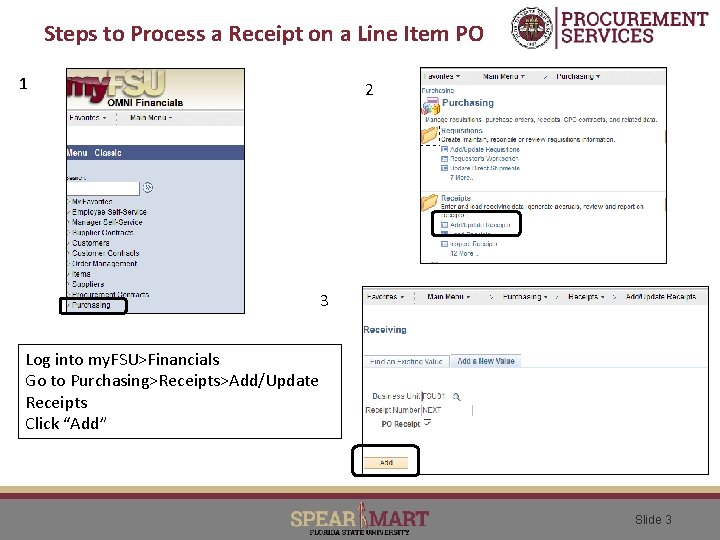
Steps to Process a Receipt on a Line Item PO 1 2 3 Log into my. FSU>Financials Go to Purchasing>Receipts>Add/Update Receipts Click “Add” Slide 3
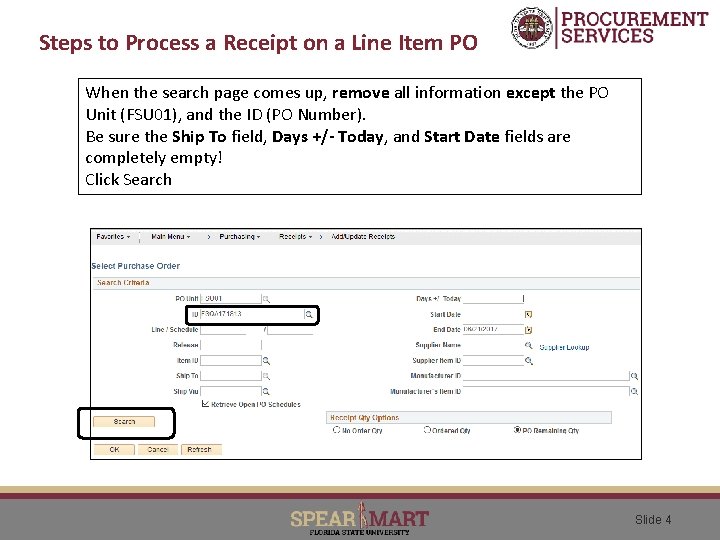
Steps to Process a Receipt on a Line Item PO When the search page comes up, remove all information except the PO Unit (FSU 01), and the ID (PO Number). Be sure the Ship To field, Days +/- Today, and Start Date fields are completely empty! Click Search Slide 4
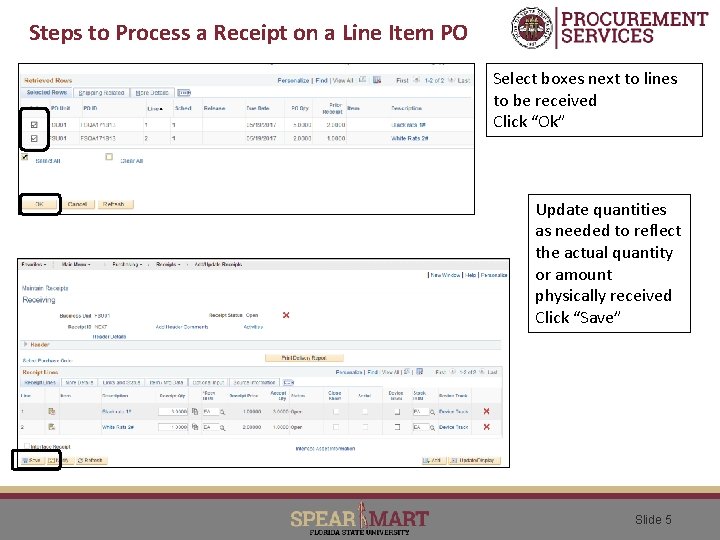
Steps to Process a Receipt on a Line Item PO Select boxes next to lines to be received Click “Ok” Update quantities as needed to reflect the actual quantity or amount physically received Click “Save” Slide 5
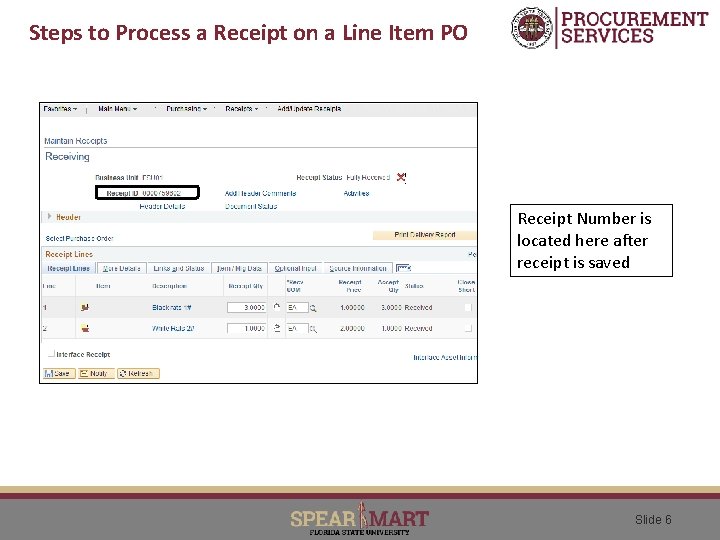
Steps to Process a Receipt on a Line Item PO Receipt Number is located here after receipt is saved Slide 6
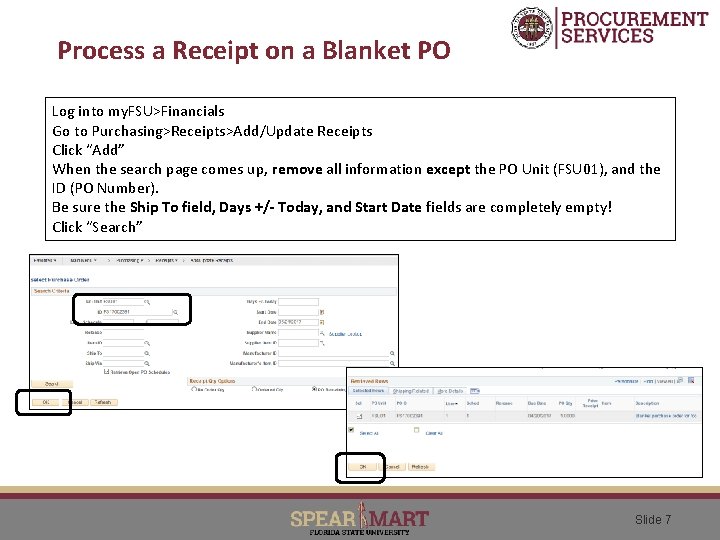
Process a Receipt on a Blanket PO Log into my. FSU>Financials Go to Purchasing>Receipts>Add/Update Receipts Click “Add” When the search page comes up, remove all information except the PO Unit (FSU 01), and the ID (PO Number). Be sure the Ship To field, Days +/- Today, and Start Date fields are completely empty! Click “Search” Slide 7
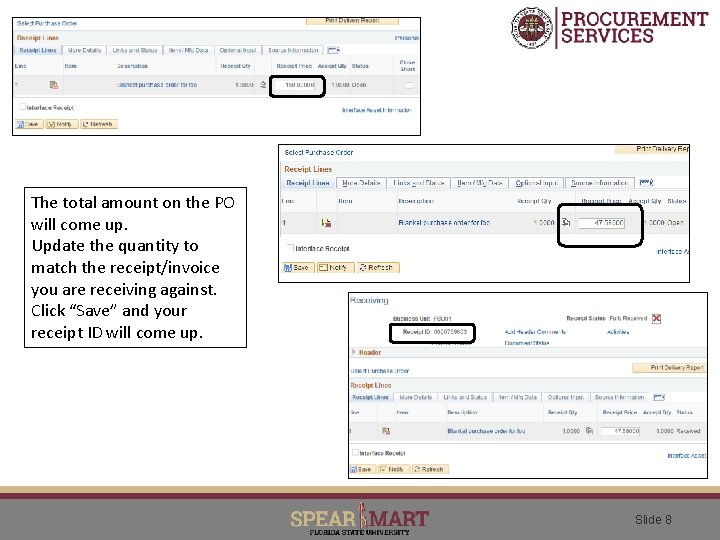
The total amount on the PO will come up. Update the quantity to match the receipt/invoice you are receiving against. Click “Save” and your receipt ID will come up. Slide 8
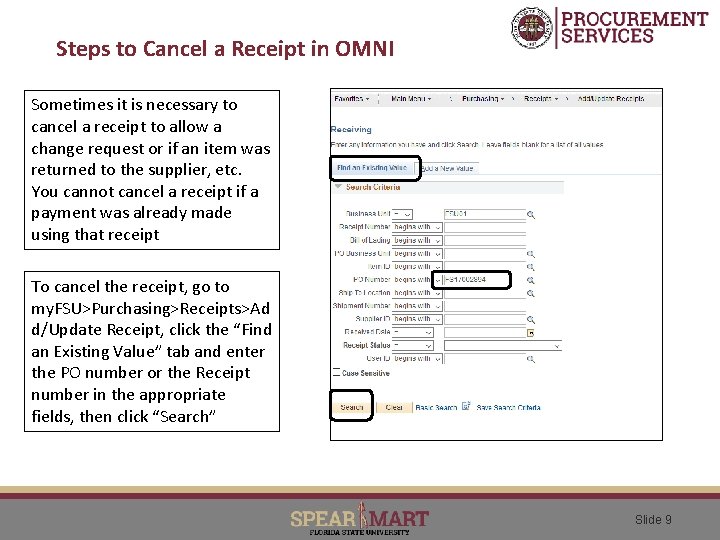
Steps to Cancel a Receipt in OMNI Sometimes it is necessary to cancel a receipt to allow a change request or if an item was returned to the supplier, etc. You cannot cancel a receipt if a payment was already made using that receipt To cancel the receipt, go to my. FSU>Purchasing>Receipts>Ad d/Update Receipt, click the “Find an Existing Value” tab and enter the PO number or the Receipt number in the appropriate fields, then click “Search” Slide 9
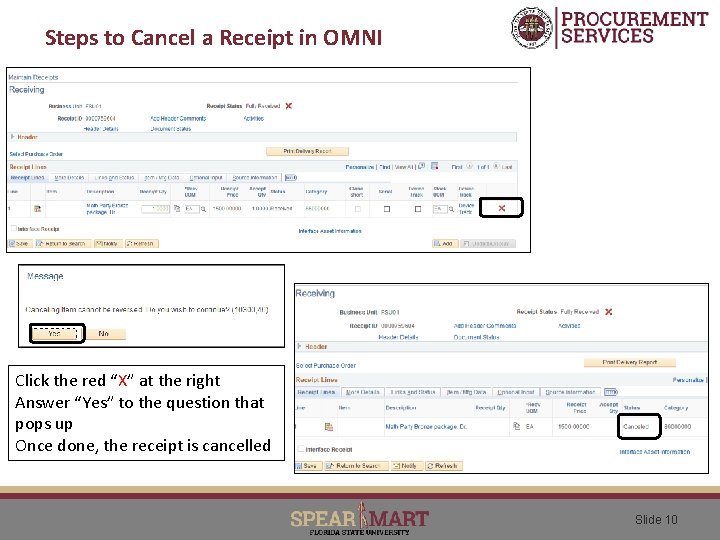
Steps to Cancel a Receipt in OMNI Click the red “X” at the right Answer “Yes” to the question that pops up Once done, the receipt is cancelled Slide 10
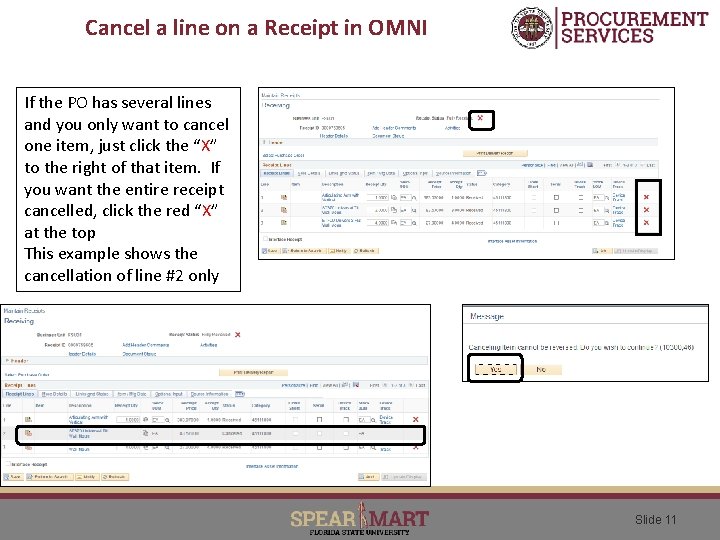
Cancel a line on a Receipt in OMNI If the PO has several lines and you only want to cancel one item, just click the “X” to the right of that item. If you want the entire receipt cancelled, click the red “X” at the top This example shows the cancellation of line #2 only Slide 11