
Private Postsecondary Education PPE Recertification Training PPE Recertification

- Slides: 61
Private Postsecondary Education (PPE) Recertification Training
PPE Recertification Training Agenda: • Benefits of Completing Recertification on the Web • Recertification Requirement • Minimum System Requirements • Recertification Cycle • On-Line Recertification Process • Recertification Documents to Submit • SCHEV Contact Information 1
PPE Recertification Training Bearing. Point, Inc. , a management and technology consulting firm, designed a Recertification Process that is: • User-Friendly • Web Based 2
PPE Recertification Training Benefits of Completing Recertification on the Web • Electronic filing allows you to confirm and/or correct data currently maintained by SCHEV. • Online help topics are available for most sections. • There automatic edit checks that finds errors on your application and prompts you to fix them. • There is a link to the SCHEV website listing all forms that must be submitted for recertification. • Allows for the electronic collection of enrollment, 3
PPE Recertification Training Recertification Requirement • Pursuant to 8 VAC 31 -170(E), all postsecondary educational institutions certified to operate in Virginia must recertify annually. 4
PPE Recertification Training Minimum System Requirements • Internet Connection • Internet Browser (tested on Internet Explorer 5. 5 and higher and Mozilla Firefox 2. 0) • Microsoft Word and Microsoft Excel • Printer 5
PPE Recertification Training Recertification Cycle Schools have a 60 -day window of opportunity to complete the recertification application. 6
PPE Recertification Training A complete Recertification Application package must be submitted by the Application Due Date. A complete package includes: • Electronic (on-line) application submission 7
PPE Recertification Training Out-of-State, Degree-Granting & Career. Technical Private Institutions Recertification Notification Date–May 2 Recertification Application Due Date. July 2 Out-of-State, Public Institutions 8
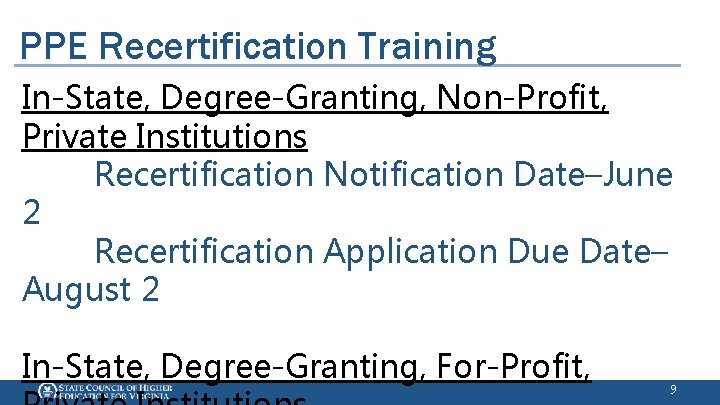
PPE Recertification Training In-State, Degree-Granting, Non-Profit, Private Institutions Recertification Notification Date–June 2 Recertification Application Due Date– August 2 In-State, Degree-Granting, For-Profit, 9
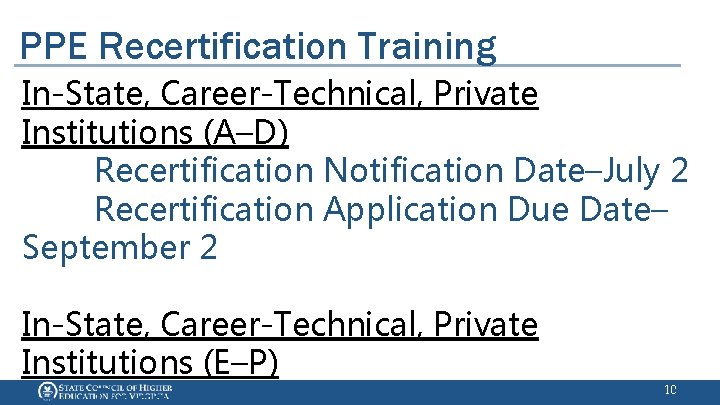
PPE Recertification Training In-State, Career-Technical, Private Institutions (A–D) Recertification Notification Date–July 2 Recertification Application Due Date– September 2 In-State, Career-Technical, Private Institutions (E–P) 10
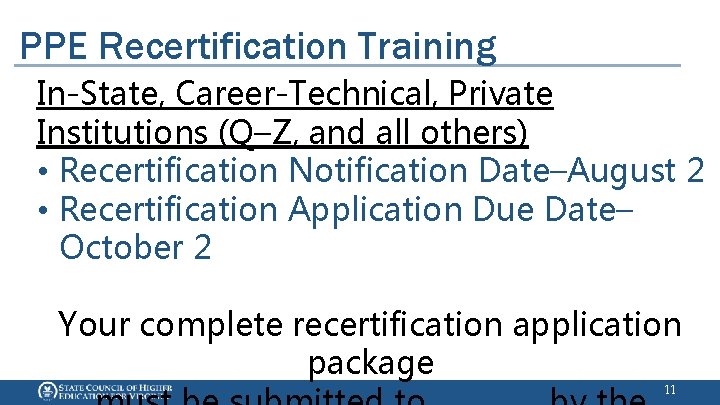
PPE Recertification Training In-State, Career-Technical, Private Institutions (Q–Z, and all others) • Recertification Notification Date–August 2 • Recertification Application Due Date– October 2 Your complete recertification application package 11
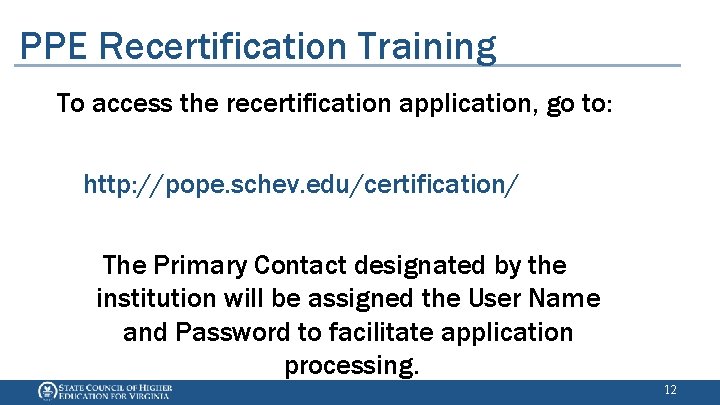
PPE Recertification Training To access the recertification application, go to: http: //pope. schev. edu/certification/ The Primary Contact designated by the institution will be assigned the User Name and Password to facilitate application processing. 12
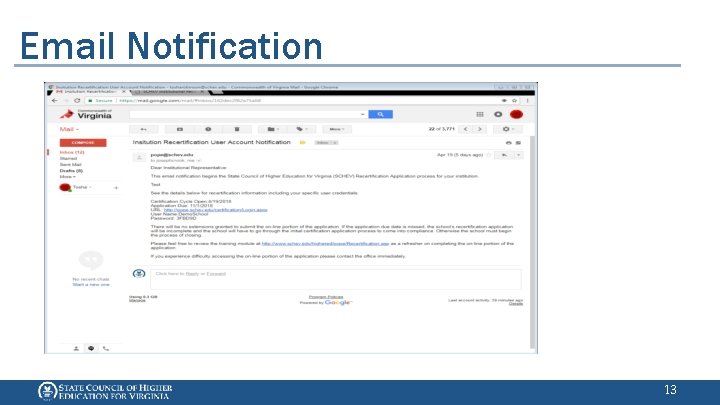
Email Notification 13
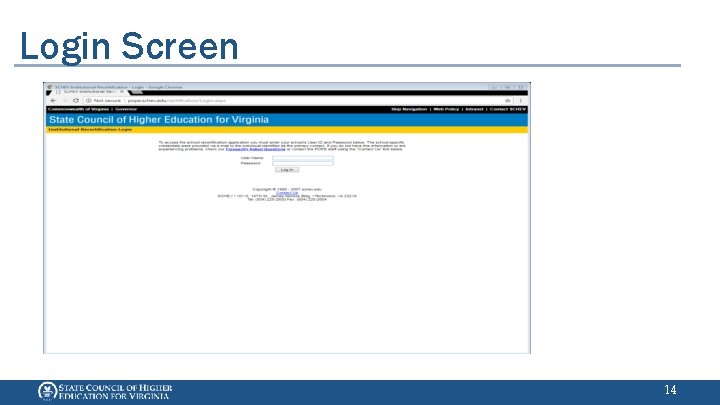
Login Screen 14
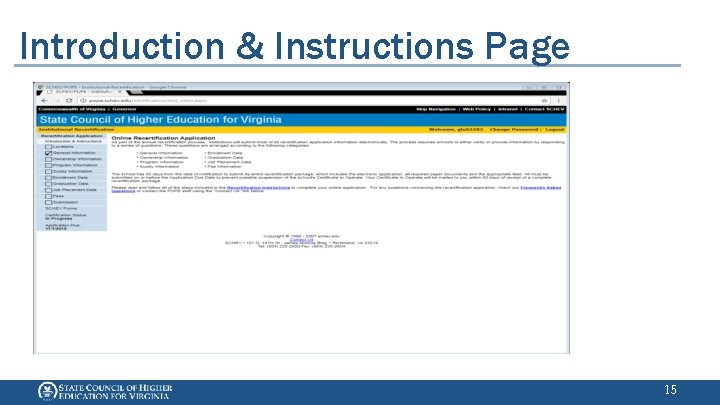
Introduction & Instructions Page 15
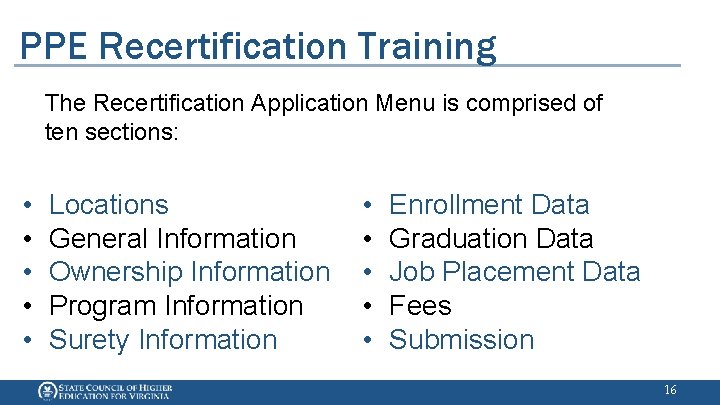
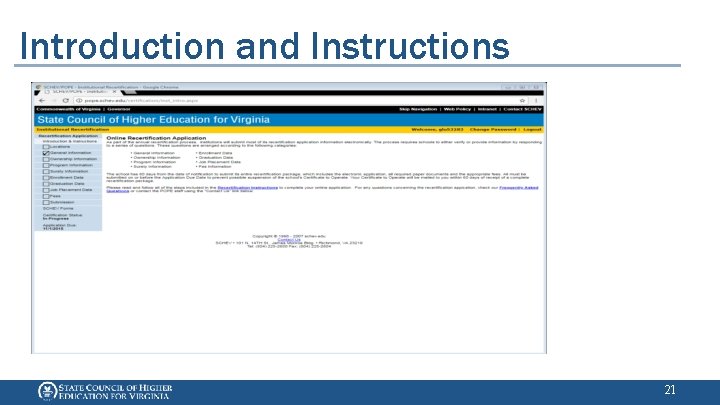
PPE Recertification Training The Recertification Application Menu is comprised of ten sections: • • • Locations General Information Ownership Information Program Information Surety Information • • • Enrollment Data Graduation Data Job Placement Data Fees Submission 16
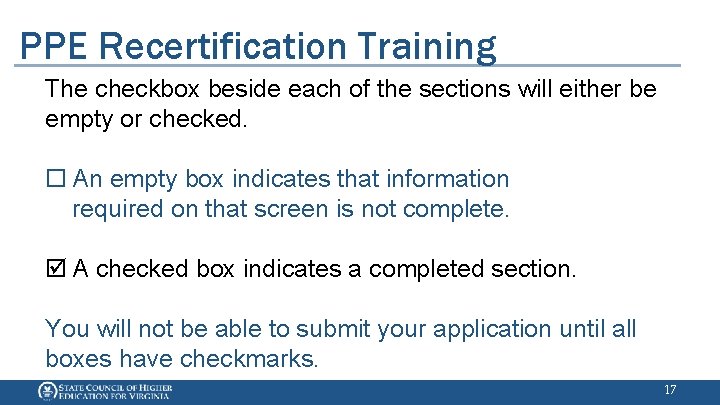
PPE Recertification Training The checkbox beside each of the sections will either be empty or checked. ¨ An empty box indicates that information required on that screen is not complete. þ A checked box indicates a completed section. You will not be able to submit your application until all boxes have checkmarks. 17
PPE Recertification Training At the bottom of the Recertification Application Menu, find: • A link to all SCHEV forms • Certification Application Status of “In Progress” or “Submitted” • Application Due Date 18
PPE Recertification Training Recertification Instructions • Provide instructions on how to verify or enter data on each page of the application. Frequently Asked Questions • A list of frequently asked questions 19
PPE Recertification Training Other Navigation Tips: • Click the “Save” button in order to save inputted data. • Click the “Contact Us” link if experiencing difficulty navigating the application. 20
Introduction and Instructions 21
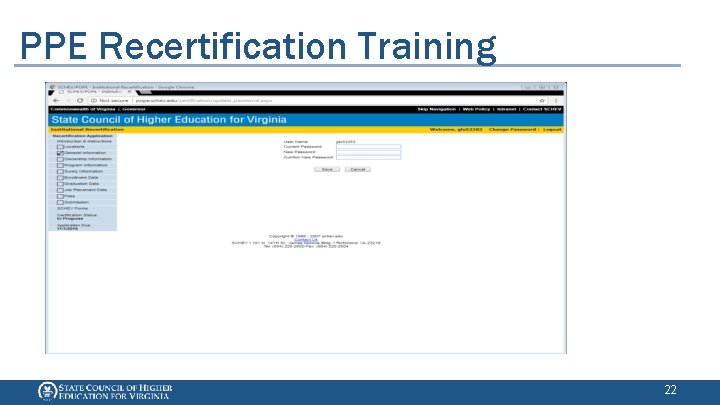
PPE Recertification Training 22
PPE Recertification Training Institutional Recertification Log-In Screen: • After the initial log-in, the password can be changed. The Password must be at least 6 characters in length, including one numeral (0 – 9). • The Password is only valid during the school’s recertification cycle. • The User Name will never change. 23
PPE Recertification Training Help Topics On most screens, you will find “Help Topics” that give an explanation of that particular field. 24
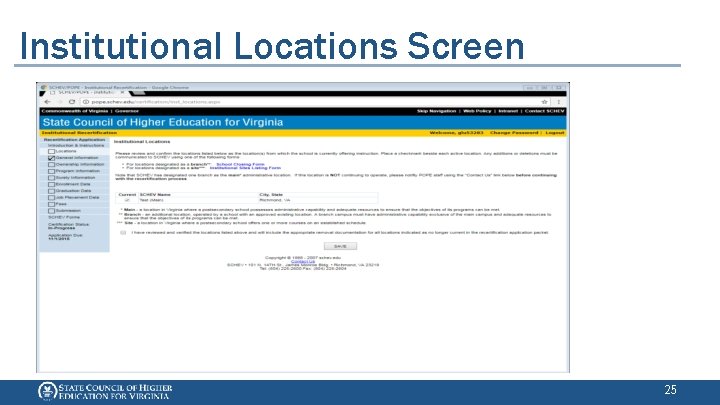
Institutional Locations Screen 25
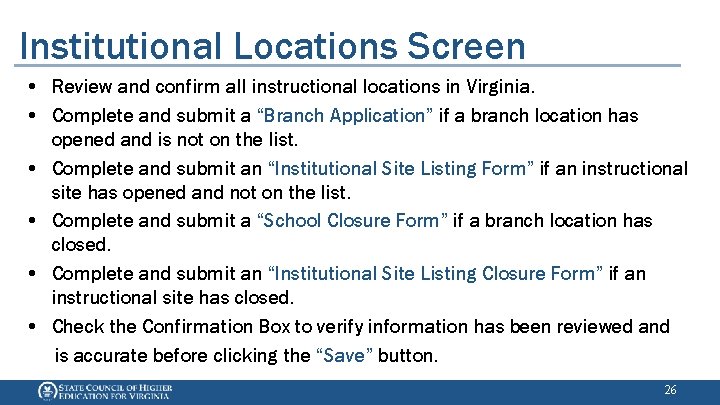
Institutional Locations Screen • Review and confirm all instructional locations in Virginia. • Complete and submit a “Branch Application” if a branch location has opened and is not on the list. • Complete and submit an “Institutional Site Listing Form” if an instructional site has opened and not on the list. • Complete and submit a “School Closure Form” if a branch location has closed. • Complete and submit an “Institutional Site Listing Closure Form” if an instructional site has closed. • Check the Confirmation Box to verify information has been reviewed and is accurate before clicking the “Save” button. 26
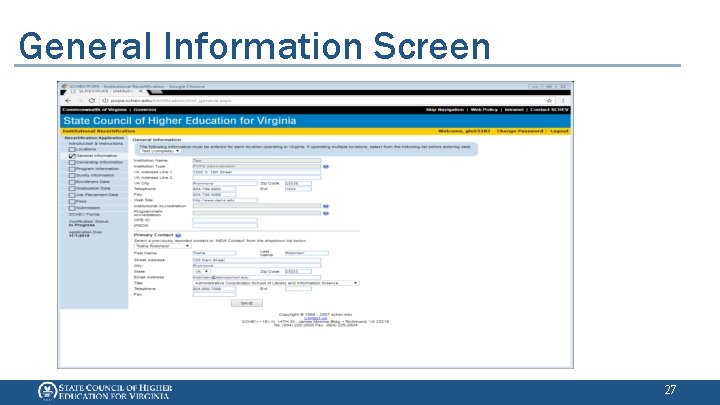
General Information Screen 27
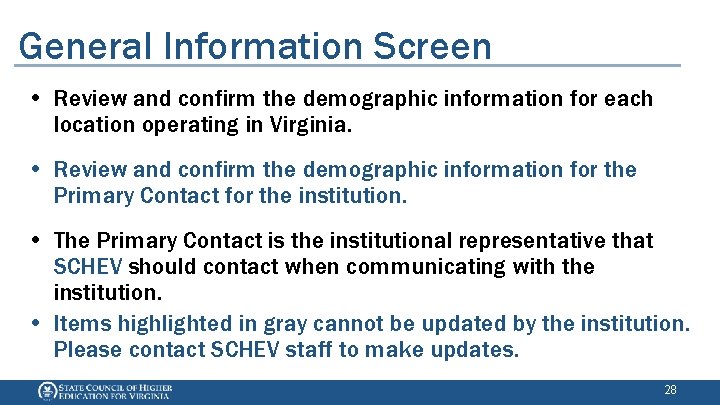
General Information Screen • Review and confirm the demographic information for each location operating in Virginia. • Review and confirm the demographic information for the Primary Contact for the institution. • The Primary Contact is the institutional representative that SCHEV should contact when communicating with the institution. • Items highlighted in gray cannot be updated by the institution. Please contact SCHEV staff to make updates. 28
General Information Screen • The drop-down box will display each institution’s status as “Complete” upon confirmation of the data. • The section is marked complete after all location statuses are converted to “Complete” status. • Check the Confirmation Box to verify information before clicking the “Save” button. 29
Ownership Information Screen 30
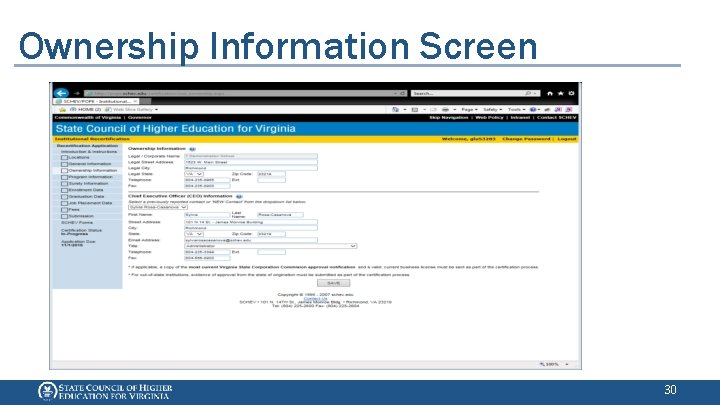
Ownership Information Screen • Review and verify the legal name of the institution. • Review and verify the name and demographic information for the CEO of the institution. • If adding a new CEO, select NEW contact in the drop-down box, and enter new data. 31
Ownership Information Screen • If registered (corporation, limited liability corporation, etc. ) with the State Corporation Commission (SCC), submit current, unexpired proof of good standing with recertification information. • If required by the locality, submit a valid, current business license. • If an out-of-state institution, submit evidence of main campus’ authorization to operate in home state. 32
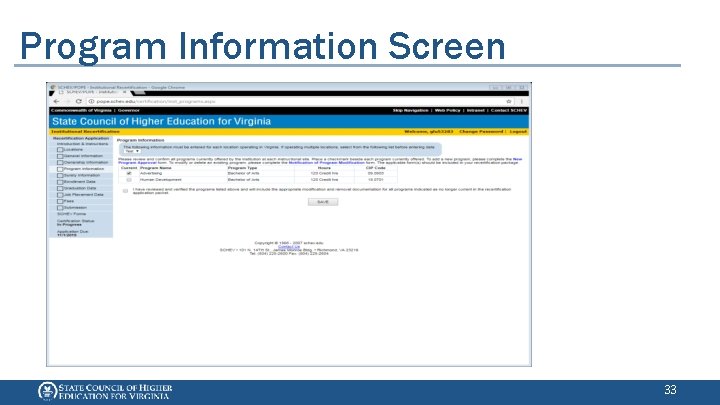
Program Information Screen 33
Program Information Screen • Review and verify each program offered. • Complete program verification for each location operating in Virginia (utilize drop box for other locations). • Check the Confirmation Box to verify information before clicking the “Save” button. • Complete and submit the “New Program Approval Form” and fee to add a new program. • Complete and submit the “Notification of Program Modification Form” and fee to report 34
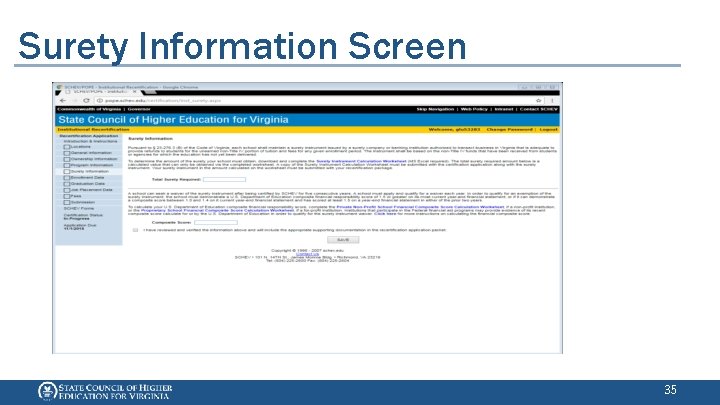
Surety Information Screen 35
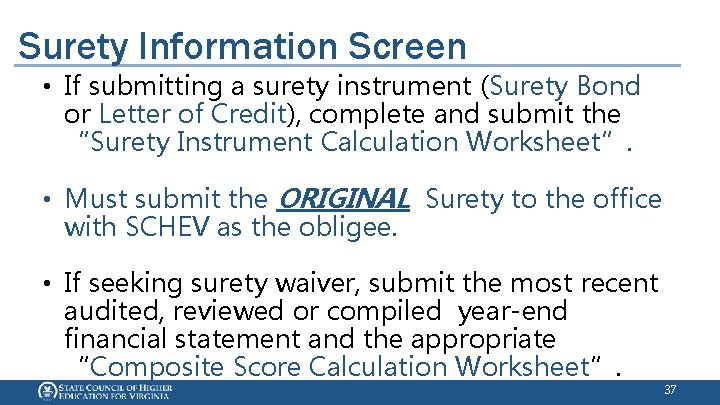
Surety Information Screen • Each institution must either submit a surety instrument or demonstrate eligibility for a surety waiver. • Must have been certified for five years (60 months) to be considered for surety waiver. • Must input Total Surety Required or Composite Score in the appropriate field. 36
Surety Information Screen • If submitting a surety instrument (Surety Bond or Letter of Credit), complete and submit the “Surety Instrument Calculation Worksheet”. • Must submit the ORIGINAL Surety to the office with SCHEV as the obligee. • If seeking surety waiver, submit the most recent audited, reviewed or compiled year-end financial statement and the appropriate “Composite Score Calculation Worksheet”. 37
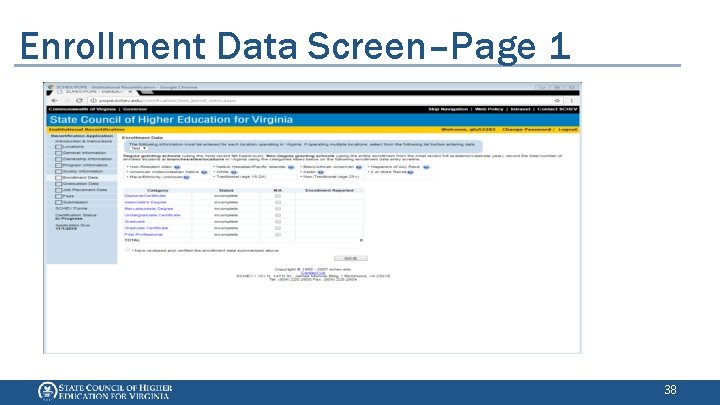
Enrollment Data Screen–Page 1 38
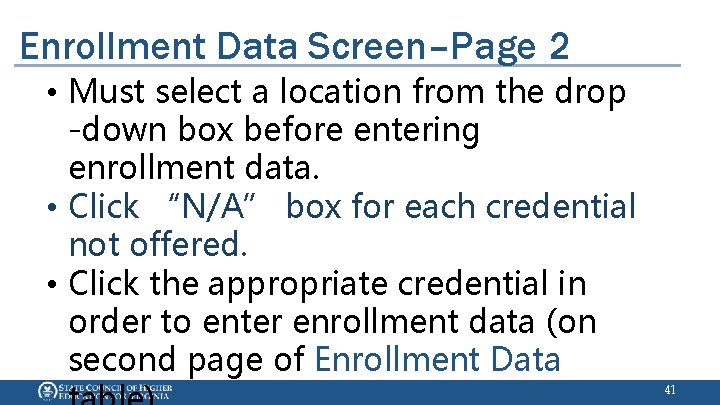
Enrollment Data Screen-Page 1 • Enter enrollment data for each location operating in Virginia. • Degree-granting schools, use enrollment data from most recent fall headcount. • Non-degree granting schools, use enrollment from most recent academic/calendar year. 39
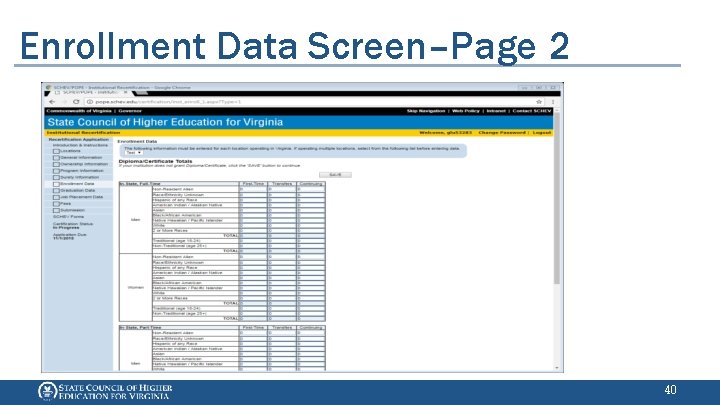
Enrollment Data Screen–Page 2 40
Enrollment Data Screen–Page 2 • Must select a location from the drop -down box before entering enrollment data. • Click “N/A” box for each credential not offered. • Click the appropriate credential in order to enter enrollment data (on second page of Enrollment Data 41
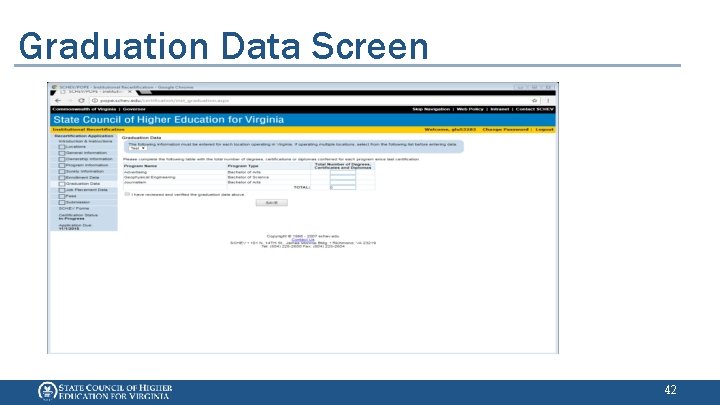
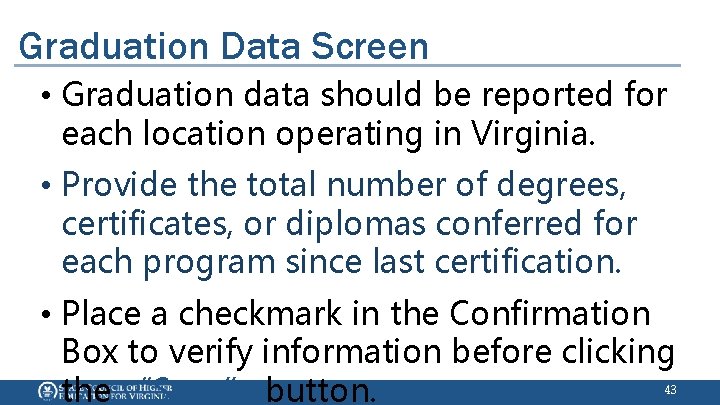
Graduation Data Screen 42
Graduation Data Screen • Graduation data should be reported for each location operating in Virginia. • Provide the total number of degrees, certificates, or diplomas conferred for each program since last certification. • Place a checkmark in the Confirmation Box to verify information before clicking the “Save” button. 43
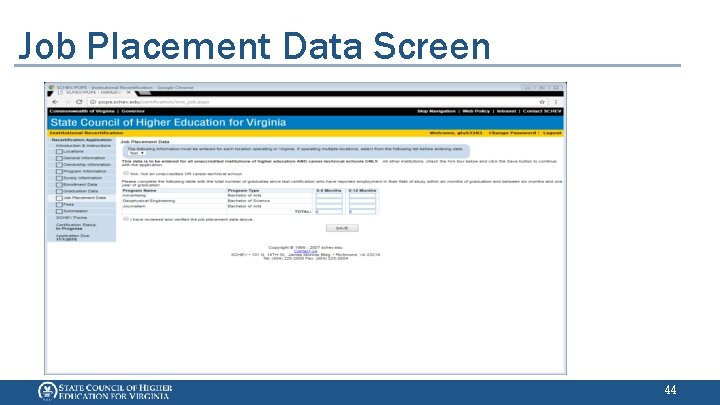
Job Placement Data Screen 44
Job Placement Data Screen • Unaccredited institutions of higher education and career-technical schools must report job placement data. • Other schools should click the ‘N/A’ button. • Record the total number of graduates reporting employment in their field of study within six months and one year of graduation. • Check the Confirmation Box to verify 45
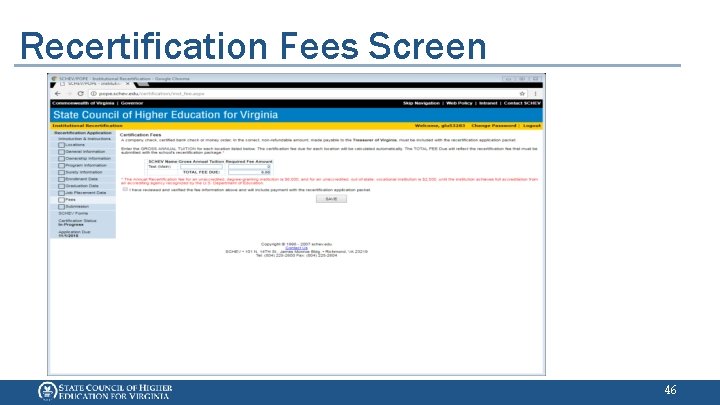
Recertification Fees Screen 46
Recertification Fees Screen • The recertification fee amount is based on the gross tuition as reported on the school’s most recent financial statement. • Enter the amount in the gross annual tuition field and the fee amount will populate in the total fee required field. • Submit a company check, certified bank check or money order, made payable to the Treasurer of Virginia. 47 • Check the Confirmation Box to verify
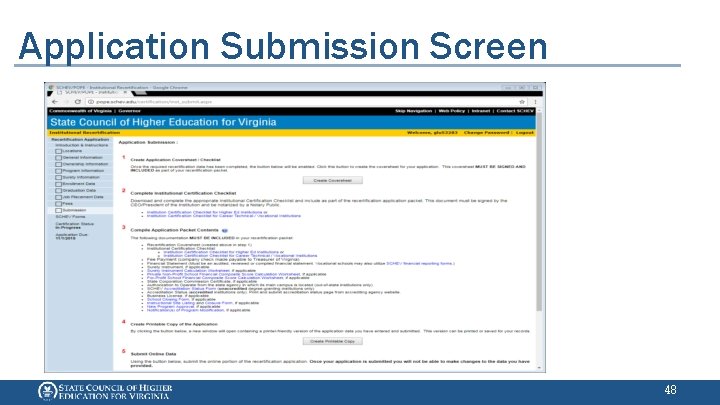
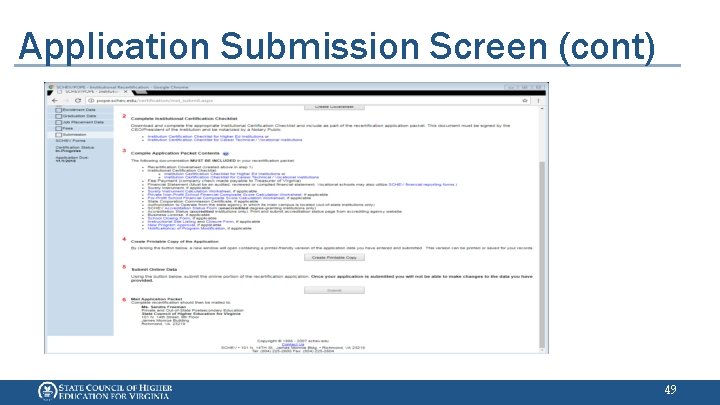
Application Submission Screen 48
Application Submission Screen (cont) 49
Application Submission Screen • Click “Create Coversheet” button to create coversheet/checklist; should be signed by Primary Contact. • Download and complete “Institutional Certification Checklist for Institutions of Higher Education” or “Career. Technical/Vocational Institutions” and must be signed by CEO/President and 50
Application Submission Screen • Click “Create Printable Copy” button to retrieve printer-friendly copy of application for school records. • Once you have completed the components and downloaded all documents to include as a complete application, click the “Submit” button to submit on-line portion of recertification application packet. 51
PPE Recertification Training • A number of forms must be submitted to SCHEV after the electronic submission to complete the Recertification Application Process. 52
PPE Recertification Training • Institutional Recertification Application Coversheet • Accreditation Status Form (for unaccredited institutions) • Accreditation Status Report (for accredited institutions) • Institutional Certification Checklist for Institutions of Higher Education or 53
PPE Recertification Training • Surety Instrument Calculation Worksheet • Surety Instrument • Financial Composite Score Worksheet (if seeking waiver from Surety Instrument) • Plan for Accreditation for unaccredited Institutions of Higher Education (if 54
PPE Recertification Training • Recertification Fee Payment • Most Recent Year-End Financial Statement • Surety Instrument Calculation Worksheet (if applicable) • Surety Instrument • Financial Composite Score Worksheet (if seeking waiver from Surety Instrument) 55
PPE Recertification Training • Current State Corporation Commission Certificate of Good Standing (if applicable) • Authorization to Operate from the higher education agency where main campus is located (for Out-of-State Institutions) • Current Local Business License (if 56
PPE Recertification Training • Instructional Site Listing Form, (if applicable) • New Program Approval Form (if applicable) • Notification of Program Modification (if applicable) 57
PPE Recertification Training • The Recertification Application Process is considered complete upon receipt of the school’s Electronic (on-line) submission and Paper submission have been received by the office. • Both must be received by the Application Due Date. 58
PPE Recertification Training Please direct questions to: Sylvia Rosa-Casanova Director, Private Postsecondary Education Sylvia. Rosa. Casanova@schev. edu 804 -225 -3399 Joseph Crook, Certification Coordinator Joseph. Crook@schev. edu 804 -225 -2712 Tosha Robinson, Certification Specialist (first point of contact) Tosha. Robinson@schev. edu 804 -225 -2609 59
PPE Recertification Training This concludes the PPE Recertification Training Thank you for your time. GOOD LUCK!!!!! 60