
Printing saving web pages Part 1 Overview Part
Printing & saving web pages Part 1 – Overview Part 1 – 18 Nov 2016 (with amendments 02 Dec 2016)
Printing & saving web pages ▪ Not entirely straight-forward: ▪ Web pages are not primarily designed for being printed ▪ Numerous variations in the way web sites are constructed ▪ Which content is critical/essential for inclusion in the printed/saved copy and which is superfluous (e. g. adverts, etc. ) – not necessarily ‘obvious’ to a ‘machine’ ▪ Are images wanted in the printed/saved copy? ▪ What about side-notes, foot-notes, etc. ? ▪ Do you want: ▪ a ‘hard copy’ print; ▪ an electronic (PDF) ‘print’, as a file that could be printed if required; ▪ just an ‘image’ print (effectively a ‘photograph’); or ▪ a copy in an electronic ‘notebook’ ▪ Different browsers have different options ▪ Different web pages will produce different results
Printing & saving web pages – ‘Image’ print ▪ If you just want a ‘photographic’ image of the web site, you need a screen-capture tool. ▪ Windows 10 includes a ‘Snipping Tool’ – but you can only ‘snip’ up to one screendepth at a time: if the page has to be scrolled, it requires multiple ‘snips’. ▪ There are free & cheap third-party tools available that can ‘snip’ a scrolling screen. ▪ In all cases, the image will need to be saved as an image file (e. g. . jpeg, etc. . ), but could subsequently be printed – legibility may not always be good. ▪ The image can be of any size & dimensions, but consideration might need to be given to whether, and how readily, it could be printed on standard paper sizes. ▪ This can be the best way of getting a ‘print’ of, for example, a map or similar.
Printing & saving web pages – ‘hard copy’ or PDF ▪ In essence, there is little or no difference between producing a printed ‘hard copy’ of a web page, or an electronic PDF copy: ▪ Both: ▪ require the page to be in a ‘printable’ format – which can be the most difficult step!; ▪ are produced using the computer’s Print function, printing either to: ▪ a ‘traditional’ printer, or to ▪ a PDF ‘printer’ (e. g. ‘Microsoft Print to PDF’, included in Windows 10), which creates a PDF file (Depending on the tool used to create the PDF file, this may be created directly on your own PC, or as a downloadable file from a website. ); and ▪ are produced to specified page sizes (e. g. A 4), unlike ‘image’ prints. ▪ The difficulty is usually primarily in getting the web page into an acceptable printable format, which is dependent both on the tool used and on the webpage formatting; and the choice of tools is dependent on the web browser being used.
Saving web pages in an electronic ‘notebook’ ▪ The two main electronic notebooks (of which I am aware) are: ▪ Evernote ▪ One. Note (comes with Windows 10 & also as part of Microsoft Office) ▪ Both require you to have an account with them (free or paid) because (copies of) your notebook(s) are kept online, and hence accessible to you anywhere (with your username & password). ▪ Both provide add-ins for the main browsers, to enable you to ‘clip’ all or part of a webpage, which is then automatically added to your default notebook, optionally with a choice of classification, section of the notebook, etc. . ▪ Both can be used for various types of ‘notes’ as well as for storing web clips. ▪ Further information in Part 5 of this presentation, and at: ▪ Evernote : www. evernote. com ▪ One. Note : www. onenote. com Original page amended 09 Dec 2016
Browser printing tools (overview) ▪ Mozilla Firefox & Google Chrome both have in-built printing & page preview functions ▪ Quite adequate for many web-page prints; ▪ But many websites will not produce a satisfactory or ‘acceptable’ print copy by this method. ▪ Both browsers also have a selection of Extensions / Add-ons to facilitate printing web-pages, each with varying success on various web-pages; and often with a choice of options, such as: ▪ including or excluding images; ▪ editing the web-page content, usually by deleting unrequired sections or blocks; etc. . (Note that some Extensions / Add-ons do little more than provide a ‘PRINT’ button as a substitute for using the existing menu or using Ctrl+P. ) ▪ Other browsers: ▪ Many other browsers (e. g. Opera, Vivaldi) are Chrome-based and compatible with Google Chrome Extensions / Add-ons. ▪ Microsoft Edge has only recently become able to accept Extensions / Add-ons, and has not been considered here. ▪ ‘Print Friendly’ (http: //www. printfriendly. com) is an add-on & website that can be used with most browsers & websites to produce either hard-copy prints or PDF files. ▪ Looking only at Firefox & Google Chrome Original page amended 02 Dec 2016
Printing & saving web pages Part 2 – Web pages with in-built printing functionality Part 2 – added 02 Dec 2016
Web pages with in-built printing functionality ▪ Increasingly, some web sites are providing their own in-built printing facilities, for at least some of their pages. ▪ If that is available, it is always best to try that option first (because it is likely to be tailored to their web-site design). ▪ So, first look for a ‘Print’ or similar option on the web page itself. (Note that some sites have ‘Print’ functionality on only selected pages: not on all pages. ) ▪ Depending on the web site you may – or may not – be shown a preview of the print version of the page. ▪ For example …
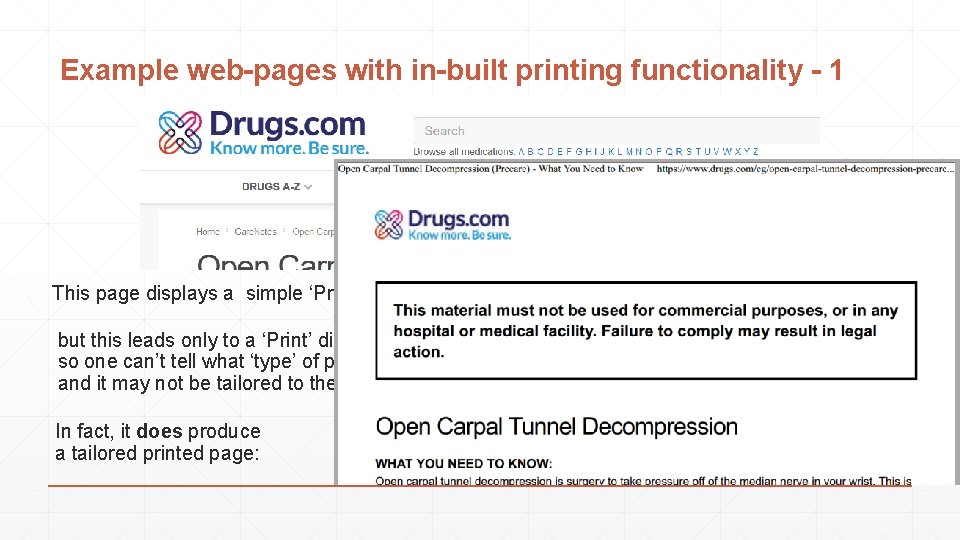
Example web-pages with in-built printing functionality - 1 This page displays a simple ‘Print’ option but this leads only to a ‘Print’ dialogue box: so one can’t tell what ‘type’ of print it will produce, and it may not be tailored to the web site. In fact, it does produce a tailored printed page:
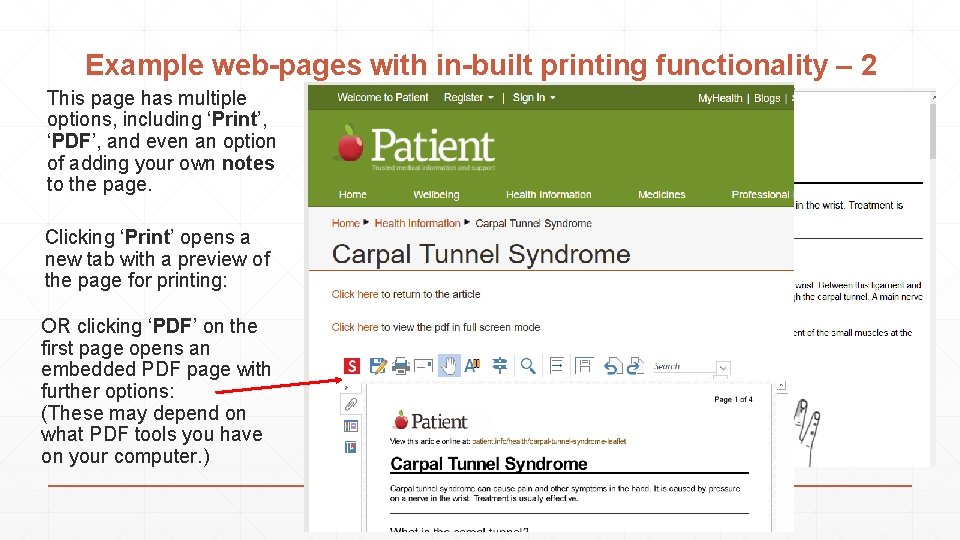
Example web-pages with in-built printing functionality – 2 This page has multiple options, including ‘Print’, ‘PDF’, and even an option of adding your own notes to the page. Clicking ‘Print’ opens a new tab with a preview of the page for printing: OR clicking ‘PDF’ on the first page opens an embedded PDF page with further options: (These may depend on what PDF tools you have on your computer. )
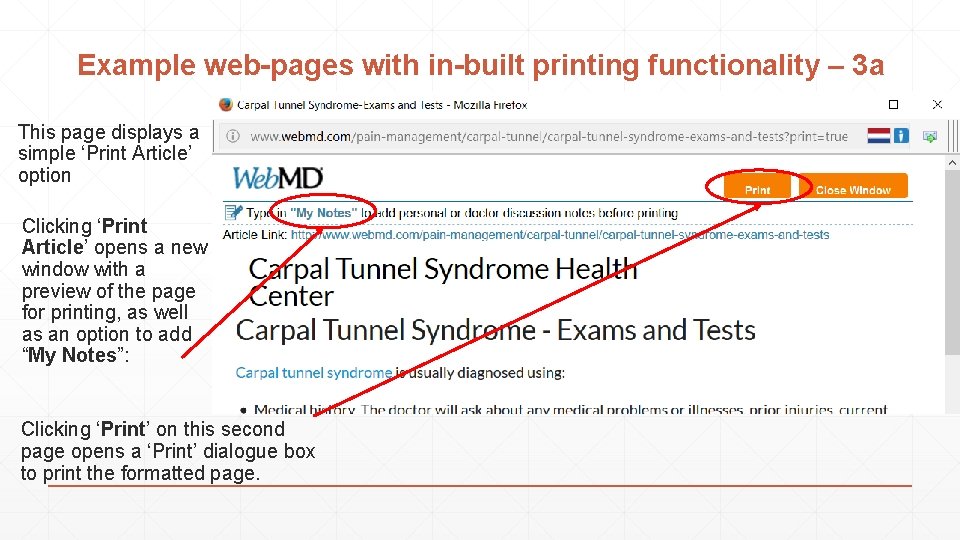
Example web-pages with in-built printing functionality – 3 a This page displays a simple ‘Print Article’ option Clicking ‘Print Article’ opens a new window with a preview of the page for printing, as well as an option to add “My Notes”: Clicking ‘Print’ on this second page opens a ‘Print’ dialogue box to print the formatted page.
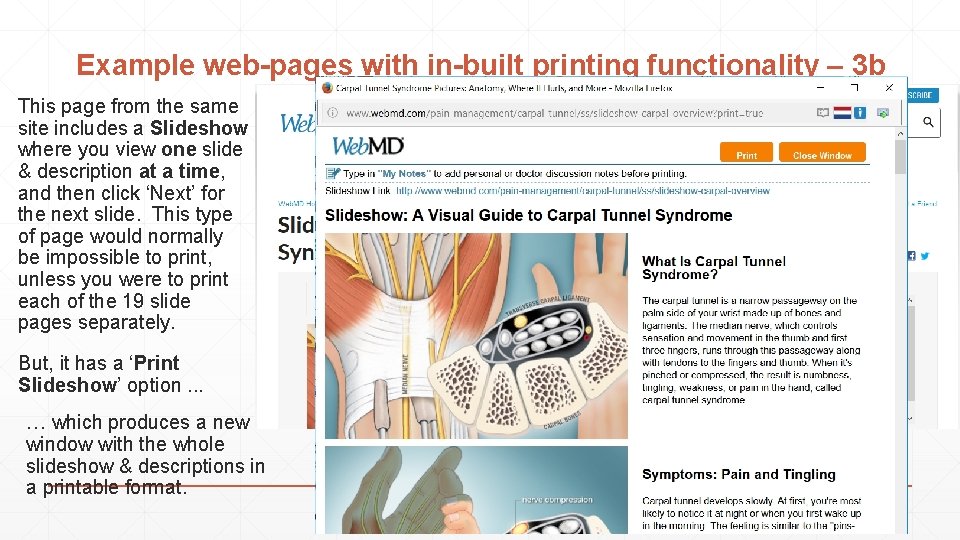
Example web-pages with in-built printing functionality – 3 b This page from the same site includes a Slideshow where you view one slide & description at a time, and then click ‘Next’ for the next slide. This type of page would normally be impossible to print, unless you were to print each of the 19 slide pages separately. But, it has a ‘Print Slideshow’ option. . . … which produces a new window with the whole slideshow & descriptions in a printable format.
Web pages with in-built printing functionality ▪ Always check whether the web page itself provides a specific ‘Print’ function, because that will normally be tailored to that web-site’s style, and is likely to give the best results.
Printing & saving web pages Part 3 – Using web-browser functionality Part 3 – added 02 Dec 2016
Browser printing functionality ▪ Most / All browsers will have some type of in-built printing functionality ▪ Reviewing only Mozilla Firefox & Google Chrome in detail ▪ Many other browsers (e. g. Opera, Vivaldi) are Chrome-based and have printing functionality similar to that of Google Chrome ▪ Microsoft Edge (the new browser with Windows 10) also has similar printing functionality. ▪ The browser printing functionality generally includes: ▪ a print-preview function, as well as ▪ the standard printing function. ▪ I strongly recommend using the print-preview function before ‘committing to paper’, unless you are familiar with the particular web site. ▪ A ‘Print to PDF’ function is generally also available (certainly in Windows 10), often within the choice of ‘printer’ (i. e. the list of available printers). ▪ This will in fact save the ‘printed’ PDF document to a file (and ask for a filename & location) and does not require a physical printer. ▪ The saved PDF file may, of course, then be printed separately if required.
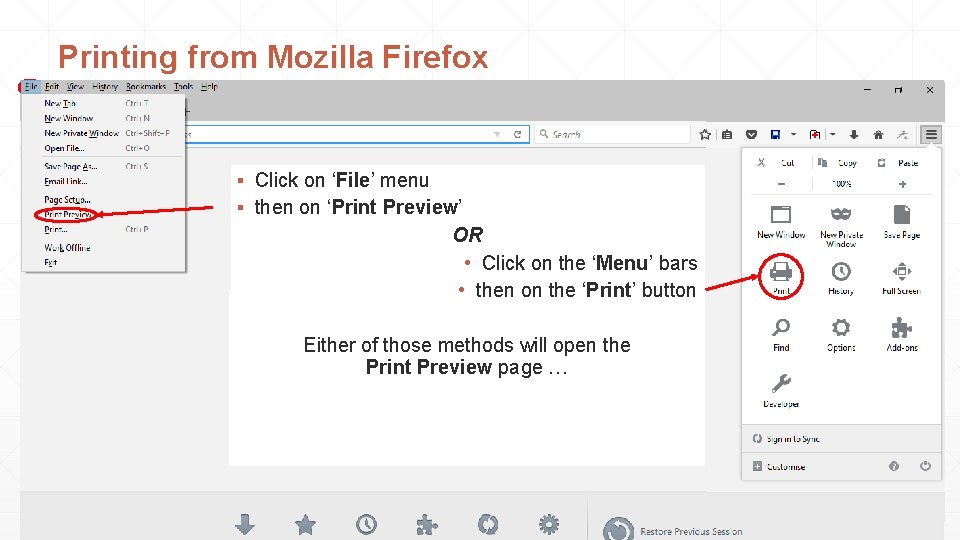
Printing from Mozilla Firefox ▪ Click on ‘File’ menu ▪ then on ‘Print Preview’ OR • Click on the ‘Menu’ bars • then on the ‘Print’ button Either of those methods will open the Print Preview page …
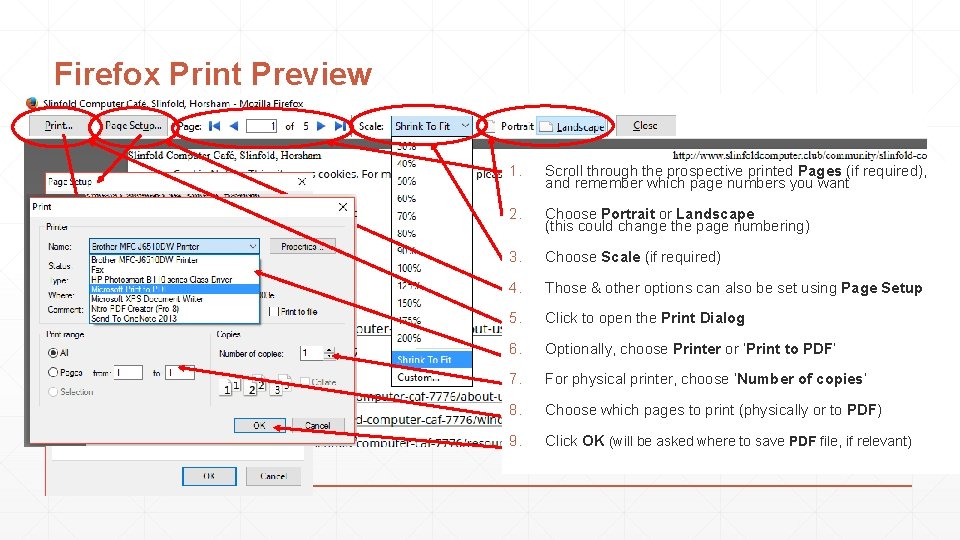
Firefox Print Preview 1. Scroll through the prospective printed Pages (if required), and remember which page numbers you want 2. Choose Portrait or Landscape (this could change the page numbering) 3. Choose Scale (if required) 4. Those & other options can also be set using Page Setup 5. Click to open the Print Dialog 6. Optionally, choose Printer or ‘Print to PDF’ 7. For physical printer, choose ‘Number of copies‘ 8. Choose which pages to print (physically or to PDF) 9. Click OK (will be asked where to save PDF file, if relevant)
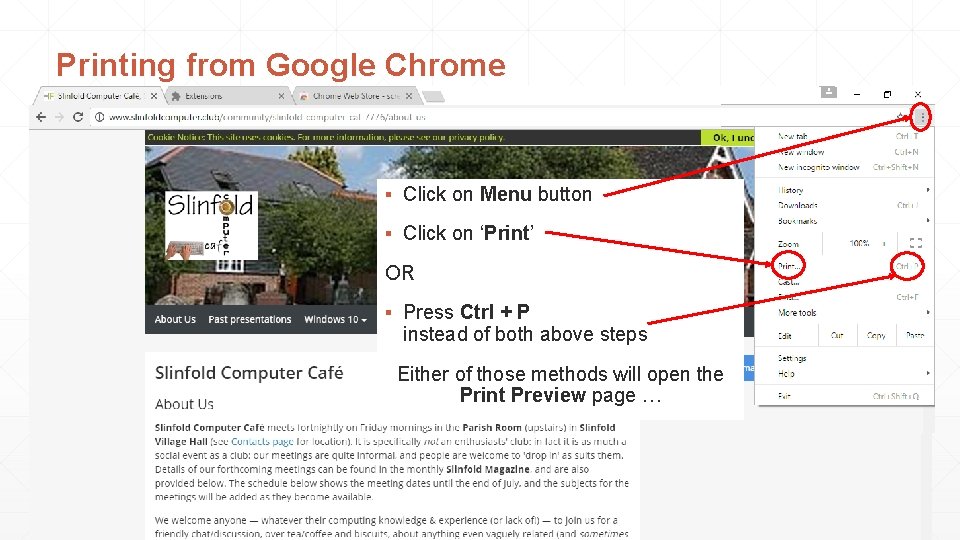
Printing from Google Chrome ▪ Click on Menu button ▪ Click on ‘Print’ OR ▪ Press Ctrl + P instead of both above steps Either of those methods will open the Print Preview page …
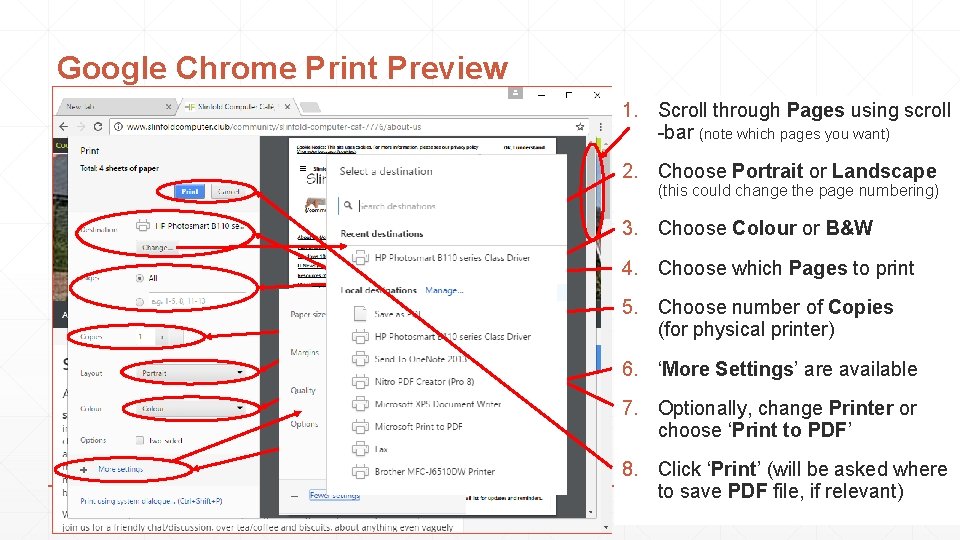
Google Chrome Print Preview 1. Scroll through Pages using scroll -bar (note which pages you want) 2. Choose Portrait or Landscape (this could change the page numbering) 3. Choose Colour or B&W 4. Choose which Pages to print 5. Choose number of Copies (for physical printer) 6. ‘More Settings’ are available 7. Optionally, change Printer or choose ‘Print to PDF’ 8. Click ‘Print’ (will be asked where to save PDF file, if relevant)
Printing & saving web pages Part 4 – Using add-ons / extensions for web-browsers Part 4 a – added 02 Dec 2016
Using add-ons / extensions for browsers to get improved / alternative print / PDF versions ▪ As we’ve seen, acceptable printed versions of web pages can often be produced using: ▪ built-in printing facilities provided within some web sites, and/or ▪ standard printing facilities provided by the respective browser being used. ▪ But there also many web sites that do not produce a satisfactory or acceptable printed or PDF copy by those methods. ▪ In such cases, it is sometimes possible to produce acceptable printed / PDF pages by using a third-party add-on / add-in / extension (the terminology varies) giving additional functionality to the browser, some of which allow you to ‘edit’ the page to include / exclude sections or blocks of the web page that you do / don’t want. ▪ Beware, however, that some Extensions / Add-ons do little more than provide a ‘PRINT’ button as a substitute for using the existing menu or using Ctrl+P.
Add-ons / extensions for browsers ▪ As before, we’re reviewing only Mozilla Firefox & Google Chrome in detail. ▪ Traditionally, Firefox has been very customisable, and remains more customisable than Chrome in many ways, but both have a good selection of add-ons / extensions from which to choose. ▪ Many other browsers (e. g. Opera, Vivaldi) are Chrome-based and can accept the same add-ons / extensions as Google Chrome. ▪ Microsoft Edge has only recently become able to accept Extensions / Add-ons, and is not being considered here.
Printing & saving web pages Part 4 a – Adding and managing extensions in Mozilla Firefox Part 4 a – added 02 Dec 2016
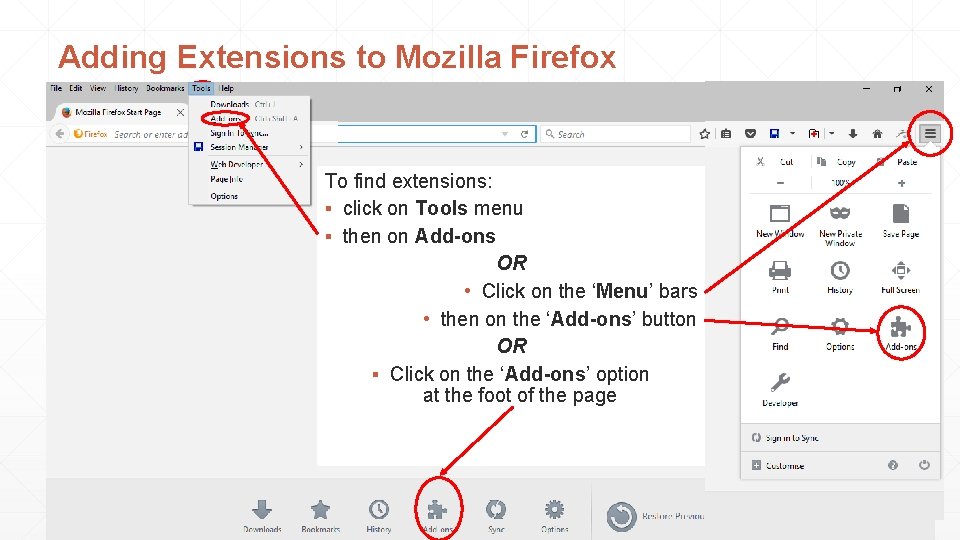
Adding Extensions to Mozilla Firefox To find extensions: ▪ click on Tools menu ▪ then on Add-ons OR • Click on the ‘Menu’ bars • then on the ‘Add-ons’ button OR ▪ Click on the ‘Add-ons’ option at the foot of the page
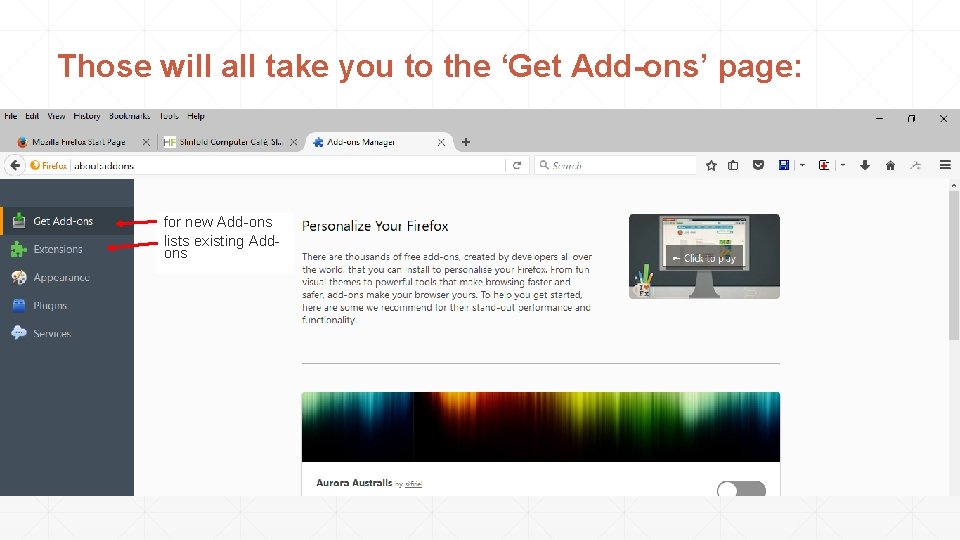
Those will all take you to the ‘Get Add-ons’ page: for new Add-ons lists existing Addons
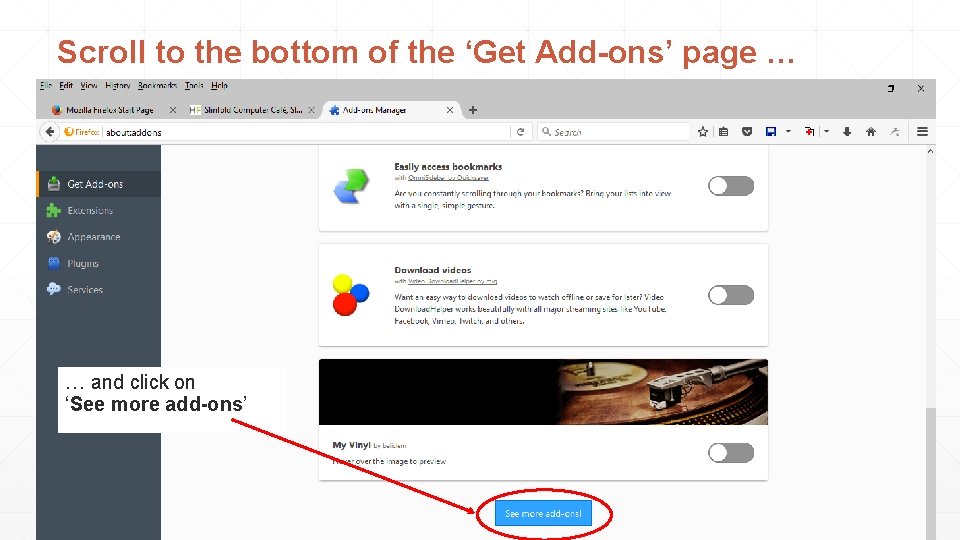
Scroll to the bottom of the ‘Get Add-ons’ page … … and click on ‘See more add-ons’
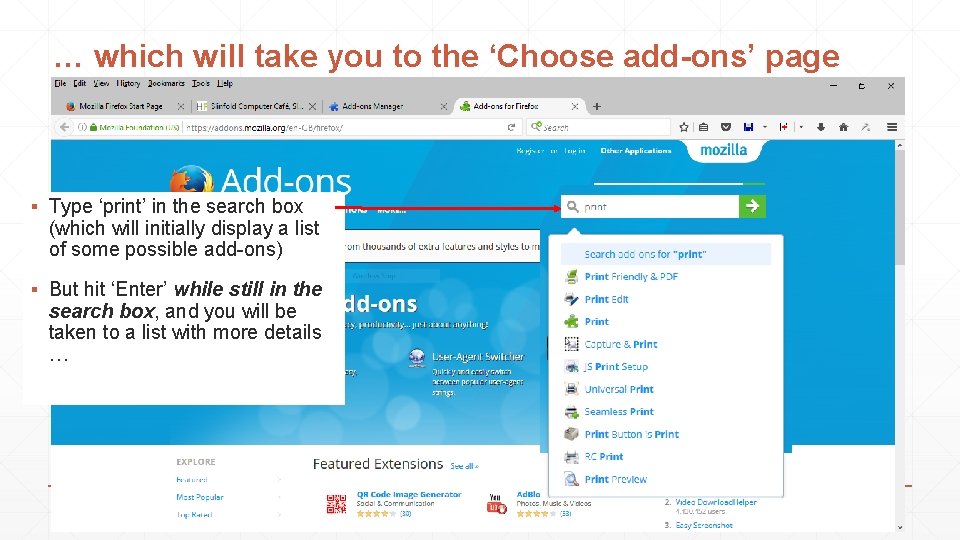
… which will take you to the ‘Choose add-ons’ page ▪ Type ‘print’ in the search box (which will initially display a list of some possible add-ons) ▪ But hit ‘Enter’ while still in the search box, and you will be taken to a list with more details …
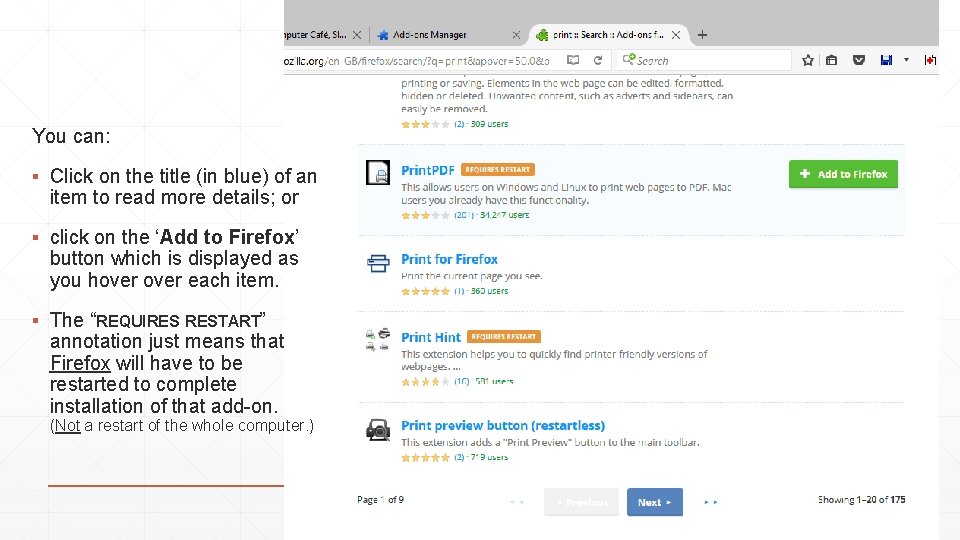
You can: ▪ Click on the title (in blue) of an item to read more details; or ▪ click on the ‘Add to Firefox’ button which is displayed as you hover each item. ▪ The “REQUIRES RESTART” annotation just means that Firefox will have to be restarted to complete installation of that add-on. (Not a restart of the whole computer. )
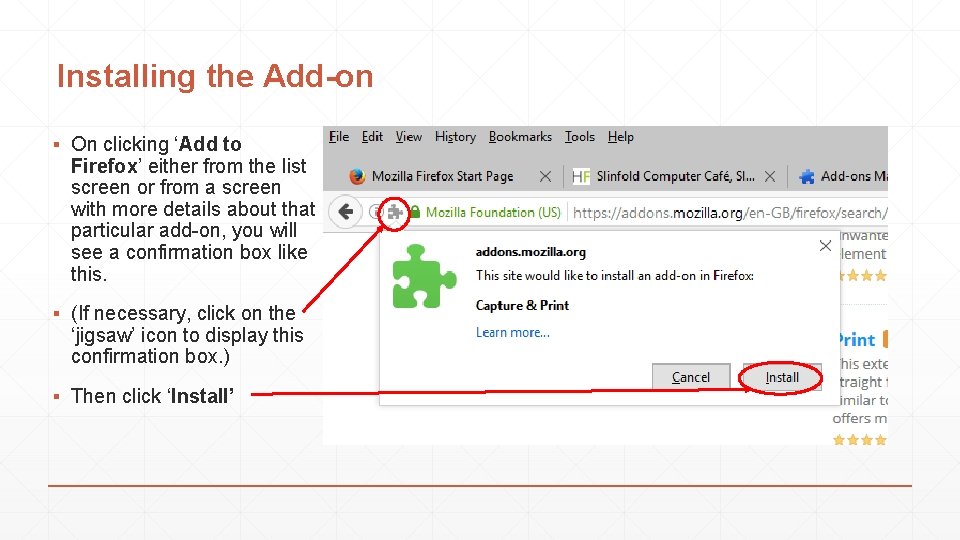
Installing the Add-on ▪ On clicking ‘Add to Firefox’ either from the list screen or from a screen with more details about that particular add-on, you will see a confirmation box like this. ▪ (If necessary, click on the ‘jigsaw’ icon to display this confirmation box. ) ▪ Then click ‘Install’
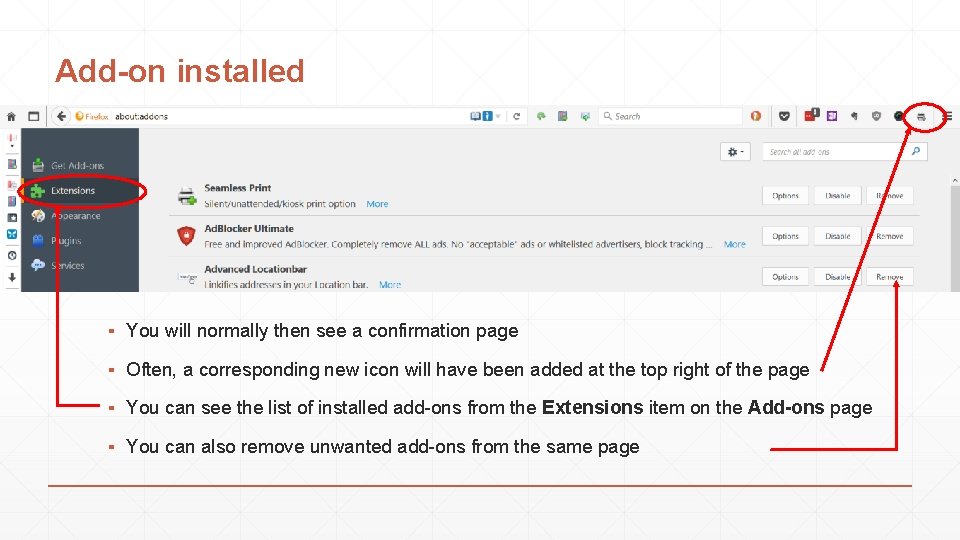
Add-on installed ▪ You will normally then see a confirmation page ▪ Often, a corresponding new icon will have been added at the top right of the page ▪ You can see the list of installed add-ons from the Extensions item on the Add-ons page ▪ You can also remove unwanted add-ons from the same page
Printing & saving web pages Part 4 b – Adding and managing extensions in Google Chrome Part 4 b – added 09 Dec 2016
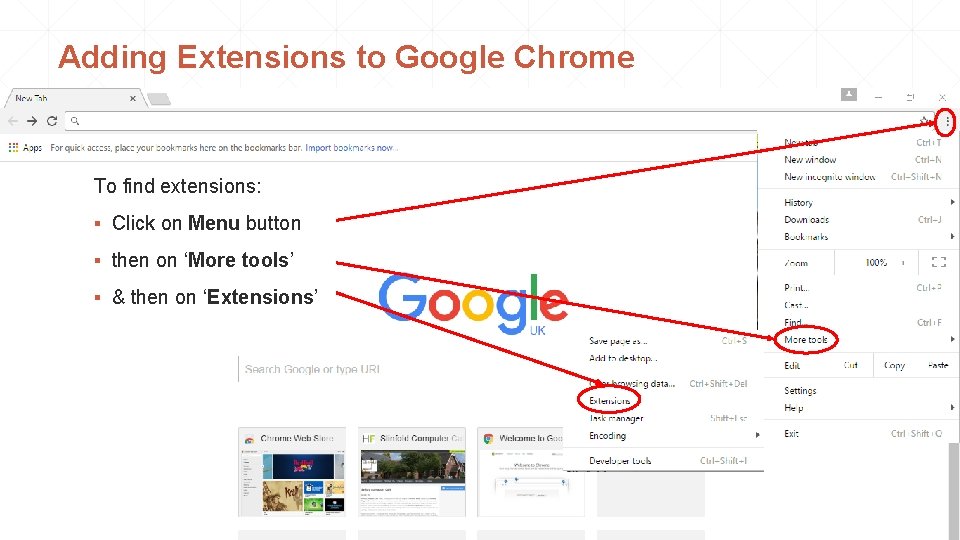
Adding Extensions to Google Chrome To find extensions: ▪ Click on Menu button ▪ then on ‘More tools’ ▪ & then on ‘Extensions’
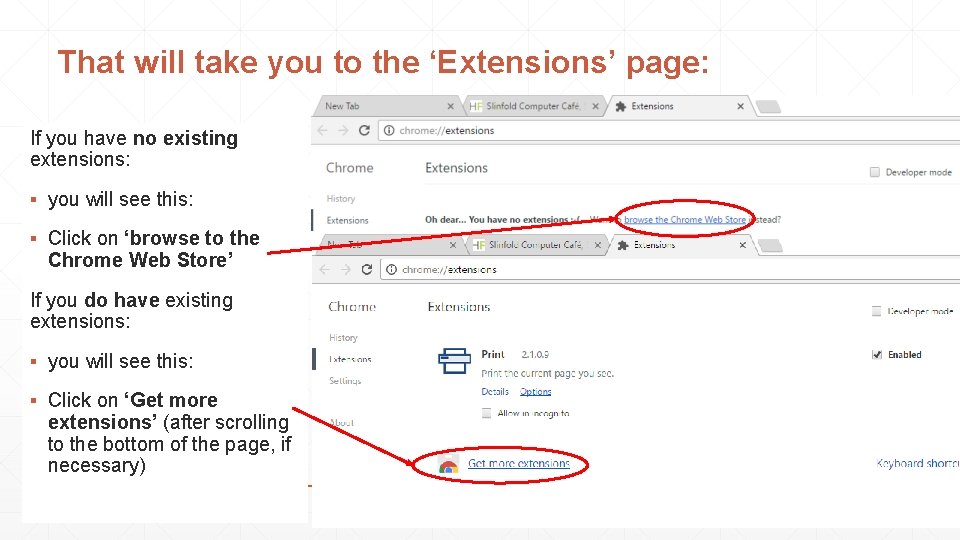
That will take you to the ‘Extensions’ page: If you have no existing extensions: ▪ you will see this: ▪ Click on ‘browse to the Chrome Web Store’ If you do have existing extensions: ▪ you will see this: ▪ Click on ‘Get more extensions’ (after scrolling to the bottom of the page, if necessary)
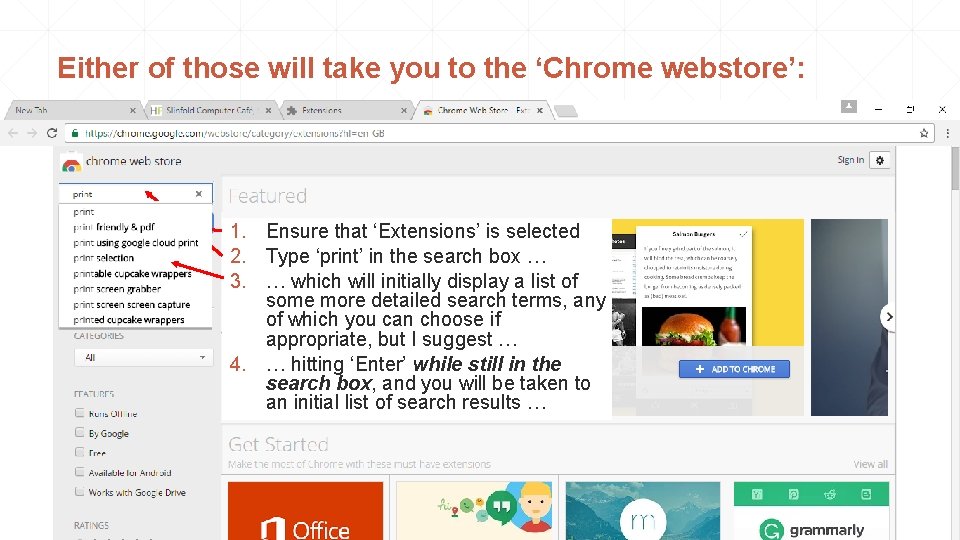
Either of those will take you to the ‘Chrome webstore’: 1. Ensure that ‘Extensions’ is selected 2. Type ‘print’ in the search box … 3. … which will initially display a list of some more detailed search terms, any of which you can choose if appropriate, but I suggest … 4. … hitting ‘Enter’ while still in the search box, and you will be taken to an initial list of search results …
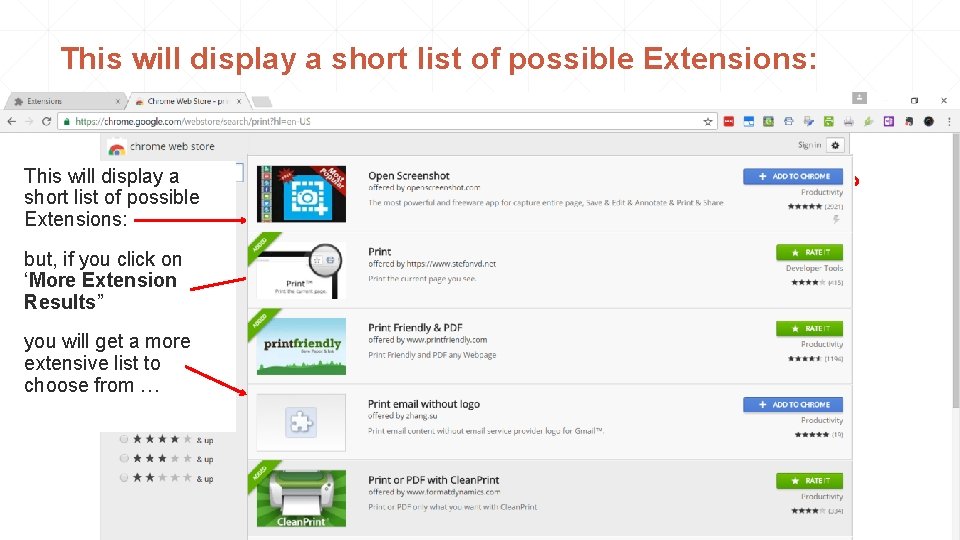
This will display a short list of possible Extensions: but, if you click on ‘More Extension Results” you will get a more extensive list to choose from …
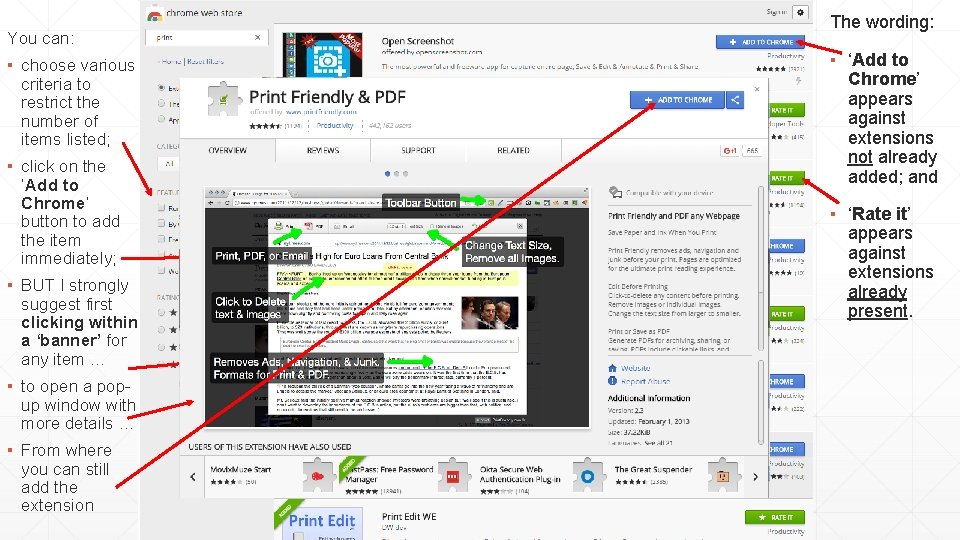
You can: ▪ choose various criteria to restrict the number of items listed; ▪ click on the ‘Add to Chrome’ button to add the item immediately; ▪ BUT I strongly suggest first clicking within a ‘banner’ for any item … ▪ to open a popup window with more details … ▪ From where you can still add the extension The wording: ▪ ‘Add to Chrome’ appears against extensions not already added; and ▪ ‘Rate it’ appears against extensions already present.
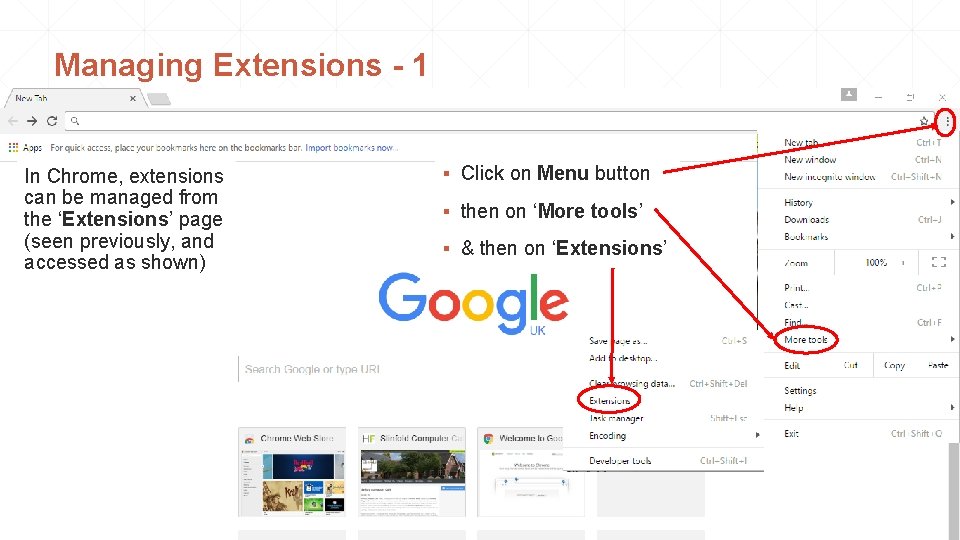
Managing Extensions - 1 In Chrome, extensions can be managed from the ‘Extensions’ page (seen previously, and accessed as shown) ▪ Click on Menu button ▪ then on ‘More tools’ ▪ & then on ‘Extensions’
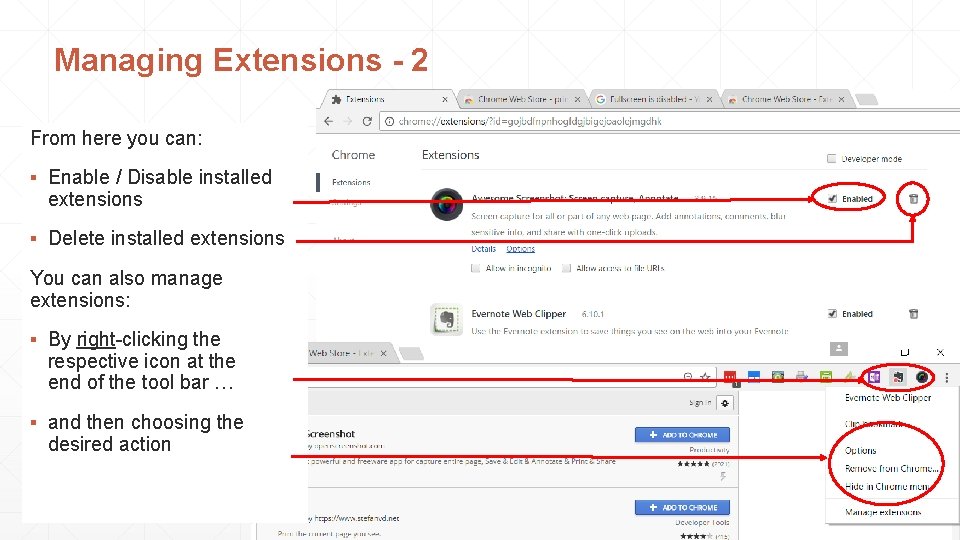
Managing Extensions - 2 From here you can: ▪ Enable / Disable installed extensions ▪ Delete installed extensions You can also manage extensions: ▪ By right-clicking the respective icon at the end of the tool bar … ▪ and then choosing the desired action
Printing & saving web pages Part 4 c – Suggested add-ons / extensions Part 4 c – added 09 Dec 2016
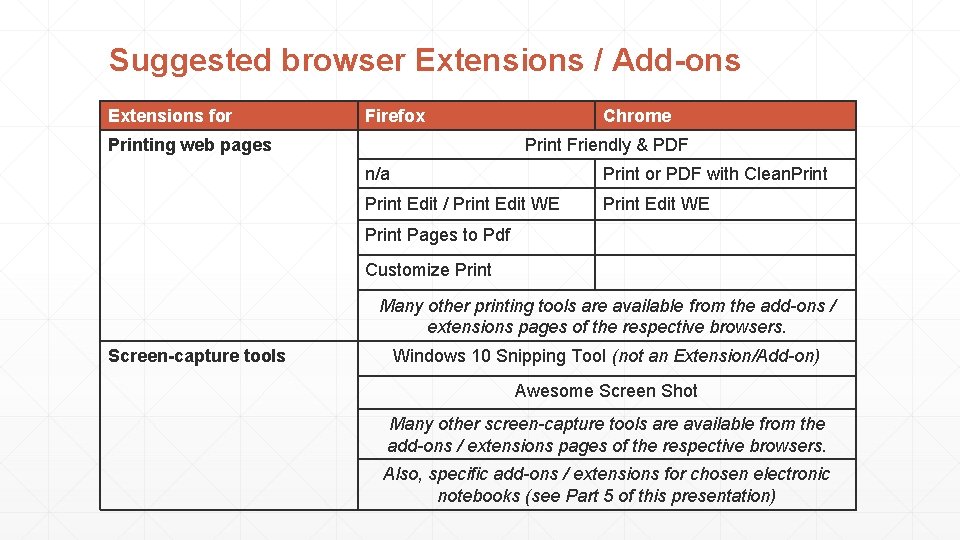
Suggested browser Extensions / Add-ons Extensions for Firefox Printing web pages Chrome Print Friendly & PDF n/a Print or PDF with Clean. Print Edit / Print Edit WE Print Pages to Pdf Customize Print Many other printing tools are available from the add-ons / extensions pages of the respective browsers. Screen-capture tools Windows 10 Snipping Tool (not an Extension/Add-on) Awesome Screen Shot Many other screen-capture tools are available from the add-ons / extensions pages of the respective browsers. Also, specific add-ons / extensions for chosen electronic notebooks (see Part 5 of this presentation)
Printing & saving web pages Part 5 – Using Electronic Notebooks Part 5 – added 09 Dec 2016
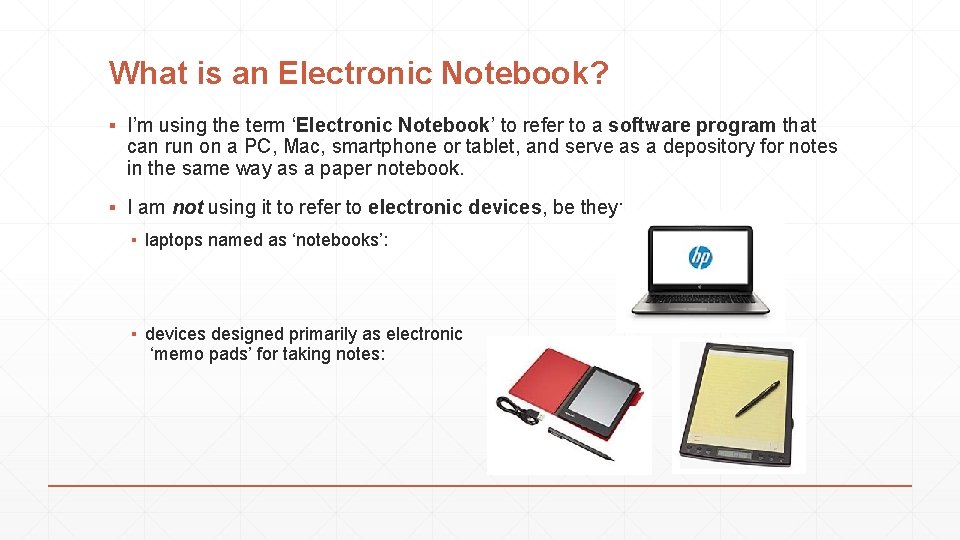
What is an Electronic Notebook? ▪ I’m using the term ‘Electronic Notebook’ to refer to a software program that can run on a PC, Mac, smartphone or tablet, and serve as a depository for notes in the same way as a paper notebook. ▪ I am not using it to refer to electronic devices, be they: ▪ laptops named as ‘notebooks’: ▪ devices designed primarily as electronic ‘memo pads’ for taking notes:
Electronic Notebook programs ▪ Two ‘Electronic Notebook’ programs with which I am familiar & have been using spasmodically since c. 2012: Evernote: Microsoft One. Note: ▪ Both: ▪ provide add-ons / extensions for Mozilla Firefox, Google Chrome & other browsers to facilitate grabbing / clipping web pages; ▪ are available in versions for Windows (PC & Mobile), Android, Apple Macs, & i. OS; ▪ require a user account to be set up (so that clippings, etc. can be sent to the right place); ▪ store data on your PC / device, and/or in ‘the Cloud’, with online synchronisation and backup services; ▪ are available in free and paid-for versions; and ▪ can be used for far more than just storing web clippings.
Evernote ▪ Evernote allows users to create a "Note“, which can be: ▪ a piece of formatted text, ▪ a full webpage or webpage excerpt, ▪ a photograph, ▪ a voice memo, or ▪ a handwritten "ink" note. ▪ Notes can also have file attachments. ▪ Notes can be tagged, annotated, edited, given comments, & searched. ▪ Notes are stored in Notebooks, which can be exported and/or added to a Stack. ▪ Evernote works with Google Drive for cloud storage.
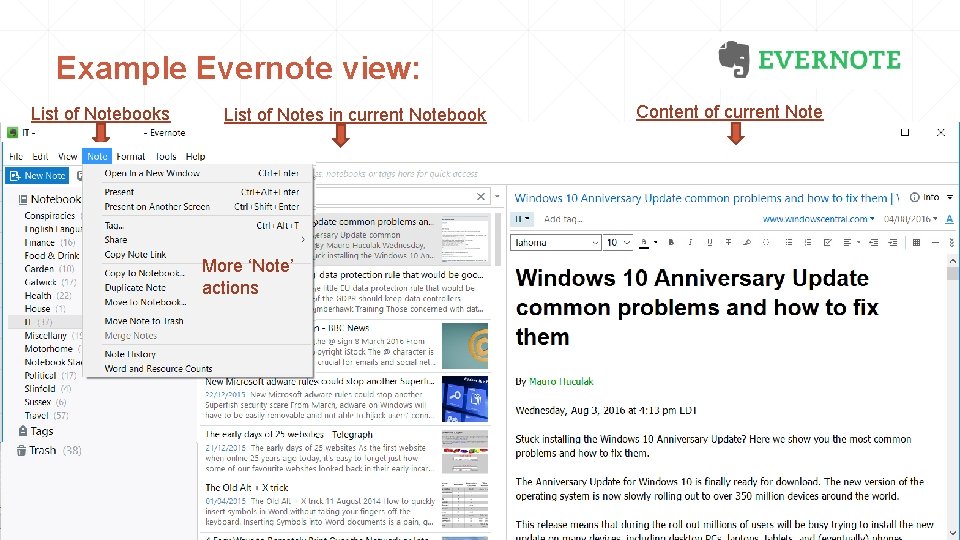
Example Evernote view: List of Notebooks List of Notes in current Notebook Change the view Example / layout actions for New Notes, More ‘Note’ etc. actions Content of current Note
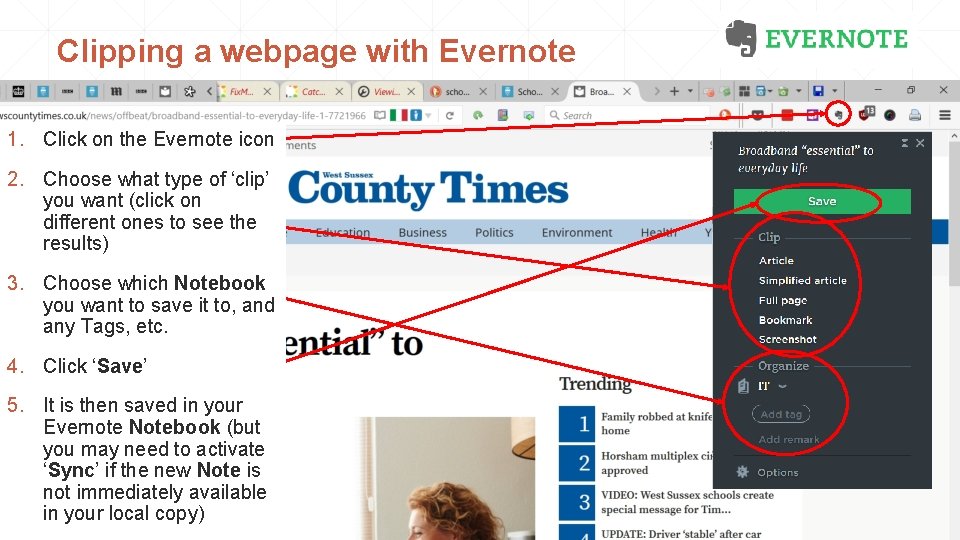
Clipping a webpage with Evernote 1. Click on the Evernote icon 2. Choose what type of ‘clip’ you want (click on different ones to see the results) 3. Choose which Notebook you want to save it to, and any Tags, etc. 4. Click ‘Save’ 5. It is then saved in your Evernote Notebook (but you may need to activate ‘Sync’ if the new Note is not immediately available in your local copy)
After creating a clip with Evernote: … you can subsequently, ▪ change the tags for the clip; ▪ copy or move it to another Notebook; ▪ edit it, ▪ … etc. . Note that Evernote automatically records the source of the clip.
Microsoft One. Note ▪ In One. Note, users create: ▪ Notebooks – think of Notebooks as like filing cabinet drawers – which are sub-divided into: ▪ Sections – think of Sections as like the ‘slings’ within each filing cabinet drawer. Any Section can be individually password protected. Sections are sub-divided into: ▪ Pages and sub-Pages – think of these as like multi-page documents within each ‘sling’ ▪ Each Page can: ▪ contain multiple items of any ‘type’, including text, tables, pictures / photographs, spreadsheets, a full webpage or webpage extracts, voice memos, videos, handwritten "ink" notes, embedded files, etc. ; ▪ be arbitrarily large, and of any size/‘length’ (like a web-page can scroll); ▪ include bitmap images without loss of quality; and ▪ be arranged in any desired fashion, with no enforced uniform page layout or structure. ▪ One. Note works with Microsoft One. Drive for cloud storage.
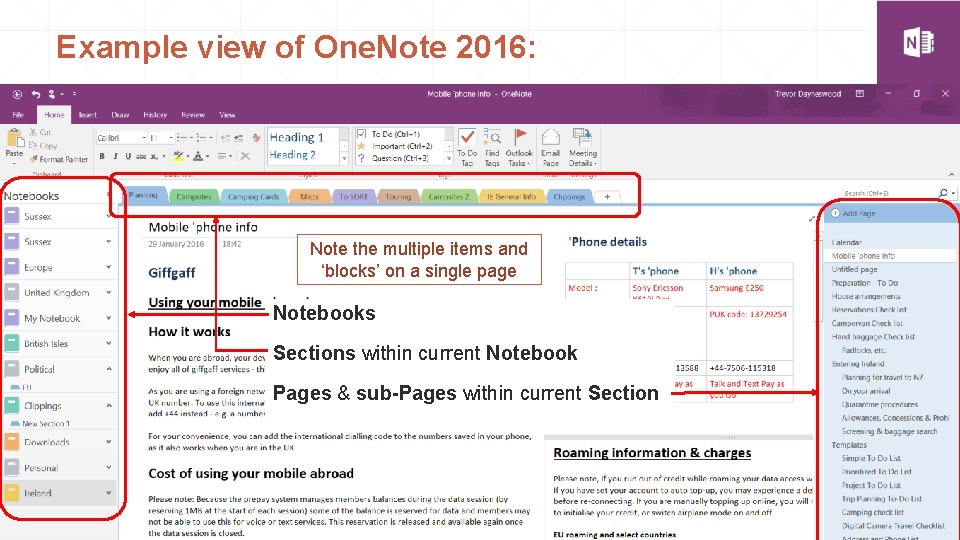
Example view of One. Note 2016: Note the multiple items and ‘blocks’ on a single page Notebooks Sections within current Notebook Pages & sub-Pages within current Section
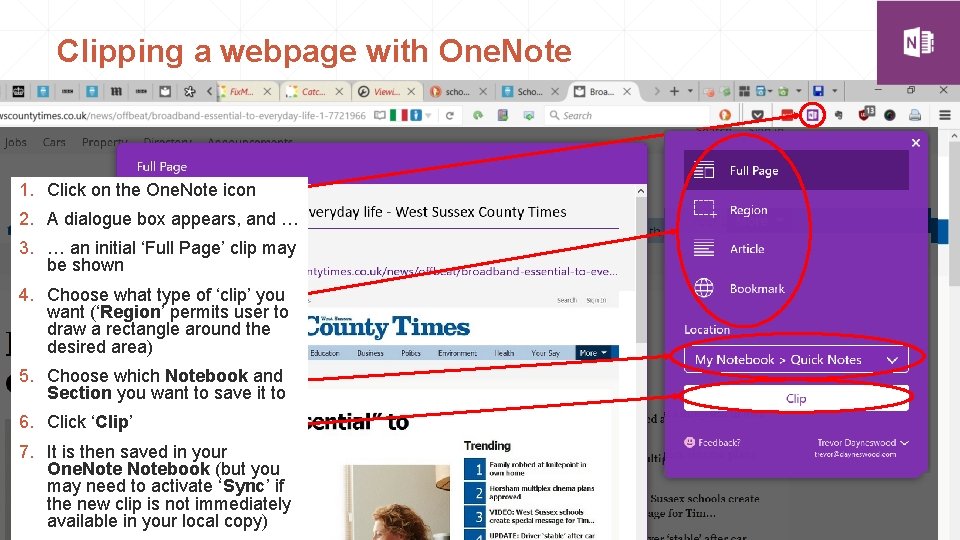
Clipping a webpage with One. Note 1. Click on the One. Note icon 2. A dialogue box appears, and … 3. … an initial ‘Full Page’ clip may be shown 4. Choose what type of ‘clip’ you want (‘Region’ permits user to draw a rectangle around the desired area) 5. Choose which Notebook and Section you want to save it to 6. Click ‘Clip’ 7. It is then saved in your One. Notebook (but you may need to activate ‘Sync’ if the new clip is not immediately available in your local copy)
After saving a clip with One. Note: … you can subsequently, ▪ name/rename the Page containing the clip; ▪ move the Page containing the clip to another Section or Notebook; ▪ move the clip around on the page; ▪ copy & paste the clip elsewhere; ▪ edit the clip; ▪ … etc. . Note that One. Note automatically records the source of the clip; but that information can be deleted, edited or moved as required.
Versions of One. Note: Note that there are two versions of One. Note: ▪ A version simply called “One. Note”, which is the One. Note app for Windows 10 ▪ One. Note 2016 (and previously One. Note 2010 and 2013) is a desktop version that comes with the Microsoft Office suite, but is also available as a free download from www. onenote. com. One. Note (as distinct from One. Note 2016) is a new app, built from the ground-up, which works with any PC, tablet, or smartphone running Windows 10. One. Note 2016 includes some classic features that existing users may prefer. Many of the top features in One. Note 2016 will be added to One. Note over time. The screen-shots included in this presentation were from One. Note 2016. Info taken from, and further details of both versions and their differences (with screen-shots) at: https: //support. office. com/en-us/article/What-s-the-difference-between-One. Note-and-One. Note 2016 -a 624 e 692 -b 78 b-4 c 09 -b 07 f-46181958118 f? ui=en-US&rs=en-US&ad=US
The End Copyright 2016 T. Dayneswood, Slinfold Computer Café www. slinfoldcomputer. club
- Slides: 53