
Prezi com The Zooming Presentation Editor Created by
Prezi. com: The Zooming Presentation Editor Created by Russell Smith Technology Facilitator North Edgecombe High School
What is Prezi. com? Prezi. com is a website that allows you to create and customize your presentation in ways that aren’t offered in Microsoft Power. Point n When you create a presentation using Prezi. com, you can arrange items like a graphic organizer, and create the path that the viewer sees each item. § You can rotate the objects in a Prezi presentation, and zoom in and out as you go! § The Prezi website is http: //prezi. com n
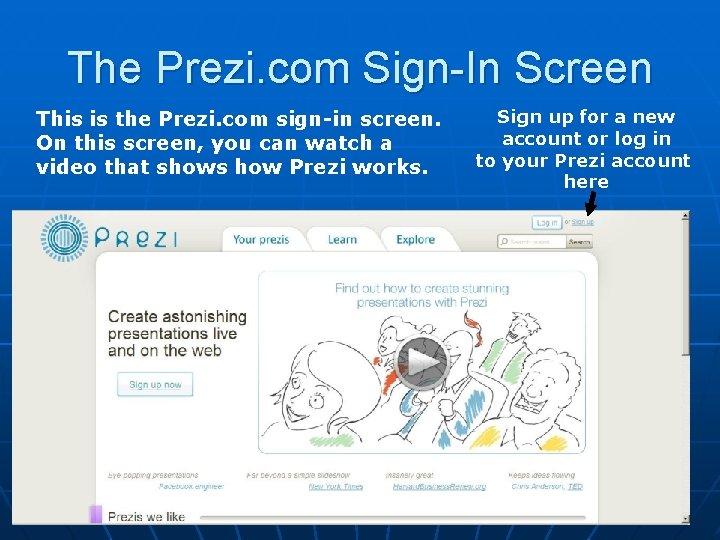
The Prezi. com Sign-In Screen This is the Prezi. com sign-in screen. On this screen, you can watch a video that shows how Prezi works. Sign up for a new account or log in to your Prezi account here
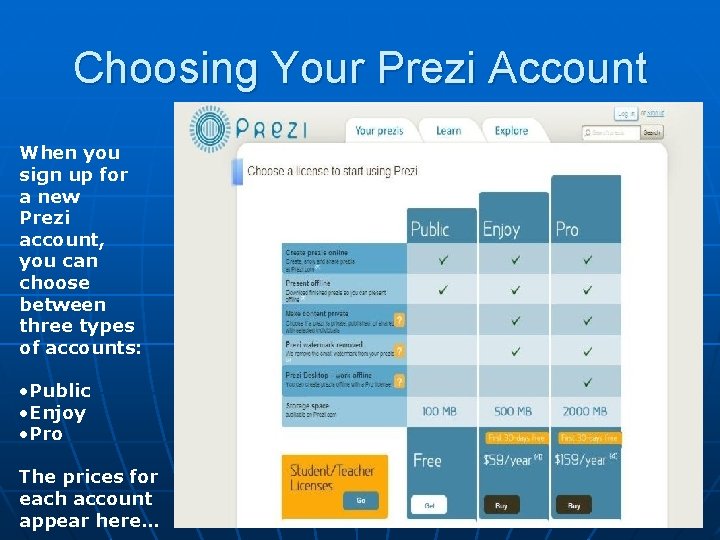
Choosing Your Prezi Account When you sign up for a new Prezi account, you can choose between three types of accounts: • Public • Enjoy • Pro The prices for each account appear here…
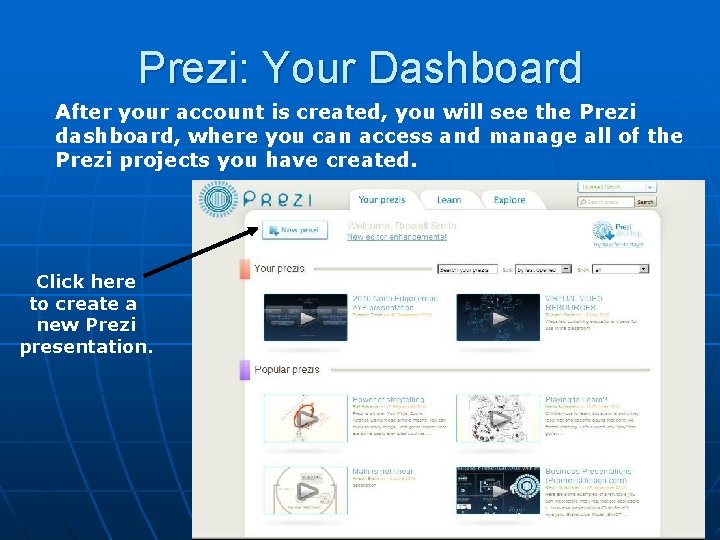
Prezi: Your Dashboard After your account is created, you will see the Prezi dashboard, where you can access and manage all of the Prezi projects you have created. Click here to create a new Prezi presentation.
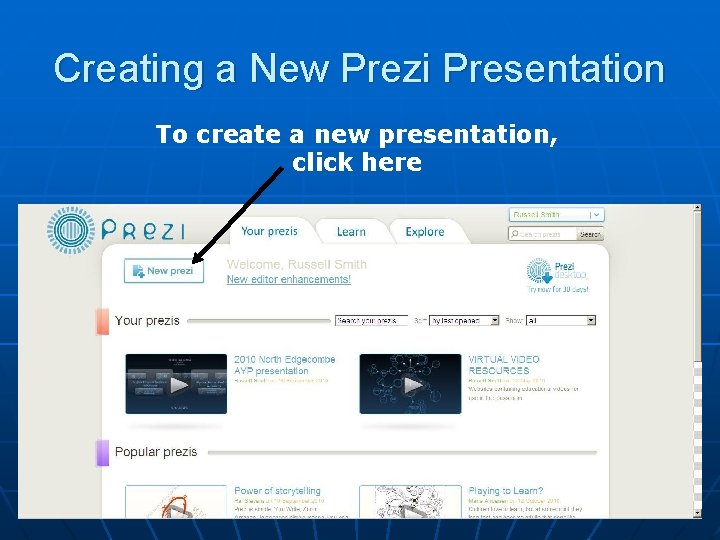
Creating a New Prezi Presentation To create a new presentation, click here
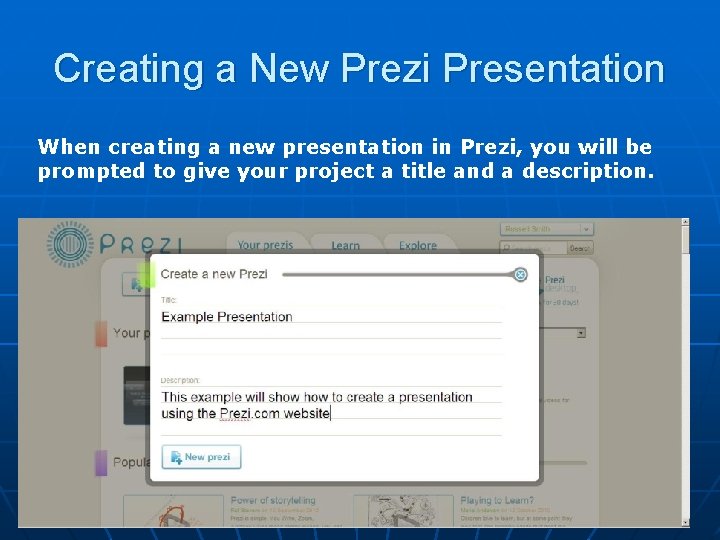
Creating a New Prezi Presentation When creating a new presentation in Prezi, you will be prompted to give your project a title and a description.
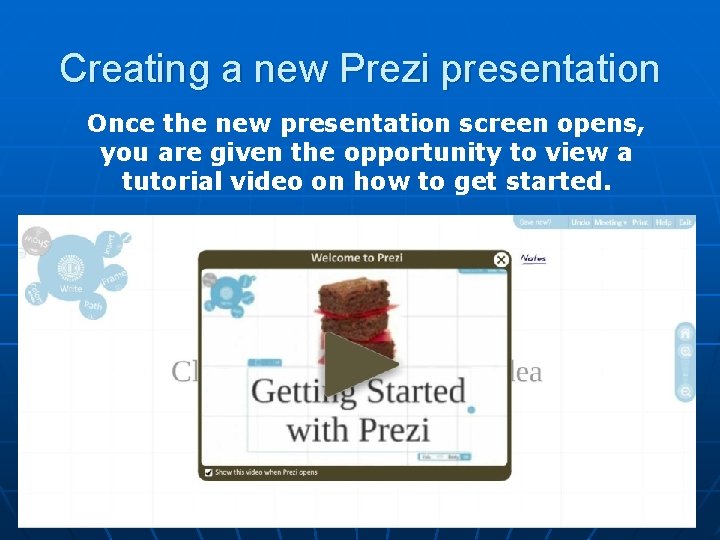
Creating a new Prezi presentation Once the new presentation screen opens, you are given the opportunity to view a tutorial video on how to get started.
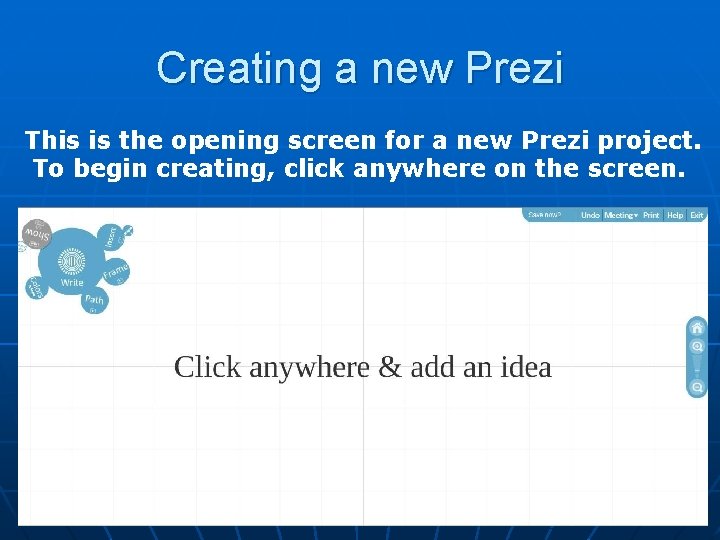
Creating a new Prezi This is the opening screen for a new Prezi project. To begin creating, click anywhere on the screen.
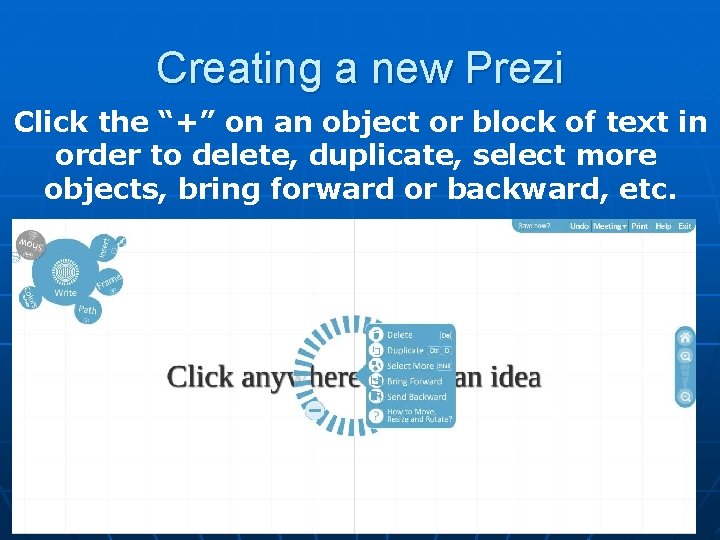
Creating a new Prezi Click the “+” on an object or block of text in order to delete, duplicate, select more objects, bring forward or backward, etc.
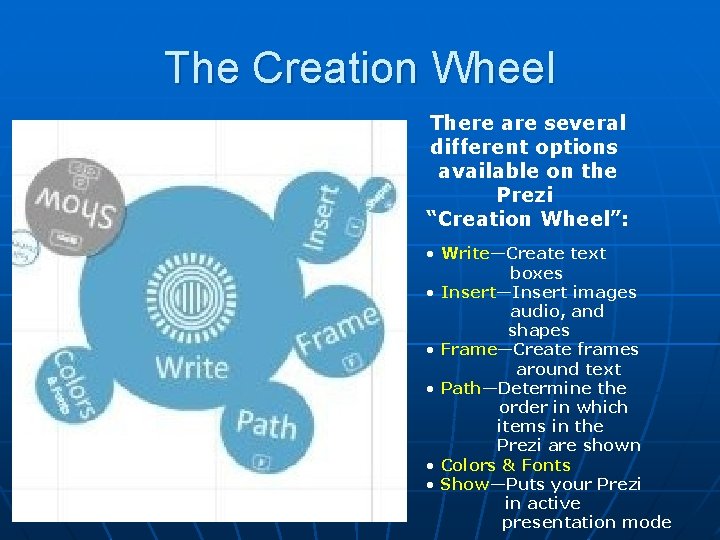
The Creation Wheel There are several different options available on the Prezi “Creation Wheel”: • Write—Create text boxes • Insert—Insert images audio, and shapes • Frame—Create frames around text • Path—Determine the order in which items in the Prezi are shown • Colors & Fonts • Show—Puts your Prezi in active presentation mode
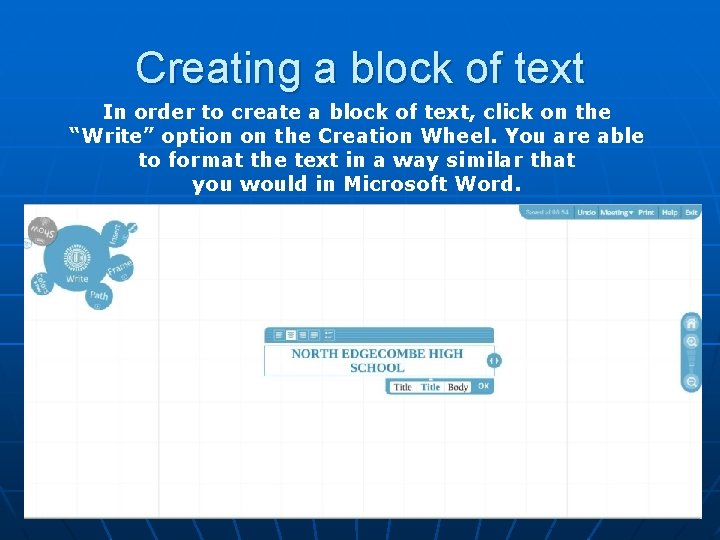
Creating a block of text In order to create a block of text, click on the “Write” option on the Creation Wheel. You are able to format the text in a way similar that you would in Microsoft Word.
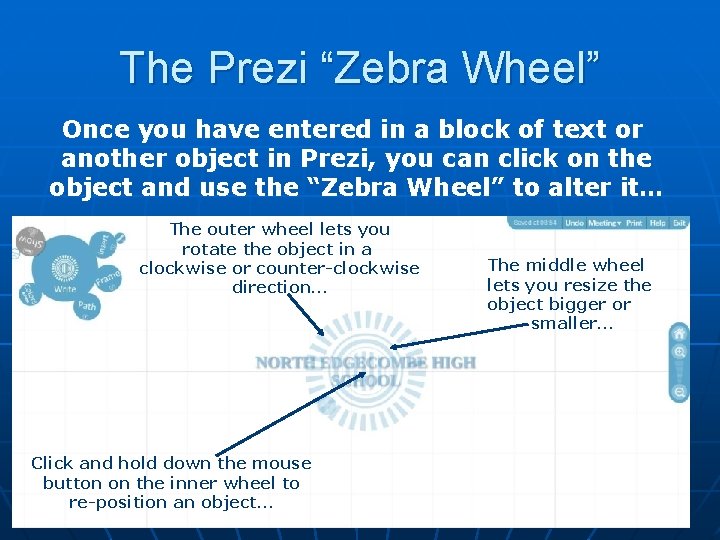
The Prezi “Zebra Wheel” Once you have entered in a block of text or another object in Prezi, you can click on the object and use the “Zebra Wheel” to alter it… The outer wheel lets you rotate the object in a clockwise or counter-clockwise direction… Click and hold down the mouse button on the inner wheel to re-position an object… The middle wheel lets you resize the object bigger or smaller…
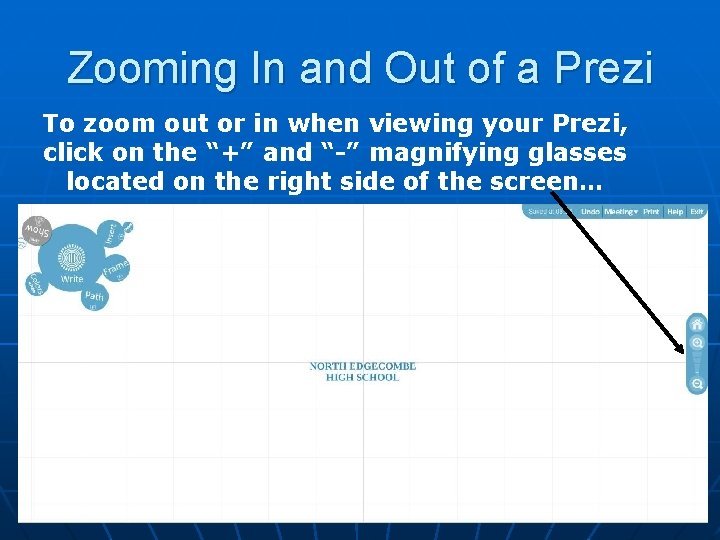
Zooming In and Out of a Prezi To zoom out or in when viewing your Prezi, click on the “+” and “-” magnifying glasses located on the right side of the screen…
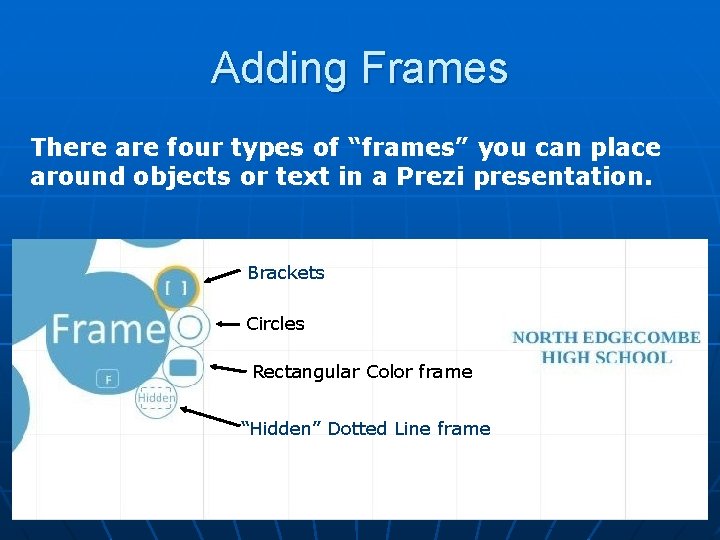
Adding Frames There are four types of “frames” you can place around objects or text in a Prezi presentation. Brackets Circles Rectangular Color frame “Hidden” Dotted Line frame
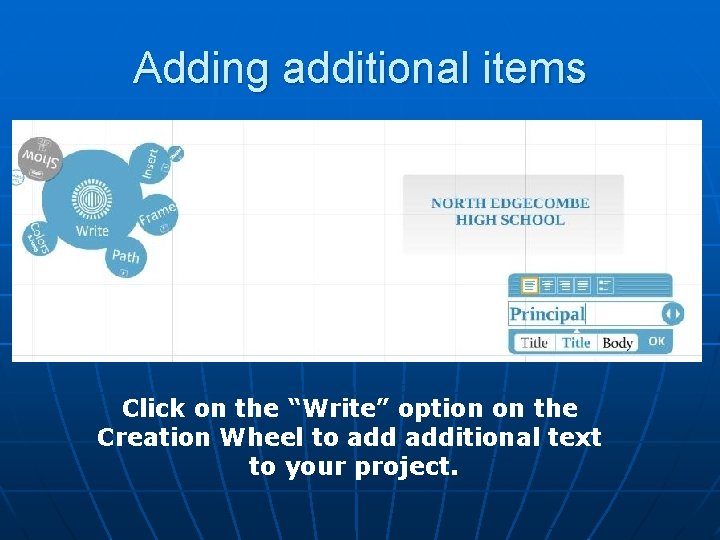
Adding additional items Click on the “Write” option on the Creation Wheel to additional text to your project.
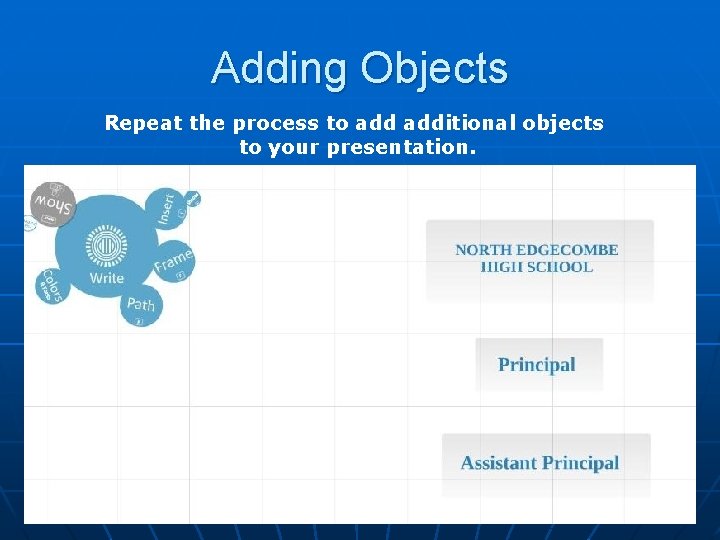
Adding Objects Repeat the process to additional objects to your presentation.
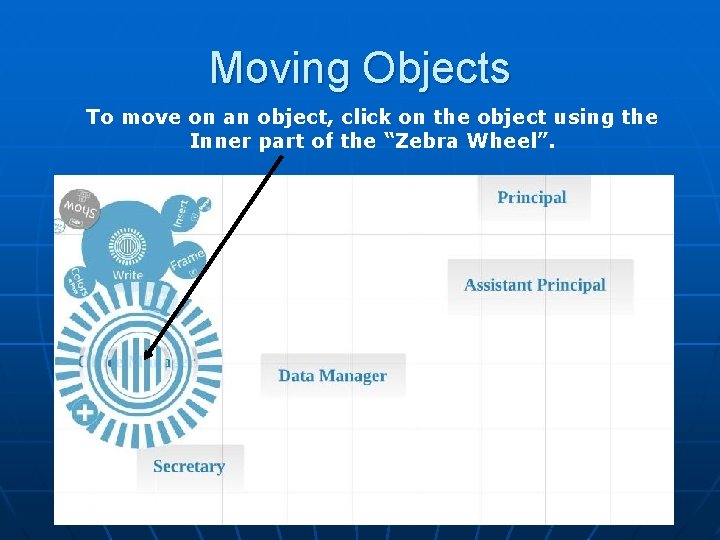
Moving Objects To move on an object, click on the object using the Inner part of the “Zebra Wheel”.
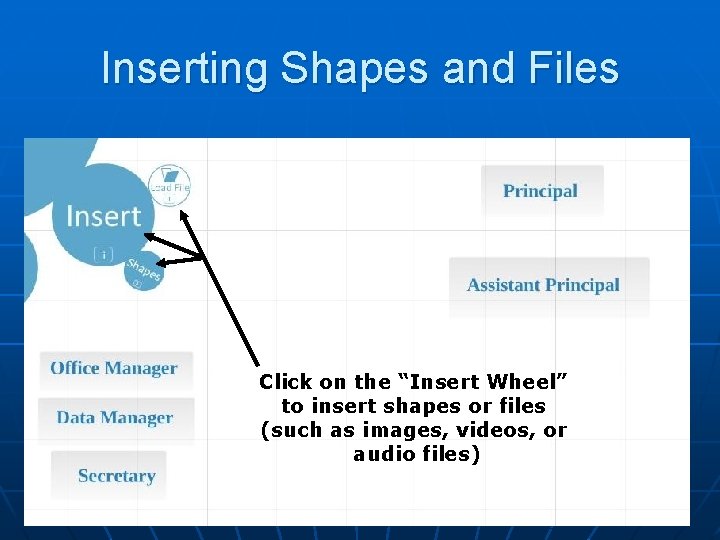
Inserting Shapes and Files Click on the “Insert Wheel” to insert shapes or files (such as images, videos, or audio files)
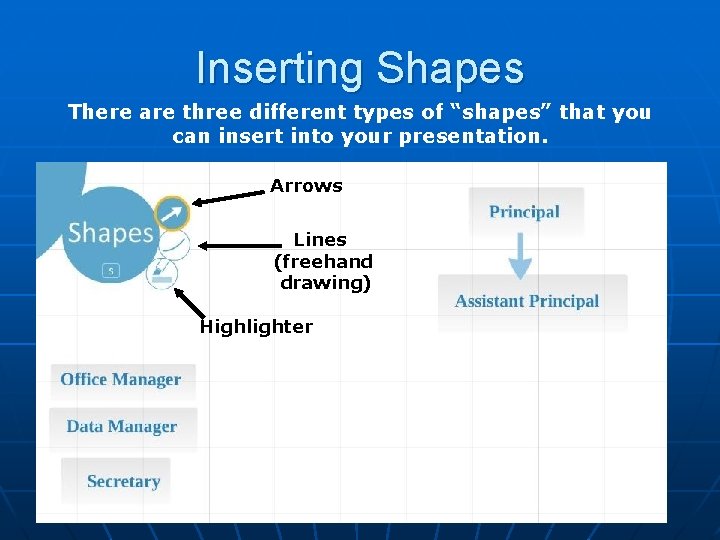
Inserting Shapes There are three different types of “shapes” that you can insert into your presentation. Arrows Lines (freehand drawing) Highlighter
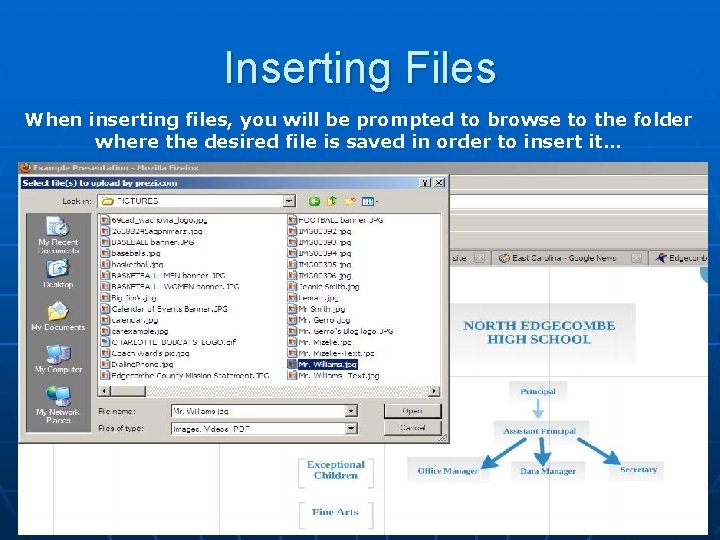
Inserting Files When inserting files, you will be prompted to browse to the folder where the desired file is saved in order to insert it…
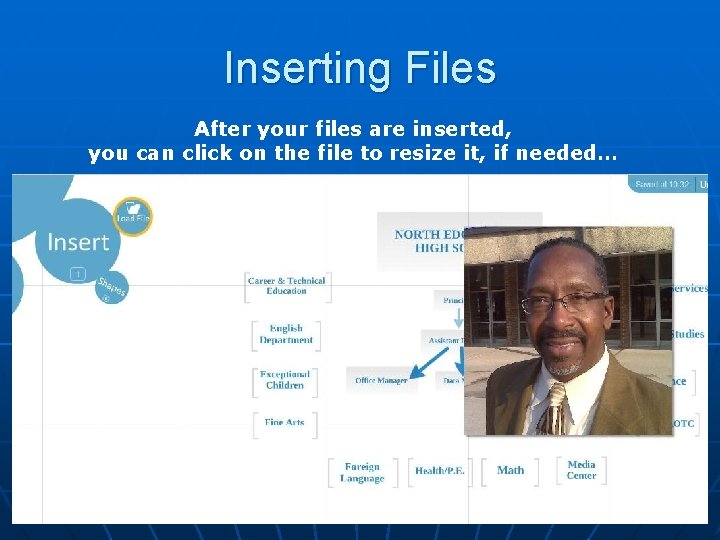
Inserting Files After your files are inserted, you can click on the file to resize it, if needed…
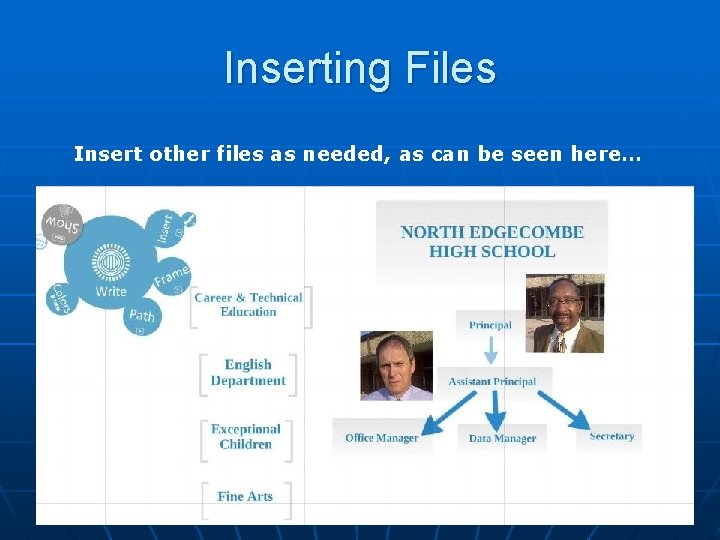
Inserting Files Insert other files as needed, as can be seen here…
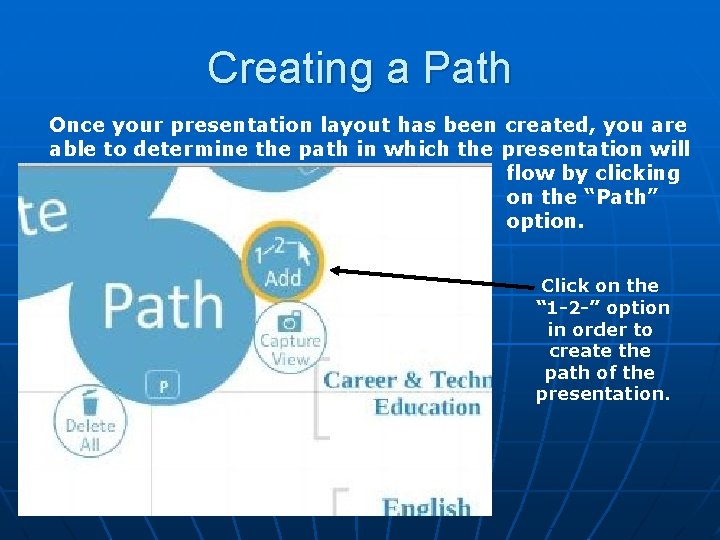
Creating a Path Once your presentation layout has been created, you are able to determine the path in which the presentation will flow by clicking on the “Path” option. Click on the “ 1 -2 -” option in order to create the path of the presentation.
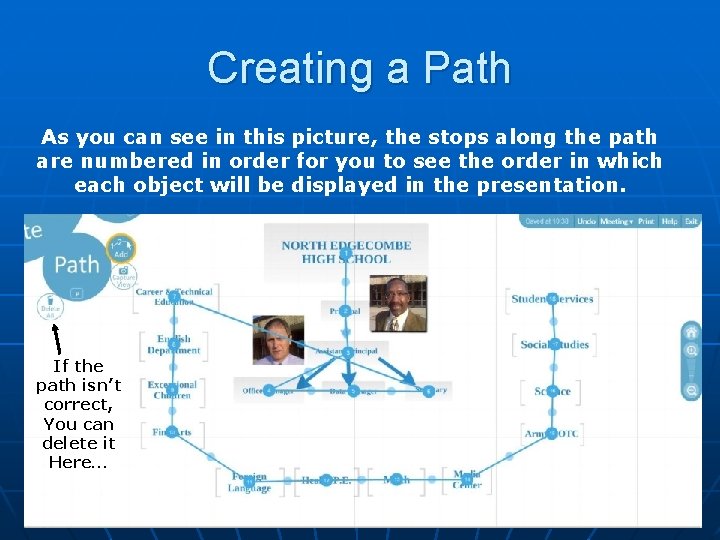
Creating a Path As you can see in this picture, the stops along the path are numbered in order for you to see the order in which each object will be displayed in the presentation. If the path isn’t correct, You can delete it Here…
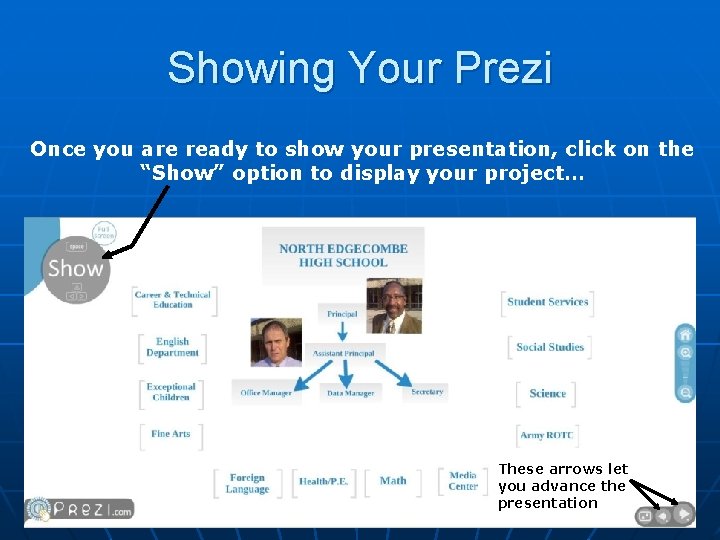
Showing Your Prezi Once you are ready to show your presentation, click on the “Show” option to display your project… These arrows let you advance the presentation
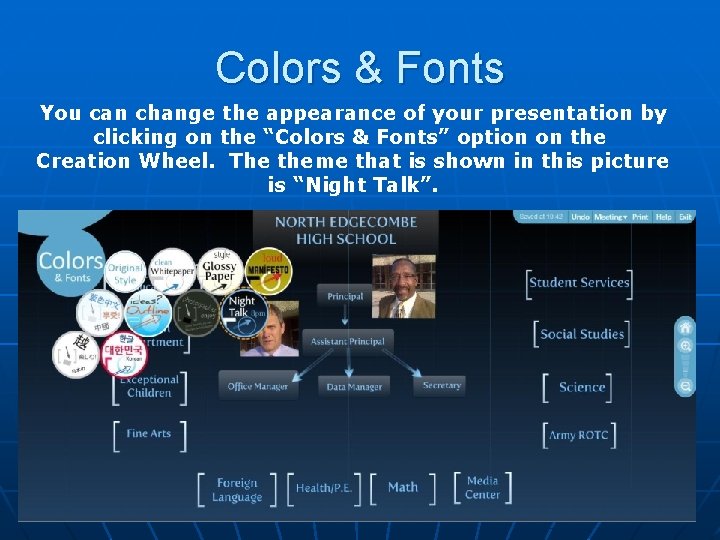
Colors & Fonts You can change the appearance of your presentation by clicking on the “Colors & Fonts” option on the Creation Wheel. The theme that is shown in this picture is “Night Talk”.
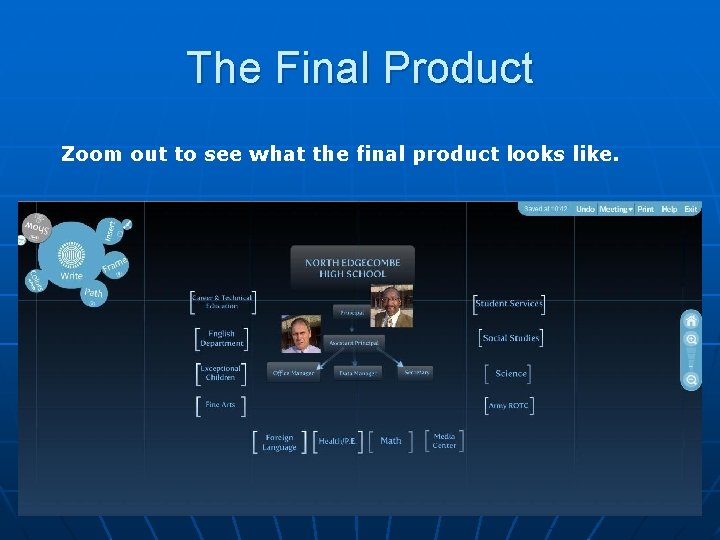
The Final Product Zoom out to see what the final product looks like.
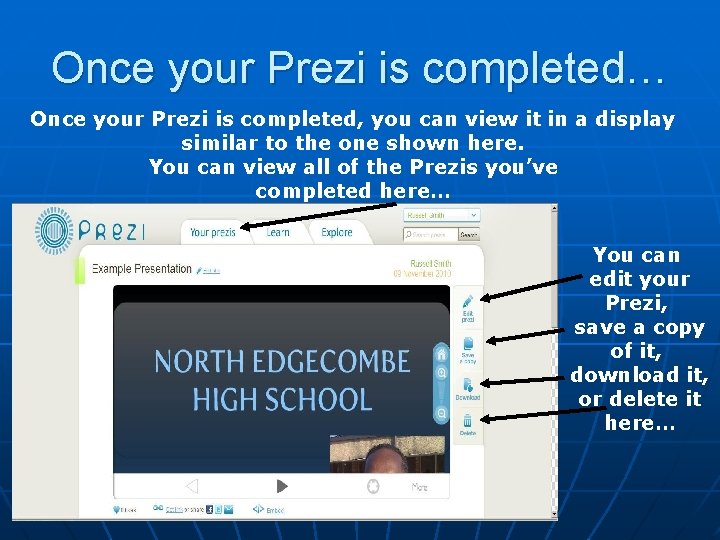
Once your Prezi is completed… Once your Prezi is completed, you can view it in a display similar to the one shown here. You can view all of the Prezis you’ve completed here… You can edit your Prezi, save a copy of it, download it, or delete it here…
- Slides: 29