
Presentation Title Presentation Subtitle umanitoba ca umanitoba ca

Presentation Title Presentation Subtitle umanitoba. ca

umanitoba. ca
How to use this presentation Please note: This template has a variety of slides for your use. To select a slide style, click on the “New Slide” drop down menu, choose the desired option and start typing. To avoid formatting issues when copying and pasting text, select the “Paste Options” icon after text has been pasted, and click “Keep Text Only”. The following slides are here for visual reference only. Please delete this “How to” slide and edit the presentation as needed. When the presentation is complete, select the appropriate file size for output under the “Reduce File Size” menu. If you have any questions about how to use this template, please contact the Marketing Communications Office. umanitoba. ca
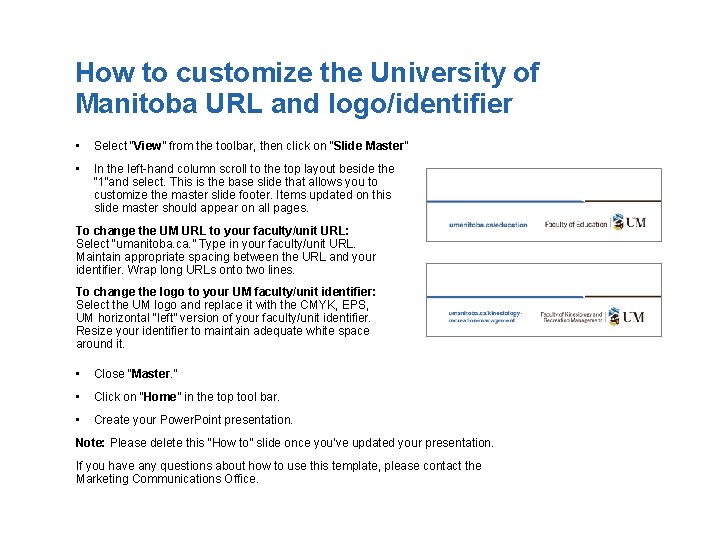
How to customize the University of Manitoba URL and logo/identifier • Select “View” from the toolbar, then click on “Slide Master” • In the left-hand column scroll to the top layout beside the “ 1”and select. This is the base slide that allows you to customize the master slide footer. Items updated on this slide master should appear on all pages. To change the UM URL to your faculty/unit URL: Select “umanitoba. ca. ” Type in your faculty/unit URL. Maintain appropriate spacing between the URL and your identifier. Wrap long URLs onto two lines. To change the logo to your UM faculty/unit identifier: Select the UM logo and replace it with the CMYK, EPS, UM horizontal “left” version of your faculty/unit identifier. Resize your identifier to maintain adequate white space around it. • Close “Master. ” • Click on “Home” in the top tool bar. • Create your Power. Point presentation. Note: Please delete this “How to” slide once you’ve updated your presentation. If you have any questions about how to use this template, please contact the Marketing Communications Office. umanitoba. ca
• Lorem ipsum dolor sit amet, consectetur adipiscing elit. Sed vitae sem non lacus • Aliquam feugiat eget et odio. • Nullam tincidunt venenatis augue at umanitoba. ca
• Lorem ipsum dolor sit amet, consectetur adipiscing elit. Sed vitae sem non lacus umanitoba. ca • Lorem ipsum dolor sit amet, consectetur adipiscing elit. Sed vitae sem non lacus
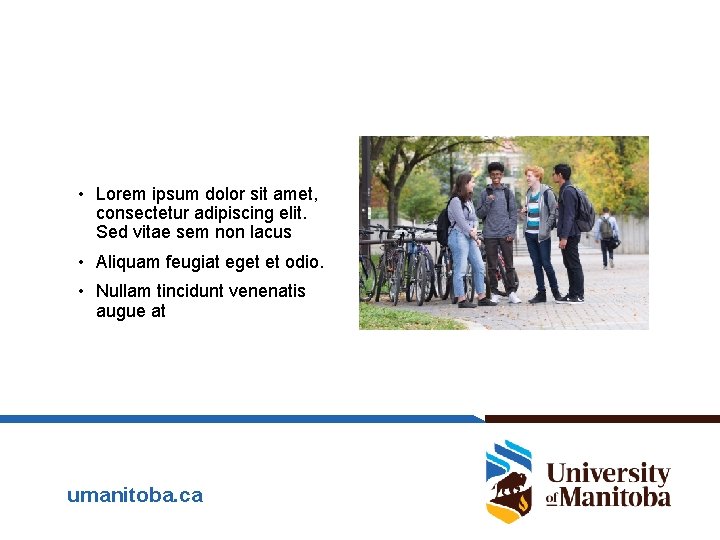
• Lorem ipsum dolor sit amet, consectetur adipiscing elit. Sed vitae sem non lacus • Aliquam feugiat eget et odio. • Nullam tincidunt venenatis augue at umanitoba. ca
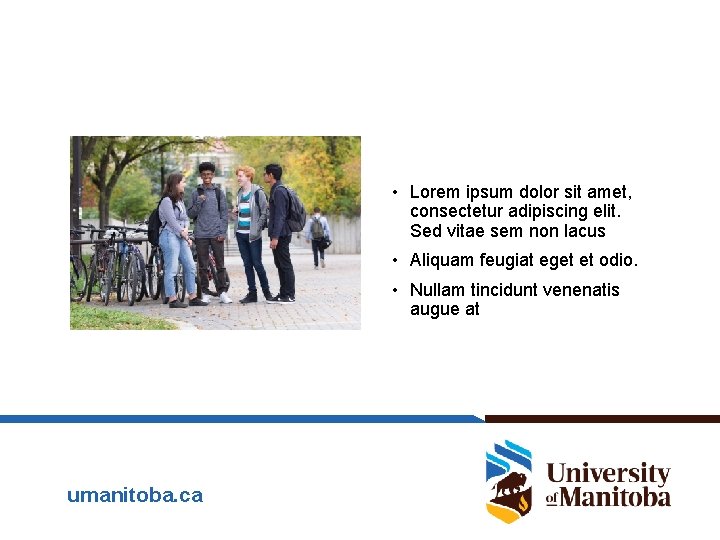
• Lorem ipsum dolor sit amet, consectetur adipiscing elit. Sed vitae sem non lacus • Aliquam feugiat eget et odio. • Nullam tincidunt venenatis augue at umanitoba. ca

umanitoba. ca

Lorem ipsum dolor sit amet, consectetur adipiscing elit. Sed vitae sem non lacus umanitoba. ca
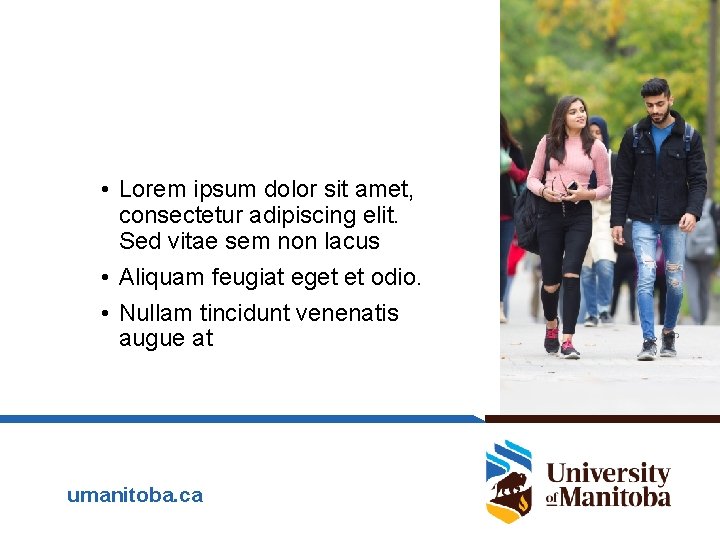
• Lorem ipsum dolor sit amet, consectetur adipiscing elit. Sed vitae sem non lacus • Aliquam feugiat eget et odio. • Nullam tincidunt venenatis augue at umanitoba. ca

umanitoba. ca

umanitoba. ca
- Slides: 13