
PRESENTATION on Auto CAD 2013 Submitted By Dev
PRESENTATION on Auto. CAD 2013 Submitted By : Dev RANA MECHANICAL BRANCH
OUTLINE o o o Introduction Latest Version Auto. CAD Screen Way to provide command. How it Works Co-ordinate system. Some 2 D command. 3 D Modeling Some 3 D Commands Isometric view. Project work Benefits of Auto. CAD.
INTRODUCTION Ø The Word Auto. CAD is made up of two words “Auto(logo of company)”and CAD “(computer aided design)”. Ø Auto. CAD is 2 D and 3 D modeling software. Ø It is developed by Autodesk company. Ø Autodesk is an U. S. A based company. Ø It is widely used in industry for 2 D drawing and 3 D modeling. Ø In another way we can say that Auto. CAD is a designing course , which is performed by the help of computer.
Version of Auto. CAD o Auto. CAD software was firstly launched by Autodesk company in Dec. 1982. o It comes in India in 1988. o The first version of Auto. CAD was R 1 after that R 2, R 3, R 4…………… and so on. o In 2000, Autodesk launched a version of Auto. CAD 2000 after that 2001, 2002…… so on. o This time, we have the latest version of Auto. CAD is 2014, which is launched on 27 th march 2013. o Latest version is easy to use and over come the difficulties of old version.
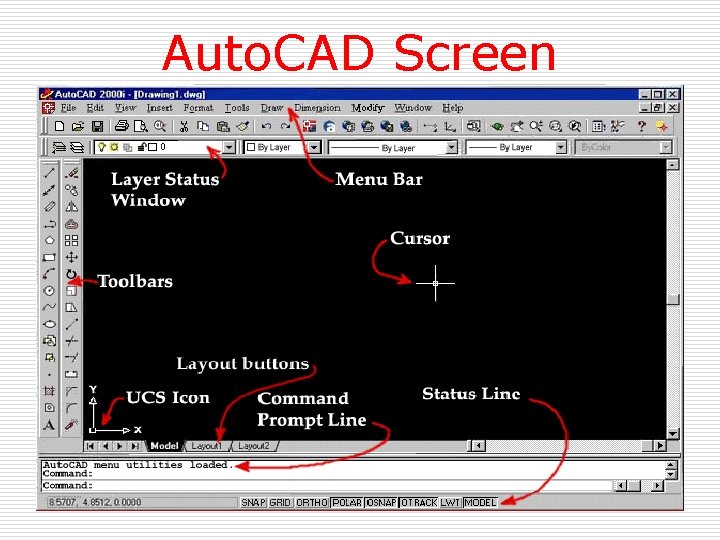
Auto. CAD Screen
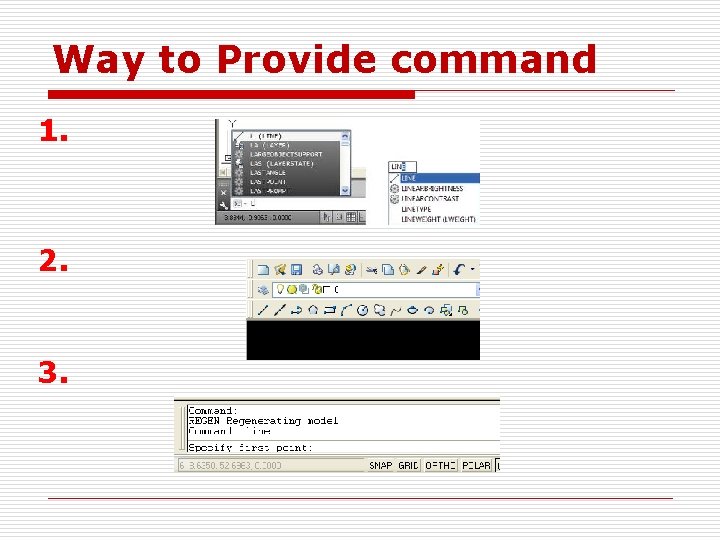
Way to Provide command 1. 2. 3.
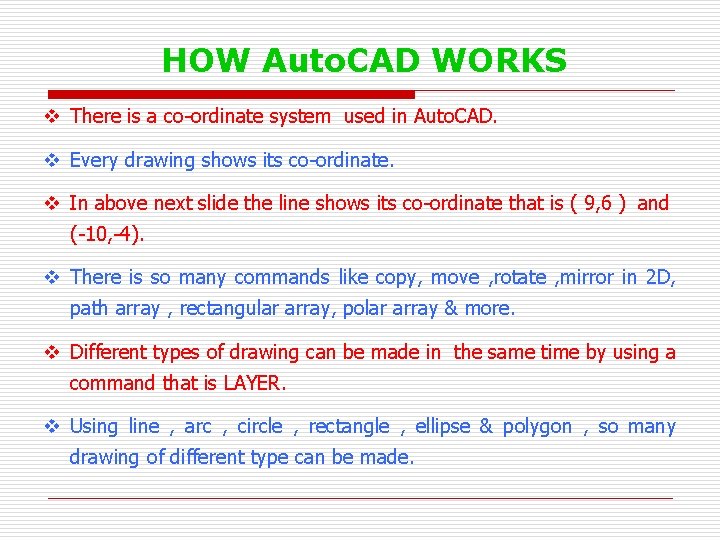
HOW Auto. CAD WORKS v There is a co-ordinate system used in Auto. CAD. v Every drawing shows its co-ordinate. v In above next slide the line shows its co-ordinate that is ( 9, 6 ) and (-10, -4). v There is so many commands like copy, move , rotate , mirror in 2 D, path array , rectangular array, polar array & more. v Different types of drawing can be made in the same time by using a command that is LAYER. v Using line , arc , circle , rectangle , ellipse & polygon , so many drawing of different type can be made.
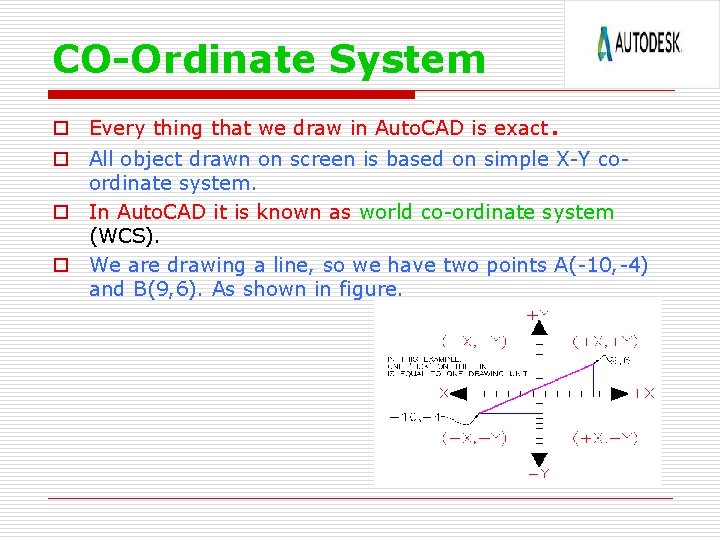
CO-Ordinate System o Every thing that we draw in Auto. CAD is exact. o All object drawn on screen is based on simple X-Y coordinate system. o In Auto. CAD it is known as world co-ordinate system (WCS). o We are drawing a line, so we have two points A(-10, -4) and B(9, 6). As shown in figure.
The UCS and WCS o The Auto. CAD world is 3 dimensional. However, if we want to draw a 2 d object, such as a plan or a section, we will use only 2 dimensions (x and y). o WCS (world coordinate system) is the imaginary plane that is parallel to the ground. It is the default coordinate system. o Modifications made to the World Coordinate System (WCS) result in a User Coordinate System (UCS). It is the plane that you work on. It enables the user to draw 3 dimensional objects. o To create a new UCS, type ucs on the command window, then say New and specify 3 points on your new UCS plane.
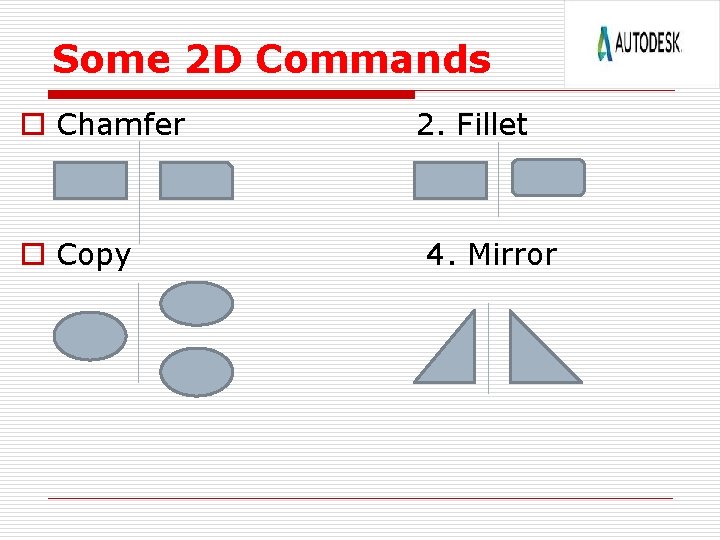
Some 2 D Commands o Chamfer o Copy 2. Fillet 4. Mirror
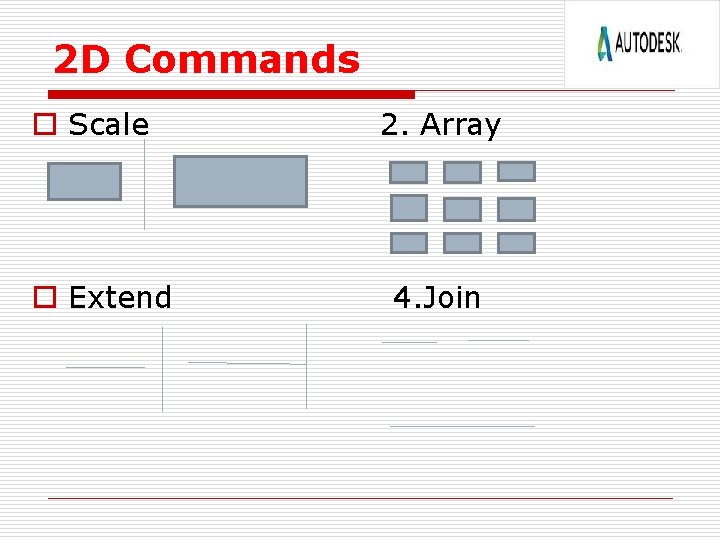
2 D Commands o Scale o Extend 2. Array 4. Join
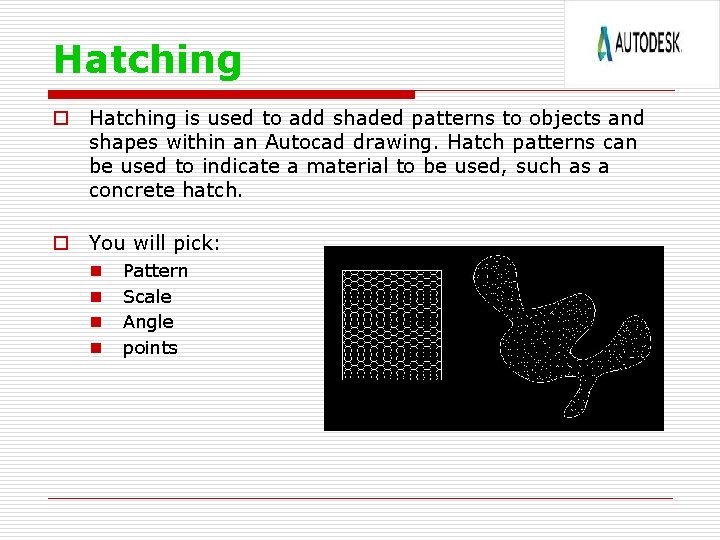
Hatching o Hatching is used to add shaded patterns to objects and shapes within an Autocad drawing. Hatch patterns can be used to indicate a material to be used, such as a concrete hatch. o You will pick: n n Pattern Scale Angle points
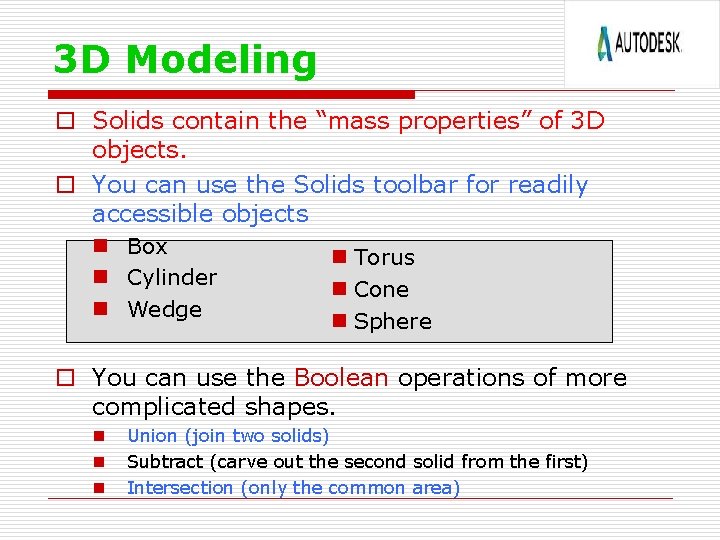
3 D Modeling o Solids contain the “mass properties” of 3 D objects. o You can use the Solids toolbar for readily accessible objects n Box n Cylinder n Wedge n Torus n Cone n Sphere o You can use the Boolean operations of more complicated shapes. n n n Union (join two solids) Subtract (carve out the second solid from the first) Intersection (only the common area)
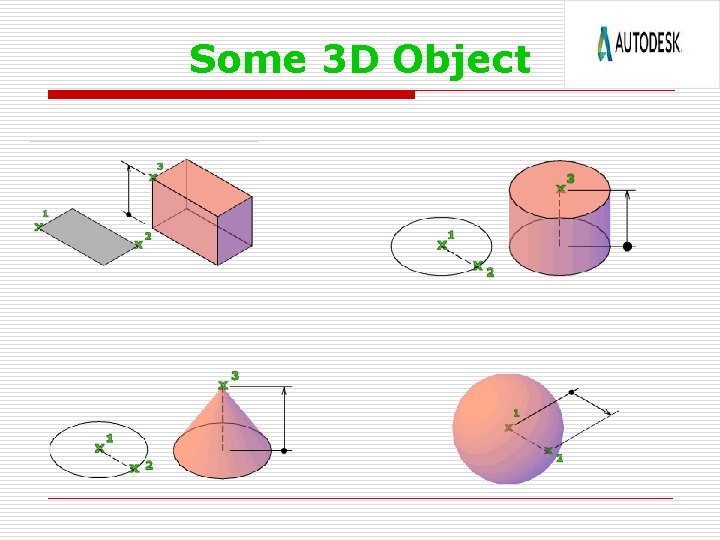
Some 3 D Object
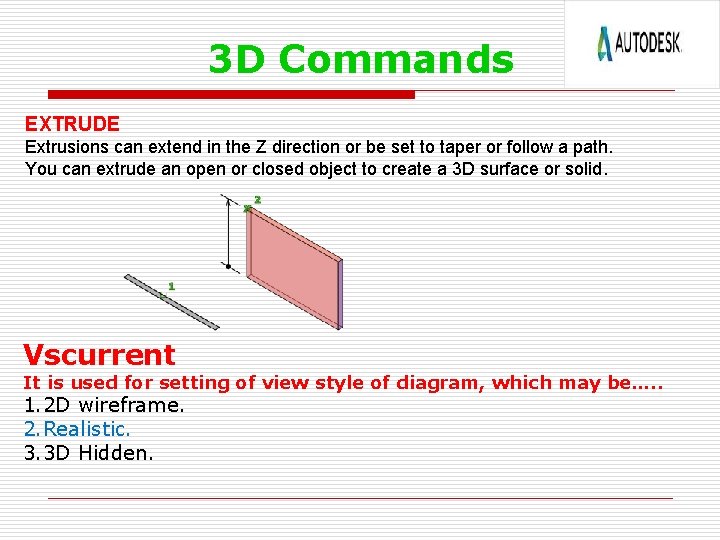
3 D Commands EXTRUDE Extrusions can extend in the Z direction or be set to taper or follow a path. You can extrude an open or closed object to create a 3 D surface or solid. Vscurrent It is used for setting of view style of diagram, which may be…. . 1. 2 D wireframe. 2. Realistic. 3. 3 D Hidden.
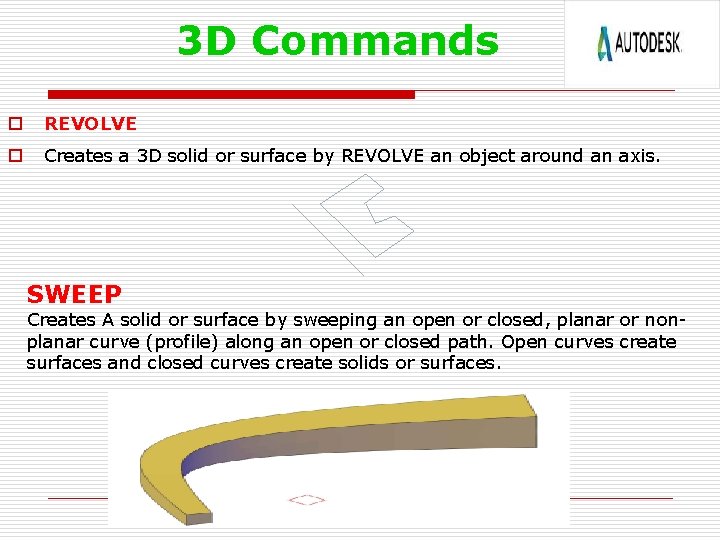
3 D Commands o REVOLVE o Creates a 3 D solid or surface by REVOLVE an object around an axis. SWEEP Creates A solid or surface by sweeping an open or closed, planar or nonplanar curve (profile) along an open or closed path. Open curves create surfaces and closed curves create solids or surfaces.
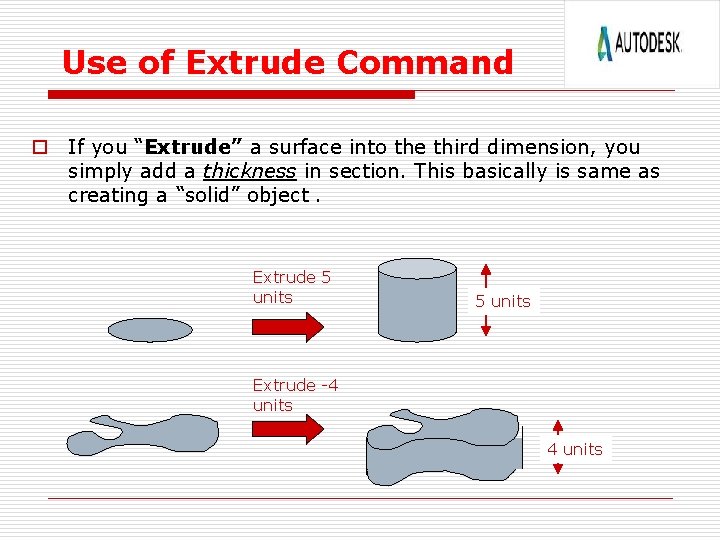
Use of Extrude Command o If you “Extrude” a surface into the third dimension, you simply add a thickness in section. This basically is same as creating a “solid” object. Extrude 5 units Extrude -4 units
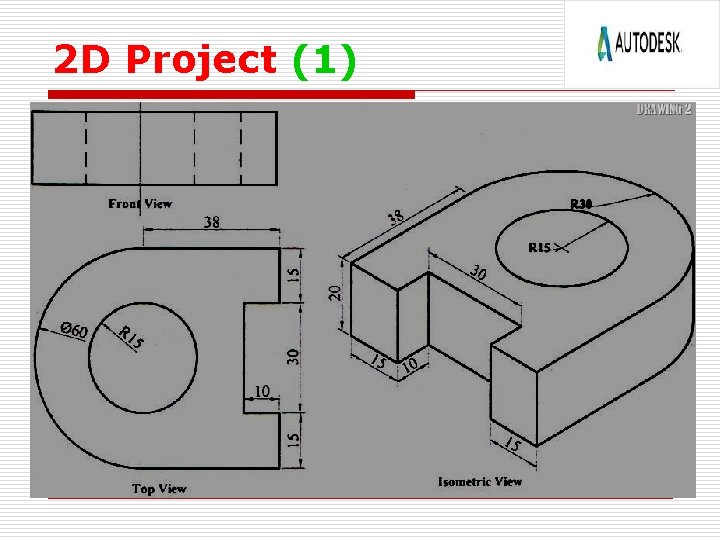
2 D Project (1)
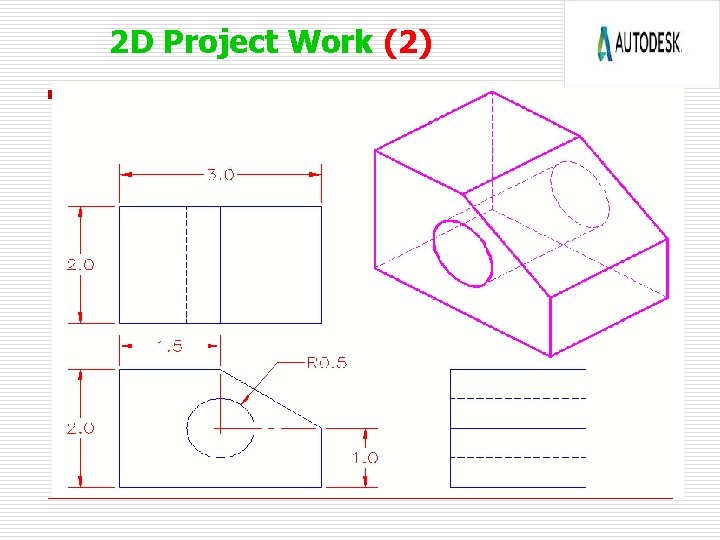
2 D Project Work (2)
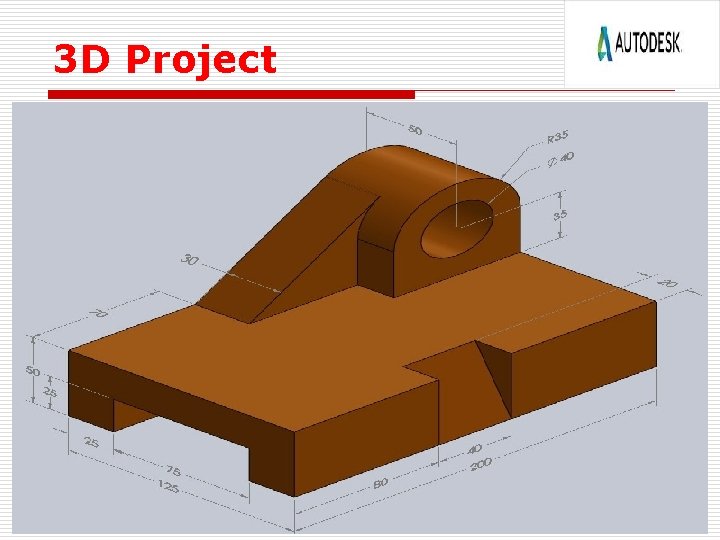
3 D Project
Benefits/Use of Auto. CAD o o o Quickly create designs. Improved quality over hand drafting. Easily modify. More Accuracy. Easy to transfer. Long time save.

- Slides: 22