
Presentation By Umesh Joshi ACP Dy Director Do
Presentation By : Umesh Joshi ACP (Dy. Director) Do. IT&C, Jaipur
Components Web Site Web Application Mobile Application Web Site Url : http: //mjsa. water. rajasthan. gov. in/
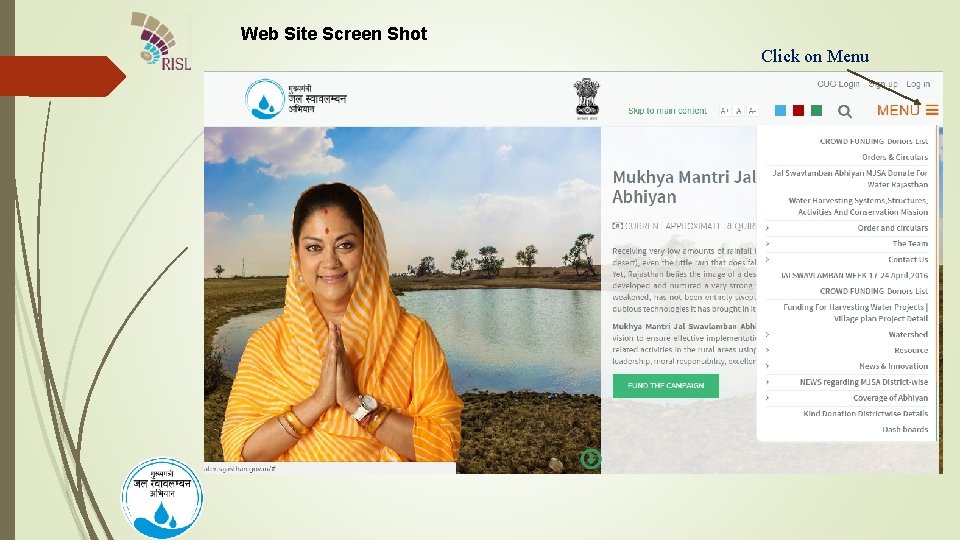
Web Site Screen Shot Click on Menu
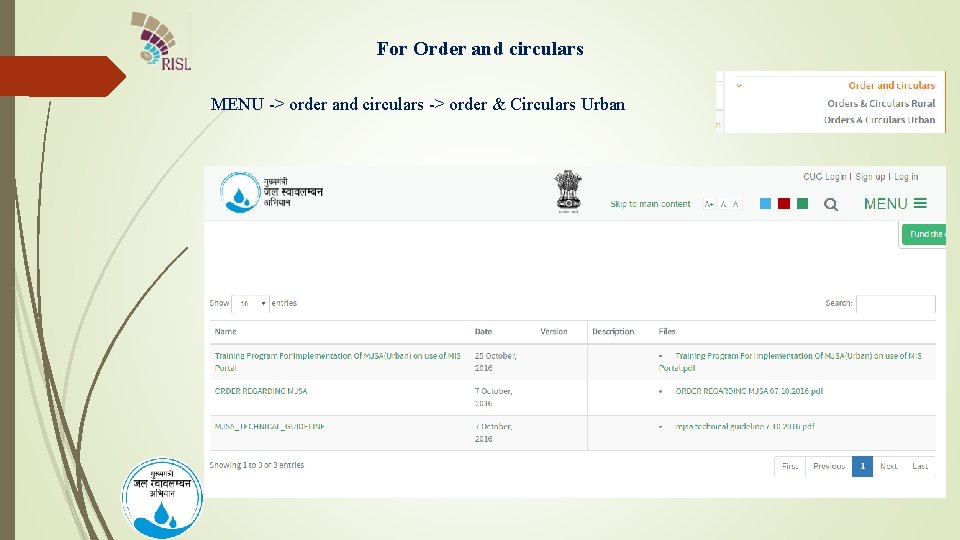
For Order and circulars MENU -> order and circulars -> order & Circulars Urban
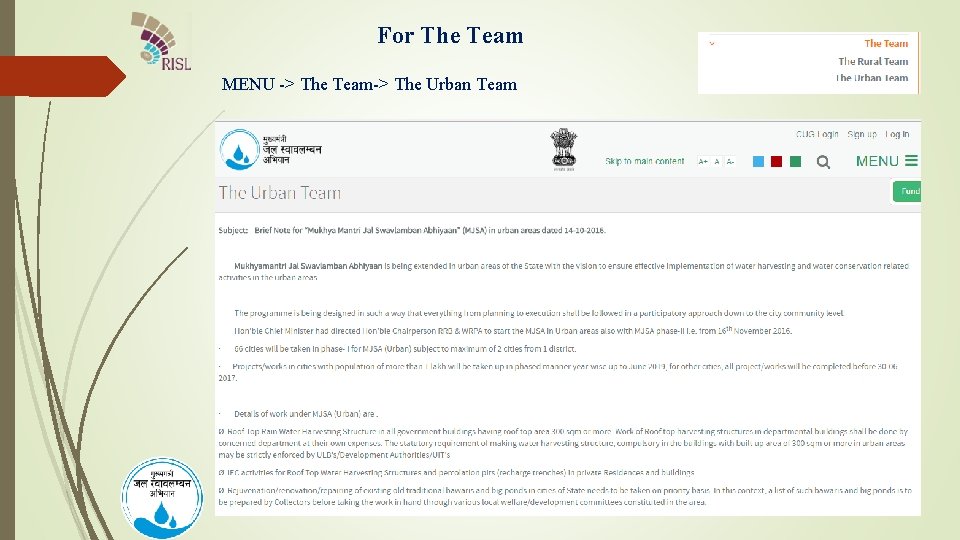
For The Team MENU -> The Team-> The Urban Team
Work Planning For Mukhyamantri Jal Swawlamban Abhiyan (Web Application)
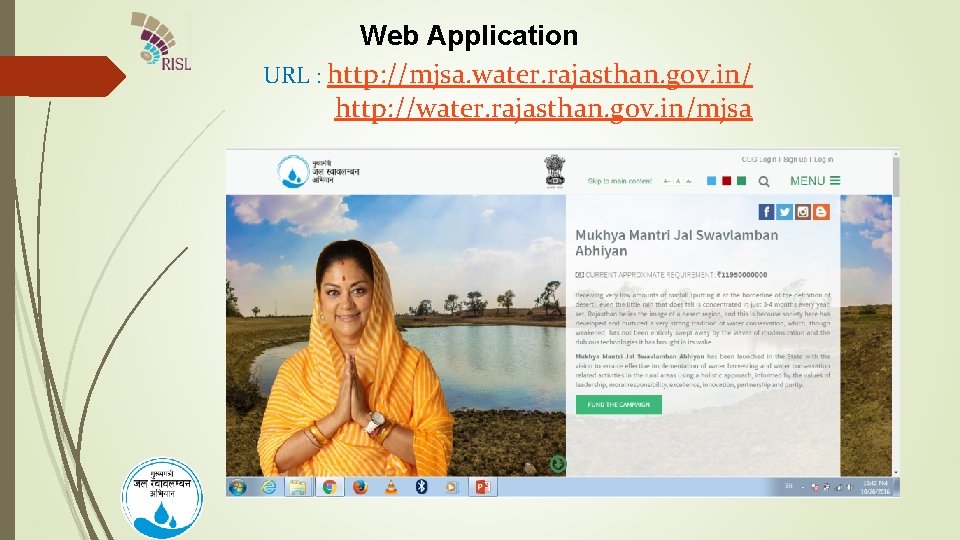
Web Application URL : http: //mjsa. water. rajasthan. gov. in/ http: //water. rajasthan. gov. in/mjsa
Web Application
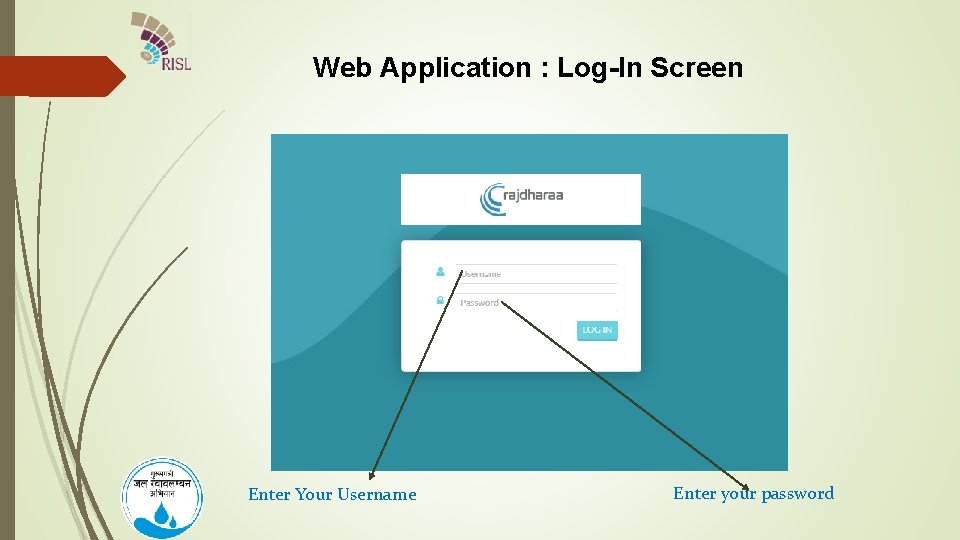
Web Application : Log-In Screen Enter Your Username Enter your password
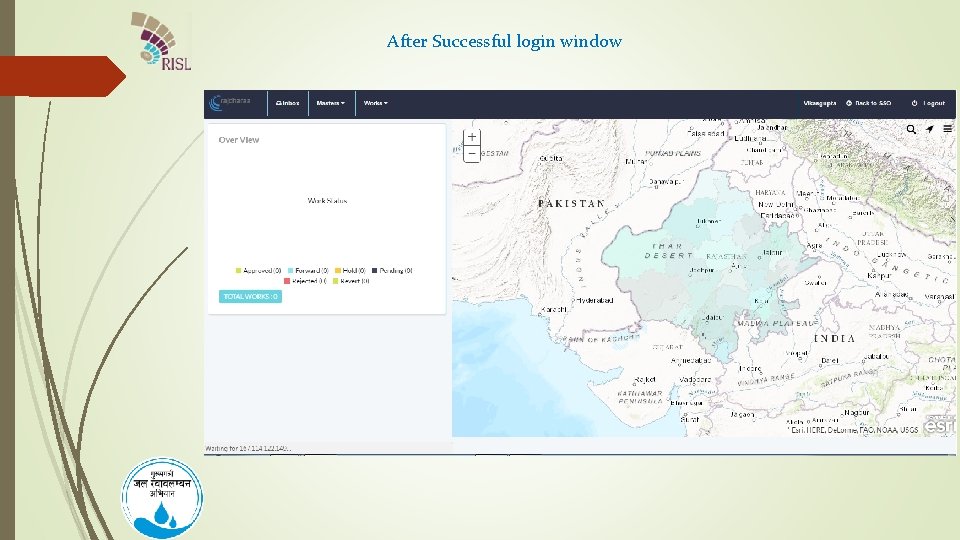
After Successful login window
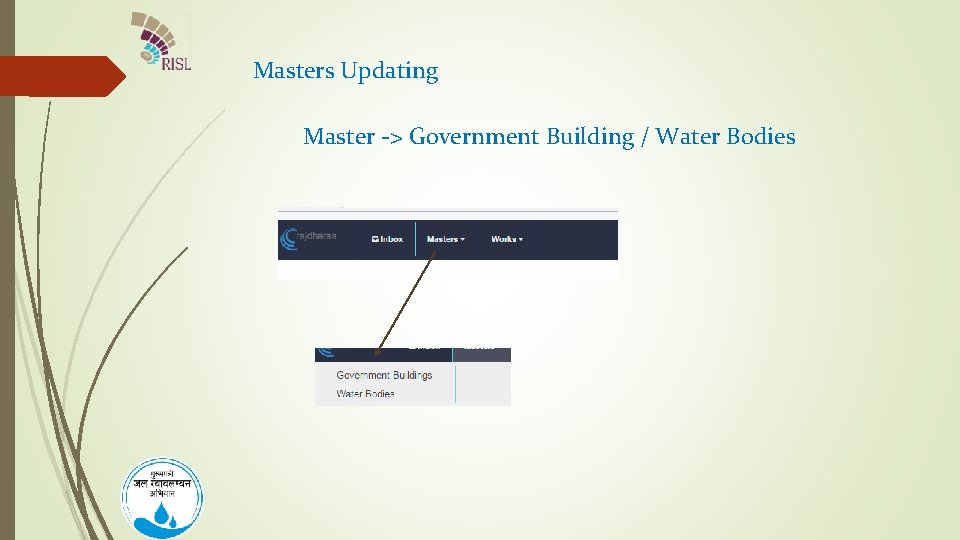
Masters Updating Master -> Government Building / Water Bodies
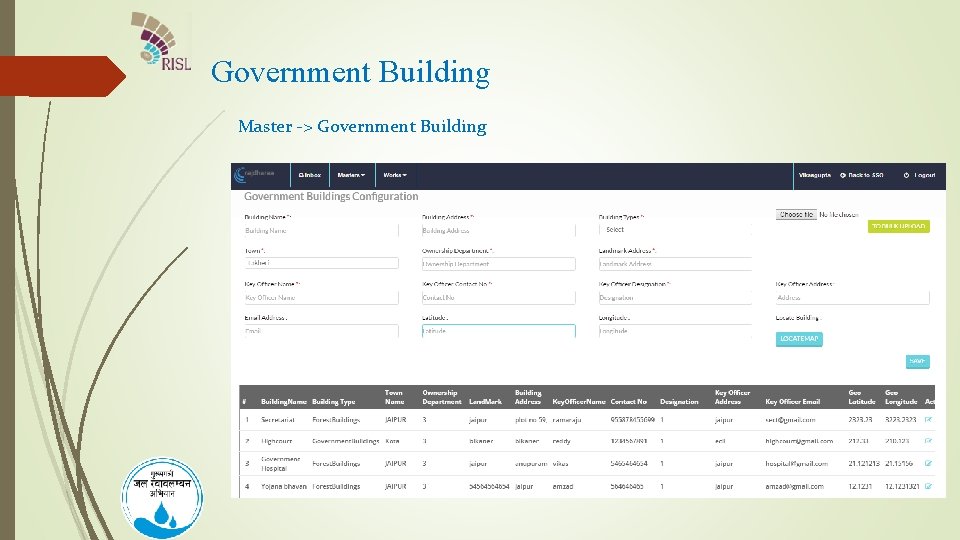
Government Building Master -> Government Building
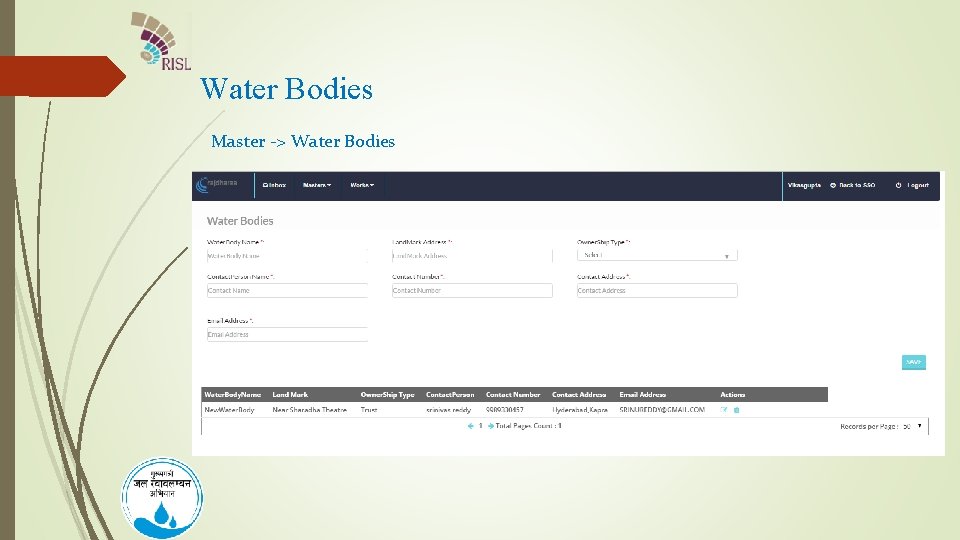
Water Bodies Master -> Water Bodies
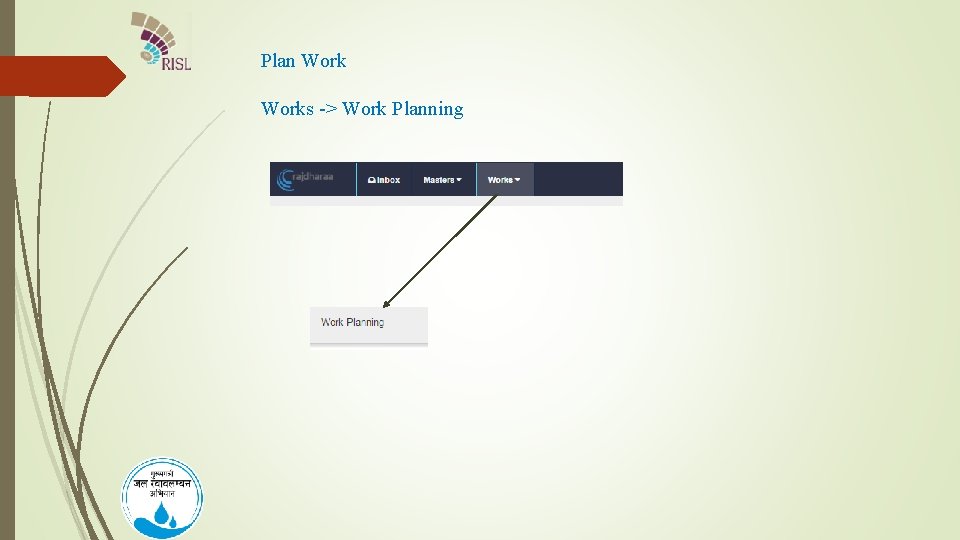
Plan Works -> Work Planning
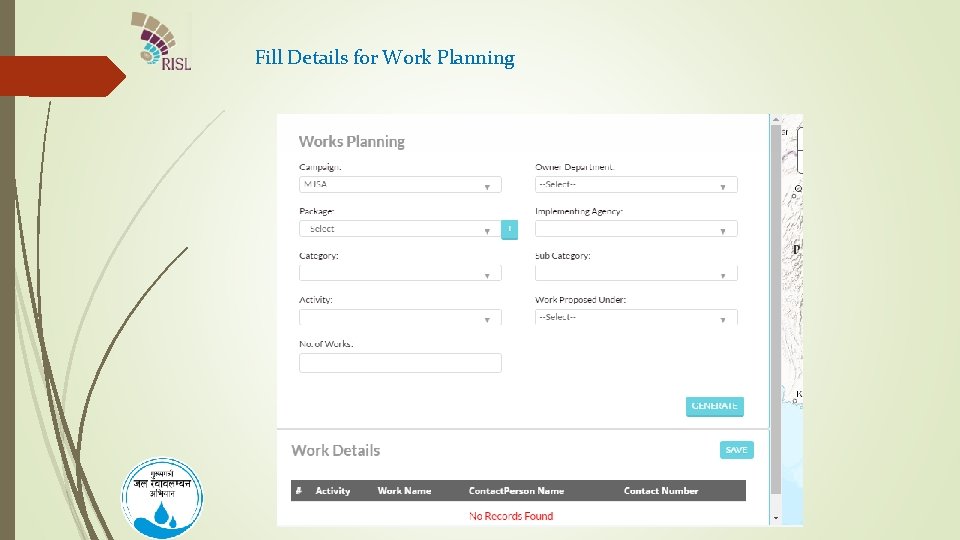
Fill Details for Work Planning
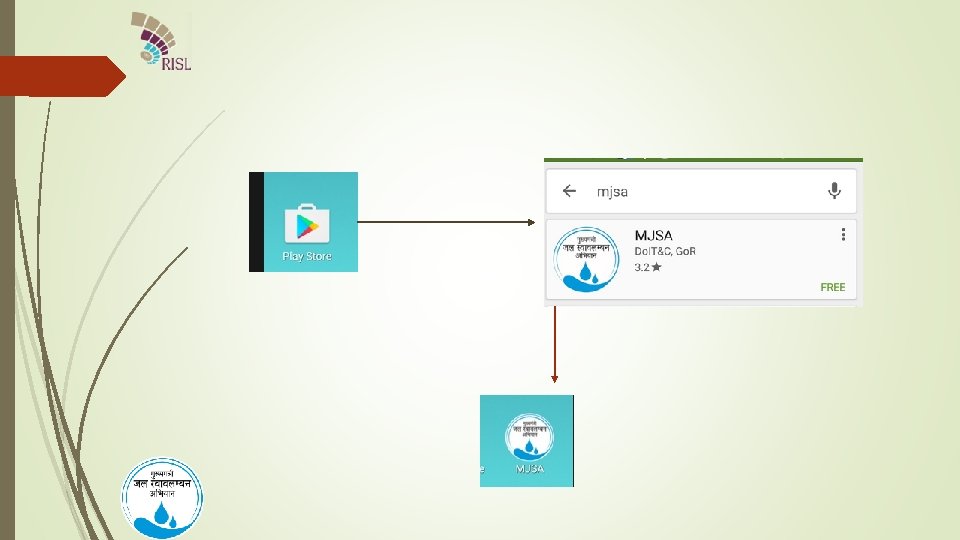
Geo Tagging & Image Capturing of Plan Works Through “MJSA” Mobile Application
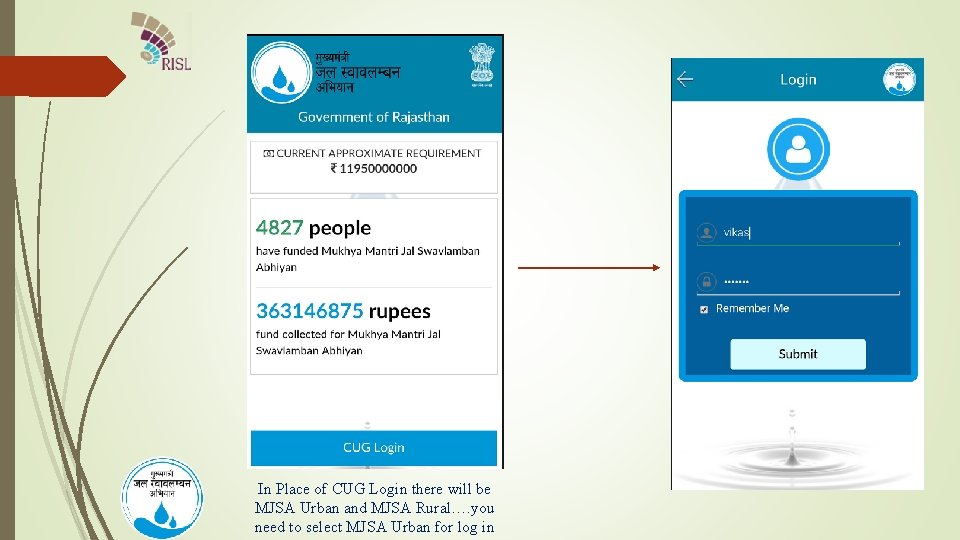
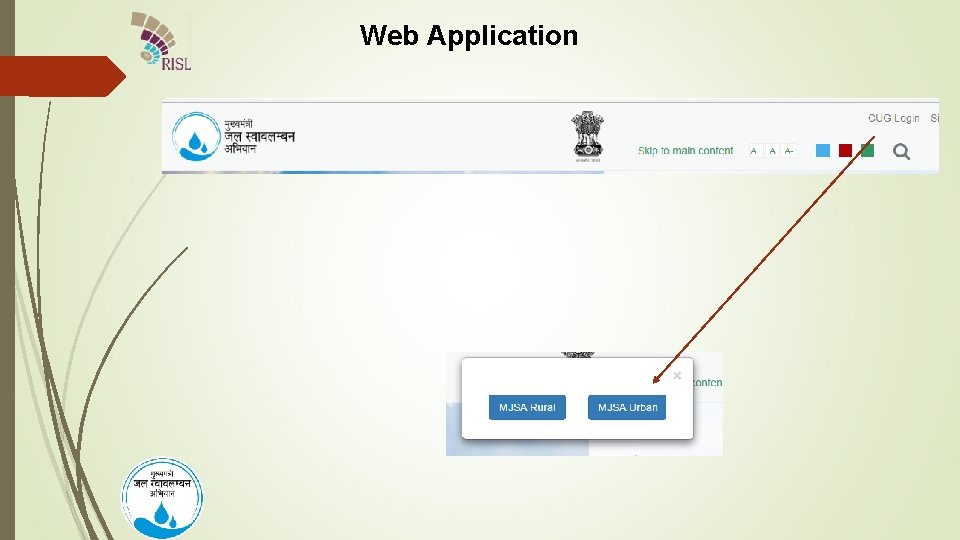
In Place of CUG Login there will be MJSA Urban and MJSA Rural…. you need to select MJSA Urban for log in
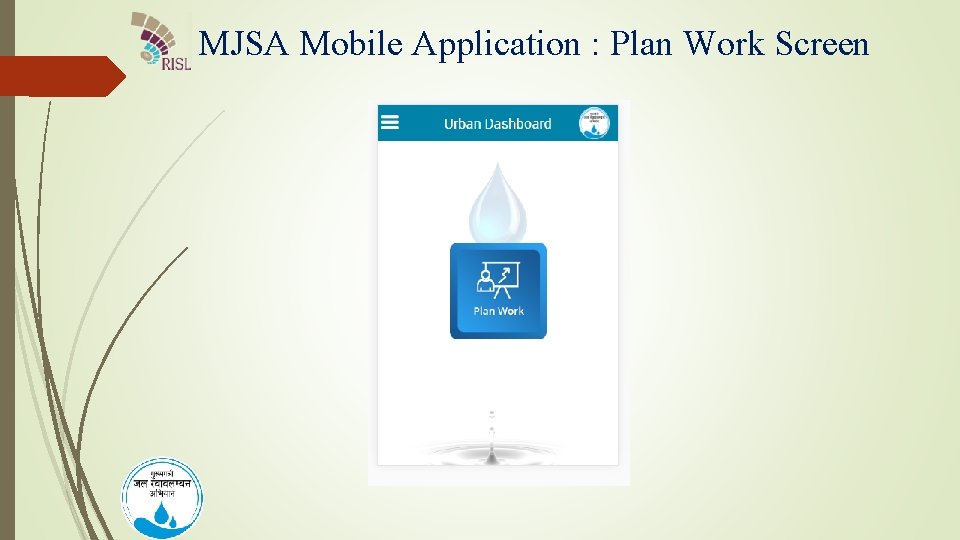
MJSA Mobile Application : Plan Work Screen
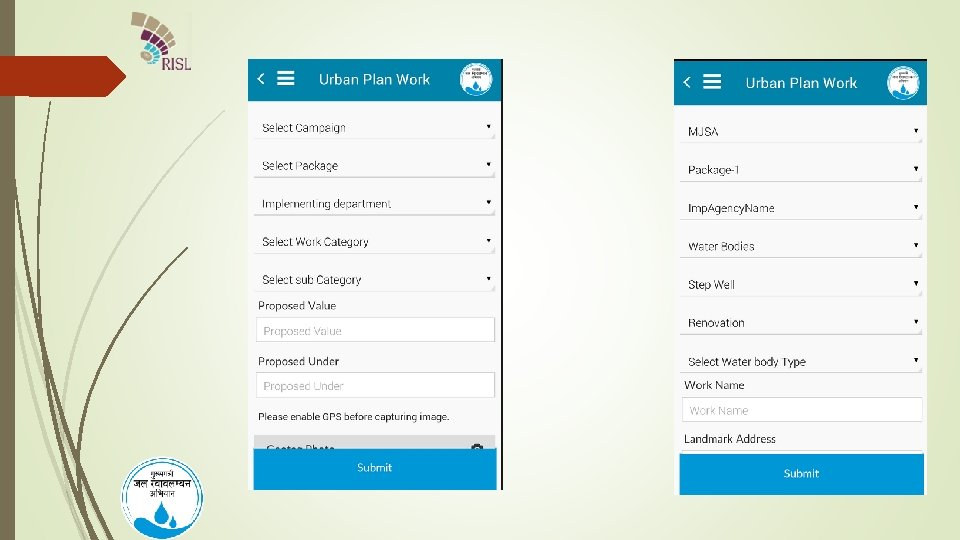
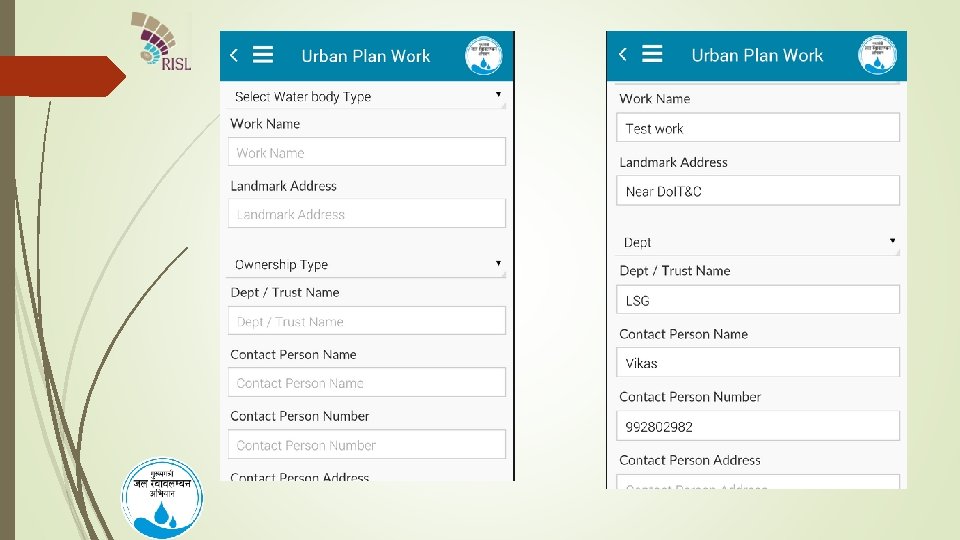
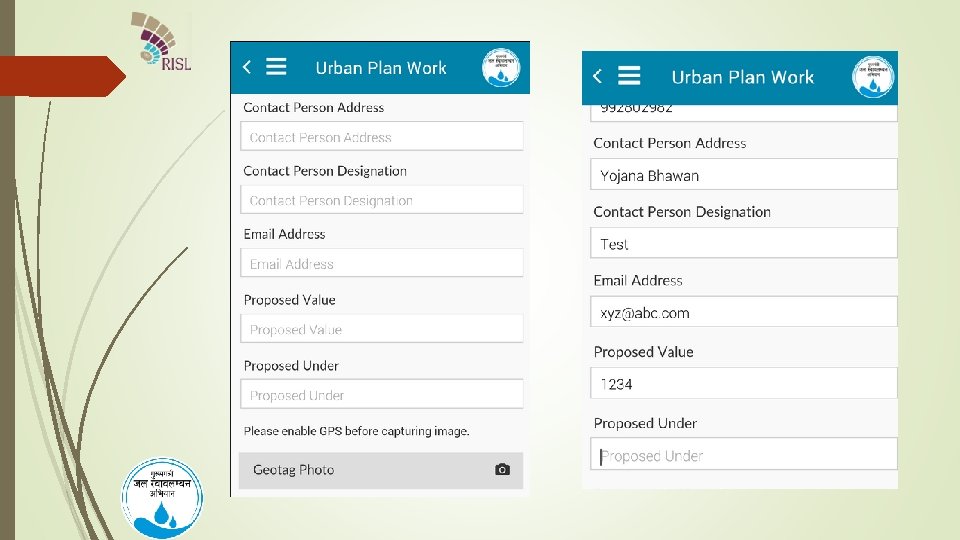
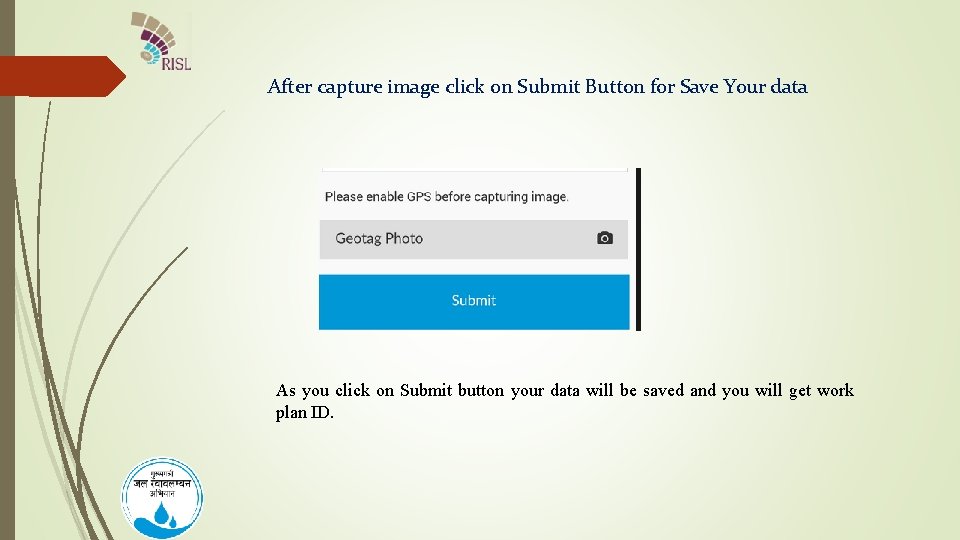
After capture image click on Submit Button for Save Your data As you click on Submit button your data will be saved and you will get work plan ID.
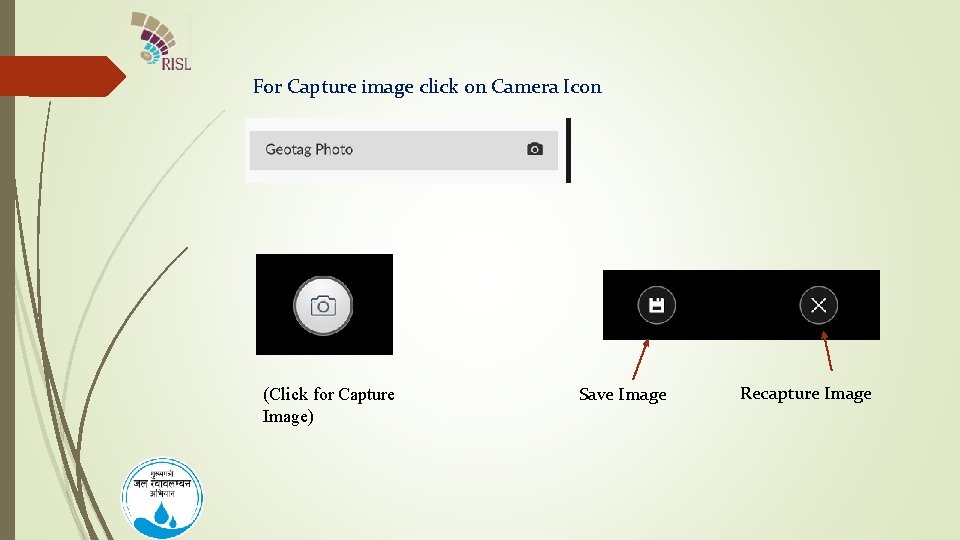
For Capture image click on Camera Icon (Click for Capture Image) Save Image Recapture Image
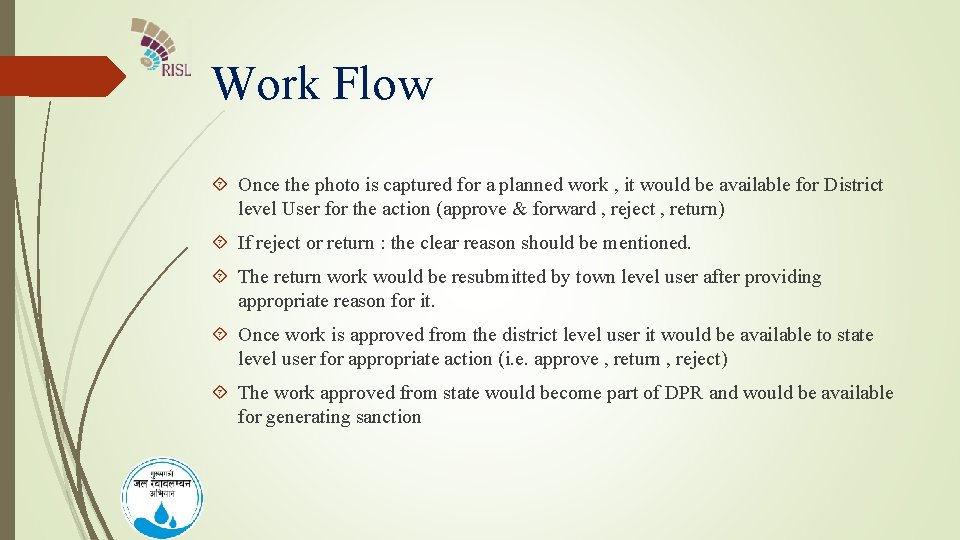
Work Flow Once the photo is captured for a planned work , it would be available for District level User for the action (approve & forward , reject , return) If reject or return : the clear reason should be mentioned. The return work would be resubmitted by town level user after providing appropriate reason for it. Once work is approved from the district level user it would be available to state level user for appropriate action (i. e. approve , return , reject) The work approved from state would become part of DPR and would be available for generating sanction
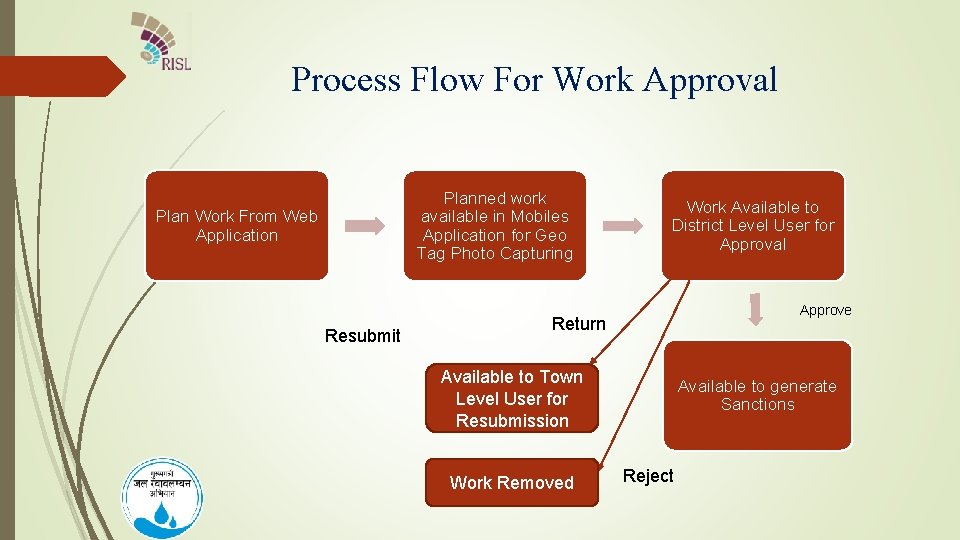
Process Flow For Work Approval Planned work available in Mobiles Application for Geo Tag Photo Capturing Plan Work From Web Application Resubmit Work Available to District Level User for Approval Approve Return Available to Town Level User for Resubmission Work Removed Available to generate Sanctions Reject
Master Configuration
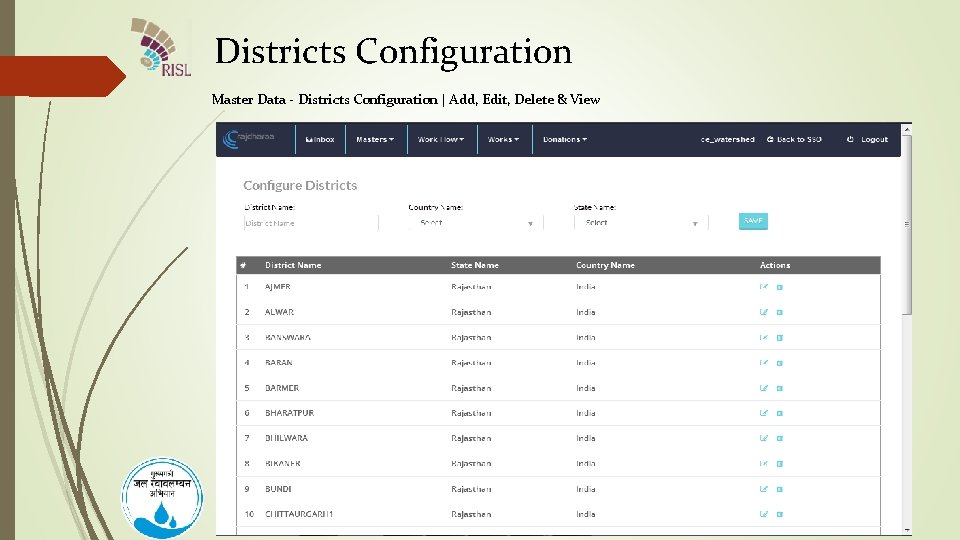
Districts Configuration Master Data - Districts Configuration | Add, Edit, Delete & View 28
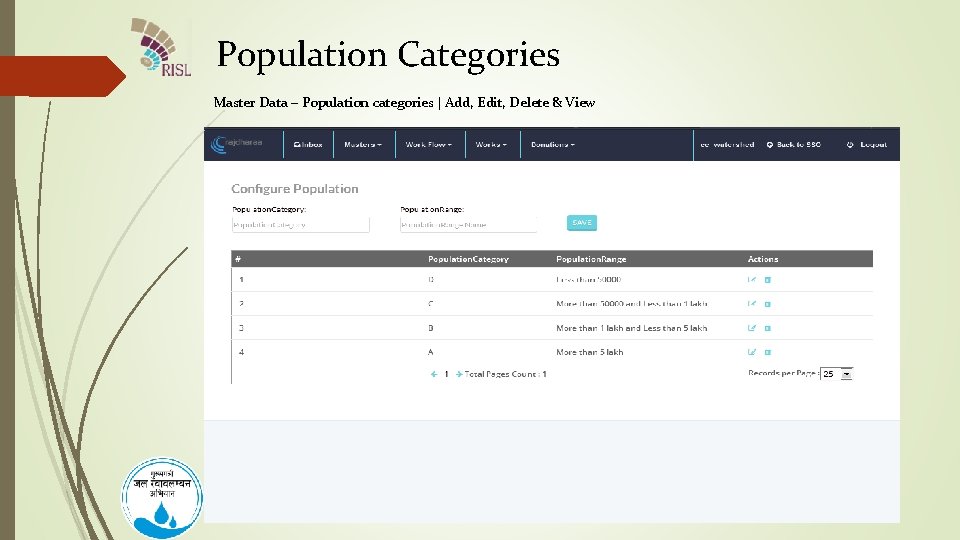
Population Categories Master Data – Population categories | Add, Edit, Delete & View
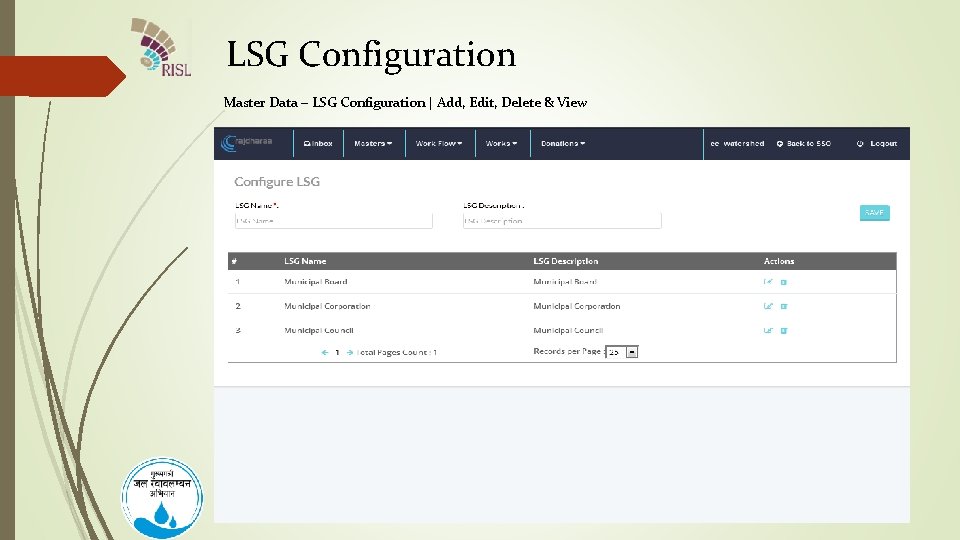
LSG Configuration Master Data – LSG Configuration | Add, Edit, Delete & View
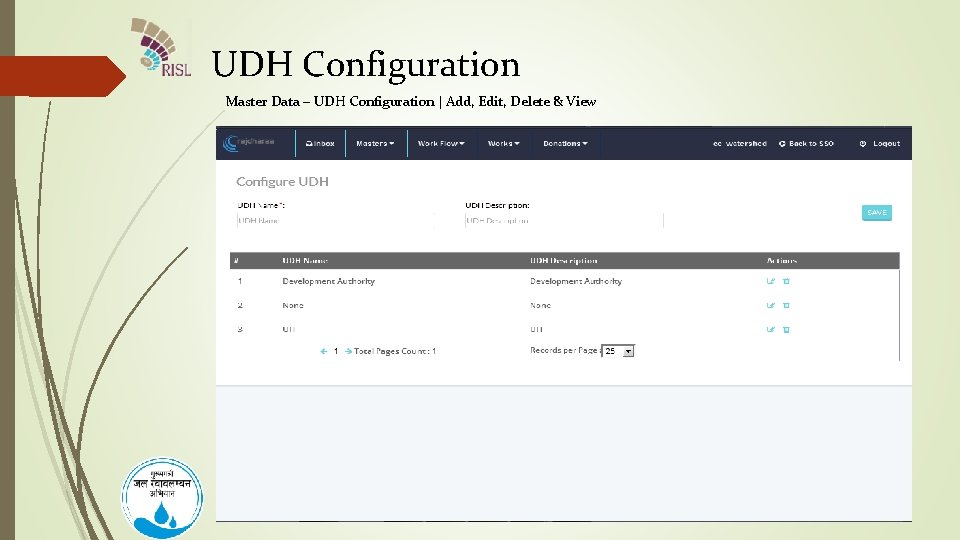
UDH Configuration Master Data – UDH Configuration | Add, Edit, Delete & View
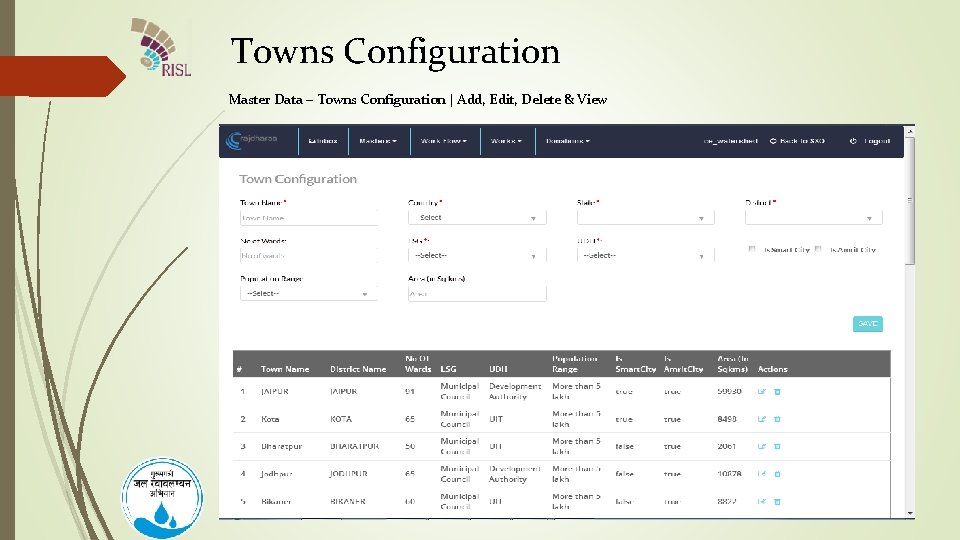
Towns Configuration Master Data – Towns Configuration | Add, Edit, Delete & View
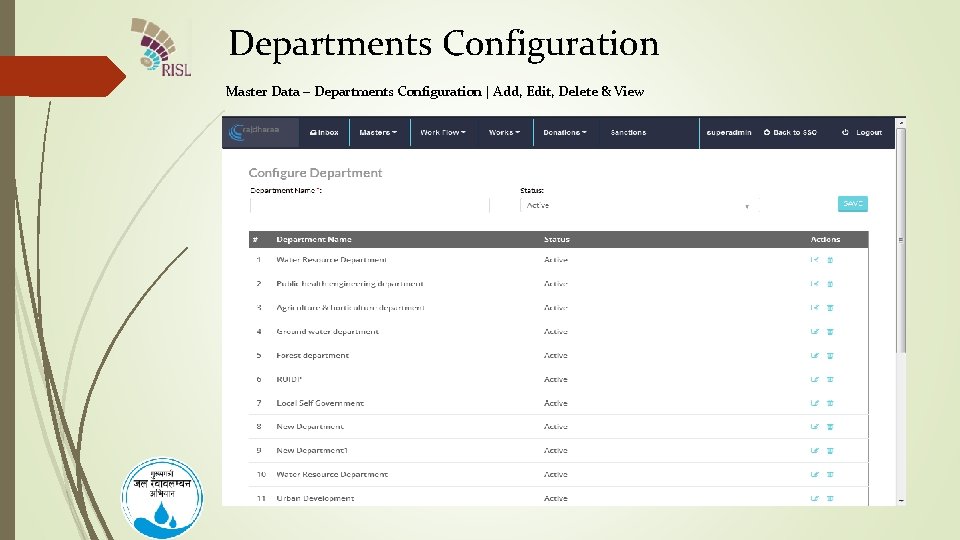
Departments Configuration Master Data – Departments Configuration | Add, Edit, Delete & View
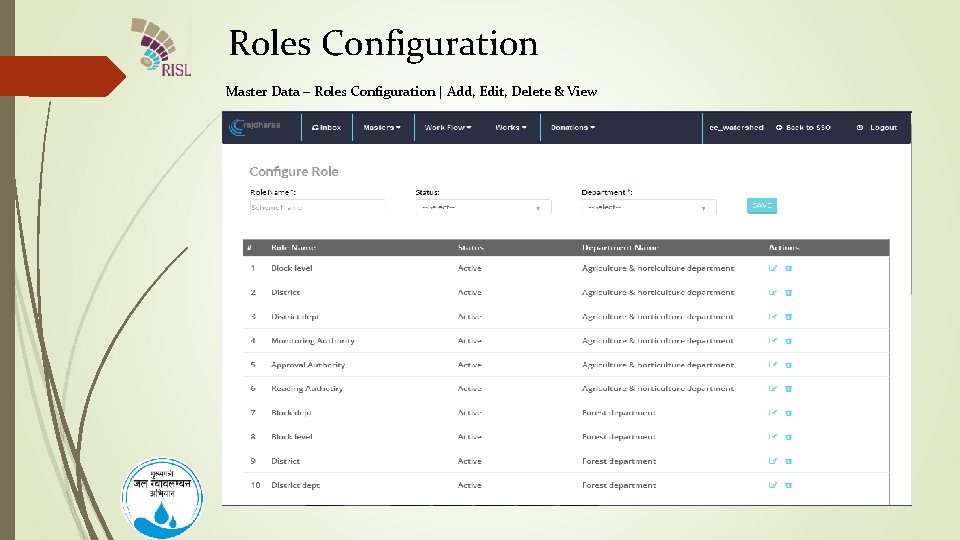
Roles Configuration Master Data – Roles Configuration | Add, Edit, Delete & View
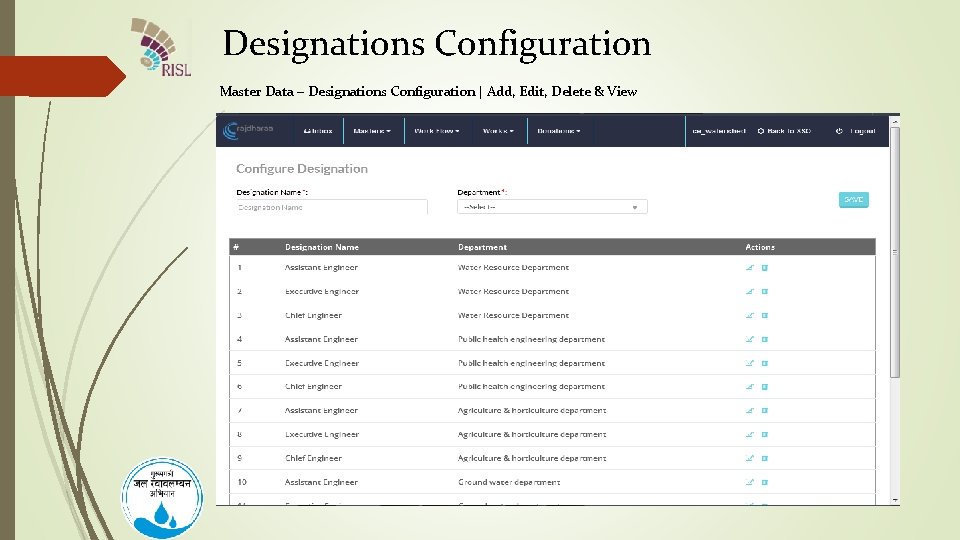
Designations Configuration Master Data – Designations Configuration | Add, Edit, Delete & View
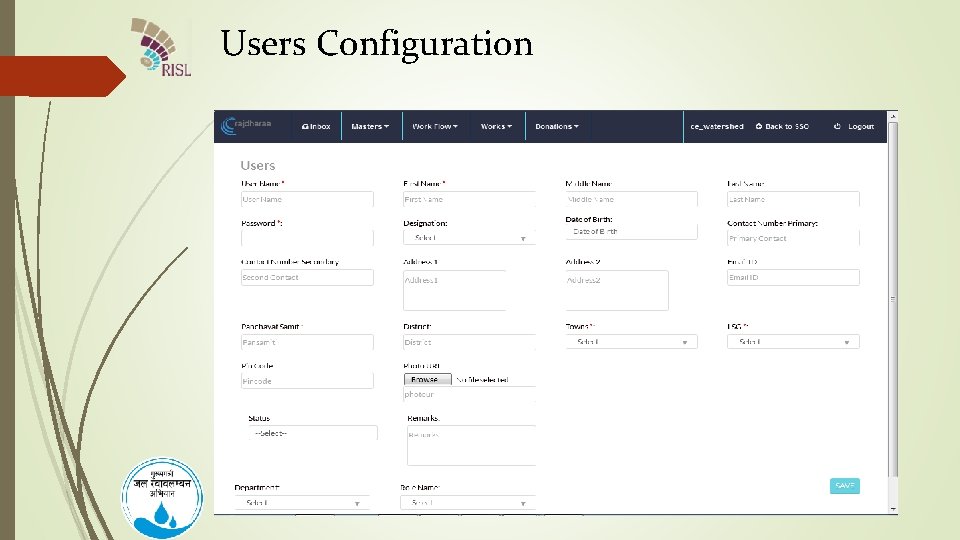
Users Configuration 36
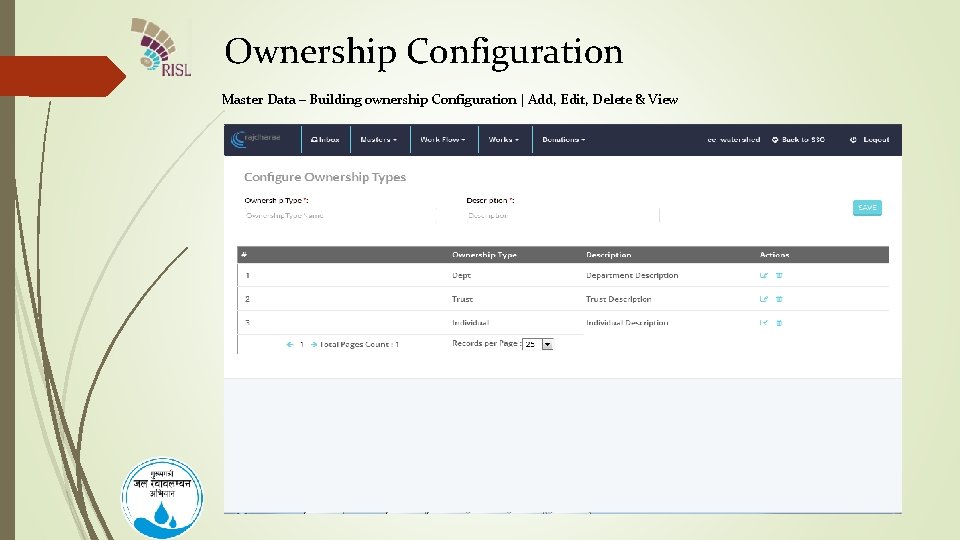
Ownership Configuration Master Data – Building ownership Configuration | Add, Edit, Delete & View
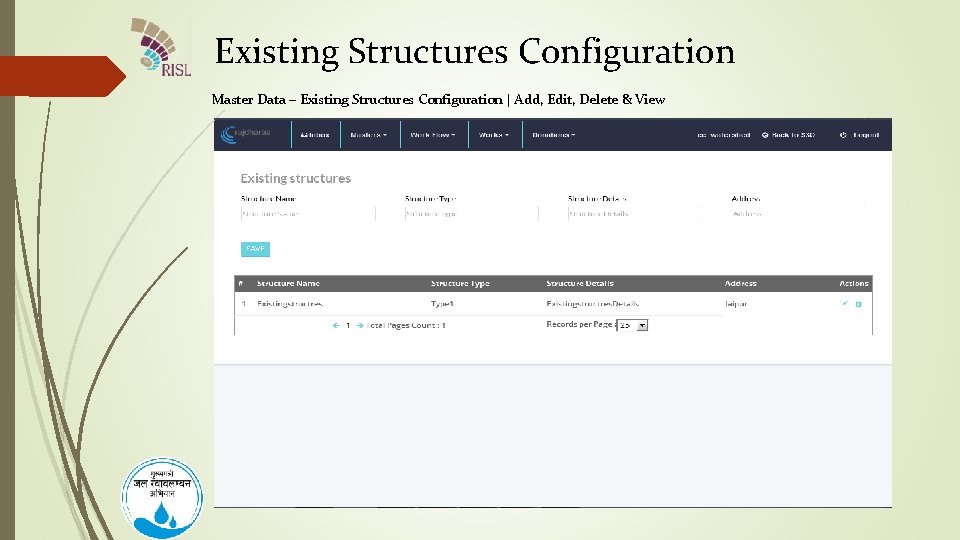
Existing Structures Configuration Master Data – Existing Structures Configuration | Add, Edit, Delete & View
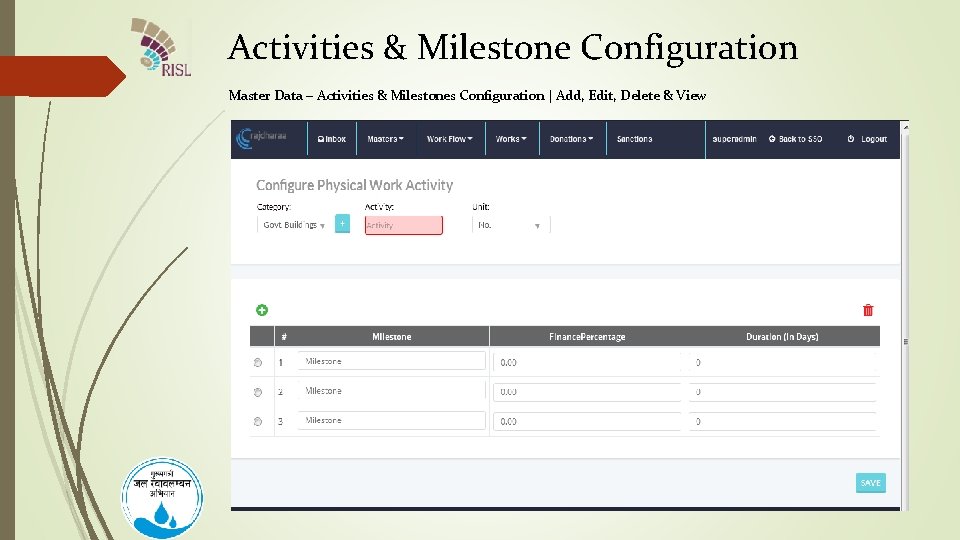
Activities & Milestone Configuration Master Data – Activities & Milestones Configuration | Add, Edit, Delete & View
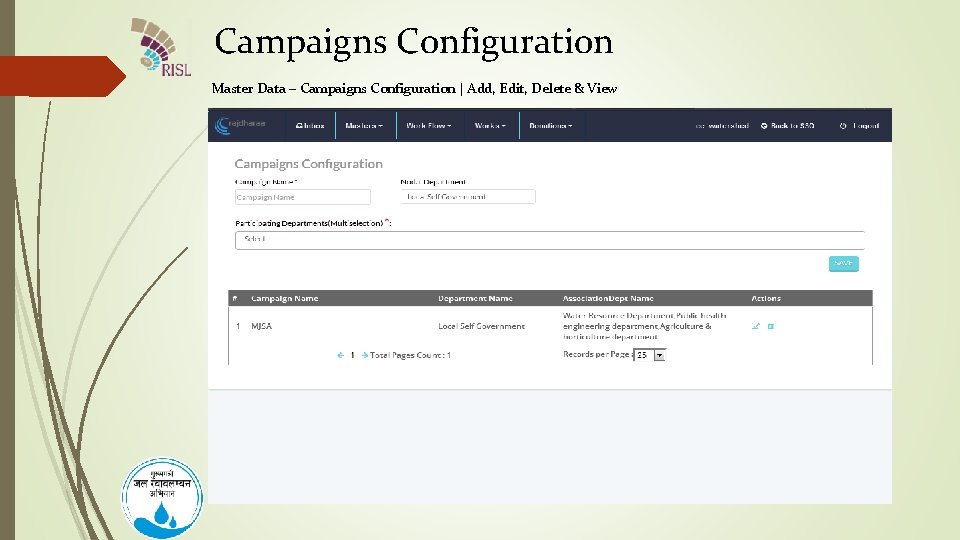
Campaigns Configuration Master Data – Campaigns Configuration | Add, Edit, Delete & View
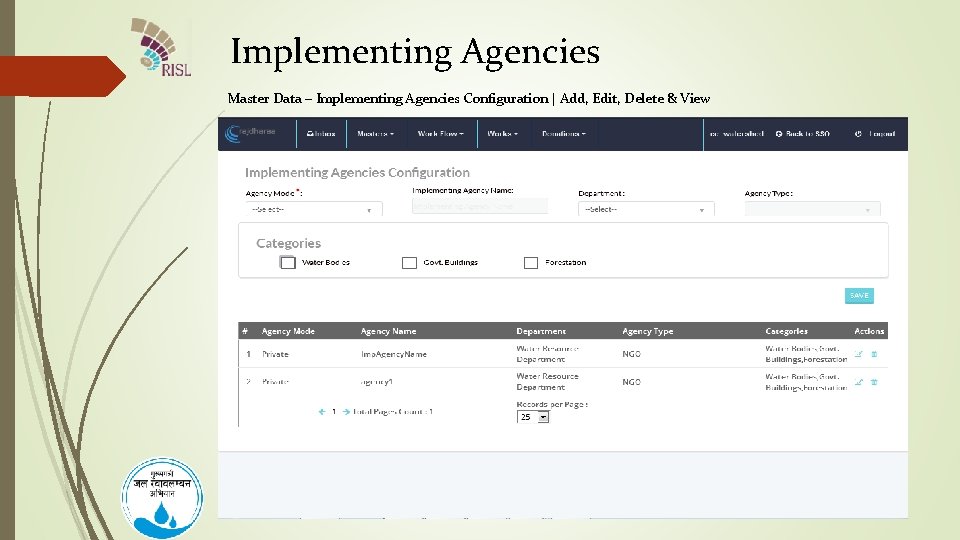
Implementing Agencies Master Data – Implementing Agencies Configuration | Add, Edit, Delete & View
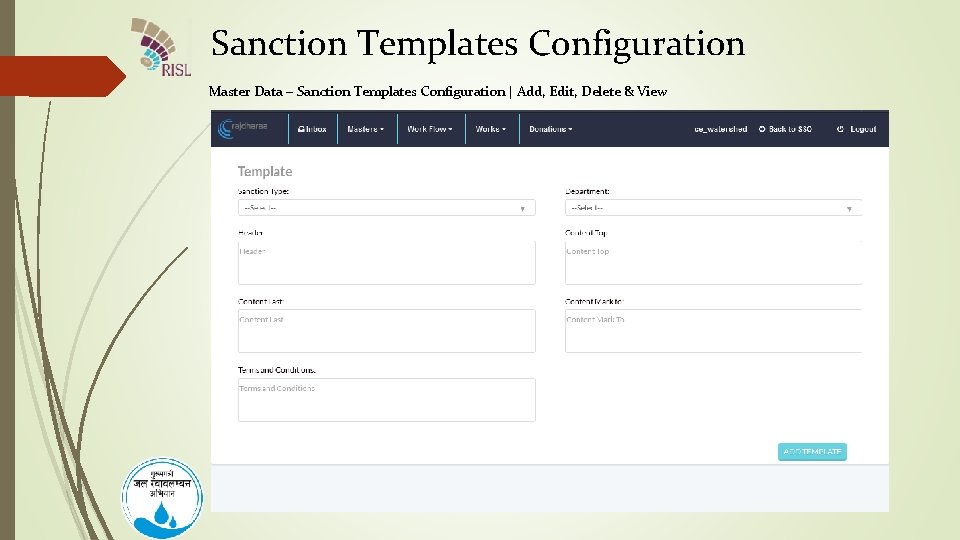
Sanction Templates Configuration Master Data – Sanction Templates Configuration | Add, Edit, Delete & View
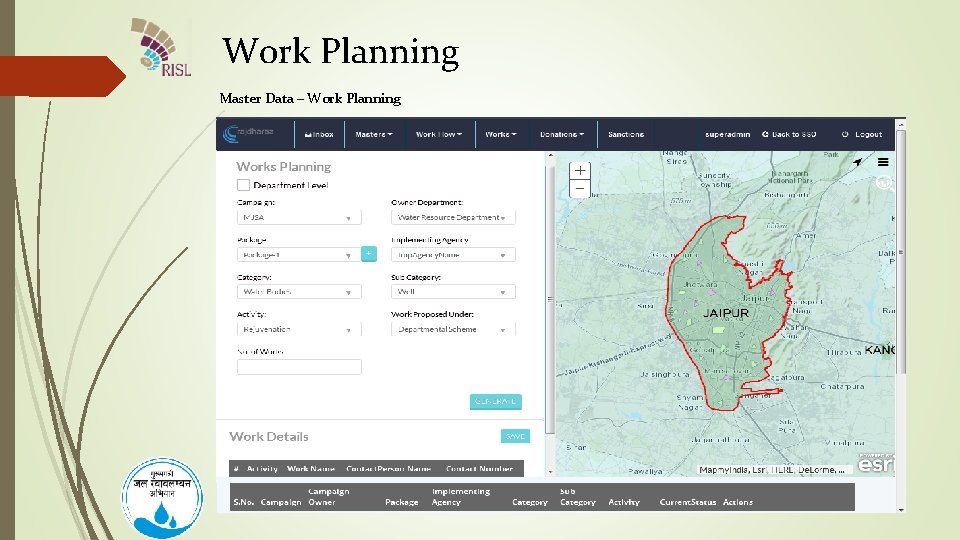
Work Planning Master Data – Work Planning
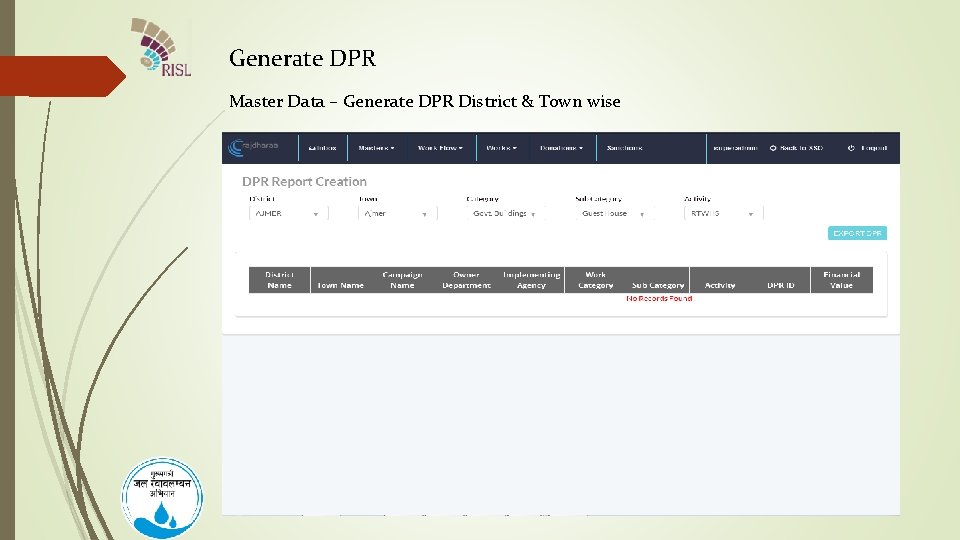
Generate DPR Master Data – Generate DPR District & Town wise
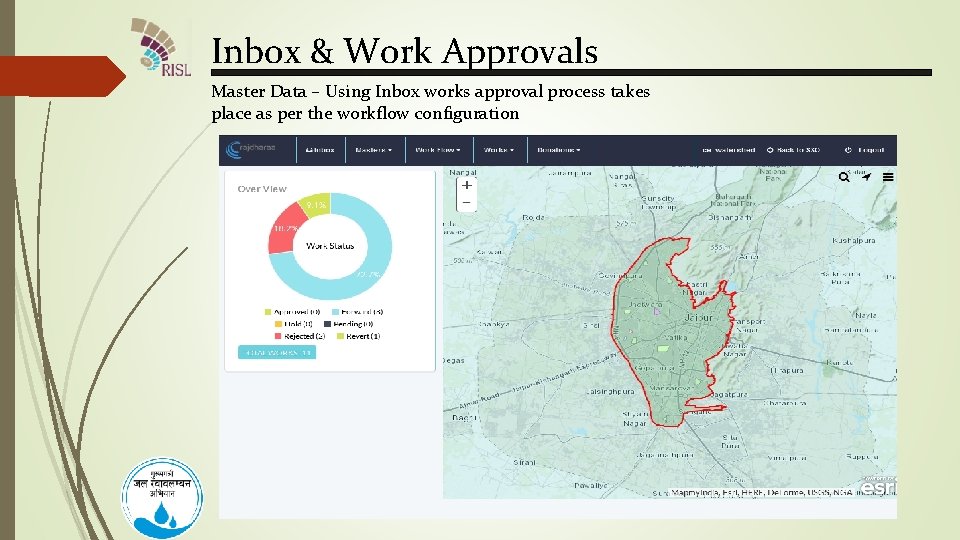
Inbox & Work Approvals Master Data – Using Inbox works approval process takes place as per the workflow configuration
Thank You
Umeshcj. doit@rajasthan. gov. in Vikasgupta. doit@rajasthan. gov. in Itcell. dlbjaipur@gmail. com Vikas (IA) – 9928029821 Umesh Joshi - 9694418180
- Slides: 47