
Preparing for Residency Application Amy KS Bockis Coordinator
Preparing for Residency Application Amy KS Bockis Coordinator, Student Programs Office of Student Affairs
Medical Student Performance Evaluation (MSPE) � You will receive an email mid-May regarding scheduling your appointment � Appointments are scheduled from July – October. No appointments after Oct. 1 st
What you need to bring to your MSPE meeting � C. V. (two copies)- one copy goes into your file in the Student Affairs Office � Personal Statement (two copies)- one copy to be placed in your file in the Student Affairs Office � Title of MSR project and preceptor › List the formal name of your preceptor � Name of Faculty Advisor
Reviewing the MSPE � You will receive an email (from Christi Patrick) when your letter is ready for you to review � You may review your letter once � The last day to review your letter: TBD � Changes may not be made to clerkship and/or elective summary comments
What happens with the MSPE? � The MSPE is transmitted via ERAS on October 1 st.
Transcripts � Review your transcript now at https: //elion. oas. psu. edu/ � Contact Lindy Plevelich (lplevelich@hmc. psu. edu) or Diane Gill (dgill@hmc. psu. edu) with questions regarding your transcript (531 -4105) � Your transcript will be uploaded twice (early September and early November)
Electronic Residency Application Service (ERAS) � My. ERAS opens to applicants July 1, 2012 � You will receive a “token” or password and your AAMC ID via email from the Office of Student Affairs late June. 032106487513 C 9
Applicant E-mail: abockis@hmc. psu. edu -----------------------ERAS Electronic Token 2012 Token ID: 032106487513 C 9 Name: USMLE ID: DOB: SSN: Bockis, Amy Kay Smith 07/24/1981 The alpha numeric characters printed above is your ERAS Electronic Token. This electronic token allows you to register at the My. ERAS web site so that you can begin completing your application for ERAS 2010. The token is only used once, the first time you go to My. ERAS and register. When using your token, type it, without spaces or dashes. Point your web browser to http: //services. aamc. org/eras/myeras/ Click on the Register button to get to the Registration page. Carefully type your Token ID correctly and fill out all required fields. The Registration page can only be accessed once; therefore, be sure to enter in all information accurately.
Processing your ERAS application materials � Your application can be sent progressively � Residency Programs can start reviewing applications September 15 th � Don’t procrastinate!
What is the deadline for ERAS? � Individual programs set deadlines � Contact the programs directly for more info. about their requirements, facilities, and deadlines � The Office of Student Affairs does not set a deadline. We process your documents as we receive them
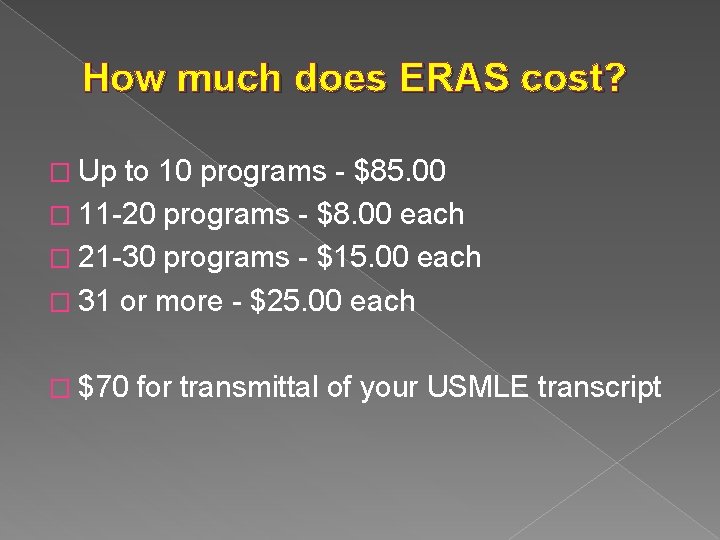
How much does ERAS cost? � Up to 10 programs - $85. 00 � 11 -20 programs - $8. 00 each � 21 -30 programs - $15. 00 each � 31 or more - $25. 00 each � $70 for transmittal of your USMLE transcript
What will the Office of Student Affairs do for you? Collect letters of recommendation Email you when we receive a Lo. R Process your medical school transcript (you do not need to order an official transcript for ERAS) � Scan your Lo. R, MSPE and transcript � Assist with Personal Statement, C. V. , Interviewing Skills, Assessing Specialty Competitiveness, etc. � � �
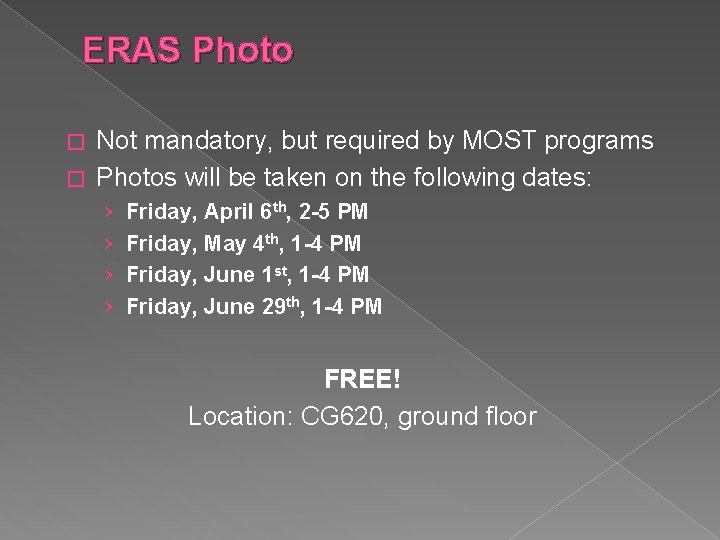
ERAS Photo Not mandatory, but required by MOST programs � Photos will be taken on the following dates: � › › Friday, April 6 th, 2 -5 PM Friday, May 4 th, 1 -4 PM Friday, June 1 st, 1 -4 PM Friday, June 29 th, 1 -4 PM FREE! Location: CG 620, ground floor
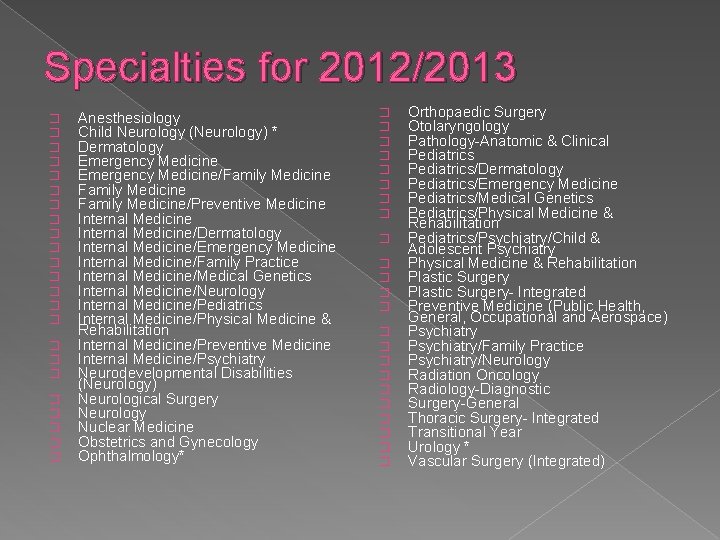
Specialties for 2012/2013 � � � � � � Anesthesiology Child Neurology (Neurology) * Dermatology Emergency Medicine/Family Medicine/Preventive Medicine Internal Medicine/Dermatology Internal Medicine/Emergency Medicine Internal Medicine/Family Practice Internal Medicine/Medical Genetics Internal Medicine/Neurology Internal Medicine/Pediatrics Internal Medicine/Physical Medicine & Rehabilitation Internal Medicine/Preventive Medicine Internal Medicine/Psychiatry Neurodevelopmental Disabilities (Neurology) Neurological Surgery Neurology Nuclear Medicine Obstetrics and Gynecology Ophthalmology* � � � � � � Orthopaedic Surgery Otolaryngology Pathology-Anatomic & Clinical Pediatrics/Dermatology Pediatrics/Emergency Medicine Pediatrics/Medical Genetics Pediatrics/Physical Medicine & Rehabilitation Pediatrics/Psychiatry/Child & Adolescent Psychiatry Physical Medicine & Rehabilitation Plastic Surgery- Integrated Preventive Medicine (Public Health, General, Occupational and Aerospace) Psychiatry/Family Practice Psychiatry/Neurology Radiation Oncology Radiology-Diagnostic Surgery-General Thoracic Surgery- Integrated Transitional Year Urology * Vascular Surgery (Integrated)
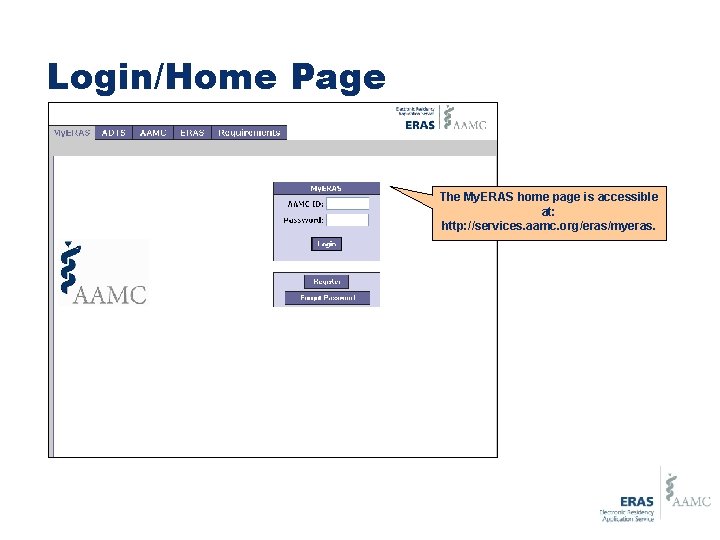
Login/Home Page The My. ERAS home page is accessible at: http: //services. aamc. org/eras/myeras. /
Registration
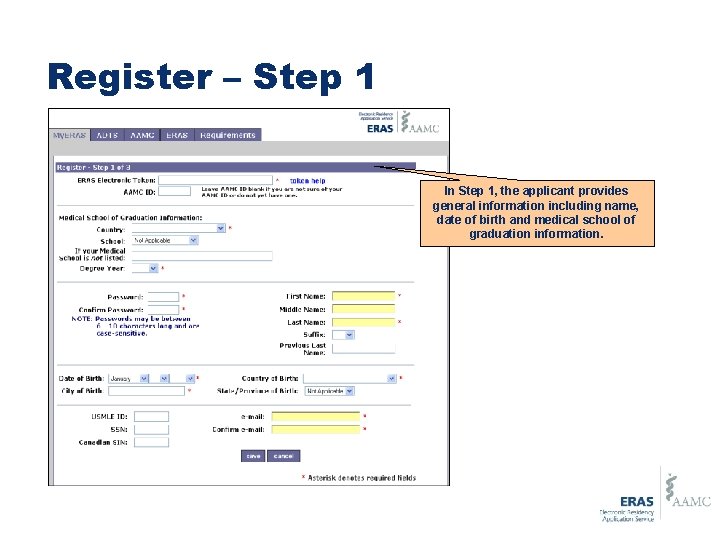
Register – Step 1 In Step 1, the applicant provides general information including name, date of birth and medical school of graduation information.
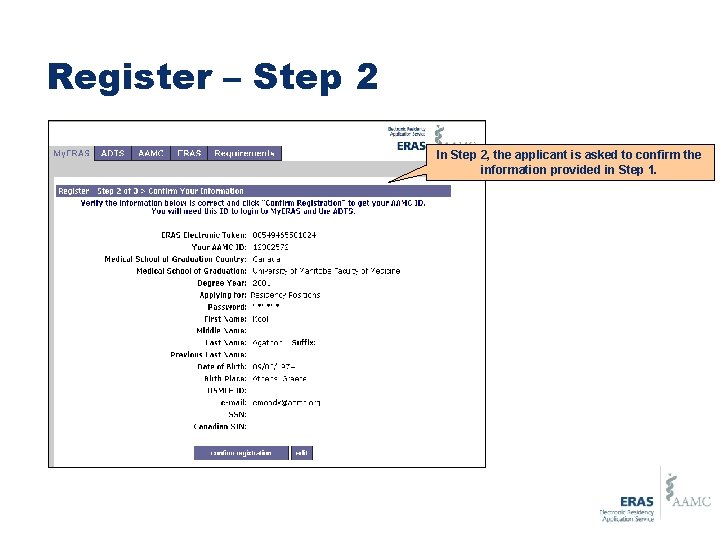
Register – Step 2 In Step 2, the applicant is asked to confirm the information provided in Step 1.
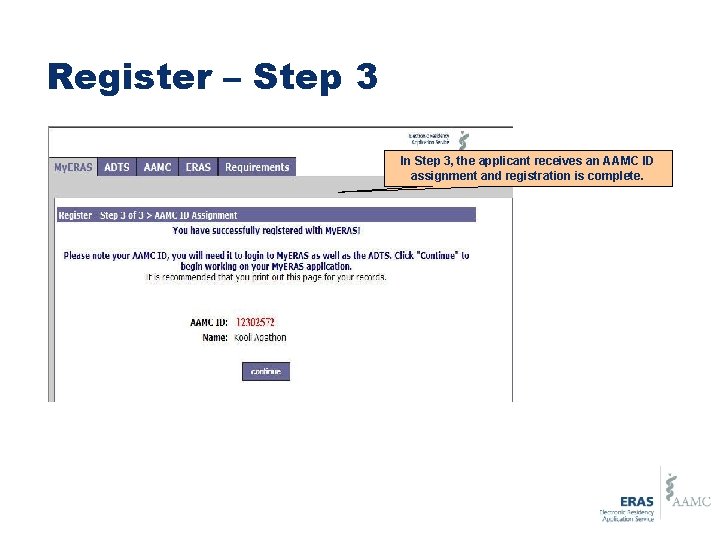
Register – Step 3 In Step 3, the applicant receives an AAMC ID assignment and registration is complete.
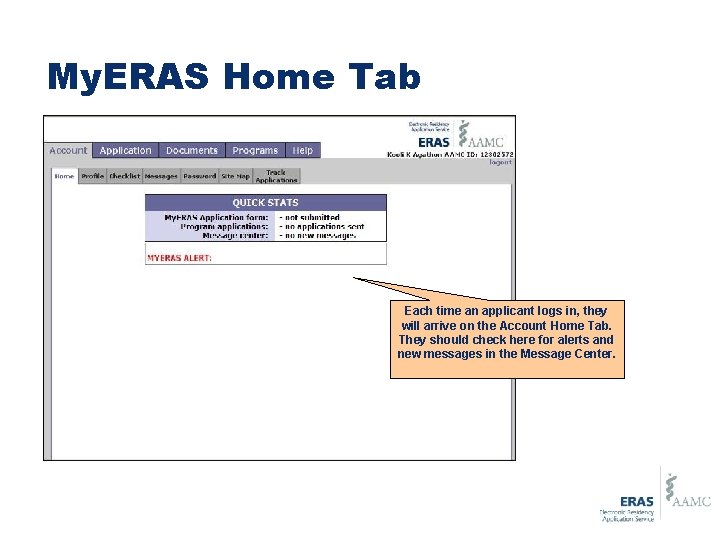
My. ERAS Home Tab Each time an applicant logs in, they will arrive on the Account Home Tab. They should check here for alerts and new messages in the Message Center.
My. ERAS Profile
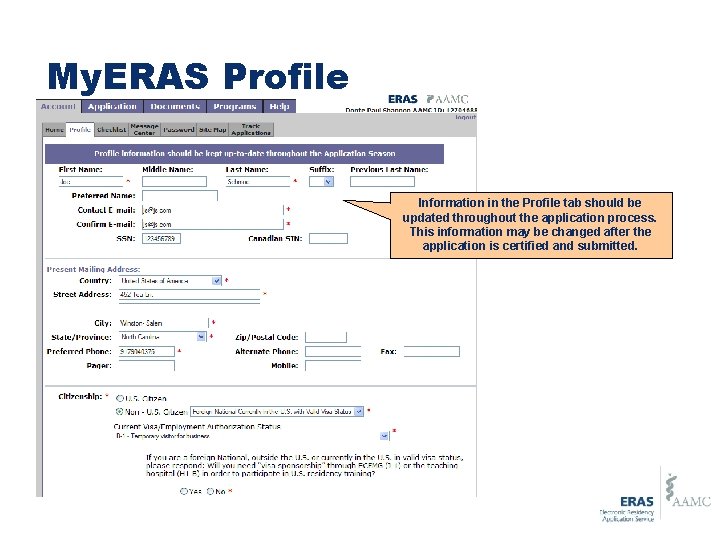
My. ERAS Profile Information in the Profile tab should be updated throughout the application process. This information may be changed after the application is certified and submitted.
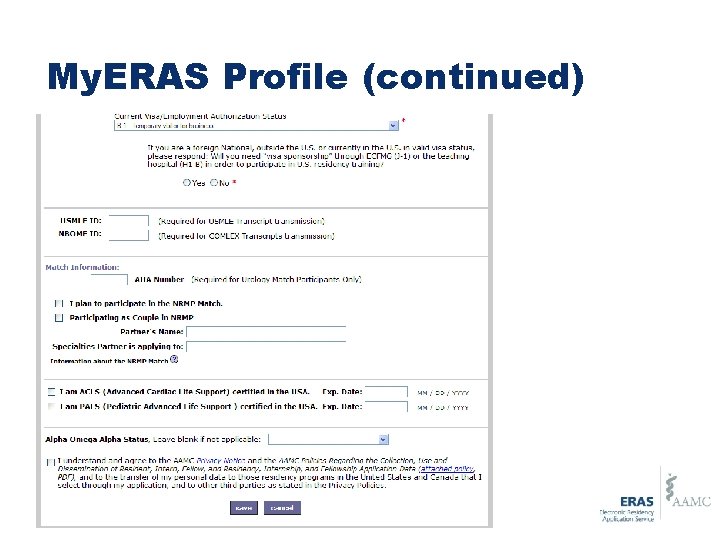
My. ERAS Profile (continued)
The My. ERAS Application
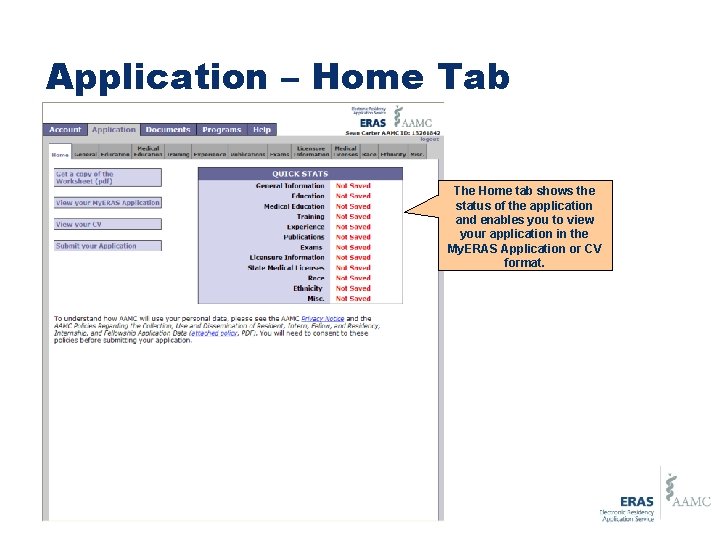
Application – Home Tab The Home tab shows the status of the application and enables you to view your application in the My. ERAS Application or CV format.
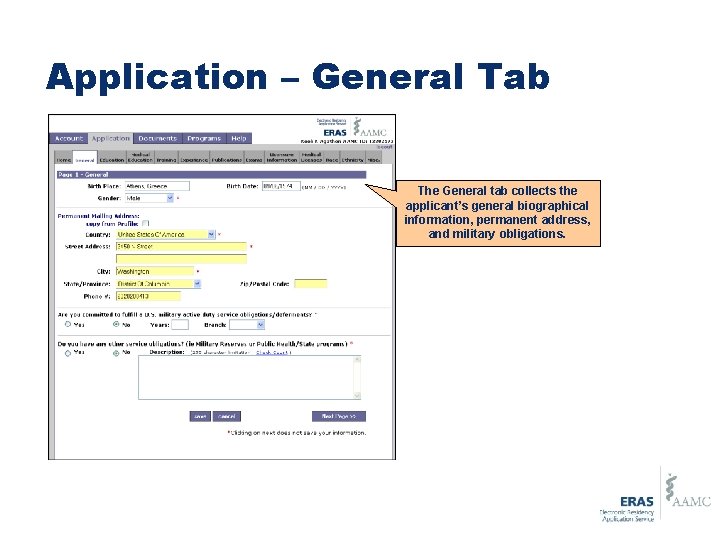
Application – General Tab The General tab collects the applicant’s general biographical information, permanent address, and military obligations.
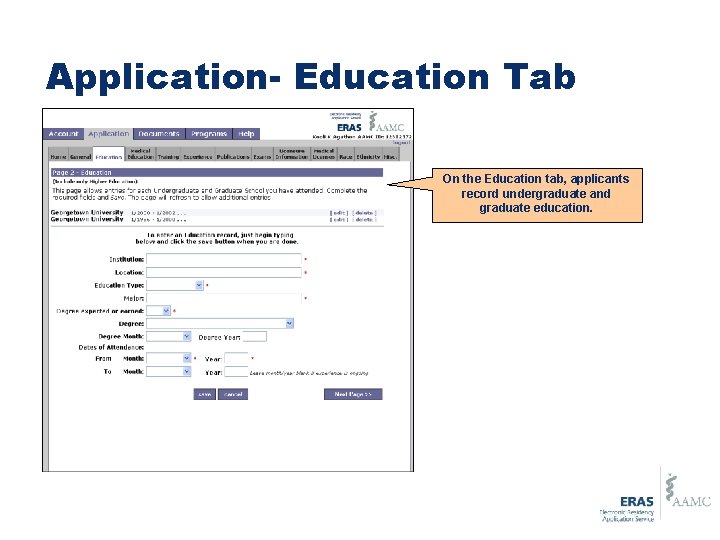
Application- Education Tab On the Education tab, applicants record undergraduate and graduate education.
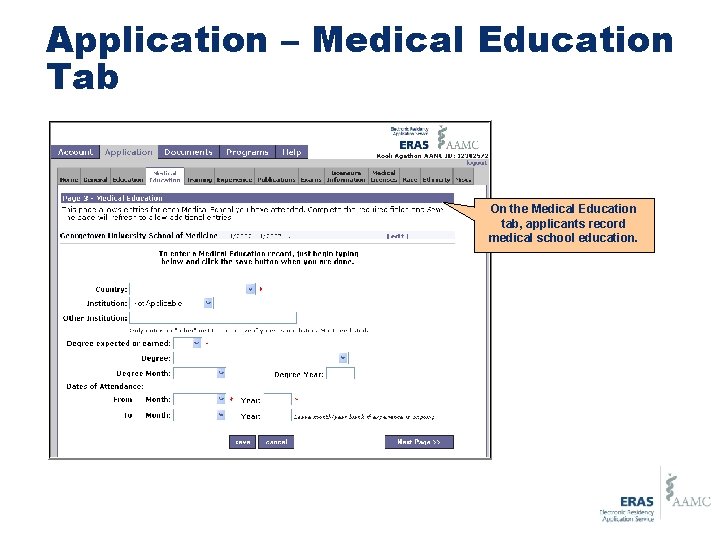
Application – Medical Education Tab On the Medical Education tab, applicants record medical school education.
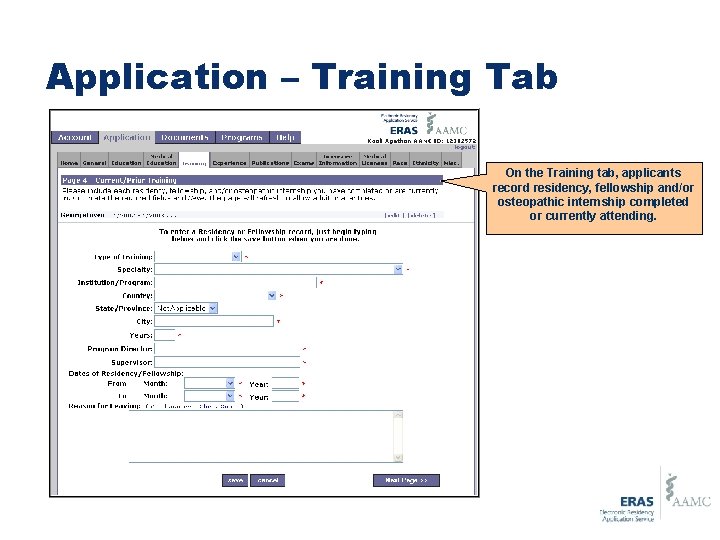
Application – Training Tab On the Training tab, applicants record residency, fellowship and/or osteopathic internship completed or currently attending.
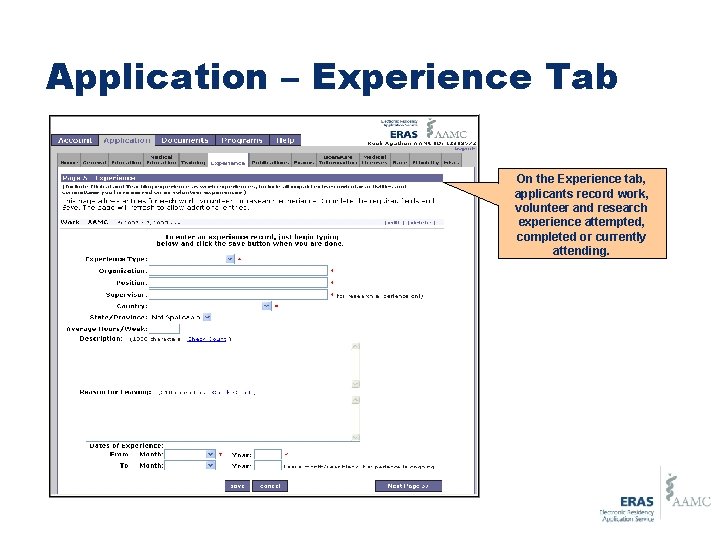
Application – Experience Tab On the Experience tab, applicants record work, volunteer and research experience attempted, completed or currently attending.
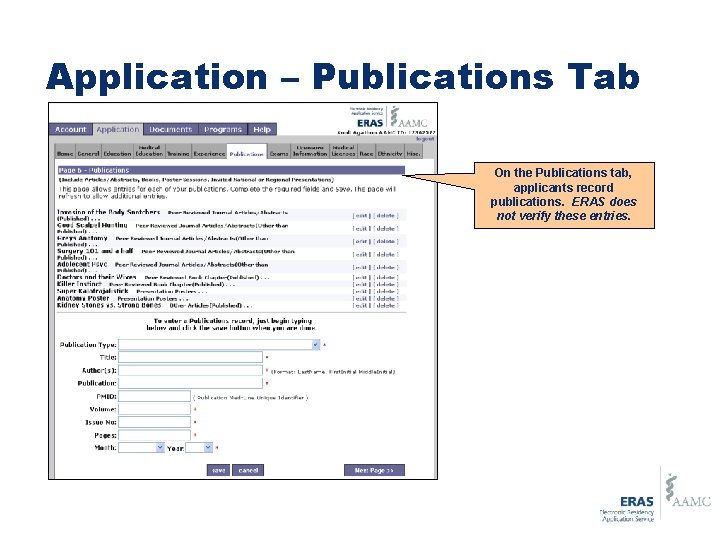
Application – Publications Tab On the Publications tab, applicants record publications. ERAS does not verify these entries.
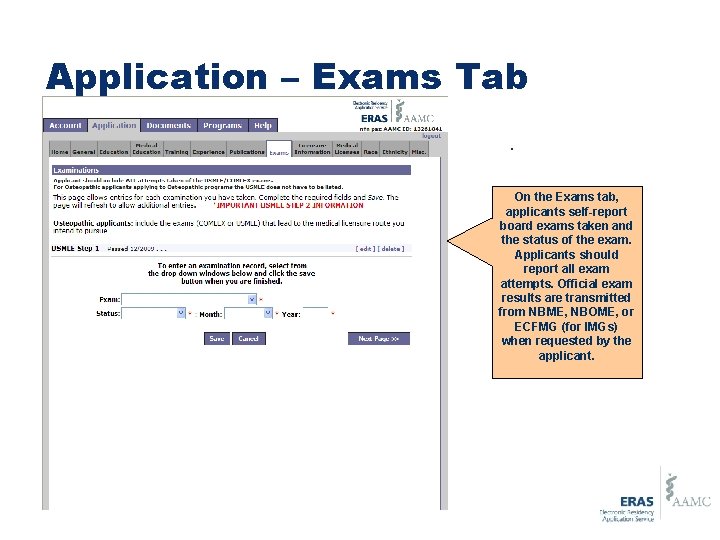
Application – Exams Tab. On the Exams tab, applicants self-report board exams taken and the status of the exam. Applicants should report all exam attempts. Official exam results are transmitted from NBME, NBOME, or ECFMG (for IMGs) when requested by the applicant.
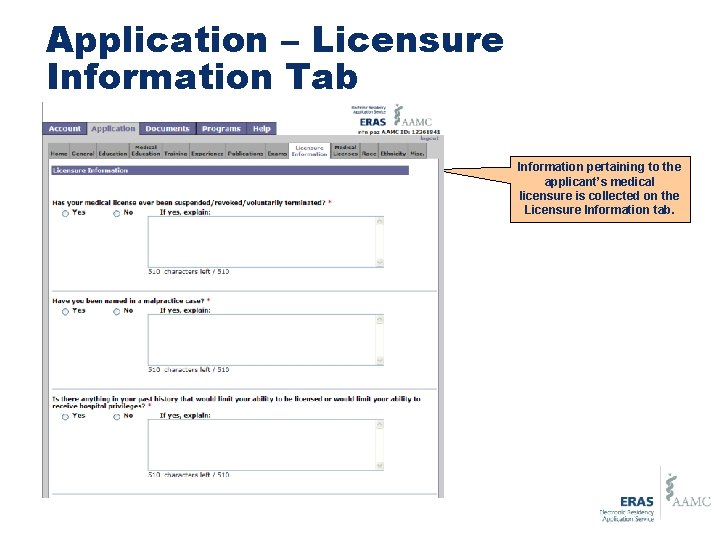
Application – Licensure Information Tab Information pertaining to the applicant’s medical licensure is collected on the Licensure Information tab.
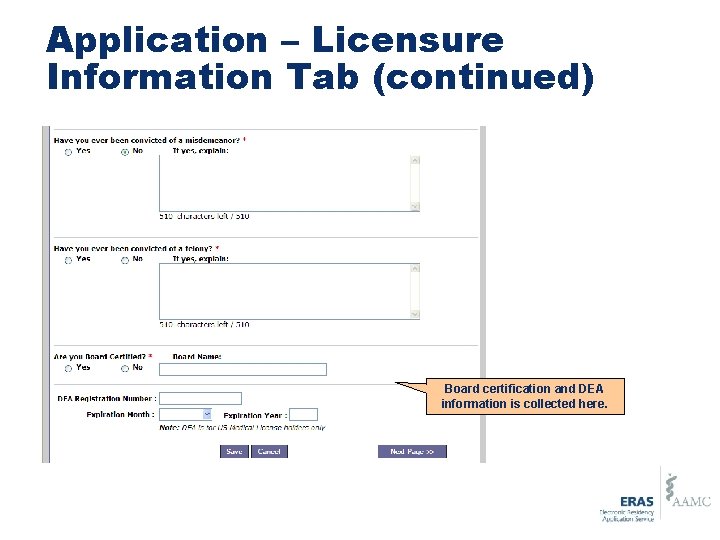
Application – Licensure Information Tab (continued) Board certification and DEA information is collected here.
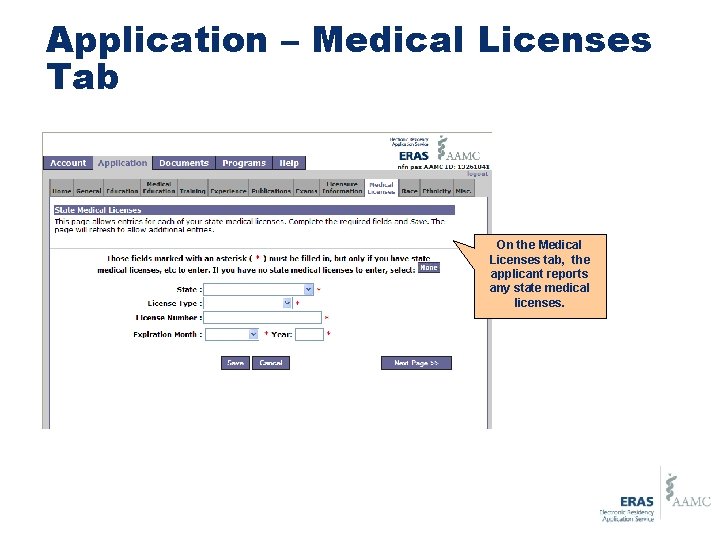
Application – Medical Licenses Tab On the Medical Licenses tab, the applicant reports any state medical licenses.
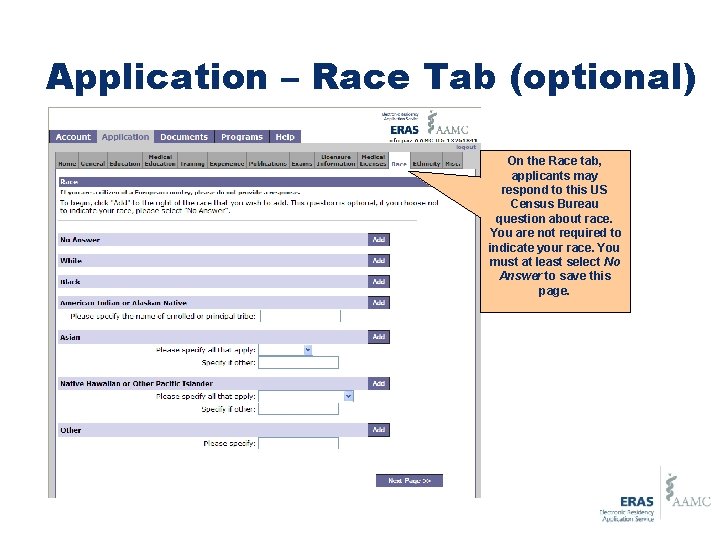
Application – Race Tab (optional) On the Race tab, applicants may respond to this US Census Bureau question about race. You are not required to indicate your race. You must at least select No Answer to save this page.
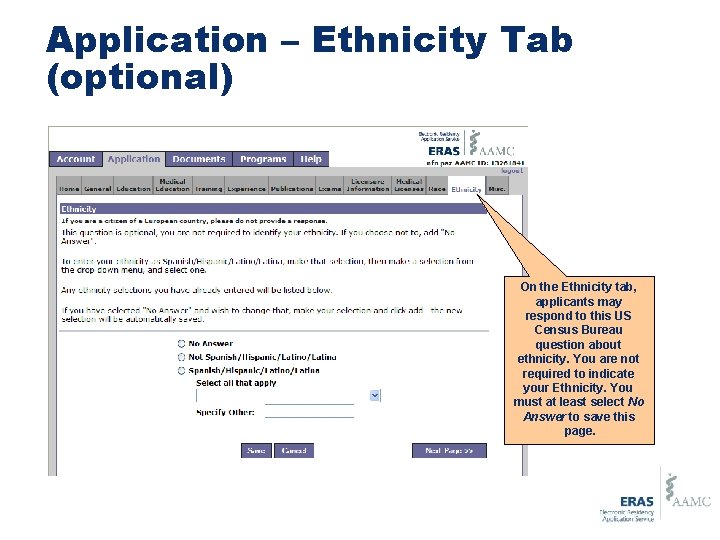
Application – Ethnicity Tab (optional) On the Ethnicity tab, applicants may respond to this US Census Bureau question about ethnicity. You are not required to indicate your Ethnicity. You must at least select No Answer to save this page.
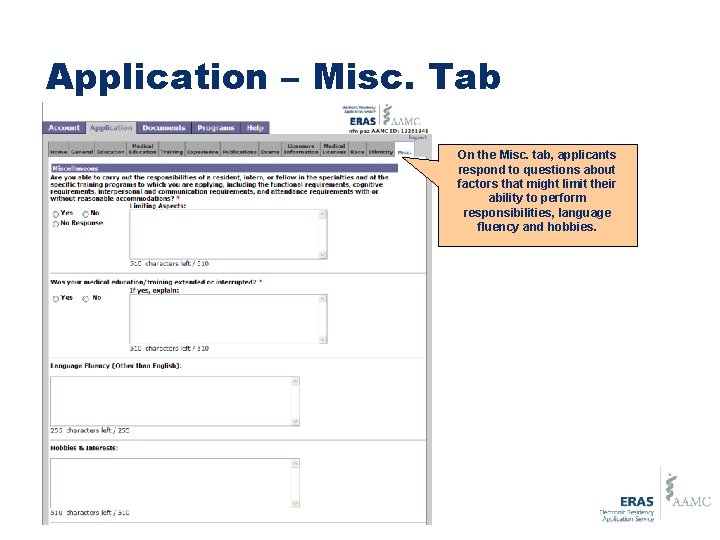
Application – Misc. Tab On the Misc. tab, applicants respond to questions about factors that might limit their ability to perform responsibilities, language fluency and hobbies.
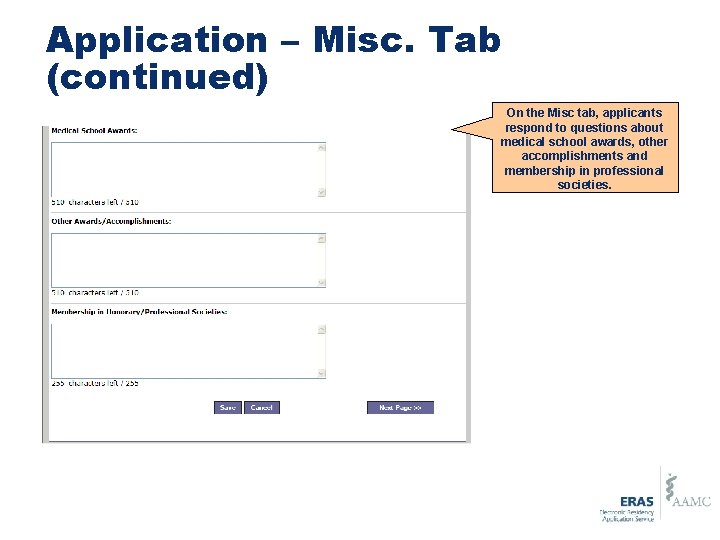
Application – Misc. Tab (continued) On the Misc tab, applicants respond to questions about medical school awards, other accomplishments and membership in professional societies.
Certifying and Submitting the My. ERAS Application
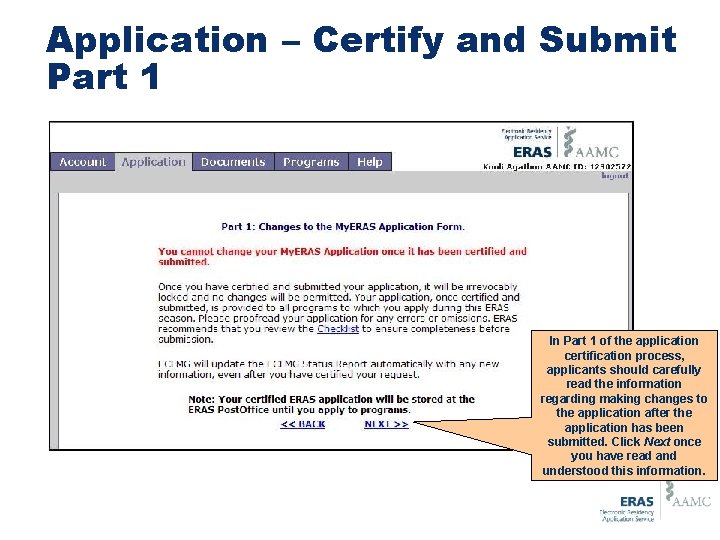
Application – Certify and Submit Part 1 In Part 1 of the application certification process, applicants should carefully read the information regarding making changes to the application after the application has been submitted. Click Next once you have read and understood this information.
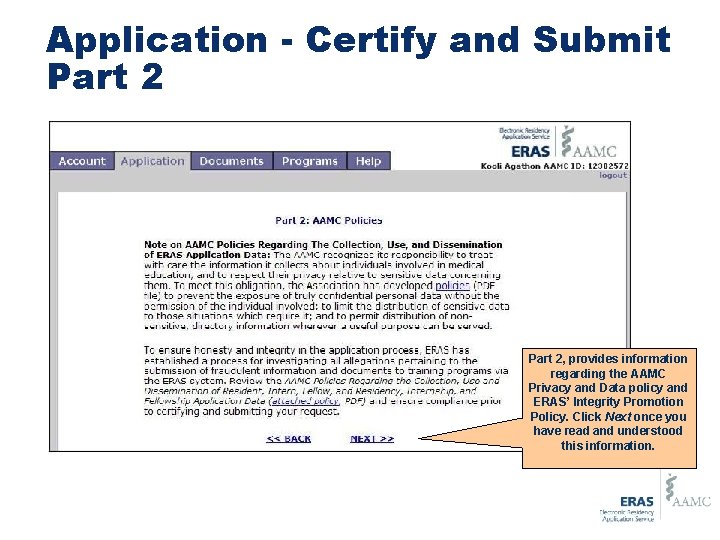
Application - Certify and Submit Part 2, provides information regarding the AAMC Privacy and Data policy and ERAS’ Integrity Promotion Policy. Click Next once you have read and understood this information.
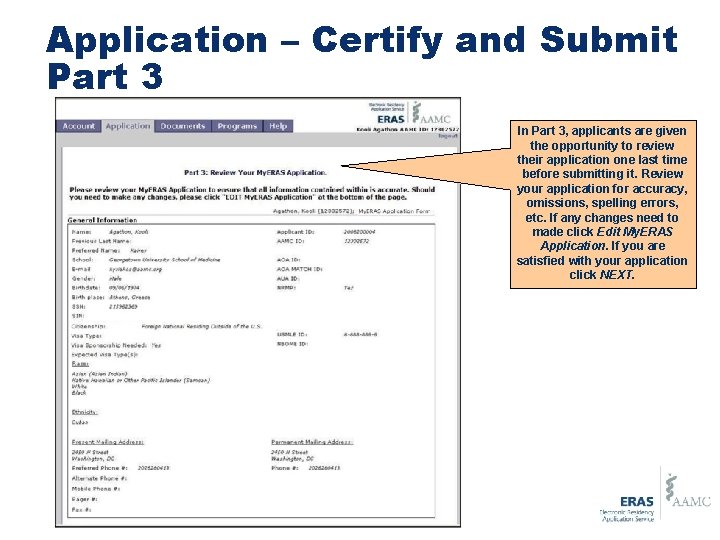
Application – Certify and Submit Part 3 In Part 3, applicants are given the opportunity to review their application one last time before submitting it. Review your application for accuracy, omissions, spelling errors, etc. If any changes need to made click Edit My. ERAS Application. If you are satisfied with your application click NEXT.
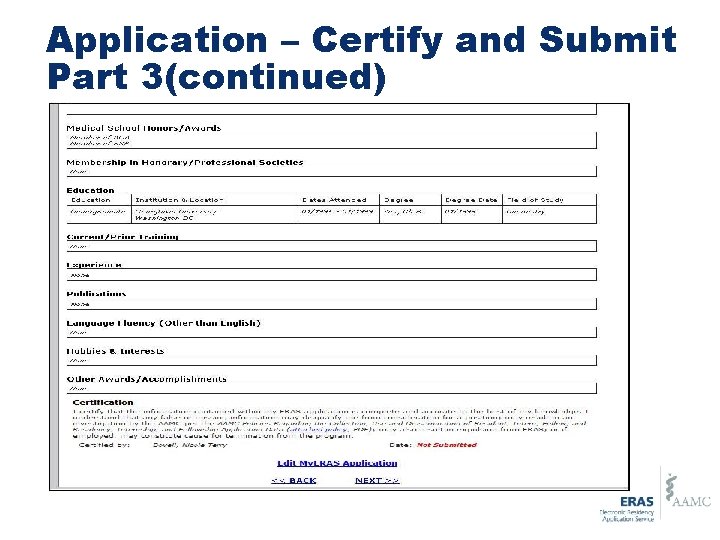
Application – Certify and Submit Part 3(continued)
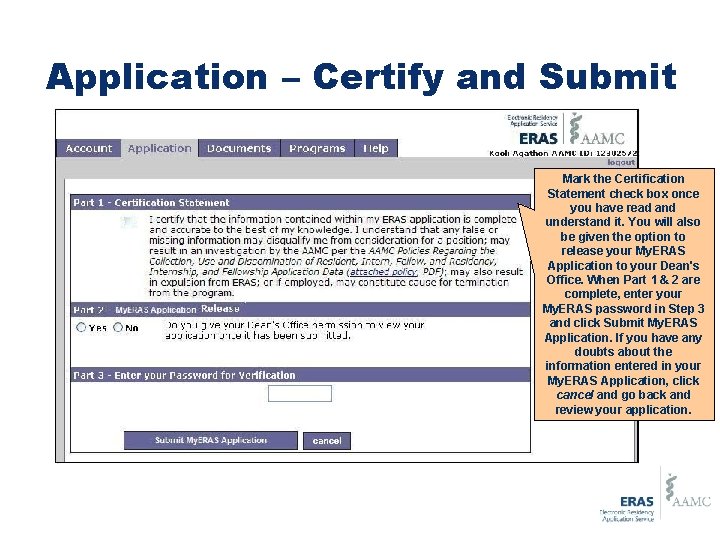
Application – Certify and Submit Mark the Certification Statement check box once you have read and understand it. You will also be given the option to release your My. ERAS Application to your Dean's Office. When Part 1 & 2 are complete, enter your My. ERAS password in Step 3 and click Submit My. ERAS Application. If you have any doubts about the information entered in your My. ERAS Application, click cancel and go back and review your application.
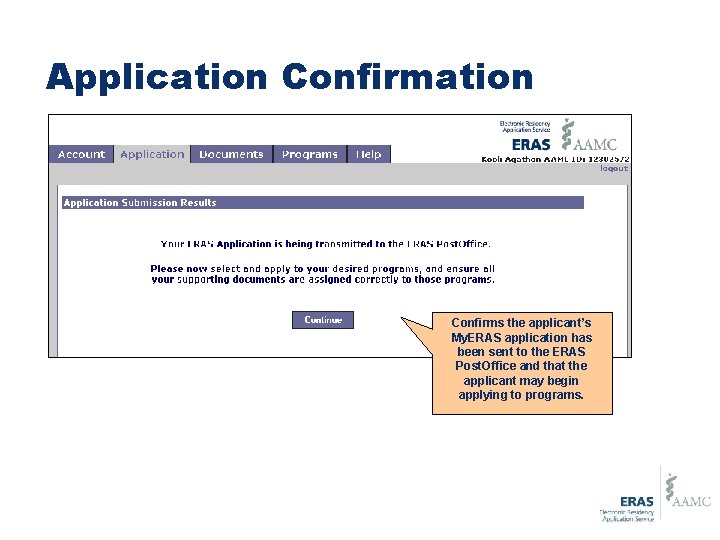
Application Confirms the applicant’s My. ERAS application has been sent to the ERAS Post. Office and that the applicant may begin applying to programs.
Viewing the My. ERAS Application & CV
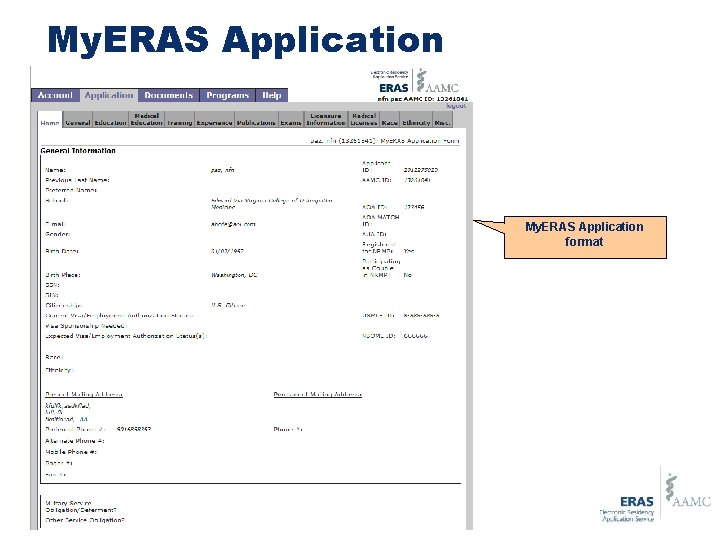
My. ERAS Application format
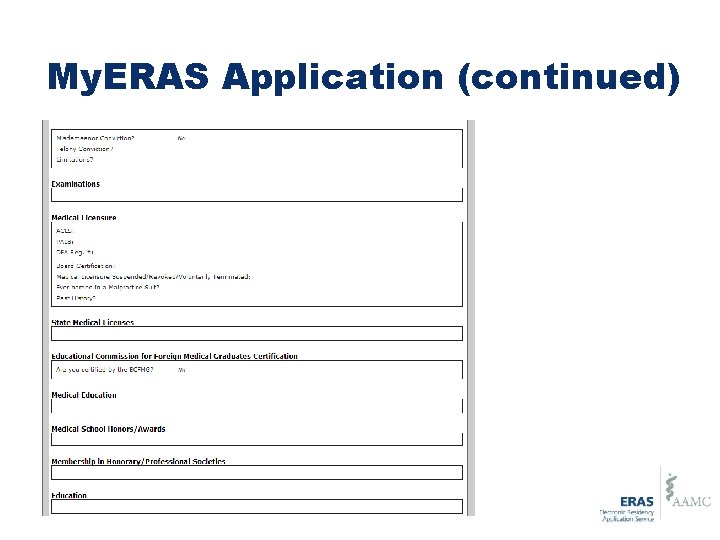
My. ERAS Application (continued)
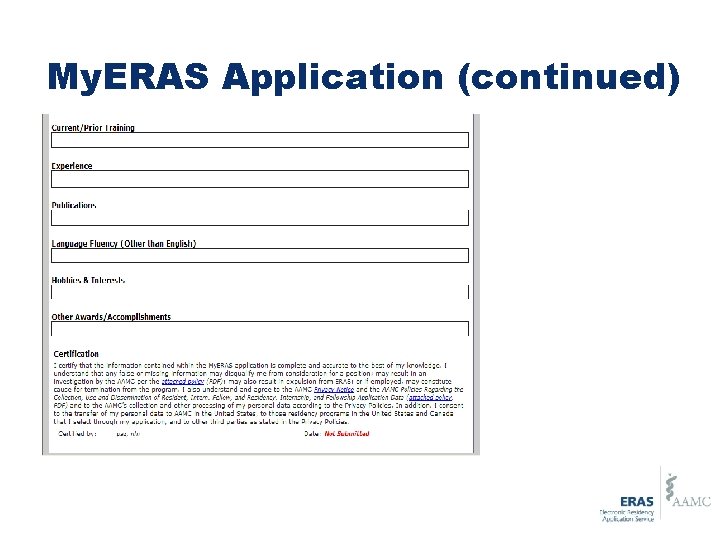
My. ERAS Application (continued)
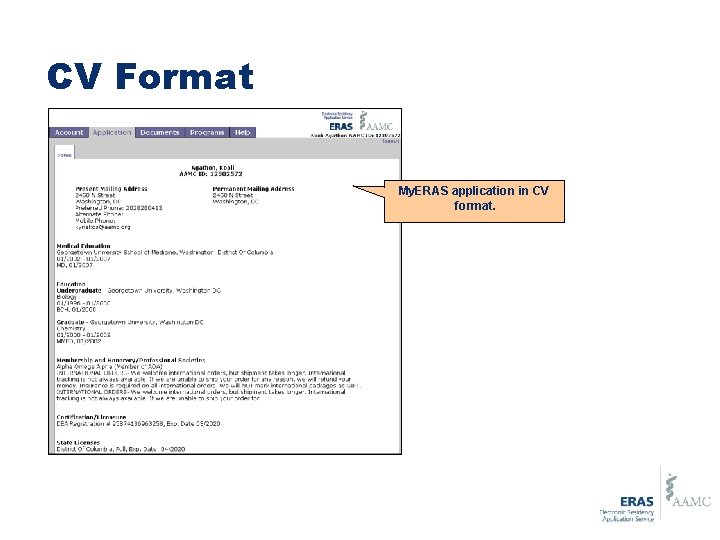
CV Format My. ERAS application in CV format.
Documents Tab
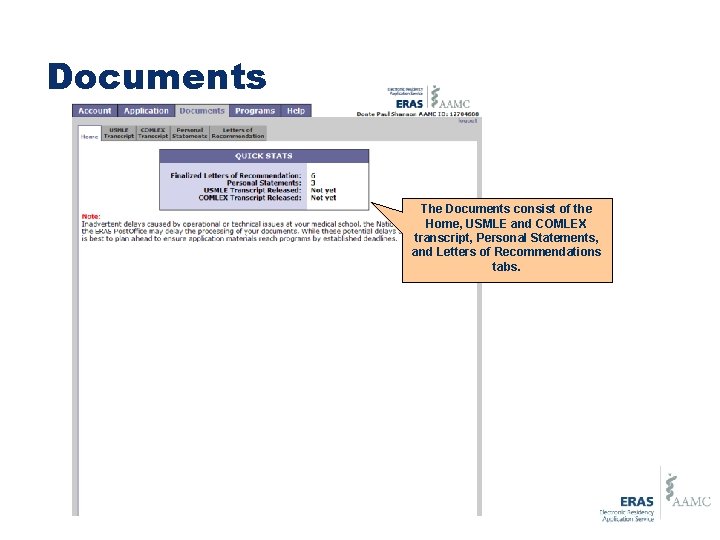
Documents The Documents consist of the Home, USMLE and COMLEX transcript, Personal Statements, and Letters of Recommendations tabs.
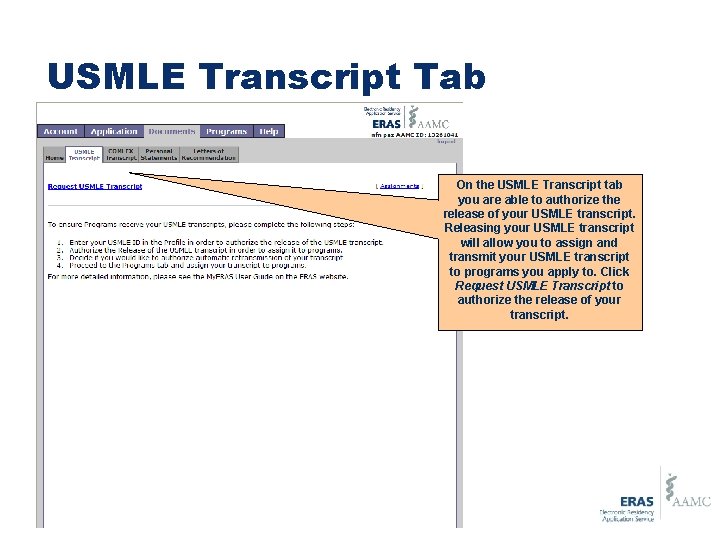
USMLE Transcript Tab On the USMLE Transcript tab you are able to authorize the release of your USMLE transcript. Releasing your USMLE transcript will allow you to assign and transmit your USMLE transcript to programs you apply to. Click Request USMLE Transcript to authorize the release of your transcript.
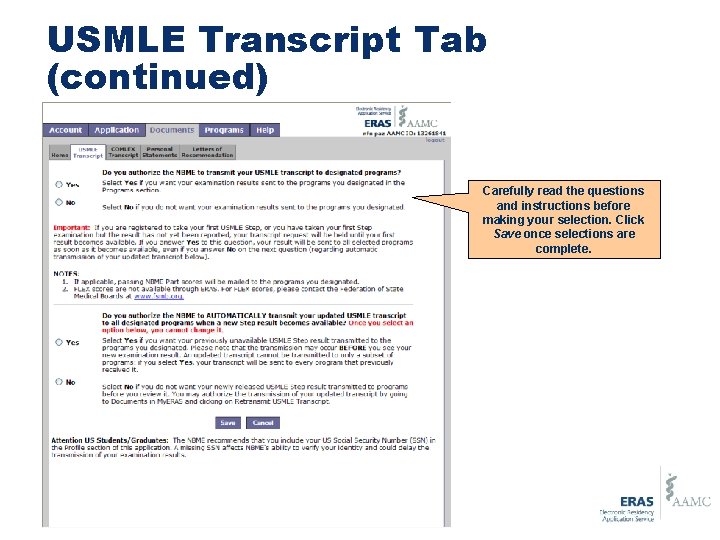
USMLE Transcript Tab (continued) Carefully read the questions and instructions before making your selection. Click Save once selections are complete.
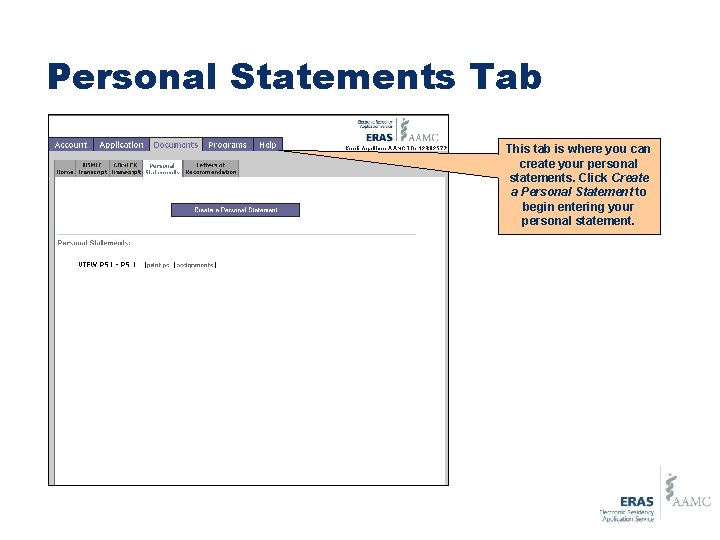
Personal Statements Tab This tab is where you can create your personal statements. Click Create a Personal Statement to begin entering your personal statement.
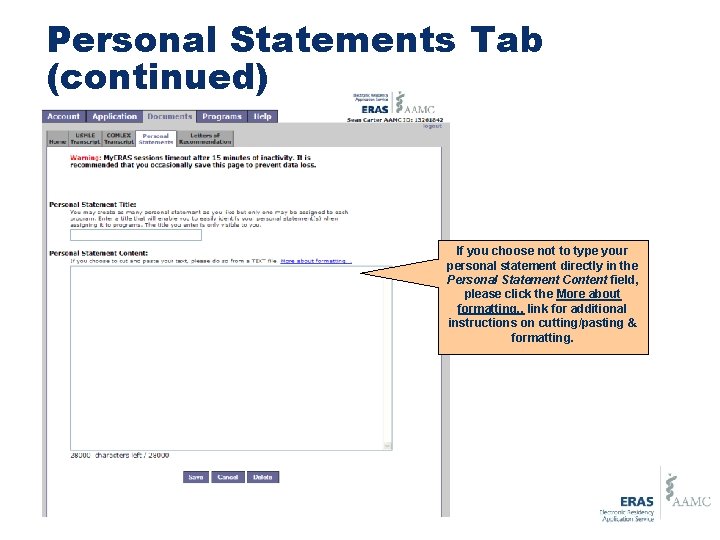
Personal Statements Tab (continued) If you choose not to type your personal statement directly in the Personal Statement Content field, please click the More about formatting. . link for additional instructions on cutting/pasting & formatting.
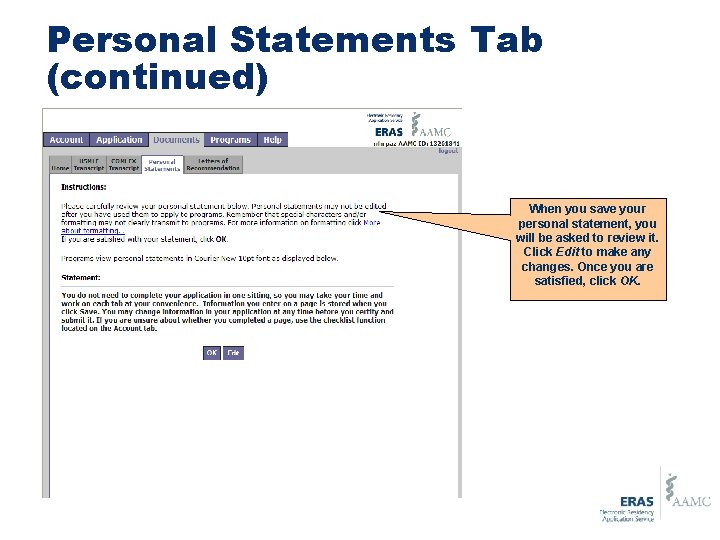
Personal Statements Tab (continued) When you save your personal statement, you will be asked to review it. Click Edit to make any changes. Once you are satisfied, click OK.
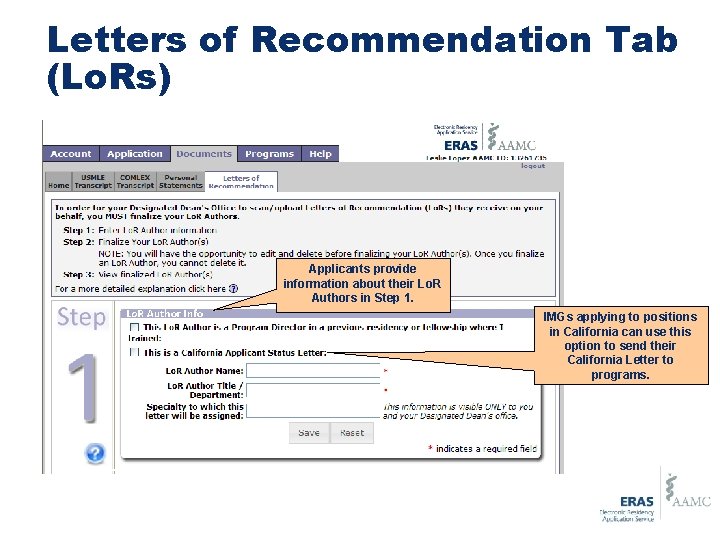
Letters of Recommendation Tab (Lo. Rs) Applicants provide information about their Lo. R Authors in Step 1. IMGs applying to positions in California can use this option to send their California Letter to programs.
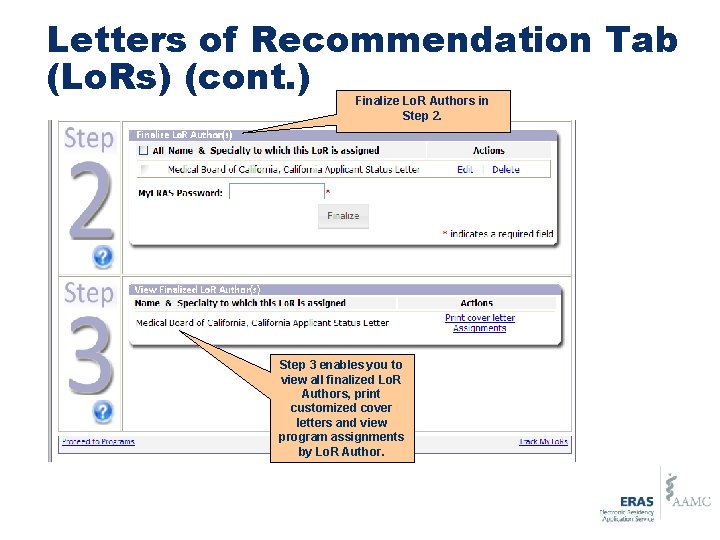
Letters of Recommendation Tab (Lo. Rs) (cont. ) Finalize Lo. R Authors in Step 2. Step 3 enables you to view all finalized Lo. R Authors, print customized cover letters and view program assignments by Lo. R Author.
Programs Tab
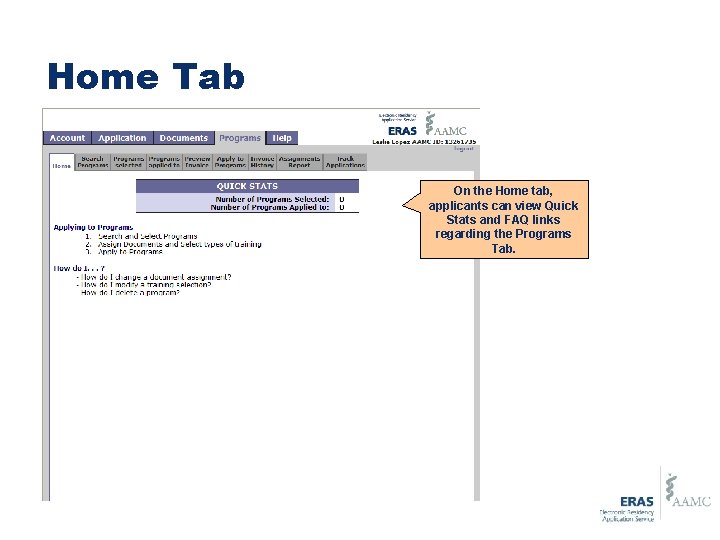
Home Tab On the Home tab, applicants can view Quick Stats and FAQ links regarding the Programs Tab.
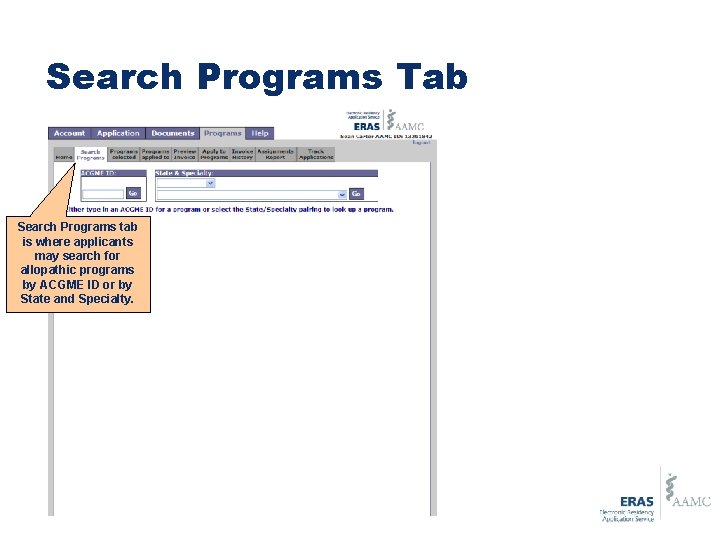
Search Programs Tab Search Programs tab is where applicants may search for allopathic programs by ACGME ID or by State and Specialty.
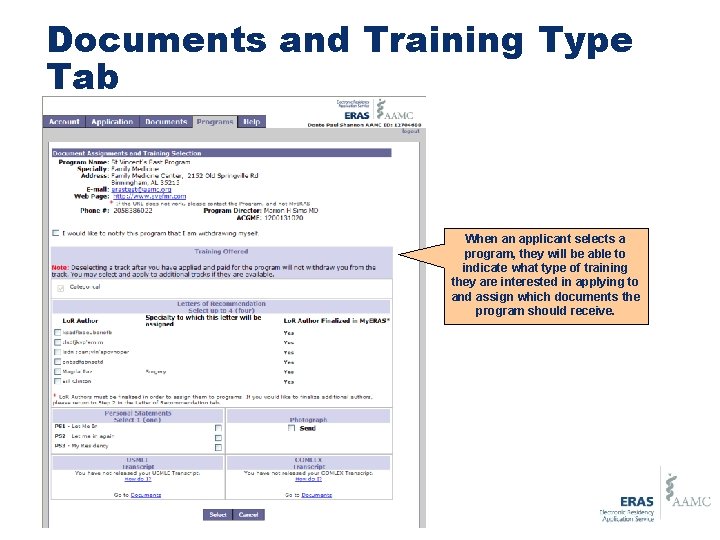
Documents and Training Type Tab When an applicant selects a program, they will be able to indicate what type of training they are interested in applying to and assign which documents the program should receive.
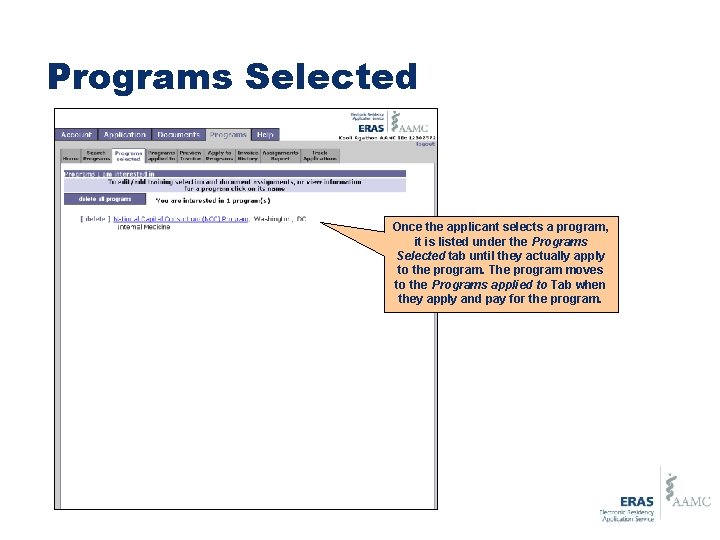
Programs Selected Once the applicant selects a program, it is listed under the Programs Selected tab until they actually apply to the program. The program moves to the Programs applied to Tab when they apply and pay for the program.
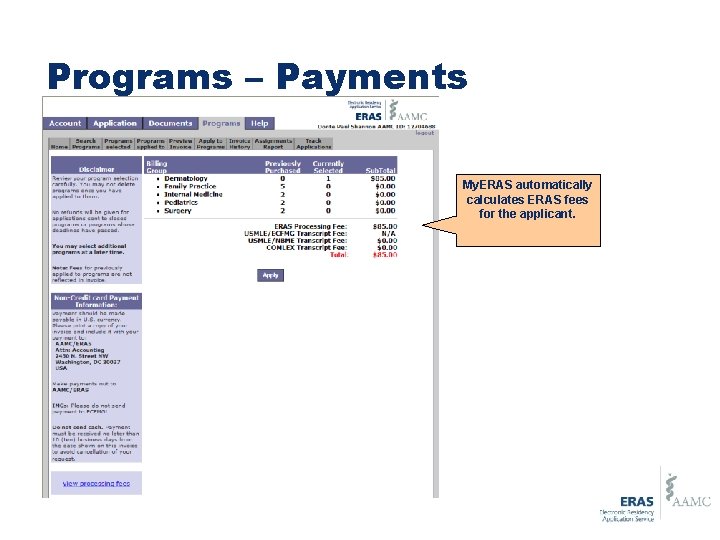
Programs – Payments My. ERAS automatically calculates ERAS fees for the applicant.
Message Center
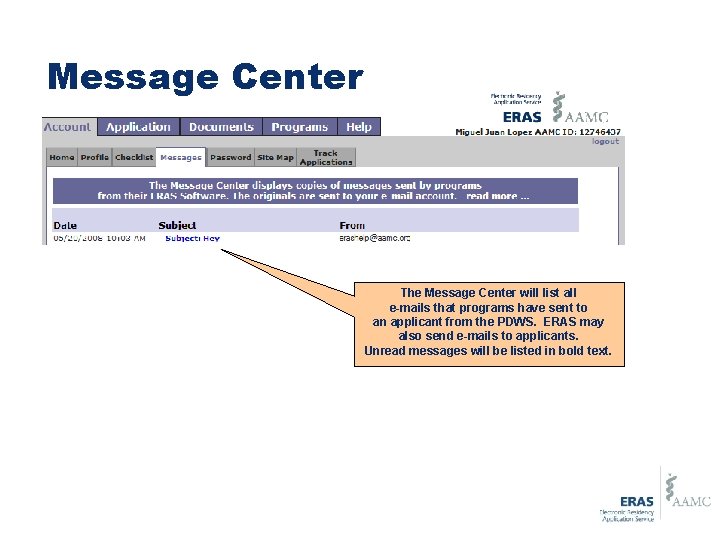
Message Center The Message Center will list all e-mails that programs have sent to an applicant from the PDWS. ERAS may also send e-mails to applicants. Unread messages will be listed in bold text.
Contact Info • For all technical questions, contact the Electronic Residency Application Service (ERAS). § E-mail My. ERAS at myeras@aamc. org. § Call the ERAS Help. Desk Monday - Friday from 8: 00 AM - 6: 00 PM Eastern Time at 202 -862 -6264. • For all non-technical questions, contact Amy Bockis.
National Residency Matching Program (NRMP) � Applicant Registration August – December � http: //www. nrmp. org/ � Click on Register/Login � Click on Applicant Registration � Registration Fee: $50. 00 › After November 30 th: $50. 00 late fee
National Residency Matching Program (NRMP) • You may start entering your Rank Order List January – mid-February • Go to http: //www. nrmp. org to enter your Rank Order List • You will need your AAMC ID and password (the one you created when you registered for ERAS)
NRMP Ranking Fees • Primary Rank List: 1 -20 programs ranked – NO CHARGE! Each additional program over 20 - $30. 00/program ranked • Supplemental Rank List: 1 -20 programs ranked NO CHARGE! Each additional program over 20 - $30. 00/program ranked
Ranking Advice • Take advantage of the 20 FREE! • The #1 reason students do not match is because they did not rank enough programs • Do not trust anyone that tells you they are going to rank you #1
NRMP Match Day – March 15, 2013
Planning on matching as a couple? You will be able to notify programs via ERAS if you are participating in the NRMP or another match as part of a couple � You may also include couples match information in your personal statement, or provide it at an interview � Each partner of a couple may rank up to 30 different programs on the primary rank order list and up to 30 programs on all supplemental lists combined at no additional charge. Each partner of a couple also must pay an additional $15 registration fee. �
Couples Match Recommendations � � � Good Communication Is the Key for Surviving the Couples Match Intact When Deciding Where to Apply, Geographic Location Is the First and Most Important Consideration Apply Early to as Many Programs as You Can Always Inform Your Interviewers and the Program Director That You Are Matching as a Couple Be Assertive and Aggressive as a Couple The Perfect Couples Rank-Order List Involves Both Compromise and Strategy
Planning on matching through the Military? � You should be contacted by the military in April/May – if not, contact them � Army and Navy participate in ERAS – Air Force does not � Applications are due in October � Rank Lists are due in November � Match results are announced in December
Planning on matching through the Military? � You are required to take USMLE Step II by the end of August � It is imperative to submit a detailed C. V. including all research projects and extracurricular activities � You must still go through the military match even if you plan to apply for a civilian deferment
Early Match – San Francisco (SF) Match • Participating specialties - Ophthalmology
SF Match – When do I apply? • Spring/Summer– Register for the match, gather your materials and send to Central Application Service (CAS) It will take approx. 3 weeks for programs to receive your application once it is received by CAS • CAS Fees: • $100 nonrefundable registration fee for Child Neurology and Ophthalmology • $50 nonrefundable registration fee for Neurotology and Plastic Surgery
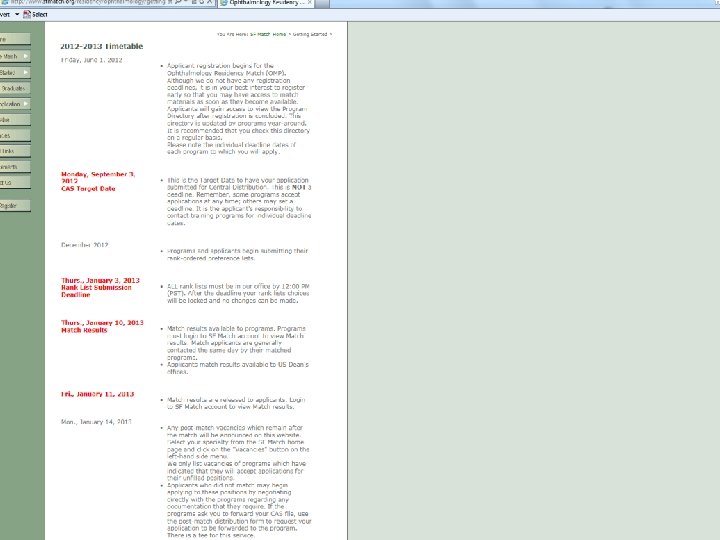
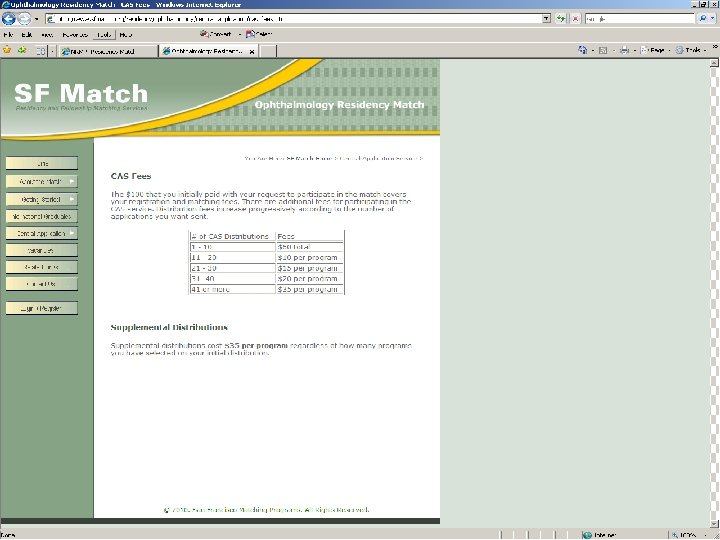
SF Match – Rank List • Most early match positions require a Preliminary year – so you must also apply through ERAS • When asking for Lo. R, have two copies sent to Amy KS Bockis – one in a sealed envelope for CAS, and one that I can use for ERAS
Helpful Websites Student Affairshttp: //www. hmc. psu. edu/md/residencyprep/inde x. html Careers in Medicinehttp: //www. aamc. org/students/cim Specialty Program Search and Informationhttp: //www. ama-assn. org/vapp/freida/srch
Helpful Websites ERAShttp: //www. aamc. org/audienceeras. htm NRMPhttp: //www. nrmp. org San Francisco Match (Early Match)http: //www. sfmatch. org Urology Matchhttp: //www. auanet. org/residents
Helpful Websites Military Match (Navy)http: //www. med. navy. mil/sites/navmedmpte/gme/Pages/navmedgme. a spx Military Match (Army)http: //www. mods. army. mil/Medical. Education/ Military Match (Air Force)http: //airforcemedicine. afms. mil/idc/groups/public/documents/webconte nt/knowledgejunction. hcst? functionalarea=AFPhysician. Education& doctype=subpage&docname=CTB_047647 Emergency Medicine Lo. Rhttp: //www. cordem. org

Words of advice. . . � Email Amy KS Bockis with any questions abockis@hmc. psu. edu or call 531 -7051 � Check your Outlook email daily � Do Not Procrastinate GOOD LUCK!
- Slides: 87