
Preceptor Introduction to CORE ELMS Account Registration Expect

- Slides: 16
Preceptor Introduction to CORE ELMS
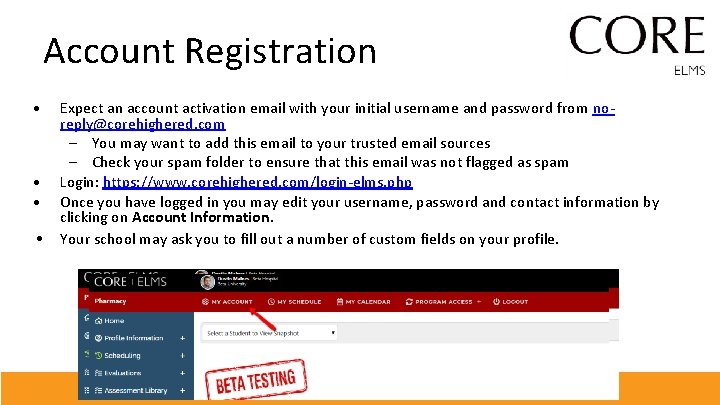
Account Registration • • Expect an account activation email with your initial username and password from noreply@corehighered. com – You may want to add this email to your trusted email sources – Check your spam folder to ensure that this email was not flagged as spam Login: https: //www. corehighered. com/login-elms. php Once you have logged in you may edit your username, password and contact information by clicking on Account Information. Your school may ask you to fill out a number of custom fields on your profile.
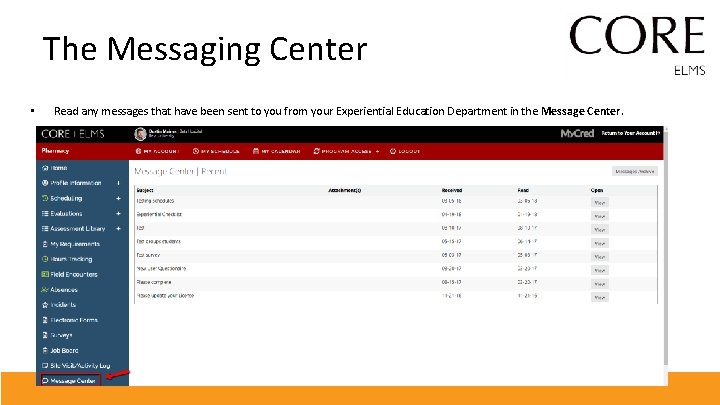
The Messaging Center • Read any messages that have been sent to you from your Experiential Education Department in the Message Center.
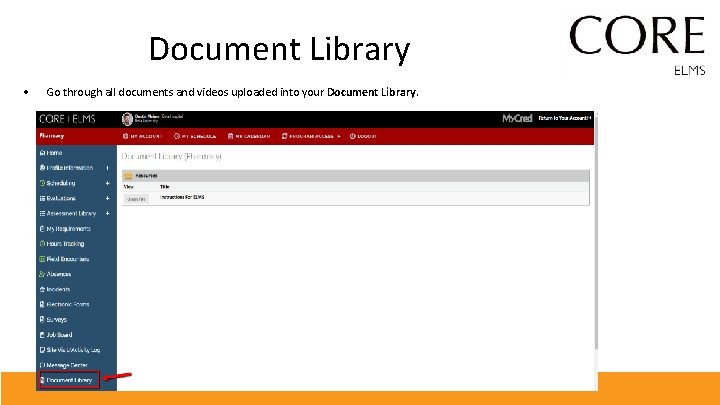
Document Library • Go through all documents and videos uploaded into your Document Library.
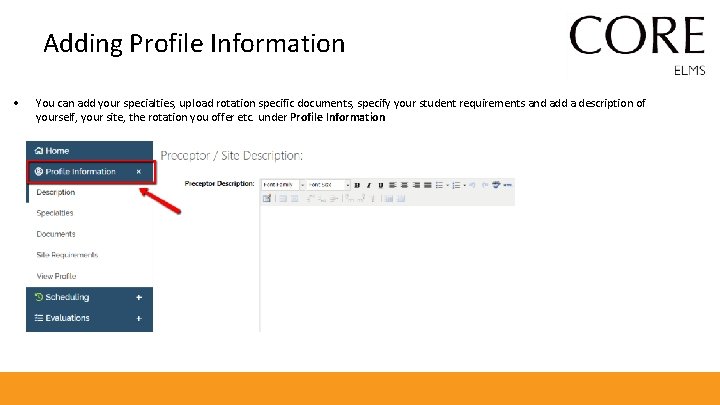
Adding Profile Information • You can add your specialties, upload rotation specific documents, specify your student requirements and add a description of yourself, your site, the rotation you offer etc. under Profile Information
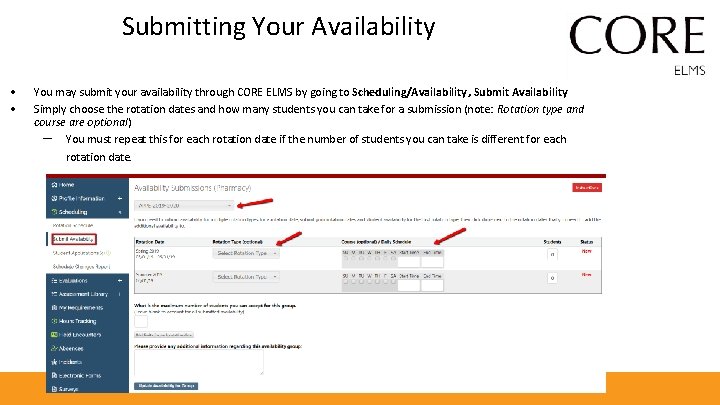
Submitting Your Availability • • You may submit your availability through CORE ELMS by going to Scheduling/Availability, Submit Availability Simply choose the rotation dates and how many students you can take for a submission (note: Rotation type and course are optional) – You must repeat this for each rotation date if the number of students you can take is different for each rotation date.
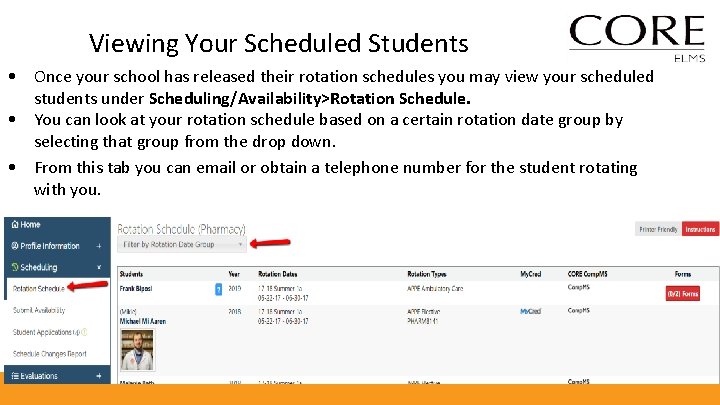
Viewing Your Scheduled Students • • • Once your school has released their rotation schedules you may view your scheduled students under Scheduling/Availability>Rotation Schedule. You can look at your rotation schedule based on a certain rotation date group by selecting that group from the drop down. From this tab you can email or obtain a telephone number for the student rotating with you.
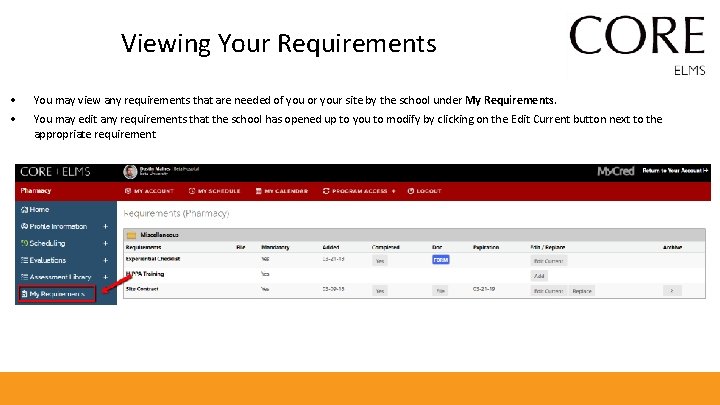
Viewing Your Requirements • You may view any requirements that are needed of you or your site by the school under My Requirements. • You may edit any requirements that the school has opened up to you to modify by clicking on the Edit Current button next to the appropriate requirement.
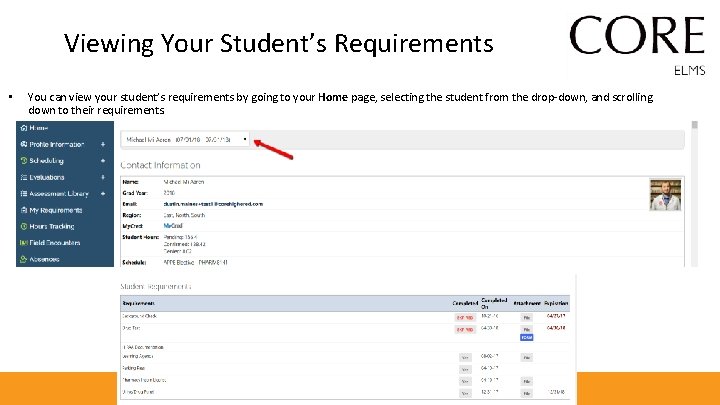
Viewing Your Student’s Requirements • You can view your student’s requirements by going to your Home page, selecting the student from the drop-down, and scrolling down to their requirements.
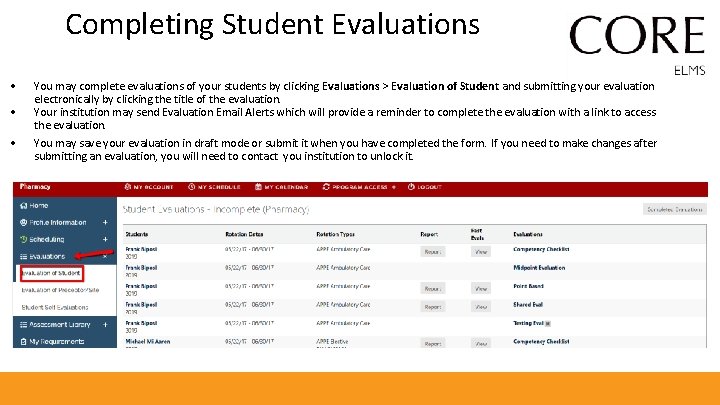
Completing Student Evaluations • • • You may complete evaluations of your students by clicking Evaluations > Evaluation of Student and submitting your evaluation electronically by clicking the title of the evaluation. Your institution may send Evaluation Email Alerts which will provide a reminder to complete the evaluation with a link to access the evaluation. You may save your evaluation in draft mode or submit it when you have completed the form. If you need to make changes after submitting an evaluation, you will need to contact you institution to unlock it.
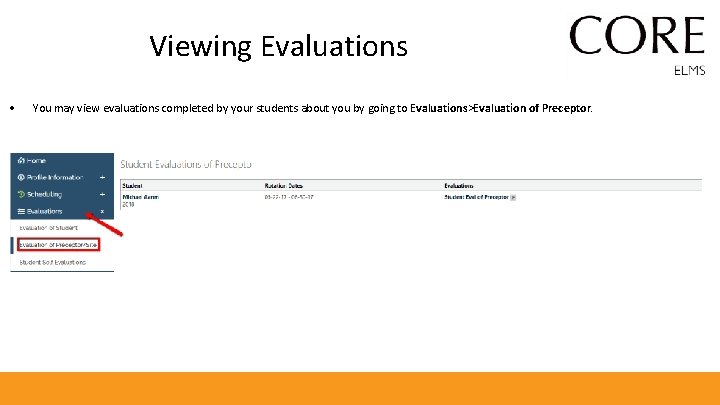
Viewing Evaluations • You may view evaluations completed by your students about you by going to Evaluations>Evaluation of Preceptor.
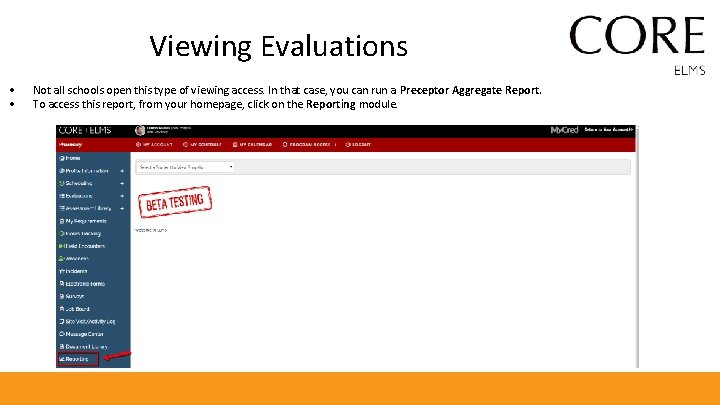
Viewing Evaluations • • Not all schools open this type of viewing access. In that case, you can run a Preceptor Aggregate Report. To access this report, from your homepage, click on the Reporting module.
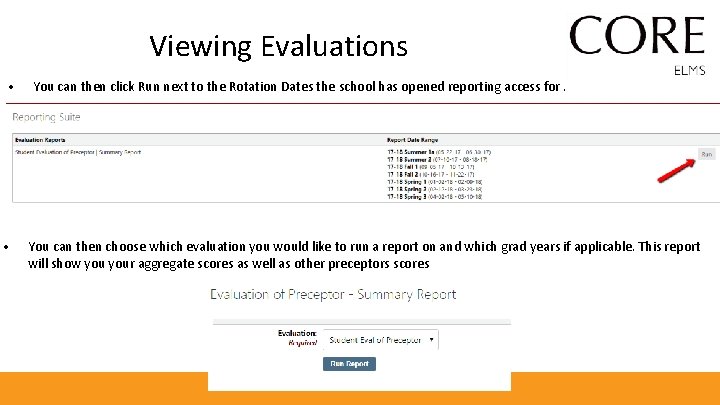
Viewing Evaluations • • You can then click Run next to the Rotation Dates the school has opened reporting access for. You can then choose which evaluation you would like to run a report on and which grad years if applicable. This report will show your aggregate scores as well as other preceptors scores
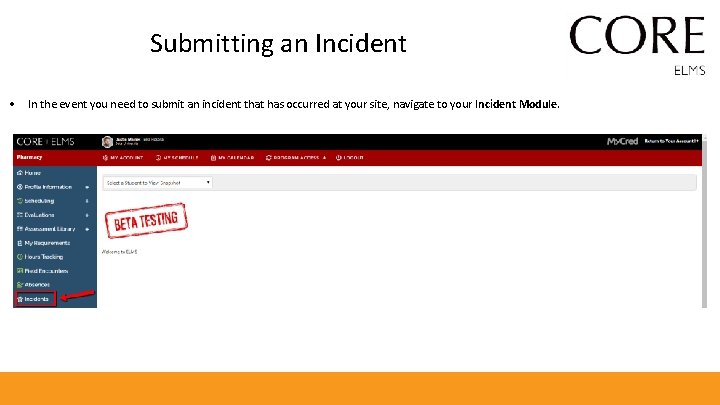
Submitting an Incident • In the event you need to submit an incident that has occurred at your site, navigate to your Incident Module.
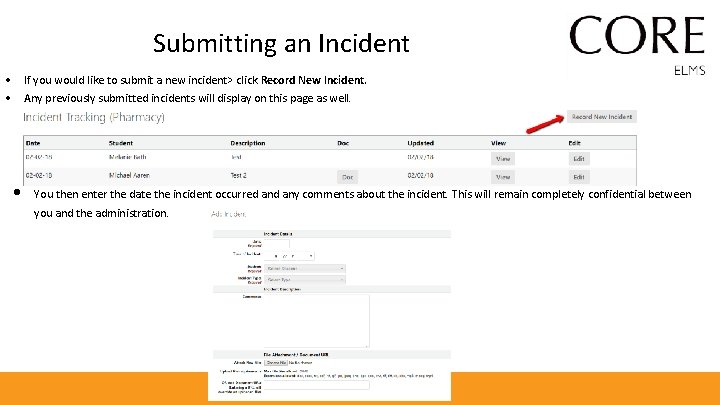
Submitting an Incident • If you would like to submit a new incident> click Record New Incident. • Any previously submitted incidents will display on this page as well. • You then enter the date the incident occurred any comments about the incident. This will remain completely confidential between you and the administration.
www. Core. Higher. Ed. com