
Practical Exercise Overview Build and install Free RADIUS
Practical Exercise Overview Build and install Free. RADIUS Configure and start Free. RADIUS with LDAP database backend Test authentication using Free. RADIUS
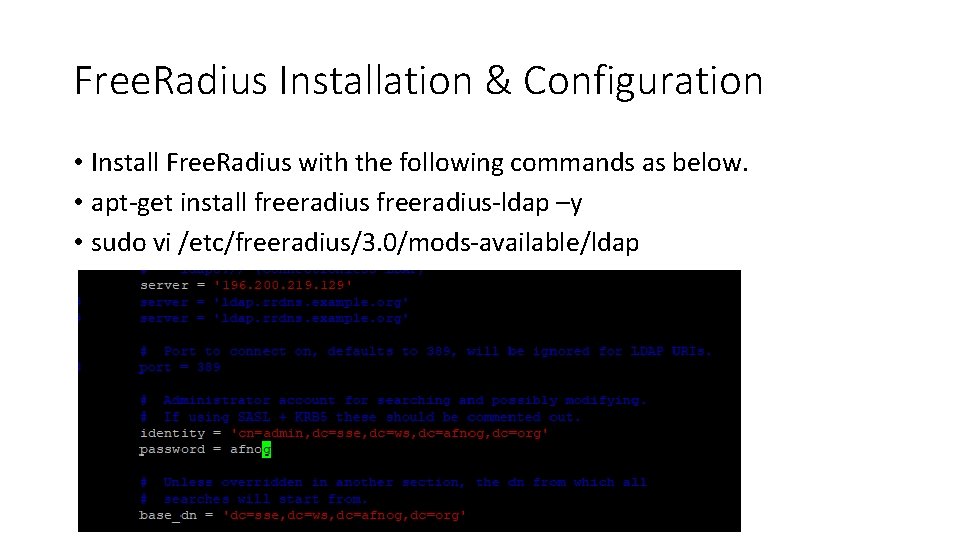
Free. Radius Installation & Configuration • Install Free. Radius with the following commands as below. • apt-get install freeradius-ldap –y • sudo vi /etc/freeradius/3. 0/mods-available/ldap

Free. Radius Installation & Configuration Cont. .
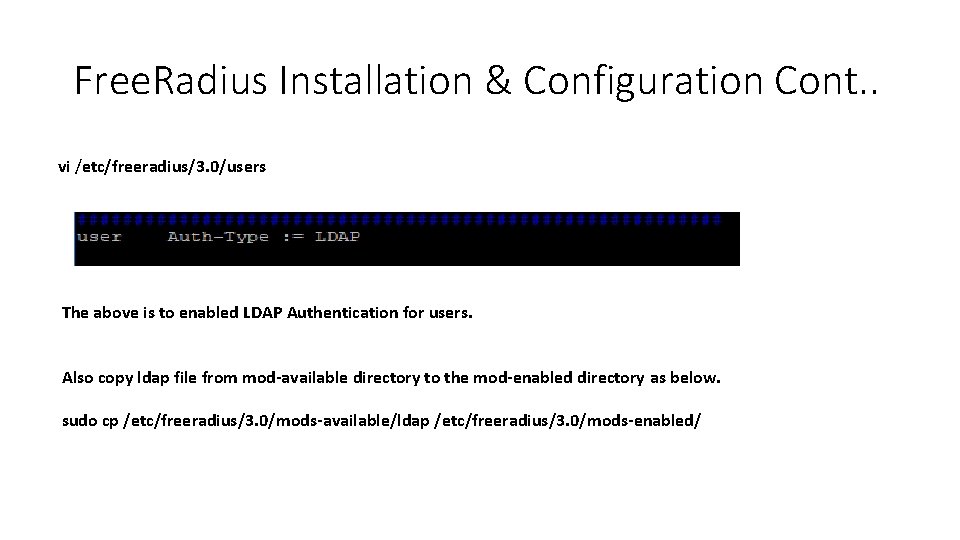
Free. Radius Installation & Configuration Cont. . vi /etc/freeradius/3. 0/users The above is to enabled LDAP Authentication for users. Also copy ldap file from mod-available directory to the mod-enabled directory as below. sudo cp /etc/freeradius/3. 0/mods-available/ldap /etc/freeradius/3. 0/mods-enabled/

Free. Radius Installation & Configuration Cont. . • vi /etc/freeradius/3. 0/sites-available/inner-tunnel sudo systemctl restart freeradius // Restart the Free. Radius Service
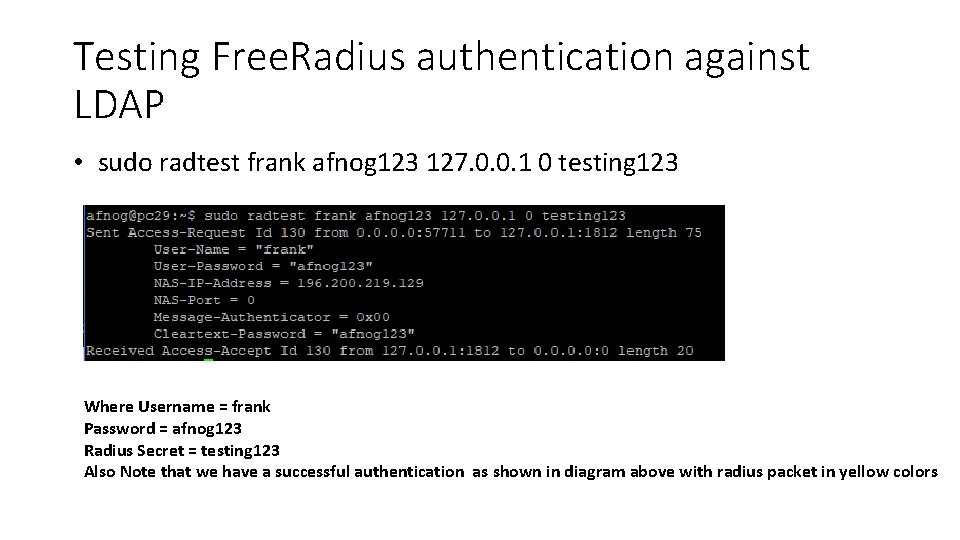
Testing Free. Radius authentication against LDAP • sudo radtest frank afnog 123 127. 0. 0. 1 0 testing 123 Where Username = frank Password = afnog 123 Radius Secret = testing 123 Also Note that we have a successful authentication as shown in diagram above with radius packet in yellow colors
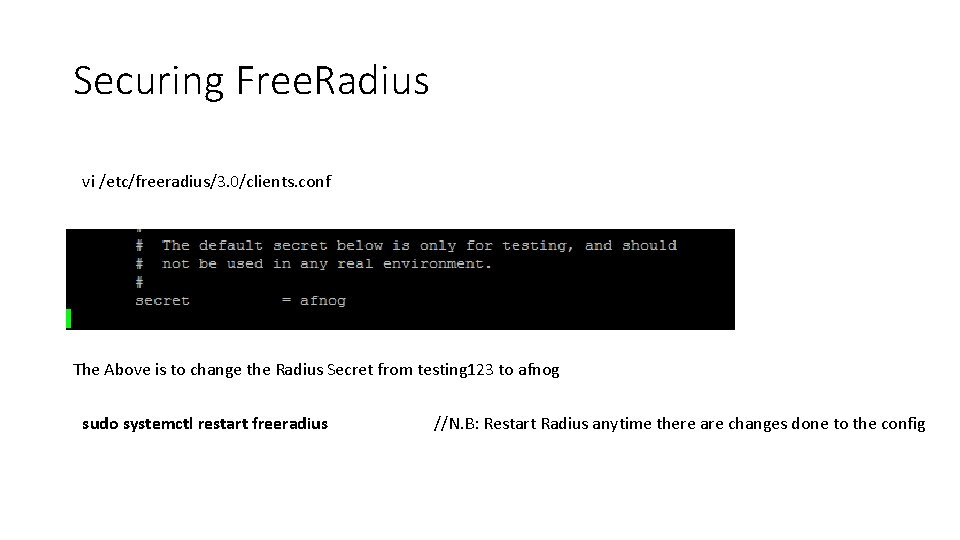
Securing Free. Radius vi /etc/freeradius/3. 0/clients. conf The Above is to change the Radius Secret from testing 123 to afnog sudo systemctl restart freeradius //N. B: Restart Radius anytime there are changes done to the config
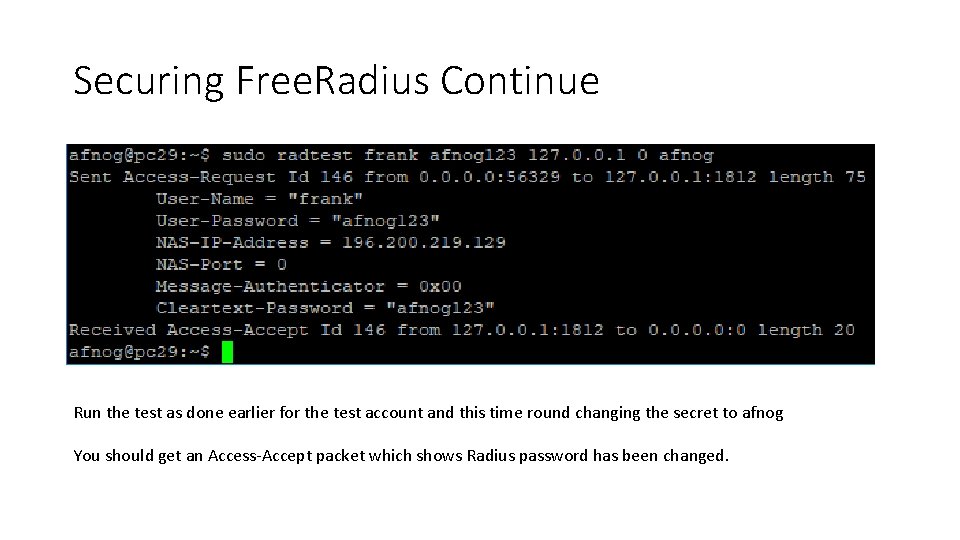
Securing Free. Radius Continue Run the test as done earlier for the test account and this time round changing the secret to afnog You should get an Access-Accept packet which shows Radius password has been changed.
- Slides: 8