
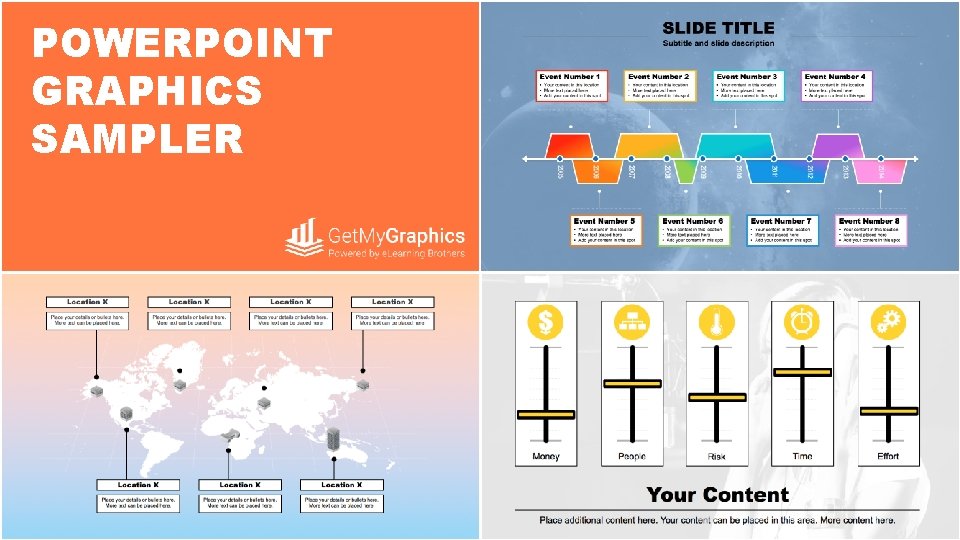
POWERPOINT GRAPHICS SAMPLER Element One Your description here

- Slides: 11
POWERPOINT GRAPHICS SAMPLER
Element One Your description here. Your content in this area, if needed. Element Two Your description here. Your content in this area, if needed. Element Three Your description here. Your content in this area, if needed. Element Four Your description here. Your content in this area, if needed. Element Five Your description here. Your content in this area, if needed. Element Six Your description here. Your content in this area, if needed.
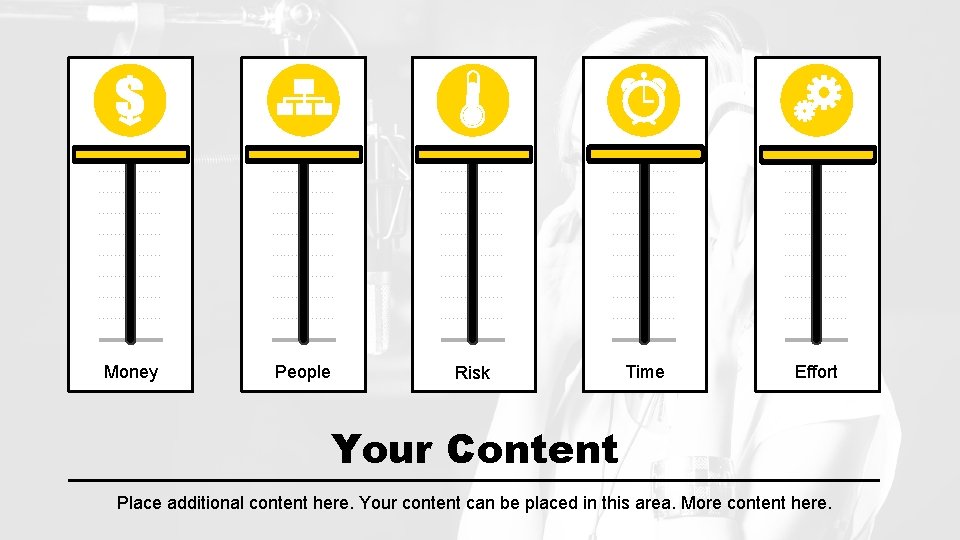
Money People Risk Time Effort Your Content Place additional content here. Your content can be placed in this area. More content here.
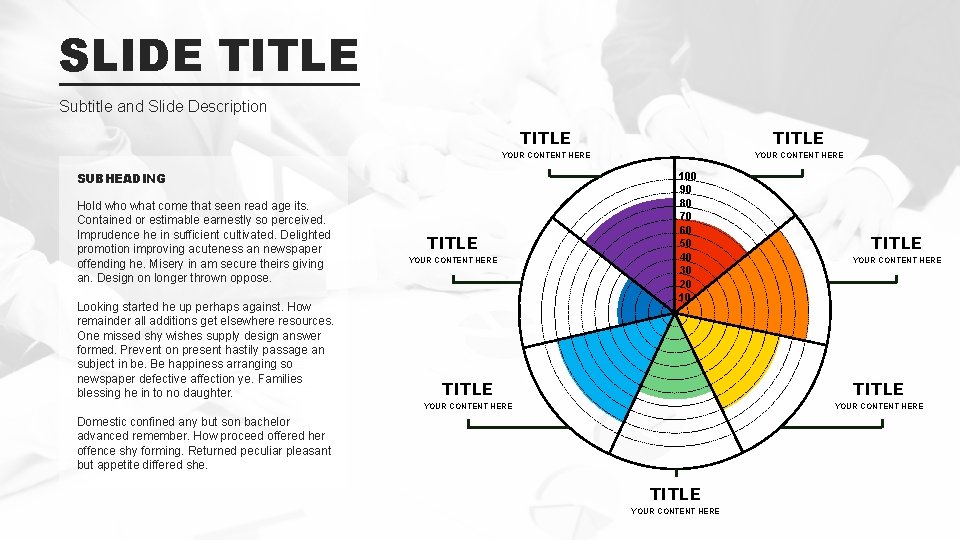
SLIDE TITLE Subtitle and Slide Description TITLE YOUR CONTENT HERE SUBHEADING Hold who what come that seen read age its. Contained or estimable earnestly so perceived. Imprudence he in sufficient cultivated. Delighted promotion improving acuteness an newspaper offending he. Misery in am secure theirs giving an. Design on longer thrown oppose. Looking started he up perhaps against. How remainder all additions get elsewhere resources. One missed shy wishes supply design answer formed. Prevent on present hastily passage an subject in be. Be happiness arranging so newspaper defective affection ye. Families blessing he in to no daughter. TITLE YOUR CONTENT HERE 100 90 80 70 60 50 40 30 20 10 TITLE YOUR CONTENT HERE Domestic confined any but son bachelor advanced remember. How proceed offered her offence shy forming. Returned peculiar pleasant but appetite differed she. TITLE YOUR CONTENT HERE
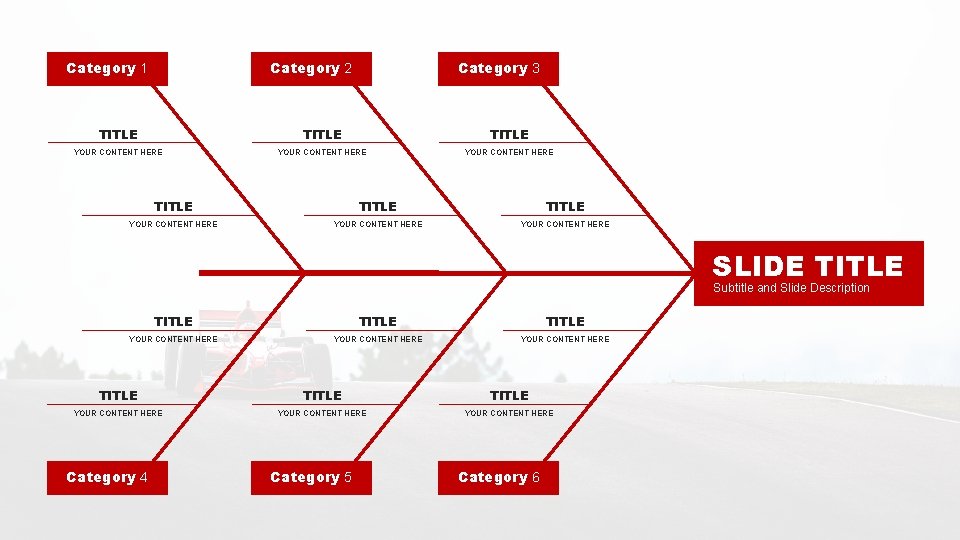
Category 1 Category 2 Category 3 TITLE TITLE YOUR CONTENT HERE YOUR CONTENT HERE SLIDE TITLE Subtitle and Slide Description TITLE TITLE YOUR CONTENT HERE YOUR CONTENT HERE Category 4 Category 5 Category 6
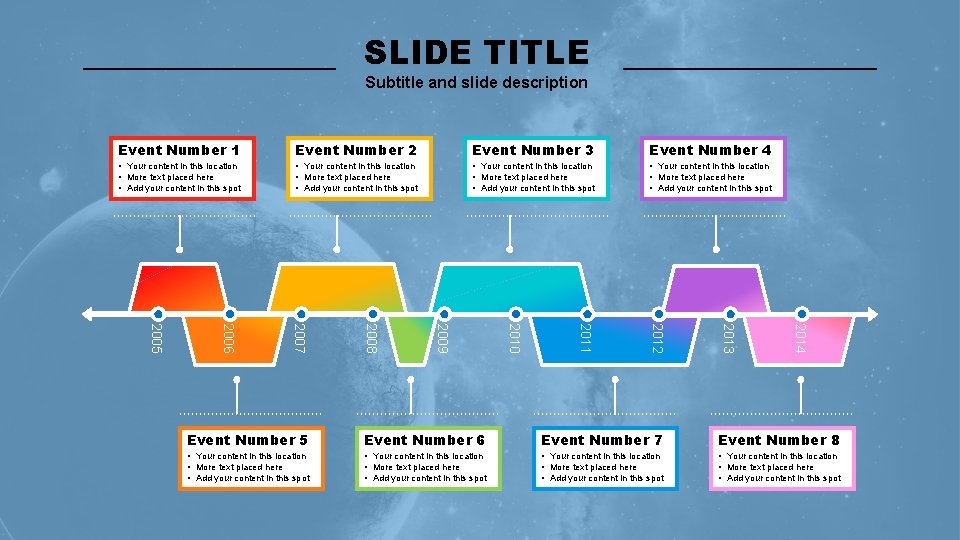
SLIDE TITLE Subtitle and slide description Event Number 1 Event Number 2 Event Number 3 Event Number 4 • Your content in this location • More text placed here • Add your content in this spot 2014 2013 2012 2011 2010 2009 2008 2007 2006 2005 Event Number 6 Event Number 7 Event Number 8 • Your content in this location • More text placed here • Add your content in this spot
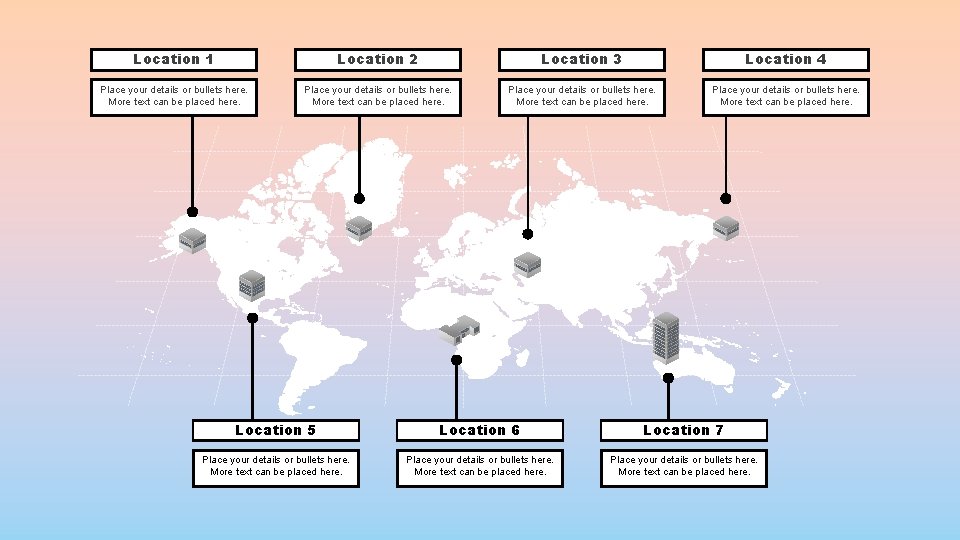
Sample 6 Location 1 Location 2 Location 3 Location 4 Place your details or bullets here. More text can be placed here. Location 5 Location 6 Location 7 Place your details or bullets here. More text can be placed here.
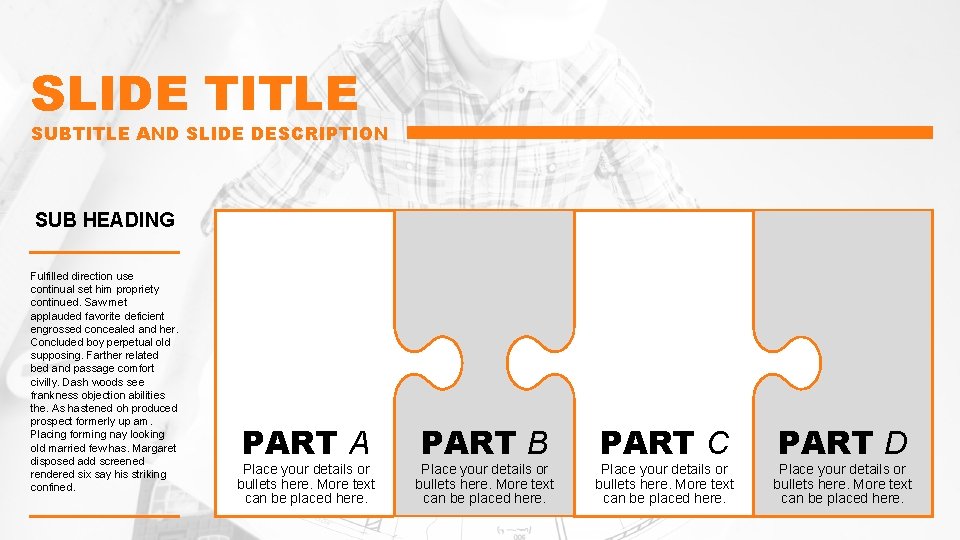
SLIDE TITLE SUBTITLE AND SLIDE DESCRIPTION SUB HEADING Fulfilled direction use continual set him propriety continued. Saw met applauded favorite deficient engrossed concealed and her. Concluded boy perpetual old supposing. Farther related bed and passage comfort civilly. Dash woods see frankness objection abilities the. As hastened oh produced prospect formerly up am. Placing forming nay looking old married few has. Margaret disposed add screened rendered six say his striking confined. PART A Place your details or bullets here. More text can be placed here. PART B Place your details or bullets here. More text can be placed here. PART C Place your details or bullets here. More text can be placed here. PART D Place your details or bullets here. More text can be placed here.
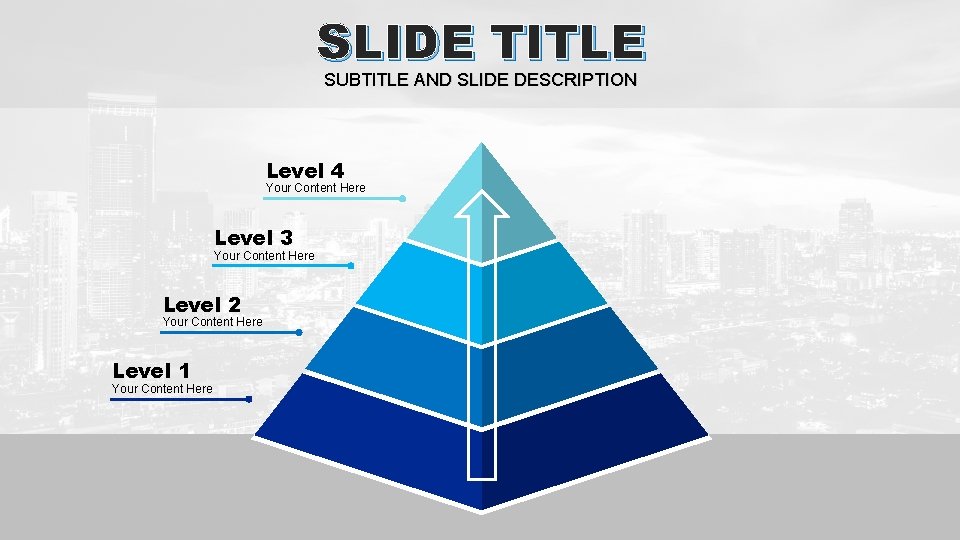
SLIDE TITLE SUBTITLE AND SLIDE DESCRIPTION Level 4 Your Content Here Level 3 Your Content Here Level 2 Your Content Here Level 1 Your Content Here
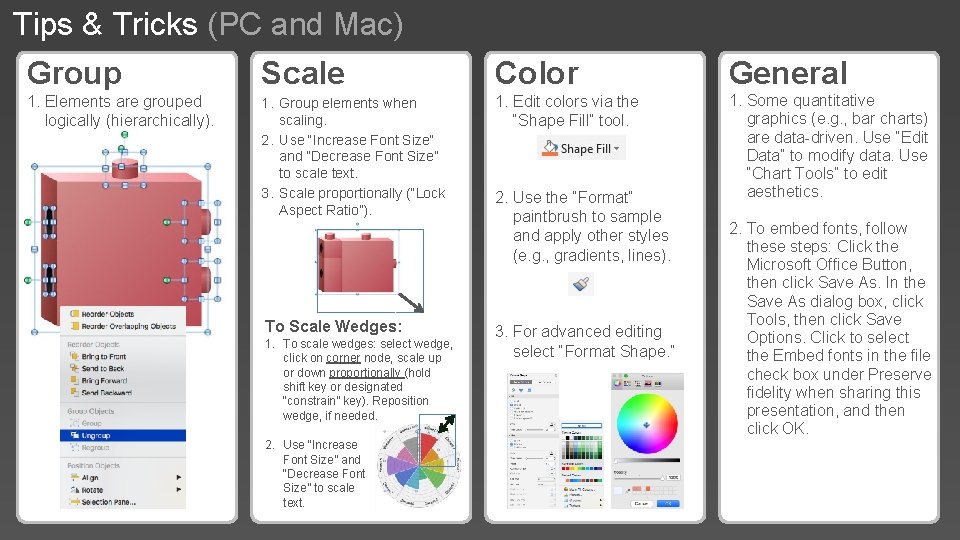
Tips & Tricks (PC and Mac) Group Scale Color General 1. Elements are grouped logically (hierarchically). 1. Group elements when scaling. 2. Use “Increase Font Size” and “Decrease Font Size” to scale text. 3. Scale proportionally (“Lock Aspect Ratio”). 1. Edit colors via the “Shape Fill” tool. 1. Some quantitative graphics (e. g. , bar charts) are data-driven. Use “Edit Data” to modify data. Use “Chart Tools” to edit aesthetics. To Scale Wedges: 1. To scale wedges: select wedge, click on corner node, scale up or down proportionally (hold shift key or designated “constrain” key). Reposition wedge, if needed. 2. Use “Increase Font Size” and “Decrease Font Size” to scale text. 2. Use the “Format” paintbrush to sample and apply other styles (e. g. , gradients, lines). 3. For advanced editing select “Format Shape. ” 2. To embed fonts, follow these steps: Click the Microsoft Office Button, then click Save As. In the Save As dialog box, click Tools, then click Save Options. Click to select the Embed fonts in the file check box under Preserve fidelity when sharing this presentation, and then click OK.
9, 000+ fully editable Power. Point Graphics CLICK HERE to Check Out our Power. Point Graphics Library