
Powerpoint 2010 Copying format Format painter is to


- Slides: 22
Powerpoint 2010
Copying format: Format painter is to copy the special formatting of text or other objects. For example, if some text is colored with a specific font and style, one can copy the exact same color and style to other text. Select the text(or object)which has desired formatting- format paint Button the cursor change to an i-beam and a paintbrush select the text(or object) on which the format is to be copied.
Home tab slide group Reset: resets the position, size and formatting of the slide placeholders to their default settings. The text typed stays the same. To duplicate selected slides Home slides group new slide duplicate selected slides To reuse a slide from another presentation. Home slides group new slide reuse slides select the slide
Erase formatting: this will get rid of all font style changes, but will leave the words as they are. To enable erase formatting: Select the text home font clear all formatting
Strikethrough: draws line through the selected text. To give effects(strikethrough, subscript, superscript): Select the text expanded home tab font effects strikethrough/subscript/superscript.
Character spacing-this will move the letters closer together or farther apart that is adjusts spacing between characters. To give character spacing: Select the text Home Tab font character spacing. Change case-changes the selected text to uppercase, lowercase, sentence case etc. To change case: Select the text Home tab font change case.
Settings line spacing: select the paragraphs to affect Home paragraph line spacing. • Line spacing – the amount of space between the selected lines of the text. By default line spacing is set to 1. • Before paragraph – increase or decrease the spacing before the first line of each selected paragraph. • After paragraph – the amount of space after the last line of each selected paragraph.
Special buttons(on the right): Columns splits slide into two or more columns. To use columns: Select the paragraph Home paragraph columns. Text directions : Changes the orientation of the text or rotates the text in the desired manner. To rotate text: Select the paragraph Home paragraph text directions.
Align Text: Aligns the text top-to-bottom. To align text: Select the text Home paragraph Align text. Alignment buttons on the formatting toolbar can be used to left-align, center and right-align text. Smart graphics: Converts text to smart graphics to visually communicate the information.
Home Select: to select the desired text or object in the slide. Options under select are, • Select All • Select Object • Selection Pane Main advantage of the select tool is it selects the object behind the text also.
Insert tab: Steps for hyperlink 1. 2. 3. 4. 5. Select the text Hyperlinks Give the link address Click on ok
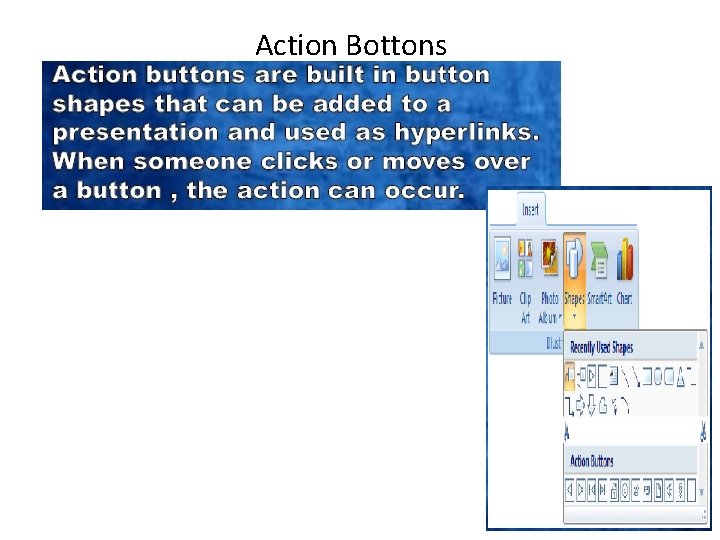
Action Bottons
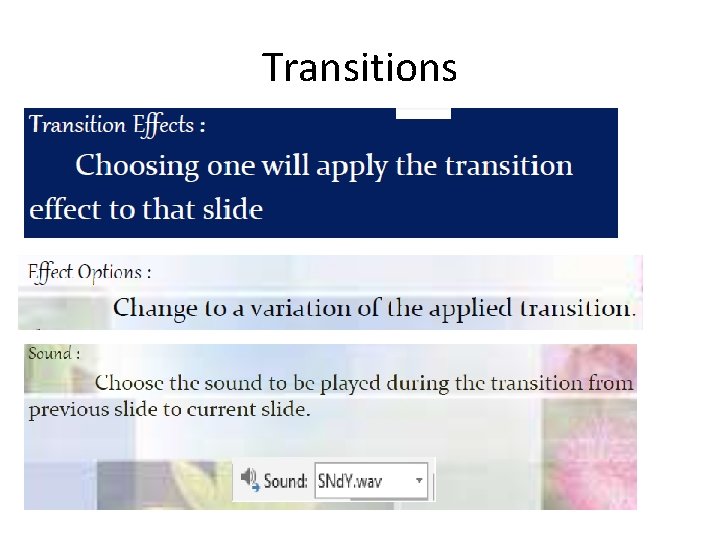
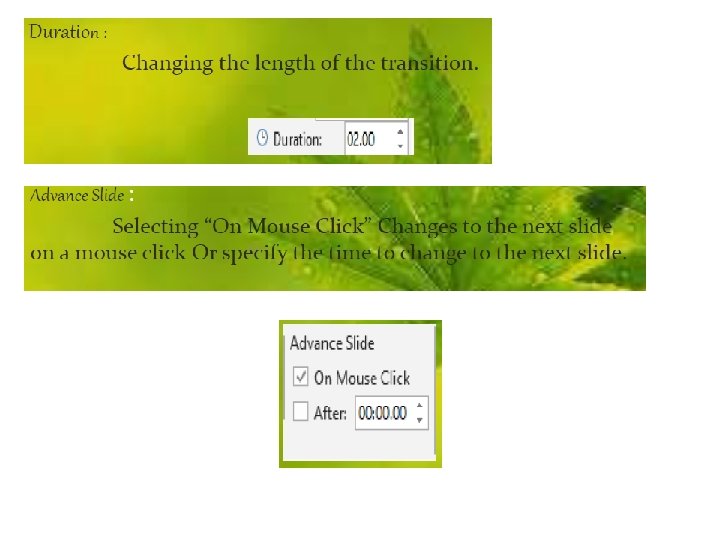
Transitions
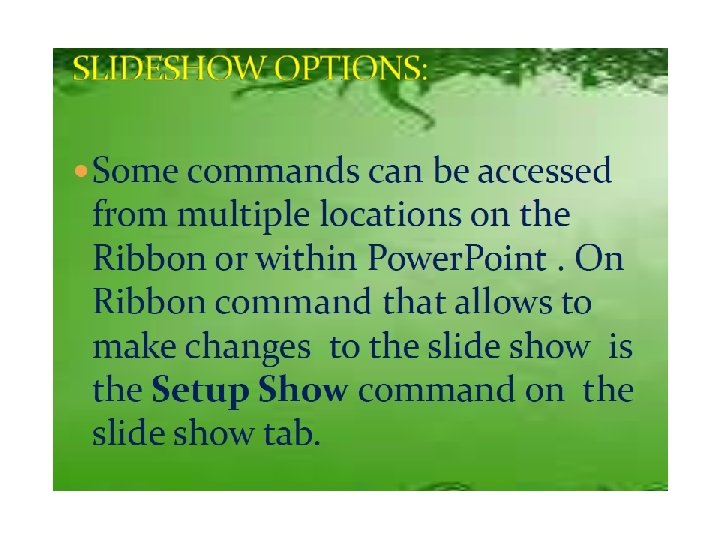
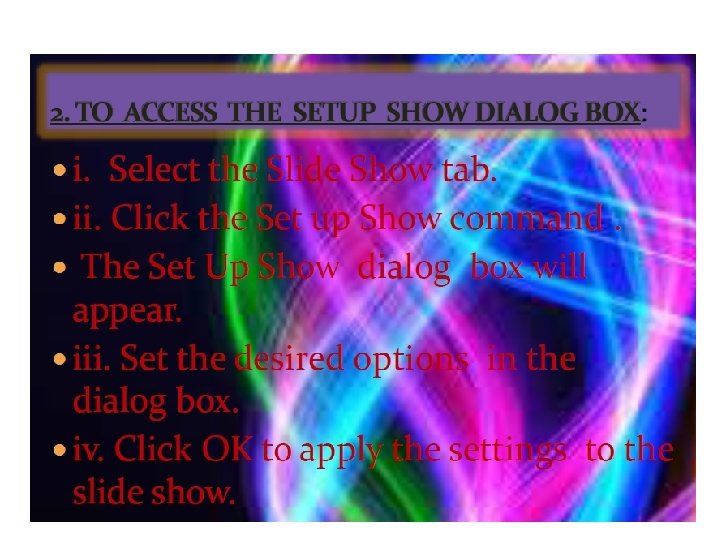
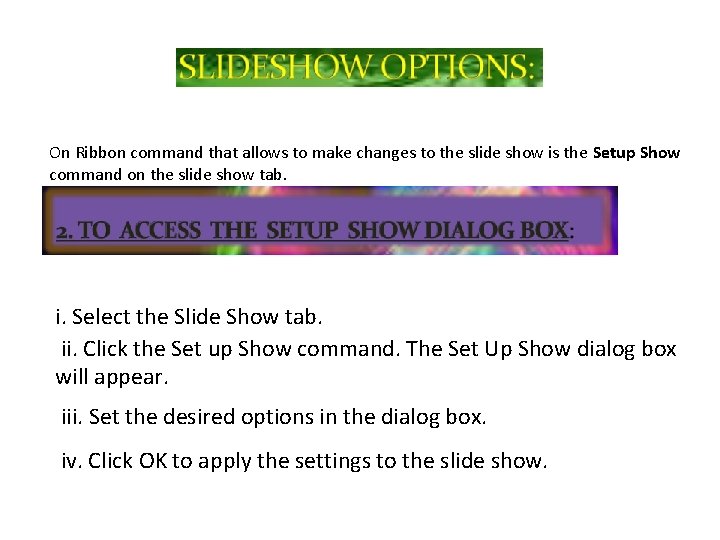
On Ribbon command that allows to make changes to the slide show is the Setup Show command on the slide show tab. i. Select the Slide Show tab. ii. Click the Set up Show command. The Set Up Show dialog box will appear. iii. Set the desired options in the dialog box. iv. Click OK to apply the settings to the slide show.