
Power Teacher Pro for Teachers Part Two Trainer




- Slides: 53
Power. Teacher Pro for Teachers Part Two Trainer Name Trainer/Consultant
Agenda • Welcome and Introductions • Working with Final Grades • Analyzing Performance • Running Power. Teacher Pro Reports • Time for Review
Meet the Trainer • Specify a few things about yourself <Your name here>
Course Server Information Sign in to the following server to complete course activities: • https: //training. XX. powerschool. com/teachers • Username: XXaghs 1 • Password: aghs 1
Working with Final Grades
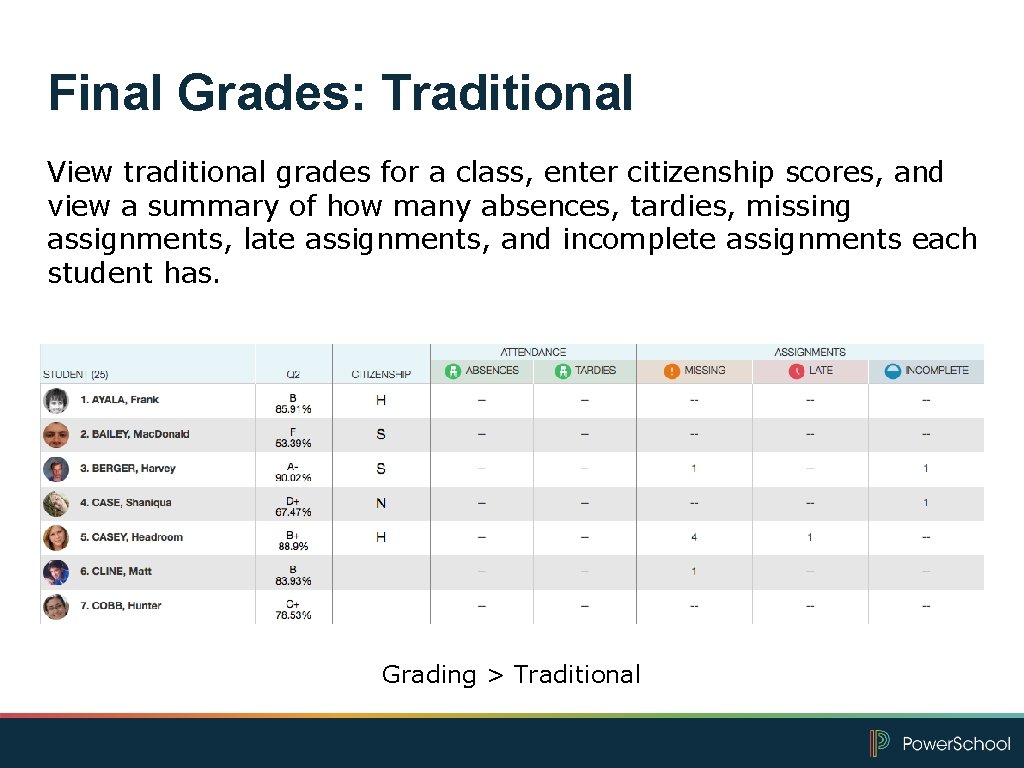
Final Grades: Traditional View traditional grades for a class, enter citizenship scores, and view a summary of how many absences, tardies, missing assignments, late assignments, and incomplete assignments each student has. Grading > Traditional
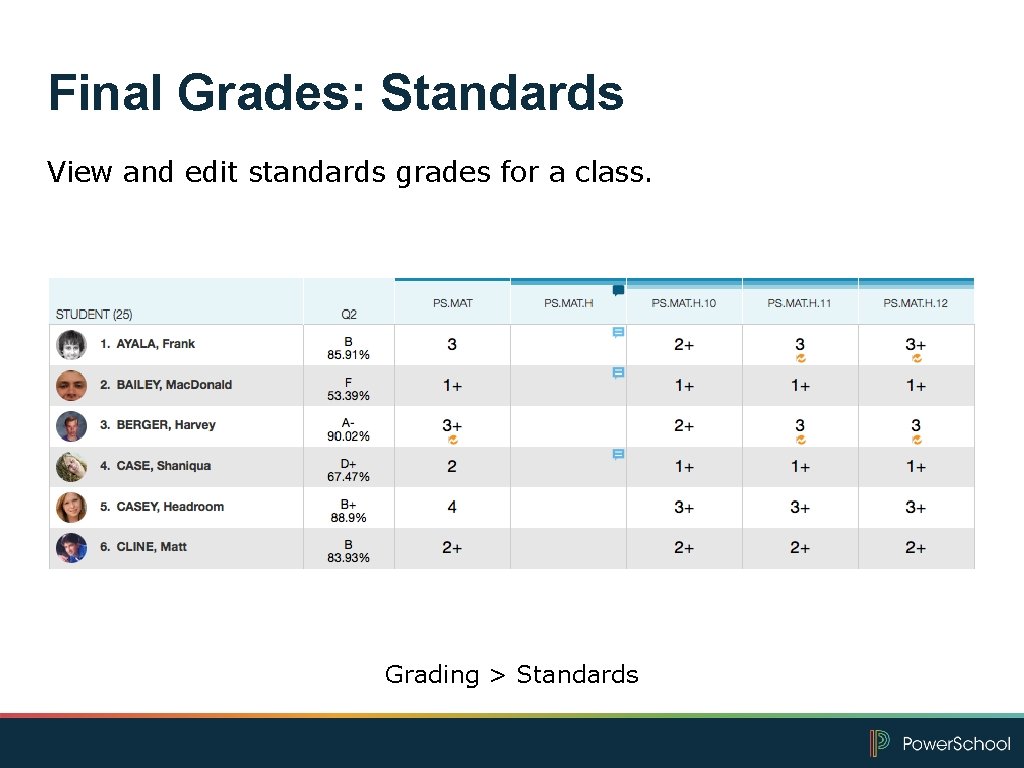
Final Grades: Standards View and edit standards grades for a class. Grading > Standards
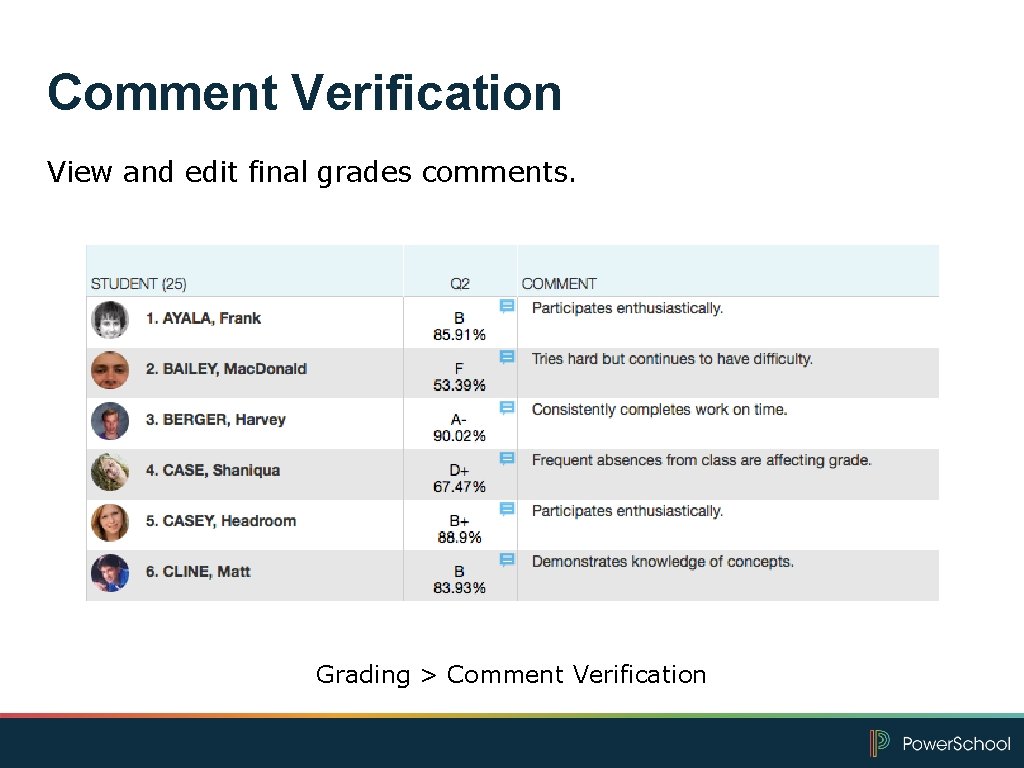
Comment Verification View and edit final grades comments. Grading > Comment Verification
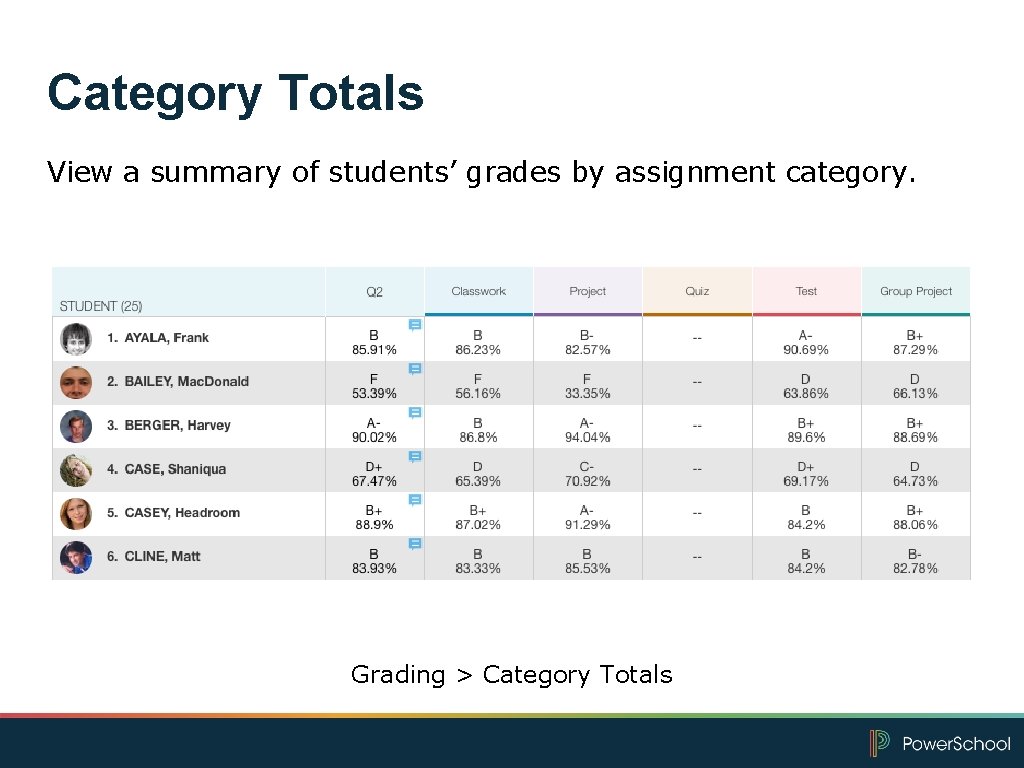
Category Totals View a summary of students’ grades by assignment category. Grading > Category Totals
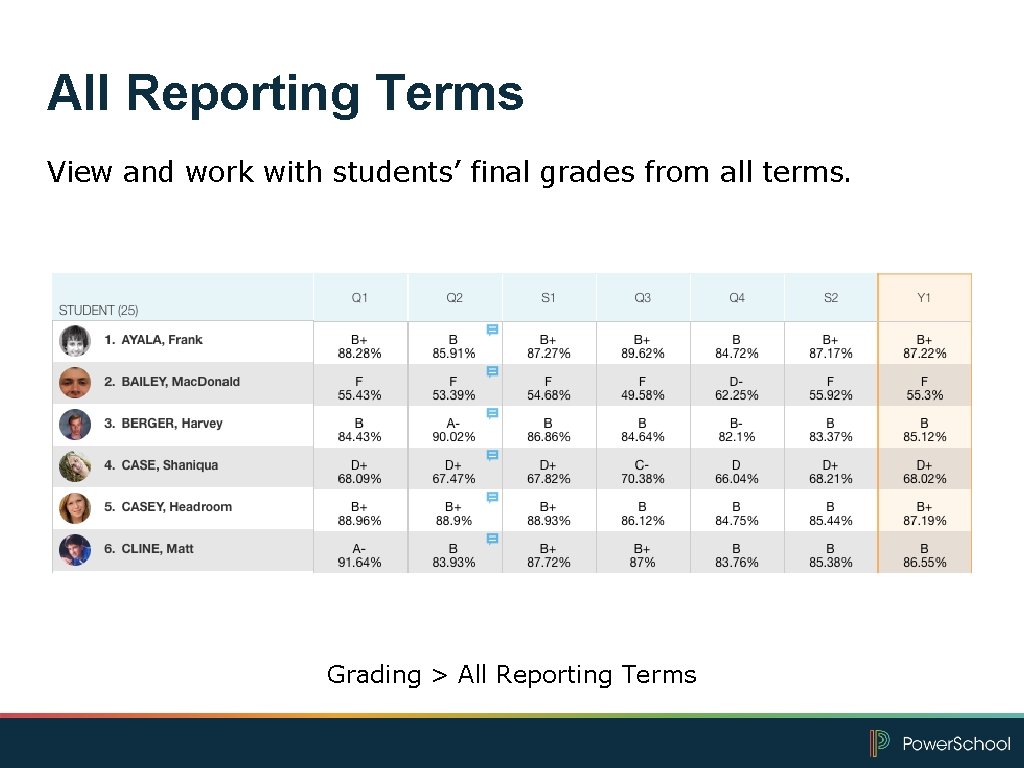
All Reporting Terms View and work with students’ final grades from all terms. Grading > All Reporting Terms
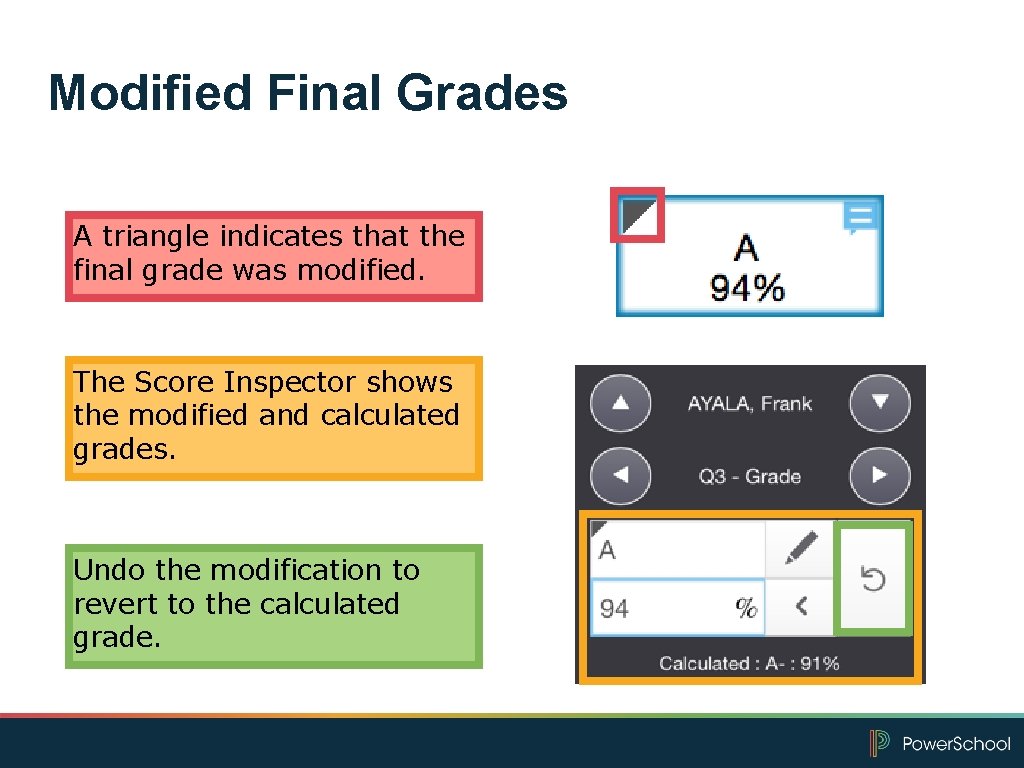
Modified Final Grades A triangle indicates that the final grade was modified. The Score Inspector shows the modified and calculated grades. Undo the modification to revert to the calculated grade.
Now It’s Your Turn Complete hands-on activity 1: Modify a Final Grade
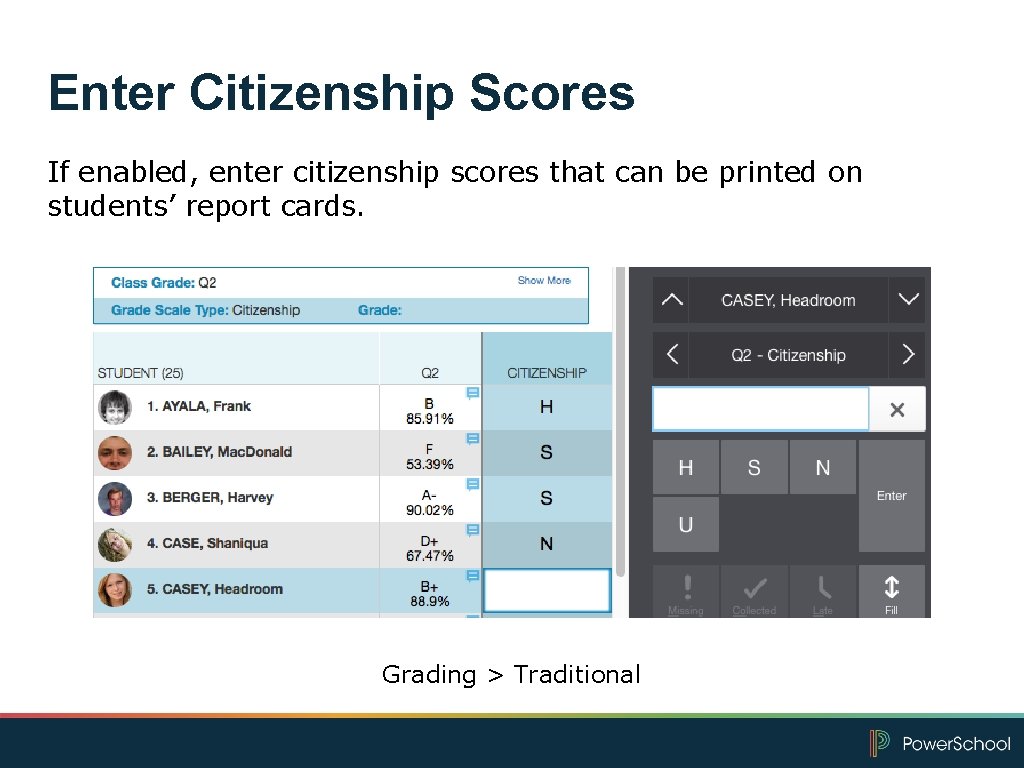
Enter Citizenship Scores If enabled, enter citizenship scores that can be printed on students’ report cards. Grading > Traditional
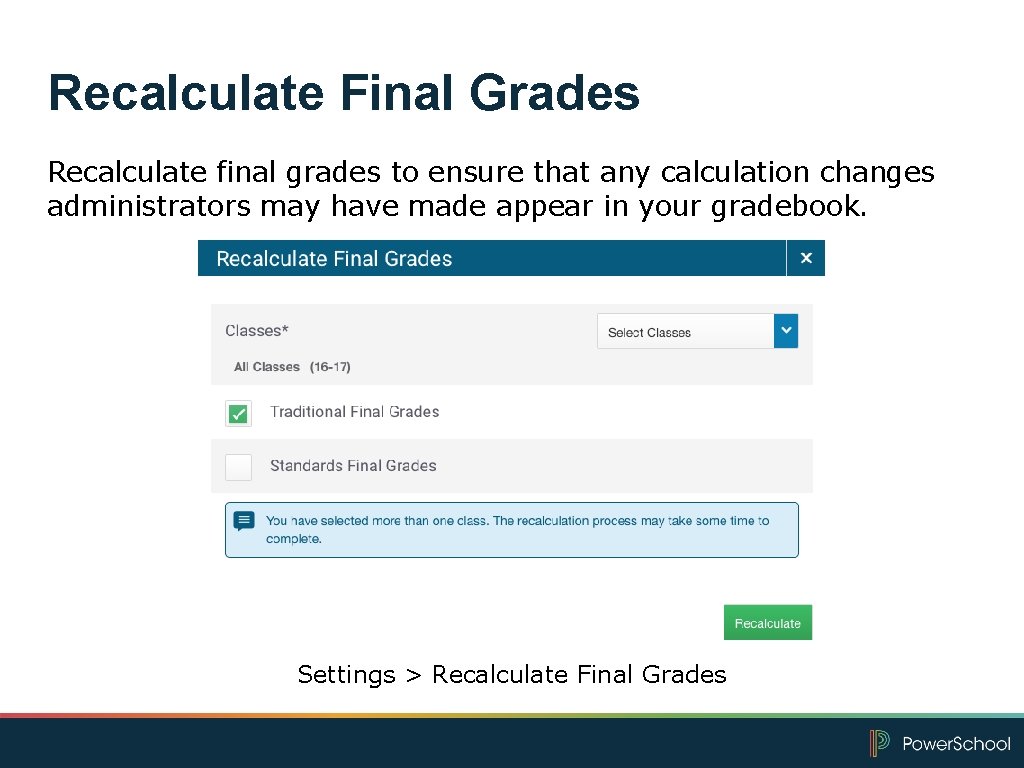
Recalculate Final Grades Recalculate final grades to ensure that any calculation changes administrators may have made appear in your gradebook. Settings > Recalculate Final Grades
Now It’s Your Turn Complete hands-on activity 2: Enter Citizenship Scores
Analyzing Performance
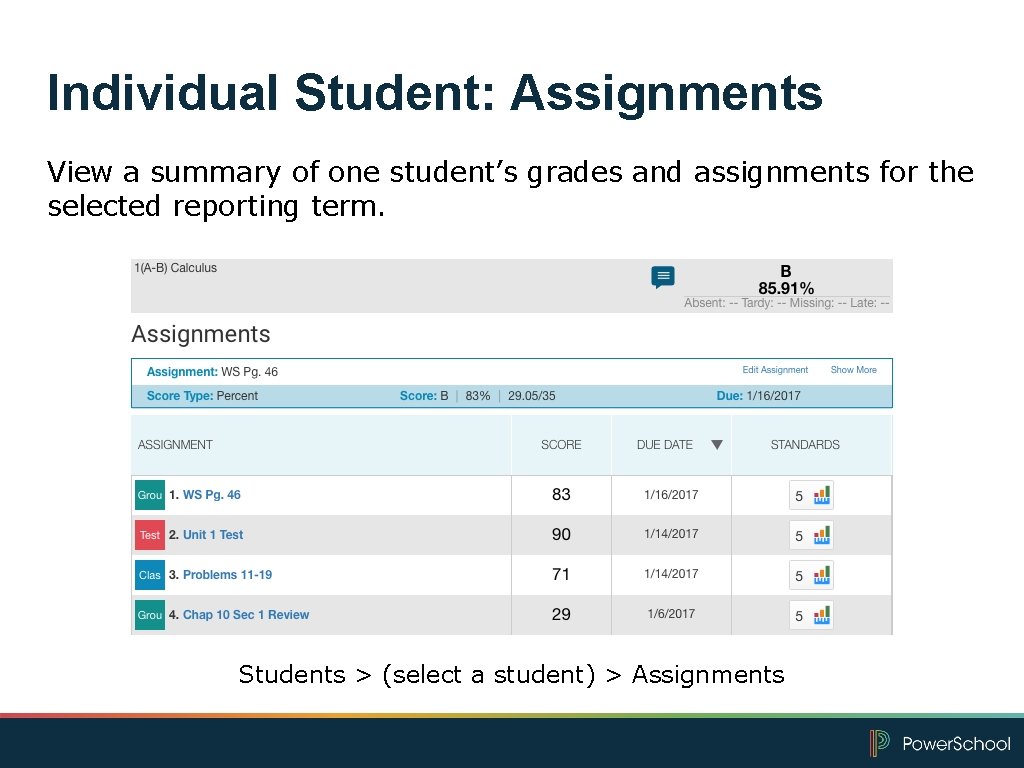
Individual Student: Assignments View a summary of one student’s grades and assignments for the selected reporting term. Students > (select a student) > Assignments
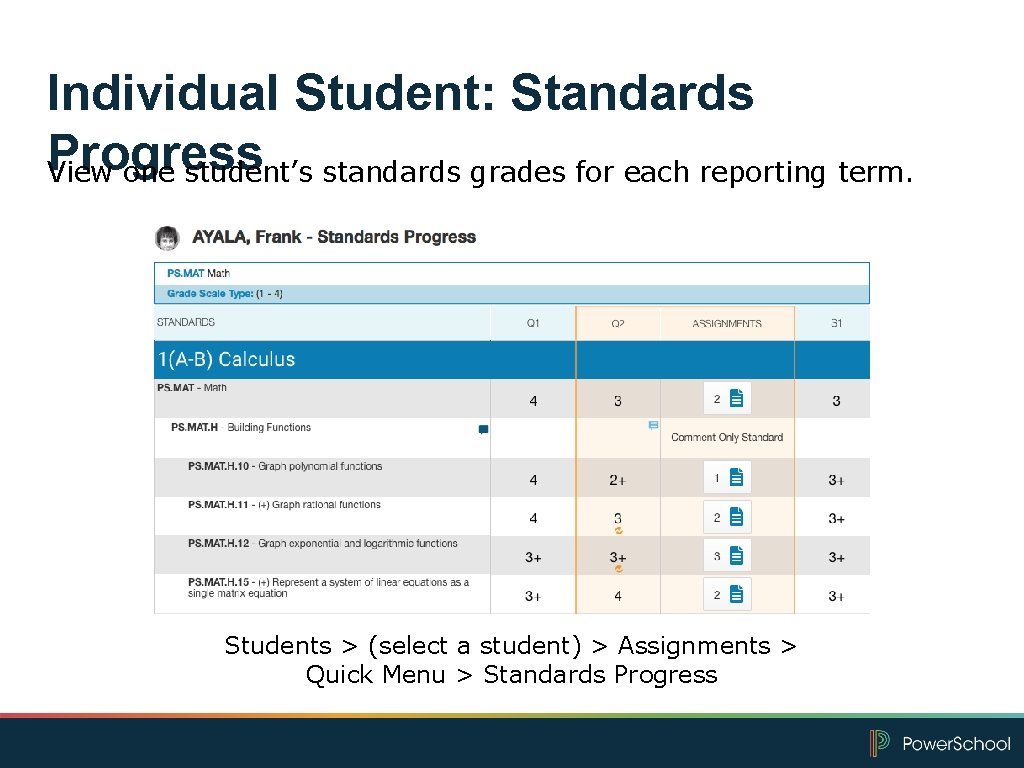
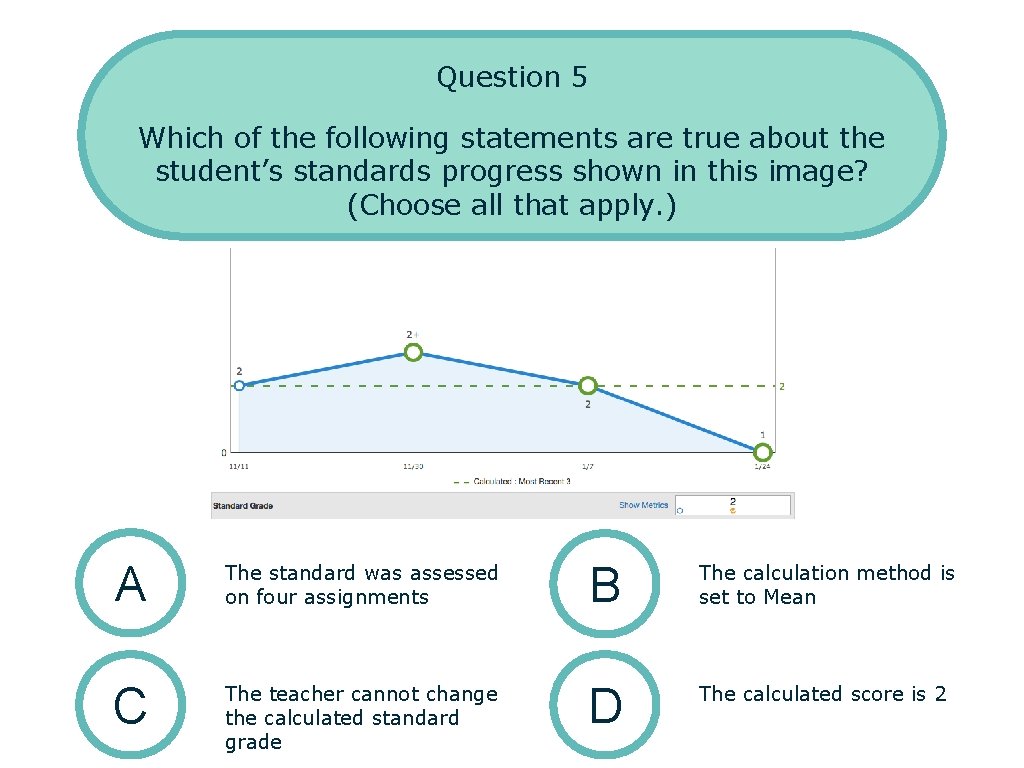
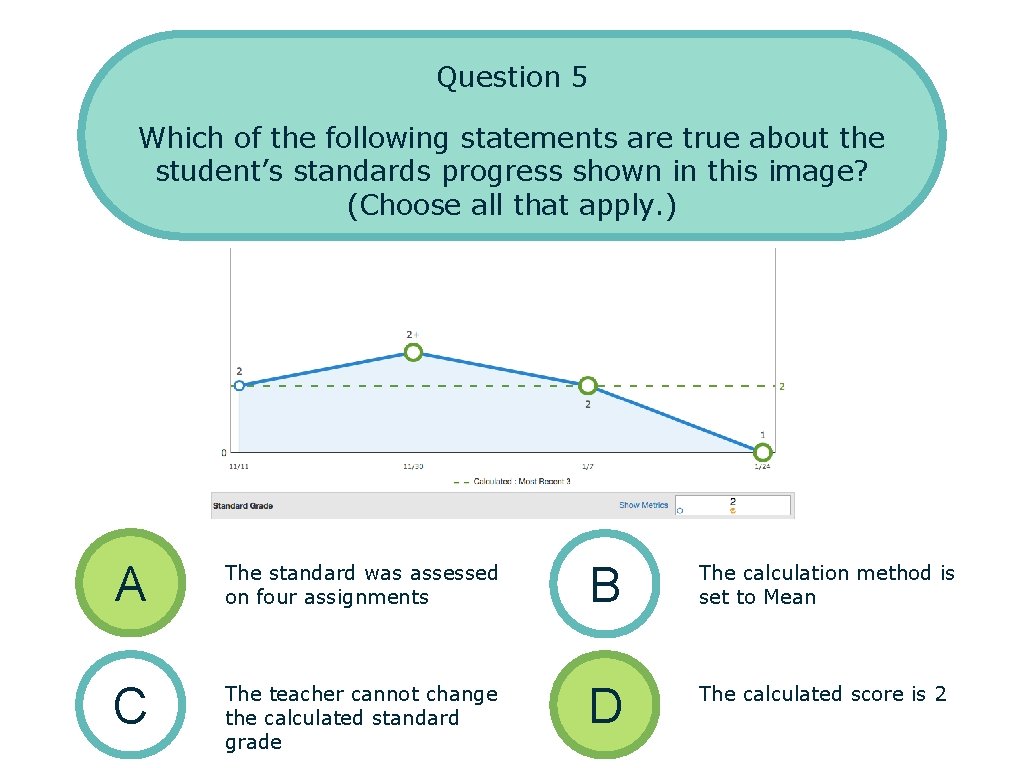
Individual Student: Standards Progress View one student’s standards grades for each reporting term. Students > (select a student) > Assignments > Quick Menu > Standards Progress
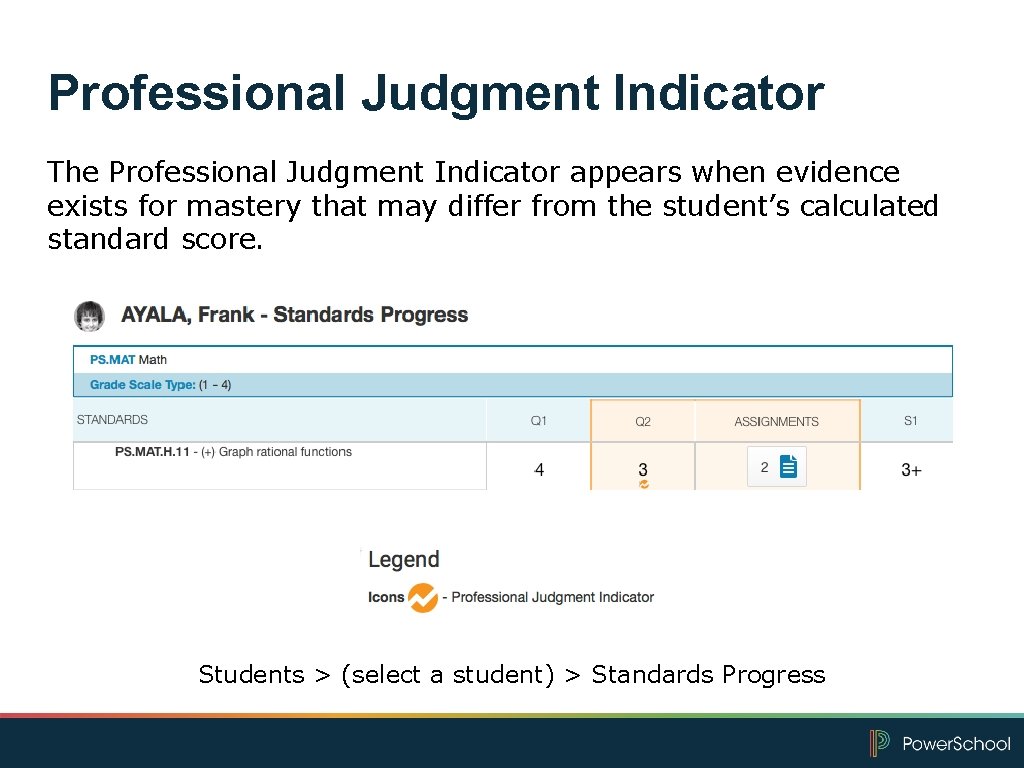
Professional Judgment Indicator The Professional Judgment Indicator appears when evidence exists for mastery that may differ from the student’s calculated standard score. Students > (select a student) > Standards Progress
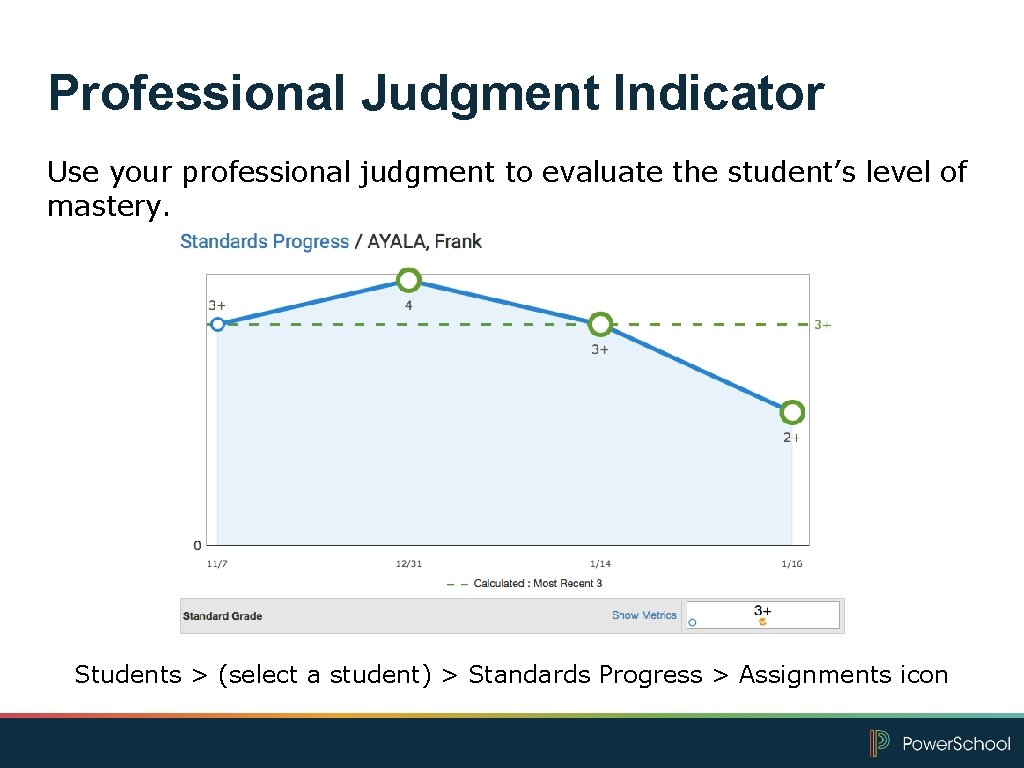
Professional Judgment Indicator Use your professional judgment to evaluate the student’s level of mastery. Students > (select a student) > Standards Progress > Assignments icon
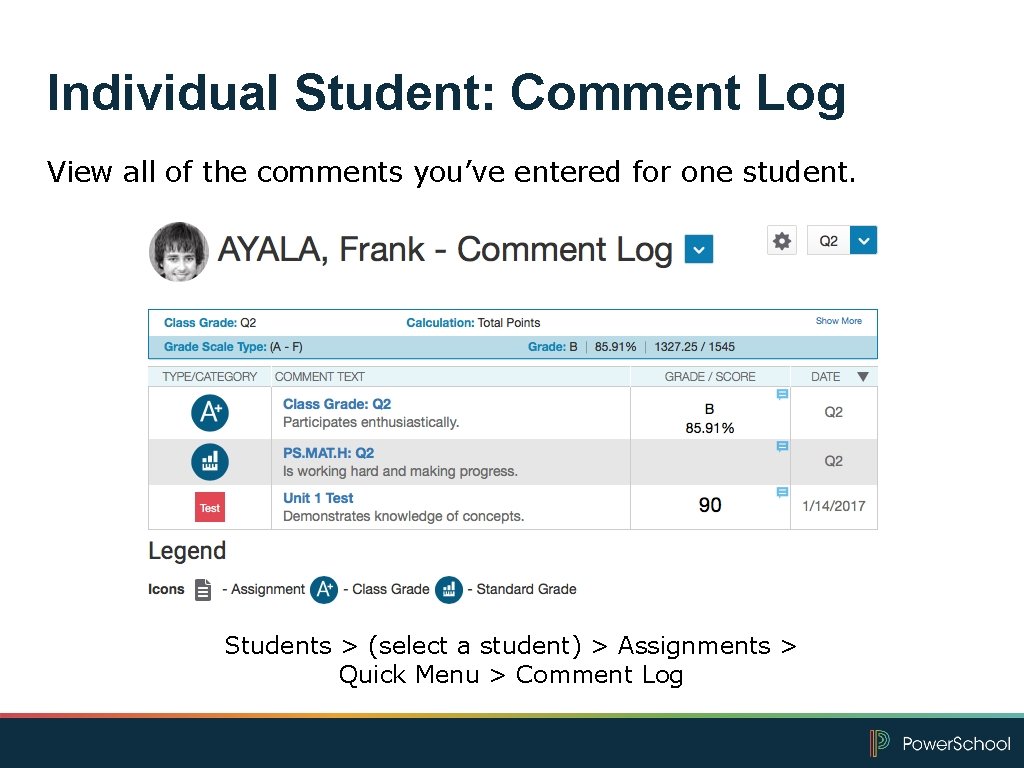
Individual Student: Comment Log View all of the comments you’ve entered for one student. Students > (select a student) > Assignments > Quick Menu > Comment Log
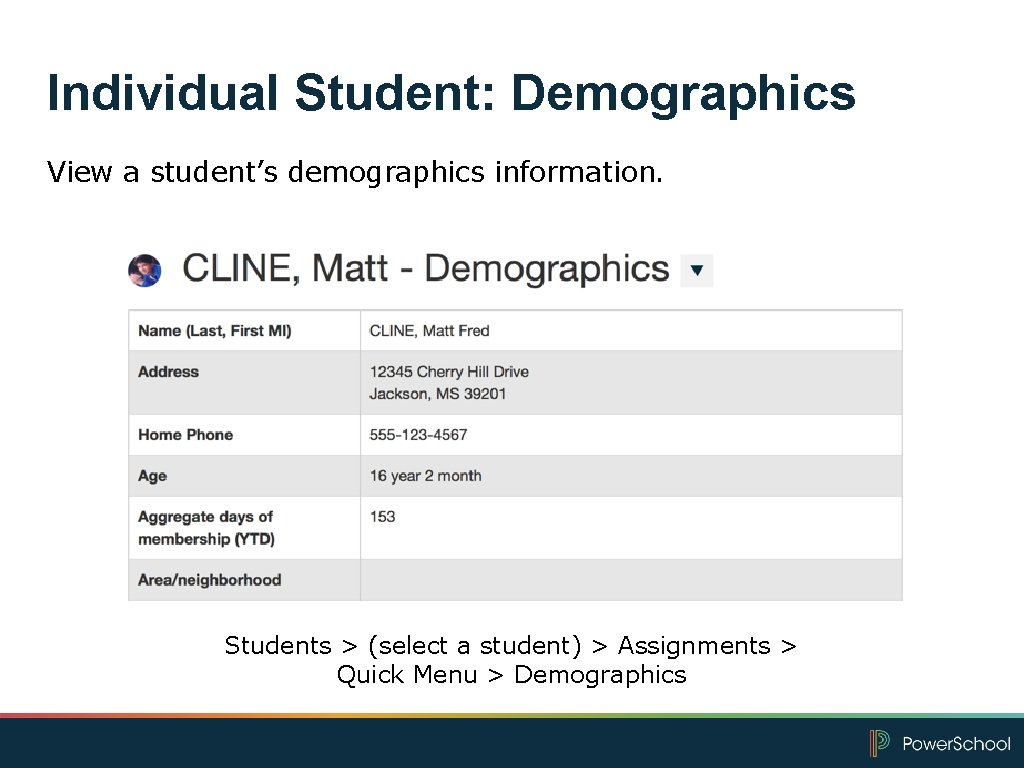
Individual Student: Demographics View a student’s demographics information. Students > (select a student) > Assignments > Quick Menu > Demographics
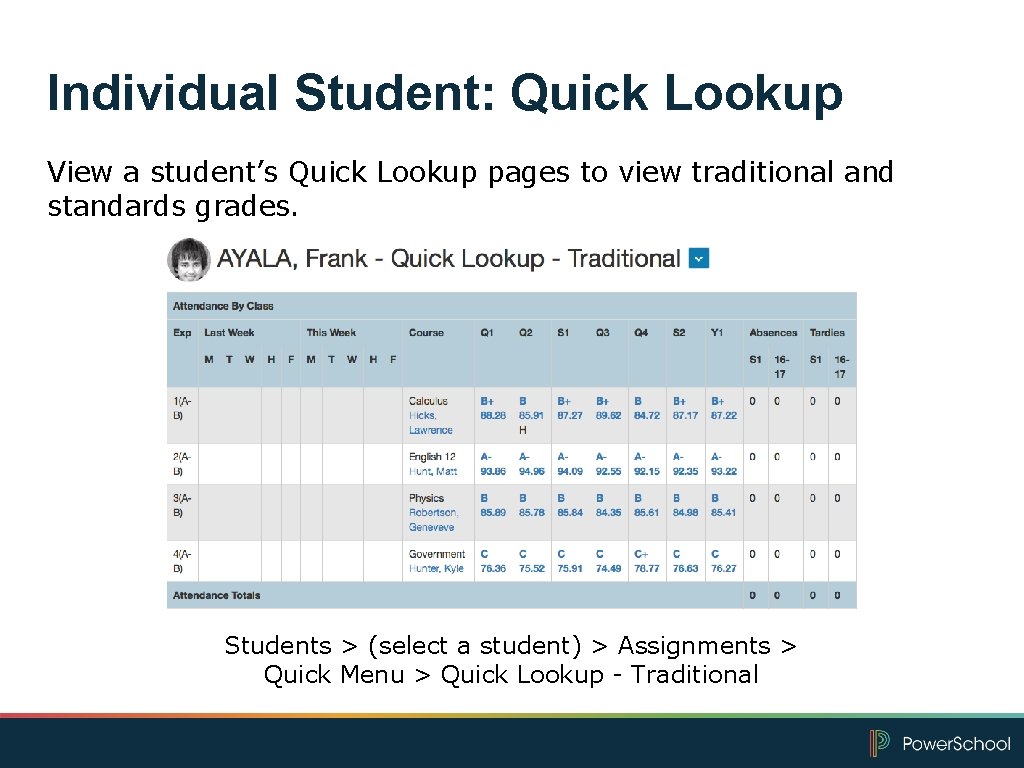
Individual Student: Quick Lookup View a student’s Quick Lookup pages to view traditional and standards grades. Students > (select a student) > Assignments > Quick Menu > Quick Lookup - Traditional
Now It’s Your Turn Complete hands-on activity 3 – 4: Review an Individual Student’s Progress Find Attendance Information on the Quick Lookup Page
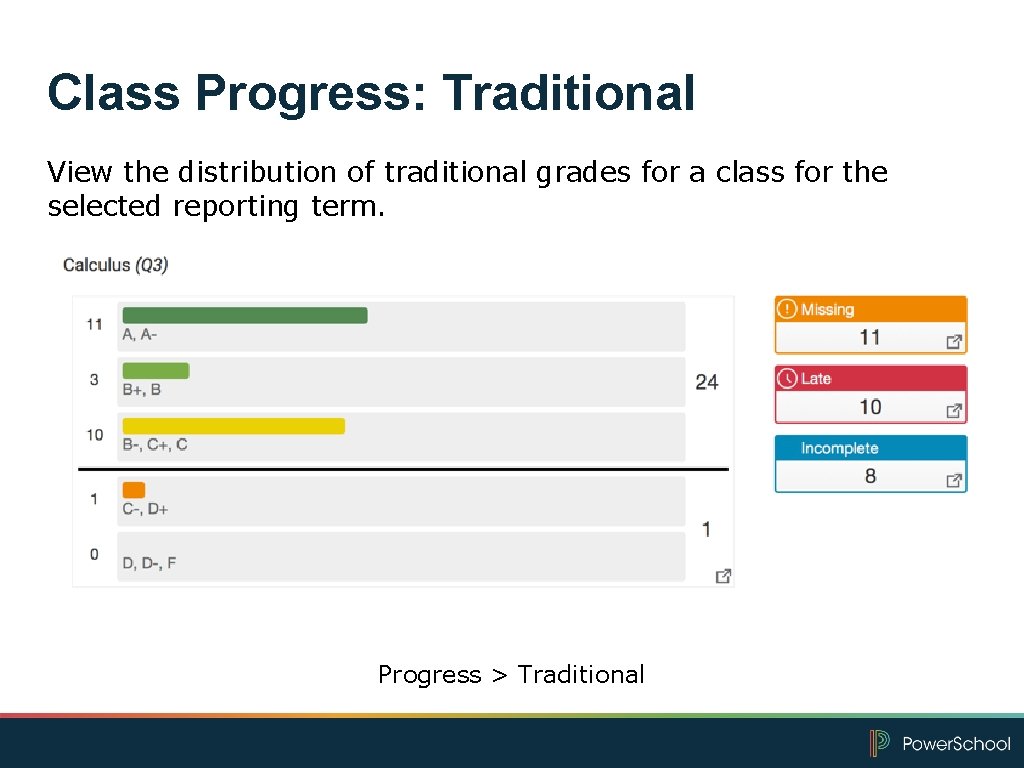
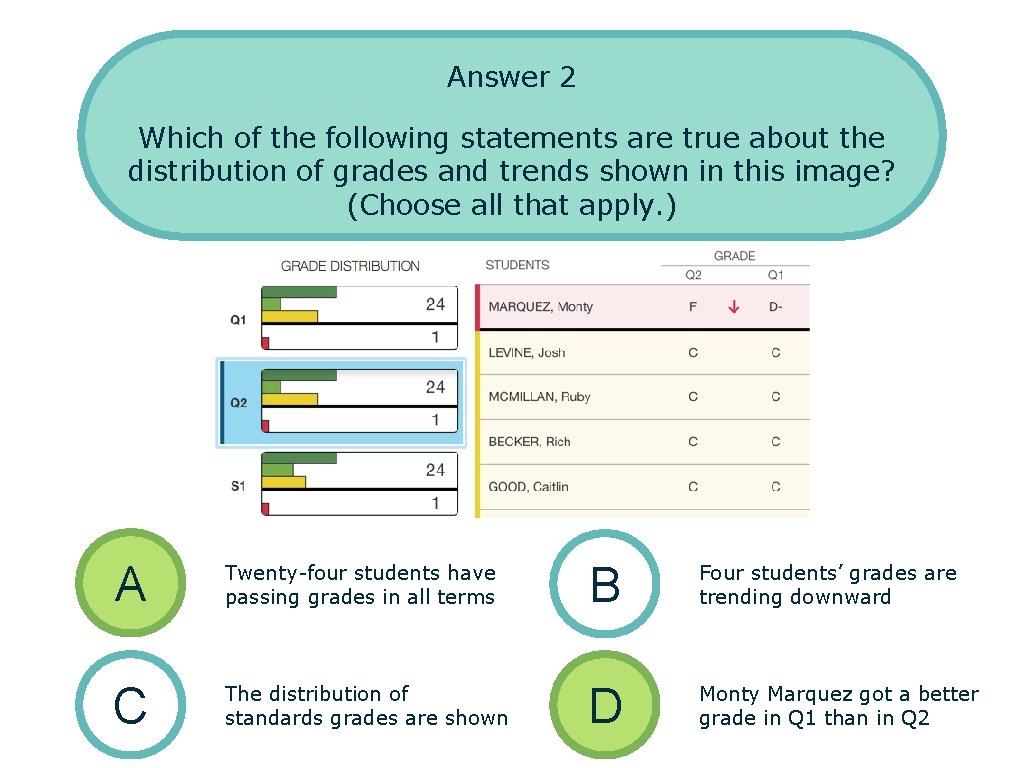
Class Progress: Traditional View the distribution of traditional grades for a class for the selected reporting term. Progress > Traditional
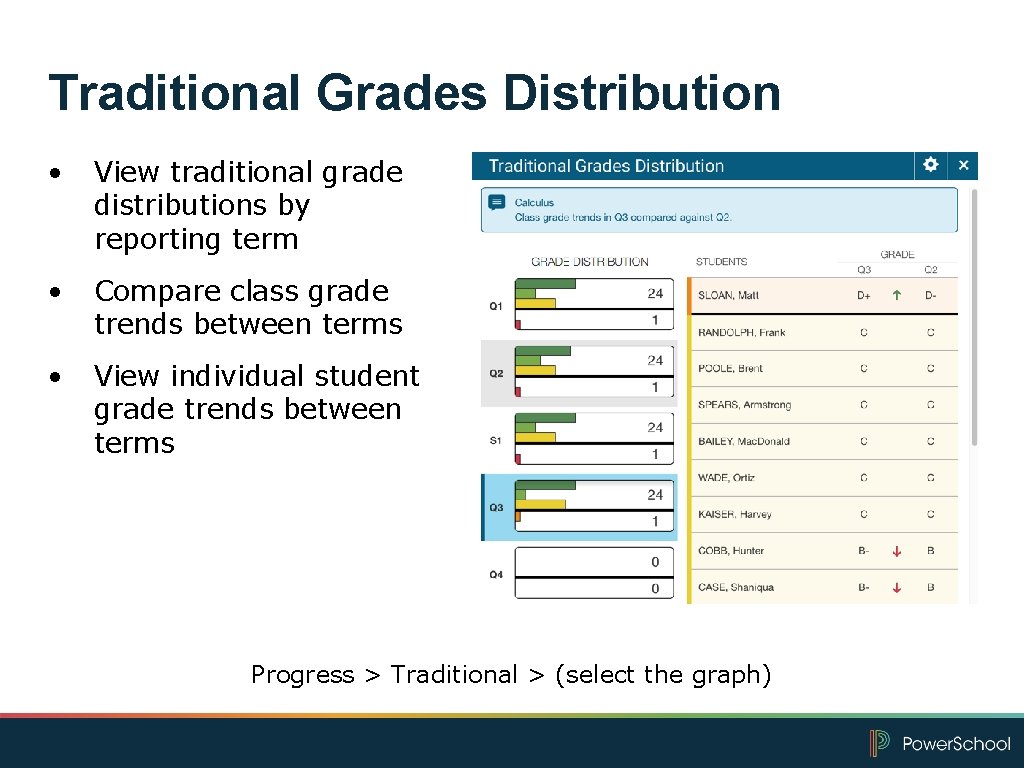
Traditional Grades Distribution • View traditional grade distributions by reporting term • Compare class grade trends between terms • View individual student grade trends between terms Progress > Traditional > (select the graph)
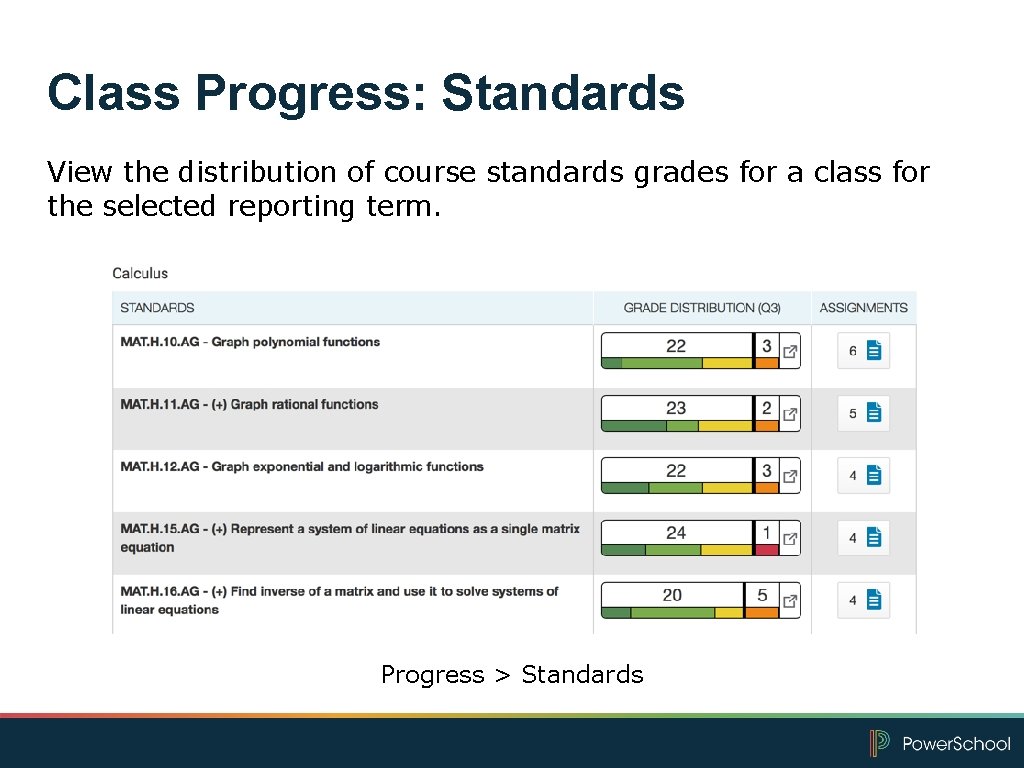
Class Progress: Standards View the distribution of course standards grades for a class for the selected reporting term. Progress > Standards
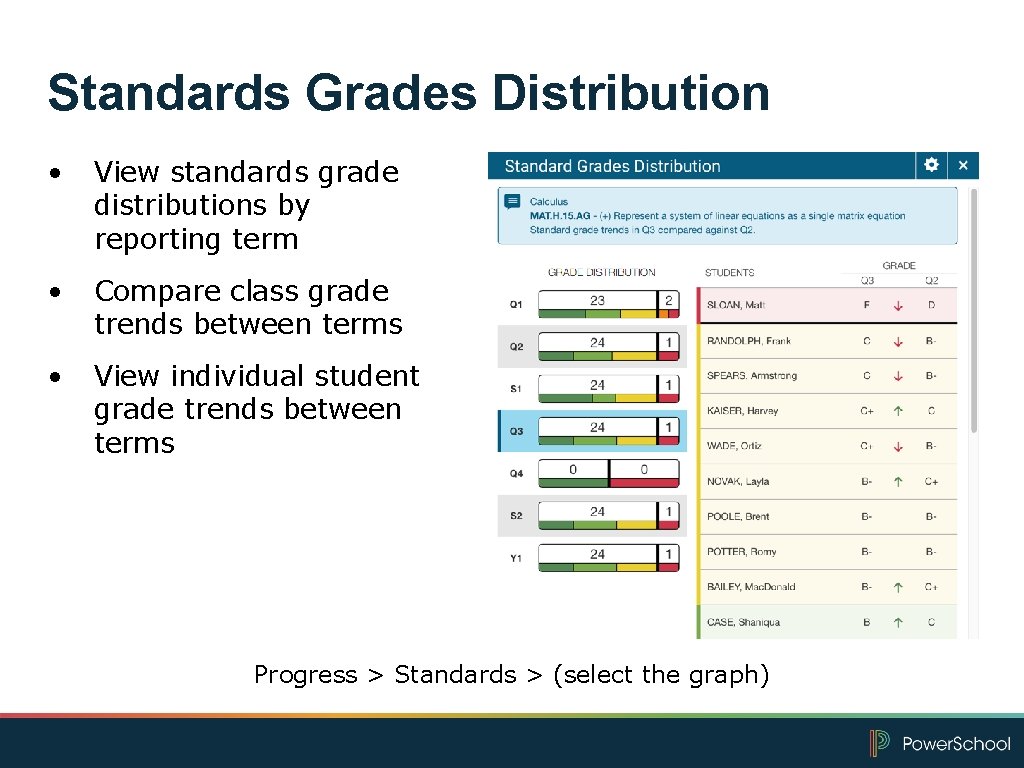
Standards Grades Distribution • View standards grade distributions by reporting term • Compare class grade trends between terms • View individual student grade trends between terms Progress > Standards > (select the graph)
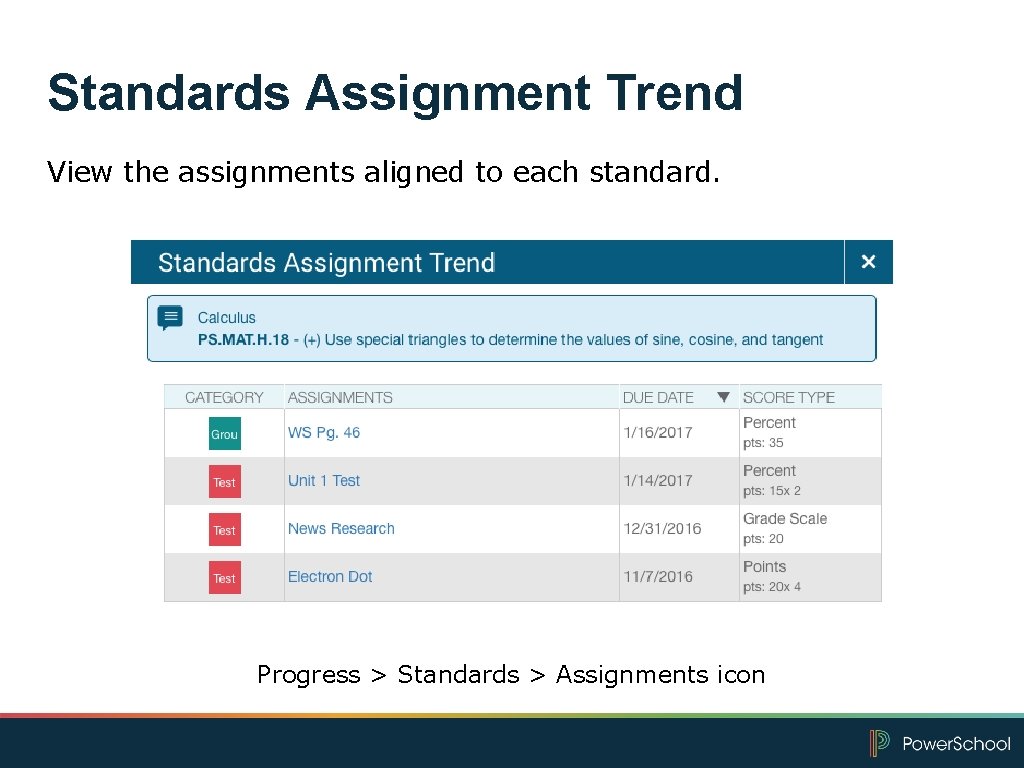
Standards Assignment Trend View the assignments aligned to each standard. Progress > Standards > Assignments icon
Now It’s Your Turn Complete hands-on activity 5: Review Class Progress
Running Power. Teacher Pro Reports
Power. Teacher Pro Reports Power. Teacher Pro contains reports that you can view onscreen or print. • Individual Student Report • Multi-Function Assignment Report • Scoresheet Report • Student Roster
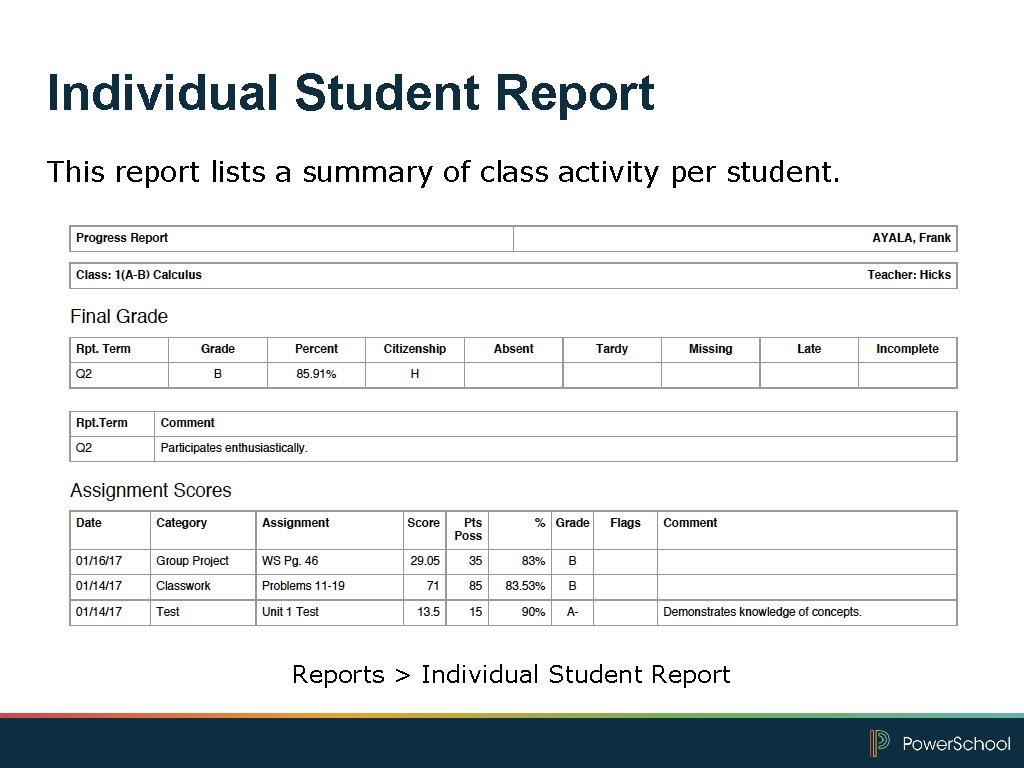
Individual Student Report This report lists a summary of class activity per student. Reports > Individual Student Report
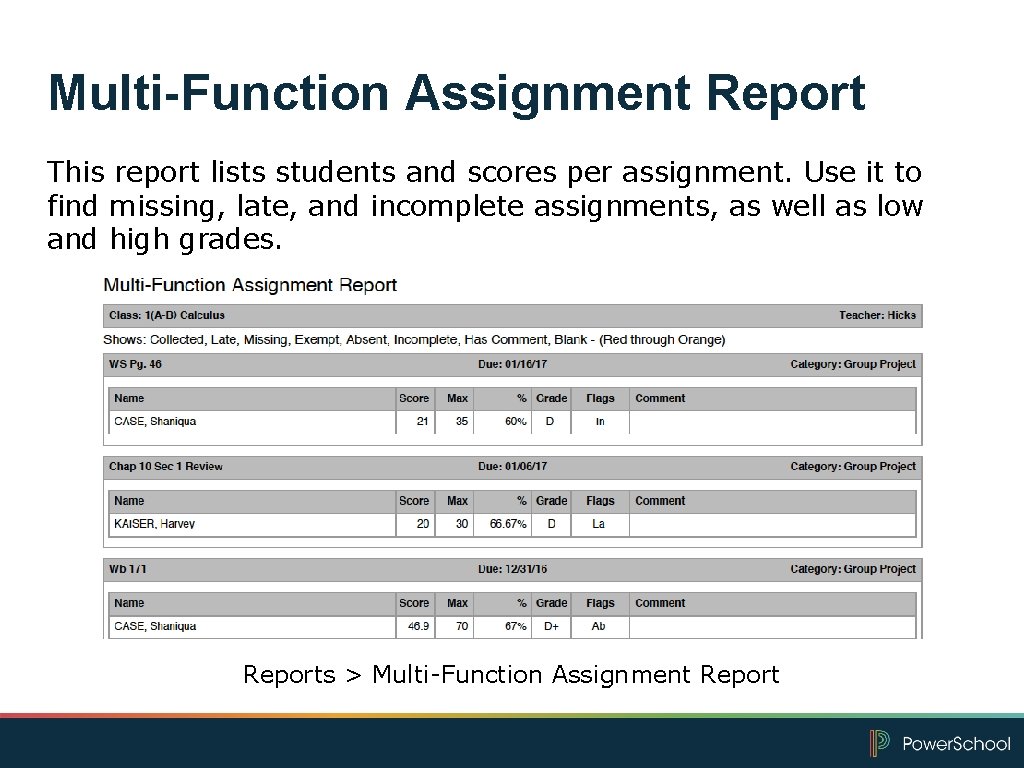
Multi-Function Assignment Report This report lists students and scores per assignment. Use it to find missing, late, and incomplete assignments, as well as low and high grades. Reports > Multi-Function Assignment Report
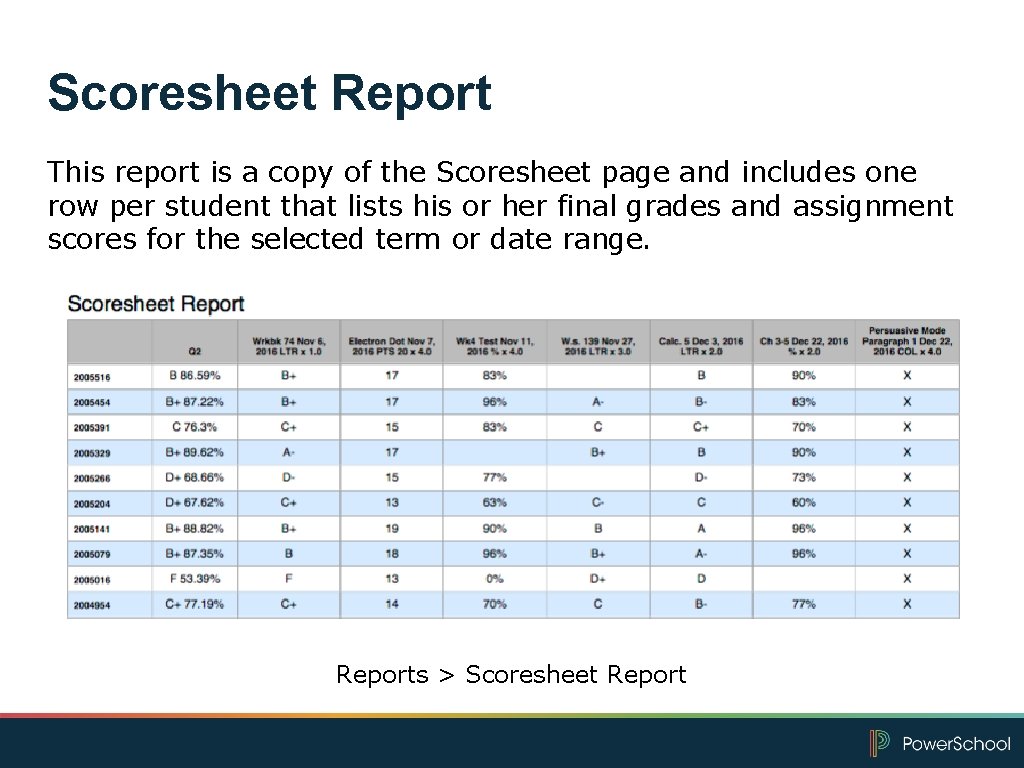
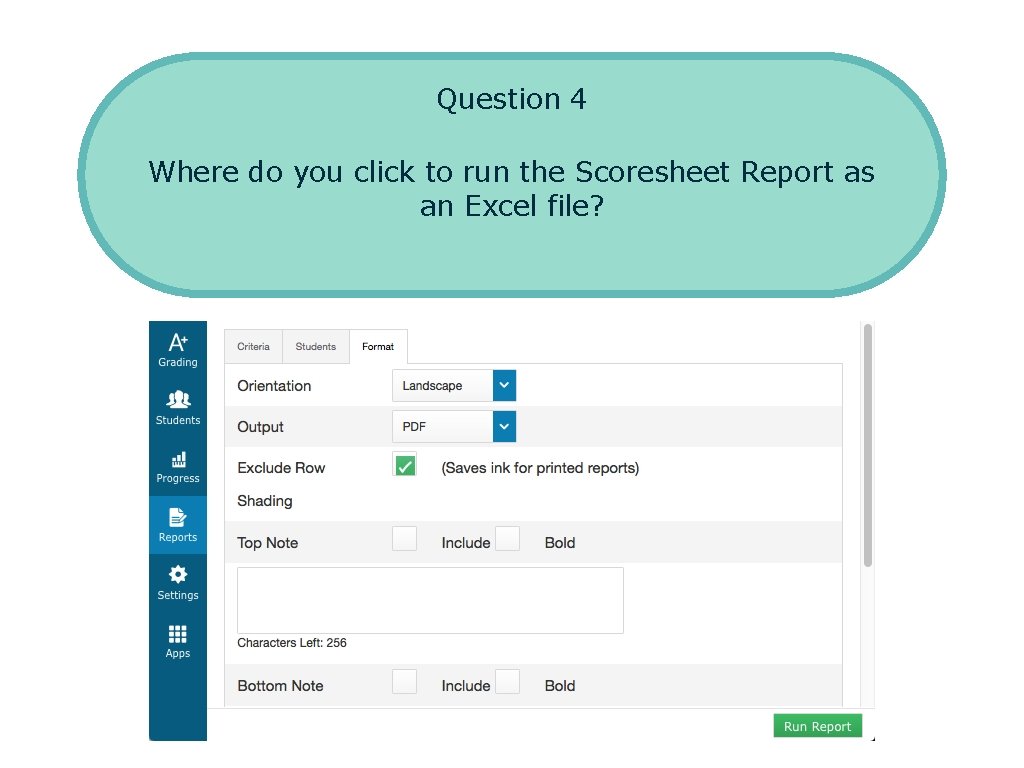
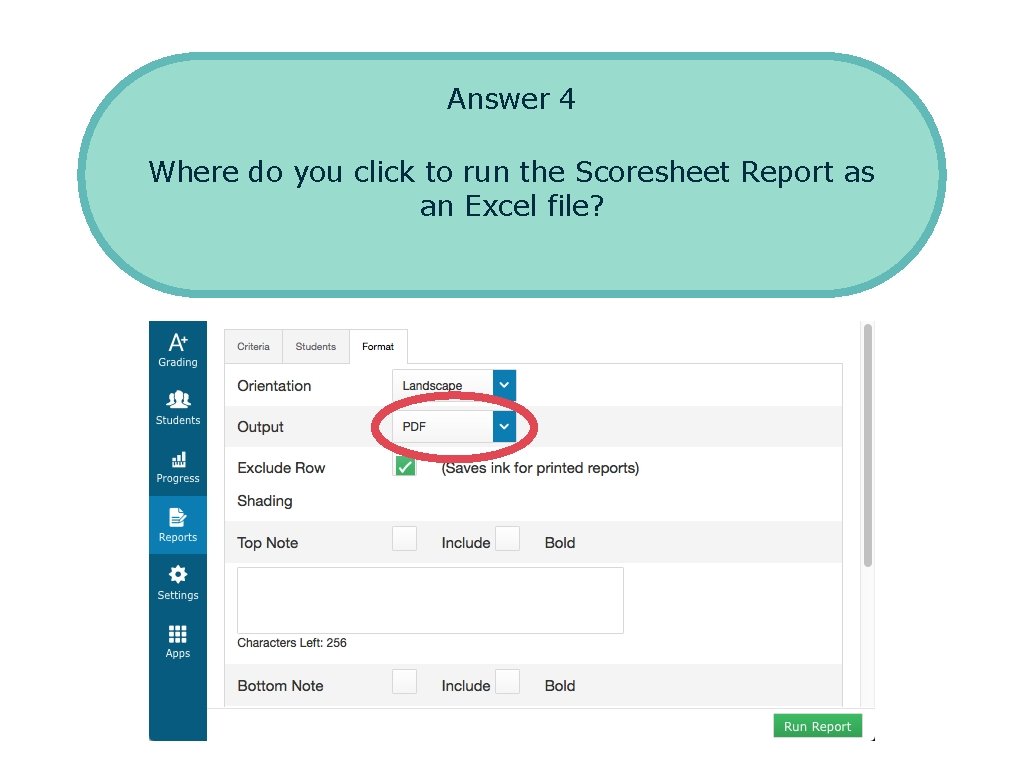
Scoresheet Report This report is a copy of the Scoresheet page and includes one row per student that lists his or her final grades and assignment scores for the selected term or date range. Reports > Scoresheet Report
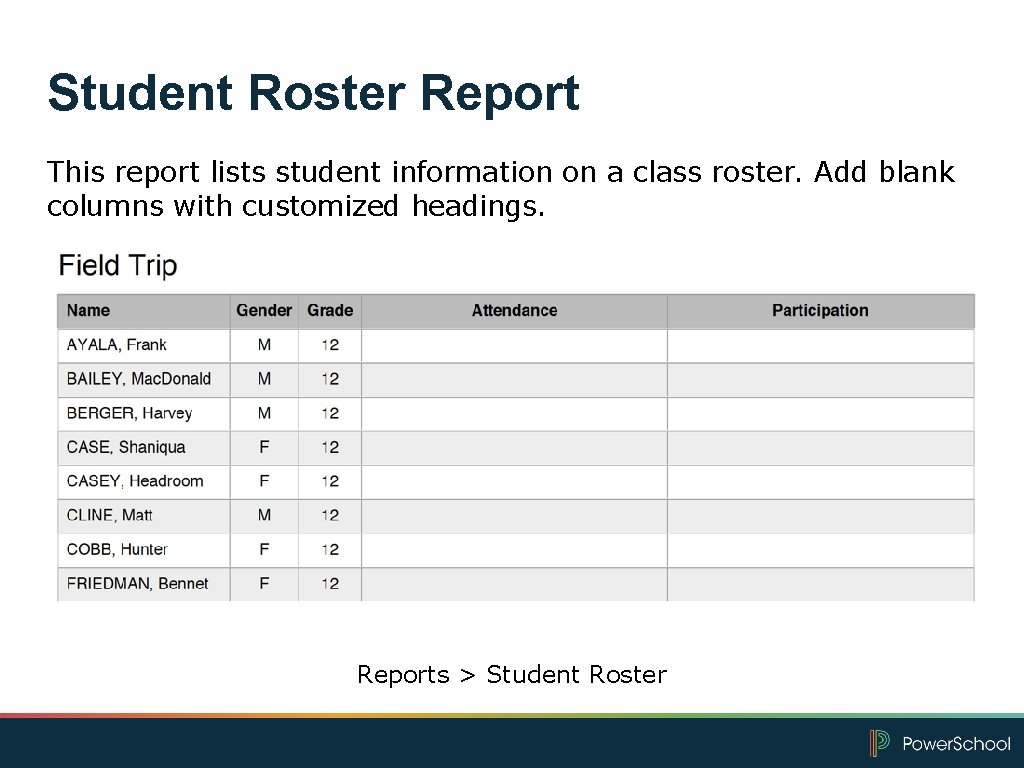
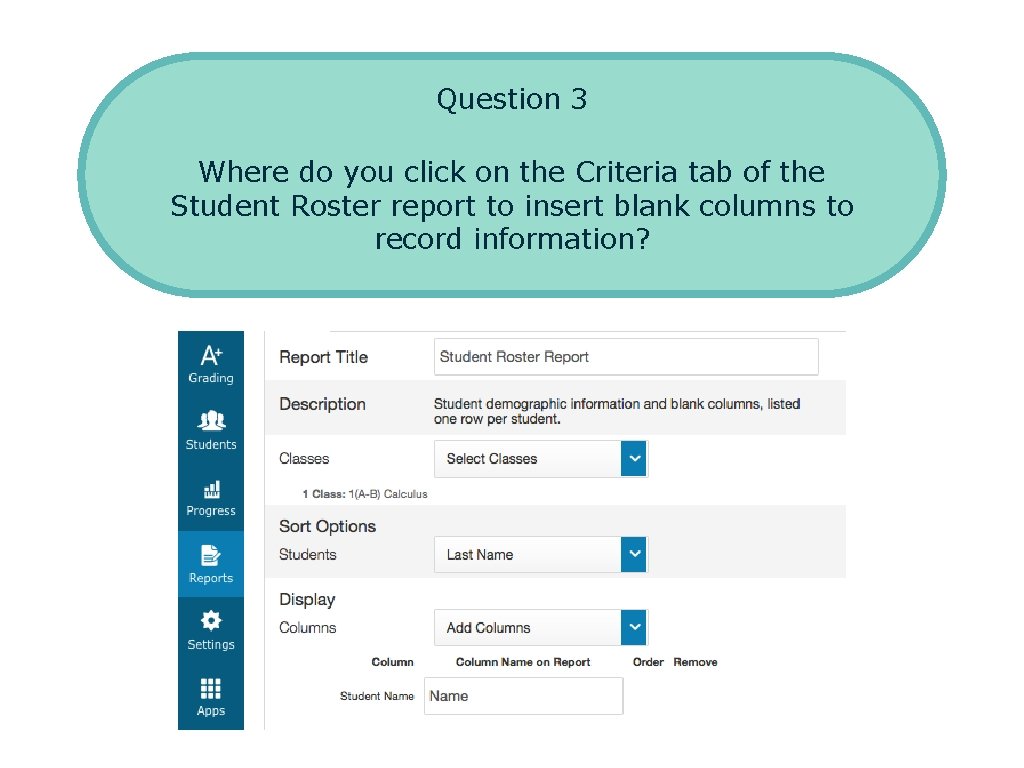
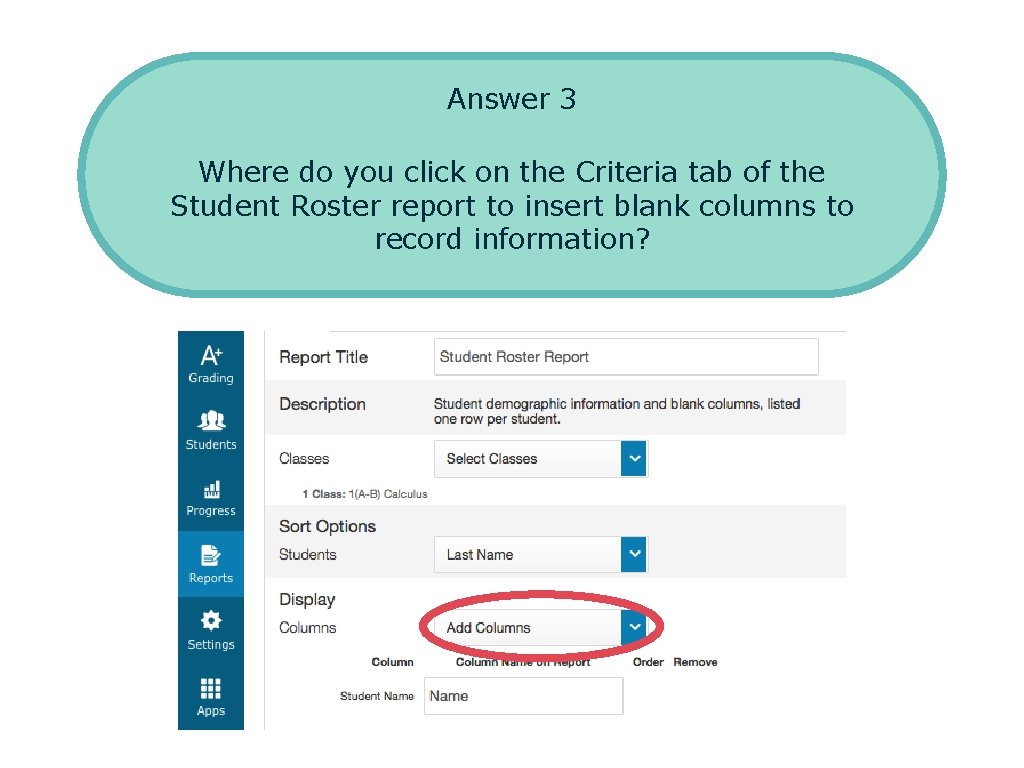
Student Roster Report This report lists student information on a class roster. Add blank columns with customized headings. Reports > Student Roster
Now It’s Your Turn Complete hands-on activities 6 -7: Create Progress Reports Run a Student Roster Report
Working with Power. Teacher Pro – Bonus Activities
Now It’s Your Turn Complete Bonus activities 1– 2: View a Student’s Standards Scores for a Single Assignment View a Student’s Standards Progress for a Single Standard
Time for Review
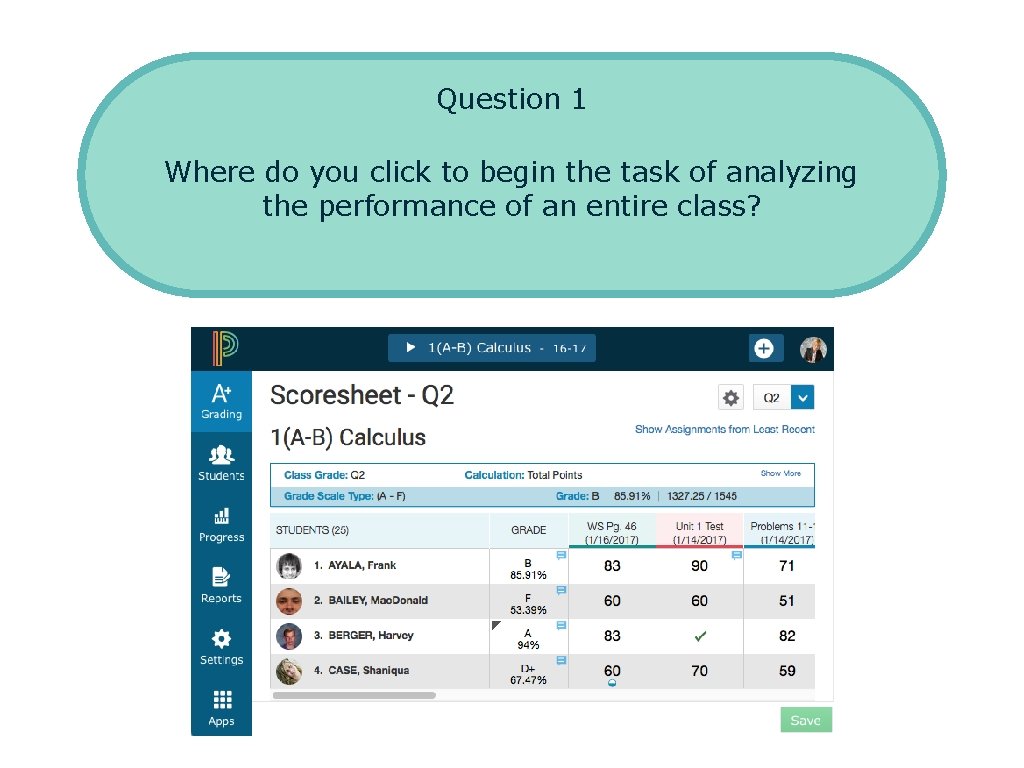
Question 1 Where do you click to begin the task of analyzing the performance of an entire class? #1 { #2
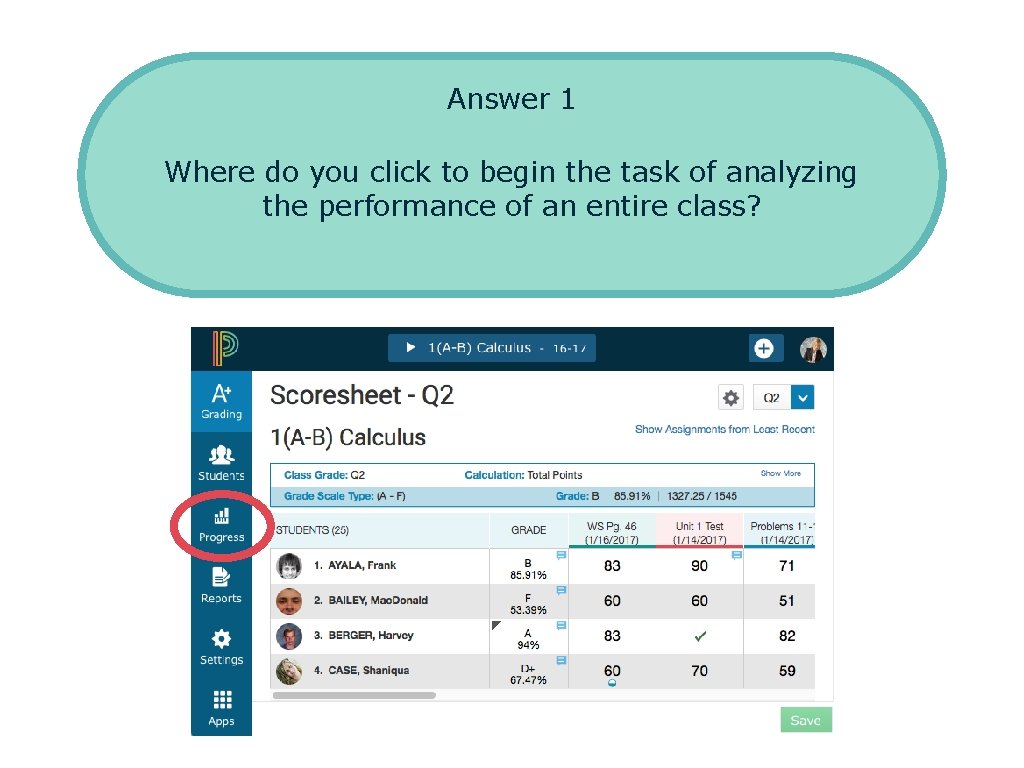
Answer 1 Where do you click to begin the task of analyzing the performance of an entire class?
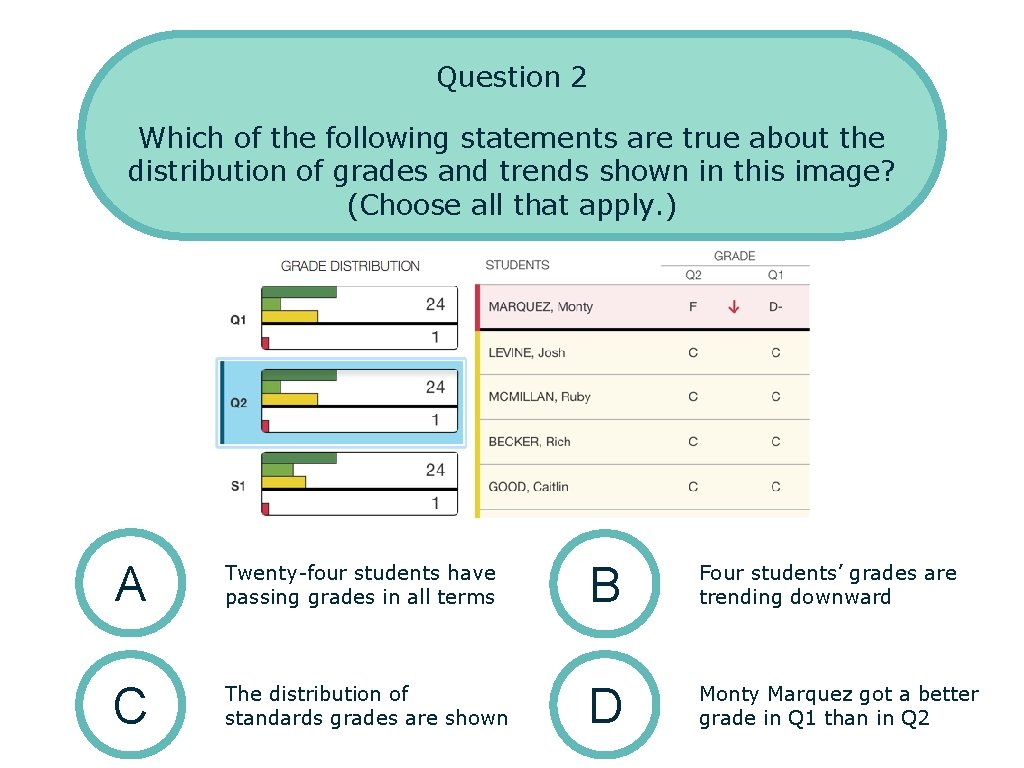
Question 2 Which of the following statements are true about the distribution of grades and trends shown in this image? (Choose all that apply. ) A Twenty-four students have passing grades in all terms B Four students’ grades are trending downward C The distribution of standards grades are shown D Monty Marquez got a better grade in Q 1 than in Q 2
Answer 2 Which of the following statements are true about the distribution of grades and trends shown in this image? (Choose all that apply. ) A Twenty-four students have passing grades in all terms B Four students’ grades are trending downward C The distribution of standards grades are shown D Monty Marquez got a better grade in Q 1 than in Q 2
Question 3 Question 4 Where do you click on the Criteria tab of the Student Roster report to insert blank columns to Report templates be in which format? recordmust information?
Answer 3 Question 4 Where do you click on the Criteria tab of the Student Roster report to insert blank columns to Report templates be in which format? recordmust information?
Question 4 Where do you click to run the Scoresheet Report as an Excel file?
Answer 4 Where do you click to run the Scoresheet Report as an Excel file?
Question 5 Which of the following statements are true about the student’s standards progress shown in this image? (Choose all that apply. ) A The standard was assessed on four assignments B The calculation method is set to Mean C The teacher cannot change the calculated standard grade D The calculated score is 2
Question 5 Which of the following statements are true about the student’s standards progress shown in this image? (Choose all that apply. ) A The standard was assessed on four assignments B The calculation method is set to Mean C The teacher cannot change the calculated standard grade D The calculated score is 2
Key Points • Working with Final Grades – View, modify, and recalculate traditional or standards final grades • Analyzing Performance – Analyze a single student’s progress or the progress of the whole class • Running Power. Teacher Pro Reports – Use customizable report templates
Question and Answer
Copyright © 2017 Power. School