
Power Teacher Pro Certification StandardsBased Grading Setup Trainer

Power. Teacher Pro Certification: Standards-Based Grading Setup Trainer Name Trainer/Consultant
Agenda • Welcome and Introductions • Preparing for Standards • Working with Standards • Setting Up Standards • Decisions About Standards Grading in Power. Teacher Pro • Viewing and Reporting Standards Scores • Time for Review
Meet the Trainer • Specify a few things about yourself <Your name here>
Course Server Information Sign in to the following server to complete course activities: • https: //training. XX. powerschool. com/teachers • Username: XXaghs 1 • Password: aghs 1
Preparing for Standards
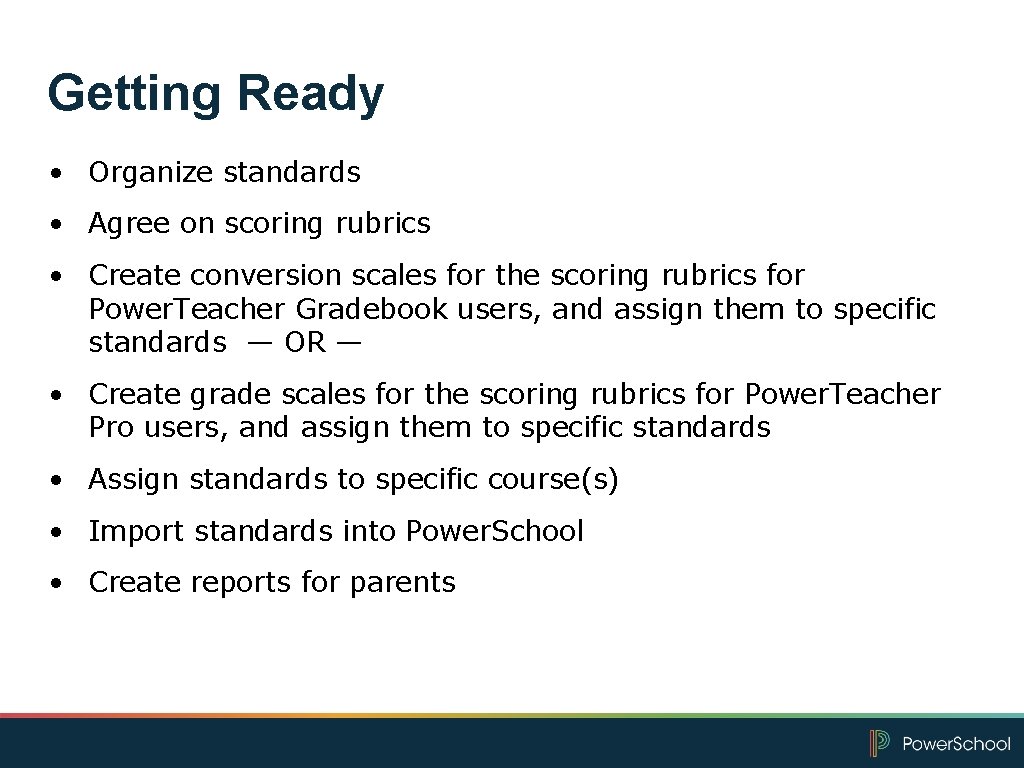
Getting Ready • Organize standards • Agree on scoring rubrics • Create conversion scales for the scoring rubrics for Power. Teacher Gradebook users, and assign them to specific standards — OR — • Create grade scales for the scoring rubrics for Power. Teacher Pro users, and assign them to specific standards • Assign standards to specific course(s) • Import standards into Power. School • Create reports for parents
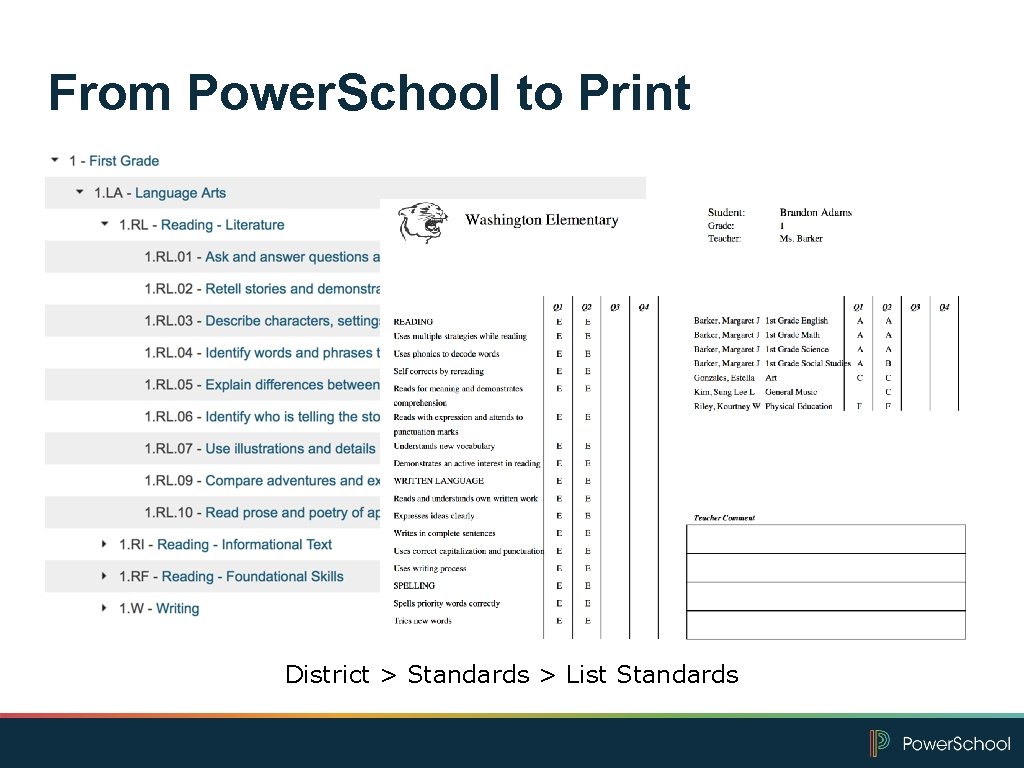
From Power. School to Print District > Standards > List Standards
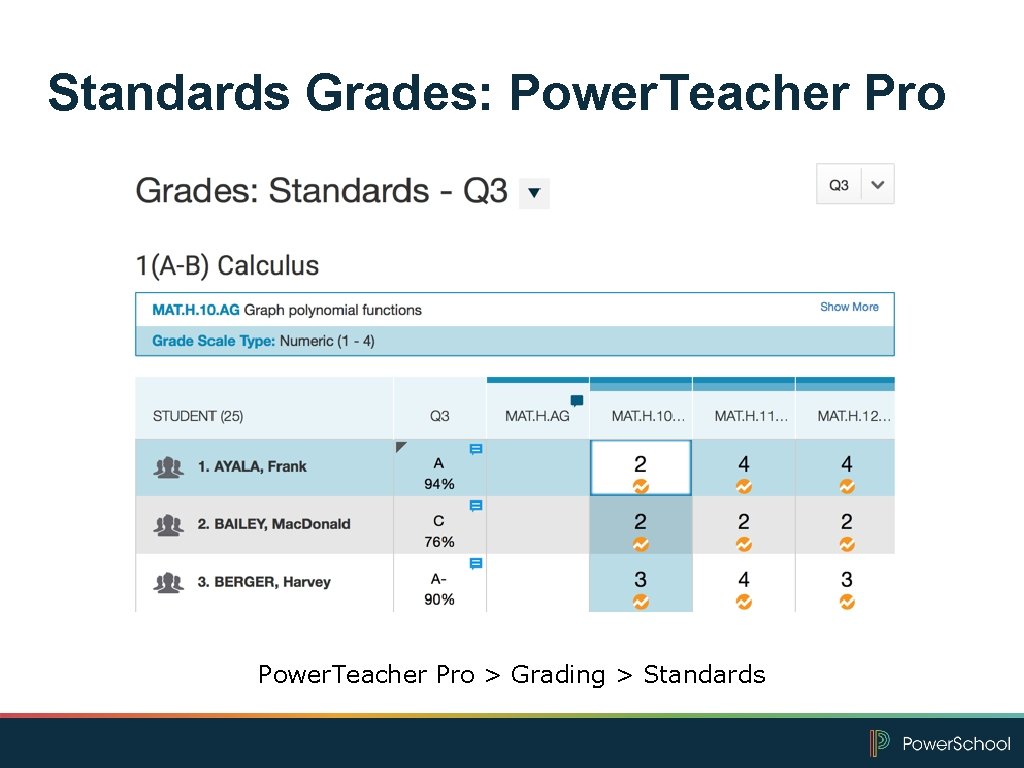
Standards Grades: Power. Teacher Pro > Grading > Standards
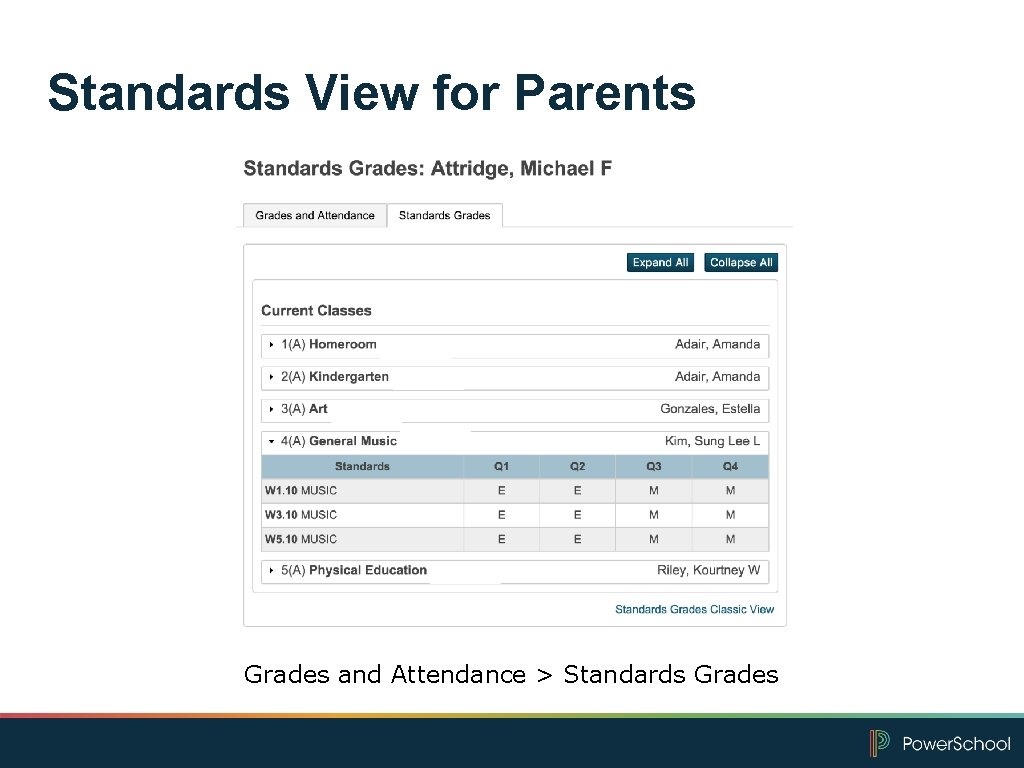
Standards View for Parents Grades and Attendance > Standards Grades
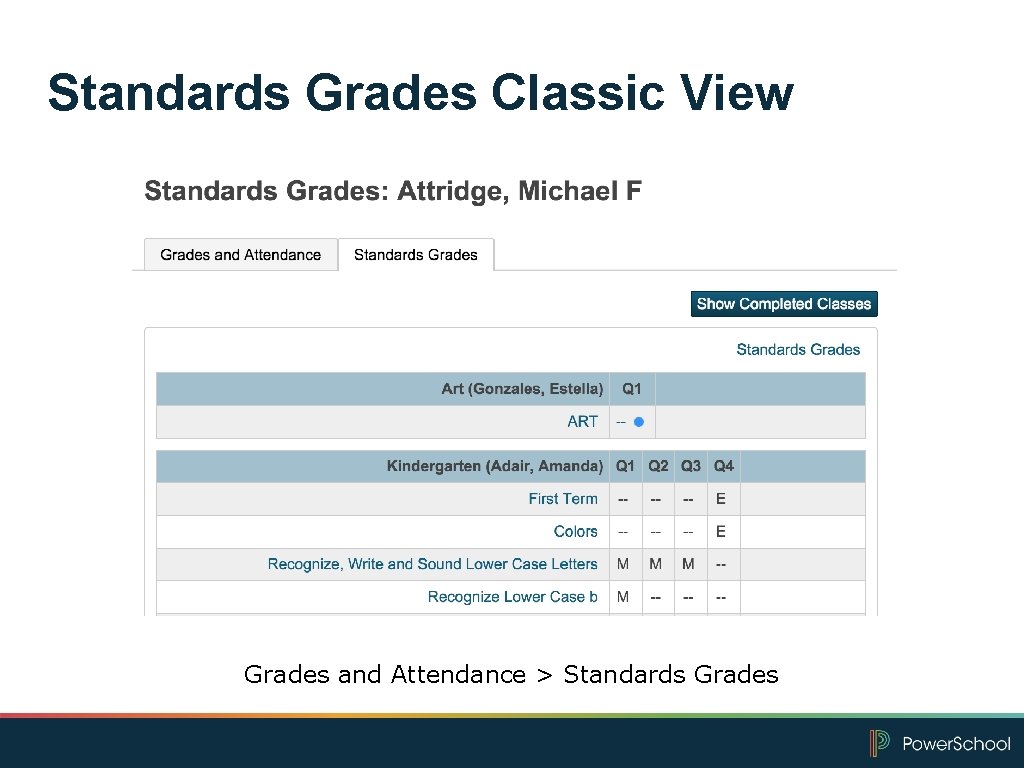
Standards Grades Classic View Grades and Attendance > Standards Grades
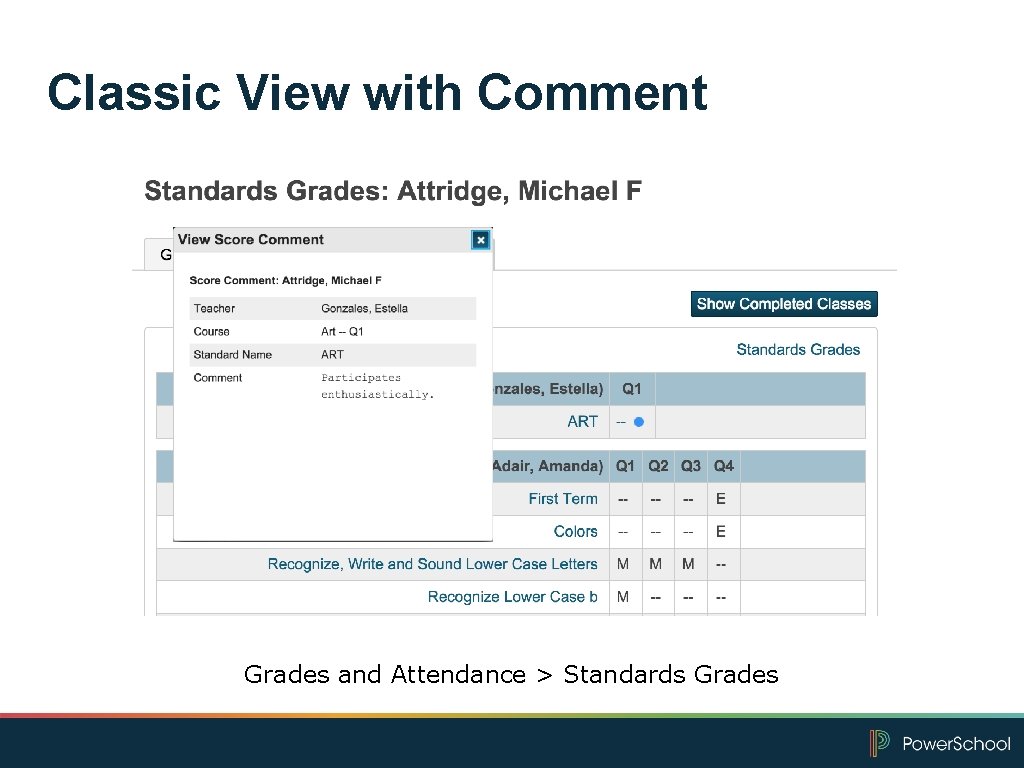
Classic View with Comment Grades and Attendance > Standards Grades
Working with Standards
First Questions Know the district requirements: • How many report cards will you need; will each grade level need a different report card? • Will teachers send home report cards? • Will teachers use assignments with standards? • Will teachers use final grades with standards only? • Will teachers use teacher comments? • Are teachers using Power. Teacher Gradebook, Power. Teacher Pro, or both? • What are the grading policies? • What are the standards grades reporting requirements?
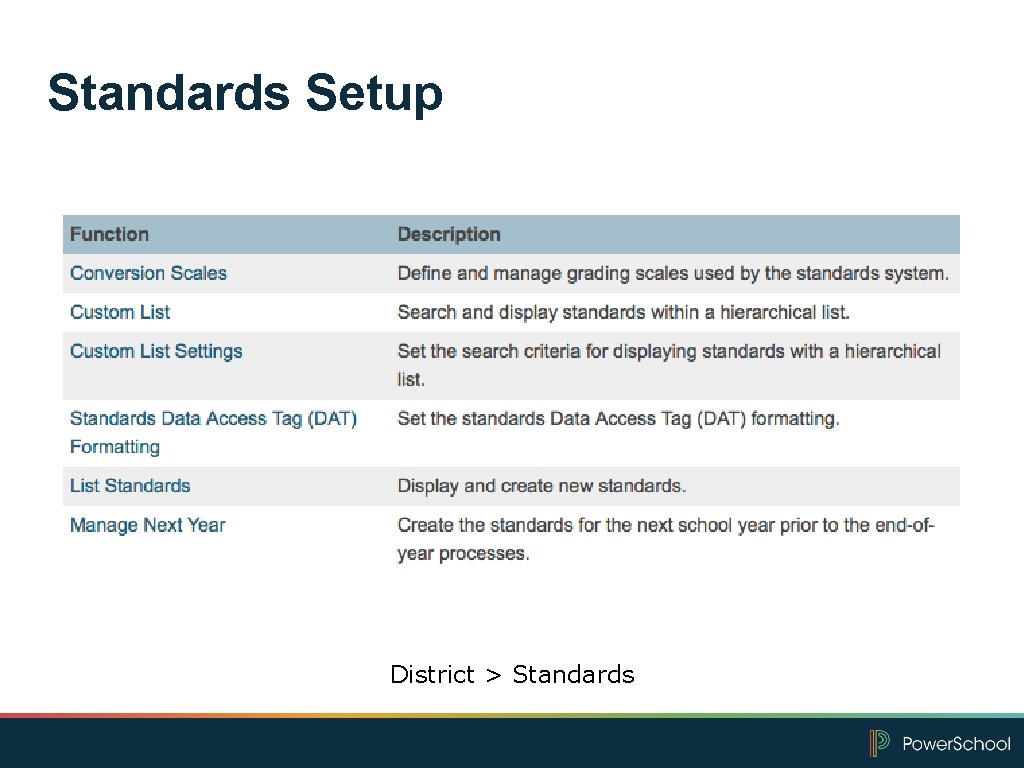
Standards Setup District > Standards
Grade Scales Vocabulary • Alpha – Letter values: O, S, NI; or E, M, A, B • Numeric (zero decimal places) – Rubric-type grades: 1, 2, 3, 4 • Special Codes – created at the District level and can be used with both Alpha and Numeric grade scales: INC, ABS, MIS • Cut-off – The minimum a student must earn on an assignment to receive a given grade • Grade Value – The percentage used for calculations when a grade is entered as an assignment score
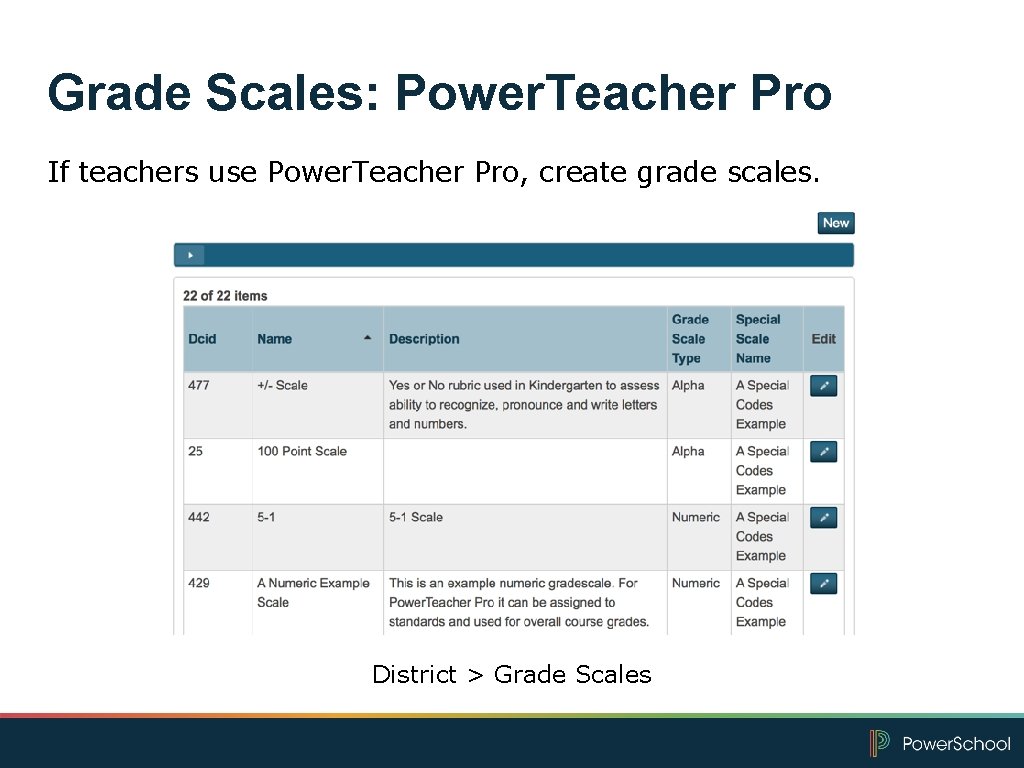
Grade Scales: Power. Teacher Pro If teachers use Power. Teacher Pro, create grade scales. District > Grade Scales
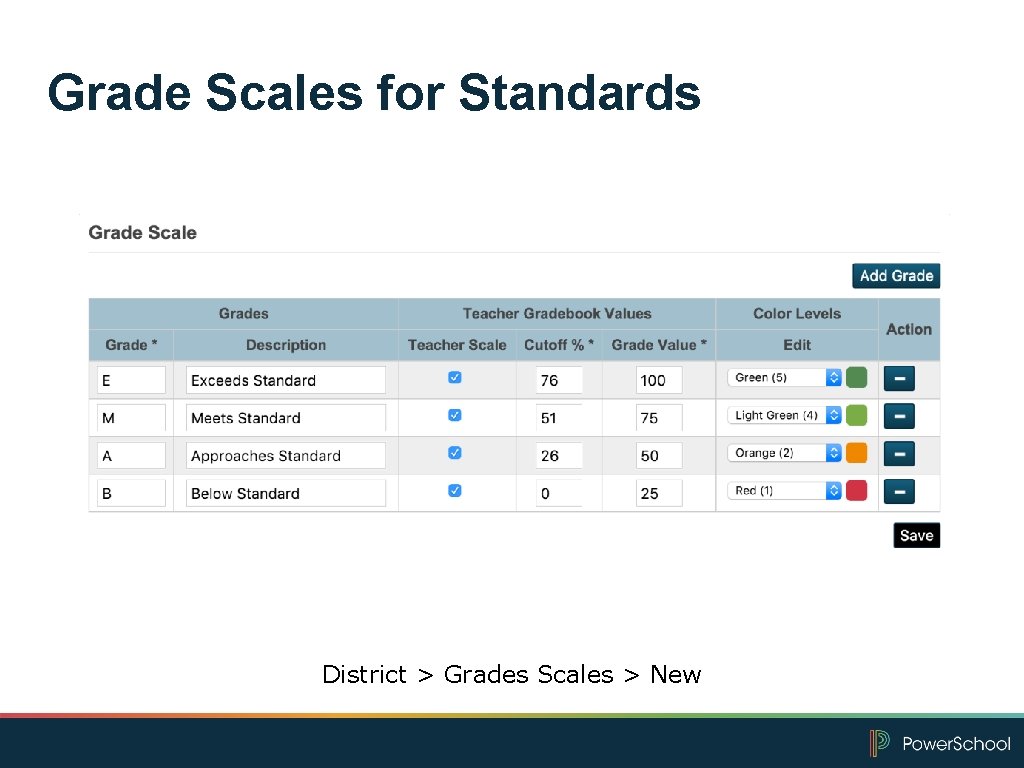
Grade Scales for Standards District > Grades Scales > New
Now It’s Your Turn Complete hands-on activity 1: Creating a Standards Rubric Grade Scale
Setting Up Standards
District Setup Standards • Are set up in the District Office mode • Can be used globally • Have several optional fields • Use a structured hierarchy
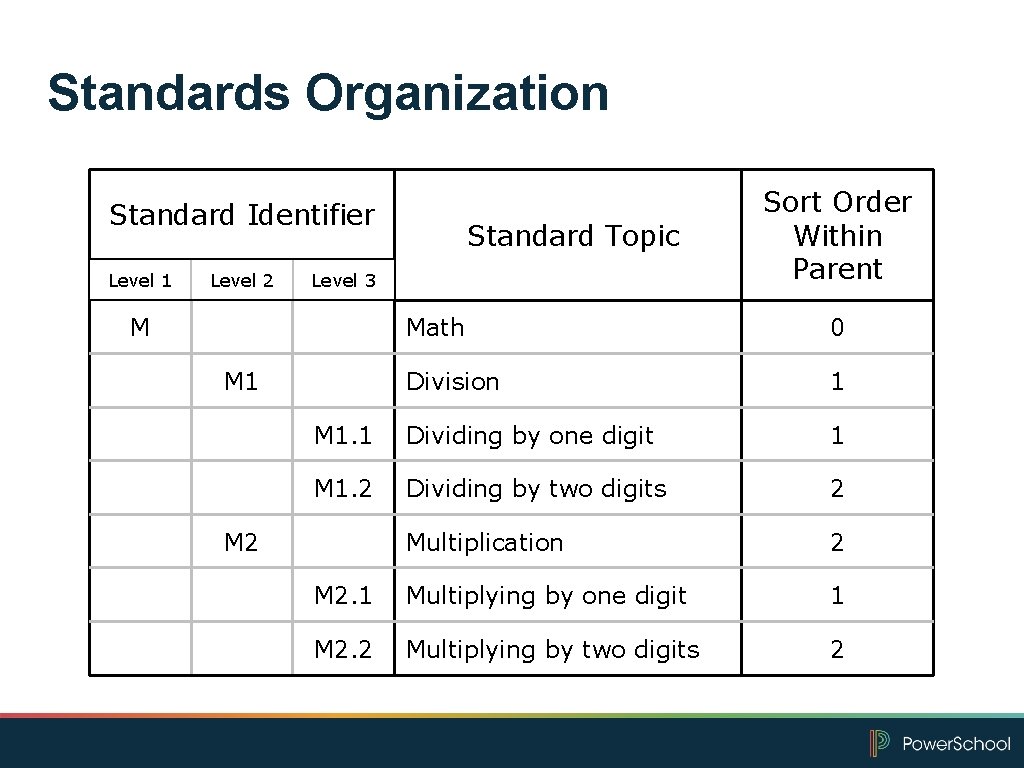
Standards Organization Standard Identifier Level 1 Level 2 Standard Topic Level 3 M Sort Order Within Parent Math 0 Division 1 M 1. 1 Dividing by one digit 1 M 1. 2 Dividing by two digits 2 Multiplication 2 M 2. 1 Multiplying by one digit 1 M 2. 2 Multiplying by two digits 2 M 1 M 2
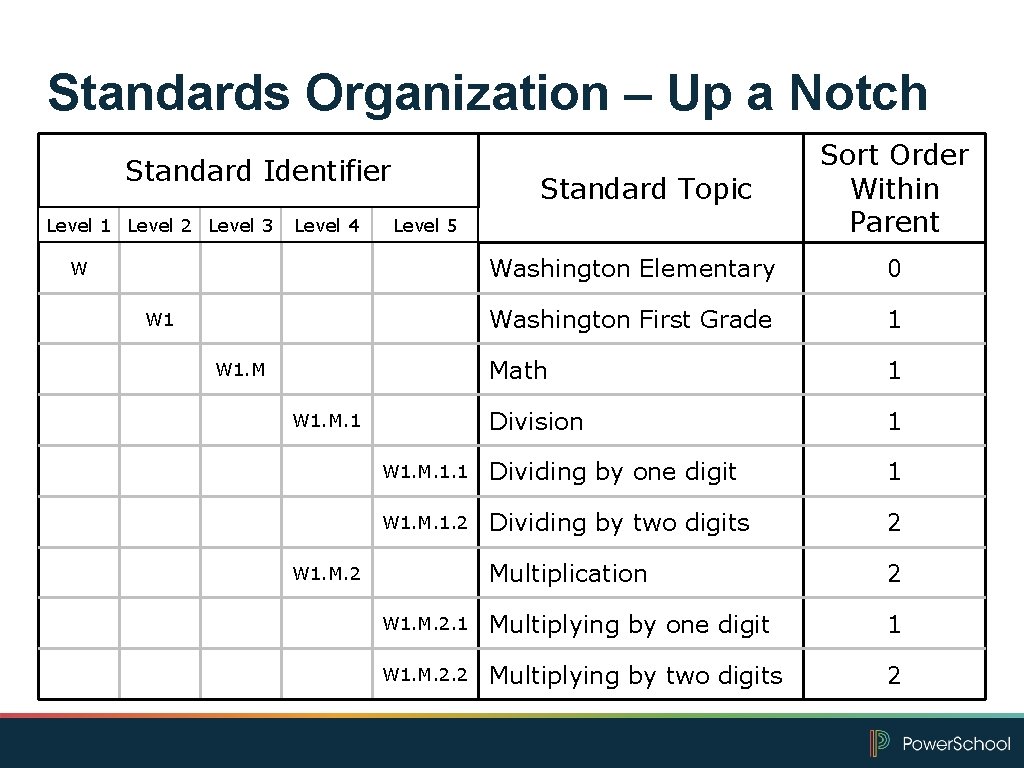
Standards Organization – Up a Notch Standard Identifier Level 1 Level 2 Level 3 Level 4 Standard Topic Level 5 Sort Order Within Parent Washington Elementary 0 Washington First Grade 1 Math 1 Division 1 W 1. M. 1. 1 Dividing by one digit 1 W 1. M. 1. 2 Dividing by two digits 2 Multiplication 2 W 1. M. 2. 1 Multiplying by one digit 1 W 1. M. 2. 2 Multiplying by two digits 2 W W 1. M. 1 W 1. M. 2
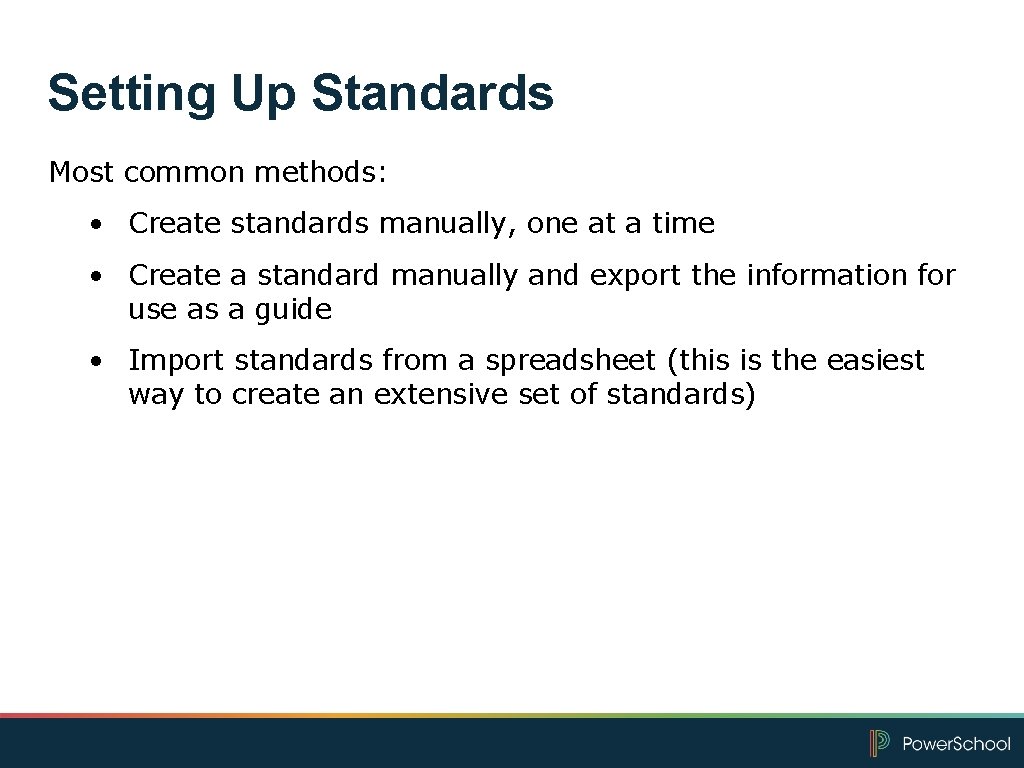
Setting Up Standards Most common methods: • Create standards manually, one at a time • Create a standard manually and export the information for use as a guide • Import standards from a spreadsheet (this is the easiest way to create an extensive set of standards)
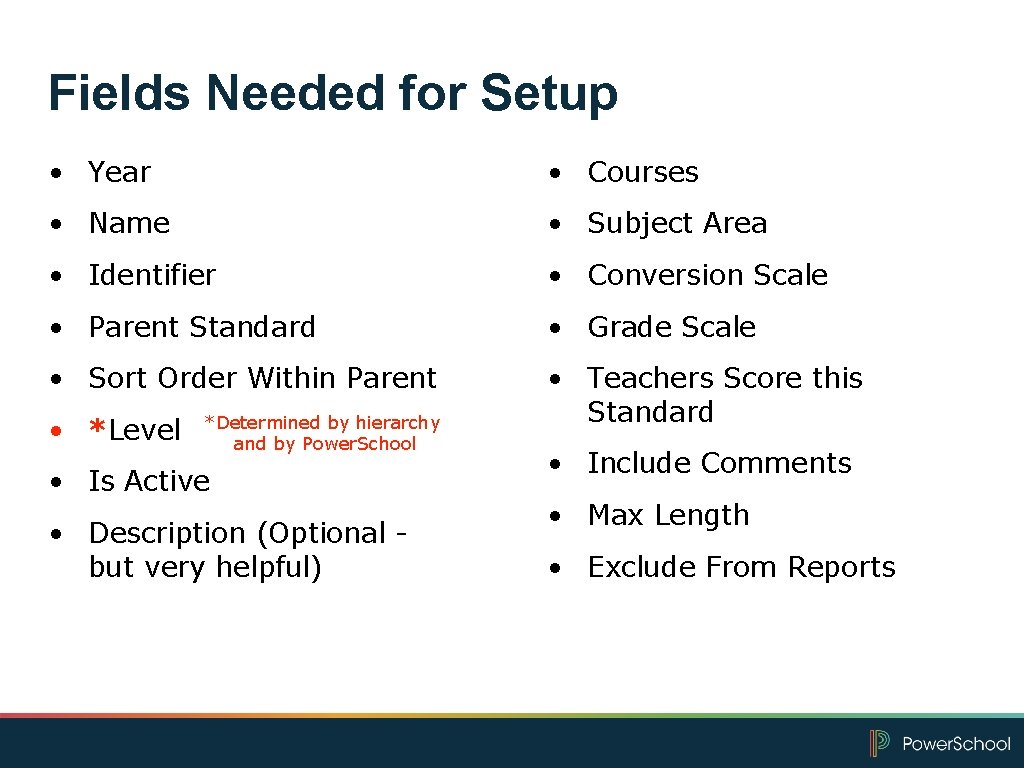
Fields Needed for Setup • Year • Courses • Name • Subject Area • Identifier • Conversion Scale • Parent Standard • Grade Scale • Sort Order Within Parent • Teachers Score this Standard • *Level *Determined by hierarchy and by Power. School • Is Active • Description (Optional but very helpful) • Include Comments • Max Length • Exclude From Reports
Now It’s Your Turn Complete hands-on activity 2: Creating a New Standard Manually
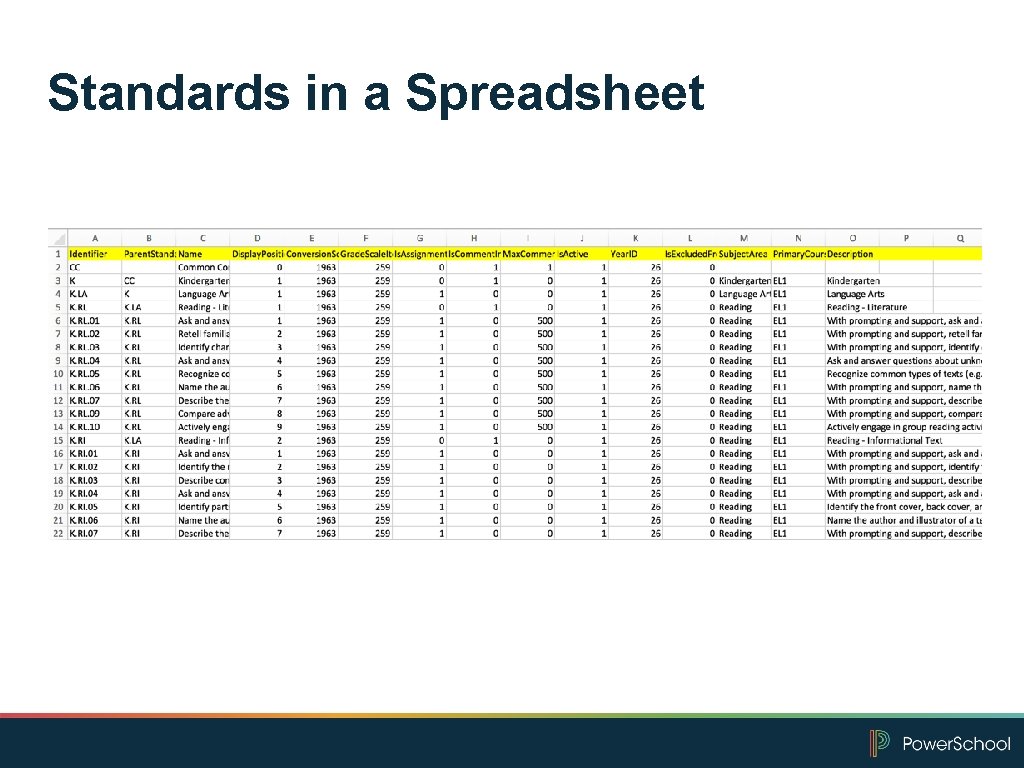
Standards in a Spreadsheet
Key Elements for Your Spreadsheet • Place parent standards before lower-level standards • Define the sort order for lower-level standards using the Display. Position column • Identify the conversion scale ID or grade scale DCID • Enter 1 in the Is. Assignment. Allowed column for all standards assessed by teachers • Enter 1 in the Is. Comment. Included column only if teachers can enter a comment for the standard • Enter 1 in the Is. Active column for all standards that are active for the current year • Enter 26 (or the current year ID) in the Year. ID column
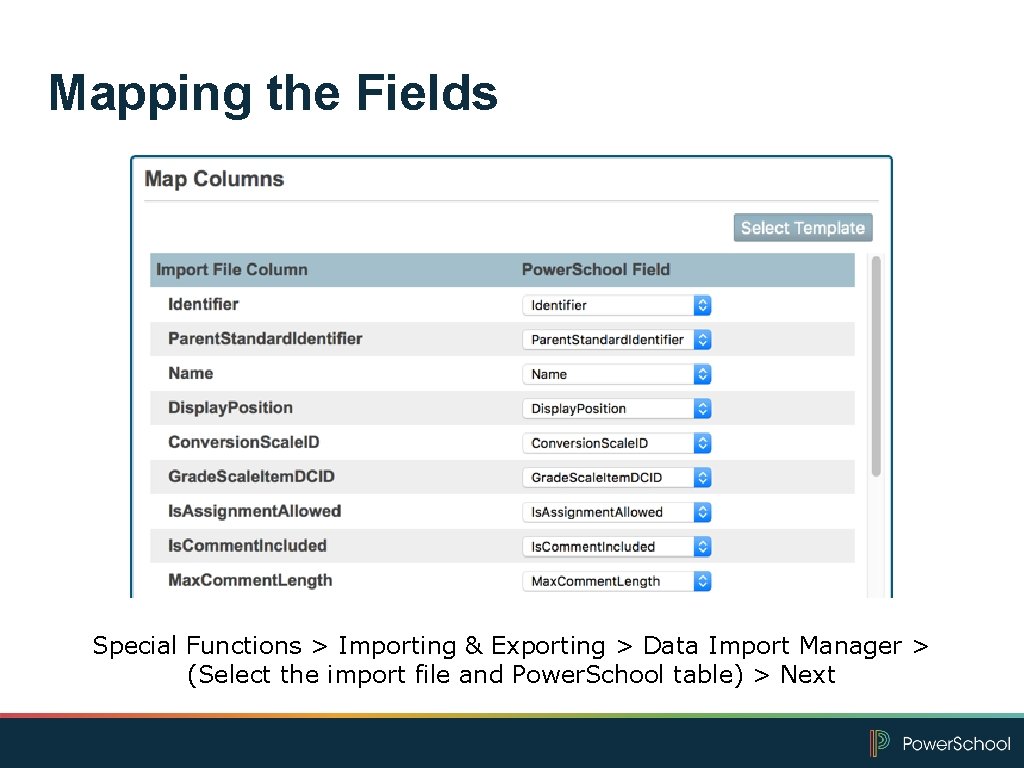
Mapping the Fields Special Functions > Importing & Exporting > Data Import Manager > (Select the import file and Power. School table) > Next
Now It’s Your Turn Complete hands-on activities 3– 4: Completing the Standards Spreadsheet Importing Standards
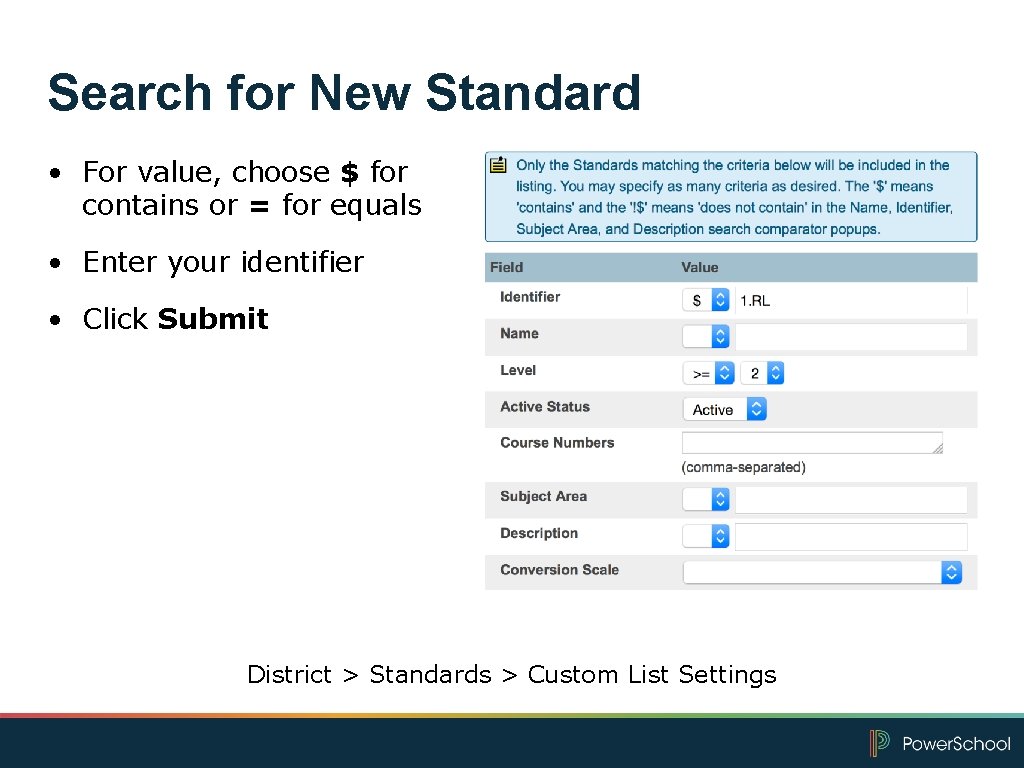
Search for New Standard • For value, choose $ for contains or = for equals • Enter your identifier • Click Submit District > Standards > Custom List Settings
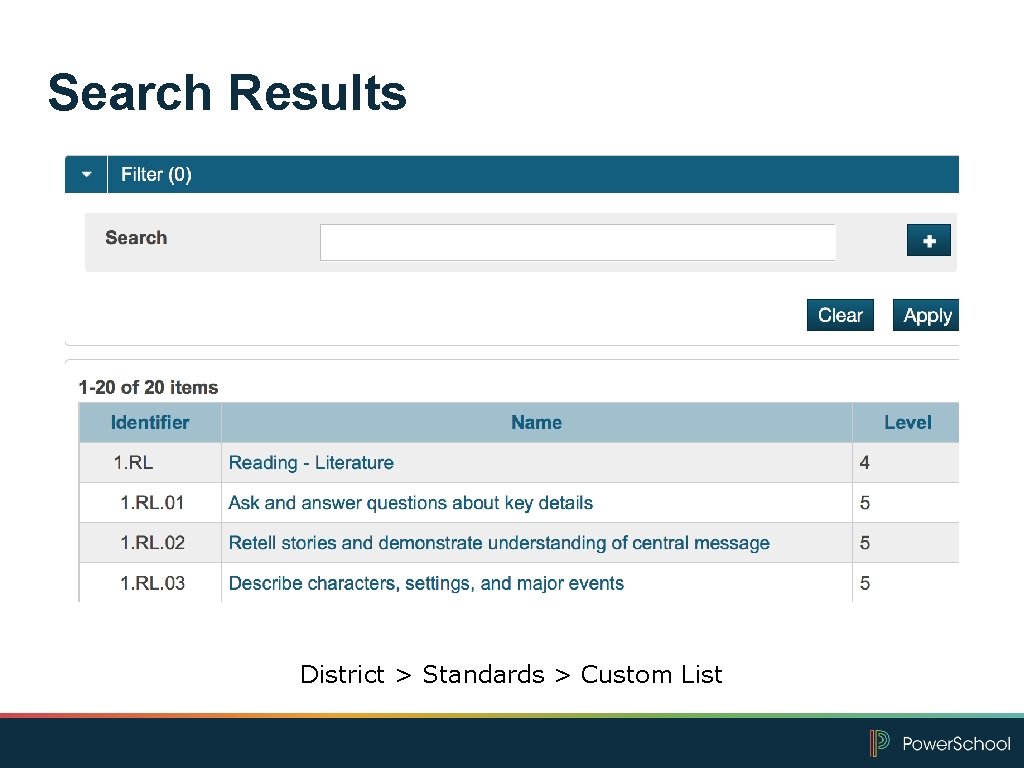
Search Results District > Standards > Custom List
Now It’s Your Turn Complete hands-on activity 5: Searching for Your New Standards
Decisions About Standards Grading in Power. Teacher Pro
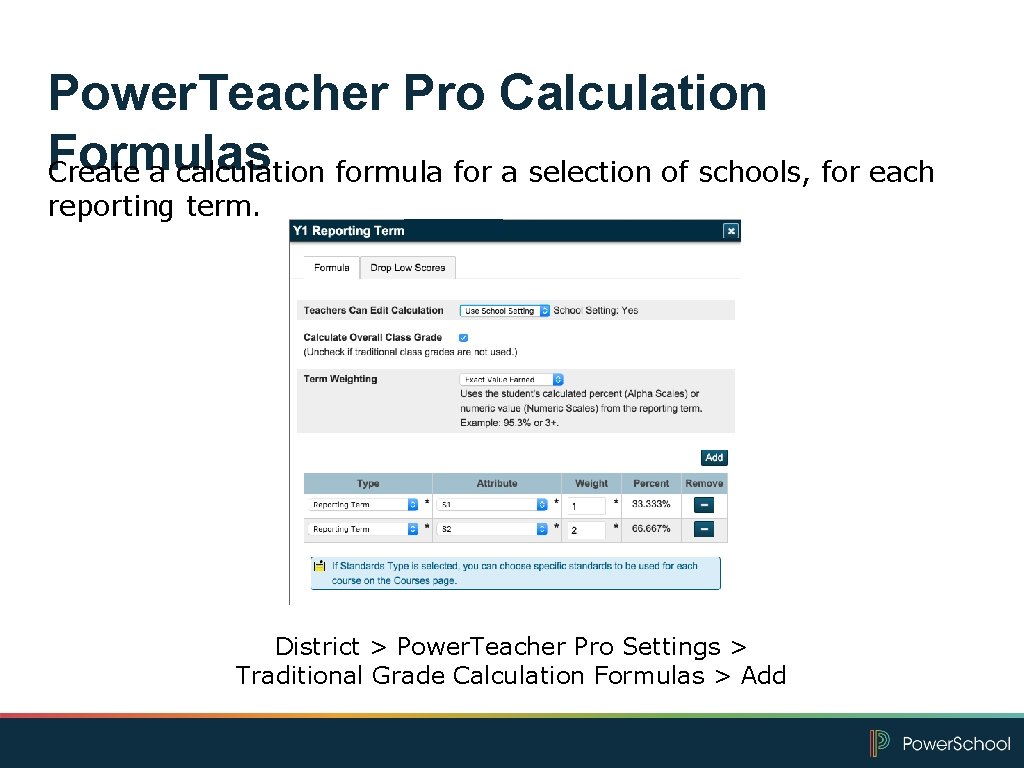
Power. Teacher Pro Calculation Formulas Create a calculation formula for a selection of schools, for each reporting term. District > Power. Teacher Pro Settings > Traditional Grade Calculation Formulas > Add
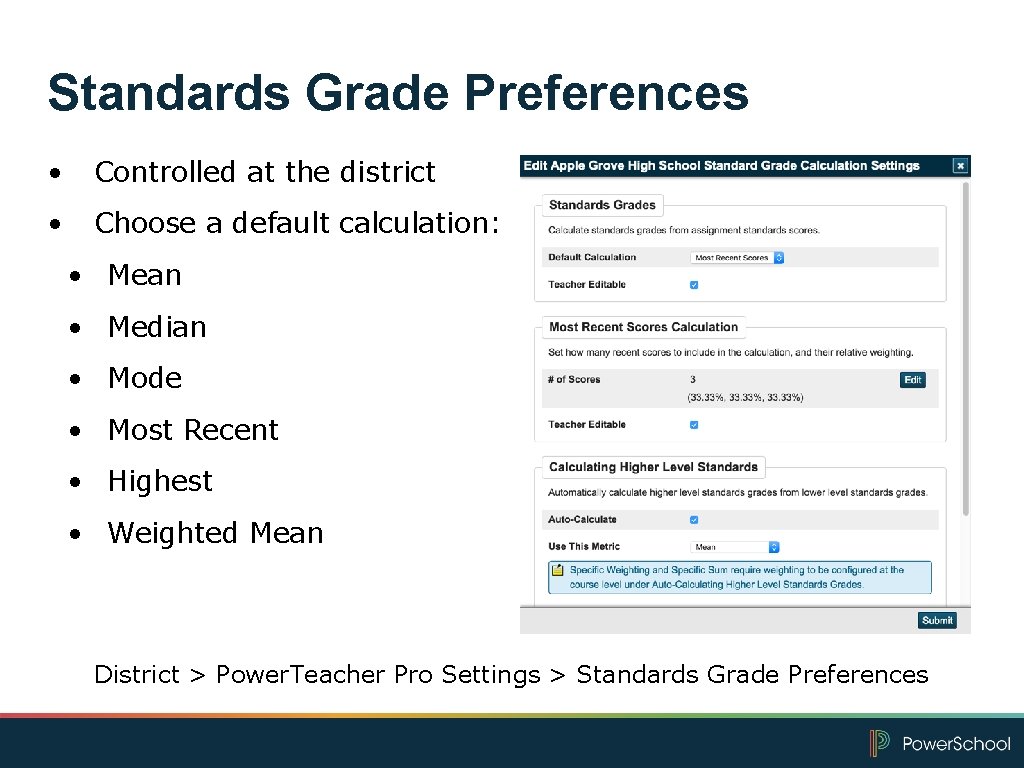
Standards Grade Preferences • Controlled at the district • Choose a default calculation: • Mean • Median • Mode • Most Recent • Highest • Weighted Mean District > Power. Teacher Pro Settings > Standards Grade Preferences
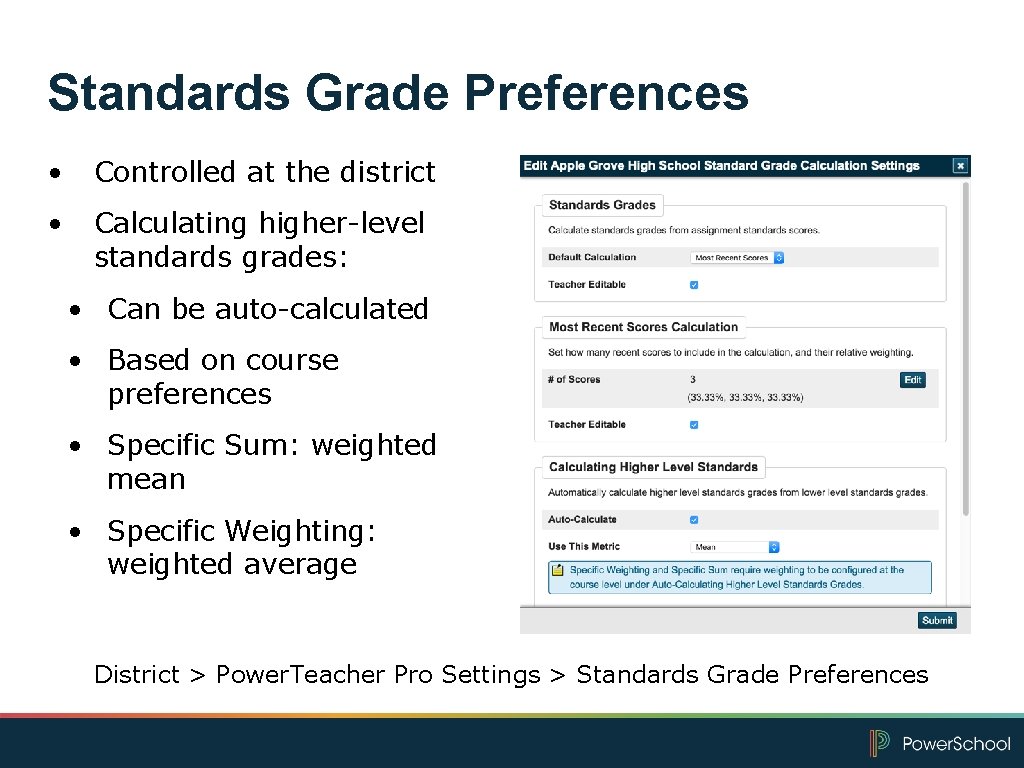
Standards Grade Preferences • Controlled at the district • Calculating higher-level standards grades: • Can be auto-calculated • Based on course preferences • Specific Sum: weighted mean • Specific Weighting: weighted average District > Power. Teacher Pro Settings > Standards Grade Preferences
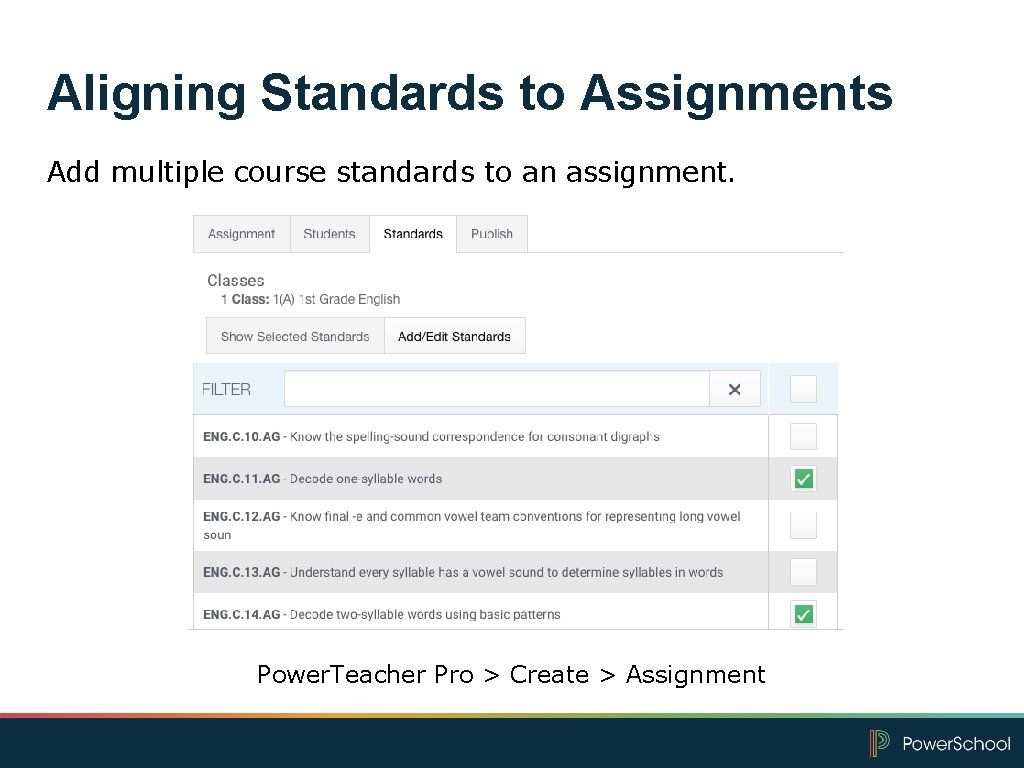
Aligning Standards to Assignments Add multiple course standards to an assignment. Power. Teacher Pro > Create > Assignment
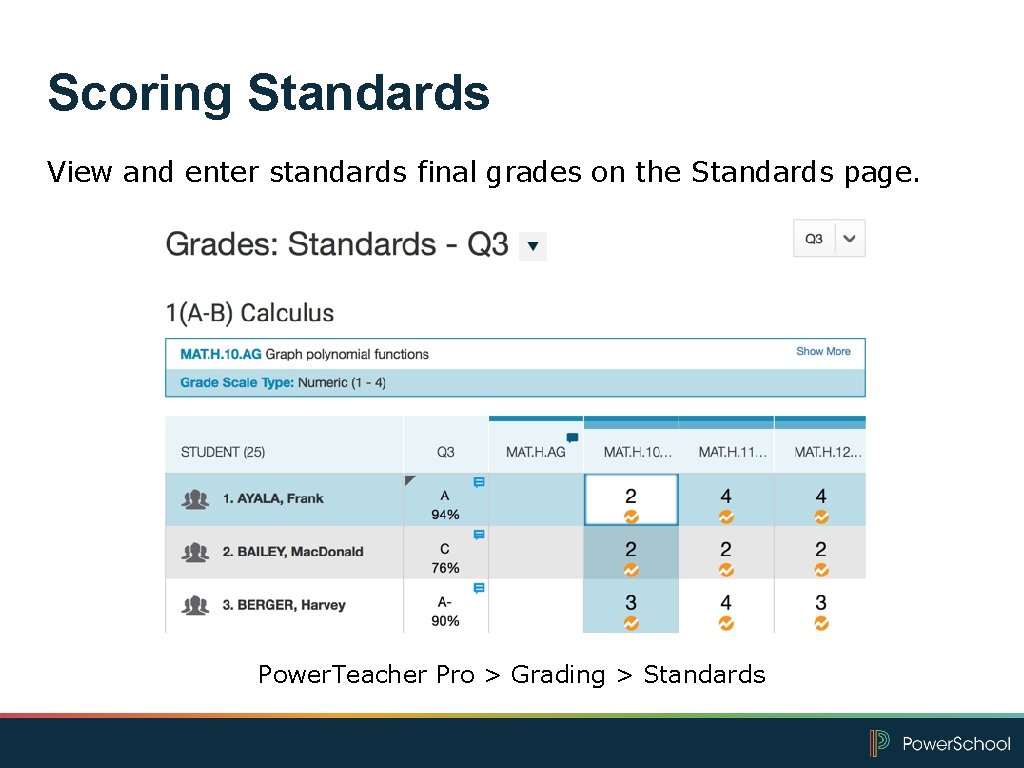
Scoring Standards View and enter standards final grades on the Standards page. Power. Teacher Pro > Grading > Standards
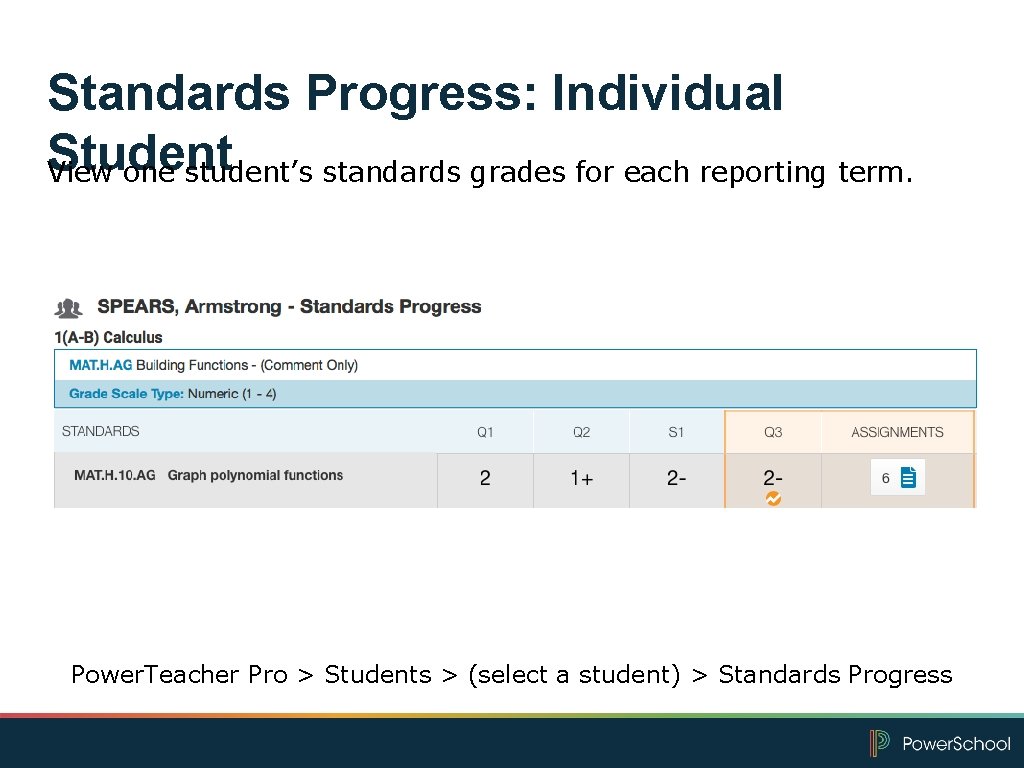
Standards Progress: Individual Student View one student’s standards grades for each reporting term. Power. Teacher Pro > Students > (select a student) > Standards Progress
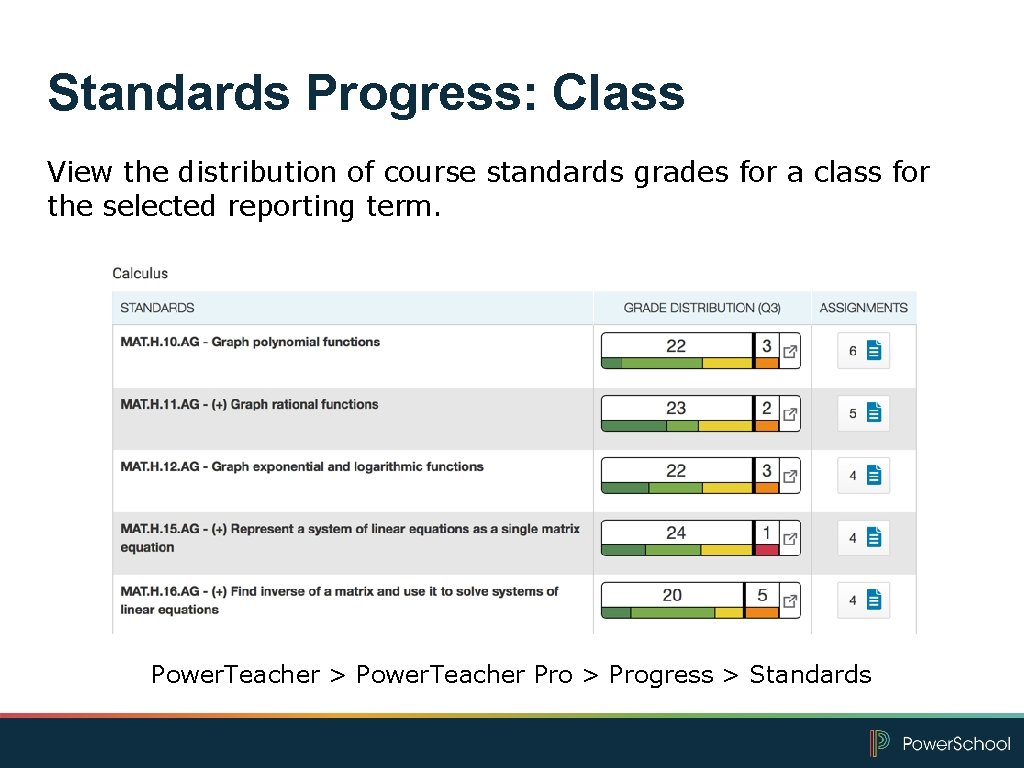
Standards Progress: Class View the distribution of course standards grades for a class for the selected reporting term. Power. Teacher > Power. Teacher Pro > Progress > Standards
Viewing and Reporting Standards Scores
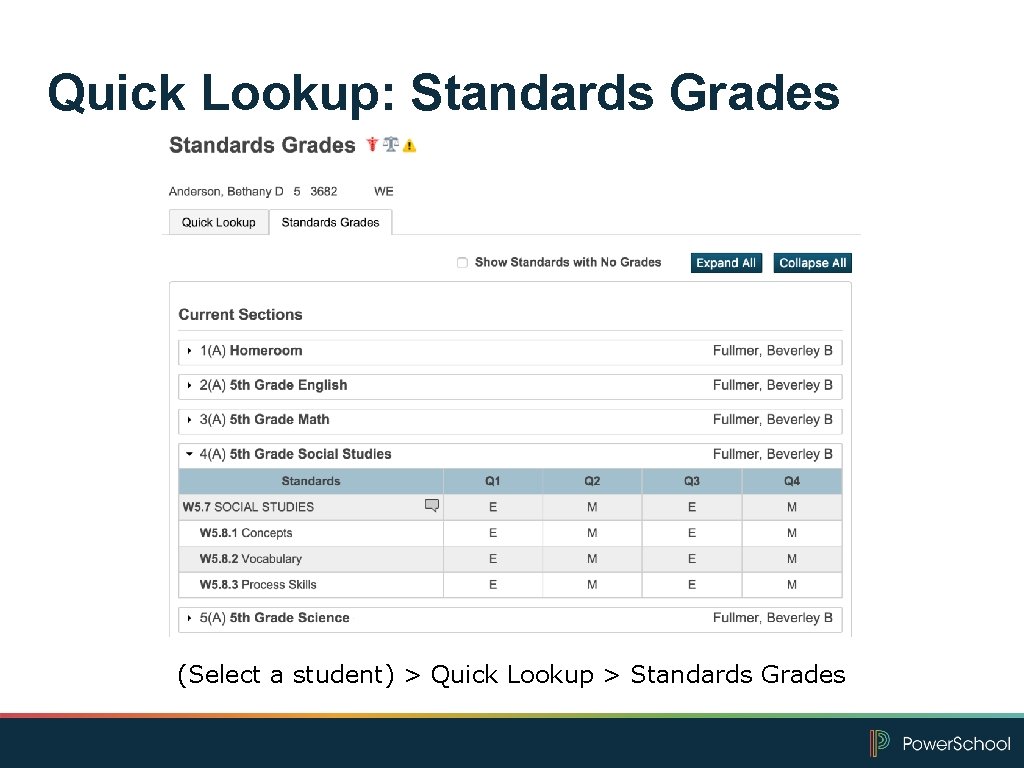
Quick Lookup: Standards Grades (Select a student) > Quick Lookup > Standards Grades
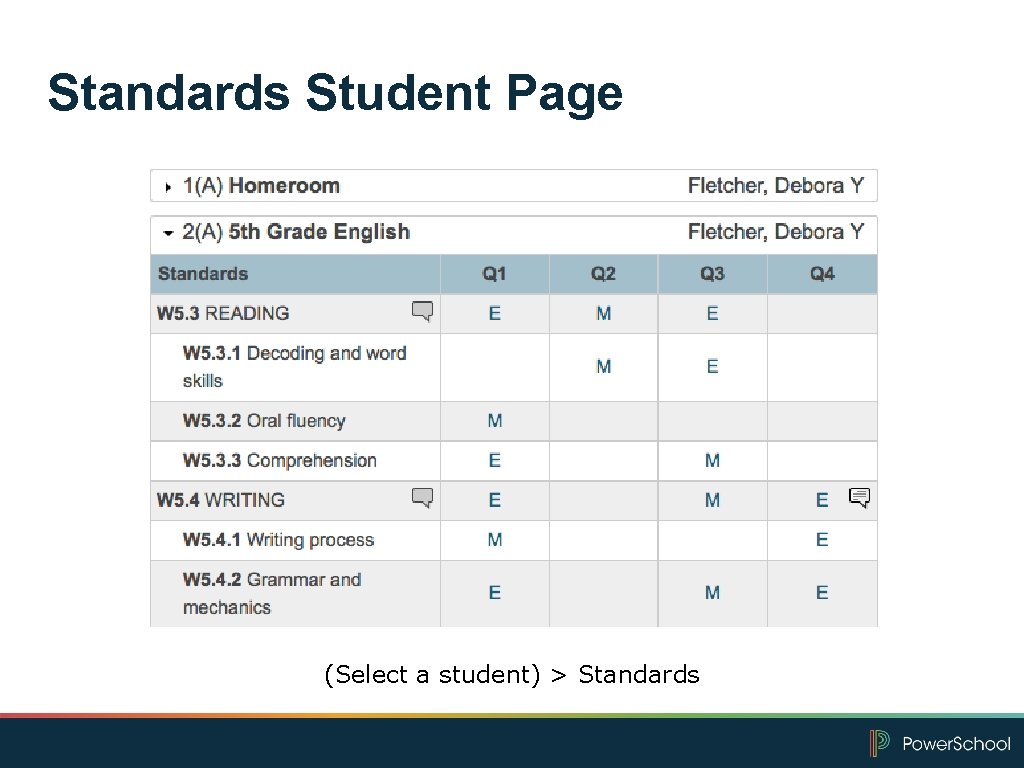
Standards Student Page (Select a student) > Standards
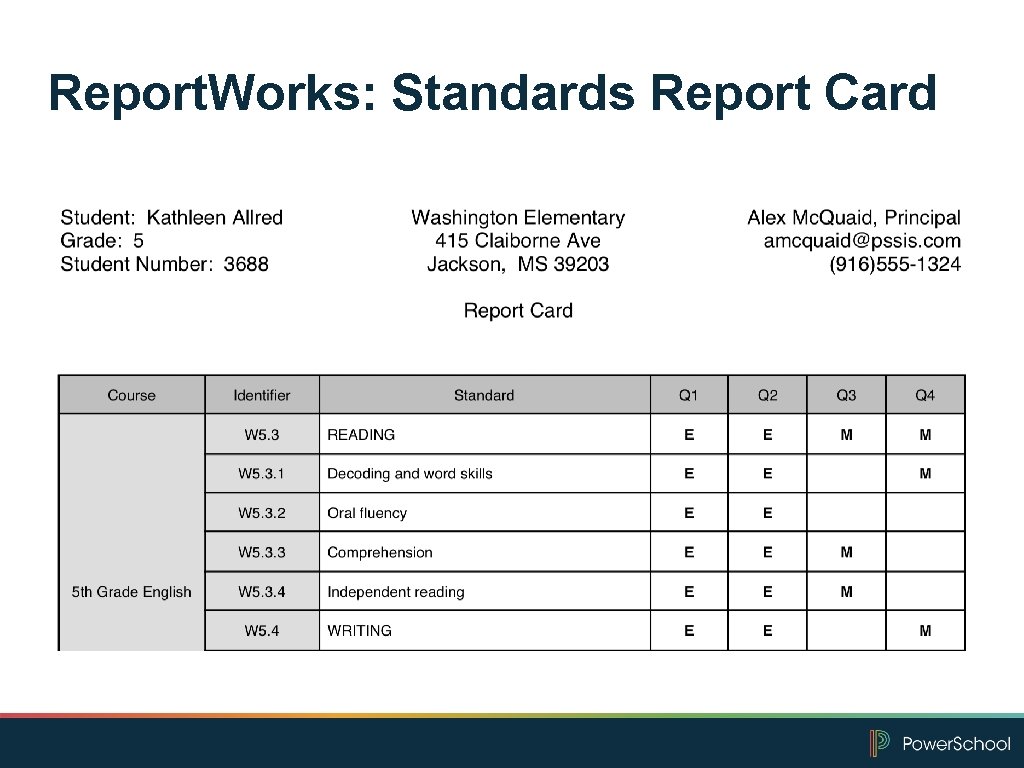
Report. Works: Standards Report Card
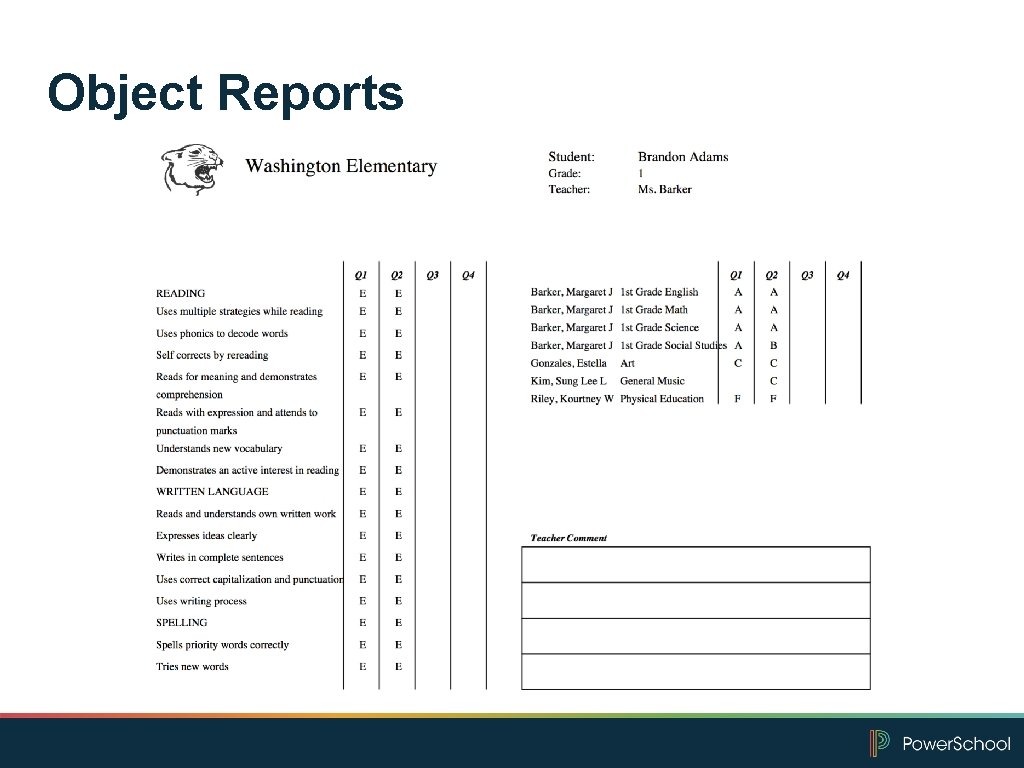
Object Reports
Use Data Export Manager • When the built-in reports aren’t enough • When you need to edit standards • When you want to analyze data in different ways - Charts and graphs - Pivot tables - Alternate sorting options
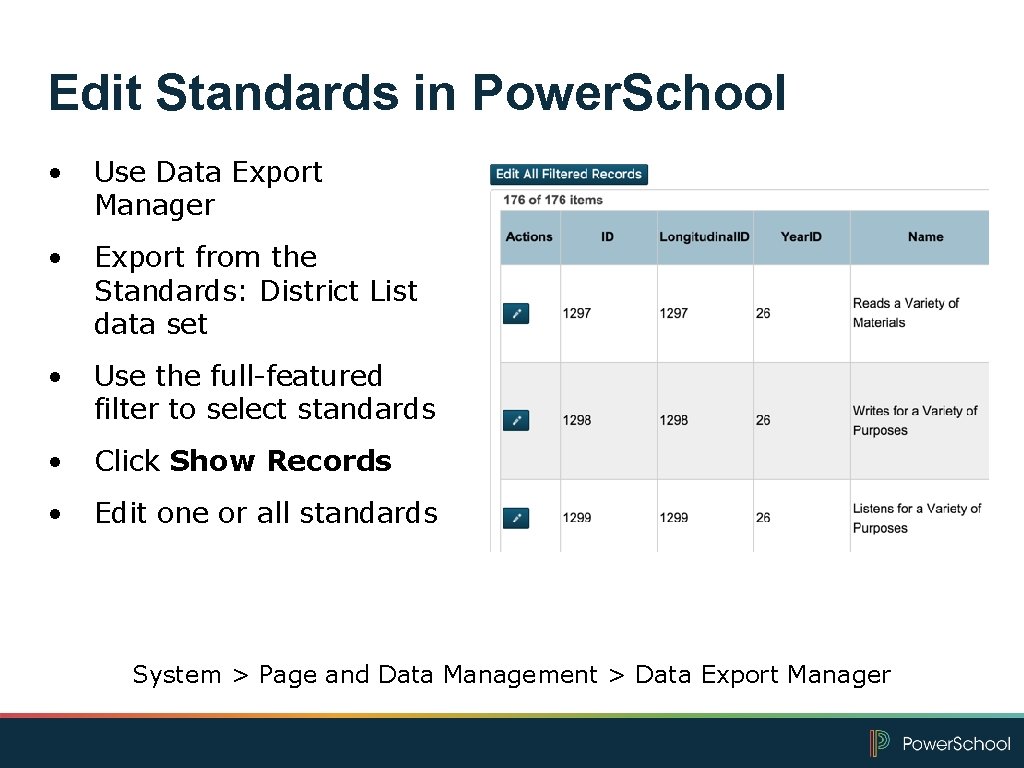
Edit Standards in Power. School • Use Data Export Manager • Export from the Standards: District List data set • Use the full-featured filter to select standards • Click Show Records • Edit one or all standards System > Page and Data Management > Data Export Manager

Now It’s Your Turn Complete hands-on activity 6: Viewing Student Standards Grades in Power. School
Working with Report. Works 1 Create a project based on the Standards Report Card template 2 Edit the boundaries and runtime controls 3 Change the project layout, such as adding student or school information 4 Verify that the Filter Expression field has the correct subjects 5 Preview the project as you work
Using the Standard Object 1 Create a new report object report 2 Format the basic criteria for the report 3 Add objects to place student information, school information, and term information on the report 4 Add lines to make the list of grades easier to read 5 Add the Standard object to list course names, standards names, and standards scores 6 Run the report for a single elementary student
Now It’s Your Turn Complete hands-on bonus activity 1: Creating a Standards-Based Report
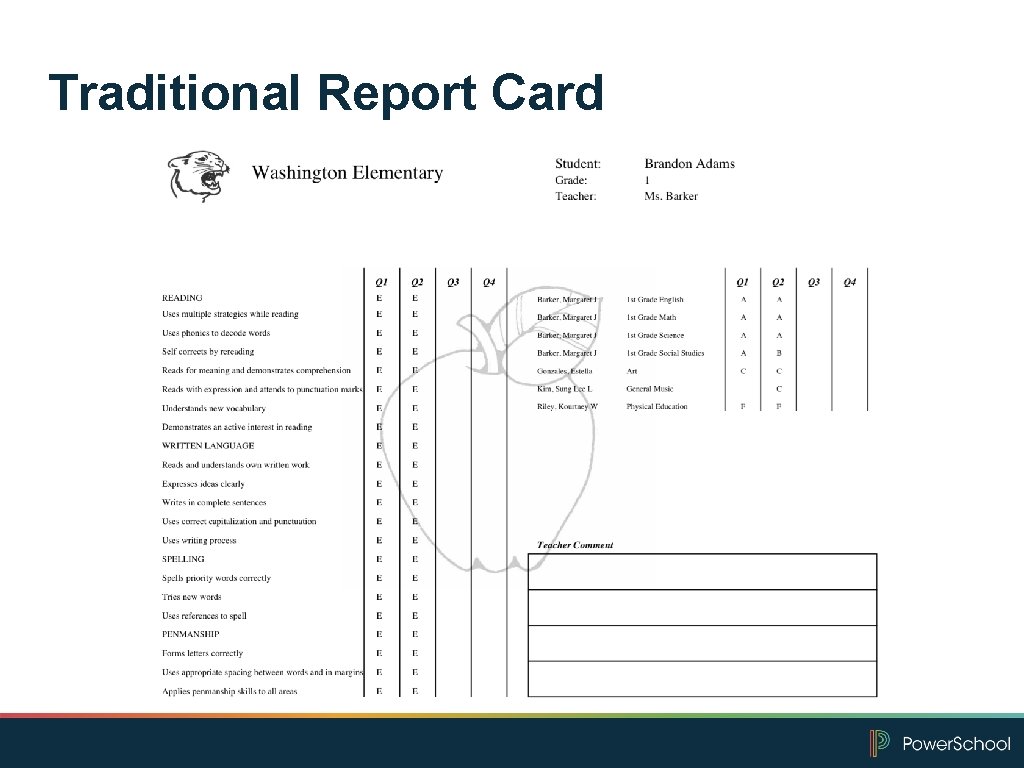
Traditional Report Card
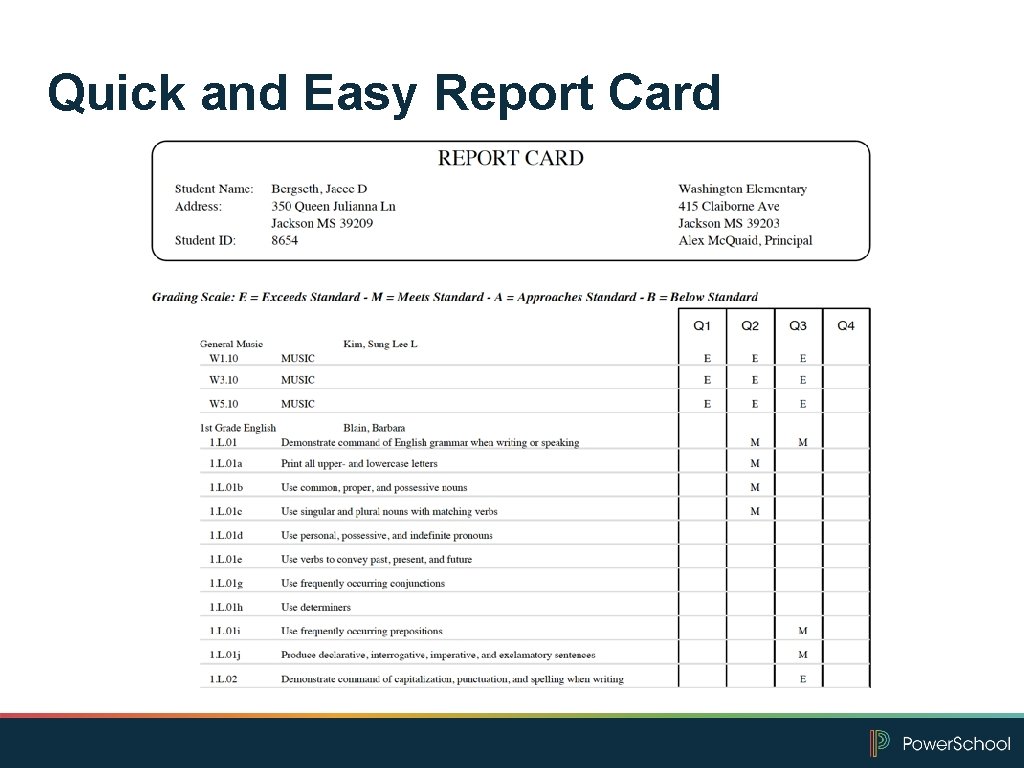
Quick and Easy Report Card
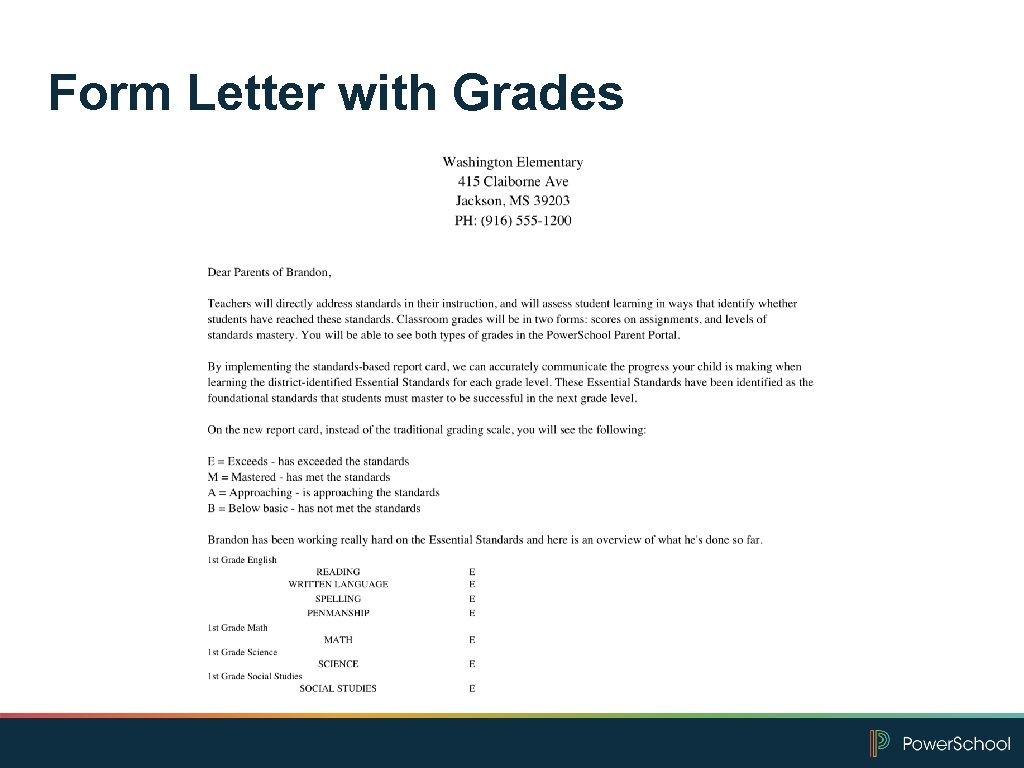
Form Letter with Grades
Now It’s Your Turn Complete hands-on bonus activity 2: Exporting Standards with Data Export Manager
Time for Review
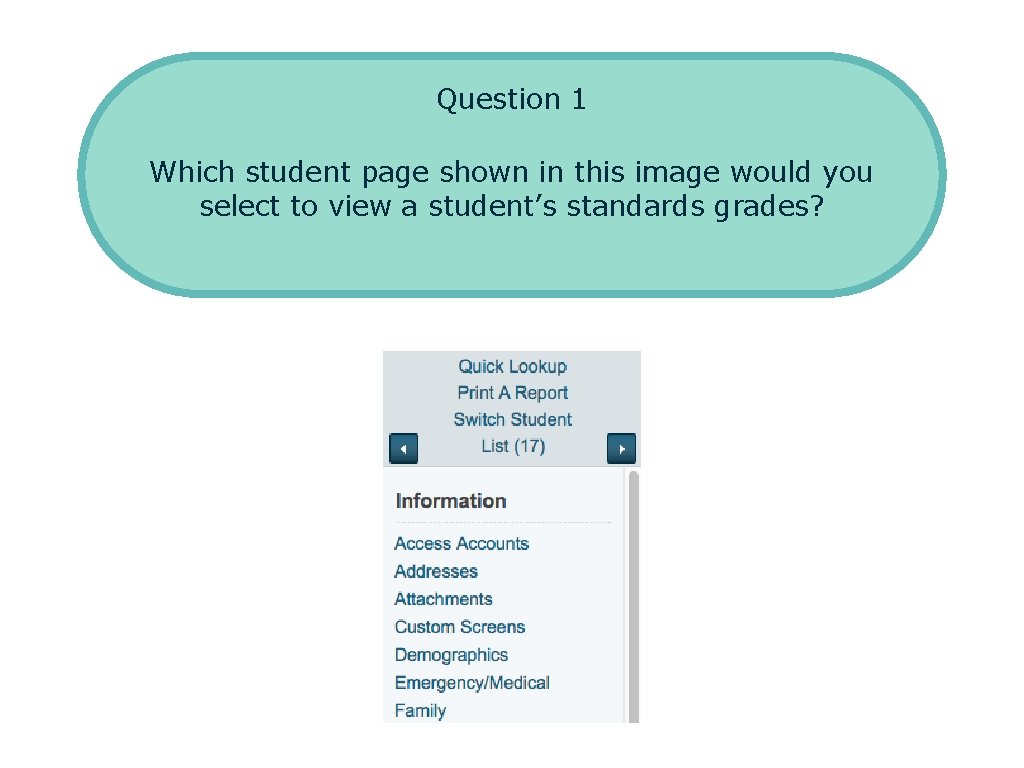
Question 1 Which student page shown in this image would you select to view a student’s standards grades?
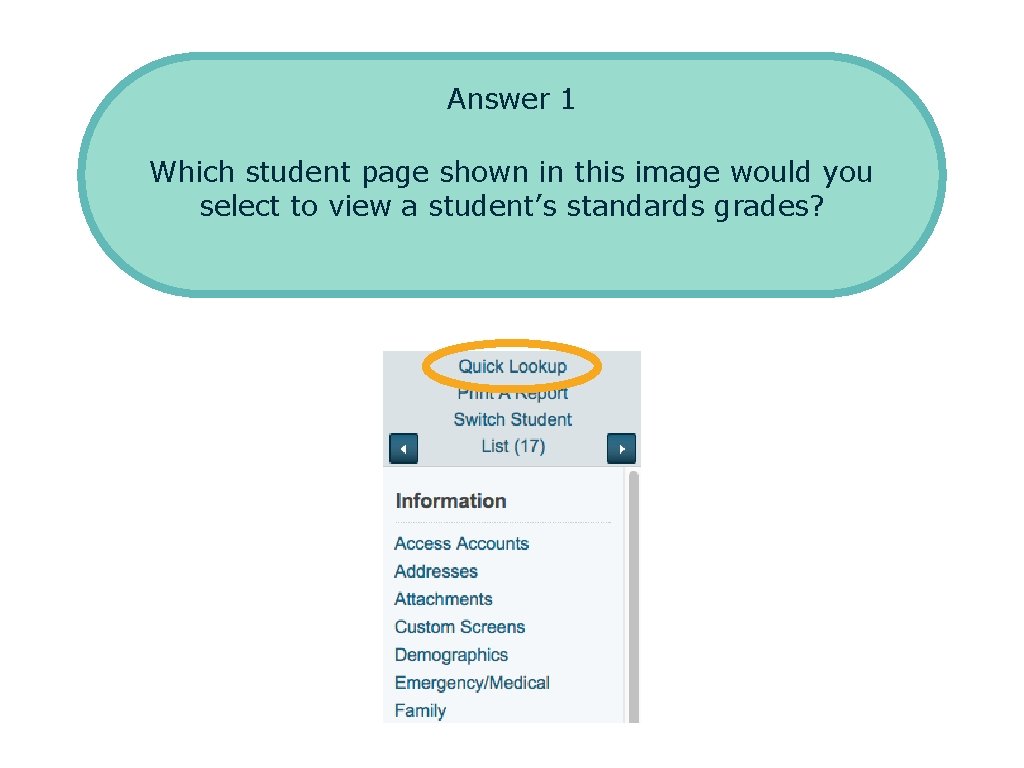
Answer 1 Which student page shown in this image would you select to view a student’s standards grades?

Question 2 Which standard field do you use to organize standards in Power. School? A Courses B Parent Standard C Standard Identifier D Name
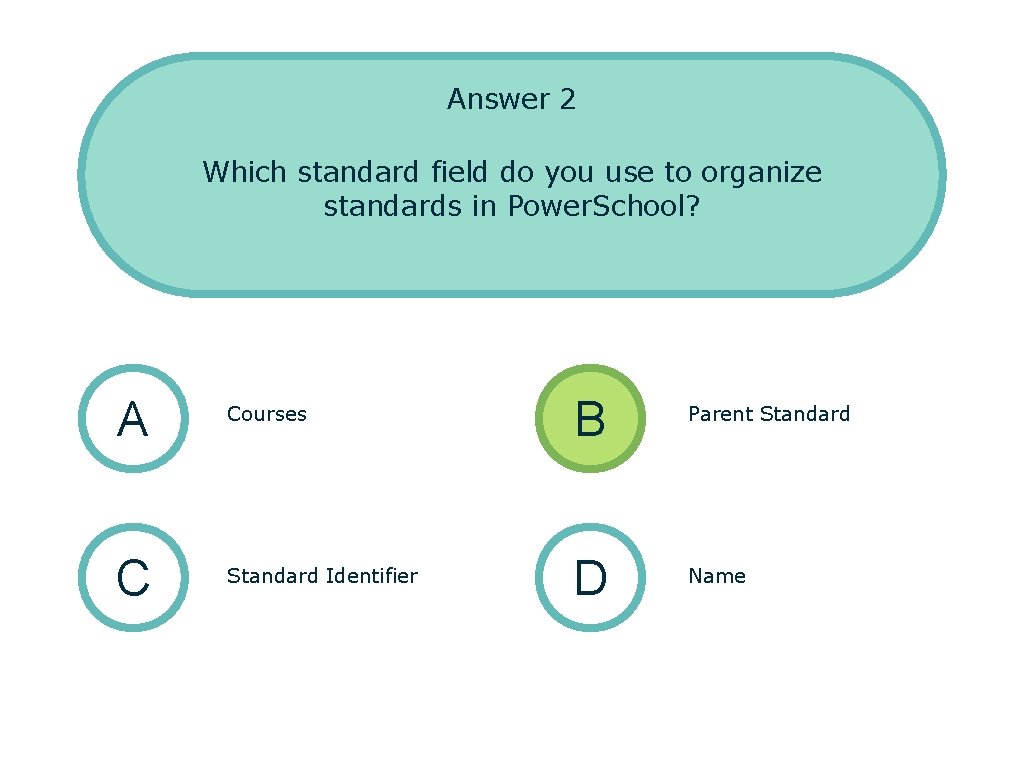
Answer 2 Which standard field do you use to organize standards in Power. School? A Courses B Parent Standard C Standard Identifier D Name
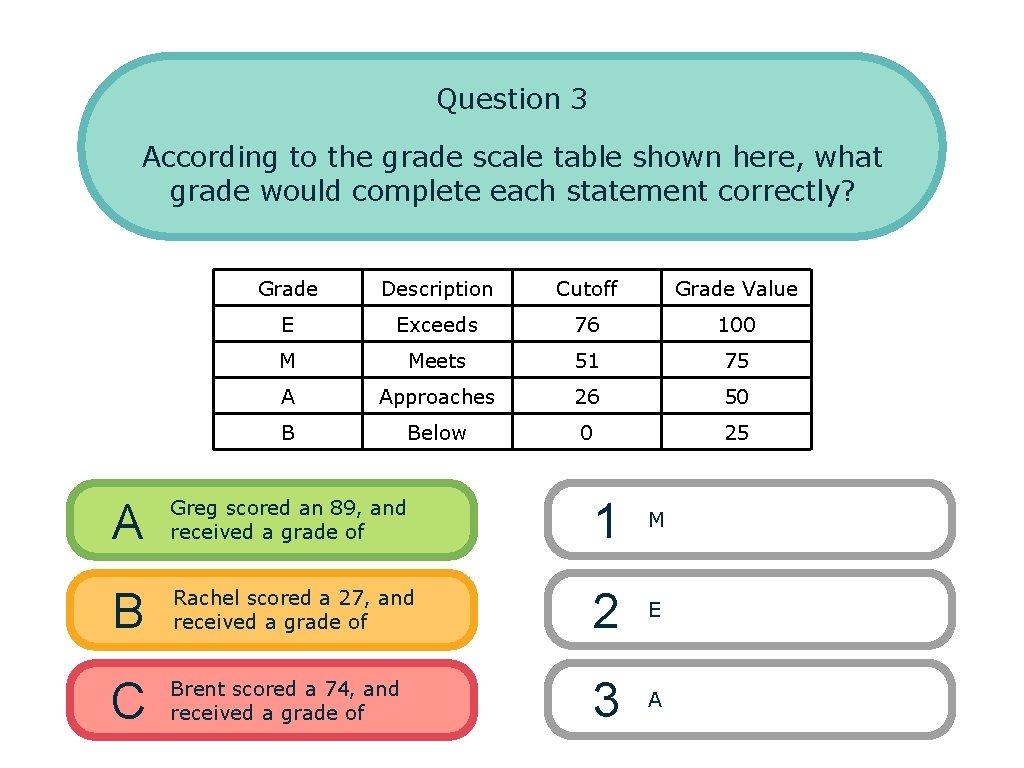
Question 3 According to the grade scale table shown here, what grade would complete each statement correctly? Grade Description Cutoff Grade Value E Exceeds 76 100 M Meets 51 75 A Approaches 26 50 B Below 0 25 A Greg scored an 89, and received a grade of 1 M B Rachel scored a 27, and received a grade of 2 E C Brent scored a 74, and received a grade of 3 A
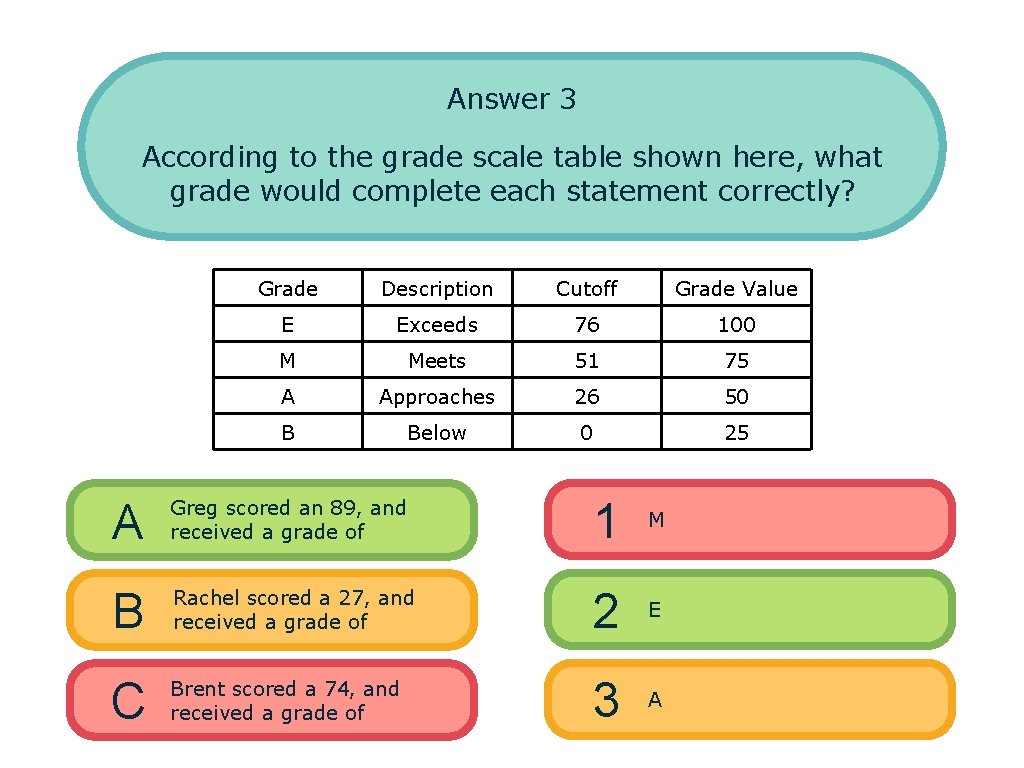
Answer 3 According to the grade scale table shown here, what grade would complete each statement correctly? Grade Description Cutoff Grade Value E Exceeds 76 100 M Meets 51 75 A Approaches 26 50 B Below 0 25 A Greg scored an 89, and received a grade of 1 M B Rachel scored a 27, and received a grade of 2 E C Brent scored a 74, and received a grade of 3 A
Key Points • Organize the district standards and create grade scales • Create standards or import standards into Power. School • View scores for standards in Power. Teacher Pro • Access standards information in Power. School • View and generate reports for standards grades

Question and Answer

Copyright © 2017 Power. School
- Slides: 65