
Power School Parent Portal Access ID Password Letter
- Slides: 11
Power. School Parent Portal
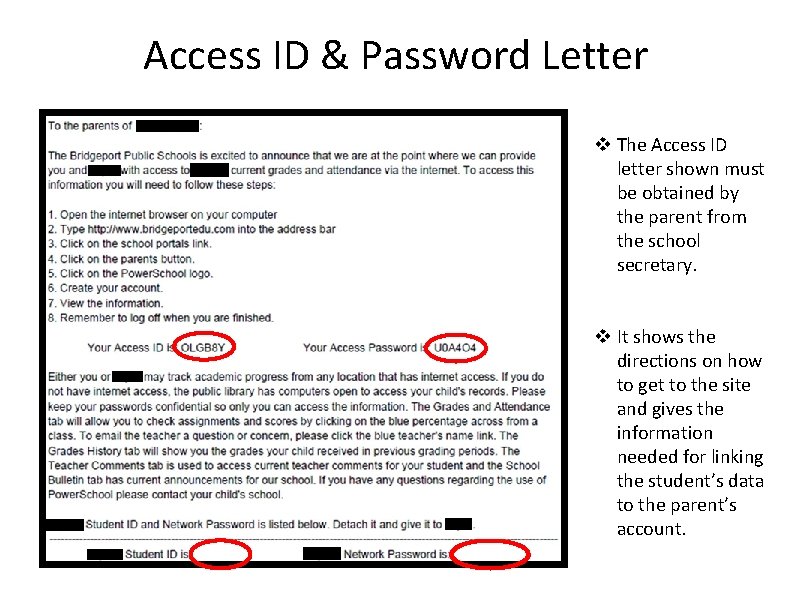
Access ID & Password Letter v The Access ID letter shown must be obtained by the parent from the school secretary. v It shows the directions on how to get to the site and gives the information needed for linking the student’s data to the parent’s account.
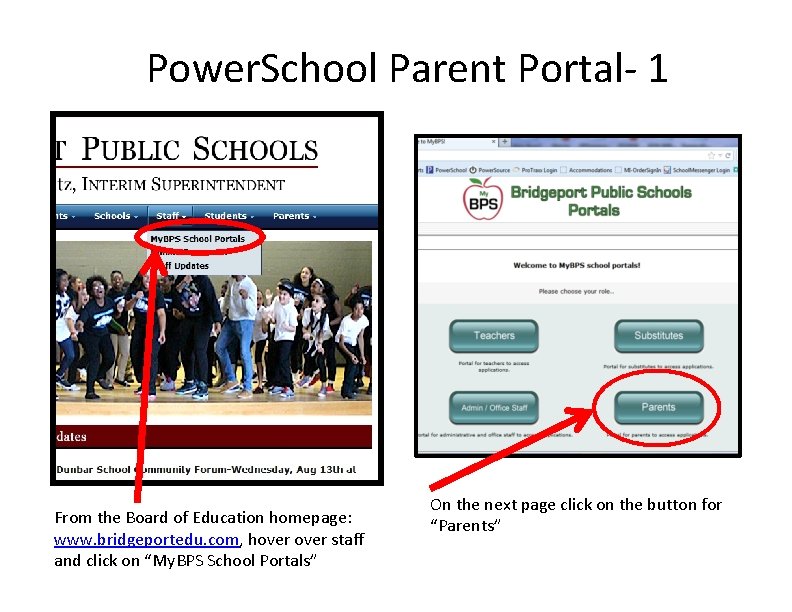
Power. School Parent Portal‐ 1 From the Board of Education homepage: www. bridgeportedu. com, hover staff and click on “My. BPS School Portals” On the next page click on the button for “Parents”
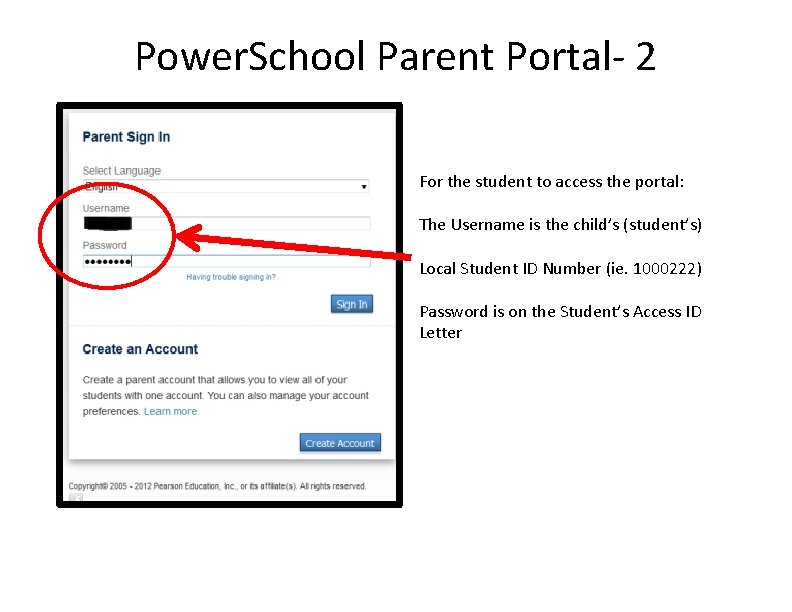
Power. School Parent Portal‐ 2 For the student to access the portal: The Username is the child’s (student’s) Local Student ID Number (ie. 1000222) Password is on the Student’s Access ID Letter
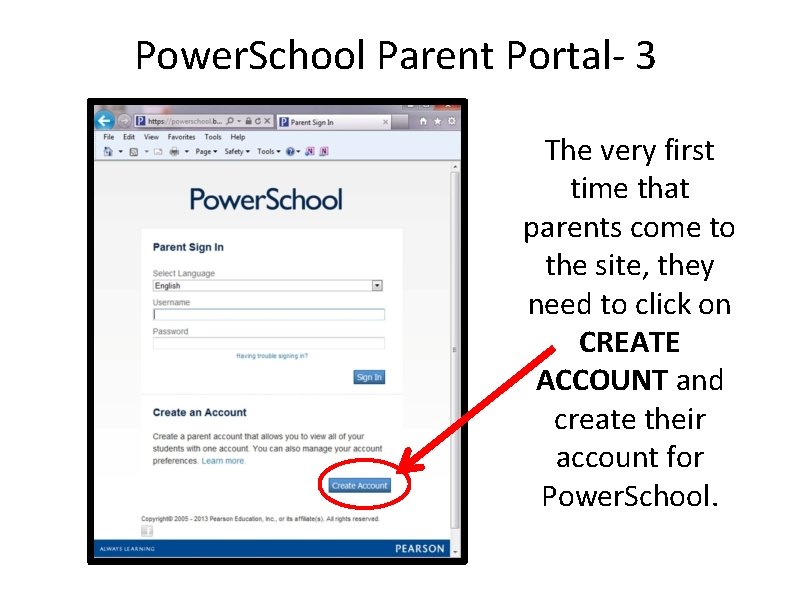
Power. School Parent Portal‐ 3 The very first time that parents come to the site, they need to click on CREATE ACCOUNT and create their account for Power. School.
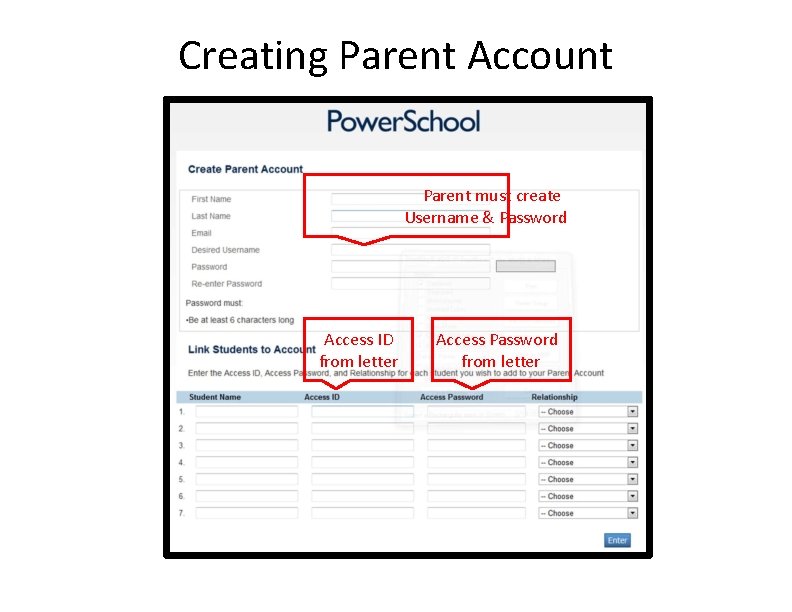
Creating Parent Account Parent must create Username & Password Access ID from letter Access Password from letter
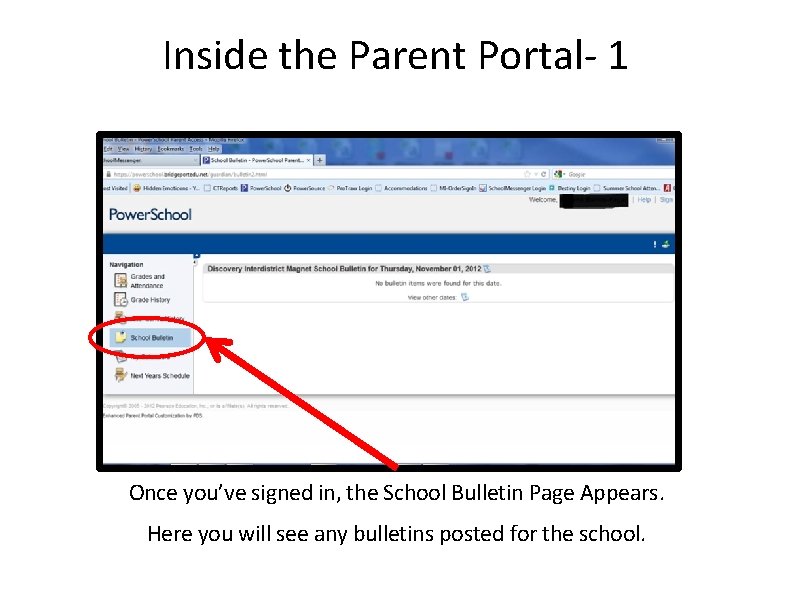
Inside the Parent Portal‐ 1 Once you’ve signed in, the School Bulletin Page Appears. Here you will see any bulletins posted for the school.
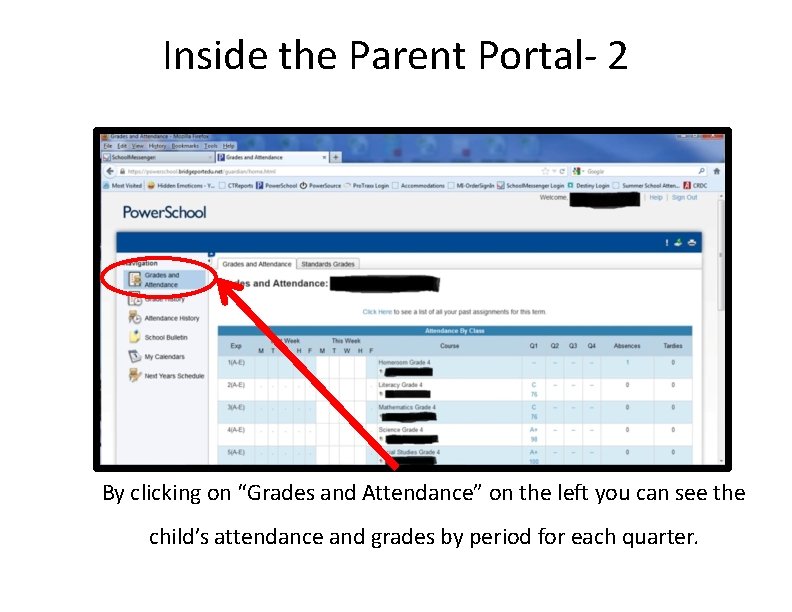
Inside the Parent Portal‐ 2 By clicking on “Grades and Attendance” on the left you can see the child’s attendance and grades by period for each quarter.
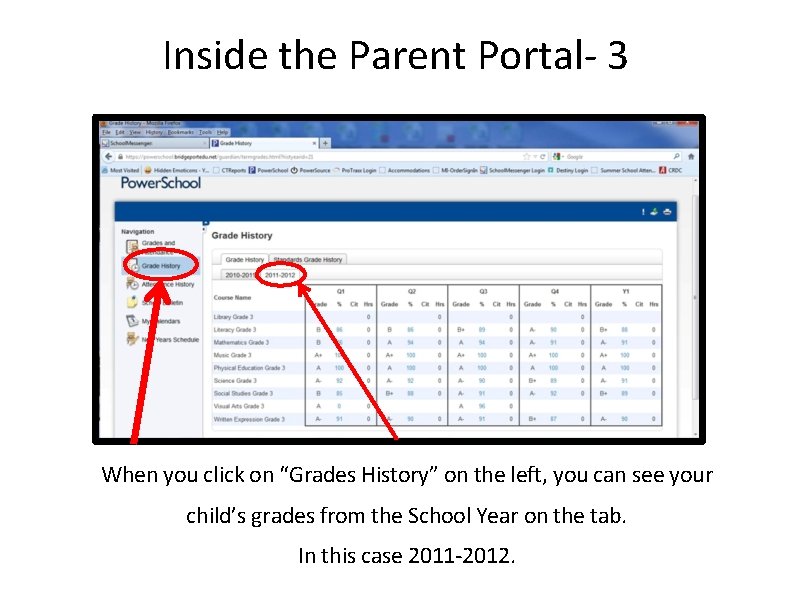
Inside the Parent Portal‐ 3 When you click on “Grades History” on the left, you can see your child’s grades from the School Year on the tab. In this case 2011‐ 2012.
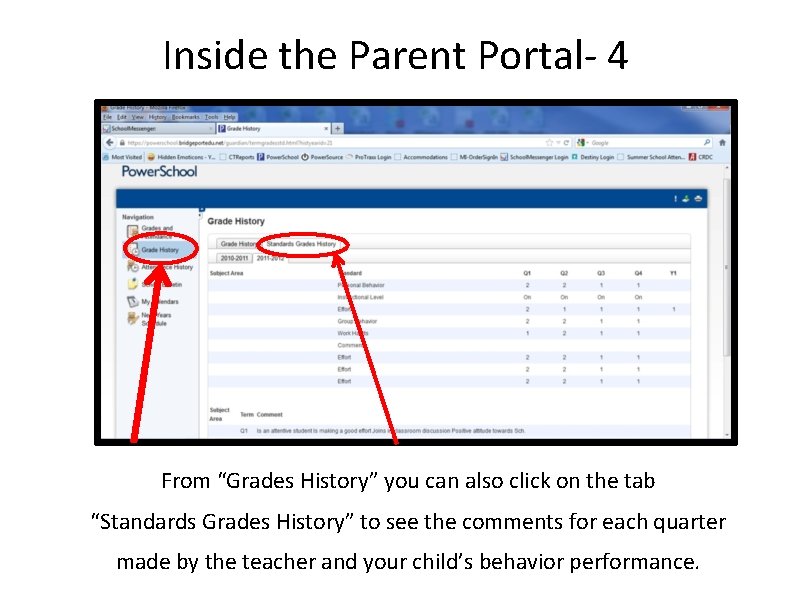
Inside the Parent Portal‐ 4 From “Grades History” you can also click on the tab “Standards Grades History” to see the comments for each quarter made by the teacher and your child’s behavior performance.
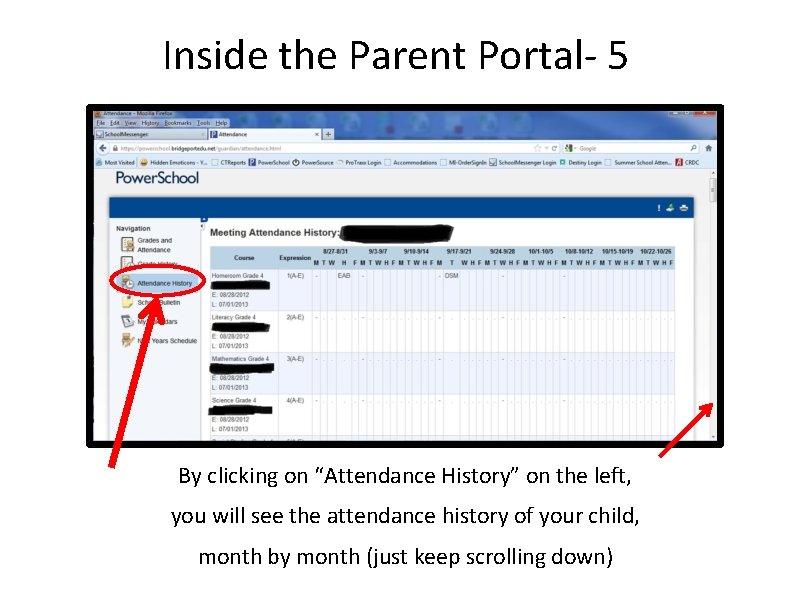
Inside the Parent Portal‐ 5 By clicking on “Attendance History” on the left, you will see the attendance history of your child, month by month (just keep scrolling down)