
Power Point Wide screen template November 2016 Priority
Power. Point Wide screen template November 2016 Priority Health Marketing
Hello • This is the only approved wide screen template for Power. Point • Use this when 16: 9 ratio is required (on Priority Health LCD screens, for example) • Templates can be downloaded from the brand guide at http: //brandguide. priorityhealth. com 2
FORMATTING Text // Colors
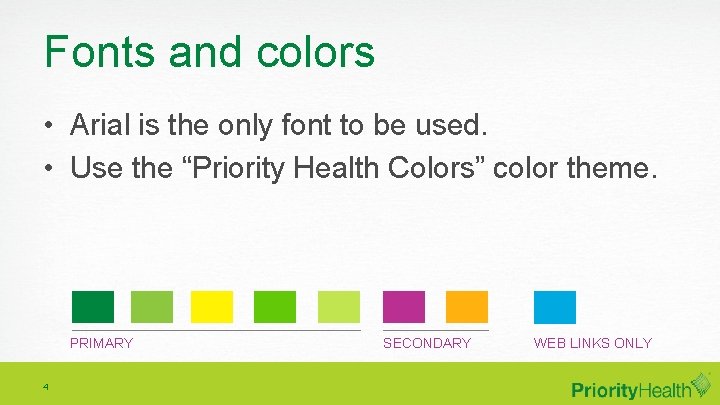
Fonts and colors • Arial is the only font to be used. • Use the “Priority Health Colors” color theme. PRIMARY 4 SECONDARY WEB LINKS ONLY
Text formats • Title page – Presentation title: 60 point, white – Capitalize the first word only, and any proper nouns – Sub-head: 30 point, italic – Presenter’s name: 20 point, italic 5

Text formats • Content slides – Slide title: 45 point, dark green – Text (text only slide): 30 point, grey – Text (text & image slide): 24 point, grey – Subhead: 24 point, bold, italic, dark green 6
Text formats • Bulleted lists – Solid dot is the only bullet style – A dash is used for secondary items only – Bullets are flush left, aligned to headline – Keep bullets short for easy readability – Do not make indented bullets smaller 7
VISUALS Imagery // Charts // Graphs
Imagery • Simple is better • Icons are the preferred imagery – Icons are flat with no outlines or shadows • If a slide contains no text, the image completely fills the slide 9
Imagery • Do not use copyrighted images • Approved icons are available at G: MktgShared_PH~Brand Guide – SAVEApproved Icons 10
ALWAYS KEEP VISUALS SIMPLE FOR EASY READABILITY BY THE AUDIENCE.
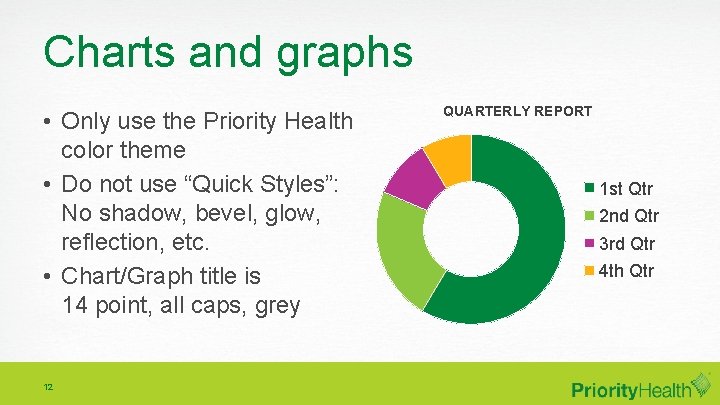
Charts and graphs • Only use the Priority Health color theme • Do not use “Quick Styles”: No shadow, bevel, glow, reflection, etc. • Chart/Graph title is 14 point, all caps, grey 12 QUARTERLY REPORT 1 st Qtr 2 nd Qtr 3 rd Qtr 4 th Qtr
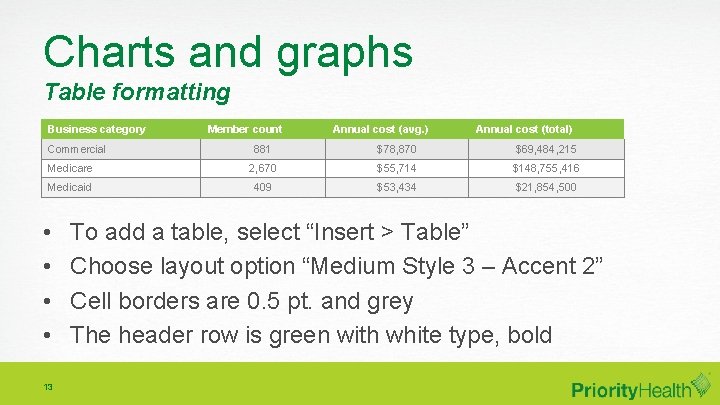
Charts and graphs Table formatting Business category Commercial Member count Annual cost (avg. ) Annual cost (total) 881 $78, 870 $69, 484, 215 Medicare 2, 670 $55, 714 $148, 755, 416 Medicaid 409 $53, 434 $21, 854, 500 • • 13 To add a table, select “Insert > Table” Choose layout option “Medium Style 3 – Accent 2” Cell borders are 0. 5 pt. and grey The header row is green with white type, bold
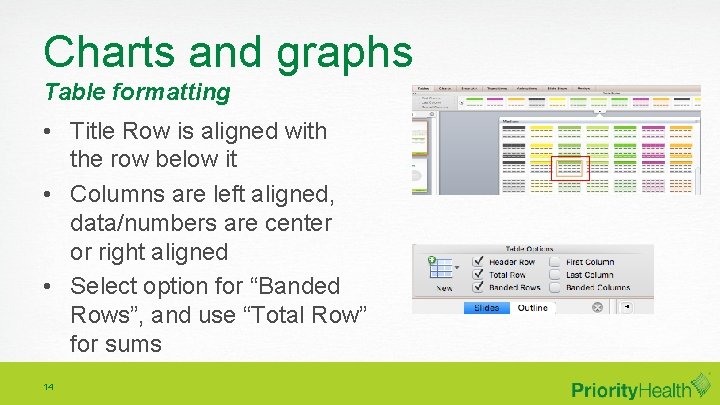
Charts and graphs Table formatting • Title Row is aligned with the row below it • Columns are left aligned, data/numbers are center or right aligned • Select option for “Banded Rows”, and use “Total Row” for sums 14
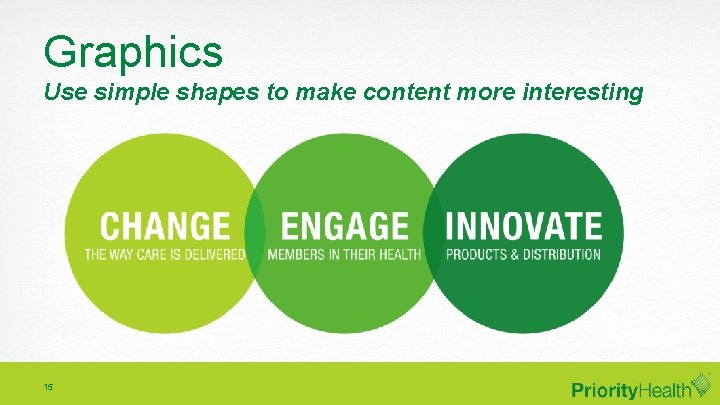
Graphics Use simple shapes to make content more interesting 15
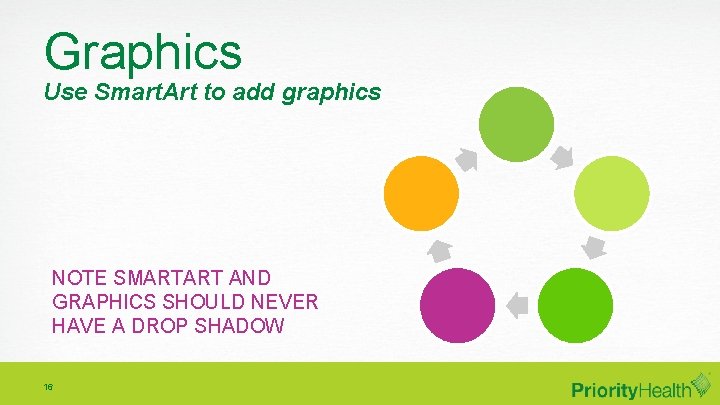
Graphics Use Smart. Art to add graphics NOTE SMARTART AND GRAPHICS SHOULD NEVER HAVE A DROP SHADOW 16
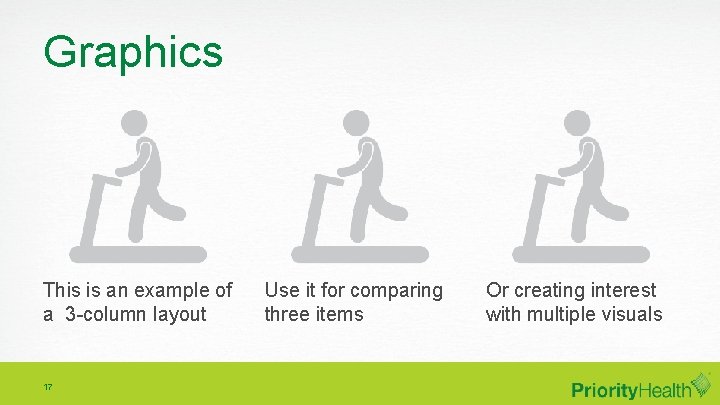
Graphics This is an example of a 3 -column layout 17 Use it for comparing three items Or creating interest with multiple visuals
PRESENTATION LAYOUT How to break it up
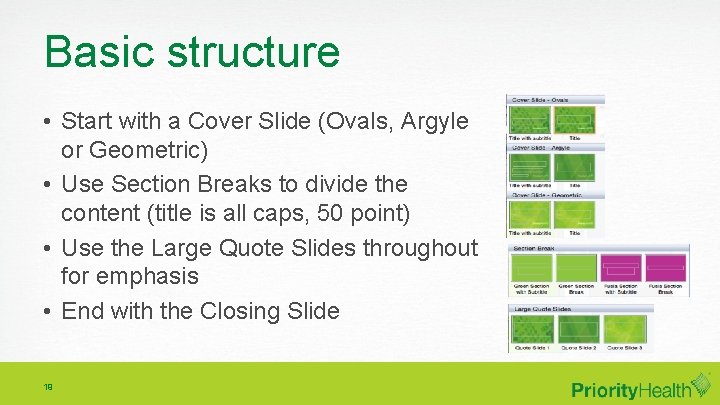
Basic structure • Start with a Cover Slide (Ovals, Argyle or Geometric) • Use Section Breaks to divide the content (title is all caps, 50 point) • Use the Large Quote Slides throughout for emphasis • End with the Closing Slide 19
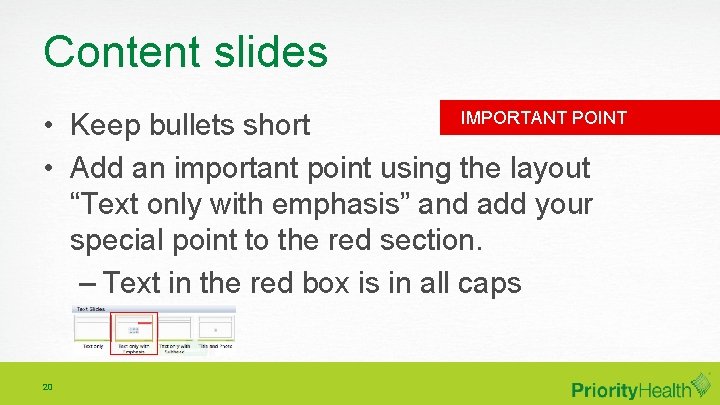
Content slides IMPORTANT POINT • Keep bullets short • Add an important point using the layout “Text only with emphasis” and add your special point to the red section. – Text in the red box is in all caps 20
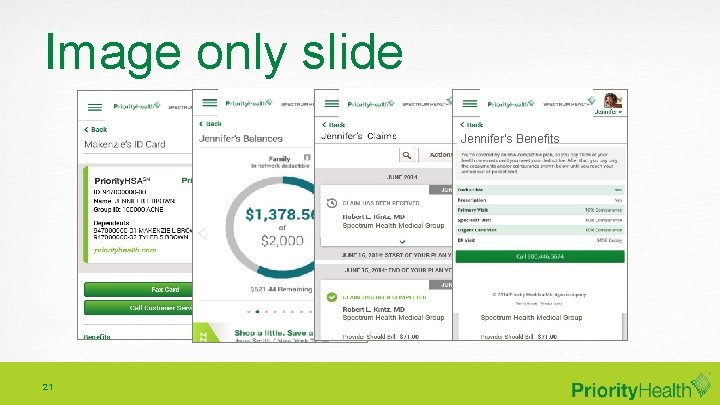
Image only slide Jennifer’s Benefits 21
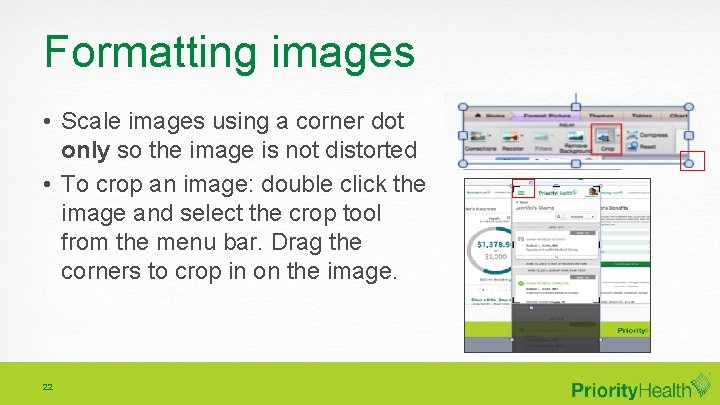
Formatting images • Scale images using a corner dot only so the image is not distorted • To crop an image: double click the image and select the crop tool from the menu bar. Drag the corners to crop in on the image. 22

WHEN PRESENTING TO AN EXTERNAL AUDIENCE, CONTACT YOUR MARKETING CONSULTANT FOR SUPPORT.
Tips • Keep your audience engaged by using emphasis slides for section breaks and large quotes • Use icons to illustrate your point • Use simple shapes for visual interest 24
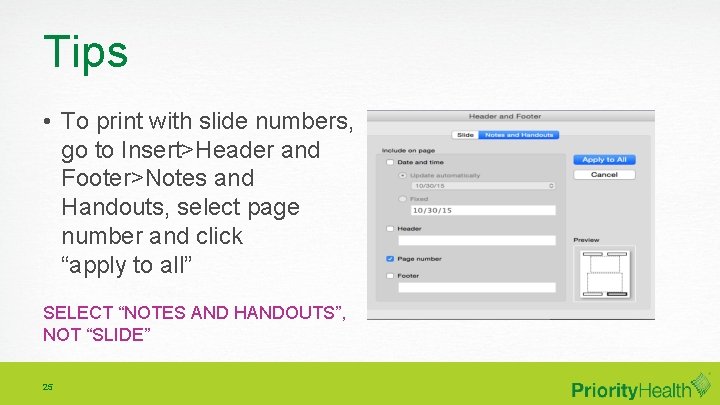
Tips • To print with slide numbers, go to Insert>Header and Footer>Notes and Handouts, select page number and click “apply to all” SELECT “NOTES AND HANDOUTS”, NOT “SLIDE” 25

USING THE TEMPLATE
Adding slides • Do not copy and paste slides from other presentations unless they both use this template. Due to Power. Point presets, your slide could reformat based on the other presentation defaults. 27
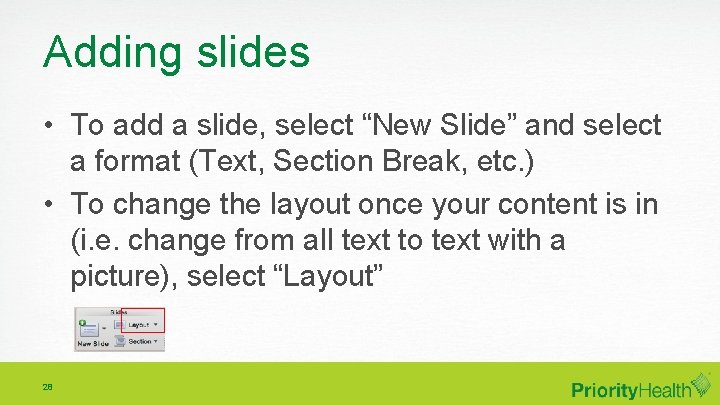
Adding slides • To add a slide, select “New Slide” and select a format (Text, Section Break, etc. ) • To change the layout once your content is in (i. e. change from all text to text with a picture), select “Layout” 28

- Slides: 29