
Power Point Tutorial 1 Creating a Presentation Microsoft


- Slides: 39
Power. Point Tutorial 1: Creating a Presentation Microsoft Office 2010 ®
Objectives • • • XP Plan and create a new presentation Create a title slide and slides with bulleted lists Change theme Open an existing Power. Point presentation Edit and format text in the Slide pane Use Auto. Correct New Perspectives on Microsoft Power. Point 2010 2
Objectives XP • Rearrange text in the Outline tab • Rearrange slides in Normal and Slide Sorter view • Delete slides • View a slide show • Create a new presentation based on an existing one • Animate slide titles and bulleted lists New Perspectives on Microsoft Power. Point 2010 3
Objectives XP • Apply transitions • Insert footer text, slide numbers, and the date on slides • Create speaker notes • Check the spelling in a presentation • Preview and print slides, handouts, speaker notes, and the outline New Perspectives on Microsoft Power. Point 2010 4
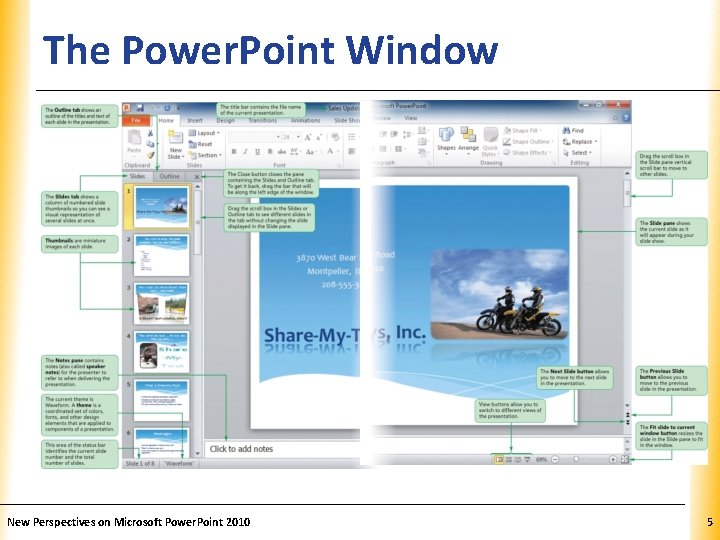
The Power. Point Window New Perspectives on Microsoft Power. Point 2010 XP 5
Creating a New Presentation XP • Power. Point is a powerful presentation graphics program that provides everything you need to produce an effective side show presentation that can be shown to an audience of provided to people to view on their own • Click the Start button, point to All programs, click Microsoft Office, and then click Microsoft Power. Point 2010 New Perspectives on Microsoft Power. Point 2010 6
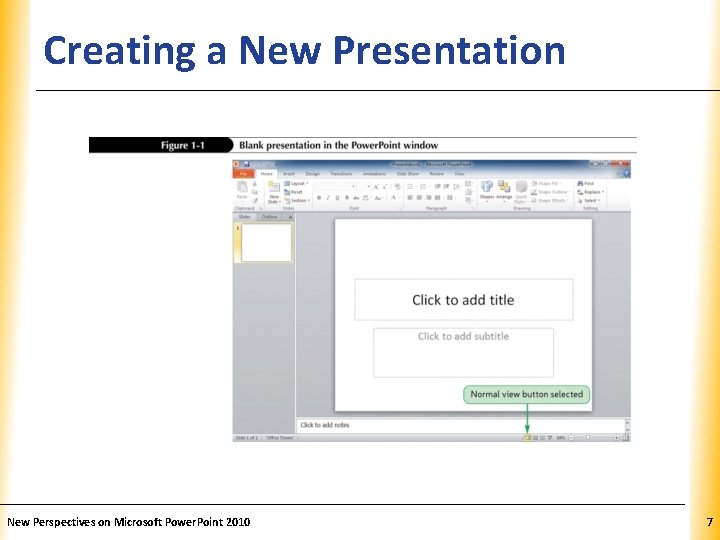
Creating a New Presentation New Perspectives on Microsoft Power. Point 2010 XP 7
Creating a New Presentation XP • Planning a presentations – What is the purpose of your presentation? – Who is your audience? – How much time do you have for the presentation? – Will your audience benefit from printed output? New Perspectives on Microsoft Power. Point 2010 8
Creating a New Presentation New Perspectives on Microsoft Power. Point 2010 XP 9
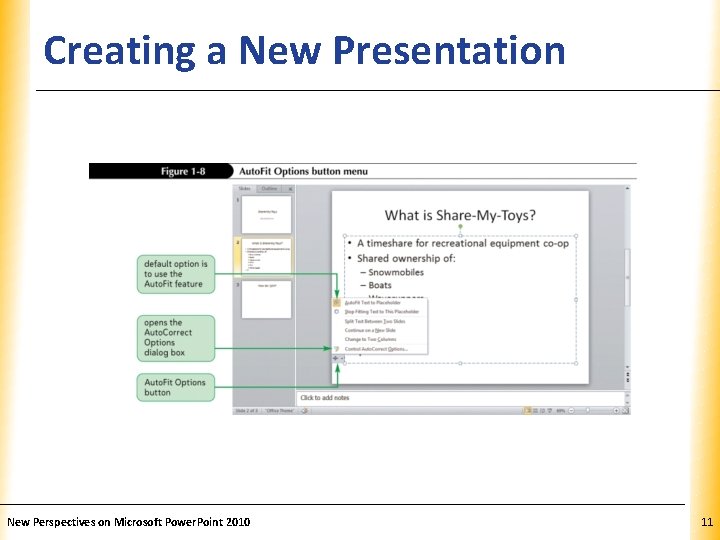
Creating a New Presentation XP • A bulleted list is a list of “paragraphs” with a special character to the left of each paragraph – Bulleted item – First-level bullet – Second-level bullet • Subbullet • As you add text to a content placeholder, the Auto. Fit feature changes the line spacing and the font size of the text if you add more text than will fit in the placeholder New Perspectives on Microsoft Power. Point 2010 10
Creating a New Presentation New Perspectives on Microsoft Power. Point 2010 XP 11
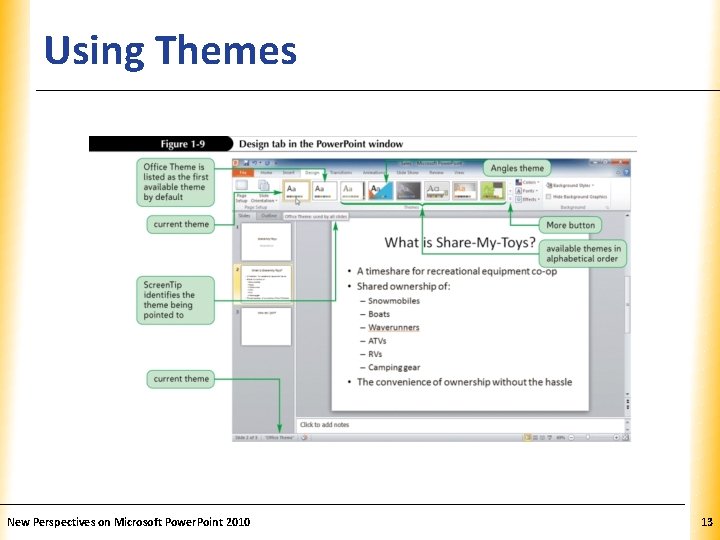
Using Themes XP • Theme colors are the colors used for the background, title text, body text, accents, background colors and objects, and graphics in a presentation • Theme fonts are two fonts or font styles, one for the titles (or headings) and one for text in content placeholders • A graphic is a picture, shape, design, graph, chart, or diagram New Perspectives on Microsoft Power. Point 2010 12
Using Themes New Perspectives on Microsoft Power. Point 2010 XP 13
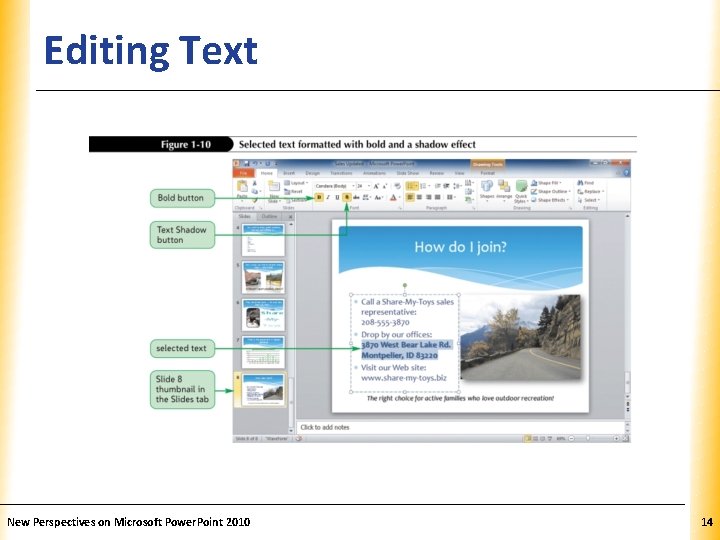
Editing Text New Perspectives on Microsoft Power. Point 2010 XP 14
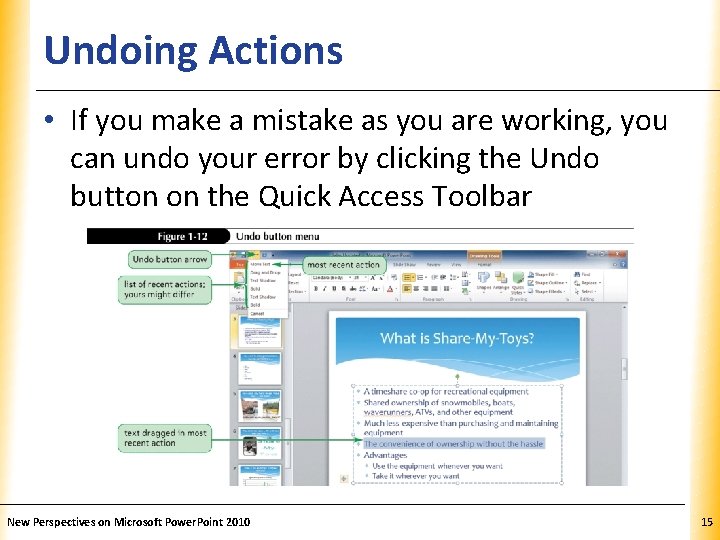
Undoing Actions XP • If you make a mistake as you are working, you can undo your error by clicking the Undo button on the Quick Access Toolbar New Perspectives on Microsoft Power. Point 2010 15
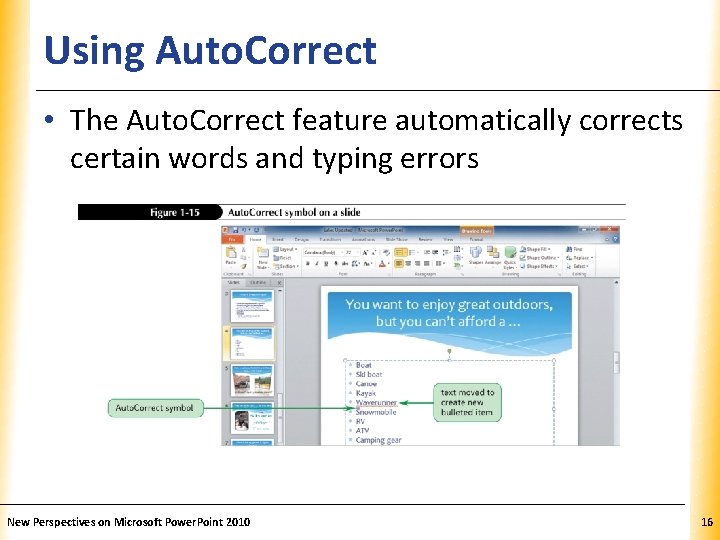
Using Auto. Correct XP • The Auto. Correct feature automatically corrects certain words and typing errors New Perspectives on Microsoft Power. Point 2010 16
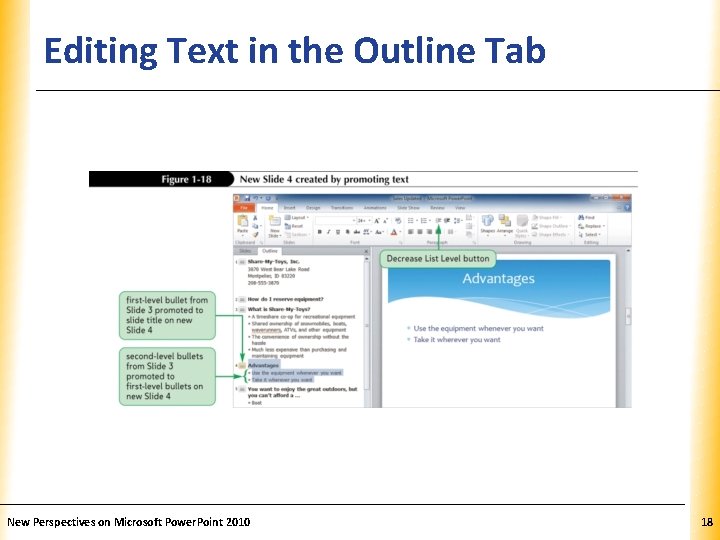
Editing Text in the Outline Tab XP • Working in the Outline tab allows you to see the outline of the entire presentation • Promoting an item means moving an item higher in the outline • Demoting an item moves the item lower in the outline New Perspectives on Microsoft Power. Point 2010 17
Editing Text in the Outline Tab New Perspectives on Microsoft Power. Point 2010 XP 18
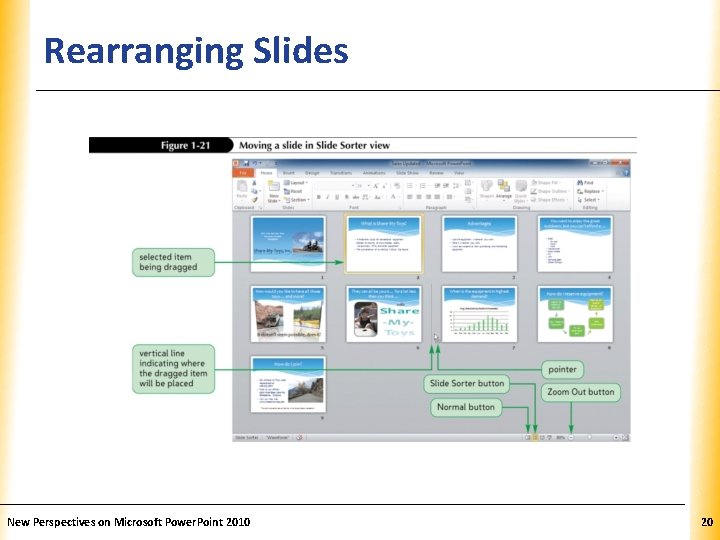
Rearranging Slides XP • In Slide Sorter view, Power. Point displays all the slides as thumbnails • On the status bar, click the Slide Sorter button • Dragging and dropping slides in Slide Sorter view will rearrange them in the presentation New Perspectives on Microsoft Power. Point 2010 19
Rearranging Slides New Perspectives on Microsoft Power. Point 2010 XP 20
Deleting Slides XP • In Slide Sorter view or in the Slides tab in Normal view, right-click the slide thumbnail of the slide you want to delete; or in the Outline tab in Normal view, right-click the slide title of the slide you want to delete • On the shortcut menu, click Delete Slide or • In Slide Sorter view or in the Slides tab in Normal view, click the slide thumbnail of the slide you want to delete; or in the Outline tab in Normal view, click the slide icon of the slide you want to delete • Press the Delete key New Perspectives on Microsoft Power. Point 2010 21
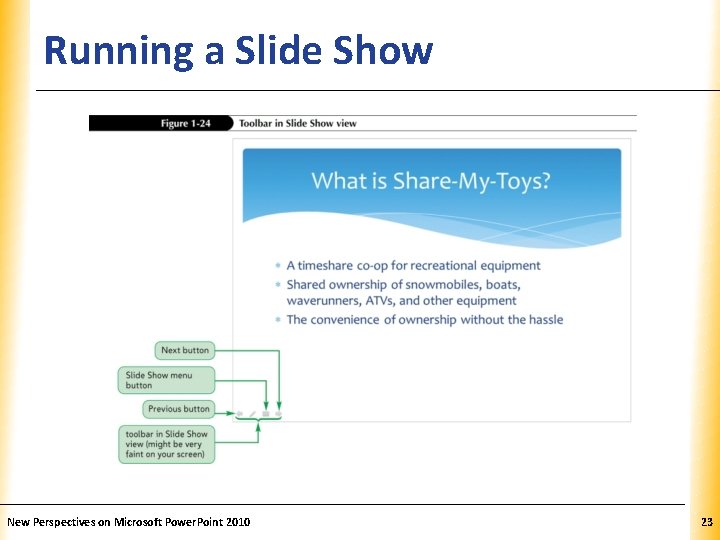
Running a Slide Show XP • Slide Show view displays each slide so that it fills the entire screen with no toolbars or other Windows elements visible on the screen • When you click the Slide Show button on the status bar, the slide show starts beginning with the current slide • To start a slide show from the beginning, click the Slide Show tab on the Ribbon, and then in the Start then Slide Show group, click the From Beginning button • In Slide Show view, you move from one slide to the next by pressing the Spacebar, the Enter key, the key, or the Page Down key New Perspectives on Microsoft Power. Point 2010 22
Running a Slide Show New Perspectives on Microsoft Power. Point 2010 XP 23
Using Animations and Transitions XP New Perspectives on Microsoft Power. Point 2010 24
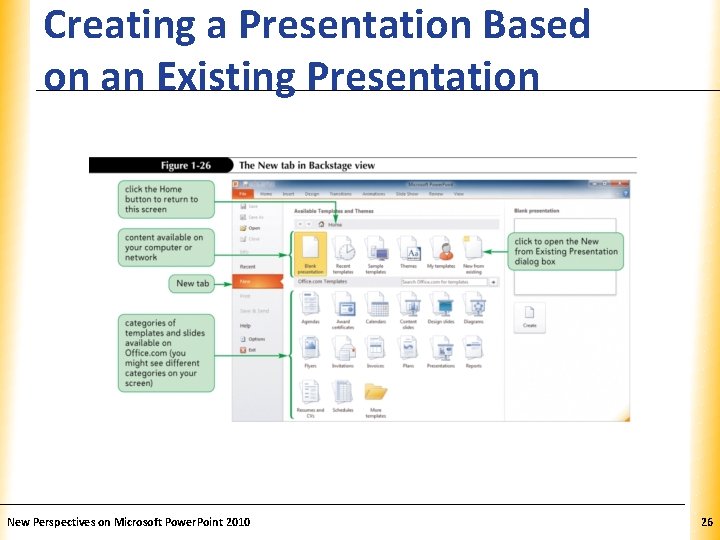
Creating a Presentation Based on an Existing Presentation XP • Click the File tab to open Backstage view, and then click the New tab in the navigation bar • In the Home section, click New from Existing to open the New from Existing Presentation dialog box • Navigate to the drive and folder containing the presentation on which to base the new presentation, click the presentation file, and then click the Create New button • Save the new presentation New Perspectives on Microsoft Power. Point 2010 25
Creating a Presentation Based on an Existing Presentation New Perspectives on Microsoft Power. Point 2010 XP 26
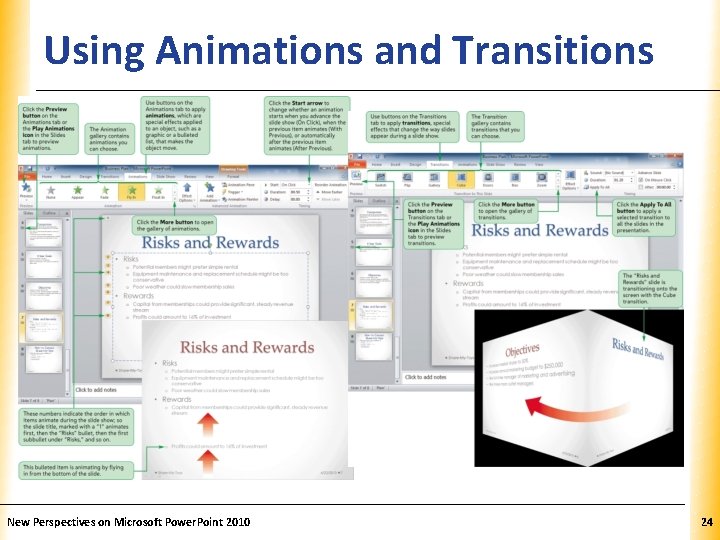
Animating Text XP • Animations add interest to a slide show and draw attention to the text or object being animated – Progressive disclosure • Animation effects are grouped into four types: – Entrance – Emphasis – Exit – Motion Paths New Perspectives on Microsoft Power. Point 2010 27
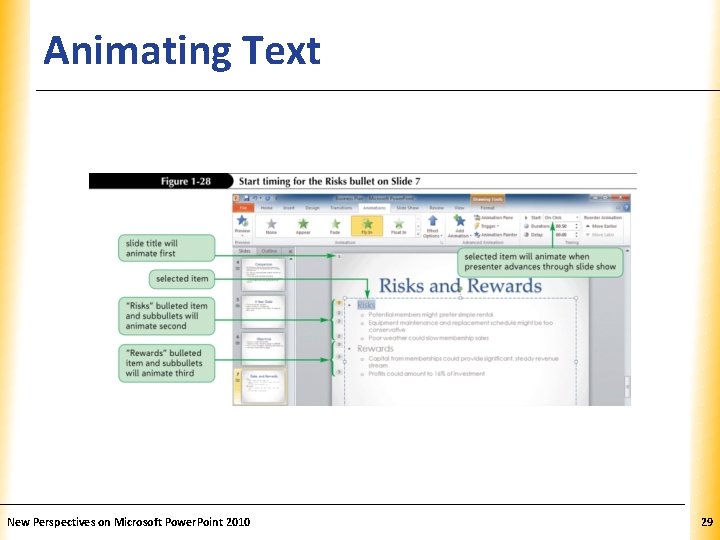
Animating Text XP • Modifying the Start Timing of the Animation of Subbullets – In the Slide pane, click anywhere in the text box containing the subbullets to make it active – Click the Animations tab on the Ribbon, and then apply an animation to the active text box – In the Slide pane, select all the subbullets on the slide, or select all the bulleted items on the slide, or click the dashed line box surrounding the text box so it changes to a solid line – On the Animations tab, in the Timing group, click the Start button arrow, and then click On Click or After Previous New Perspectives on Microsoft Power. Point 2010 28
Animating Text New Perspectives on Microsoft Power. Point 2010 XP 29
Adding Transitions XP • In the Slides tab or the Outline tab in Normal view or in Slide Sorter view, select the slide(s) to which you want to add a transition, or, if applying to all the slides, select any slide • Click the Transitions tab on the Ribbon • In the Transition to This Slide group, click the More button to display the gallery of transition effects • Click the desired transition effect in the gallery New Perspectives on Microsoft Power. Point 2010 30
Adding Transitions XP • If desired, in the Timing group, click the Transition Sound button arrow to insert a sound effect to accompany each transition • If desired, in the Timing group, click the Transition Speed button arrow to modify the speed of the transition • To apply the transition to all of the slides in the presentation, in the Timing group, click the Apply to All button New Perspectives on Microsoft Power. Point 2010 31
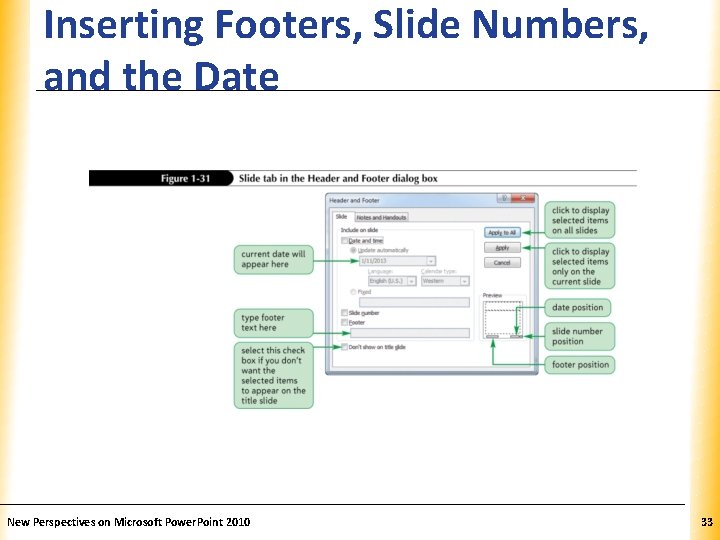
Inserting Footers, Slide Numbers, XP and the Date • In Power. Point, a footer is text that appears on every slide, but depending on theme applied, it might not always appear at the bottom of a slide • Click the Insert tab on the Ribbon • In the Text group, click the Header & Footer button New Perspectives on Microsoft Power. Point 2010 32
Inserting Footers, Slide Numbers, XP and the Date New Perspectives on Microsoft Power. Point 2010 33
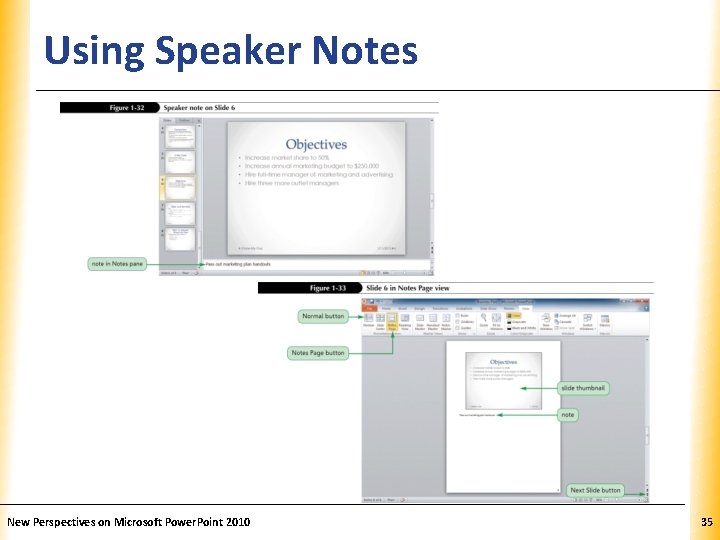
Using Speaker Notes XP • Notes (also called speaker notes) help the speaker remember what to say when a particular slide appears during the presentation • They appear in the Notes pane below the slide pane in Normal view • You can also print notes pages with a picture of and notes about each slide New Perspectives on Microsoft Power. Point 2010 34
Using Speaker Notes New Perspectives on Microsoft Power. Point 2010 XP 35
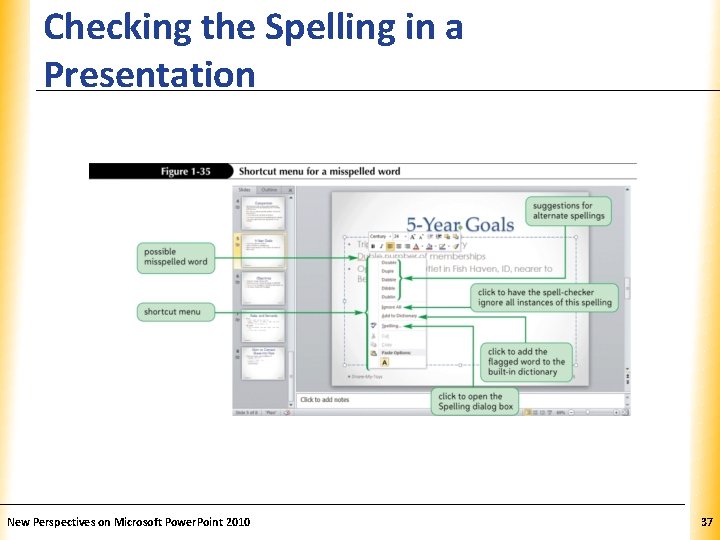
Checking the Spelling in a Presentation XP • Before you print or present a slide show, you should always perform a final check of the spelling of all the slides in your presentation • Power. Point does two types of spell-checking: – The regular type is when Power. Point finds a word that’s not in its dictionary – The other type is called contextual spellchecking, which checks the context in which a word is used New Perspectives on Microsoft Power. Point 2010 36
Checking the Spelling in a Presentation New Perspectives on Microsoft Power. Point 2010 XP 37
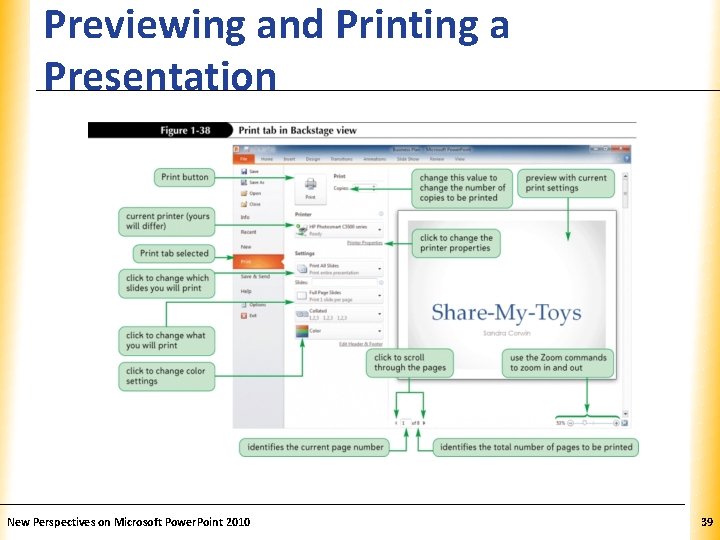
Previewing and Printing a Presentation XP • Power. Point provides several printing options: – Color, grayscale, or pure black and white – Full page slides – Notes pages – Outline – Handouts New Perspectives on Microsoft Power. Point 2010 38
Previewing and Printing a Presentation New Perspectives on Microsoft Power. Point 2010 XP 39