
Power Point Tools How NOT to Use Power


- Slides: 18
Power. Point Tools
How NOT to Use Power. Point
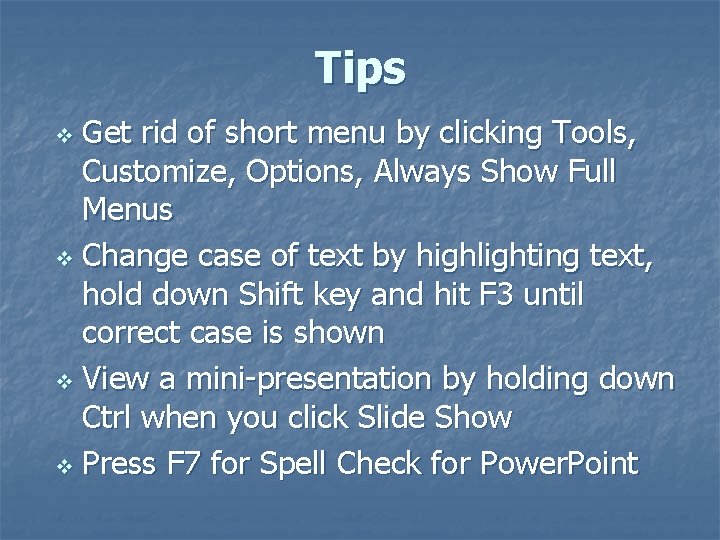
Tips Get rid of short menu by clicking Tools, Customize, Options, Always Show Full Menus v Change case of text by highlighting text, hold down Shift key and hit F 3 until correct case is shown v View a mini-presentation by holding down Ctrl when you click Slide Show v Press F 7 for Spell Check for Power. Point v
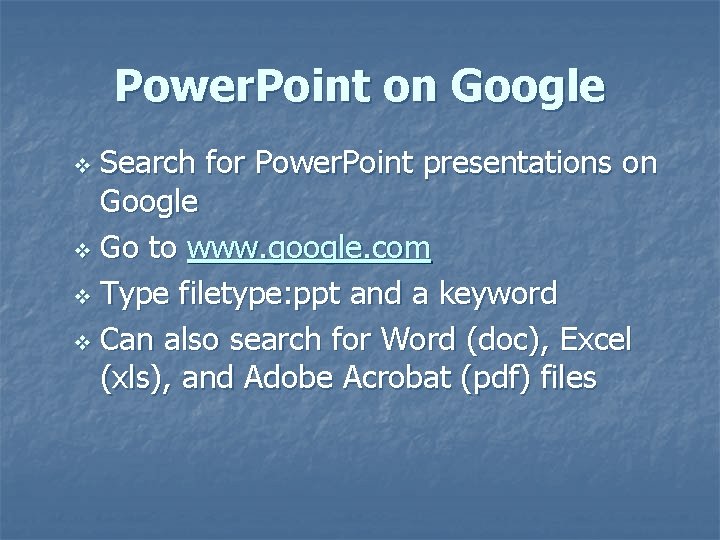
Power. Point on Google Search for Power. Point presentations on Google v Go to www. google. com v Type filetype: ppt and a keyword v Can also search for Word (doc), Excel (xls), and Adobe Acrobat (pdf) files v
Basics v Slide Design v Backgrounds v Formatting Font v Text boxes v Clip Art v Transitions v Animations Handout can be found on my blog
Pictures
Inserting Pictures Insert, Picture, Clip Art for gallery pictures v Insert, Picture, From File for pictures saved on your computer v For pictures from the Web, go to Google and click Image at top left v Customizable options v Right click on picture and copy, then go to Power. Point and right click paste v
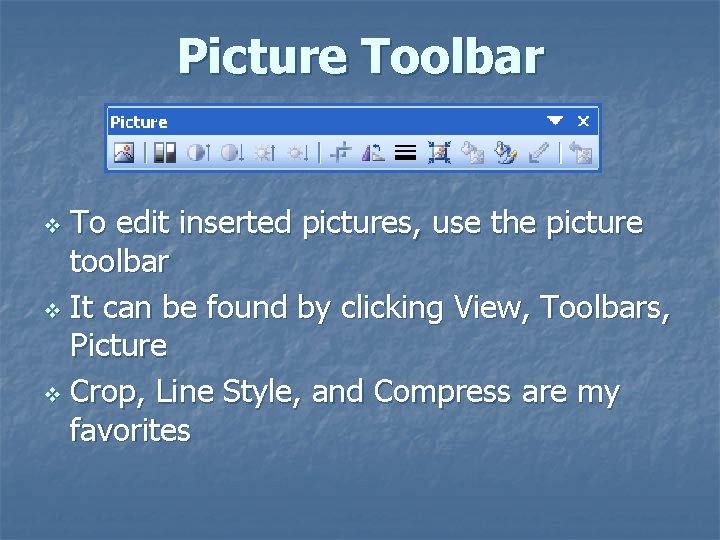
Picture Toolbar To edit inserted pictures, use the picture toolbar v It can be found by clicking View, Toolbars, Picture v Crop, Line Style, and Compress are my favorites v
Saving a Slide as a Picture I use individual slides from presentations as pictures on my blog v Click File, Save as, change Save as Type to Jpeg, and then select Current Slide Only v
Sounds
Gallery, Animation, Narration Insert, Movie and Sounds, Sounds from Clip Organizer are sounds available in the gallery of Power. Point v Slide Show, Custom Animation, Add Effect to object in slide for sound effects under Effect Options v Slide Show, Record Narration to add voice narration to slide v
Videos in Power. Point
Embedding Video United Streaming video can be embedded into Power. Point slides v Download the video from United Streaming v In Power. Point, click Insert, Movies and Sounds, Movie from File v You have the option of playing Automatically or When Clicked v
United Streaming Embedded Video “Cite Your Source”
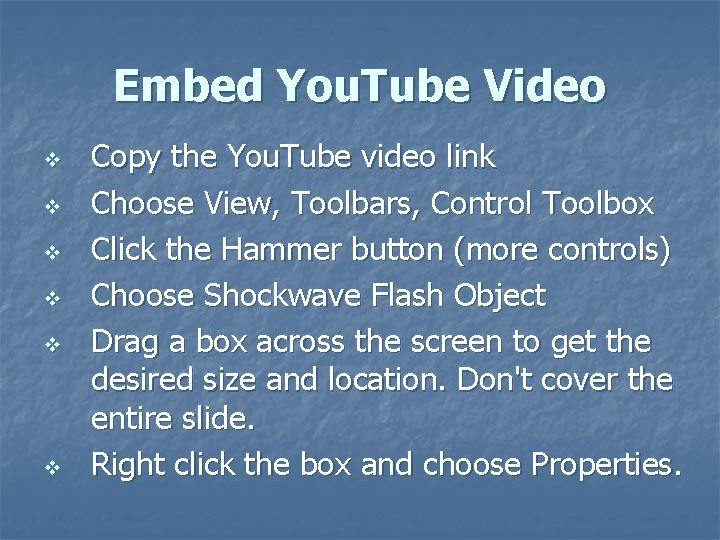
Embed You. Tube Video v v v Copy the You. Tube video link Choose View, Toolbars, Control Toolbox Click the Hammer button (more controls) Choose Shockwave Flash Object Drag a box across the screen to get the desired size and location. Don't cover the entire slide. Right click the box and choose Properties.
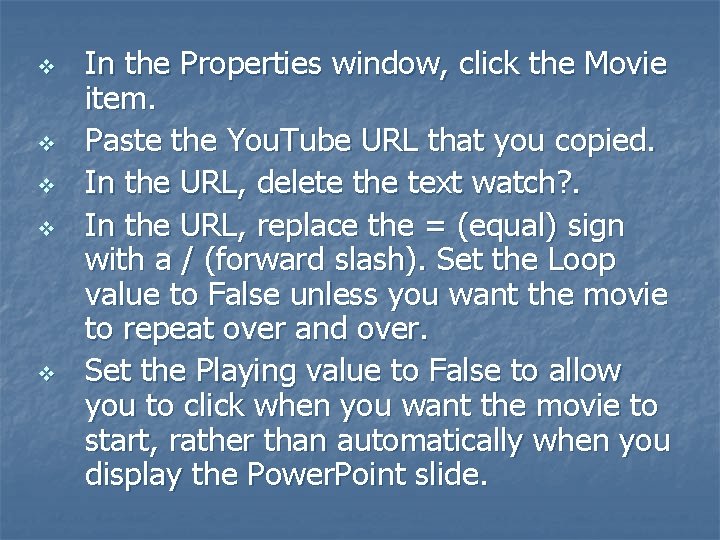
v v v In the Properties window, click the Movie item. Paste the You. Tube URL that you copied. In the URL, delete the text watch? . In the URL, replace the = (equal) sign with a / (forward slash). Set the Loop value to False unless you want the movie to repeat over and over. Set the Playing value to False to allow you to click when you want the movie to start, rather than automatically when you display the Power. Point slide.
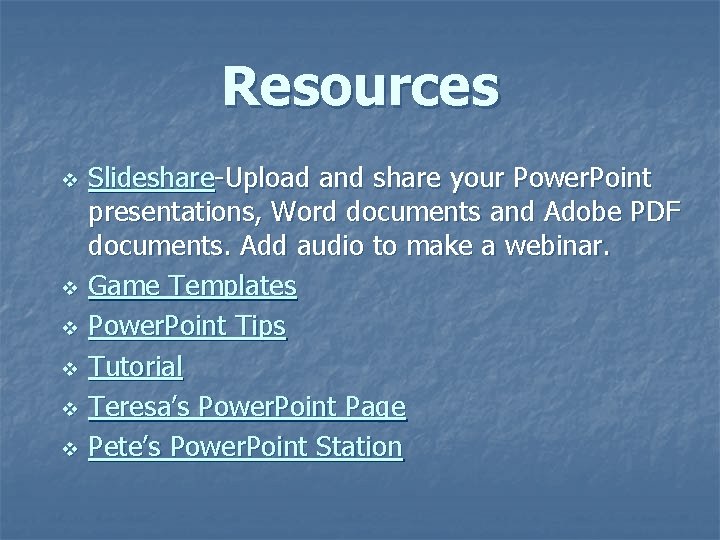
Resources v v v Slideshare-Upload and share your Power. Point presentations, Word documents and Adobe PDF documents. Add audio to make a webinar. Game Templates Power. Point Tips Tutorial Teresa’s Power. Point Page Pete’s Power. Point Station
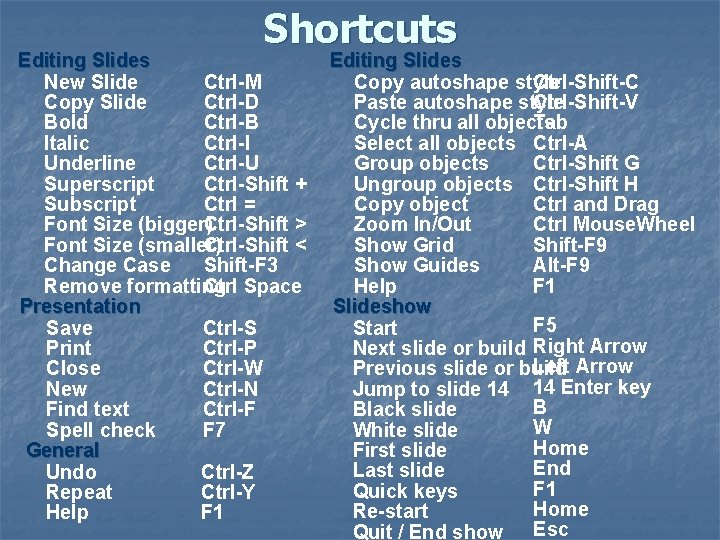
Shortcuts Editing Slides New Slide Ctrl-M Copy Slide Ctrl-D Bold Ctrl-B Italic Ctrl-I Underline Ctrl-U Superscript Ctrl-Shift + Subscript Ctrl = Font Size (bigger)Ctrl-Shift > Font Size (smaller) Ctrl-Shift < Change Case Shift-F 3 Remove formatting Ctrl Space Presentation Save Ctrl-S Print Ctrl-P Close Ctrl-W New Ctrl-N Find text Ctrl-F Spell check F 7 General Undo Ctrl-Z Repeat Ctrl-Y Help F 1 Editing Slides Copy autoshape style Ctrl-Shift-C Paste autoshape style Ctrl-Shift-V Cycle thru all objects Tab Select all objects Ctrl-A Group objects Ctrl-Shift G Ungroup objects Ctrl-Shift H Copy object Ctrl and Drag Zoom In/Out Ctrl Mouse. Wheel Show Grid Shift-F 9 Show Guides Alt-F 9 Help F 1 Slideshow F 5 Start Next slide or build Right Arrow Left Arrow Previous slide or build Jump to slide 14 14 Enter key B Black slide W White slide Home First slide End Last slide F 1 Quick keys Home Re-start Quit / End show Esc