
Power Point Tips This presentation includes the major
- Slides: 27
Power. Point Tips This presentation includes the major functions of Power. Point and tips for usage. 1
Creating a New Presentation b Auto. Content Wizard offers the highest degree of help. b A template offers a standardized group of slides. b A blank presentation allows you create a presentation from scratch, using your own design touches. 2
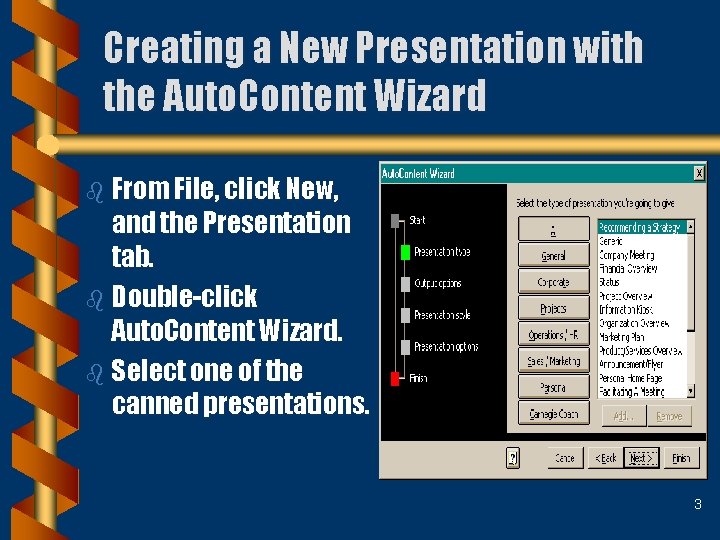
Creating a New Presentation with the Auto. Content Wizard b From File, click New, and the Presentation tab. b Double-click Auto. Content Wizard. b Select one of the canned presentations. 3
Notes on Choices Under Auto. Content Wizard b Choose the method that best describes how you will give the presentation. b Note: Internet, Kiosk is a self-running presentation that does not require a live narrator. b Two good auto-presentations: • Preparing a Presentation • Presenting a Technical Report 4
Replacing Dummy Text b You should personalize your presentation by replacing the dummy text in Auto. Content with your own text. b Select the existing text by clicking on it, and type in the box provided. b You can also add new text boxes (Insert, Text Box from menu). 5
Using Presentation Templates and Presentation Design Templates b A template is the middle ground between maximum hand-holding (the Auto-Content Wizard) and no help at all (Blank Presentation). b There are two types of Templates: Presentation Templates and Presentation Design Templates. b Presentation Templates are best (opinion). 6
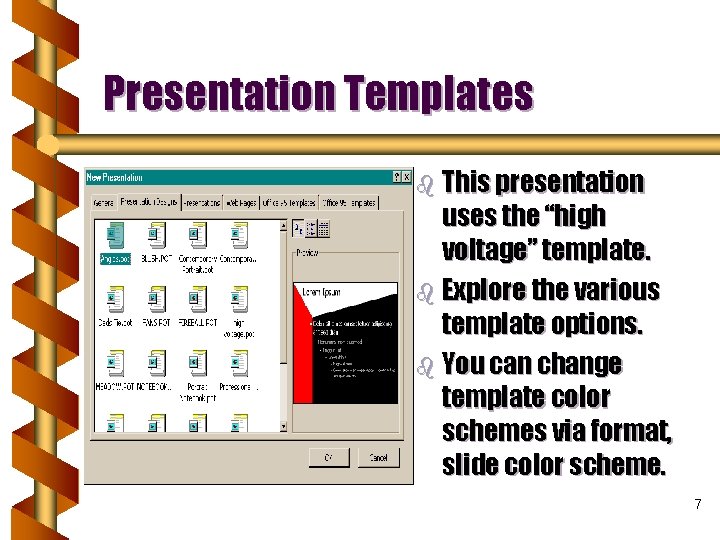
Presentation Templates b This presentation uses the “high voltage” template. b Explore the various template options. b You can change template color schemes via format, slide color scheme. 7
Adding Additional Slides b To add new slides to either Presentation Templates or Presentation Design Templates, click on the new slide button or choose Insert, New Slide from Menu. b You can also add slides from other Power. Point presentations (Insert, Slides from Files). b Slides can be deleted by choosing Edit, 8 Delete Slide from the menu.
Creating with Blank Presentation b Not advised for those just learning Power. Point. b A black presentation has no present color scheme or design, and no dummy text. You add everything. • • • From the menu select File, New. Click the General tab. Double-click Blank Presentation. 9
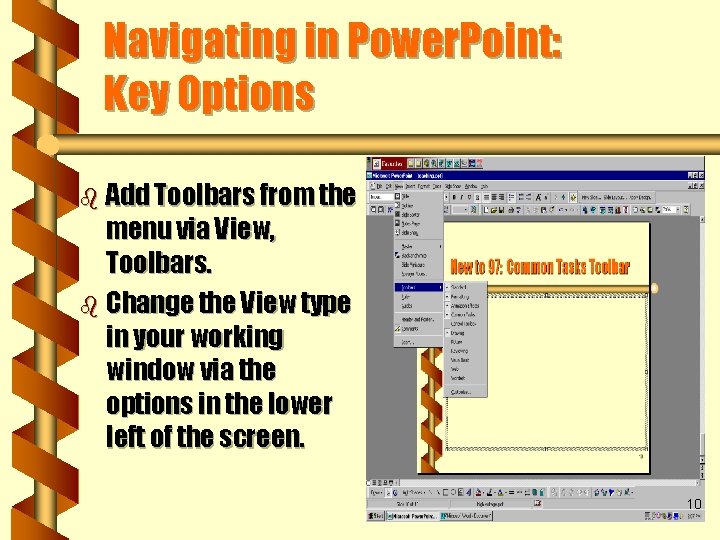
Navigating in Power. Point: Key Options b Add Toolbars from the menu via View, Toolbars. b Change the View type in your working window via the options in the lower left of the screen. 10
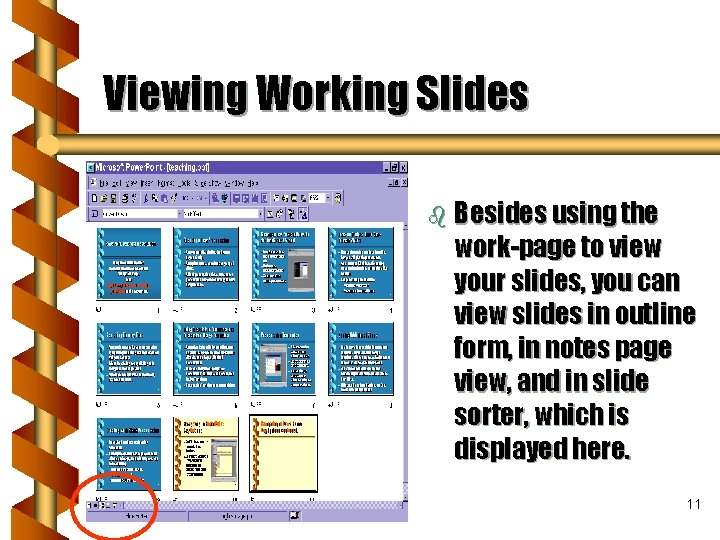
Viewing Working Slides b Besides using the work-page to view your slides, you can view slides in outline form, in notes page view, and in slide sorter, which is displayed here. 11
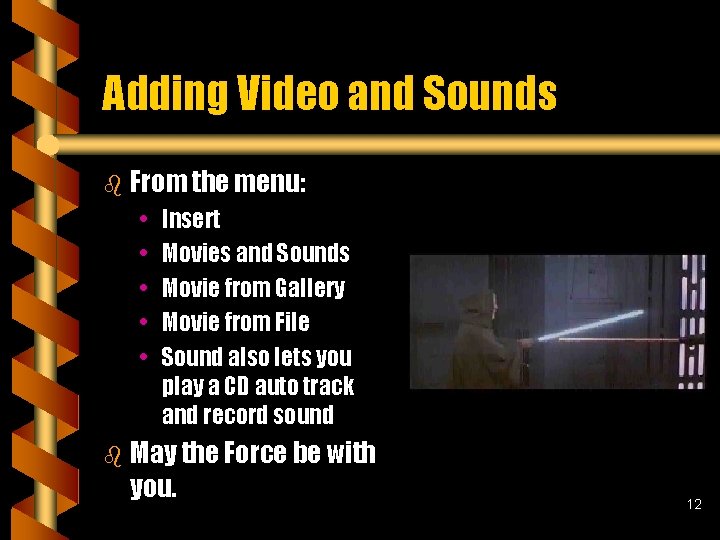
Adding Video and Sounds b From the menu: • • • Insert Movies and Sounds Movie from Gallery Movie from File Sound also lets you play a CD auto track and record sound b May the Force be with you. 12
Adding Auto is Easy b "As your body grows bigger - Your mind must flower - It's great to learn - 'Cause knowledge is power!" -- Schoolhouse Rock Conjunction Junction Adverbs Kings I’m Just a Bill 13
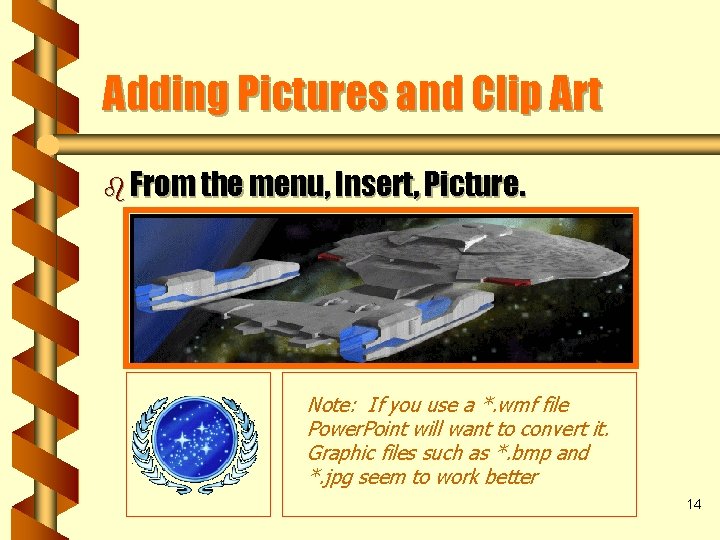
Adding Pictures and Clip Art b From the menu, Insert, Picture. Note: If you use a *. wmf file Power. Point will want to convert it. Graphic files such as *. bmp and *. jpg seem to work better 14
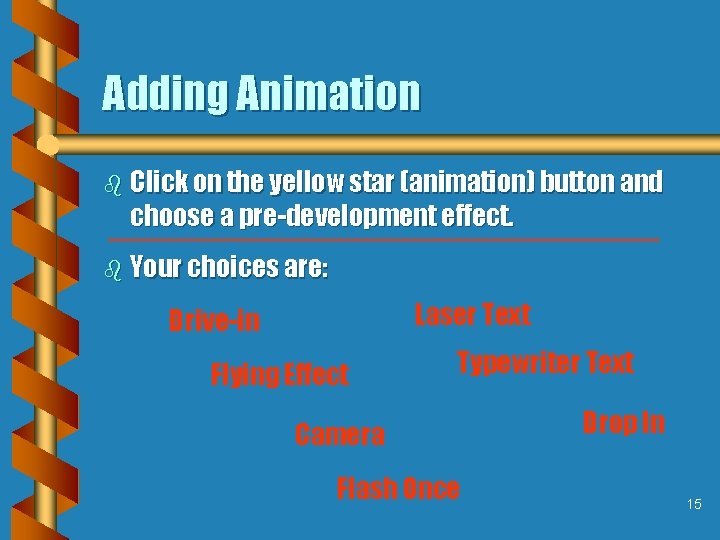
Adding Animation b Click on the yellow star (animation) button and choose a pre-development effect. b Your choices are: Laser Text Drive-in Flying Effect Typewriter Text Camera Flash Once Drop In 15
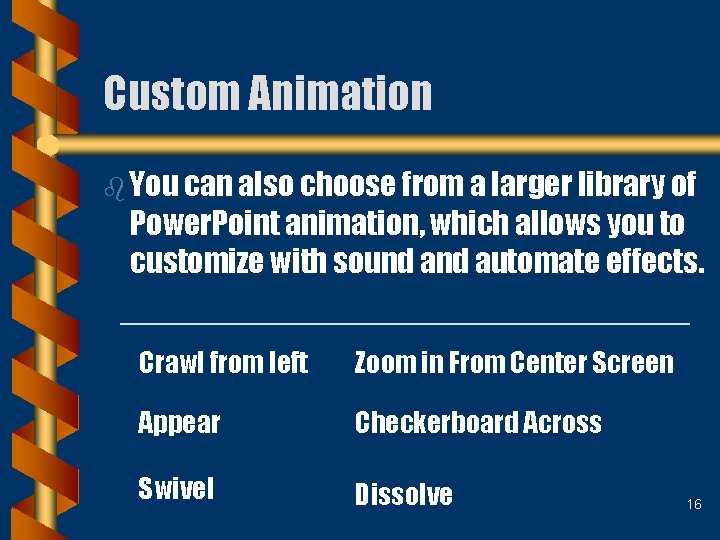
Custom Animation b You can also choose from a larger library of Power. Point animation, which allows you to customize with sound automate effects. Crawl from left Zoom in From Center Screen Appear Checkerboard Across Swivel Dissolve 16
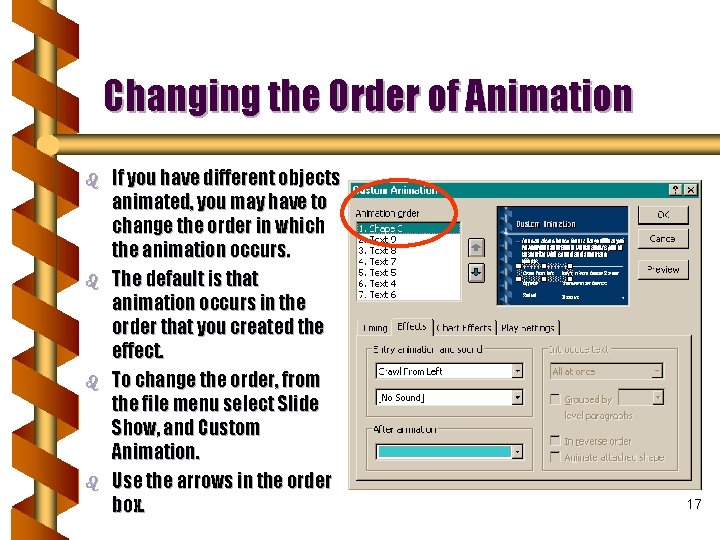
Changing the Order of Animation b b If you have different objects animated, you may have to change the order in which the animation occurs. The default is that animation occurs in the order that you created the effect. To change the order, from the file menu select Slide Show, and Custom Animation. Use the arrows in the order box. 17
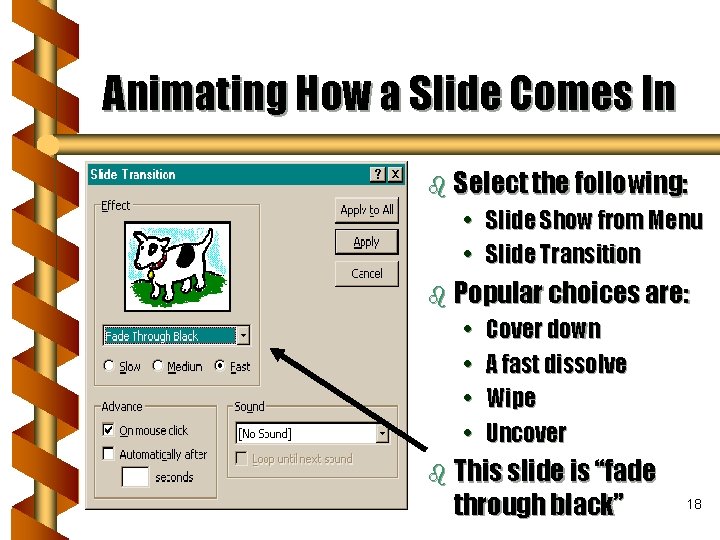
Animating How a Slide Comes In b Select the following: • Slide Show from Menu • Slide Transition b Popular choices are: • • Cover down A fast dissolve Wipe Uncover b This slide is “fade through black” 18
Other Navigating Tips b To move from slide to b To activate the slide when you are making slides, click the down or up arrow on the right-hand scroll bar. b To add a hyperlink to a slide, select Insert, hyperlink from the menu. miniature window, select View, Slide Miniature from the menu (new to 97). To view slide in black and white for printing, select View, Black and White from the menu. 19
More Navigating Tips b To insert a slide, go to the slide that should exist before the one you want to insert. From the menu, select Insert, New Slide. b To change slide order è Change to Slide Sorter or Outline View (bottom left corner) è Click on the slide and drag it to where you want it to go. 20
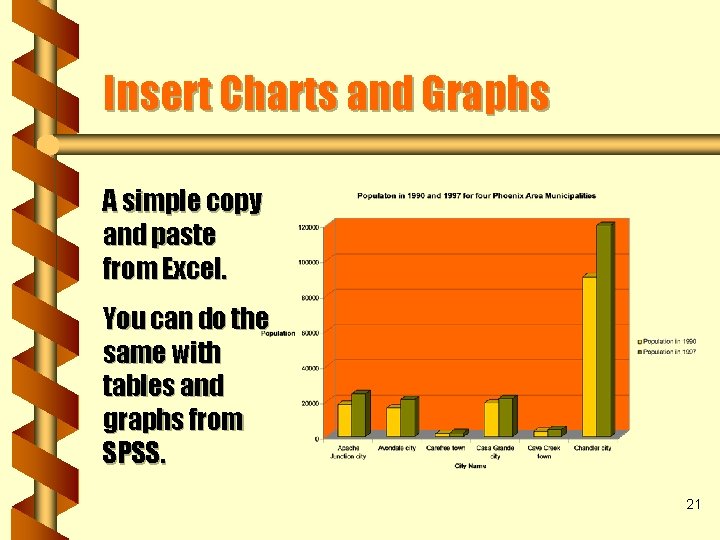
Insert Charts and Graphs A simple copy and paste from Excel. You can do the same with tables and graphs from SPSS. 21
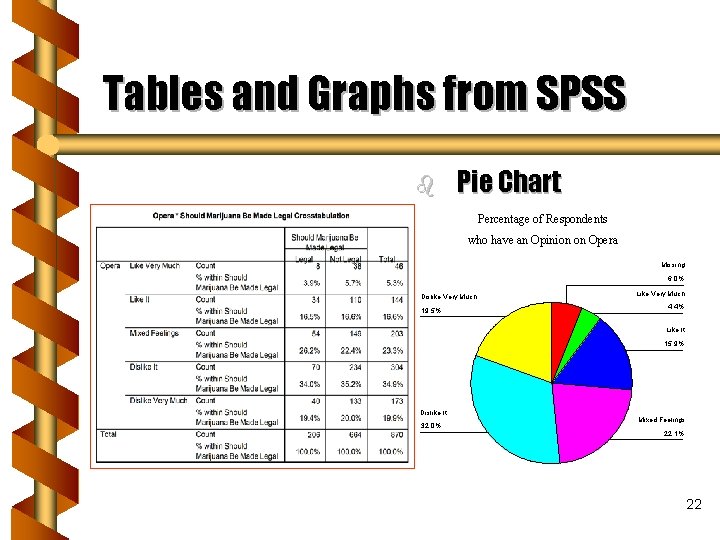
Tables and Graphs from SPSS b Pie Chart Percentage of Respondents who have an Opinion on Opera Missing 6. 0% Dislike Very Much 19. 5% Like Very Much 4. 4% Like It 15. 9% Dislike It 32. 0% Mixed Feelings 22. 1% 22
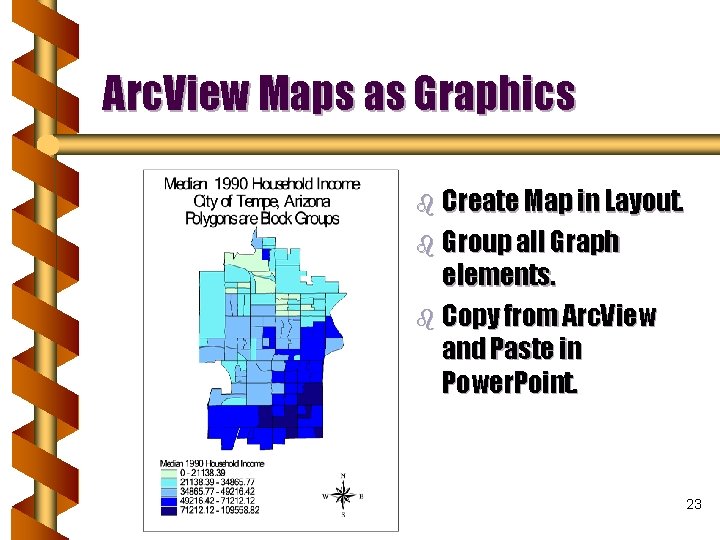
Arc. View Maps as Graphics b Create Map in Layout. b Group all Graph elements. b Copy from Arc. View and Paste in Power. Point. 23
Creating Columns and Lists » You can create columns but using tabs, but make sure the ruler tool bar is showing. » You can create columns also by adding more than one text box. » You can create bulleted lists via the bullet button on the tool bar and you can format the bullets via Format, bullets on the menu. » You can also format lists via the demote button (right arrow) on the tool bar. 24
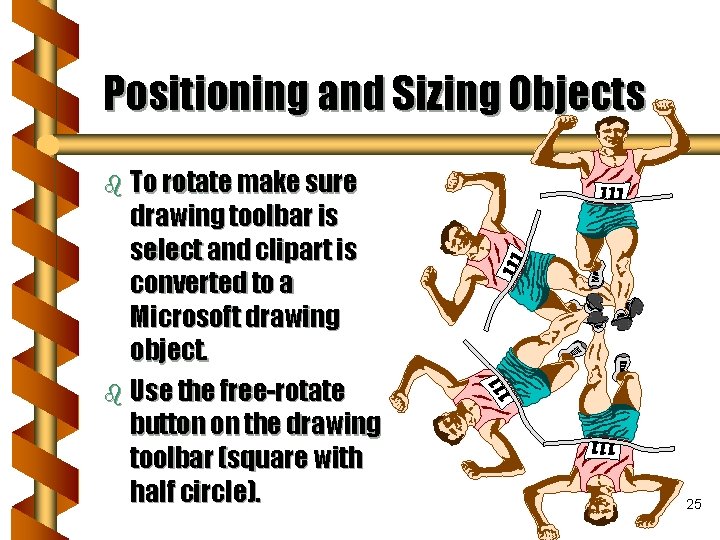
Positioning and Sizing Objects b To rotate make sure drawing toolbar is select and clipart is converted to a Microsoft drawing object. b Use the free-rotate button on the drawing toolbar (square with half circle). 25
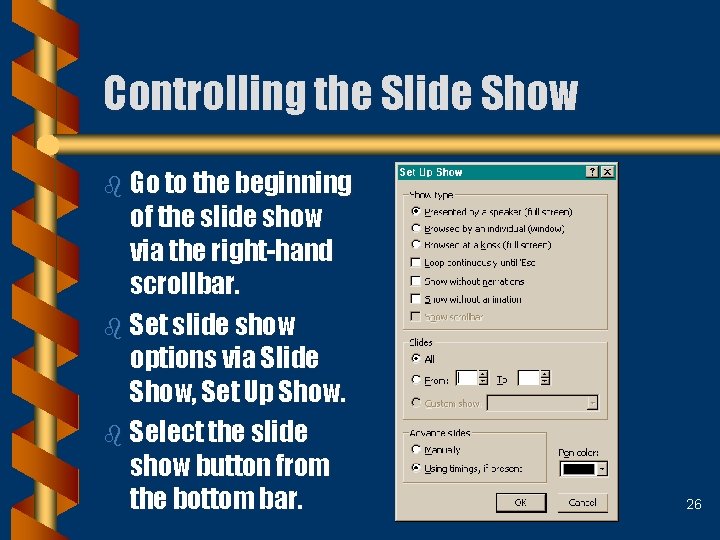
Controlling the Slide Show b Go to the beginning of the slide show via the right-hand scrollbar. b Set slide show options via Slide Show, Set Up Show. b Select the slide show button from the bottom bar. 26
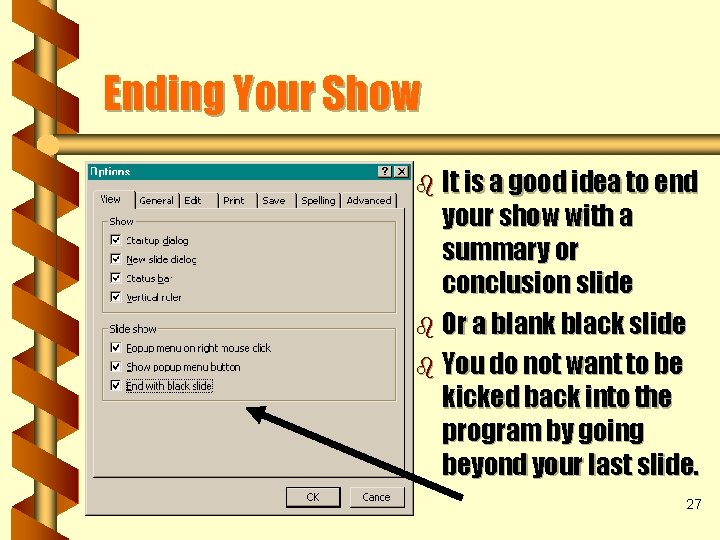
Ending Your Show b It is a good idea to end your show with a summary or conclusion slide b Or a blank black slide b You do not want to be kicked back into the program by going beyond your last slide. 27