
Power Point Practice PICK A DESIGN Add a






- Slides: 26
Power. Point Practice • PICK A DESIGN
Add a hyperlink and change font colors. . Look at the View Menu, change color (Customize color and change hyperlink color and followed hyperlink colors): http: //www. wilmu. edu/
Add Background as image Add text box, make it transparent
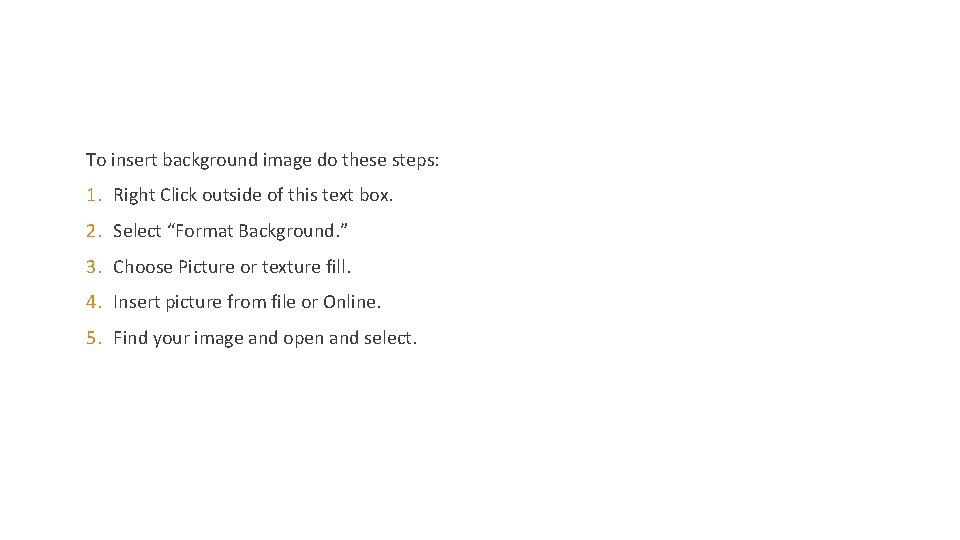
To insert background image do these steps: 1. Right Click outside of this text box. 2. Select “Format Background. ” 3. Choose Picture or texture fill. 4. Insert picture from file or Online. 5. Find your image and open and select.
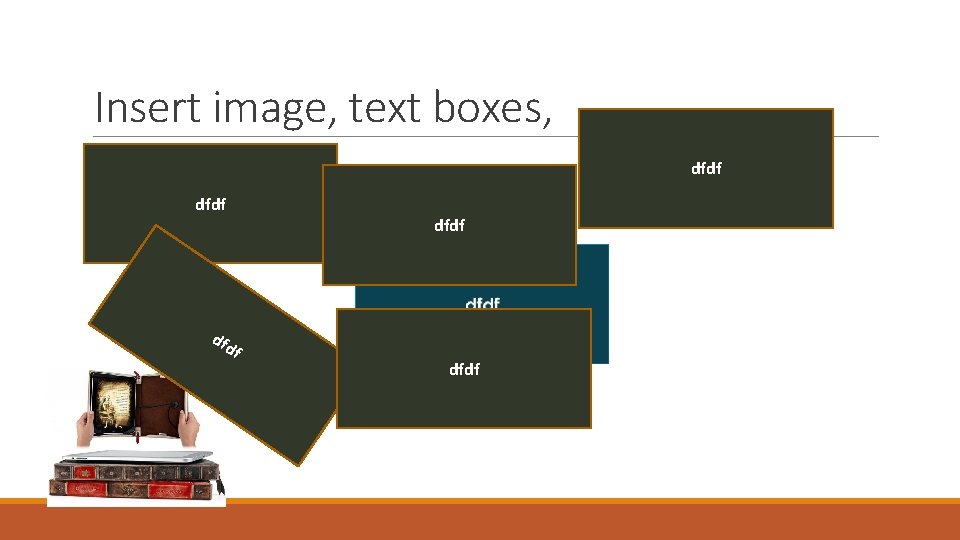
Insert image, text boxes, dfdf dfdf
To insert image – ◦ go to Insert menu---Select Pictures or Online pictures and find a file or use the online libraries. Insert photos rather than clip art! To insert text boxes◦ you can insert a Shape – choose square and then type inside the shape. ◦ Or you can click on Insert menu tab and select Text Box from the ribbon. Select the text box and click down on the slide and draw out the text box.
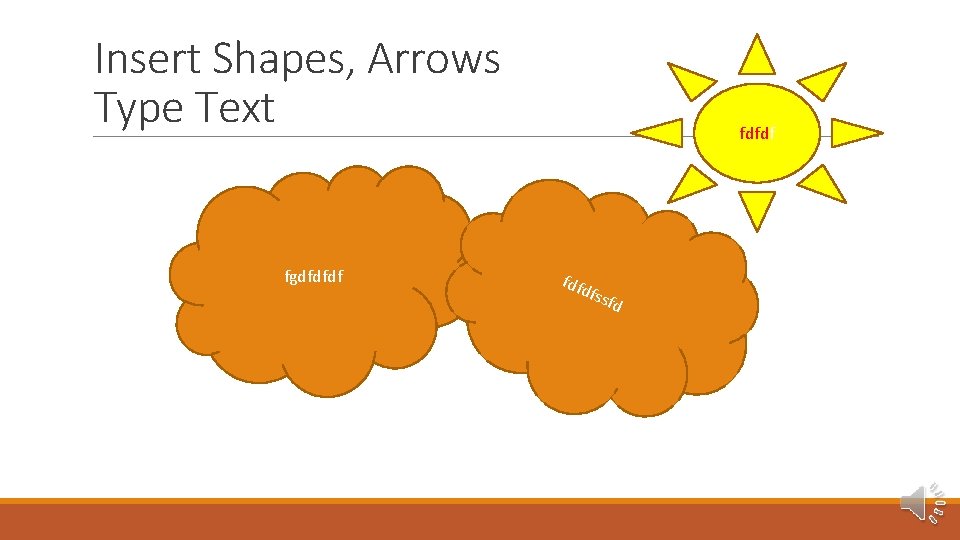
Insert Shapes, Arrows Type Text fgdfdfdf fdfd fssf d
Insert Shapes◦ Go to the Insert menu tab, and select Shapes, select the shape and draw out on the slide. Fill with text or color fill.
Investigate Smart. Art
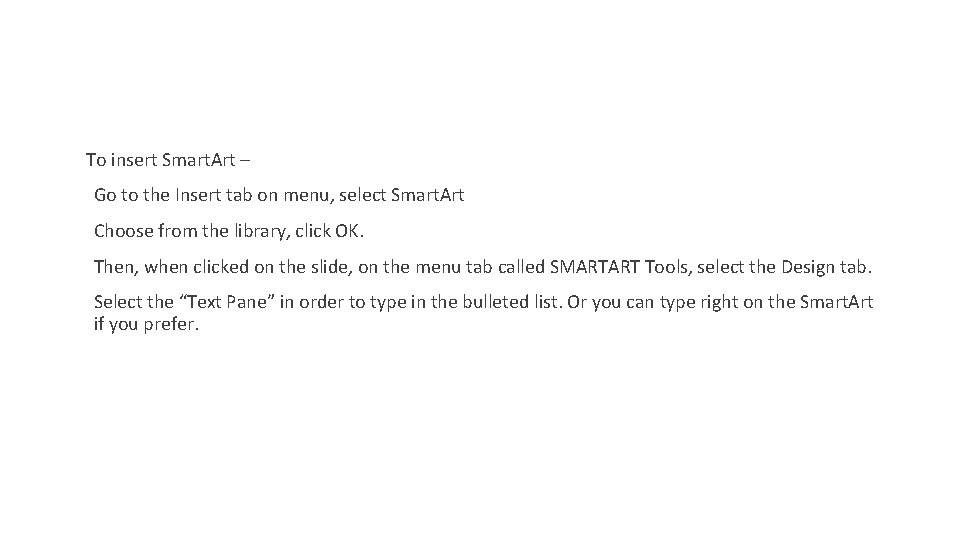
To insert Smart. Art – Go to the Insert tab on menu, select Smart. Art Choose from the library, click OK. Then, when clicked on the slide, on the menu tab called SMARTART Tools, select the Design tab. Select the “Text Pane” in order to type in the bulleted list. Or you can type right on the Smart. Art if you prefer.
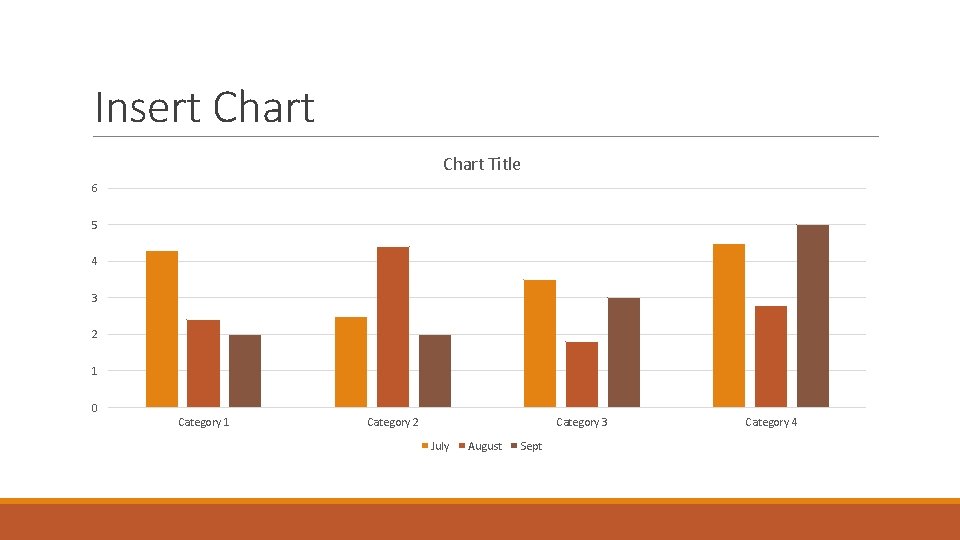
Insert Chart Title 6 5 4 3 2 1 0 Category 1 Category 2 Category 3 July August Sept Category 4
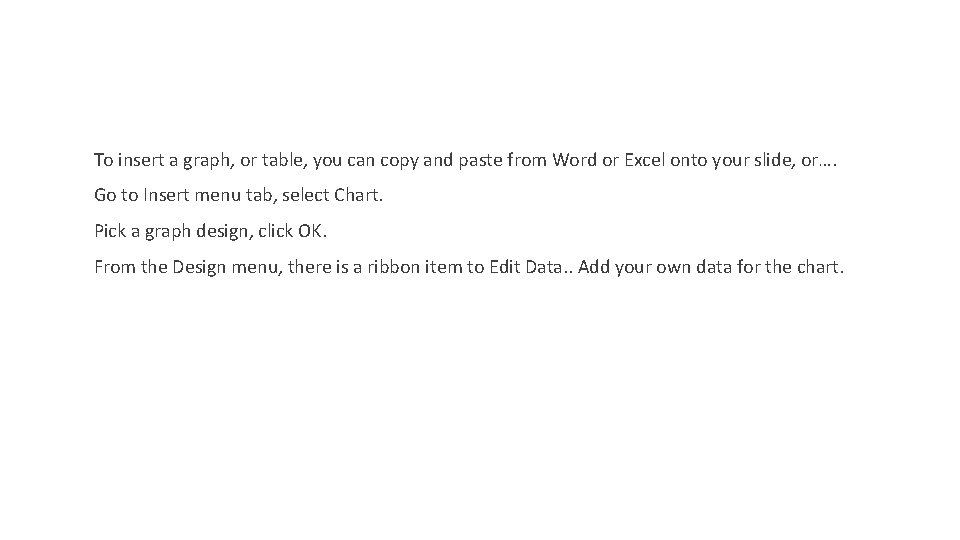
To insert a graph, or table, you can copy and paste from Word or Excel onto your slide, or…. Go to Insert menu tab, select Chart. Pick a graph design, click OK. From the Design menu, there is a ribbon item to Edit Data. . Add your own data for the chart.
Go Ahead. . Add a bulleted list Abc Def Ghi
Investigate Notes section is beneficial for the presenter. . Practice adding notes.
Investigate Printing Options
Investigate Transitions & Animations
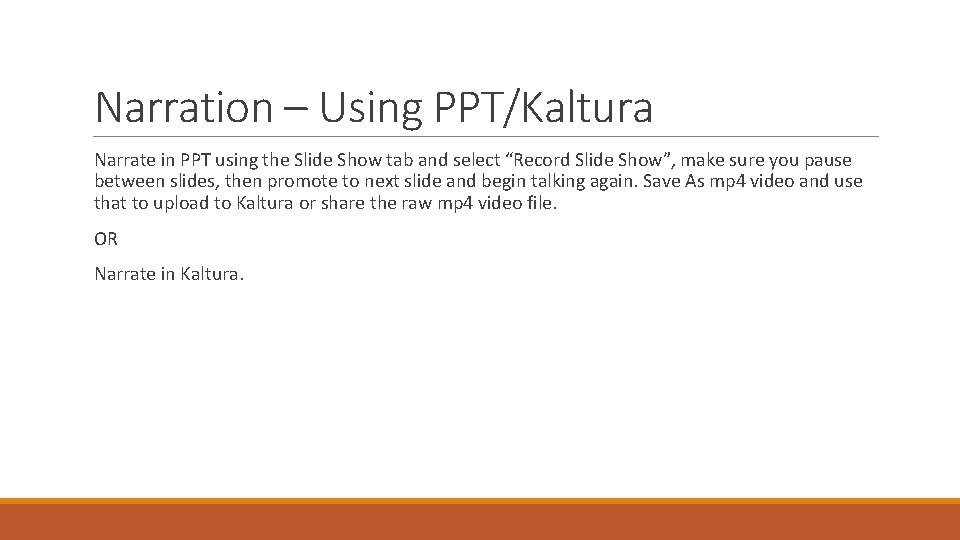
Narration – Using PPT/Kaltura Narrate in PPT using the Slide Show tab and select “Record Slide Show”, make sure you pause between slides, then promote to next slide and begin talking again. Save As mp 4 video and use that to upload to Kaltura or share the raw mp 4 video file. OR Narrate in Kaltura.
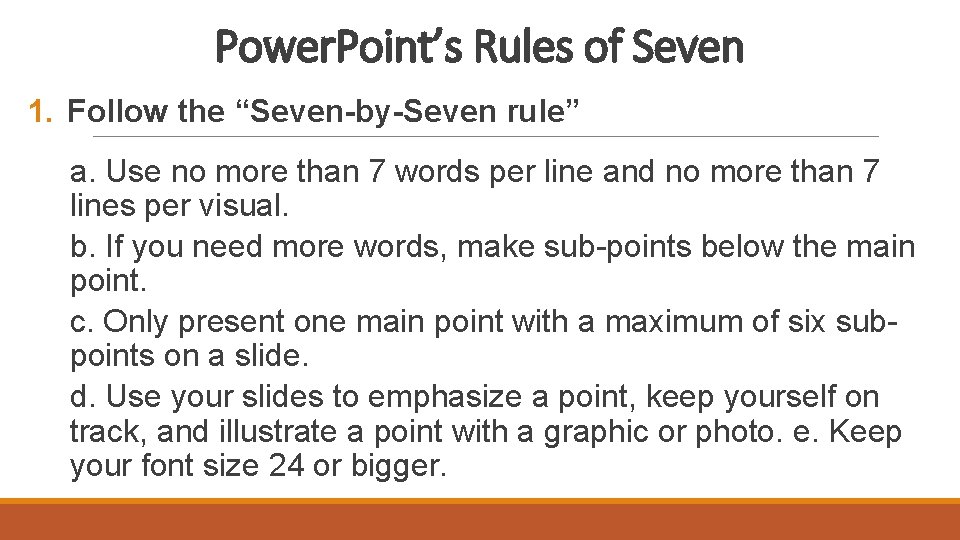
Power. Point’s Rules of Seven 1. Follow the “Seven-by-Seven rule” a. Use no more than 7 words per line and no more than 7 lines per visual. b. If you need more words, make sub-points below the main point. c. Only present one main point with a maximum of six subpoints on a slide. d. Use your slides to emphasize a point, keep yourself on track, and illustrate a point with a graphic or photo. e. Keep your font size 24 or bigger.
Power. Point’s Rules of Seven 2. Apply the "billboard" test a. Each slide or transparency should be easily read and understood similarly to information seen while driving. 3. Use images that relate and support your presentation a. Realize that people may forget lists, but they'll recall images. b. Don't overdo the graphics with too many or too contrasting in color.
Power. Point’s Rules of Seven 4. Make sure your presentation is easy on the eyes. a. Stay away from weird colors and busy backgrounds. b. Use easy-to-read fonts such as Arial and Times New Roman for the bulk of your text. c. If you have to use a funky font, use it sparingly. d. Think "thin" when deciding on line thickness and "discreet" when picking colors.
Power. Point’s Rules of Seven 5. Leave out the sound effects and background music, unless it’s related to the content being presented. a. Make sure your audience has the ability to see and hear the presentation. b. Use slide transitions that pique interest. Do not get carried away with too many but do use a variety in your presentation.
Power. Point’s Rules of Seven 6. Use the "one" principle: a. Limit each visual to one idea, one concept or one main point. 7. Put it to the one-minute test: a. If the audience will need more than 60 seconds to figure it out, it's too complex. b. Proofread, proofread, and proofread. You’d hate to discover misspelling during your presentation.