
Power Point Hints Tips This example file gives

- Slides: 26
Power. Point Hints & Tips This example file gives you some examples of good and bad practice plus problem-solving tips
Accessibility When creating a show, you need to think about your audience and cater for those sitting at the back and those who have a visual impairment. For a good presentation, you need: • Clear slides – easy to read, for everyone in the room • Limited information on each slide – use bullet points to remind you of what you need to say
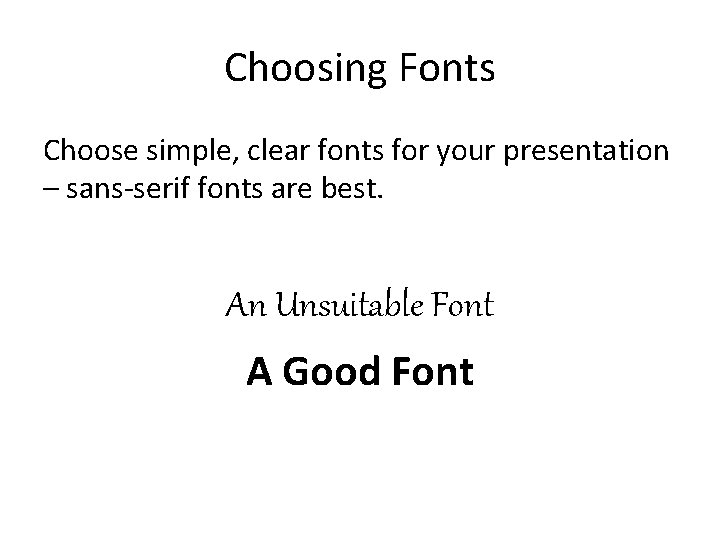
Choosing Fonts Choose simple, clear fonts for your presentation – sans-serif fonts are best. An Unsuitable Font A Good Font
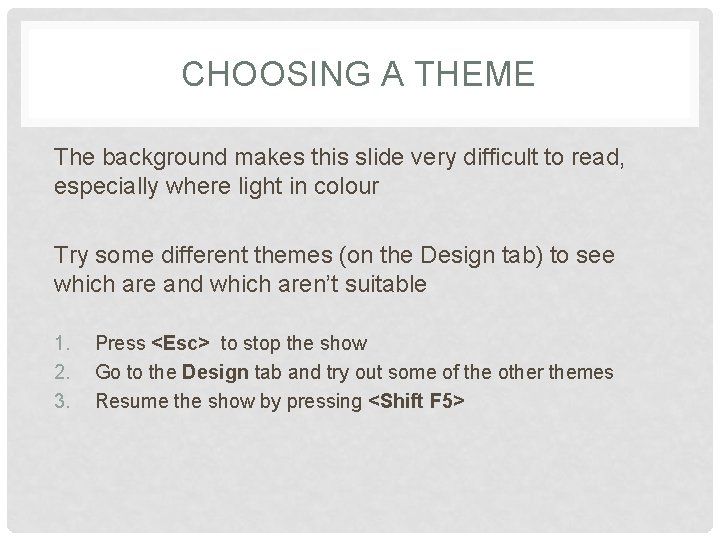
CHOOSING A THEME The background makes this slide very difficult to read, especially where light in colour Try some different themes (on the Design tab) to see which are and which aren’t suitable 1. 2. 3. Press <Esc> to stop the show Go to the Design tab and try out some of the other themes Resume the show by pressing <Shift F 5>
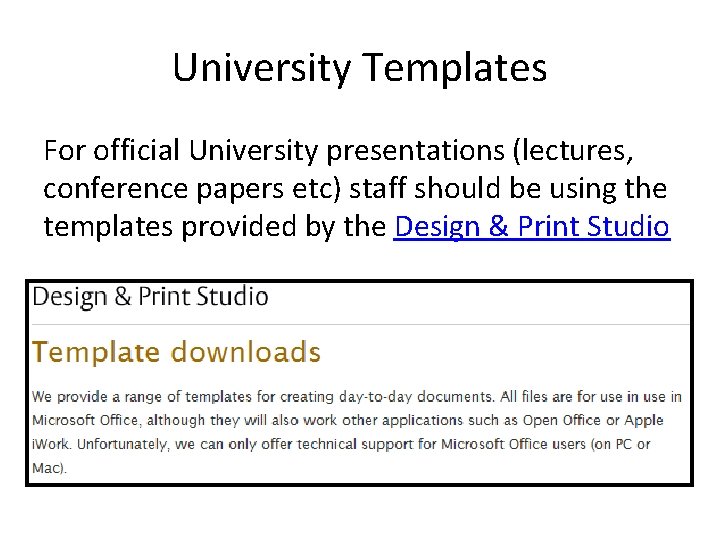
University Templates For official University presentations (lectures, conference papers etc) staff should be using the templates provided by the Design & Print Studio
Bulleted Lists It’s better not to have everything shown all at once: • First point • Second • Third • Fourth • Fifth
Bulleted Lists Instead, apply animation so they appear and then fade: • First point • Second • Third • Fourth • Fifth
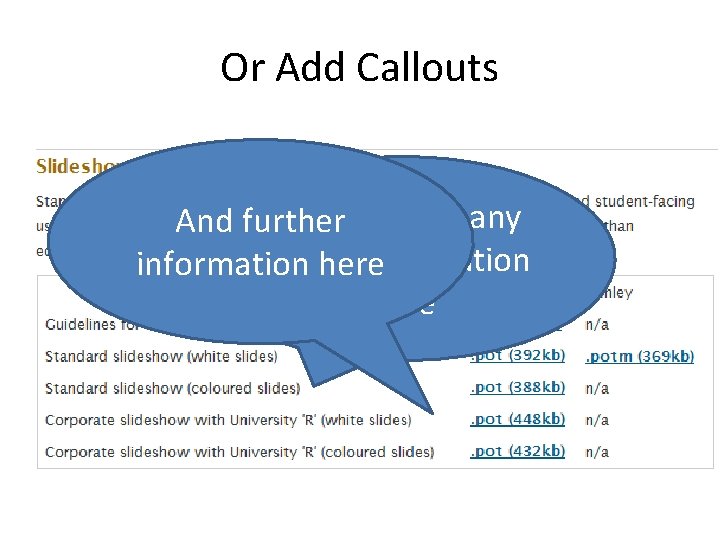
Or Add Callouts You can add any And further extra information here
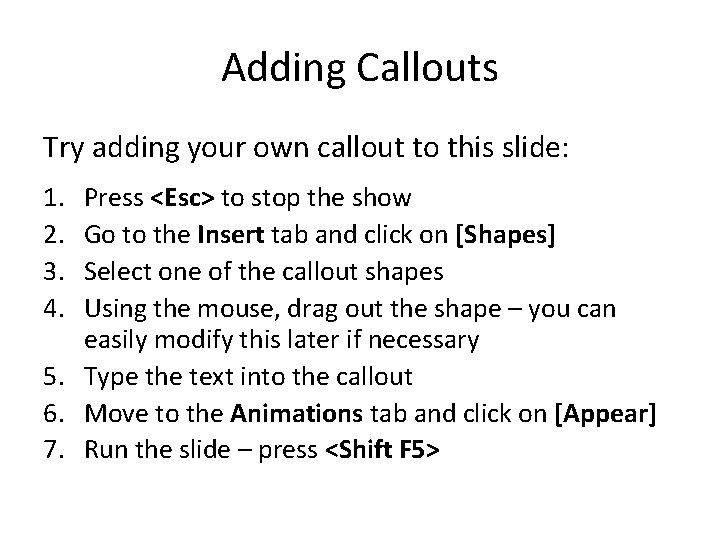
Adding Callouts Try adding your own callout to this slide: 1. 2. 3. 4. Press <Esc> to stop the show Go to the Insert tab and click on [Shapes] Select one of the callout shapes Using the mouse, drag out the shape – you can easily modify this later if necessary 5. Type the text into the callout 6. Move to the Animations tab and click on [Appear] 7. Run the slide – press <Shift F 5>
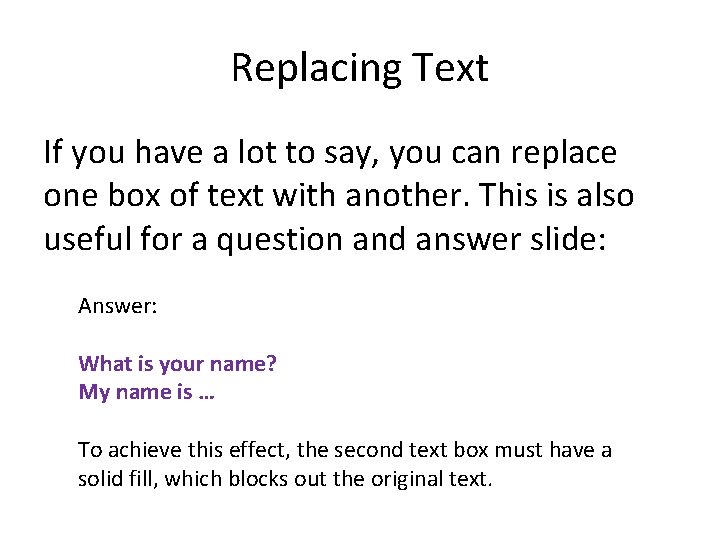
Replacing Text If you have a lot to say, you can replace one box of text with another. This is also useful for a question and answer slide: What is the English translation of the Greek: Answer: Whatσεis λένε Πώς your name? Το ονομά My name is μου … είναι … To achieve this effect, the second text box must have a solid fill, which blocks out the original text.
Zooming If you have a lot to say or want to emphasize something, consider zooming in/out: This paragraph is about to be zoomed so that people at the back of the class can read it more easily.
Transitions Can make your presentation look very professional Choose what you want from those provided on the Transitions tab
Transitions • That was a sensible transition
Transitions • That was a bit flashy
Transitions • That was NOT a sensible transition
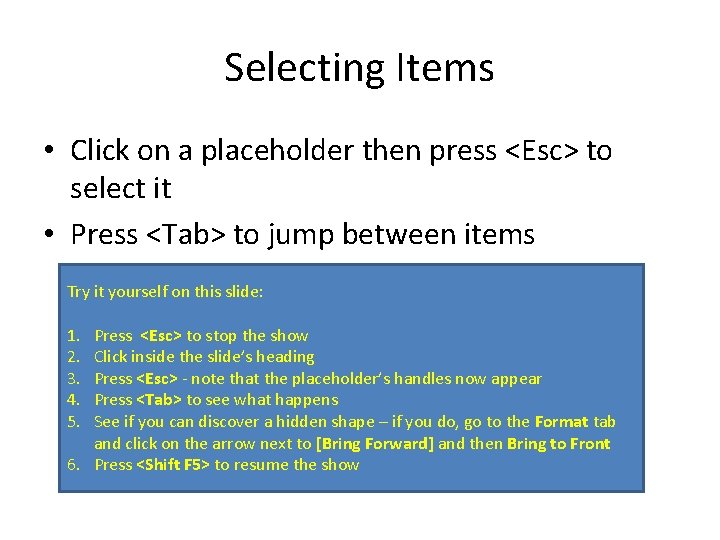
Selecting Items • Click on a placeholder then press <Esc> to select it • Press <Tab> to jump between items Try it yourself on this slide: 1. 2. 3. 4. 5. Press <Esc> to stop the show Click inside the slide’s heading Press <Esc> - note that the placeholder’s handles now appear Press <Tab> to see what happens See if you can discover a hidden shape – if you do, go to the Format tab and click on the arrow next to [Bring Forward] and then Bring to Front 6. Press <Shift F 5> to resume the show
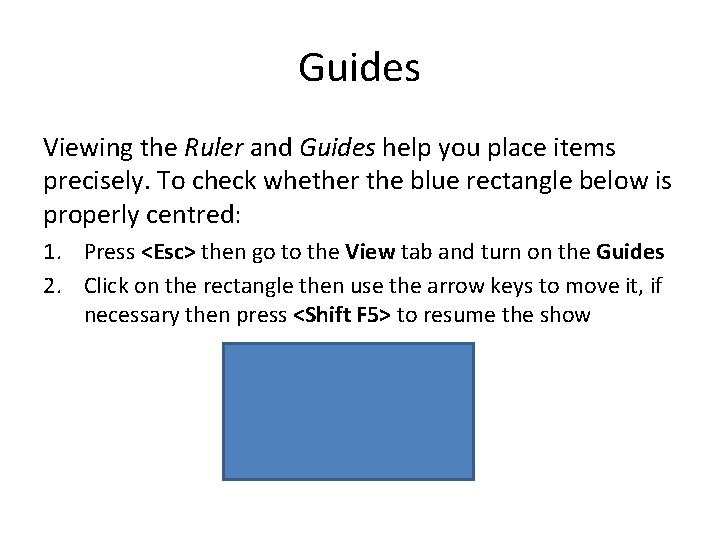
Guides Viewing the Ruler and Guides help you place items precisely. To check whether the blue rectangle below is properly centred: 1. Press <Esc> then go to the View tab and turn on the Guides 2. Click on the rectangle then use the arrow keys to move it, if necessary then press <Shift F 5> to resume the show
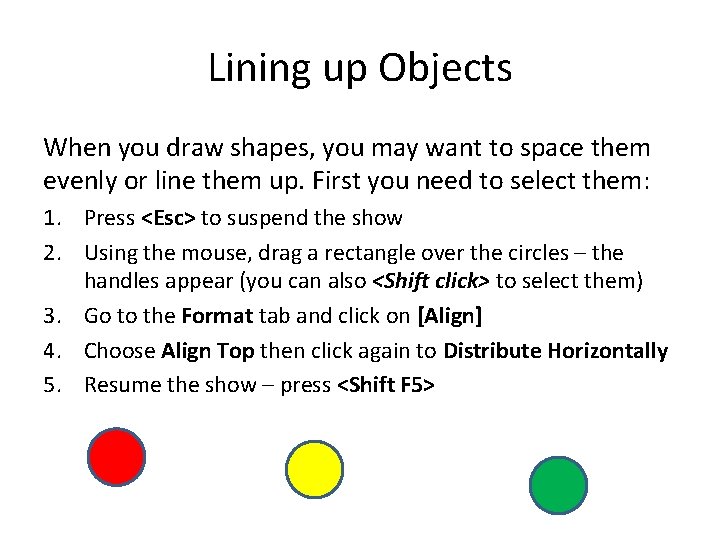
Lining up Objects When you draw shapes, you may want to space them evenly or line them up. First you need to select them: 1. Press <Esc> to suspend the show 2. Using the mouse, drag a rectangle over the circles – the handles appear (you can also <Shift click> to select them) 3. Go to the Format tab and click on [Align] 4. Choose Align Top then click again to Distribute Horizontally 5. Resume the show – press <Shift F 5>
Hidden Slides Sometimes, it’s useful to have extra, hidden, slides. You can then show them if: • Someone asks a particular question • If you find you have time to expand on a subject The next slide is hidden. If you press <Enter> or click with the mouse, you will miss it. To see it you have to press <h>.
Moving Around Sometimes, you may be asked to go back a slide if you moved on too quickly. To move back press: <p> or use <left-arrow> or <up-arrow> To move on, click with the mouse or press: <Enter> or <n> or <right-arrow> or <down-arrow> You can also move to a particular slide by typing in its number then pressing <Enter>. Pressing <End> moves you to the last slide (<Home> to the first).
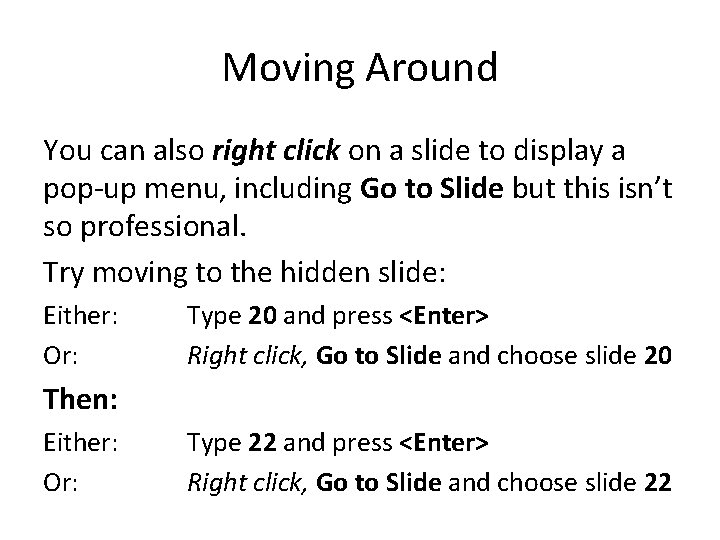
Moving Around You can also right click on a slide to display a pop-up menu, including Go to Slide but this isn’t so professional. Try moving to the hidden slide: Either: Or: Type 20 and press <Enter> Right click, Go to Slide and choose slide 20 Then: Either: Or: Type 22 and press <Enter> Right click, Go to Slide and choose slide 22
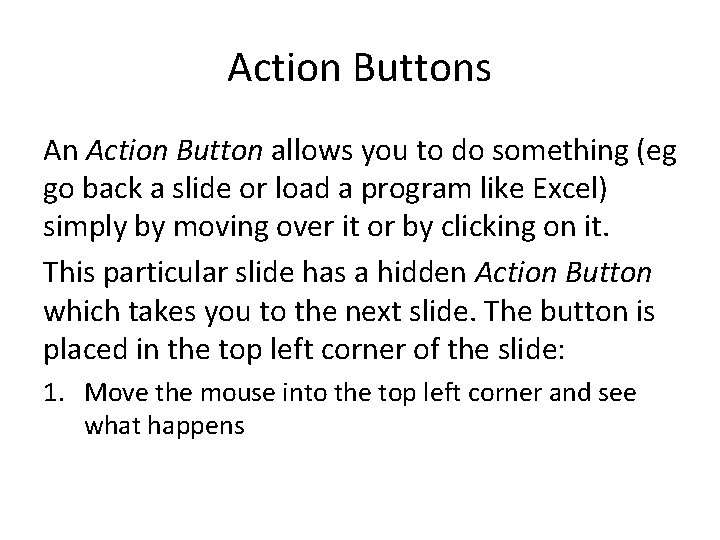
Action Buttons An Action Button allows you to do something (eg go back a slide or load a program like Excel) simply by moving over it or by clicking on it. This particular slide has a hidden Action Button which takes you to the next slide. The button is placed in the top left corner of the slide: 1. Move the mouse into the top left corner and see what happens
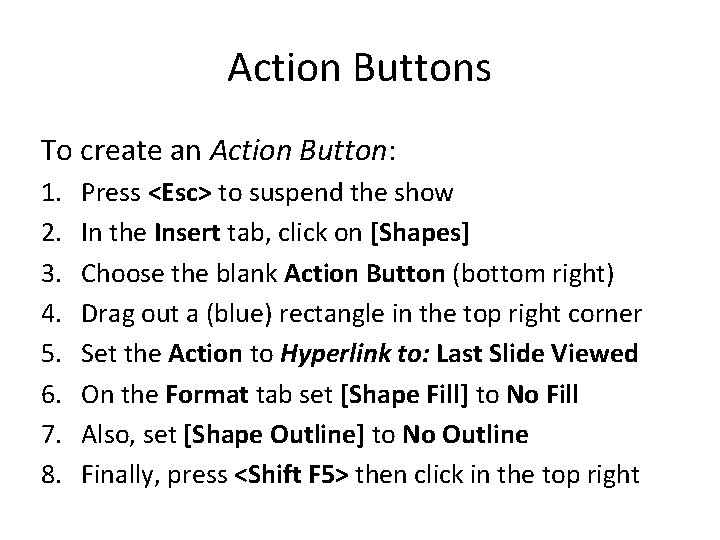
Action Buttons To create an Action Button: 1. 2. 3. 4. 5. 6. 7. 8. Press <Esc> to suspend the show In the Insert tab, click on [Shapes] Choose the blank Action Button (bottom right) Drag out a (blue) rectangle in the top right corner Set the Action to Hyperlink to: Last Slide Viewed On the Format tab set [Shape Fill] to No Fill Also, set [Shape Outline] to No Outline Finally, press <Shift F 5> then click in the top right
Action Buttons and Master Slides Ideally, the Action Button should be on the Slide Master (so it is available on all slides). Sadly, the instructions below disappear when you go to the Slide Master so take a note of them first: 1. 2. 3. 4. 5. 6. Press <Esc> to suspend the show Move to the View tab and choose [Slide Master] Select the master at the top of the list on the left Add the Action Button exactly as before Click on [Close Master View] then press <Shift F 5> Type 2 and press <Enter> to go to slide 2 then click on the hidden action button to return to this slide
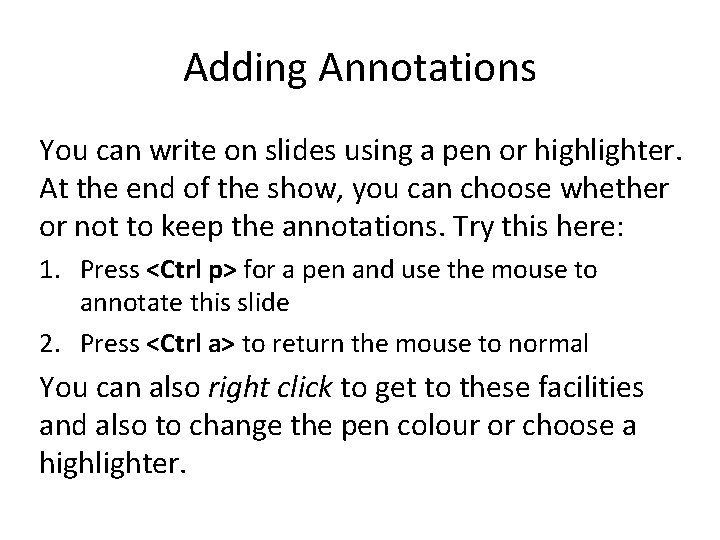
Adding Annotations You can write on slides using a pen or highlighter. At the end of the show, you can choose whether or not to keep the annotations. Try this here: 1. Press <Ctrl p> for a pen and use the mouse to annotate this slide 2. Press <Ctrl a> to return the mouse to normal You can also right click to get to these facilities and also to change the pen colour or choose a highlighter.
The End I hope you found this presentation useful and that you will be encouraged to use some of the tips in your own presentations. For further help with Power. Point: • Make use of our advanced notes online • Come to a drop-in session for one-to-one tuition or help with a particular problem • Go to the web sites listed in the notes