
Power Point 2016 Module 2 Modifying a Presentation
- Slides: 21
Power. Point 2016 Module 2 Modifying a Presentation in Power. Point 2016 © 2017 Cengage Learning. All Rights Reserved. May not be copied, scanned, or duplicated, in whole or in part, except for use as permitted in a license distributed with a certain product or service or otherwise on a password-protected website for classroom use. 1
Module Objectives • Enter text in Outline view • Format text • Convert text to Smart. Art • Insert and modify shapes • Rearrange and merge shapes • Edit and duplicate shapes • Align and group objects • Add slide footers © 2017 Cengage Learning. All Rights Reserved. May not be copied, scanned, or duplicated, in whole or in part, except for use as permitted in a license distributed with a certain product or service or otherwise on a password-protected website for classroom use. 2
Enter Text in Outline View (Slide 1 of 4) • Outline view is a great place to enter type when you want to focus on text and not the layout • Text in Outline view is organized with slide titles as headings and bulleted text as indented lines © 2017 Cengage Learning. All Rights Reserved. May not be copied, scanned, or duplicated, in whole or in part, except for use as permitted in a license distributed with a certain product or service or otherwise on a password-protected website for classroom use. 3
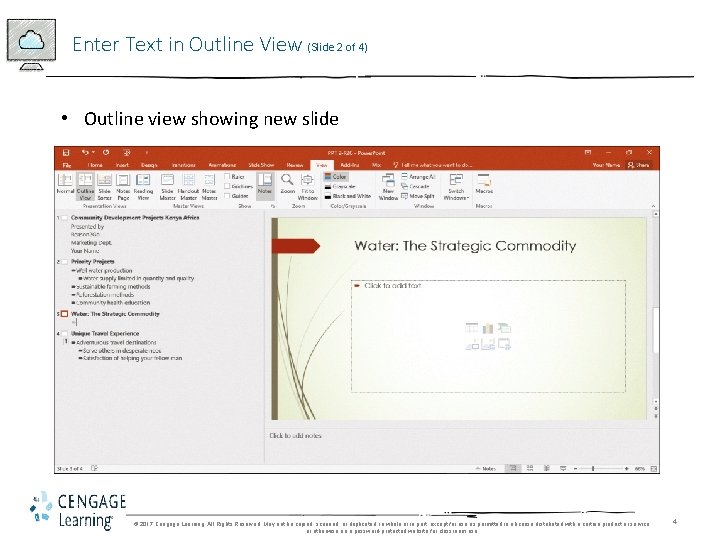
Enter Text in Outline View (Slide 2 of 4) • Outline view showing new slide © 2017 Cengage Learning. All Rights Reserved. May not be copied, scanned, or duplicated, in whole or in part, except for use as permitted in a license distributed with a certain product or service or otherwise on a password-protected website for classroom use. 4
Enter Text in Outline View (Slide 3 of 4) • When you create a new slide in the Outline tab, a new slide appears • A blinking insertion point indicates you can enter slide title • Press [Enter], then [Tab] to start a new bullet © 2017 Cengage Learning. All Rights Reserved. May not be copied, scanned, or duplicated, in whole or in part, except for use as permitted in a license distributed with a certain product or service or otherwise on a password-protected website for classroom use. 5
Enter Text in Outline View (Slide 4 of 4) • To rearrange the order of slides, simply drag a Slide Icon to a new location in the Outline tab • A horizontal indicator line appears to show the new location of the slide © 2017 Cengage Learning. All Rights Reserved. May not be copied, scanned, or duplicated, in whole or in part, except for use as permitted in a license distributed with a certain product or service or otherwise on a password-protected website for classroom use. 6
Format Text (Slide 1 of 2) • Once text is entered, you can format it with fonts, colors and sizes • Formatting text allows you to make specific points stand out and grab the audience’s attention • Use buttons on the Mini toolbar to format selected text © 2017 Cengage Learning. All Rights Reserved. May not be copied, scanned, or duplicated, in whole or in part, except for use as permitted in a license distributed with a certain product or service or otherwise on a password-protected website for classroom use. 7
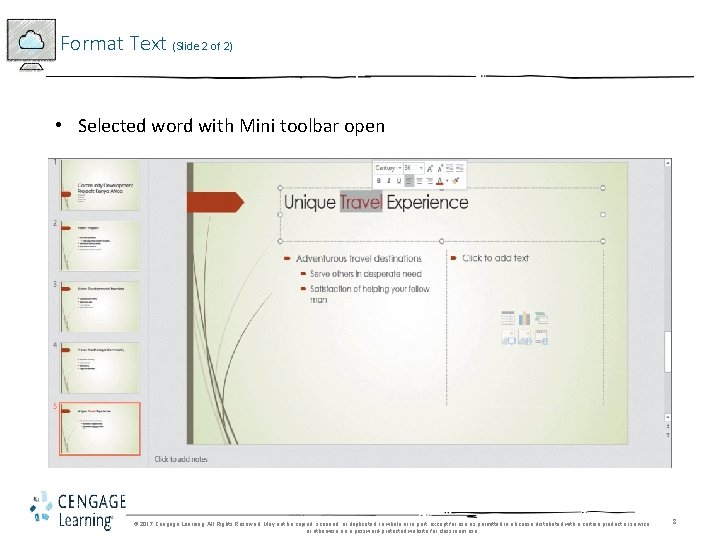
Format Text (Slide 2 of 2) • Selected word with Mini toolbar open © 2017 Cengage Learning. All Rights Reserved. May not be copied, scanned, or duplicated, in whole or in part, except for use as permitted in a license distributed with a certain product or service or otherwise on a password-protected website for classroom use. 8
Convert Text to Smart. Art (Slide 1 of 3) • The ability to convert text to a Smart. Art graphic increases your ability to create dynamic-looking text. • A Smart. Art graphic is a professional-quality diagram that visually illustrates text. • There are eight categories, or types, of Smart. Art graphics © 2017 Cengage Learning. All Rights Reserved. May not be copied, scanned, or duplicated, in whole or in part, except for use as permitted in a license distributed with a certain product or service or otherwise on a password-protected website for classroom use. 9
Convert Text to Smart. Art (Slide 2 of 3) • You can convert existing text into a Smart. Art graphic or start from scratch • A Smart. Art Style is a pre-set combination of simple and 3 -D formatting options that follows the presentation theme © 2017 Cengage Learning. All Rights Reserved. May not be copied, scanned, or duplicated, in whole or in part, except for use as permitted in a license distributed with a certain product or service or otherwise on a password-protected website for classroom use. 10
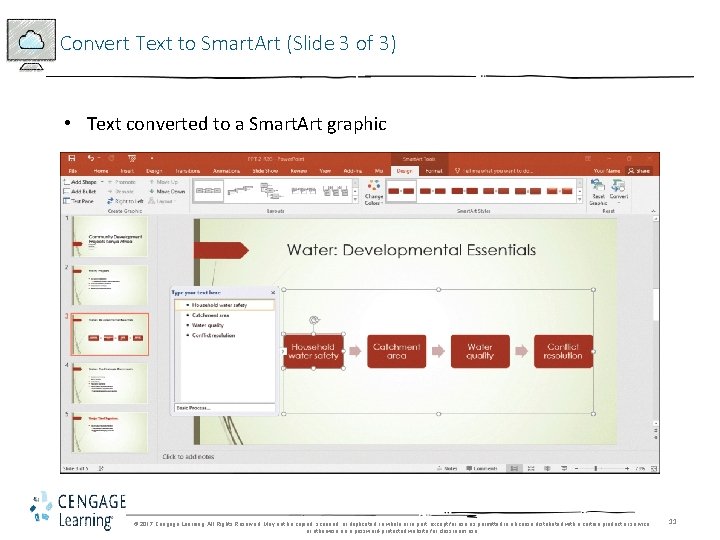
Convert Text to Smart. Art (Slide 3 of 3) • Text converted to a Smart. Art graphic © 2017 Cengage Learning. All Rights Reserved. May not be copied, scanned, or duplicated, in whole or in part, except for use as permitted in a license distributed with a certain product or service or otherwise on a password-protected website for classroom use. 11
Insert and Modify Shapes (Slide 1 of 2) • In Power. Point you can insert many different types of shapes including lines, geometric figures, arrows, stars, callouts, and banners • A Quick Style is a set of formatting options, including line style, fill color, and effects. © 2017 Cengage Learning. All Rights Reserved. May not be copied, scanned, or duplicated, in whole or in part, except for use as permitted in a license distributed with a certain product or service or otherwise on a password-protected website for classroom use. 12
Insert and Modify Shapes (Slide 2 of 2) • Use the rotate handle to manually rotate a shape • Use the adjustment handle to modify a shape • Use the Eyedropper to match colors © 2017 Cengage Learning. All Rights Reserved. May not be copied, scanned, or duplicated, in whole or in part, except for use as permitted in a license distributed with a certain product or service or otherwise on a password-protected website for classroom use. 13
Rearrange and Merge Shapes (Slide 1 of 2) • Every object on a slide is placed, or stacked, on the slide in the order it was created • Merging shapes, which combines multiple shapes together, provides you the potential to create a variety of unique geometric shapes that are not available in the Shapes gallery. © 2017 Cengage Learning. All Rights Reserved. May not be copied, scanned, or duplicated, in whole or in part, except for use as permitted in a license distributed with a certain product or service or otherwise on a password-protected website for classroom use. 14
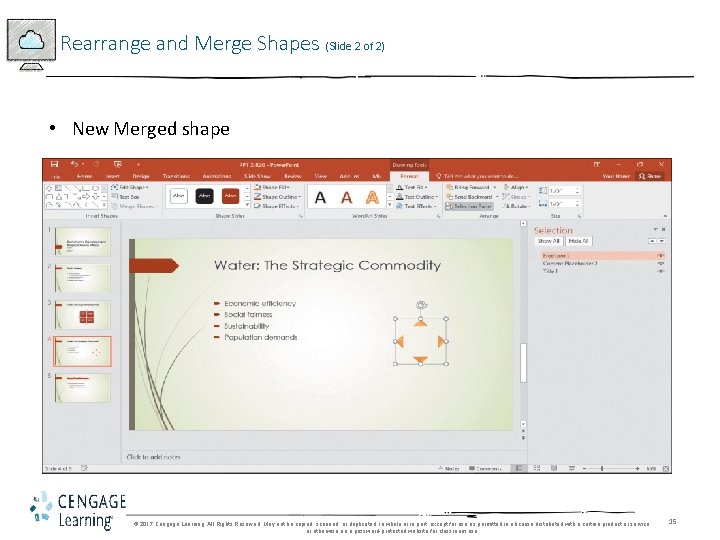
Rearrange and Merge Shapes (Slide 2 of 2) • New Merged shape © 2017 Cengage Learning. All Rights Reserved. May not be copied, scanned, or duplicated, in whole or in part, except for use as permitted in a license distributed with a certain product or service or otherwise on a password-protected website for classroom use. 15
Edit and Duplicate Shapes ( 1 of 2) • Once you have created a shape you still have the ability to refine its basic characteristics, which helps change the size and appearance of the shape • To help you resize and move shapes and other objects precisely, Power. Point has rulers you can add to the Slide pane © 2017 Cengage Learning. All Rights Reserved. May not be copied, scanned, or duplicated, in whole or in part, except for use as permitted in a license distributed with a certain product or service or otherwise on a password-protected website for classroom use. 16
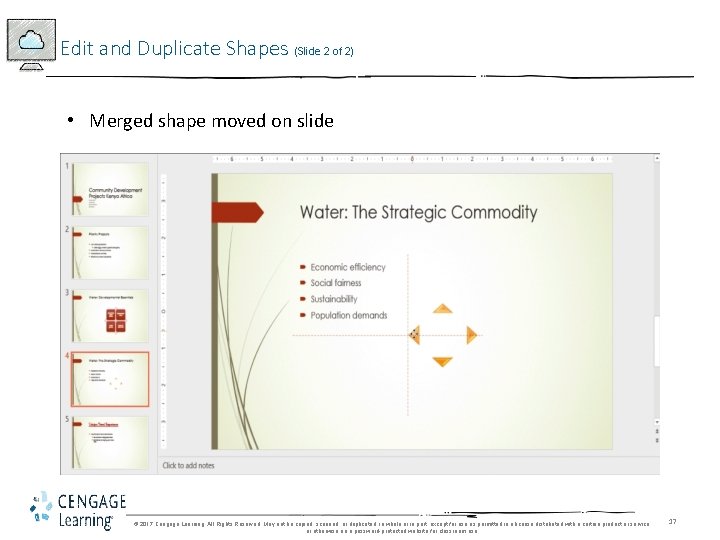
Edit and Duplicate Shapes (Slide 2 of 2) • Merged shape moved on slide © 2017 Cengage Learning. All Rights Reserved. May not be copied, scanned, or duplicated, in whole or in part, except for use as permitted in a license distributed with a certain product or service or otherwise on a password-protected website for classroom use. 17
Align and Group Objects (Slide 1 of 2) • You can position objects accurately on the slide using Align commands in the Arrange group • You can align objects relative to each other by snapping them to a grid of evenly spaced vertical and horizontal lines © 2017 Cengage Learning. All Rights Reserved. May not be copied, scanned, or duplicated, in whole or in part, except for use as permitted in a license distributed with a certain product or service or otherwise on a password-protected website for classroom use. 18
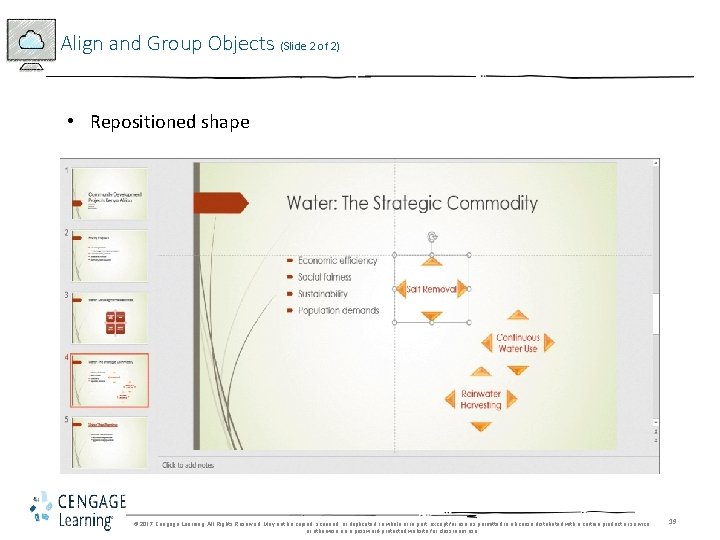
Align and Group Objects (Slide 2 of 2) • Repositioned shape © 2017 Cengage Learning. All Rights Reserved. May not be copied, scanned, or duplicated, in whole or in part, except for use as permitted in a license distributed with a certain product or service or otherwise on a password-protected website for classroom use. 19
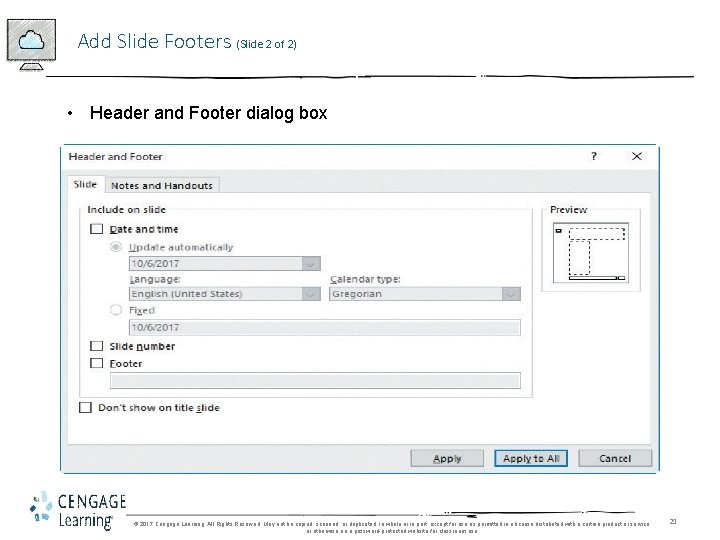
Add Slide Footers (Slide 1 of 2) • Footer text can give your slides a professional look and make it easier for your audience to follow your presentation • You can review footer information that you apply to the slides in the Power. Point views and when you print the slides © 2017 Cengage Learning. All Rights Reserved. May not be copied, scanned, or duplicated, in whole or in part, except for use as permitted in a license distributed with a certain product or service or otherwise on a password-protected website for classroom use. 20
Add Slide Footers (Slide 2 of 2) • Header and Footer dialog box © 2017 Cengage Learning. All Rights Reserved. May not be copied, scanned, or duplicated, in whole or in part, except for use as permitted in a license distributed with a certain product or service or otherwise on a password-protected website for classroom use. 21