
Power Point 1 Course Overview A seven week
- Slides: 8
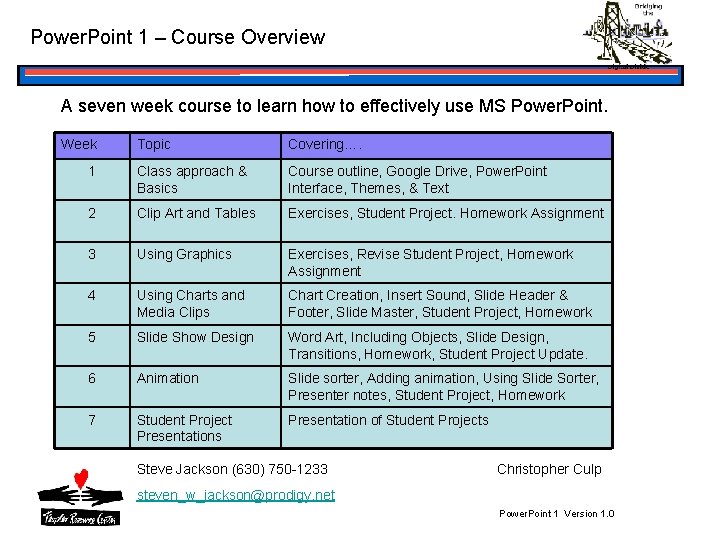
Power. Point 1 – Course Overview A seven week course to learn how to effectively use MS Power. Point. Week Topic Covering…. 1 Class approach & Basics Course outline, Google Drive, Power. Point Interface, Themes, & Text 2 Clip Art and Tables Exercises, Student Project. Homework Assignment 3 Using Graphics Exercises, Revise Student Project, Homework Assignment 4 Using Charts and Media Clips Chart Creation, Insert Sound, Slide Header & Footer, Slide Master, Student Project, Homework 5 Slide Show Design Word Art, Including Objects, Slide Design, Transitions, Homework, Student Project Update. 6 Animation Slide sorter, Adding animation, Using Slide Sorter, Presenter notes, Student Project, Homework 7 Student Project Presentations Presentation of Student Projects Steve Jackson (630) 750 -1233 Christopher Culp steven_w_jackson@prodigy. net Power. Point 1 Version 1. 0
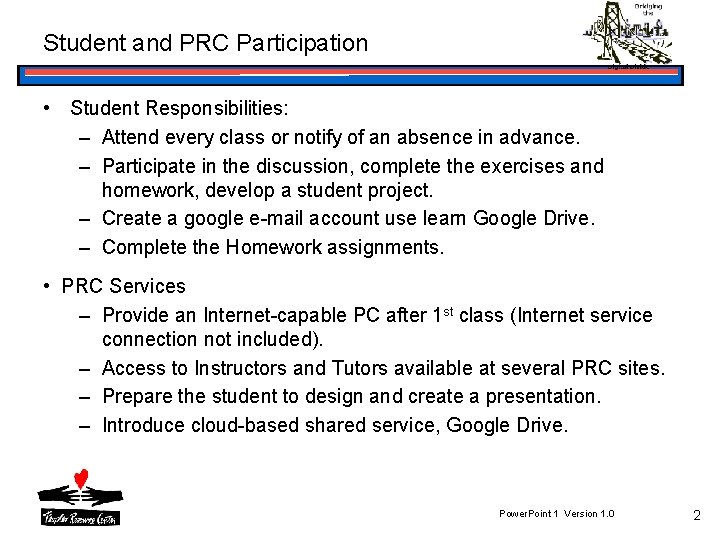
Student and PRC Participation • Student Responsibilities: – Attend every class or notify of an absence in advance. – Participate in the discussion, complete the exercises and homework, develop a student project. – Create a google e-mail account use learn Google Drive. – Complete the Homework assignments. • PRC Services – Provide an Internet-capable PC after 1 st class (Internet service connection not included). – Access to Instructors and Tutors available at several PRC sites. – Prepare the student to design and create a presentation. – Introduce cloud-based shared service, Google Drive. Power. Point 1 Version 1. 0 2
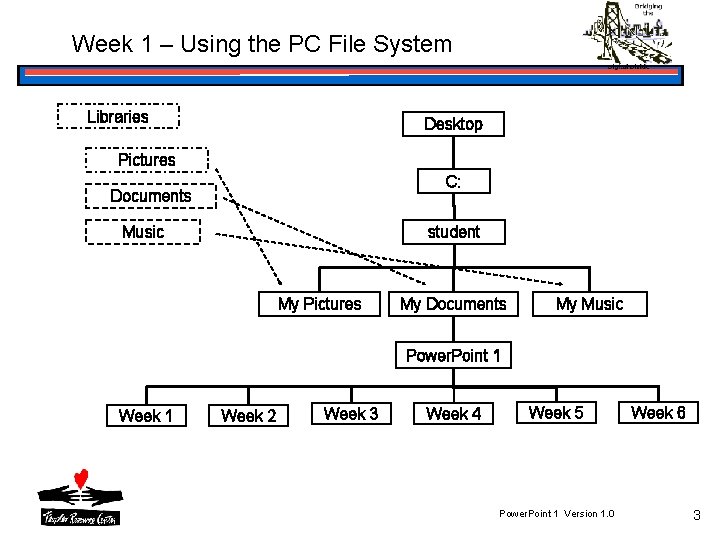
Week 1 – Using the PC File System Libraries Desktop Pictures C: Documents Music student My Pictures My Documents My Music Power. Point 1 Week 2 Week 3 Week 4 Week 5 Power. Point 1 Version 1. 0 Week 6 3
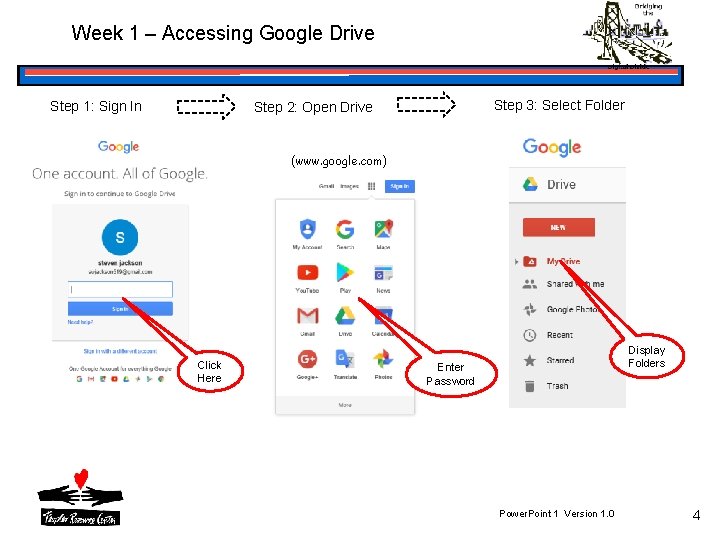
Week 1 – Accessing Google Drive Step 1: Sign In Step 3: Select Folder Step 2: Open Drive (www. google. com) Click Here Display Folders Enter Password Power. Point 1 Version 1. 0 4
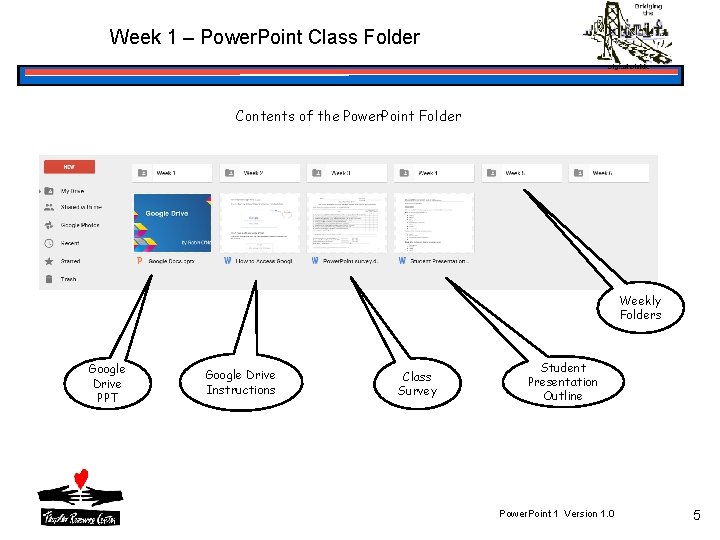
Week 1 – Power. Point Class Folder Contents of the Power. Point Folder Weekly Folders Google Drive PPT Google Drive Instructions Class Survey Student Presentation Outline Power. Point 1 Version 1. 0 5
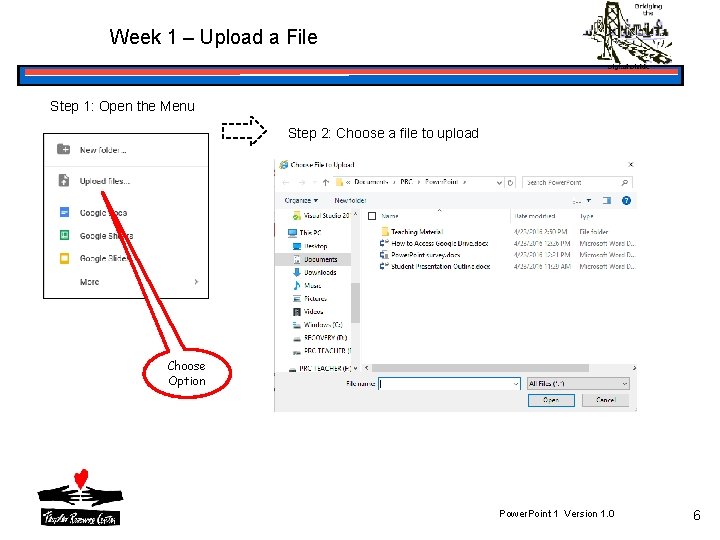
Week 1 – Upload a File Step 1: Open the Menu Step 2: Choose a file to upload Choose Option Power. Point 1 Version 1. 0 6
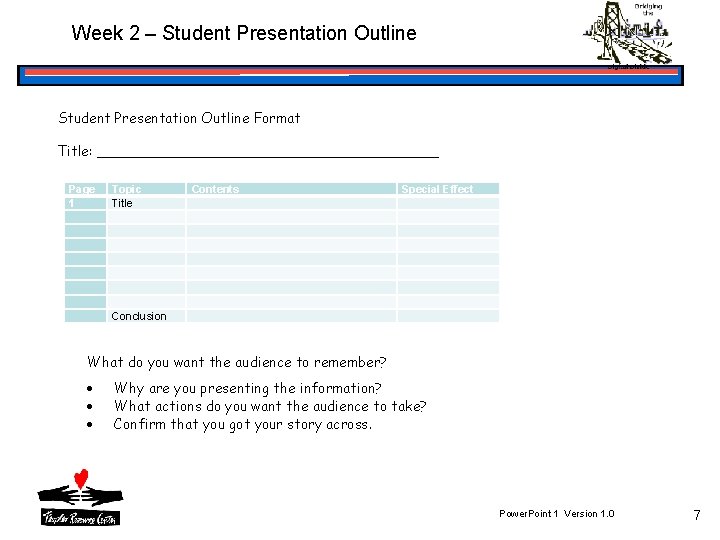
Week 2 – Student Presentation Outline Format Title: ____________________ Page 1 Topic Title Contents Special Effect Conclusion What do you want the audience to remember? Why are you presenting the information? What actions do you want the audience to take? Confirm that you got your story across. Power. Point 1 Version 1. 0 7
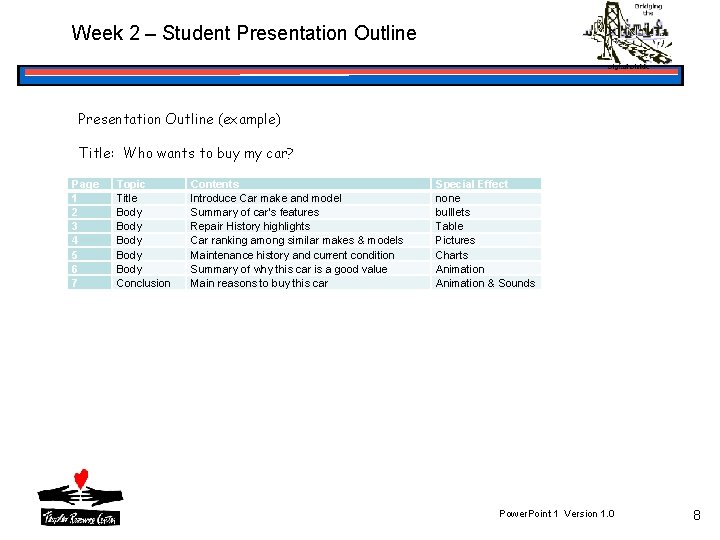
Week 2 – Student Presentation Outline (example) Title: Who wants to buy my car? Page 1 2 3 4 5 6 7 Topic Title Body Body Conclusion Contents Introduce Car make and model Summary of car’s features Repair History highlights Car ranking among similar makes & models Maintenance history and current condition Summary of why this car is a good value Main reasons to buy this car Special Effect none bulllets Table Pictures Charts Animation & Sounds Power. Point 1 Version 1. 0 8