
Power Campus Power UP Saving time in the








- Slides: 25
Power. Campus: Power. UP! Saving time in the Enrollment Office Amy Miller, Enrollment Data Manager Victoria Hoskovec, Vice President of Institutional Technology College of Saint Mary, Omaha, NE
Introduction • How Power. UP can assist in the Enrollment Office • Mapping and its importance • Review of Data after importing via Power. UP
Agenda 1 What is Power. UP? 2 Power. UP Components 3 Power. UP Mapping 4 Performing the Power. UP Process 5 Review of uploaded data and manual entry needs
Power. UP • The Power. UP process in Power. Campus has been designed as a wizard that prompts you through a series of steps in order to facilitate the uploading of information into the Power. Campus database. Electronic files from admissions application services (AACOMAS) or testing services (SAT, ACT) may be uploaded into Power. Campus using this process. • The wizard contains several sample templates which, upon installation of the Power. UP software, you can review and edit to fit your institution’s needs.
Power. UP • Once your system administrator completes the initial mappings of your data, the Power. UP wizard then allows you to import the data by simply specifying which file you are importing. Users have the option of verifying the information imported into Power. Campus tables before updating the Power. Campus database. • A detailed log report will display indicating the success or failure of the upload process. If any database error occurred, the upload process will stop and you will be prompted to review the report.
Power. UP Components • Ability to upload address records, including street address lines, city, state, country, and telephone number. • Ability to upload applicant and/or inquiry information, such as date of application, degree program, and special interests. • Ability to upload demographic information, such as gender, ethnicity, and citizenship.
Power. UP Components • Ability to upload other institutions attended. • Ability to upload financial information, including county of residency and related economic rating. • Ability to upload test scores.
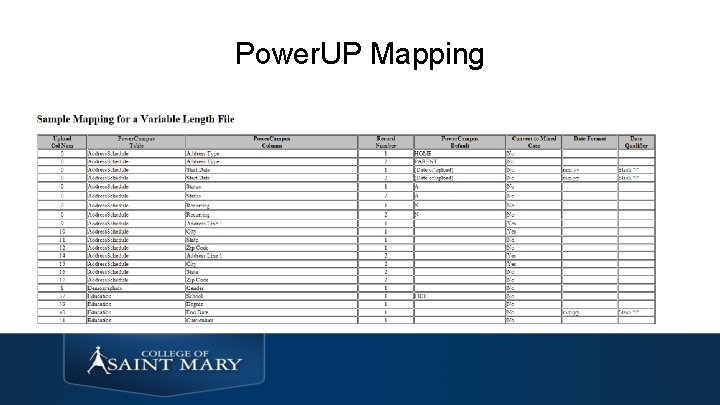
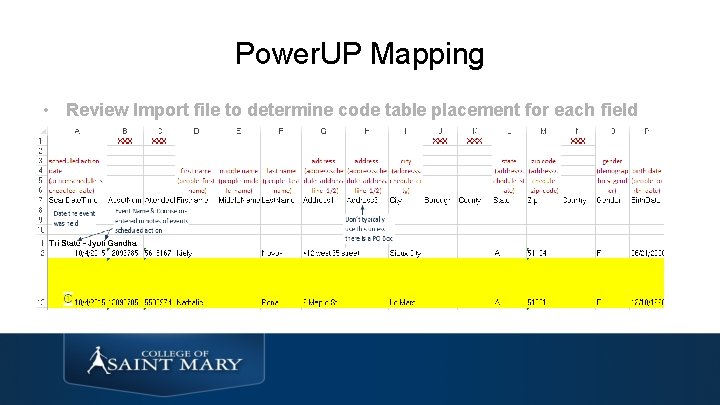
Power. UP Mapping • Determine what information you want uploaded • Mapping will take time to set up • Work with IT Staff for assistance • Important to review each file to upload. Including Formatting Capitalization, address information, spellings • Manual review of each record will be required
Power. UP Mapping
Power. UP Mapping • Review Import file to determine code table placement for each field
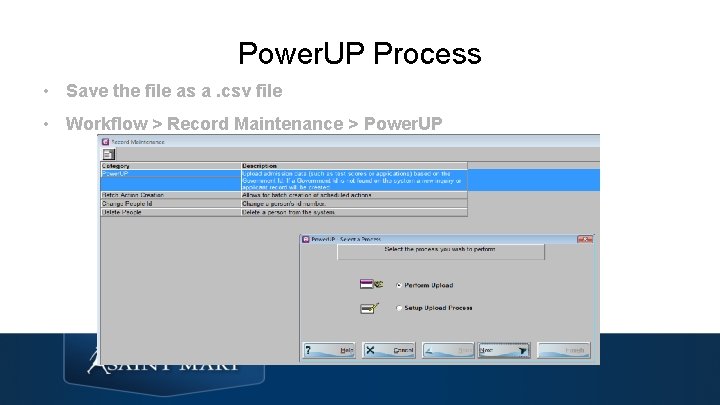
Power. UP Process • Save the file as a. csv file • Workflow > Record Maintenance > Power. UP
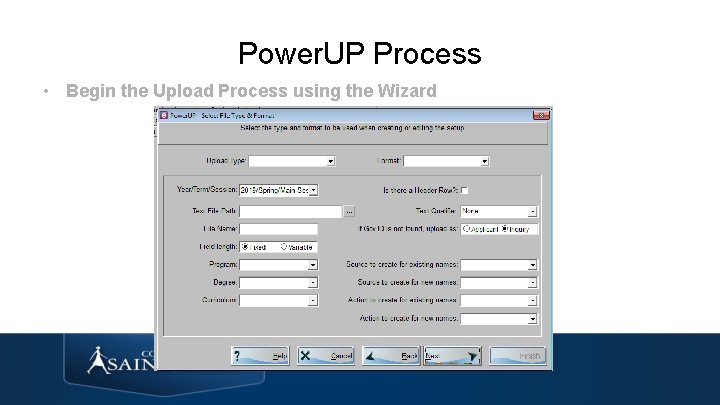
Power. UP Process • Begin the Upload Process using the Wizard
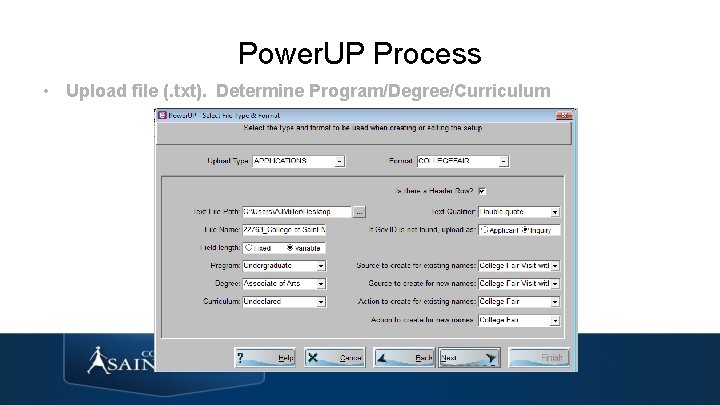
Power. UP Process • Upload file (. txt). Determine Program/Degree/Curriculum
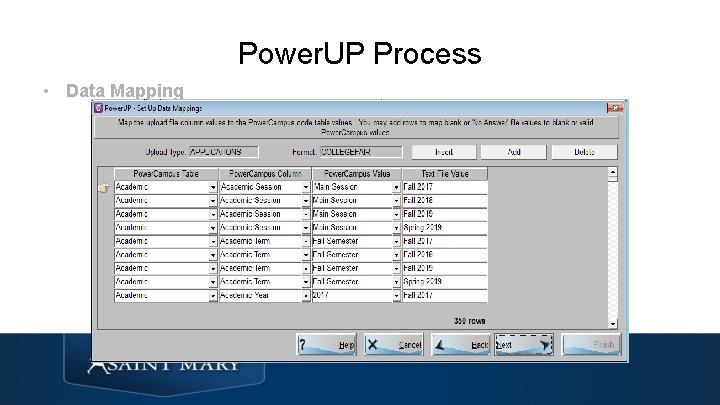
Power. UP Process • Data Mapping
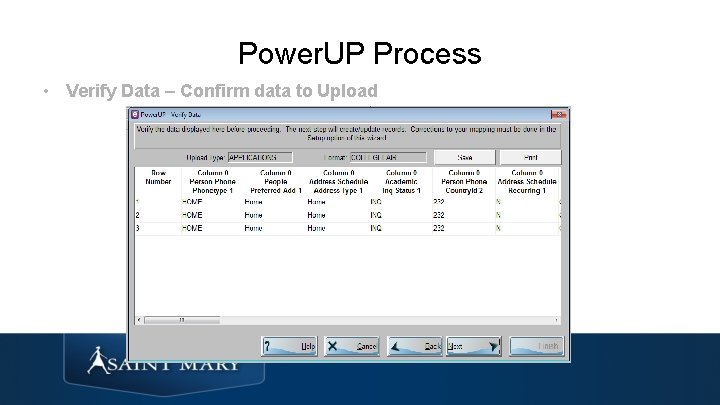
Power. UP Process • Verify Data – Confirm data to Upload
Power. UP Review of Uploaded Data Verify Data – Confirm data to Upload • A detailed log report will display indicating the success or failure of the upload process. If any database error occurred, the upload process will stop and you will be prompted to review the report.
Power. UP Review of Uploaded Data • Review the Duplicate Checking report • Review the Upload Results report – provides ID created • Manual review of each record
Summary • Important to work with IT/System Administrator staff for assistance with Mapping • Set up takes time – to save time • Process is quick and easy!
Thank you. We want to hear from you. Amy Miller ajmiller@csm. edu Victoria Hoskovec vhoskovec@csm. edu