
Power BI Dynamics BC Ryan Paterson Business Intelligence
Power BI & Dynamics BC Ryan Paterson Business Intelligence Director Tigunia, LLC

Ryan Paterson Business Intelligence Director Tigunia, LLC ryan@tigunia. com (208) 754 -5783 https: //www. linkedin. com/in/patersonryan/
Learning Objectives Upon completion of this session, participants should be able to: • • • Connect Power BI to Dynamics BC (On-Premises or Saa. S) Edit data by using the Power Query Editor Relate tables within Power BI Create a dynamic Power BI Report Publish a report to the Power BI Service

Connect
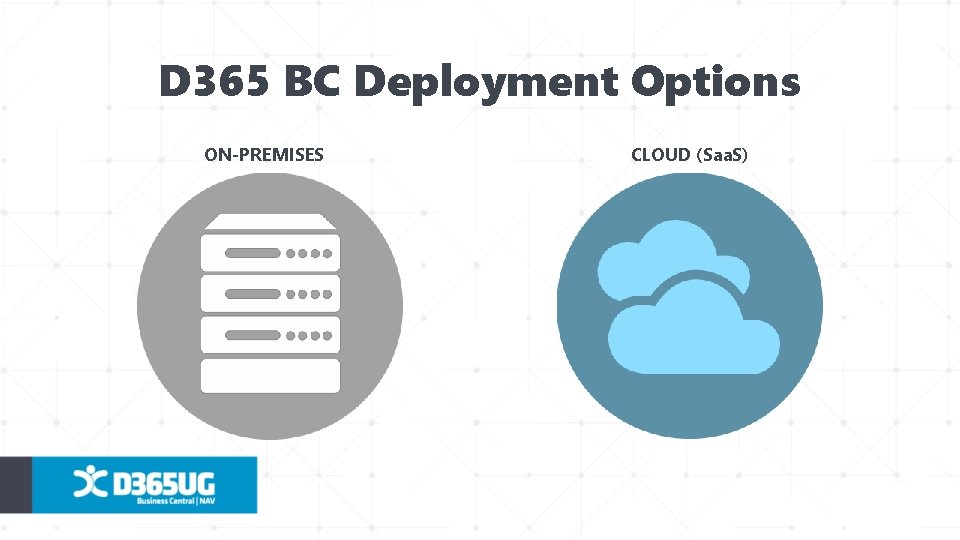
D 365 BC Deployment Options ON-PREMISES CLOUD (Saa. S)
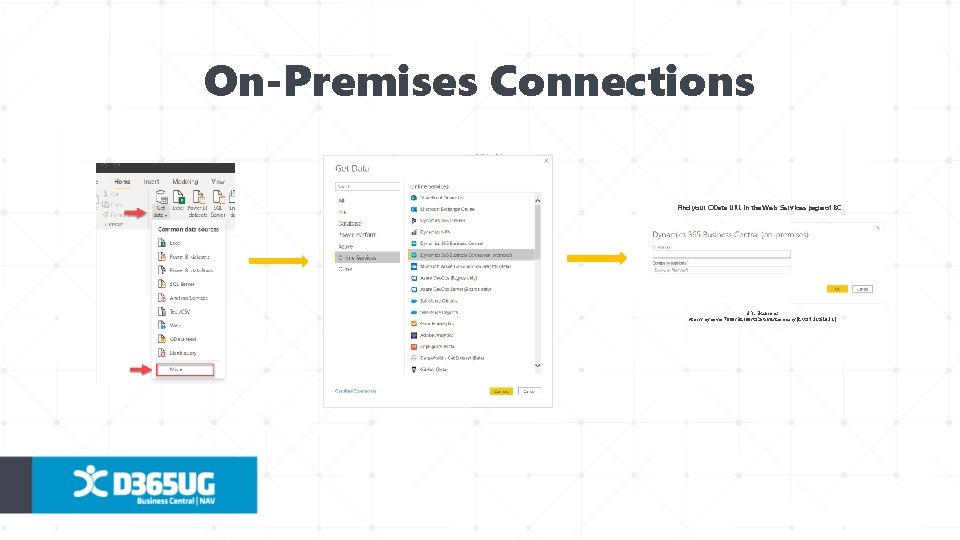
On-Premises Connections Find your OData URL in the Web Services page of BC URL Example: https: //myserver: 7048/BC 140/OData. V 4/Company(‘CRONUS%20 US’)
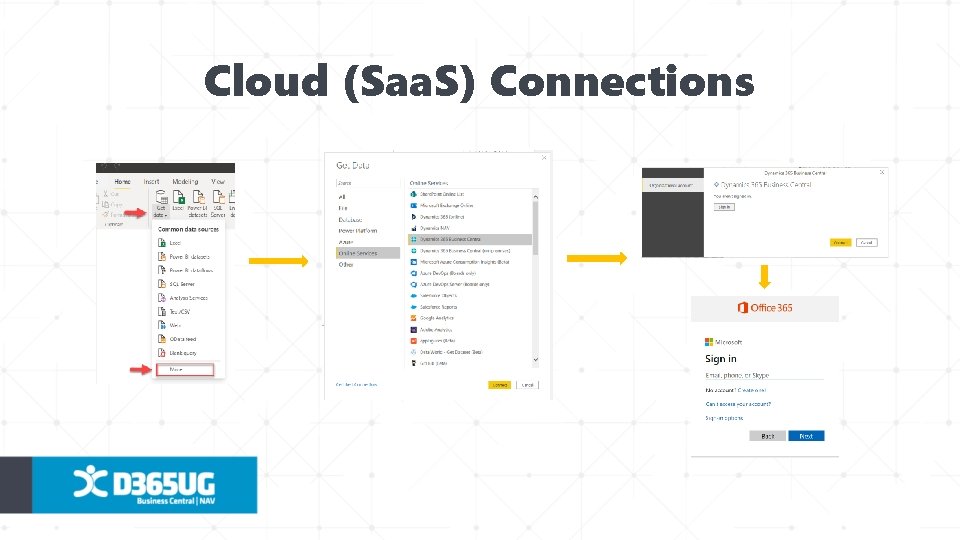
Cloud (Saa. S) Connections
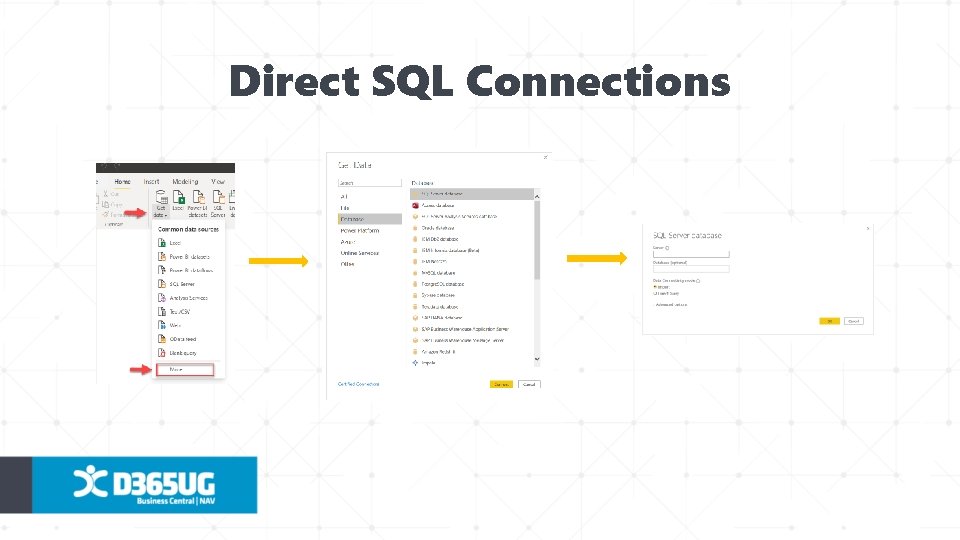
Direct SQL Connections

Connect

Edit
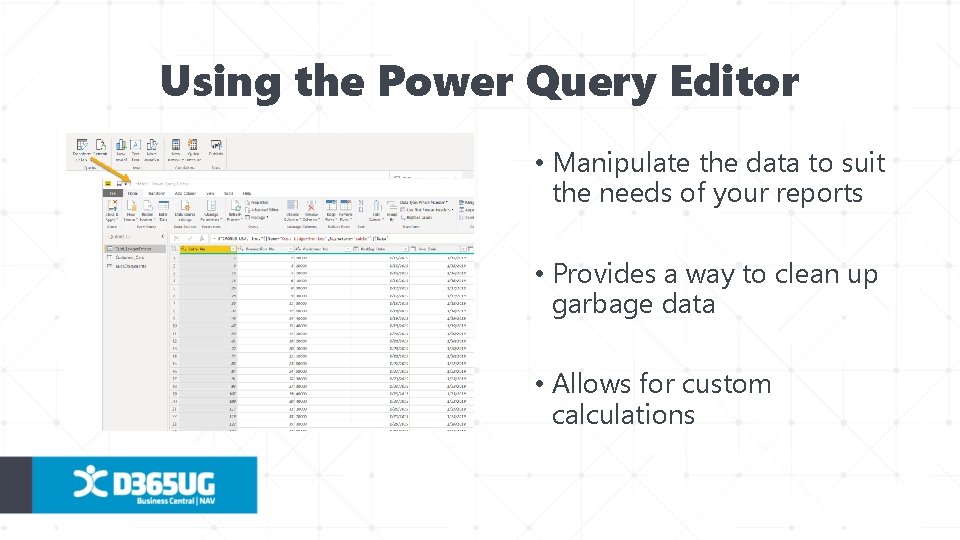
Using the Power Query Editor • Manipulate the data to suit the needs of your reports • Provides a way to clean up garbage data • Allows for custom calculations
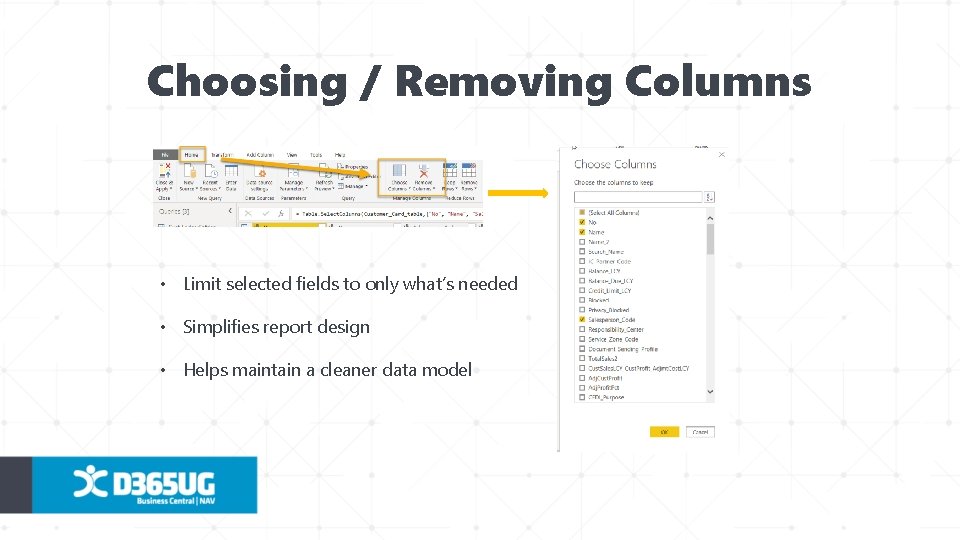
Choosing / Removing Columns • Limit selected fields to only what’s needed • Simplifies report design • Helps maintain a cleaner data model
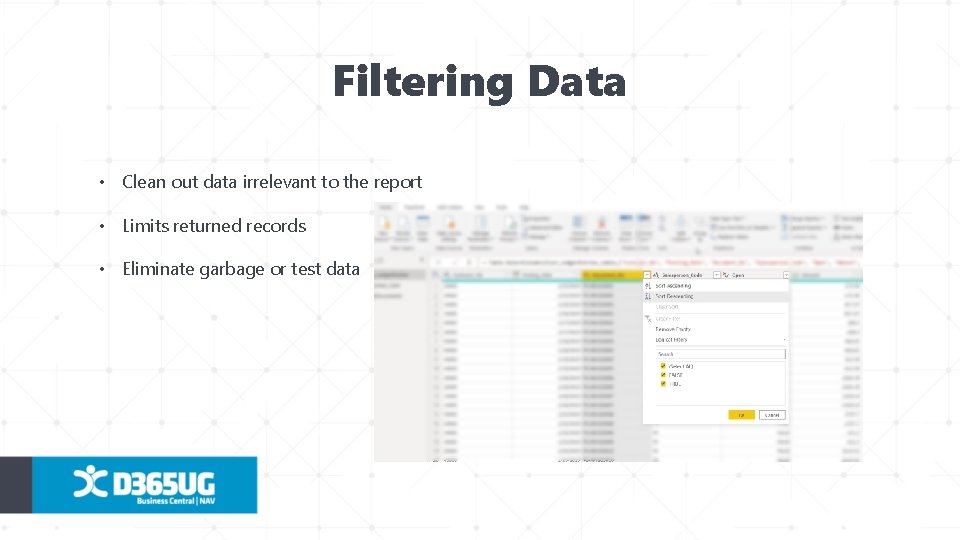
Filtering Data • Clean out data irrelevant to the report • Limits returned records • Eliminate garbage or test data
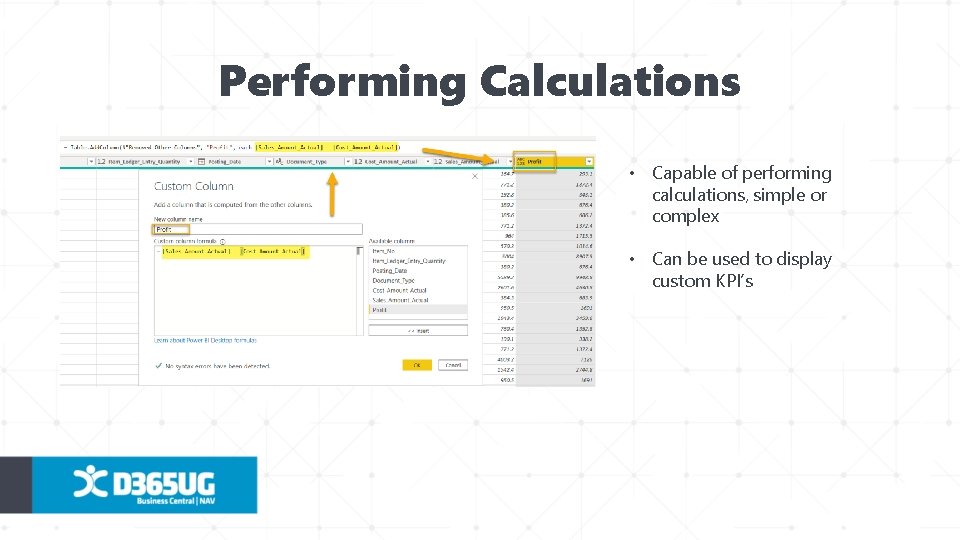
Performing Calculations • Capable of performing calculations, simple or complex • Can be used to display custom KPI’s
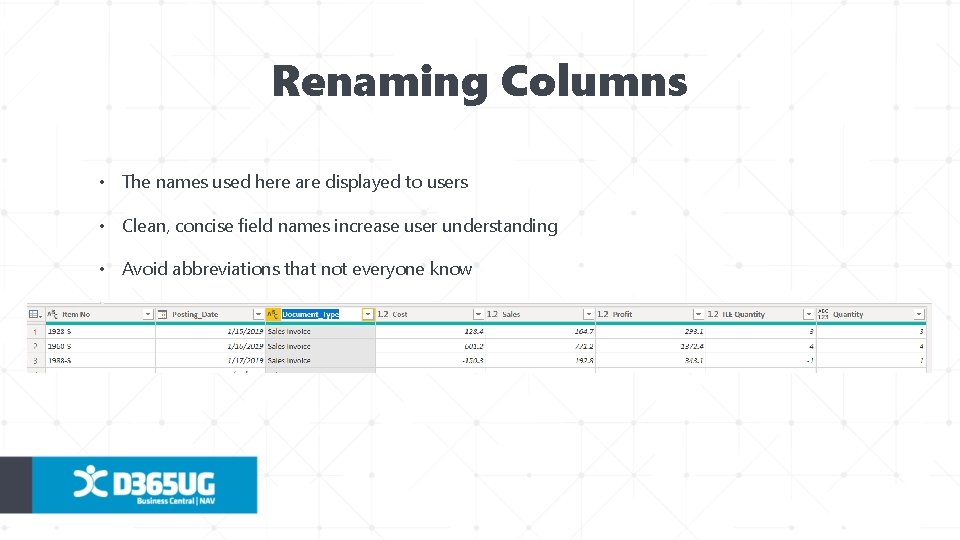
Renaming Columns • The names used here are displayed to users • Clean, concise field names increase user understanding • Avoid abbreviations that not everyone know

Edit

Relate
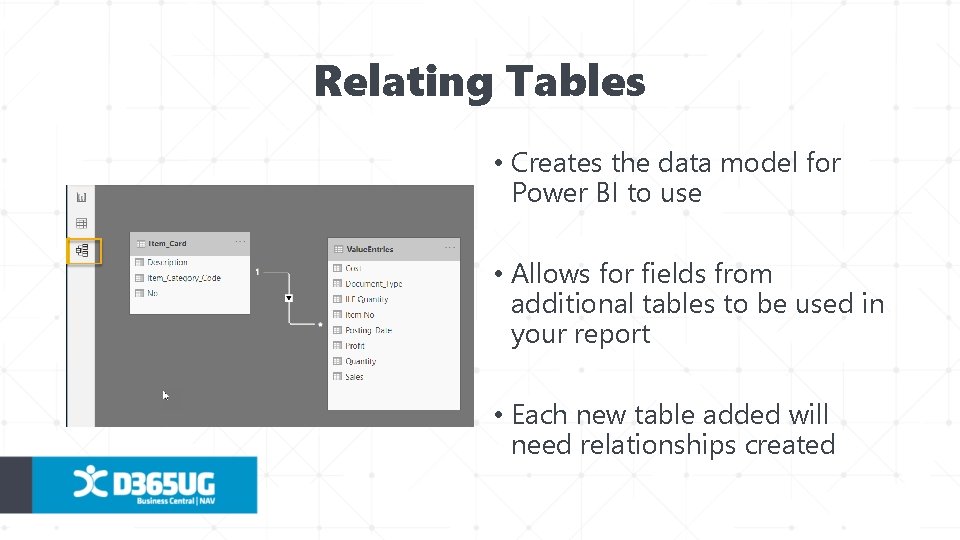
Relating Tables • Creates the data model for Power BI to use • Allows for fields from additional tables to be used in your report • Each new table added will need relationships created

Relate

Create
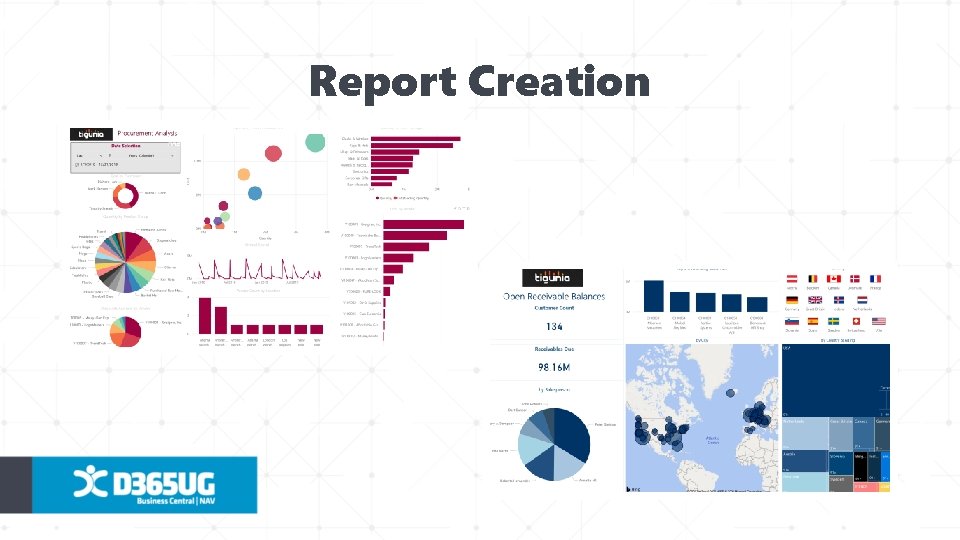
Report Creation

Create

Publish

Share
THANK YOU! Any questions now? If not, you can always contact me later: Ryan Paterson ryan@tigunia. com (208) 754 -5783 https: //www. linkedin. com/in/patersonryan/
- Slides: 25