
Power BI Creating Custom Visuals Samantha Boie Software
Power BI Creating Custom Visuals Samantha Boie Software Developer at SWC Technology Partners

Meet Your Presenter: Sam Boie • Data Analytics Practice at SWC Technology Partners • PUG Membership: Greater Chicago Power BI User Group • My job is to make your data “useful” • Education: Dominican University • Fun facts! Just completed the Chicago Marathon. Literally. • Follow me on Twitter: @SWCTech. Partners • Connect with me on Linked. In: samanthaboie • Email: slc@swc. com
Agenda • • Quick Audience Survey Custom Visual background Typescript Review Setting up Power BI The Essentials Code Examples Resources Q&A

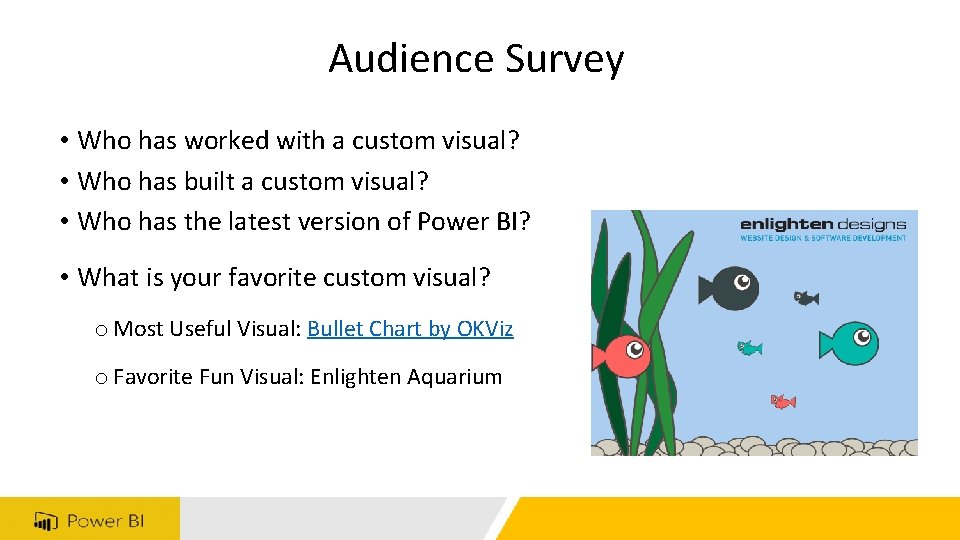
Audience Survey • Who has worked with a custom visual? • Who has built a custom visual? • Who has the latest version of Power BI? • What is your favorite custom visual? o Most Useful Visual: Bullet Chart by OKViz o Favorite Fun Visual: Enlighten Aquarium

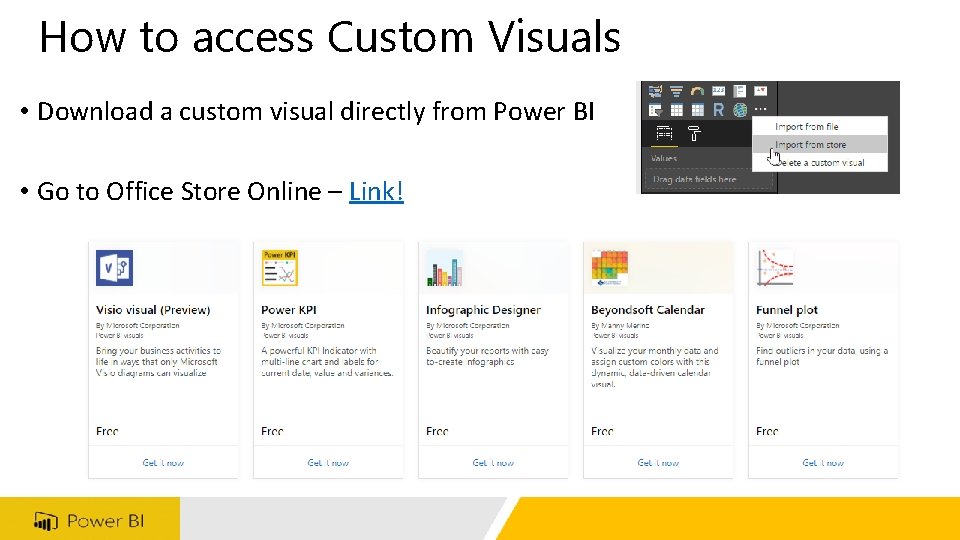
How to access Custom Visuals • Download a custom visual directly from Power BI • Go to Office Store Online – Link!
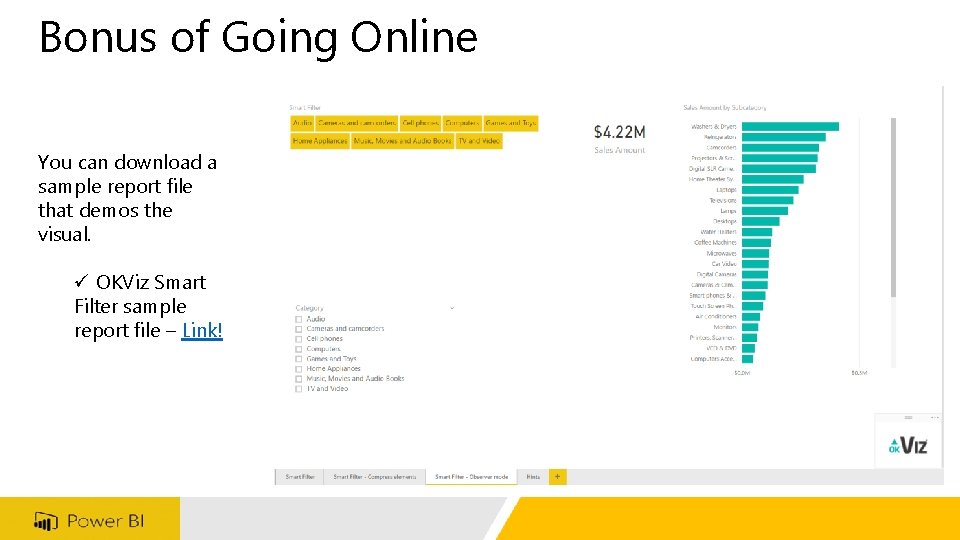
Bonus of Going Online You can download a sample report file that demos the visual. ü OKViz Smart Filter sample report file – Link!


Type. Script: A Superset of Java. Script TS JS • Type. Script, an open source syntactic superset of Java. Script that compiles to Java. Script • All Valid Java. Script is also valid Type. Script • Type. Script only adds to Java. Script
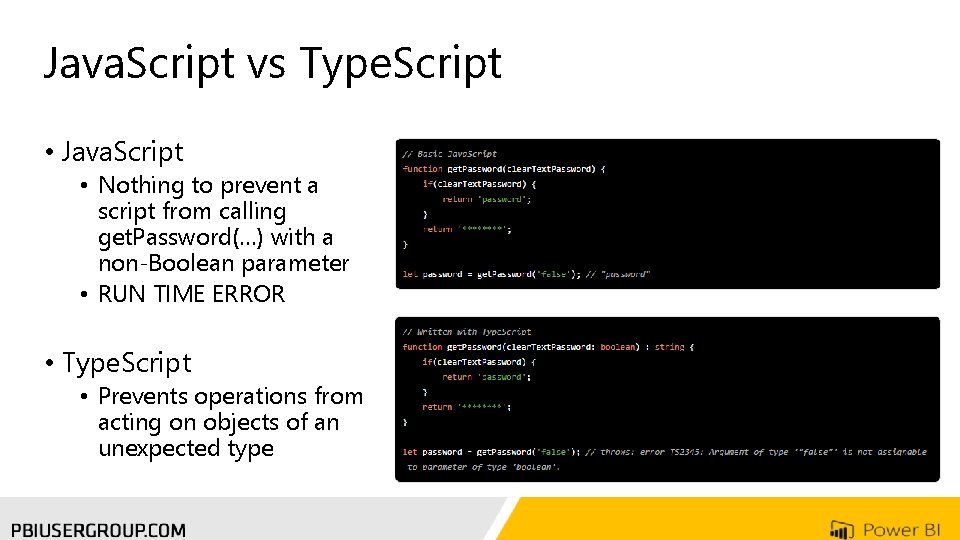
Java. Script vs Type. Script • Java. Script • Nothing to prevent a script from calling get. Password(…) with a non-Boolean parameter • RUN TIME ERROR • Type. Script • Prevents operations from acting on objects of an unexpected type

Power BI Libraries • D 3 Library • Creates SVG graphics • Needs to add the D 3 library and D 3 type definition files • SVG - Scalable Vector Graphics • Will adapt and show you high resolution output; Desktop, mobile, tablet. etc

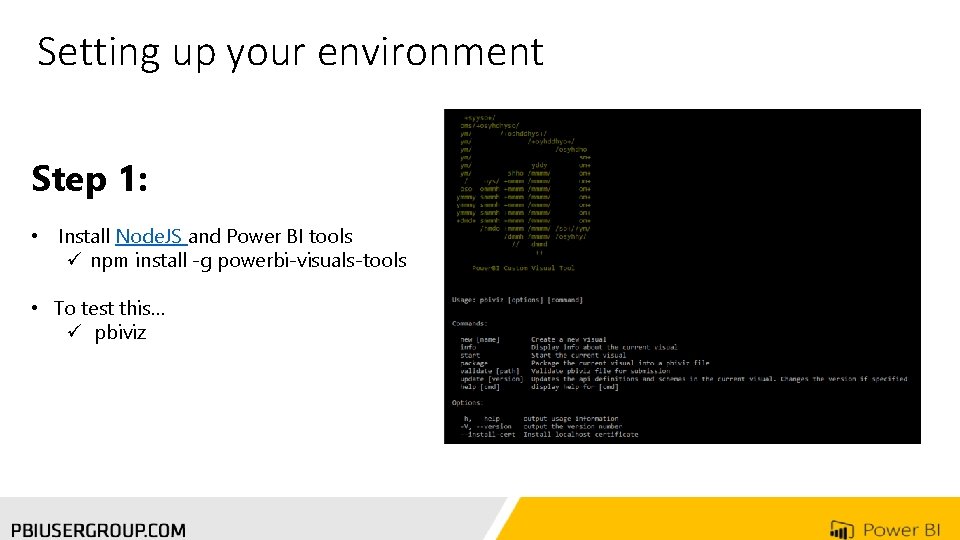
Setting up your environment Step 1: • Install Node. JS and Power BI tools ü npm install -g powerbi-visuals-tools • To test this… ü pbiviz
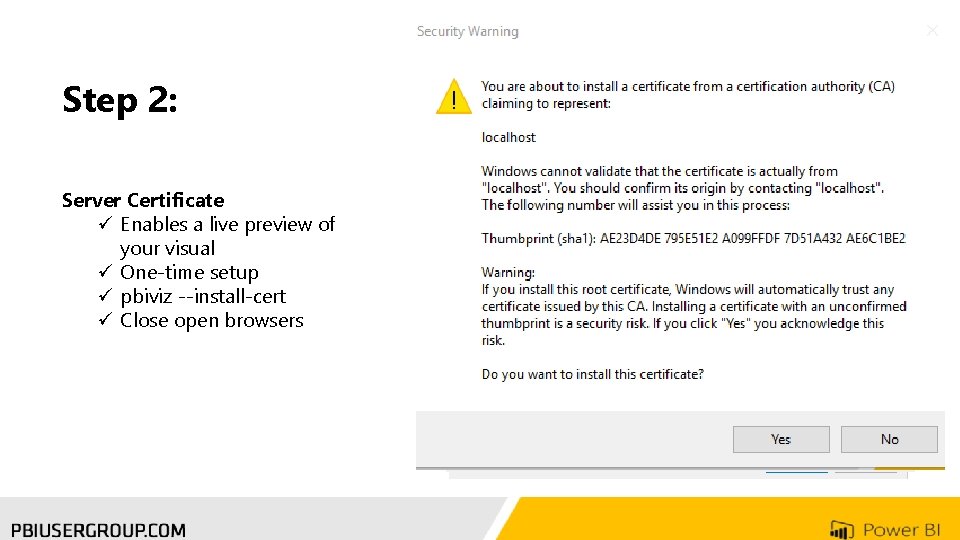
Step 2: Server Certificate ü Enables a live preview of your visual ü One-time setup ü pbiviz --install-cert ü Close open browsers
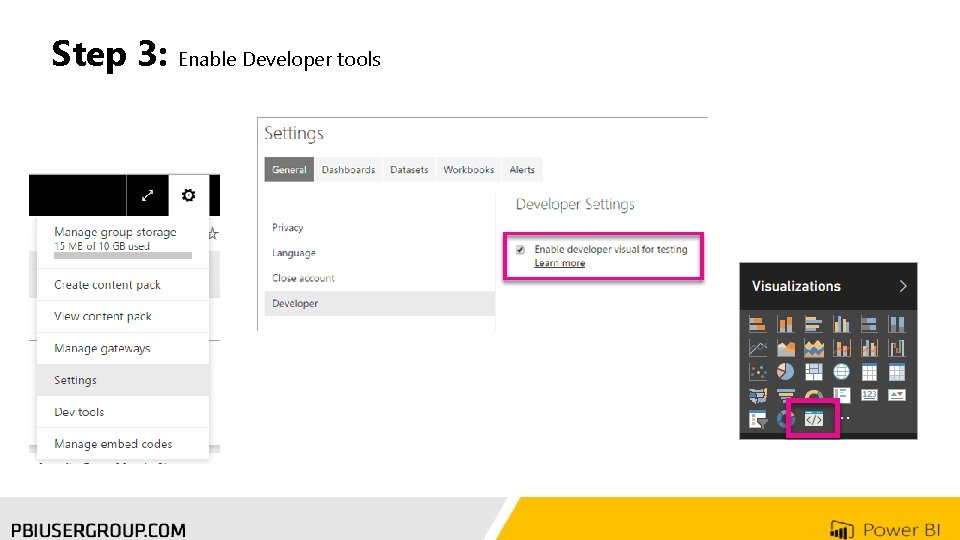
Step 3: Enable Developer tools

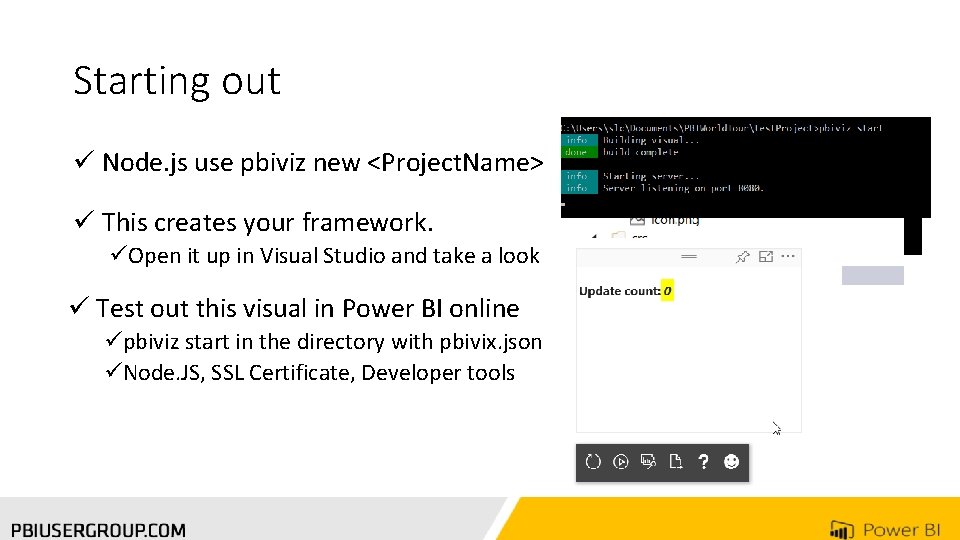
Starting out ü Node. js use pbiviz new <Project. Name> ü This creates your framework. üOpen it up in Visual Studio and take a look ü Test out this visual in Power BI online üpbiviz start in the directory with pbivix. json üNode. JS, SSL Certificate, Developer tools
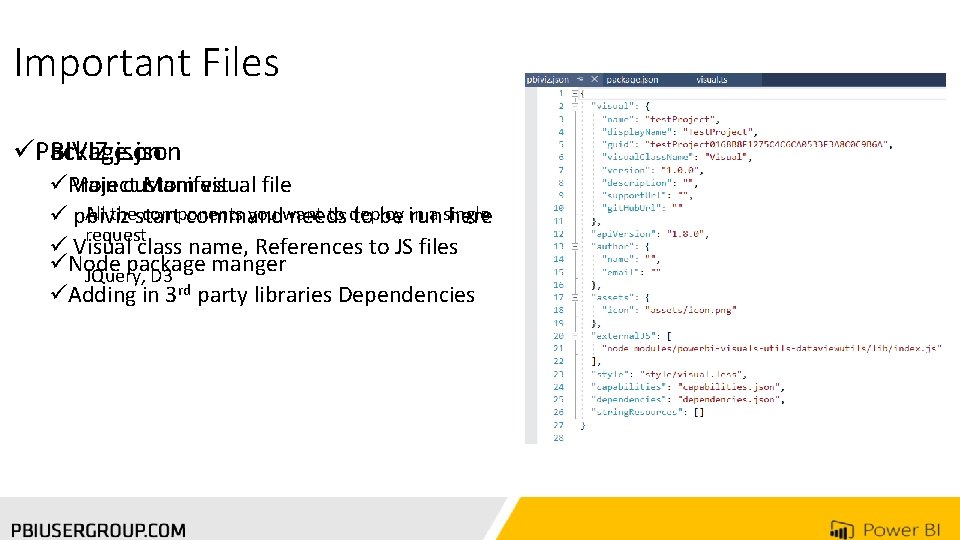
Important Files üPBIVIZ. json Package. json üMain Project custom Manifest visual file All thestart components you want to deploy a single ü pbiviz command needs to be in run here request ü Visual class name, References to JS files üNode package manger JQuery, D 3 üAdding in 3 rd party libraries Dependencies

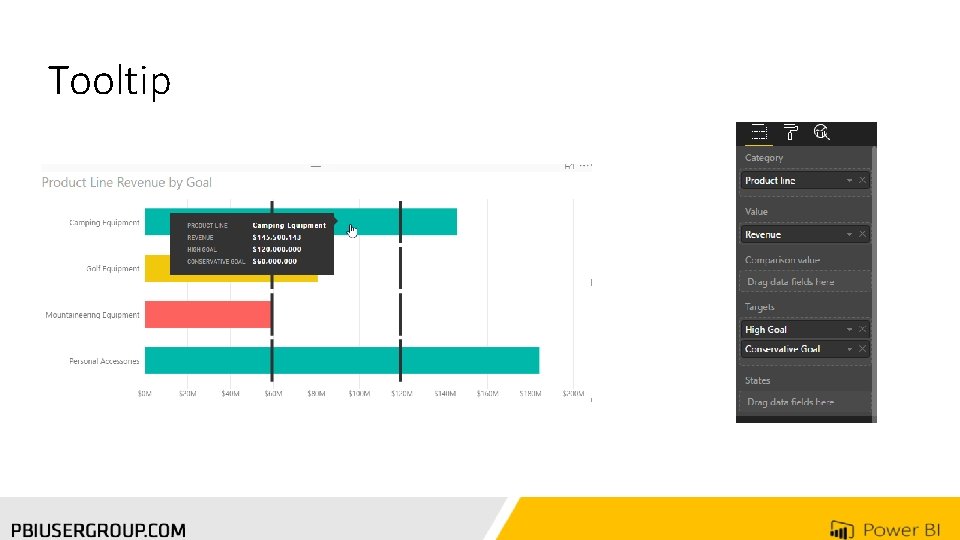
Tooltip
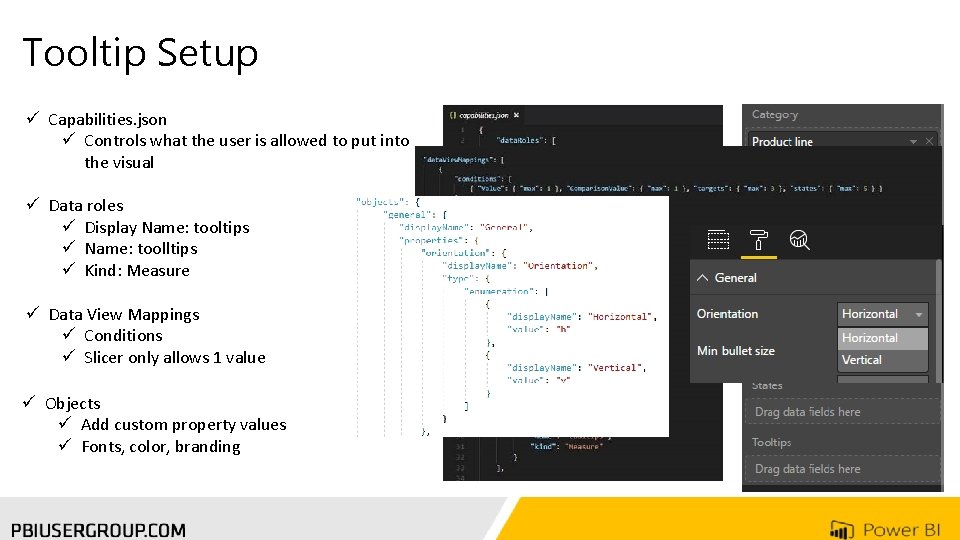
Tooltip Setup ü Capabilities. json ü Controls what the user is allowed to put into the visual ü Data roles ü Display Name: tooltips ü Name: toolltips ü Kind: Measure ü Data View Mappings ü Conditions ü Slicer only allows 1 value ü Objects ü Add custom property values ü Fonts, color, branding
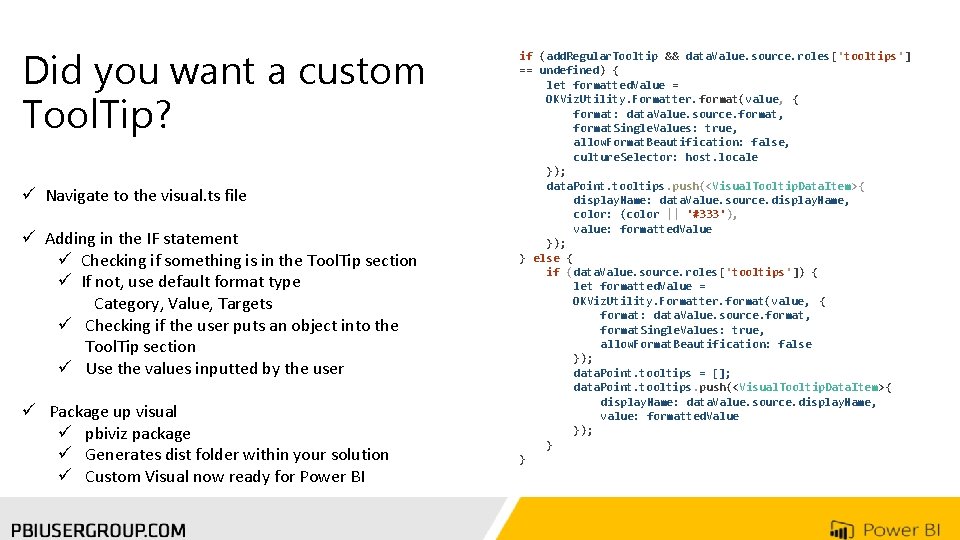
Did you want a custom Tool. Tip? ü Navigate to the visual. ts file ü Adding in the IF statement ü Checking if something is in the Tool. Tip section ü If not, use default format type Category, Value, Targets ü Checking if the user puts an object into the Tool. Tip section ü Use the values inputted by the user ü Package up visual ü pbiviz package ü Generates dist folder within your solution ü Custom Visual now ready for Power BI if (add. Regular. Tooltip && data. Value. source. roles['tooltips'] == undefined) { let formatted. Value = OKViz. Utility. Formatter. format(value, { format: data. Value. source. format, format. Single. Values: true, allow. Format. Beautification: false, culture. Selector: host. locale }); data. Point. tooltips. push(<Visual. Tooltip. Data. Item>{ display. Name: data. Value. source. display. Name, color: (color || '#333'), value: formatted. Value }); } else { if (data. Value. source. roles['tooltips']) { let formatted. Value = OKViz. Utility. Formatter. format(value, { format: data. Value. source. format, format. Single. Values: true, allow. Format. Beautification: false }); data. Point. tooltips = []; data. Point. tooltips. push(<Visual. Tooltip. Data. Item>{ display. Name: data. Value. source. display. Name, value: formatted. Value }); } }
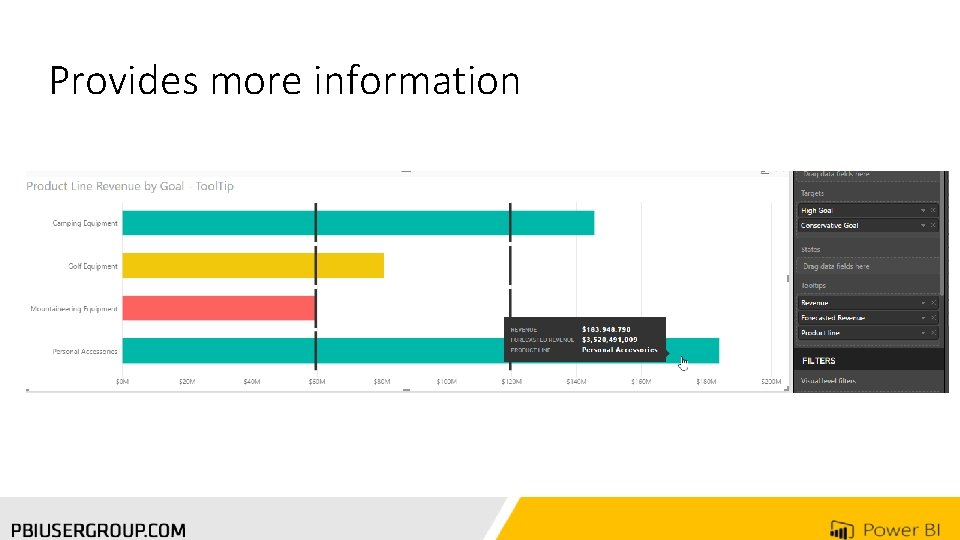
Provides more information
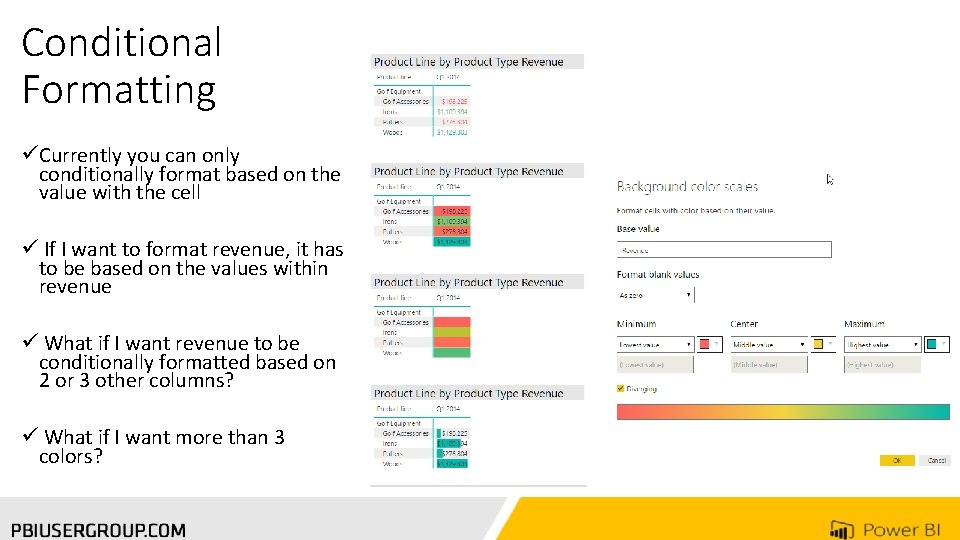
Conditional Formatting üCurrently you can only conditionally format based on the value with the cell ü If I want to format revenue, it has to be based on the values within revenue ü What if I want revenue to be conditionally formatted based on 2 or 3 other columns? ü What if I want more than 3 colors?
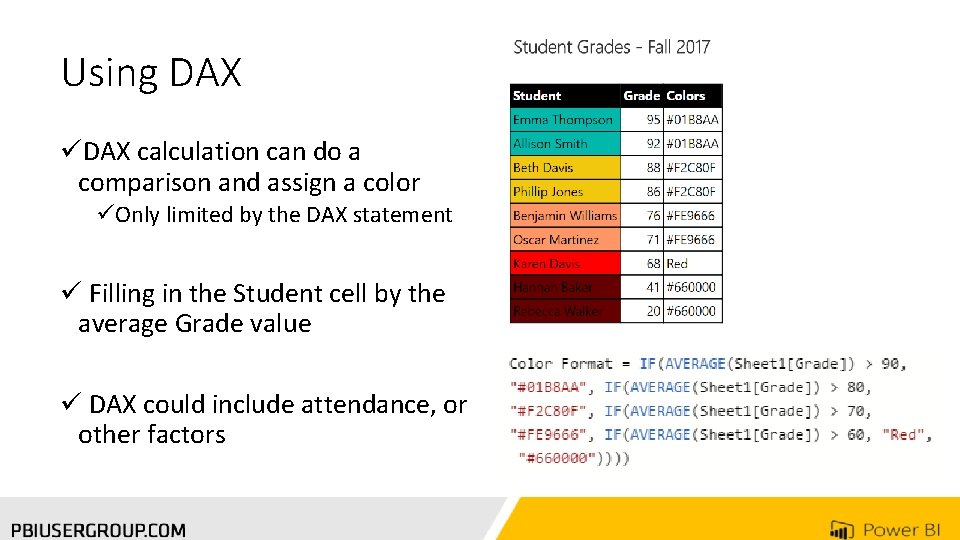
Using DAX üDAX calculation can do a comparison and assign a color üOnly limited by the DAX statement ü Filling in the Student cell by the average Grade value ü DAX could include attendance, or other factors

To Help you along the way Environment Setup Developing Your First Power BI Visual Critical Thinking Training Highly recommend Power BI Tool Tip

Thank You for Attending! Don’t forget to join your local PUG to enjoy year-round networking and learning. www. pbiusergroup. com/chicagoland www. pbiusergroup. com/milwaukee Twitter: @SWCTech. Partners Email: slc@swc. com
- Slides: 29