
POSTER PRESENTATION TITLE Presenter Names Presenters Organizations ABSTRACT
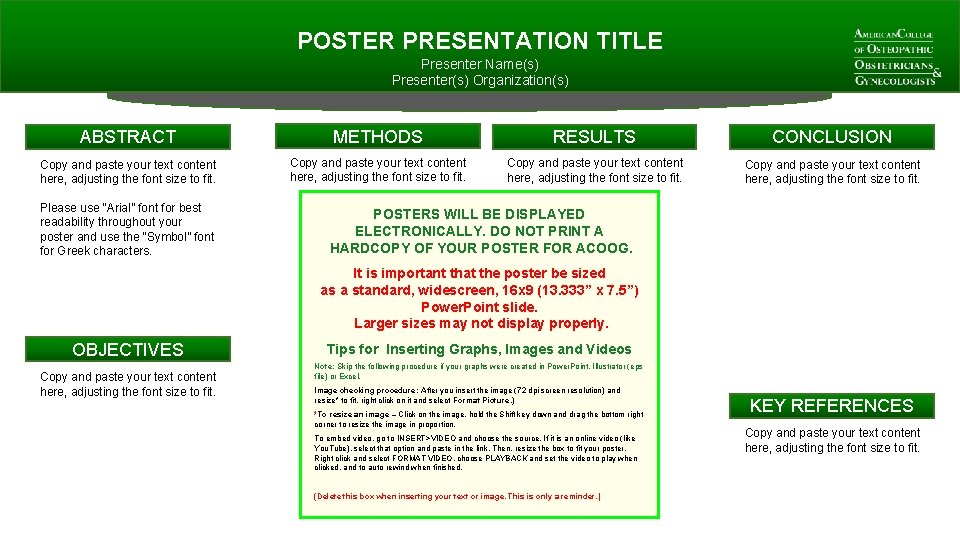
POSTER PRESENTATION TITLE Presenter Name(s) Presenter(s) Organization(s) ABSTRACT METHODS RESULTS CONCLUSION Copy and paste your text content here, adjusting the font size to fit. Please use “Arial” font for best readability throughout your poster and use the “Symbol” font for Greek characters. POSTERS WILL BE DISPLAYED ELECTRONICALLY. DO NOT PRINT A HARDCOPY OF YOUR POSTER FOR ACOOG. It is important that the poster be sized as a standard, widescreen, 16 x 9 (13. 333” x 7. 5”) Power. Point slide. Larger sizes may not display properly. OBJECTIVES Copy and paste your text content here, adjusting the font size to fit. Tips for Inserting Graphs, Images and Videos Note: Skip the following procedure if your graphs were created in Power. Point, Illustrator (eps file) or Excel. Image checking procedure: After you insert the image (72 dpi screen resolution) and resize* to fit, right click on it and select Format Picture. ) *To resize an image – Click on the image, hold the Shift key down and drag the bottom right corner to resize the image in proportion. To embed video, go to INSERT>VIDEO and choose the source. If it is an online video (like You. Tube), select that option and paste in the link. Then, resize the box to fit your poster. Right click and select FORMAT VIDEO, choose PLAYBACK and set the video to play when clicked, and to auto rewind when finished. (Delete this box when inserting your text or image. This is only a reminder. ) KEY REFERENCES Copy and paste your text content here, adjusting the font size to fit.
- Slides: 1