
POSITIVE ATTENDANCE HOURS AND GRADES Andrea RodriguezBlanco POSITIVE

POSITIVE ATTENDANCE HOURS AND GRADES Andrea Rodriguez-Blanco

POSITIVE ATTENDANCE ROSTERS & GRADES ONEDRIVE & PEOPLESOFT

DAILY POSITIVE ATTENDANCE, FINAL ATTENDANCE HOURS & GRADES

Faculty Portal - People Soft § GO TO: WWW. WLAC. EDU § Click on “Register”
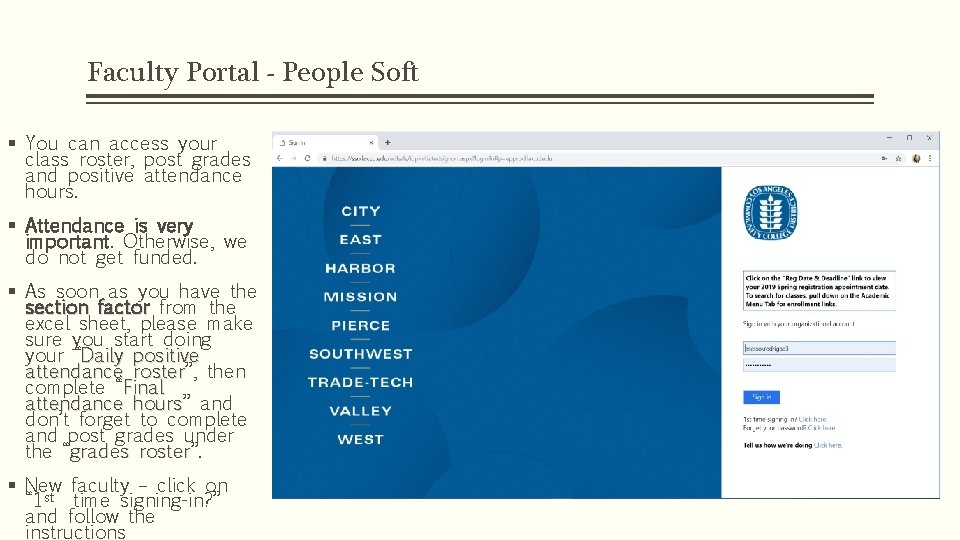
Faculty Portal - People Soft § You can access your class roster, post grades and positive attendance hours. § Attendance is very important. Otherwise, we do not get funded. § As soon as you have the section factor from the excel sheet, please make sure you start doing your “Daily positive attendance roster”, roster then complete “Final attendance hours” hours and don’t forget to complete and post grades under the “grades roster”. roster § New faculty – click on “ 1 st time signing-in? ” and follow the instructions
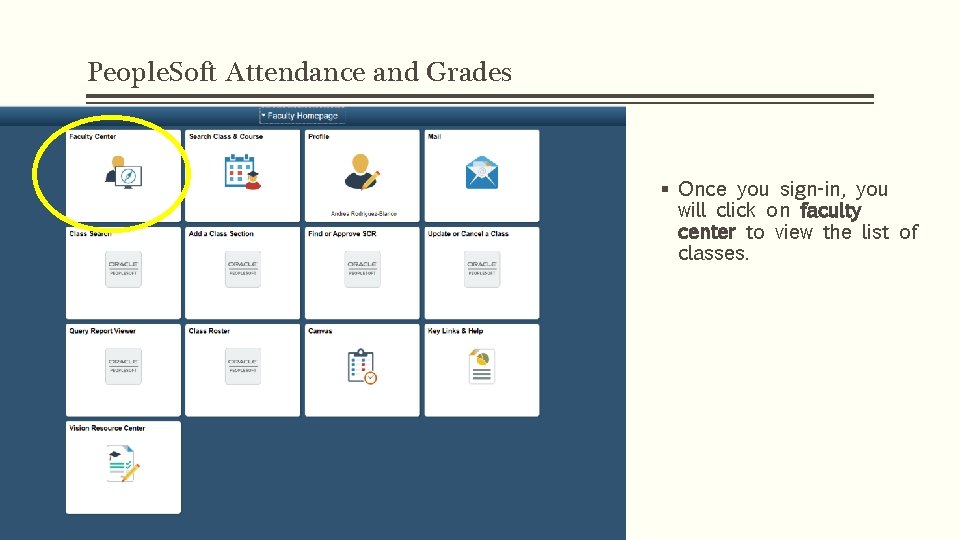
People. Soft Attendance and Grades § Once you sign-in, you will click on faculty center to view the list of classes.
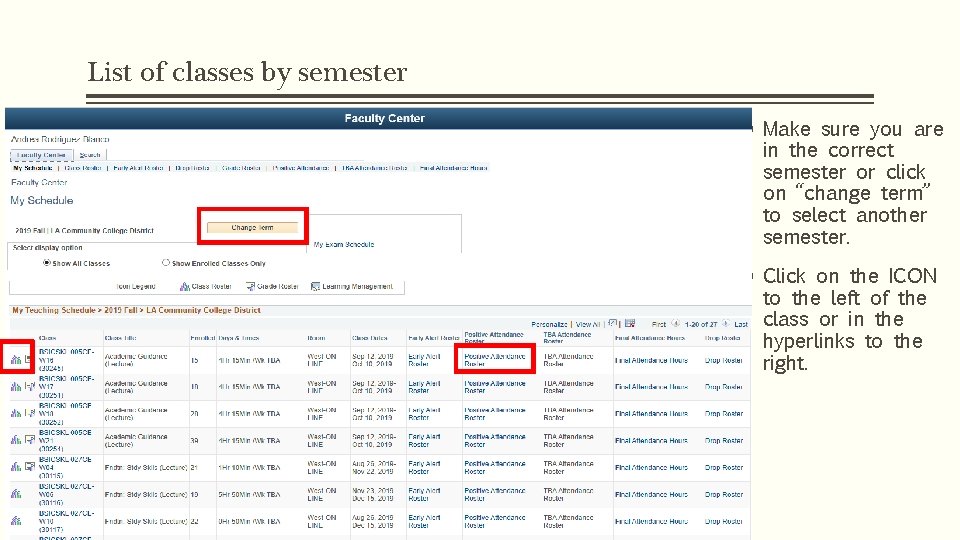
List of classes by semester § Make sure you are in the correct semester or click on “change term” to select another semester. § Click on the ICON to the left of the class or in the hyperlinks to the right.
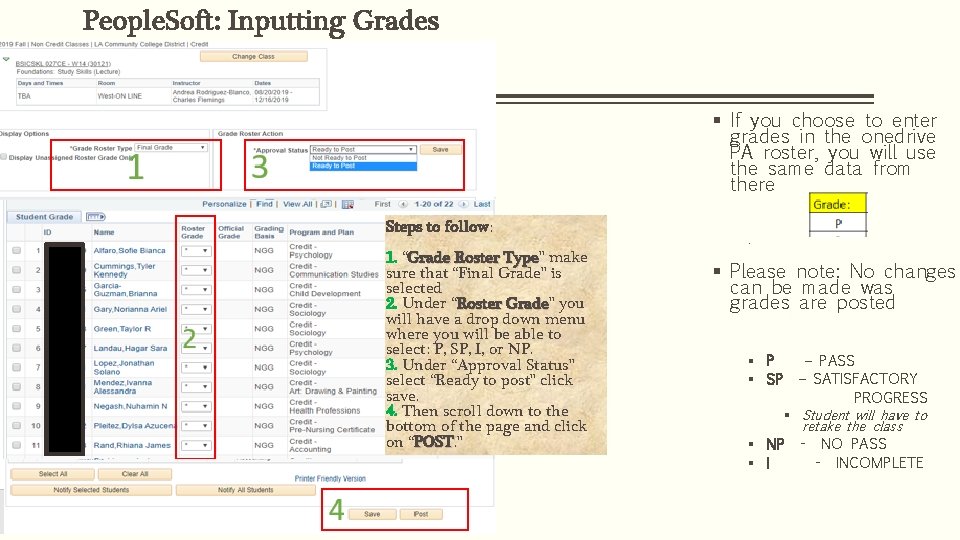
People. Soft: Inputting Grades § If you choose to enter grades in the onedrive PA roster, you will use the same data from there Steps to follow: 1. “Grade Roster Type” Type make sure that “Final Grade” is selected 2. Under “Roster Grade” Grade you will have a drop down menu where you will be able to select: P, SP, I, or NP. 3. Under “Approval Status” select “Ready to post” click save. 4. Then scroll down to the bottom of the page and click on “POST. ” POST . § Please note: No changes can be made was grades are posted § P – PASS § SP – SATISFACTORY PROGRESS § Student will have to retake the class § NP - NO PASS § I - INCOMPLETE
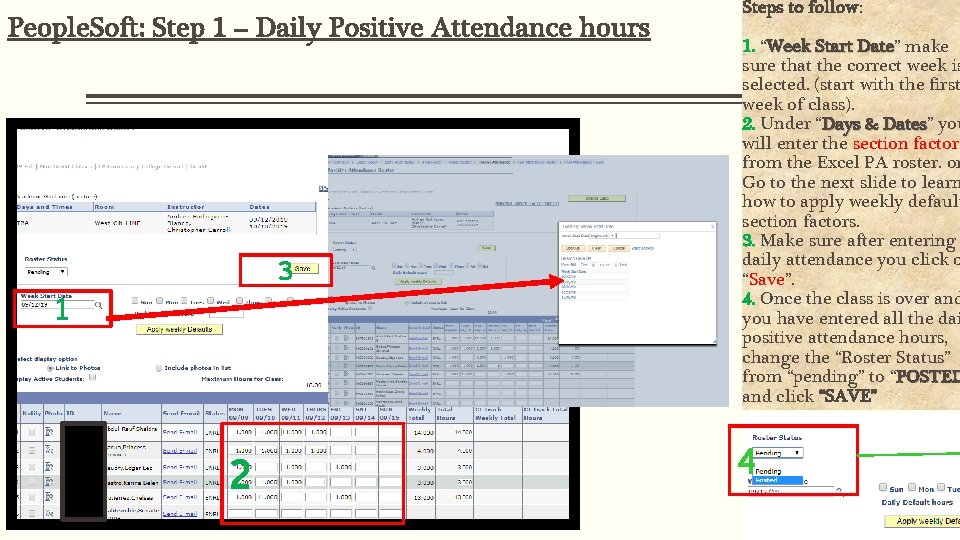
People. Soft: Step 1 – Daily Positive Attendance hours 3 1 2 Steps to follow: 1. “Week Start Date” Date make sure that the correct week is selected. (start with the first week of class). 2. Under “Days & Dates” Dates you will enter the section factor from the Excel PA roster. or Go to the next slide to learn how to apply weekly default section factors. 3. Make sure after entering daily attendance you click o “Save”. 4. Once the class is over and you have entered all the dai positive attendance hours, change the “Roster Status” from “pending” to “POSTED and click “SAVE” 4
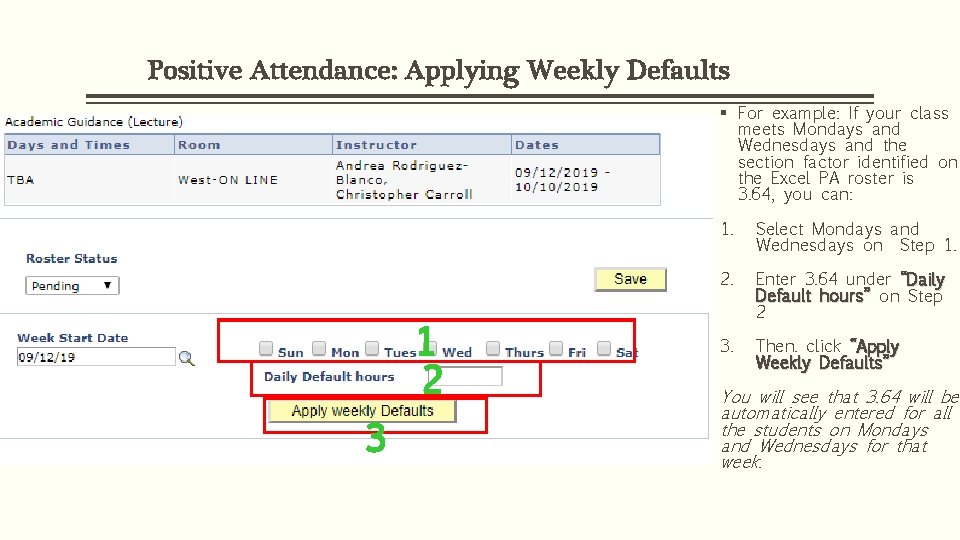
Positive Attendance: Applying Weekly Defaults § For example: If your class meets Mondays and Wednesdays and the section factor identified on the Excel PA roster is 3. 64, you can: 1 2 3 1. Select Mondays and Wednesdays on Step 1. 2. Enter 3. 64 under “Daily Default hours” on Step 2 3. Then. click “Apply Weekly Defaults” You will see that 3. 64 will be automatically entered for all the students on Mondays and Wednesdays for that week.
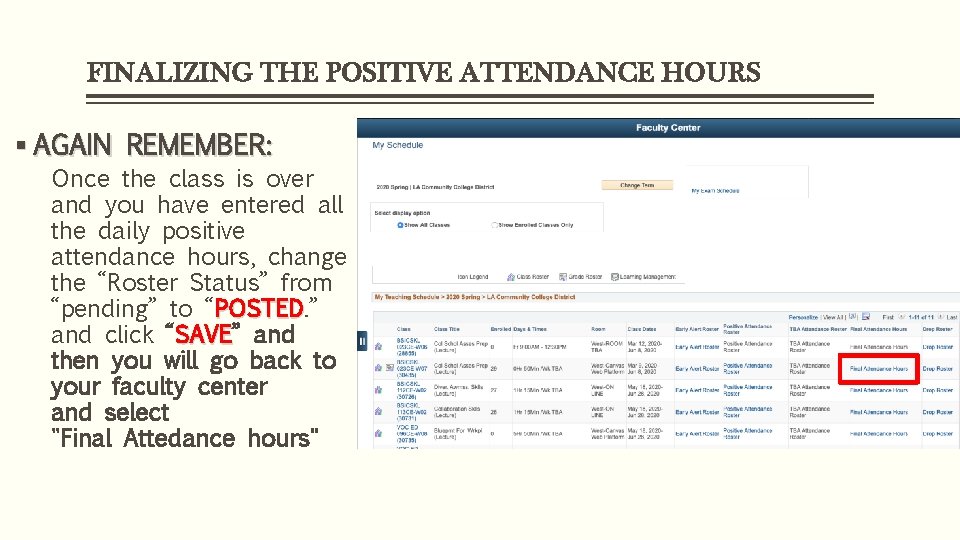
FINALIZING THE POSITIVE ATTENDANCE HOURS § AGAIN REMEMBER: Once the class is over and you have entered all the daily positive attendance hours, change the “Roster Status” from “pending” to “POSTED. ” POSTED and click “SAVE” SAVE and then you will go back to your faculty center and select "Final Attedance hours"
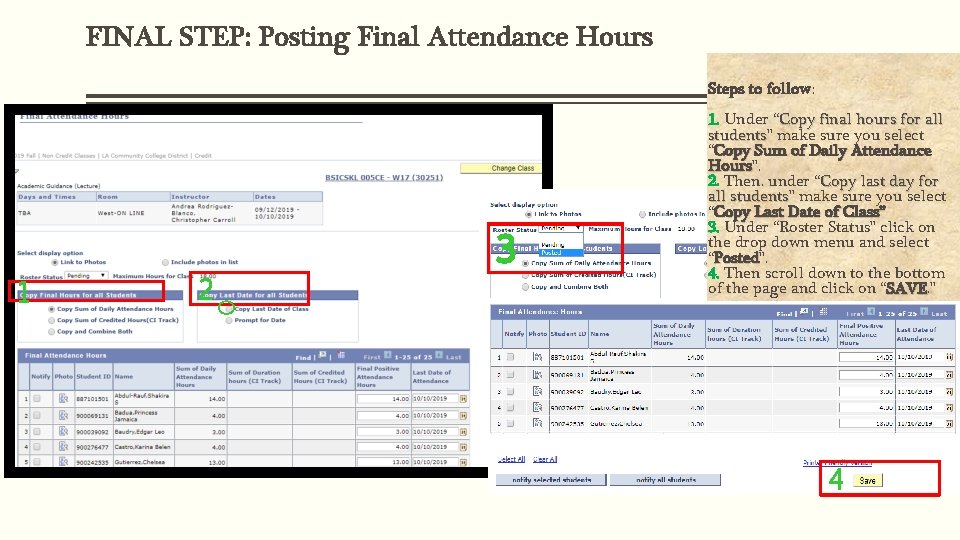
FINAL STEP: Posting Final Attendance Hours Steps to follow: 1 2 3 1. Under “Copy final hours for all students” students make sure you select “Copy Sum of Daily Attendance Hours”. Hours 2. Then. under “Copy last day for all students” students make sure you select “Copy Last Date of Class” 3. Under “Roster Status” click on the drop down menu and select “Posted”. Posted 4. Then scroll down to the bottom of the page and click on “SAVE. ” SAVE 4
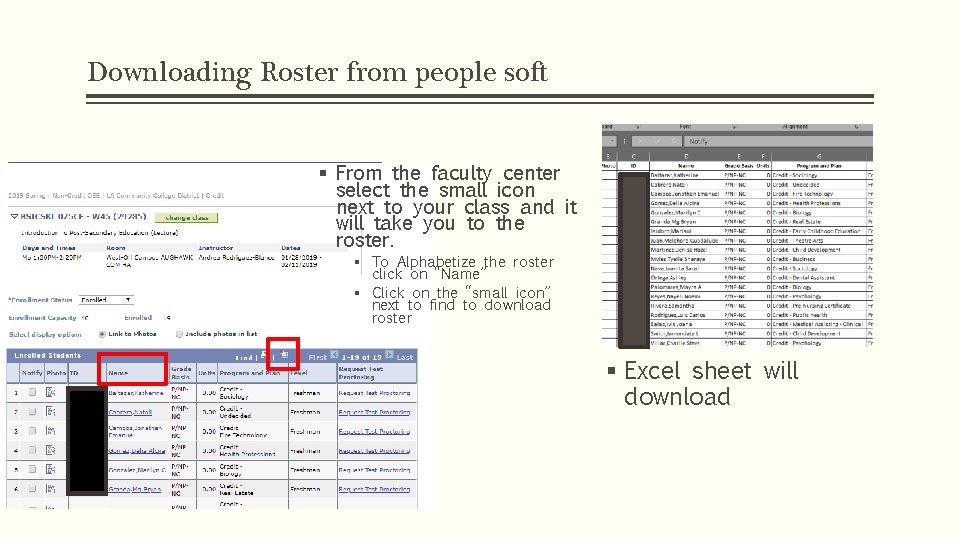
Downloading Roster from people soft § From the faculty center select the small icon next to your class and it will take you to the roster. § To Alphabetize the roster click on “Name” § Click on the “small icon” next to find to download roster § Excel sheet will download
- Slides: 13