
Portfolio By Grace Whitlow Table of Contents Extrude

Portfolio By: Grace Whitlow
Table of Contents • Extrude • Revolve • Sweep • Loft • Hole • Fillet • Chamfer • Shell • Thread • Pattern Features • Dimensioning • Tolerances • Working Drawings • Sections • Auxiliary Views • Additional Skills
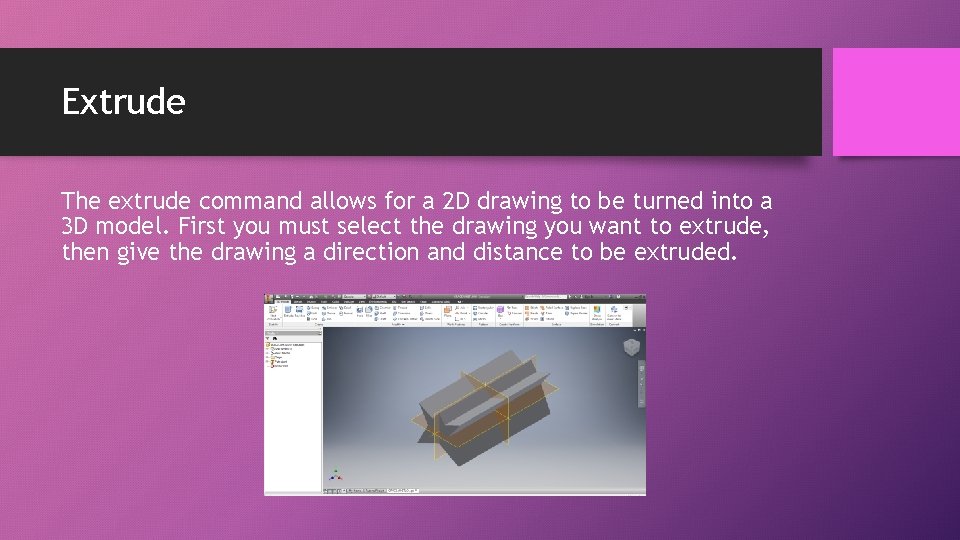
Extrude The extrude command allows for a 2 D drawing to be turned into a 3 D model. First you must select the drawing you want to extrude, then give the drawing a direction and distance to be extruded.

Revolve The revolve command is another way to turn a 2 D drawing into a 3 D model. To use this command a 2 D drawing is selected, then an axis is selected for the drawing to be revolved around. Finally an angel is given for the rotation around the axis
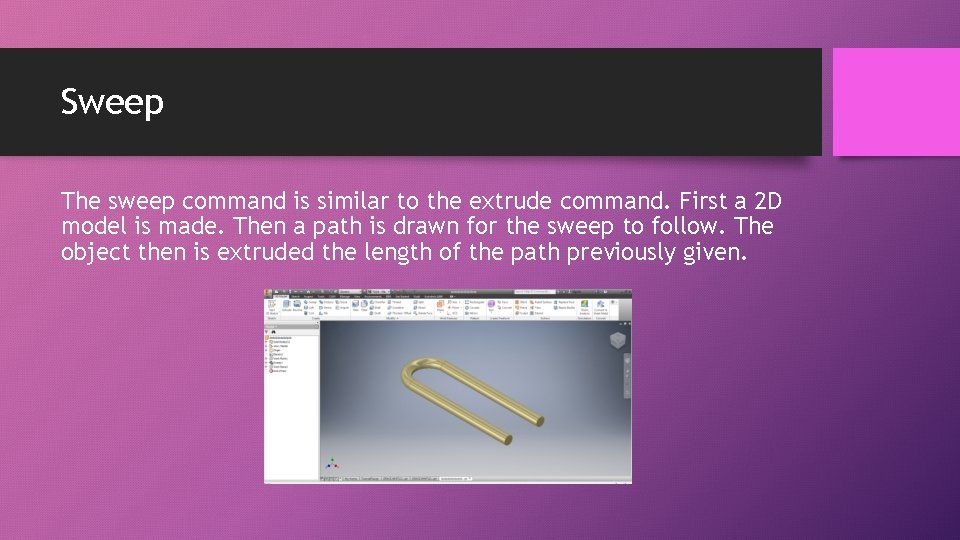
Sweep The sweep command is similar to the extrude command. First a 2 D model is made. Then a path is drawn for the sweep to follow. The object then is extruded the length of the path previously given.
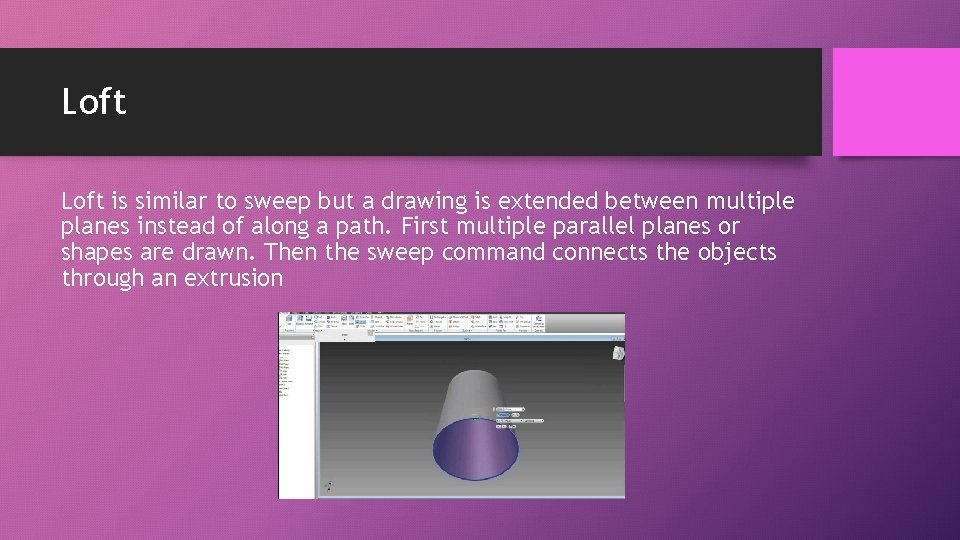
Loft is similar to sweep but a drawing is extended between multiple planes instead of along a path. First multiple parallel planes or shapes are drawn. Then the sweep command connects the objects through an extrusion
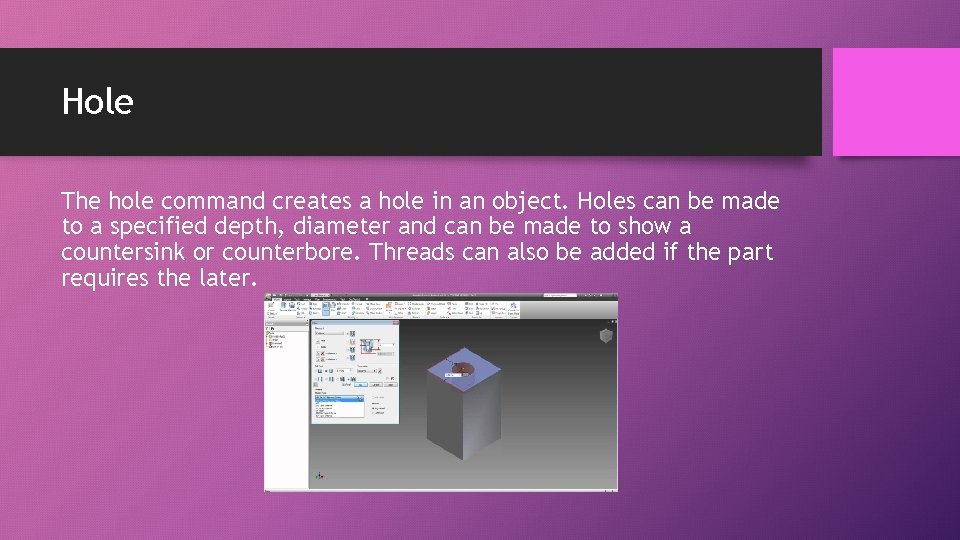
Hole The hole command creates a hole in an object. Holes can be made to a specified depth, diameter and can be made to show a countersink or counterbore. Threads can also be added if the part requires the later.
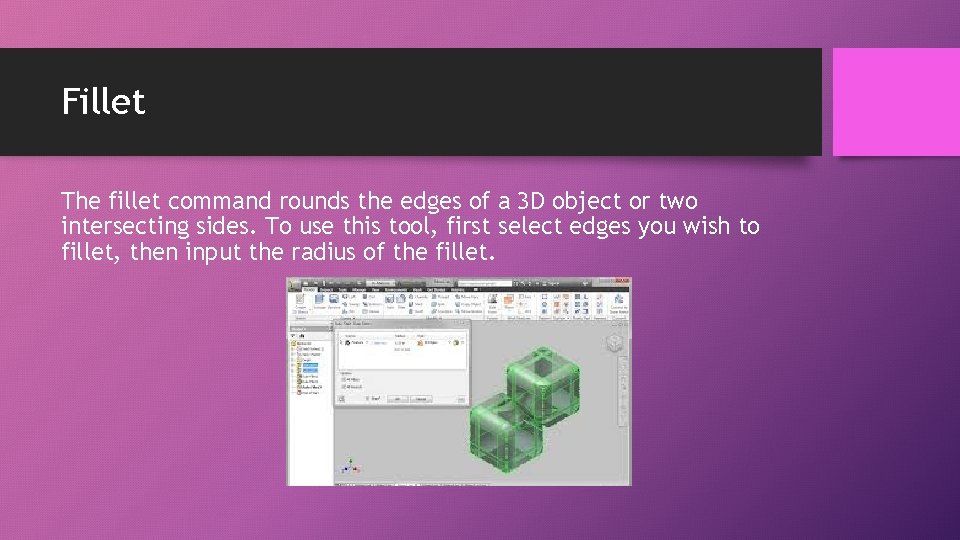
Fillet The fillet command rounds the edges of a 3 D object or two intersecting sides. To use this tool, first select edges you wish to fillet, then input the radius of the fillet.
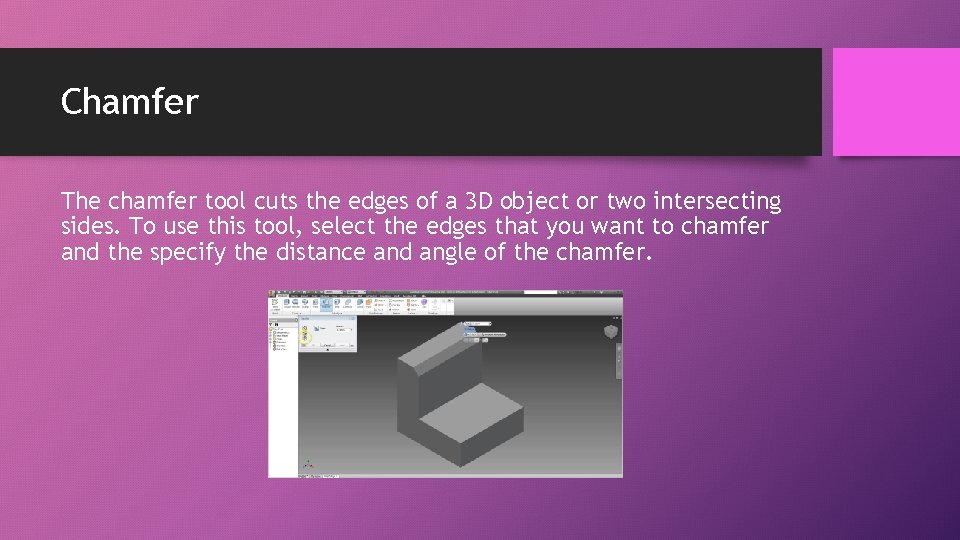
Chamfer The chamfer tool cuts the edges of a 3 D object or two intersecting sides. To use this tool, select the edges that you want to chamfer and the specify the distance and angle of the chamfer.
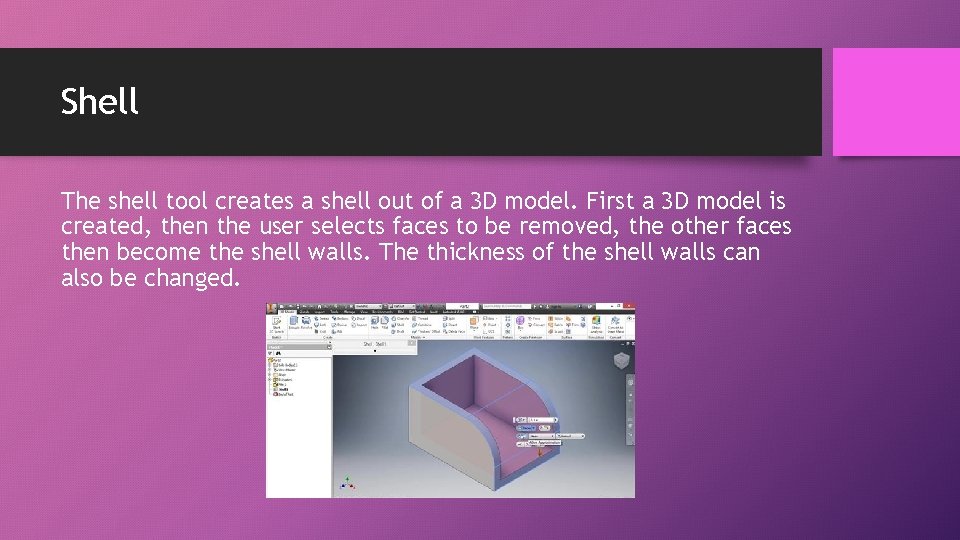
Shell The shell tool creates a shell out of a 3 D model. First a 3 D model is created, then the user selects faces to be removed, the other faces then become the shell walls. The thickness of the shell walls can also be changed.
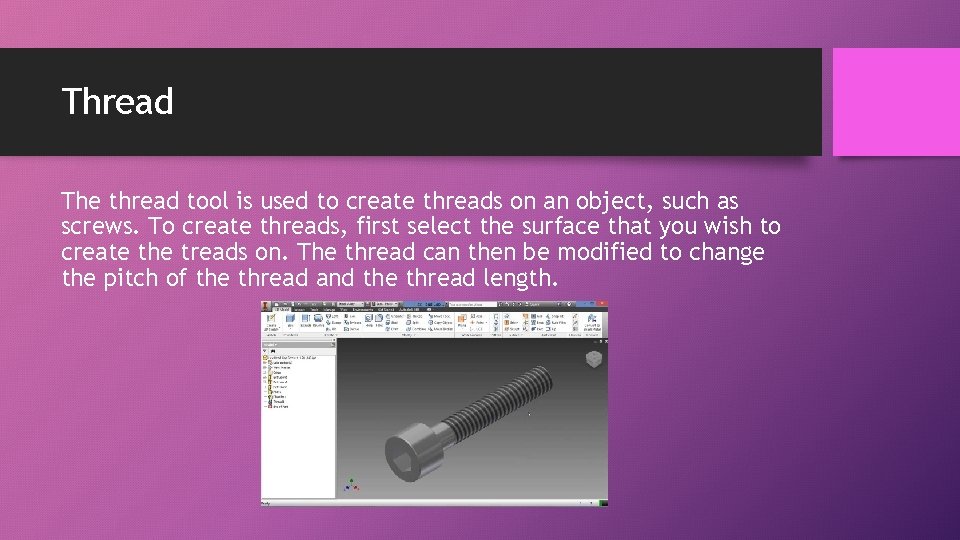
Thread The thread tool is used to create threads on an object, such as screws. To create threads, first select the surface that you wish to create the treads on. The thread can then be modified to change the pitch of the thread and the thread length.
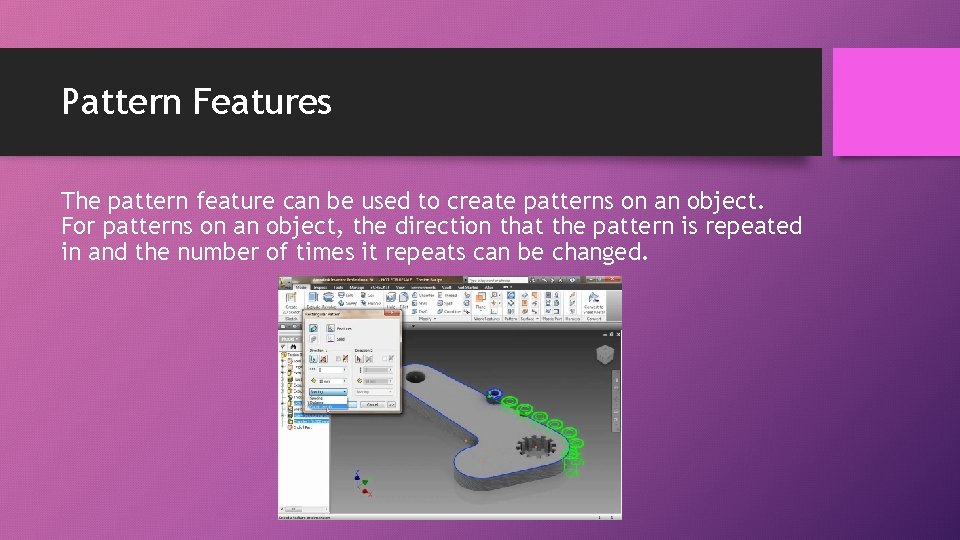
Pattern Features The pattern feature can be used to create patterns on an object. For patterns on an object, the direction that the pattern is repeated in and the number of times it repeats can be changed.
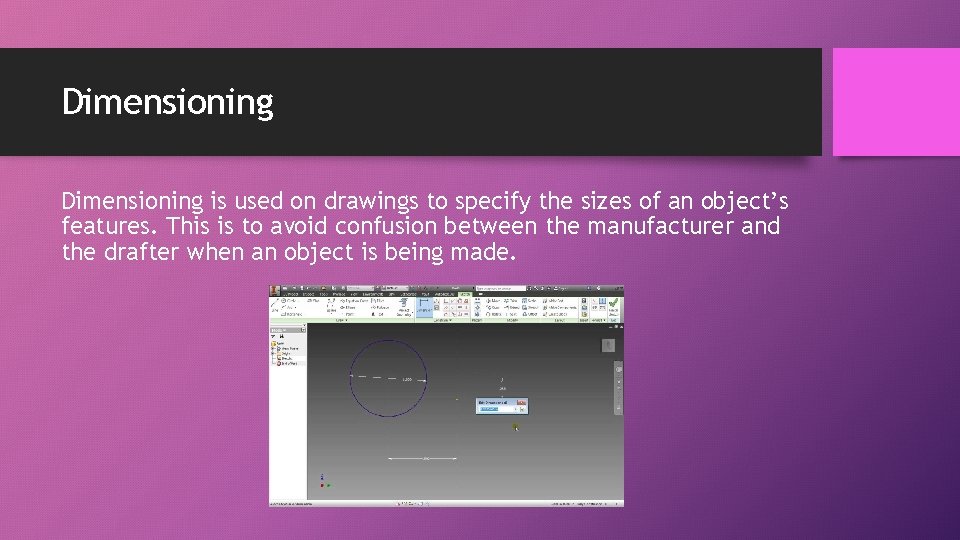
Dimensioning is used on drawings to specify the sizes of an object’s features. This is to avoid confusion between the manufacturer and the drafter when an object is being made.
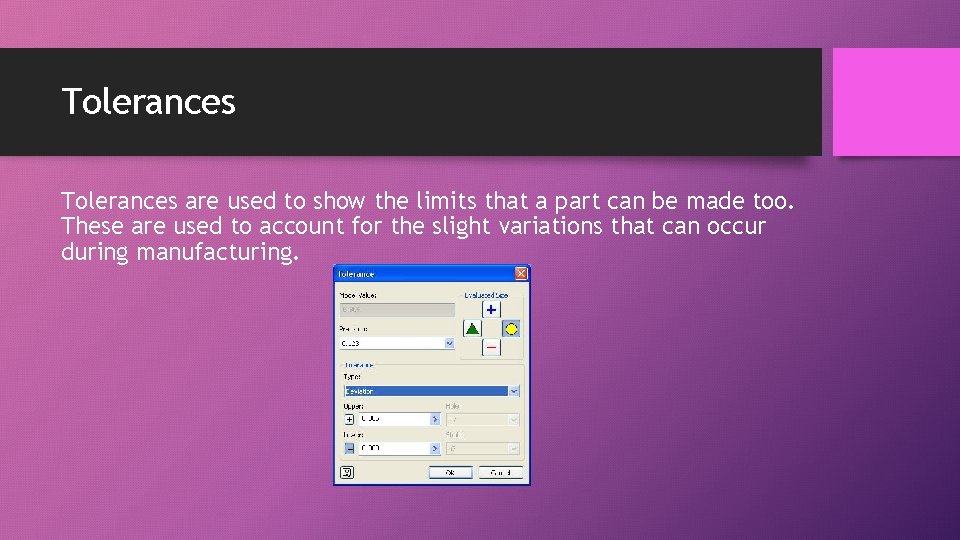
Tolerances are used to show the limits that a part can be made too. These are used to account for the slight variations that can occur during manufacturing.
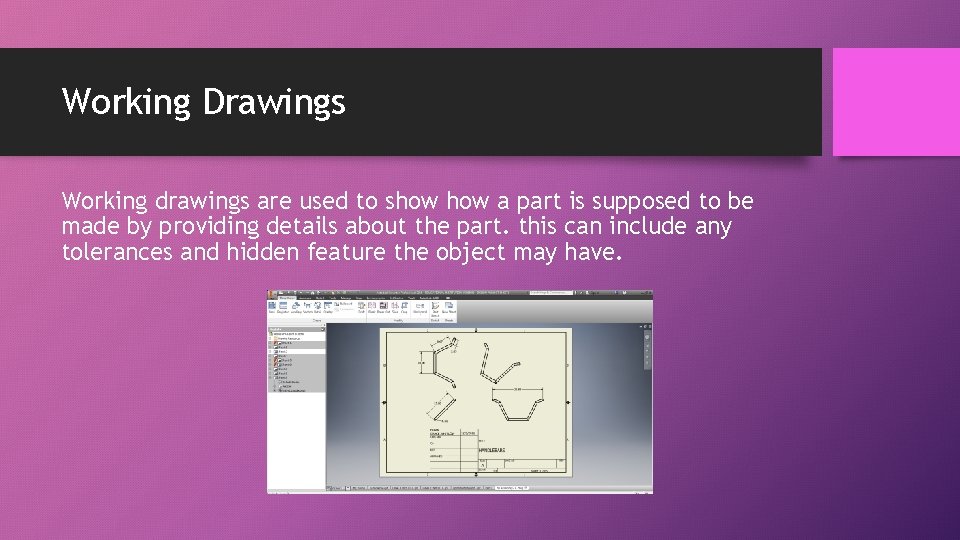
Working Drawings Working drawings are used to show a part is supposed to be made by providing details about the part. this can include any tolerances and hidden feature the object may have.
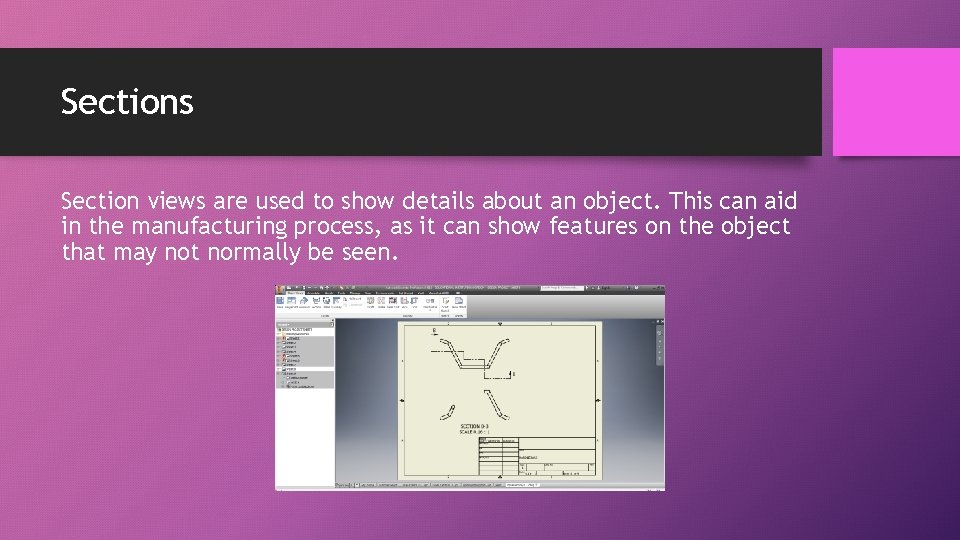
Sections Section views are used to show details about an object. This can aid in the manufacturing process, as it can show features on the object that may not normally be seen.
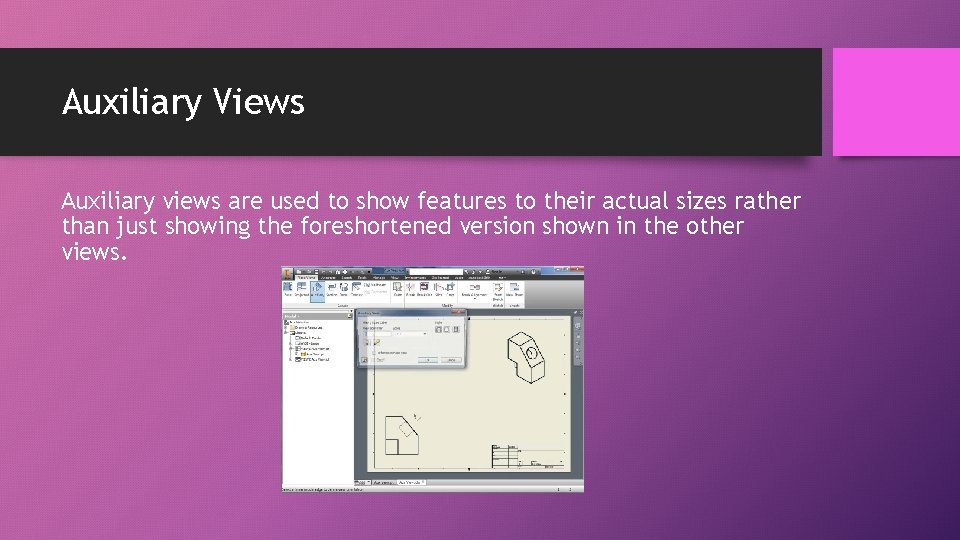
Auxiliary Views Auxiliary views are used to show features to their actual sizes rather than just showing the foreshortened version shown in the other views.
Additional Skills • Auto. CAD • Lacrosse • Cross country
- Slides: 18