
Poplee Remuneration Management of Employee Remuneration Administrators Guide


- Slides: 11
Poplee Remuneration Management of Employee Remuneration Administrator’s Guide Poplee by
WEB ACCESS AND AUTHENTICATION 1 If you have forgotten your password, click here and enter your email address. 2 If you don't have a password, click here and enter your email. If you have a Google Apps account, simply click on the button and sign on with 1 2 Google. 2
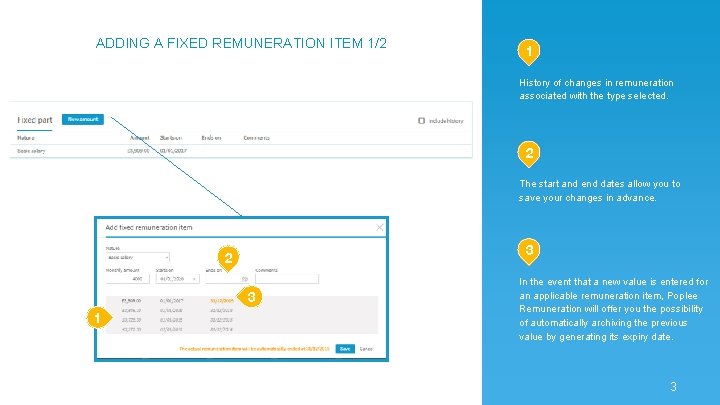
ADDING A FIXED REMUNERATION ITEM 1/2 1 History of changes in remuneration associated with the type selected. 2 The start and end dates allow you to save your changes in advance. 3 2 3 1 In the event that a new value is entered for an applicable remuneration item, Poplee Remuneration will offer you the possibility of automatically archiving the previous value by generating its expiry date. 3
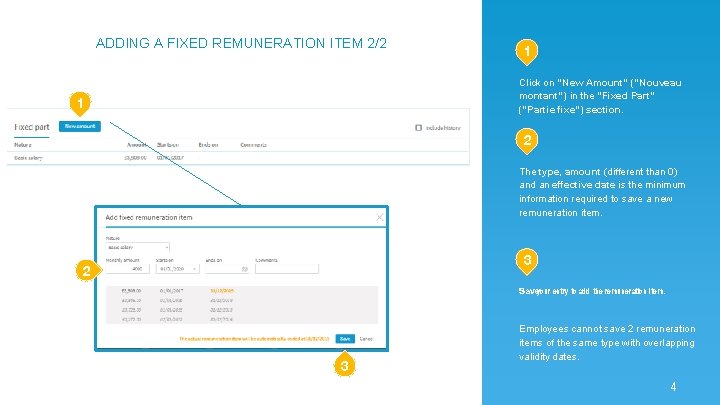
ADDING A FIXED REMUNERATION ITEM 2/2 1 Click on “New Amount” (“Nouveau montant”) in the “Fixed Part” (“Partie fixe”) section. 1 2 The type, amount (different than 0) and an effective date is the minimum information required to save a new remuneration item. 3 2 Saveyour entry to add the remuneration item. 3 Employees cannot save 2 remuneration items of the same type with overlapping validity dates. 4
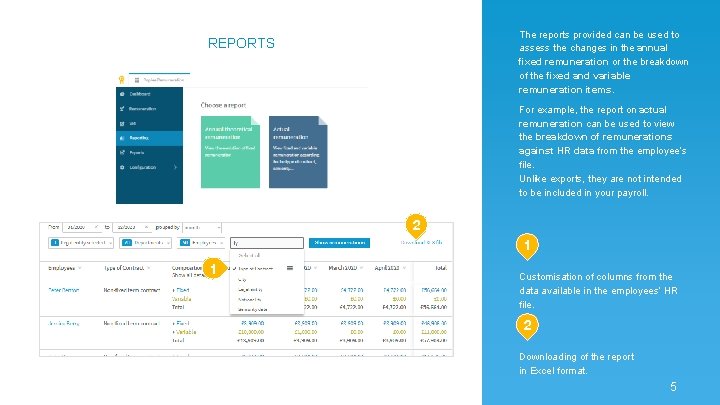
The reports provided can be used to assess the changes in the annual fixed remuneration or the breakdown of the fixed and variable remuneration items. REPORTS For example, the report on actual remuneration can be used to view the breakdown of remunerations against HR data from the employee’s file. Unlike exports, they are not intended to be included in your payroll. 2 1 1 Customisation of columns from the data available in the employees’ HR file. 2 Downloading of the report in Excel format. 5
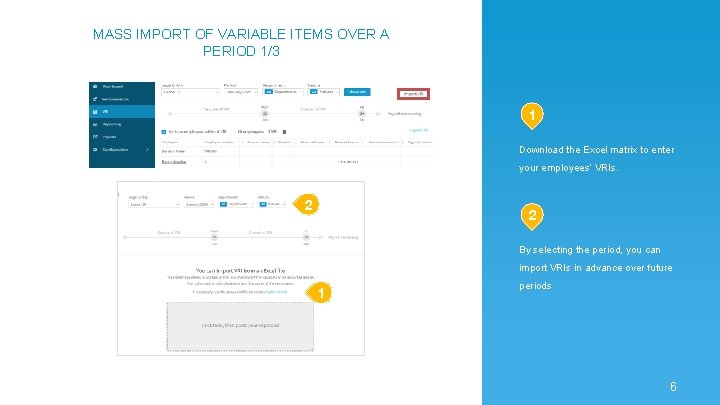
MASS IMPORT OF VARIABLE ITEMS OVER A PERIOD 1/3 1 Download the Excel matrix to enter your employees’ VRIs. 2 2 By selecting the period, you can import VRIs in advance over future 1 periods 6
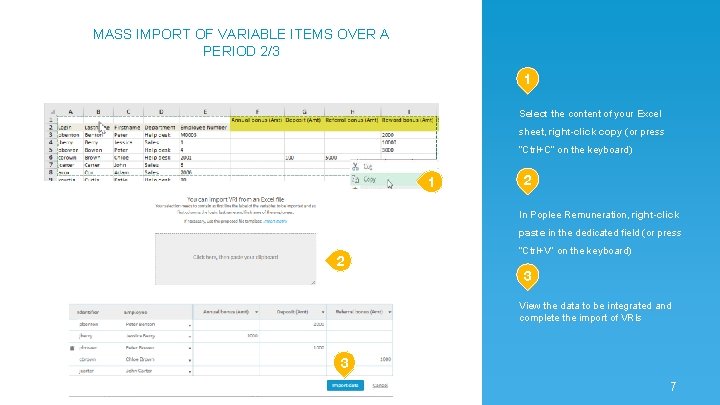
MASS IMPORT OF VARIABLE ITEMS OVER A PERIOD 2/3 1 Select the content of your Excel sheet, right-click copy (or press “Ctrl+C” on the keyboard) 1 2 In Poplee Remuneration, right-click paste in the dedicated field (or press 2 “Ctrl+V” on the keyboard) 3 View the data to be integrated and complete the import of VRIs 3 7
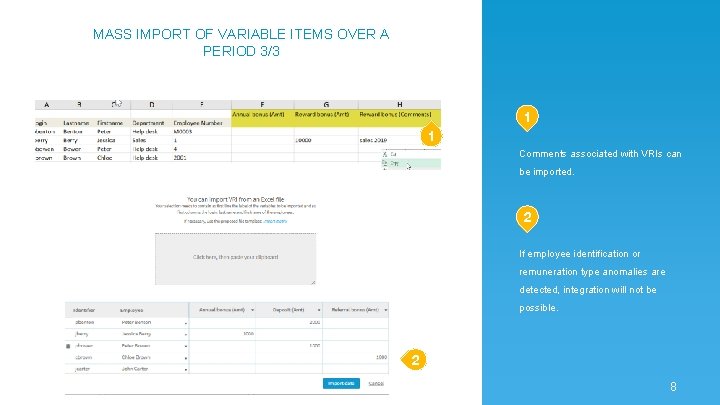
MASS IMPORT OF VARIABLE ITEMS OVER A PERIOD 3/3 1 1 Comments associated with VRIs can be imported. 2 If employee identification or remuneration type anomalies are detected, integration will not be possible. 2 8
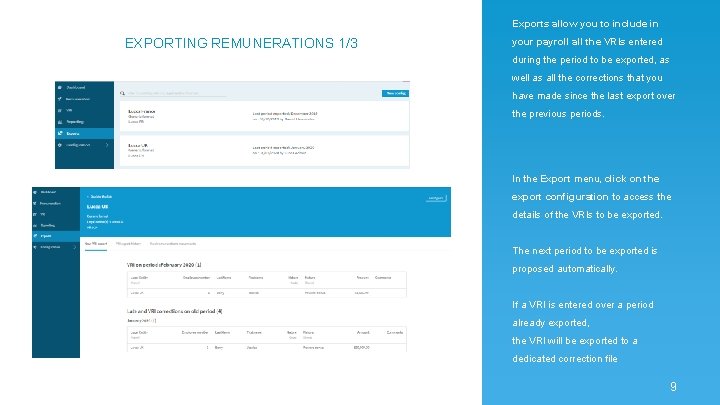
Exports allow you to include in EXPORTING REMUNERATIONS 1/3 your payroll all the VRIs entered during the period to be exported, as well as all the corrections that you have made since the last export over the previous periods. In the Export menu, click on the export configuration to access the details of the VRIs to be exported. The next period to be exported is proposed automatically. If a VRI is entered over a period already exported, the VRI will be exported to a dedicated correction file 9
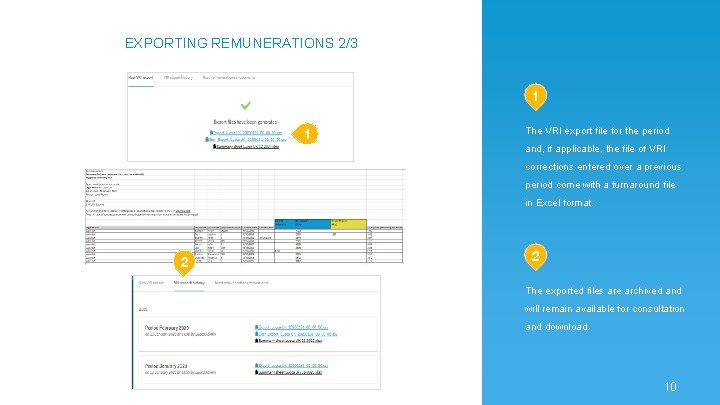
EXPORTING REMUNERATIONS 2/3 1 1 The VRI export file for the period and, if applicable, the file of VRI corrections entered over a previous period come with a turnaround file in Excel format. 2 2 The exported files are archived and will remain available for consultation and download. 10
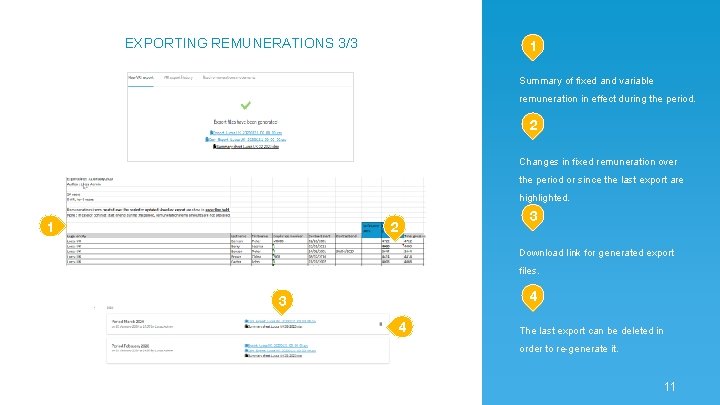
EXPORTING REMUNERATIONS 3/3 1 Summary of fixed and variable remuneration in effect during the period. 2 Changes in fixed remuneration over the period or since the last export are highlighted. 1 2 3 Download link for generated export files. 4 3 4 The last export can be deleted in order to re-generate it. 11