
PolySynchronous Teaching in Traditional Courses The Center for

- Slides: 46
Poly-Synchronous Teaching in Traditional Courses The Center for Excellence in Learning and Teaching Summer 2020
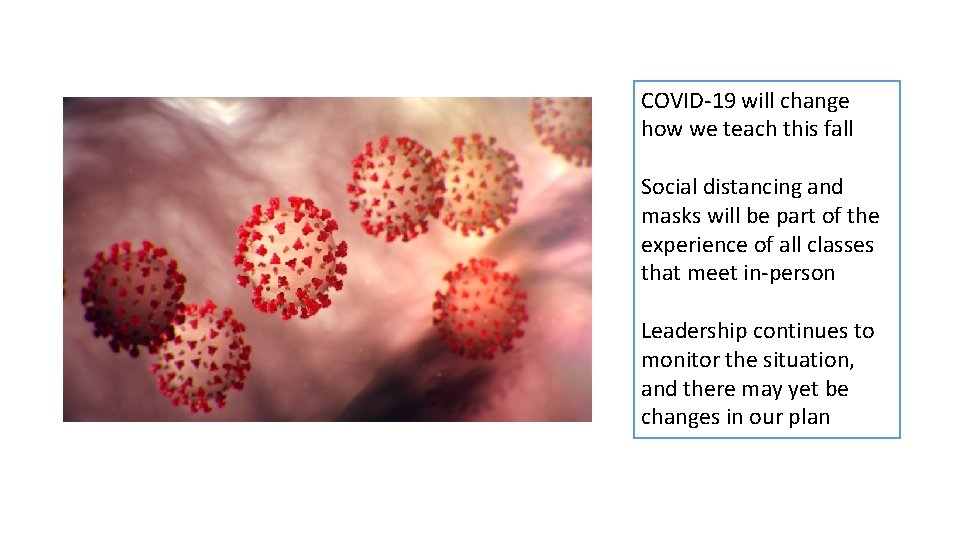
COVID-19 will change how we teach this fall Social distancing and masks will be part of the experience of all classes that meet in-person Leadership continues to monitor the situation, and there may yet be changes in our plan
Flexibility is KEY
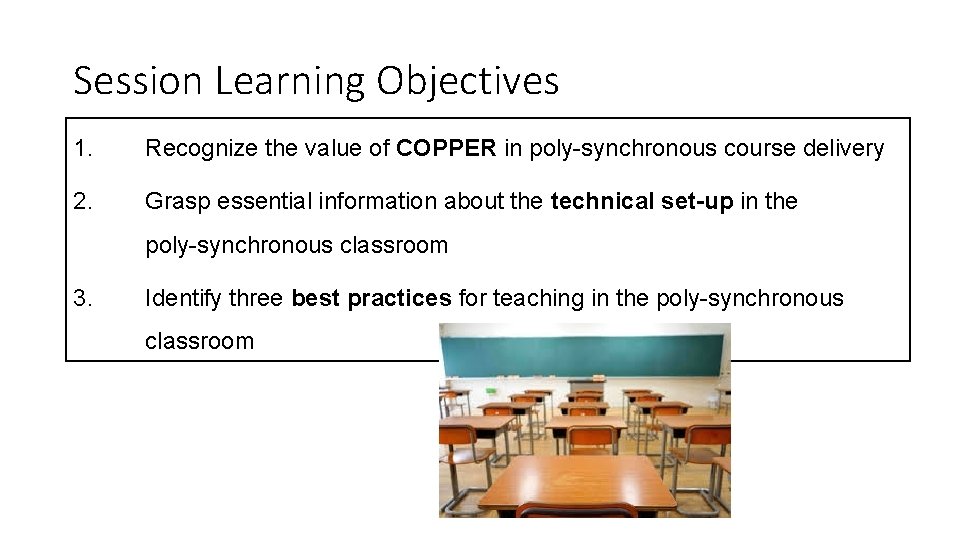
Session Learning Objectives 1. Recognize the value of COPPER in poly-synchronous course delivery 2. Grasp essential information about the technical set-up in the poly-synchronous classroom 3. Identify three best practices for teaching in the poly-synchronous classroom
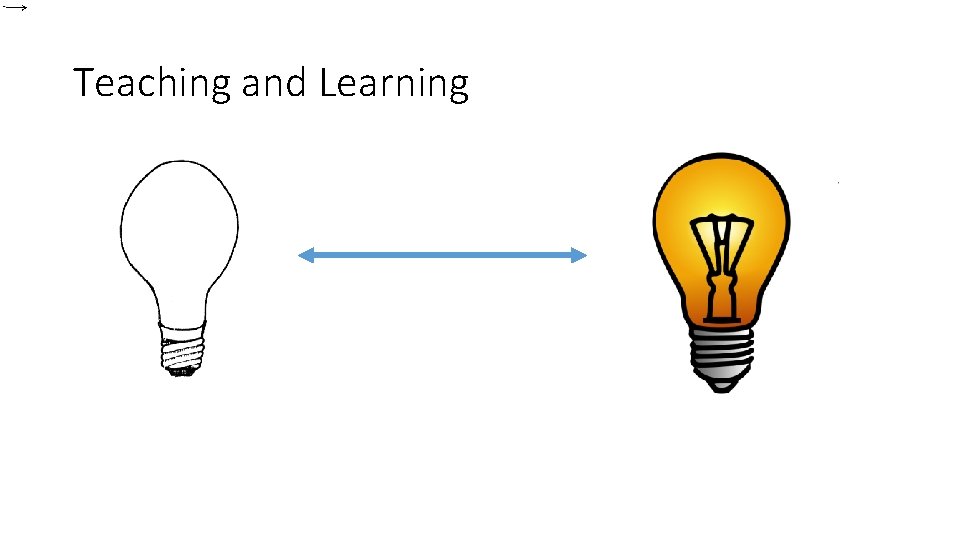
Teaching and Learning
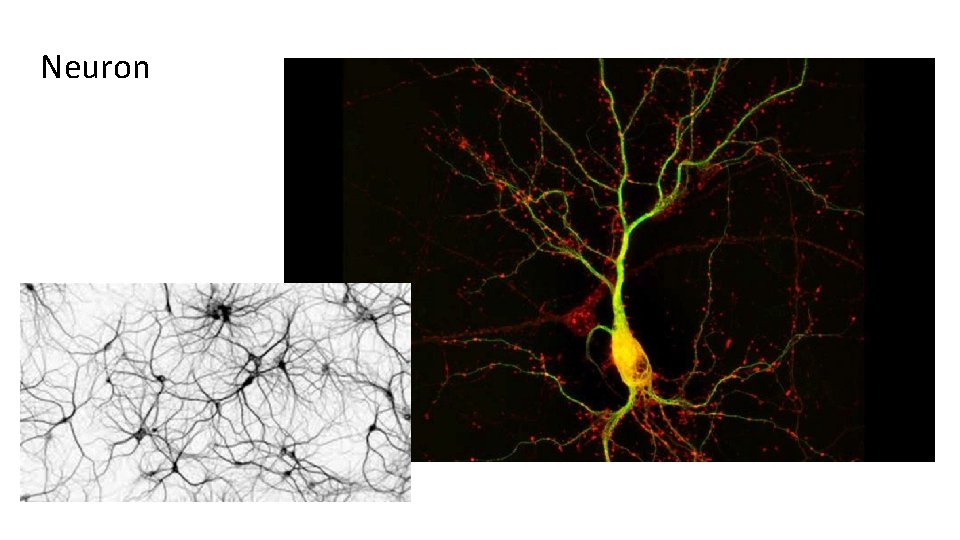
Neuron
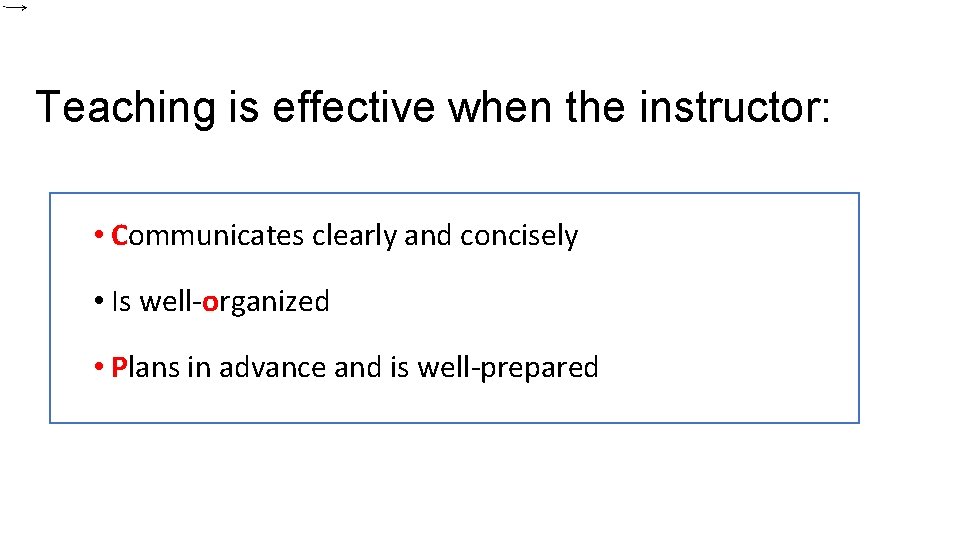
Teaching is effective when the instructor: • Communicates clearly and concisely • Is well-organized • Plans in advance and is well-prepared
And when the instructor has: • A warm and approachable presence • Demonstrates enthusiasm for the course material and for the students learning it • Builds rapport with students individually, and collectively as a class
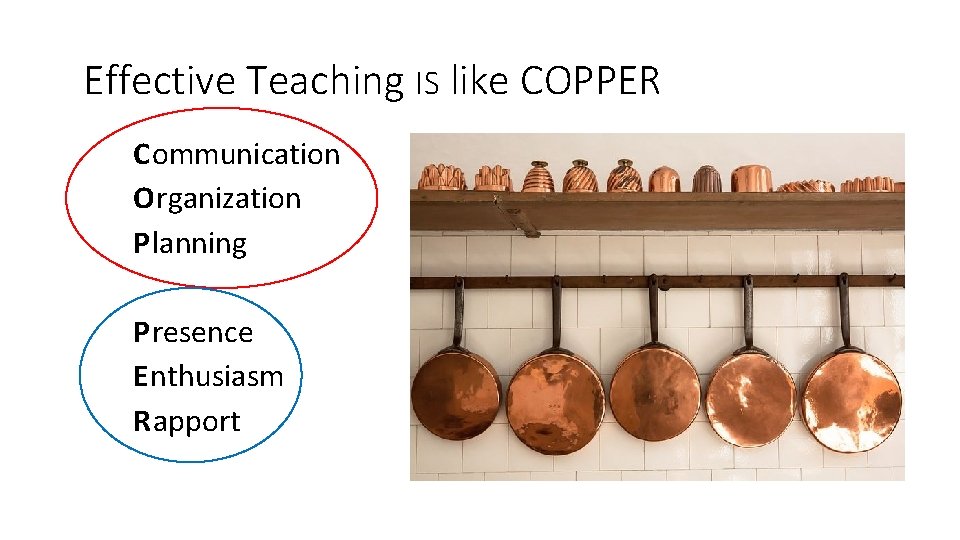
Effective Teaching IS like COPPER C ommunication O rganization P lanning P resence E nthusiasm R apport
Instructors are effective when they: • Use a variety of teaching strategies • Use active learning strategies • Check often for student understanding • Encourage student questions • Respond effectively to student questions • Provide timely and meaningful feedback • Are accessible and approachable How do we do these things in poly-synchronous mode?
Session Learning Objectives 1. Recognize the value of COPPER in poly-synchronous course delivery 2. Grasp essential information about the technical set-up in the poly-synchronous classroom 3. Identify three best practices for teaching in the poly-synchronous classroom
What are the elements (hah) of COPPER? Do you recognize its value?
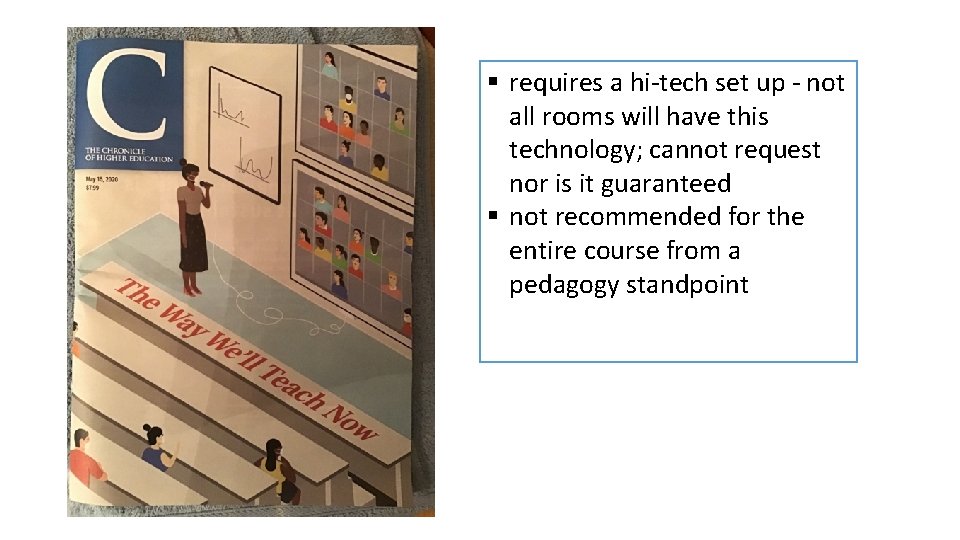
§ requires a hi-tech set up - not all rooms will have this technology; cannot request nor is it guaranteed § not recommended for the entire course from a pedagogy standpoint
Technology and Logistics • Some students are in the physical classroom with laptop • Some students are home, in dorm room etc. with laptop Alternate in-person groups of students so everyone gets to experience inperson learning
Students USE THEIR OWN LAPTOPS • Concordia now requires each student to have a laptop • Must be regular laptops (not Chromebooks, i-pads) so they can use all the technology we provide such as features in Blackboard, Respondus Monitor, and poly-synchronous • Not all students may have received the word in time to update • CUW https: //www. cuw. edu/academics/services/technology-services/computerrequirements. html • CUAA https: //www. cuaa. edu/academics/services/technology-services/computerrequirements. html
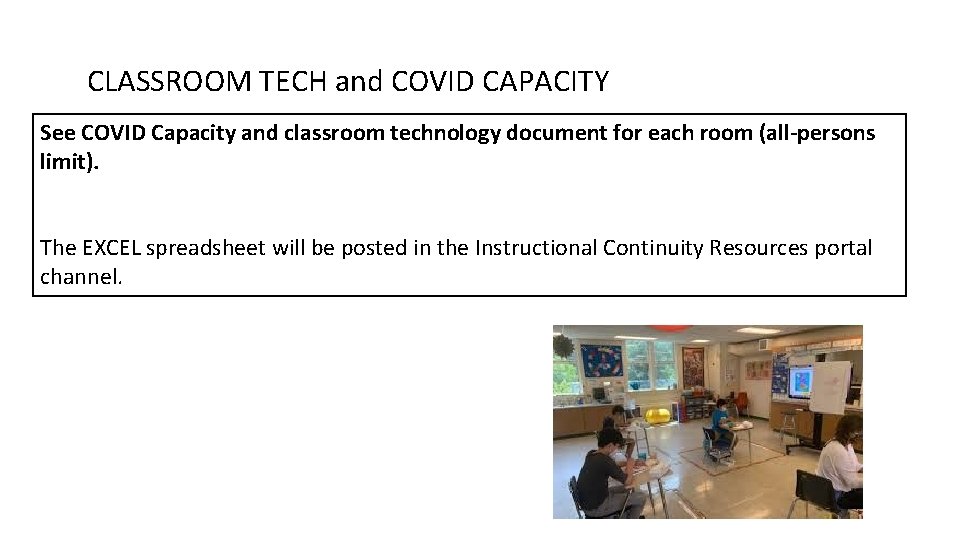
CLASSROOM TECH and COVID CAPACITY See COVID Capacity and classroom technology document for each room (all-persons limit). The EXCEL spreadsheet will be posted in the Instructional Continuity Resources portal channel.
Before class: • Determine your classroom’s “COVID” capacity • Divide your class into in-person group and “Zoom” group(s) • Schedule days/class sessions for each group to be in the physical classroom, or on Zoom; put this on the syllabus. Make sure all students are treated equally. • Put course materials on Blackboard in advance of class for easy access • Remind in-person students to bring laptops to the classroom If you hear from the ARC that a student has accommodations, and needs to attend by Zoom, allow that student to be assigned to the Zoom group each time.
During class: • Take attendance: If you are using poly-synchronous for each class session, students must be seen and heard and be able to interact with you and their classmates to be “in attendance. ” • Cameras should be on • Mute all students unless they are asking a question or participating in a discussion • Turn off the chat (unless you are OK with it during your class); if you plan to use it for questions, you will want to monitor it • Record the Zoom portion and post on Blackboard in case students are absent.
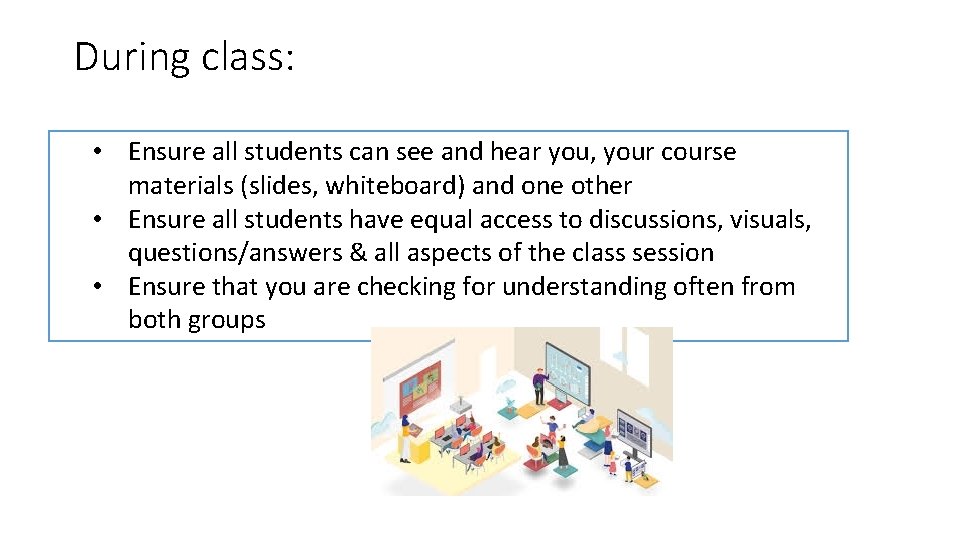
During class: • Ensure all students can see and hear you, your course materials (slides, whiteboard) and one other • Ensure all students have equal access to discussions, visuals, questions/answers & all aspects of the class session • Ensure that you are checking for understanding often from both groups
After class:
CUAA technology (in most classrooms) • Instructors use the computer already at the teaching station • Rooms have a microphone near the front, a camera on the computer terminal, an extra monitor, and a document camera. No extra room cameras. • Audio – Zoom students hear what is happening in the room through the room microphone. • Instructor may need to repeat questions posed by students in the back. • Students on Zoom are heard by in-person students through the room speakers.
CUAA technology (in most classrooms) Visuals: • Zoom students see instructor through camera on the computer. • Instructor sees Zoom students on the extra monitor. • Instructor needs to hang out near the teaching station. • PPT can be shown on wall screen in room and to students on Zoom. • Use document camera for writing; do not write on board. • If no PPT, instructor can show Zoom students on wall screen. For the best experience, in-person students bring their own laptops to class. This is the only way for Zoom students to see in-person students.
CUW: PANOPTO ROOMS There are multiple set-ups for this. These rooms have not changed. Instructors use the computer in the room. You must log into Panopto at the beginning of the class session. AUDIO – microphones in the ceiling pick up the instructor and the students; sometimes there is also a wireless microphone at the teaching station. You can record the class with Panopto. Be sure to turn on the recording at the start of your class.
CUW: PANOPTO ROOMS VISUALS - Zoom students see in-person students through in-person student laptops (most do not have a camera in the room facing students). No 2 nd monitor. There is a camera in the back of the room so Zoom students can see the instructor. • PPT can be shown on projector screen in room and to students on Zoom. • If no PPT, instructor can show Zoom students on projector screen. For the best experience, in-person students bring their own laptops to class. This is the only way for Zoom students to see in-person students.
CUW ZOOM ROOMS These rooms are classrooms and conference rooms that have a special control unit installed. Enter your Zoom Personal Meeting ID or the recurring, scheduled Meeting ID that you have provided to students in Blackboard. Instructors connect to Zoom for the room microphones in the ceiling and cameras using the Extron unit in the room. There is a camera in the room so Zoom students can see the instructor. AUDIO – microphones in the ceiling pick up the instructor and the students. Speakers in the room provide sound from Zoom students. Shuffling of papers and coughing can be very loud for Zoom participants.
CUW ZOOM ROOMS VISUALS -Zoom students see instructor through the room camera. For PPT or other visuals, instructors can use a computer in the room, if available, or their own laptop connecting wirelessly to Zoom students see the faces of in-person students through in-person student laptops. • PPT can be shown on projector screen in room and to students on Zoom. • Can control the camera and use the whiteboard for writing. For the best experience, in-person students bring their own laptops to class. This is the only way for Zoom students to see in-person students.
CUW Hy. FLex Rooms • Instructors connect their laptops to new docking stations; do not use the teaching station computer. • Some older laptops will not work with this set-up. Do not unplug anything from the docking station. There is an alternate way to use internet in these rooms if you have the old laptops. Ask Sean Young! • Docking station connects to new second monitor, room microphones, and document camera. VISUALS: Zoom students see instructor through the laptop camera; thus instructor must remain in from of the laptop. • Instructor sees Zoom students through 2 nd monitor.
CUW Hy. FLex Rooms Zoom students see in-person students through in-person student laptops (no room cameras). • Instructor needs to hang out near the teaching station. • PPT can be shown on wall screen in room and to students on Zoom. • Use document camera for writing; do not write on board. • If no PPT, instructor can show Zoom students on wall screen. For the best experience, in-person students bring their own laptops to class. This is the only way for Zoom students to see in-person students.
Session Learning Objectives 1. Recognize the value of COPPER in poly-synchronous course delivery 2. Grasp essential information about the technical set-up in the poly-synchronous classroom 3. Identify three best practices for teaching in the poly-synchronous classroom
List three pieces of essential information about the technology requirements for teaching in poly-synchronous mode
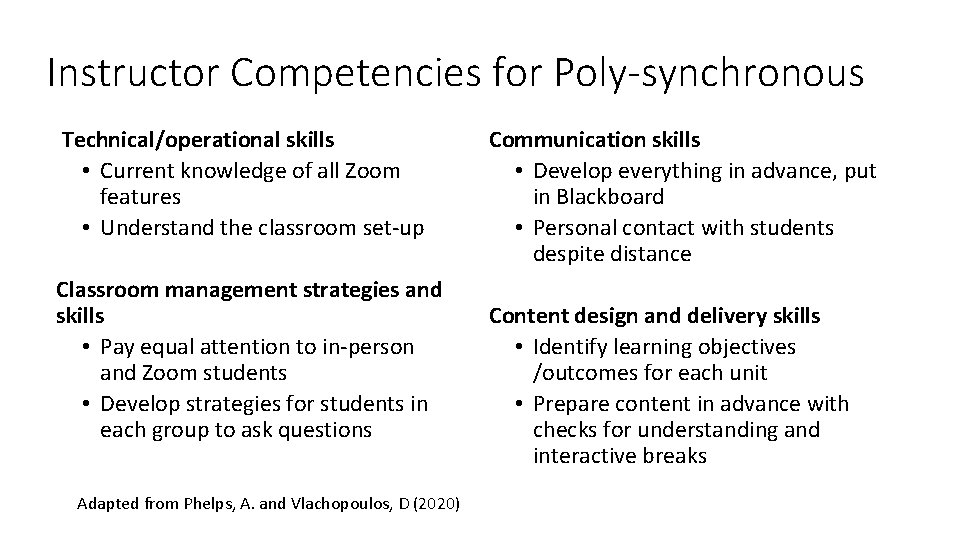
Instructor Competencies for Poly-synchronous Technical/operational skills • Current knowledge of all Zoom features • Understand the classroom set-up Classroom management strategies and skills • Pay equal attention to in-person and Zoom students • Develop strategies for students in each group to ask questions Adapted from Phelps, A. and Vlachopoulos, D (2020) Communication skills • Develop everything in advance, put in Blackboard • Personal contact with students despite distance Content design and delivery skills • Identify learning objectives /outcomes for each unit • Prepare content in advance with checks for understanding and interactive breaks
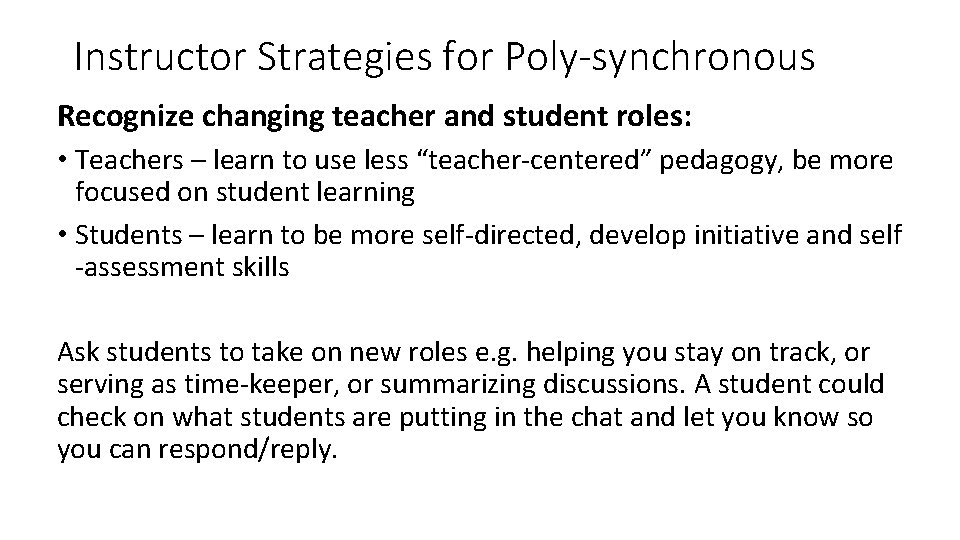
Instructor Strategies for Poly-synchronous Recognize changing teacher and student roles: • Teachers – learn to use less “teacher-centered” pedagogy, be more focused on student learning • Students – learn to be more self-directed, develop initiative and self -assessment skills Ask students to take on new roles e. g. helping you stay on track, or serving as time-keeper, or summarizing discussions. A student could check on what students are putting in the chat and let you know so you can respond/reply.
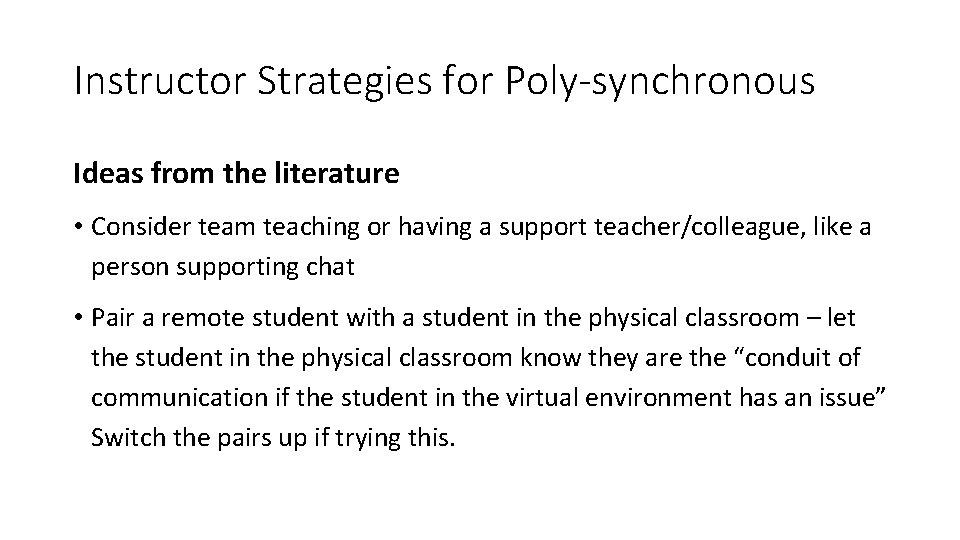
Instructor Strategies for Poly-synchronous Ideas from the literature • Consider team teaching or having a support teacher/colleague, like a person supporting chat • Pair a remote student with a student in the physical classroom – let the student in the physical classroom know they are the “conduit of communication if the student in the virtual environment has an issue” Switch the pairs up if trying this.
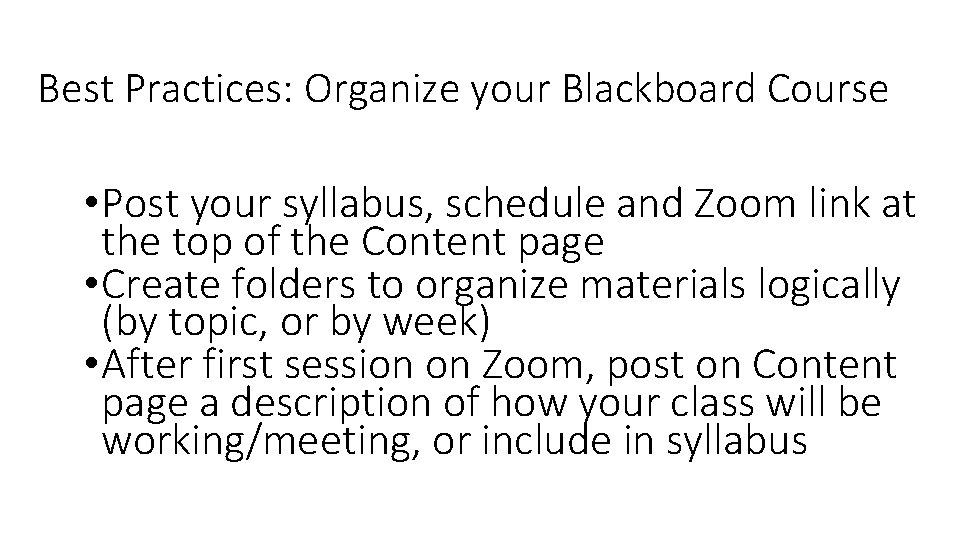
Best Practices: Organize your Blackboard Course • Post your syllabus, schedule and Zoom link at the top of the Content page • Create folders to organize materials logically (by topic, or by week) • After first session on Zoom, post on Content page a description of how your class will be working/meeting, or include in syllabus
Best Practices: Before the Session • Before the class session begins, post in Blackboard a description of what will happen during your session and all materials and directions for class activities. “You will need. . . ” • This is essential for students with accommodations and benefits all. • Remind students they need to be in the CU account on Zoom to enter your classroom directly without a waiting room (unless you desire one). Student Zoom Account Instructional Video
Best Practices: AT THE START OF THE SESSION • Check the waiting room to let students in • Begin class with less formal dialogue, a check-in, a fun poll or a fun slide • Use Zoom poll for a quiz question from last class session • Welcome students by name (in-person and on Zoom) • Post an agenda for the day • Ask students at the start (and throughout class) if any questions
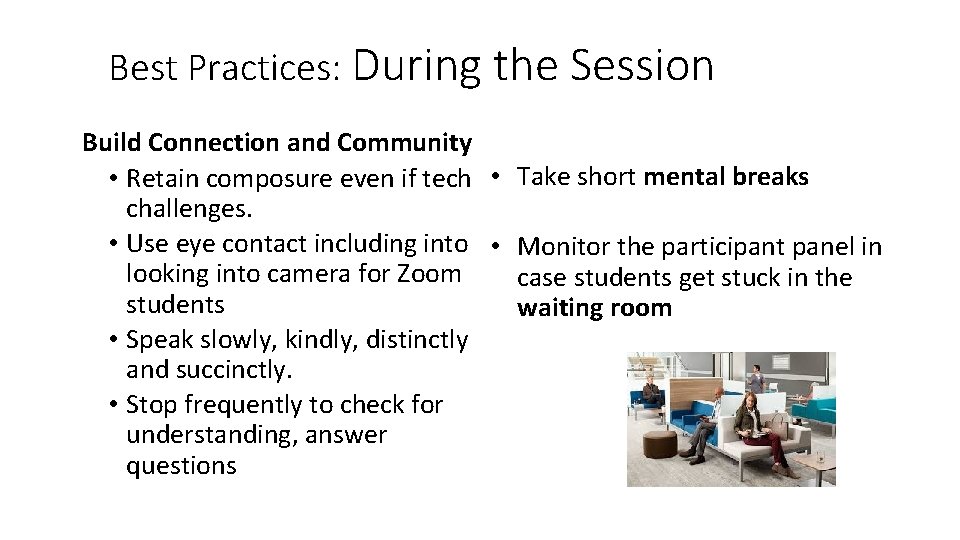
Best Practices: During the Session Build Connection and Community • Retain composure even if tech • Take short mental breaks challenges. • Use eye contact including into • Monitor the participant panel in looking into camera for Zoom case students get stuck in the students waiting room • Speak slowly, kindly, distinctly and succinctly. • Stop frequently to check for understanding, answer questions
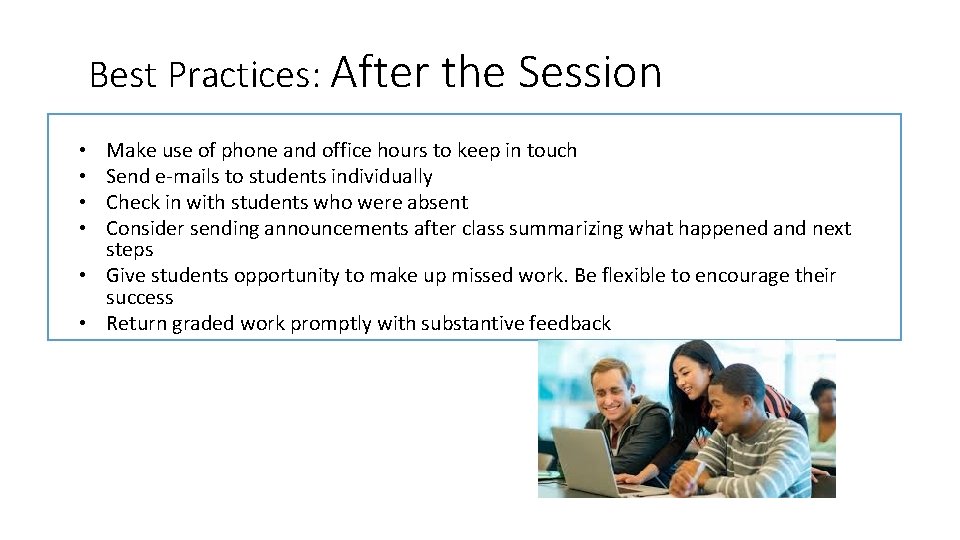
Best Practices: After the Session Make use of phone and office hours to keep in touch Send e-mails to students individually Check in with students who were absent Consider sending announcements after class summarizing what happened and next steps • Give students opportunity to make up missed work. Be flexible to encourage their success • Return graded work promptly with substantive feedback • •
Session Learning Objectives 1. Recognize the value of COPPER in poly-synchronous course delivery 2. Grasp essential information about the technical set-up in the poly-synchronous classroom 3. Identify three best practices for teaching in the poly-synchronous classroom
Identify three best practices for teaching in the poly-synchronous classroom
RESOURCES on Polysynchronous (HYFLEX) • Bower, M. , Kenney, J. , Dalgarno, B. , Lee, M. J. W. , & Kennedy, G. E. (2014). Patterns and principles for blended synchronous learning: Engaging remote and face-to-face learners in rich-media real-time collaborative activities. Australasian Journal of Educational Technology, 30(3), 261 -272. https: //ajet. org. au/index. php/AJET/article/view/1697 • Moore, M. G. (1989). Three types of interaction. American Journal of Distance Education 3(2), 1. https: //www. researchgate. net/publication/237404371_Three_Types_of_Interaction • Phelps, A. , Vlachopoulos, D. Successful transition to synchronous learning environments in distance education: A research on entry-level synchronous facilitator competencies. Educ Inf Technol 25, 1511– 1527 (2020). CUW: https: //link-springercom. cuw. ezproxy. switchinc. org/article/10. 1007/s 10639 -019 -09989 -x • Schuck, S. , Kearney, M. , & Burden, K. (2017). Exploring mobile learning in the Third Space. Technology, Pedagogy and Education, 26(2), 121– 137. https: //core. ac. uk/download/pdf/151161295. pdf • Wang, Y. (2018). Effects of instructor’s facial expressions on students’ learning with video lectures. British Journal of Educational Technology. , 50(3), 1381– 1395 CUW: http: //cuw. ezproxy. switchinc. org/login? url=http: //search. ebscohost. com/login. aspx? direct=true&A uth. Type=cookie, ip, cpid&custid=s 8470807&db=eue&AN=135895732&site=ehost-live&scope=site • CUAA: https: //proxy 01. cuaa. edu/login? url=http: //search. ebscohost. com/login. aspx? direct=true&db =eue&AN=135895732&site=ehost-live
RESOURCES on Hy. FLEX Polysynchronous • Wang, Q. , & Huang, C. (2018). Pedagogical, social and technical designs of a blended synchronous learning environment. British Journal of Educational Technology, 49(3), 451– 462. • CUW: http: //cuw. ezproxy. switchinc. org/login? url=http: //search. ebscohost. com/l ogin. aspx? direct=true&Auth. Type=cookie, ip, cpid&custid=s 3443150&db=eu e&AN=128997508&site=ehost-live&scope=site • CUAA: https: //proxy 01. cuaa. edu/login? url=http: //search. ebscohost. com/login. as px? direct=true&Auth. Type=cookie, ip, cpid&custid=s 3443150&db=eue&AN= 128997508&site=ehost-live&scope=site • Wang, Q. , Huang, C. , & Quek, C. (2017). Students’ perspectives on the design and implementation of a blended synchronous learning environment https: //ajet. org. au/index. php/AJET/article/view/3404 • See also Brian Beatty – Hy. Flex: https: //thinkudl. org/episodes/hyflex-course-design-model-with-brian-beatty
Thanks to: • The CELT team for their great work preparing faculty to be effective teachers in challenging times • The CUWAA IT team for their hard work and dedication getting our classrooms prepared for fall classes • Dr. Elizabeth Evans and Ms. Susan Gallanis for organizing this presentation