
Poison centre notifications A GUIDE TO DOSSIER PREPARATION

- Slides: 69
Poison centre notifications A GUIDE TO DOSSIER PREPARATION AND SUBMISSION Version 1. 3 October 2019
Slide 2 Table of contents Getting access…………………………………………………. 3 ECHA Submission Portal for poison centre notifications………………… 9 Guided dossier preparation for PCN submissions ……………………. 17 Dossier preparation: ‘Mixture information’……. ……………………. . 27 Reporting mixture (in mixture) components ………………… 38 Reporting substance components…………………………. 42 Reporting generic product identifier components……………… 48 Dossier preparation: ‘Product information’…………………………. 51 Validate information, create dossier and preview notification…………… 59 Updating dossier information……………………………………. 65
Slide 3 Ottenere l'accesso, le credenziali Questo capitolo descrive il processo di creazione di un account ECHA e di un collegamento dettagliato delle informazioni sulla persona giuridica per utilizzare gli strumenti per la preparazione e l'invio delle notifiche. Version 1. 3 October 2019
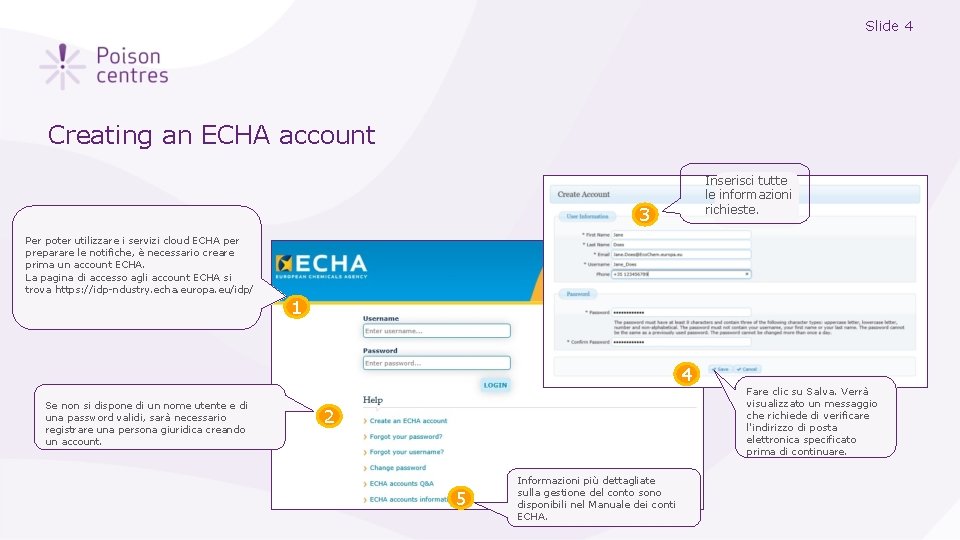
Slide 4 Creating an ECHA account Inserisci tutte le informazioni richieste. 3 Per poter utilizzare i servizi cloud ECHA per preparare le notifiche, è necessario creare prima un account ECHA. La pagina di accesso agli account ECHA si trova https: //idp-ndustry. echa. europa. eu/idp/ 1 4 Se non si dispone di un nome utente e di una password validi, sarà necessario registrare una persona giuridica creando un account. Fare clic su Salva. Verrà visualizzato un messaggio che richiede di verificare l'indirizzo di posta elettronica specificato prima di continuare. 2 5 Informazioni più dettagliate sulla gestione del conto sono disponibili nel Manuale dei conti ECHA.
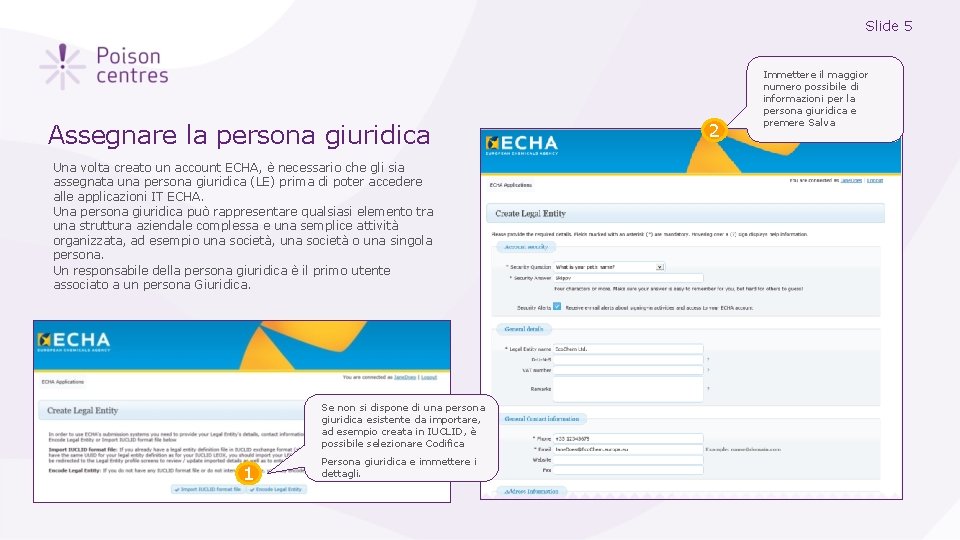
Slide 5 Assegnare la persona giuridica Una volta creato un account ECHA, è necessario che gli sia assegnata una persona giuridica (LE) prima di poter accedere alle applicazioni IT ECHA. Una persona giuridica può rappresentare qualsiasi elemento tra una struttura aziendale complessa e una semplice attività organizzata, ad esempio una società, una società o una singola persona. Un responsabile della persona giuridica è il primo utente associato a un persona Giuridica. Se non si dispone di una persona giuridica esistente da importare, ad esempio creata in IUCLID, è possibile selezionare Codifica 1 Persona giuridica e immettere i dettagli. 2 Immettere il maggior numero possibile di informazioni per la persona giuridica e premere Salva
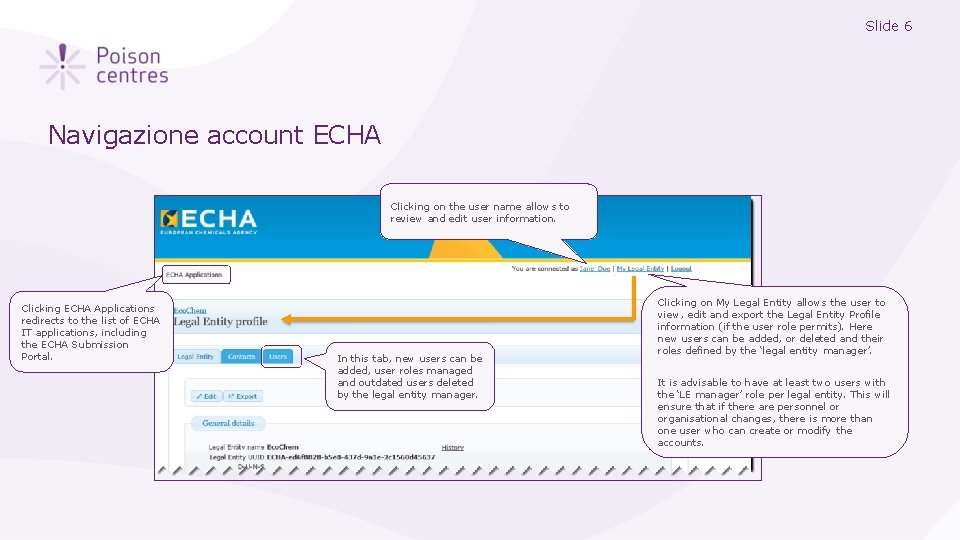
Slide 6 Navigazione account ECHA Clicking on the user name allows to review and edit user information. Clicking ECHA Applications redirects to the list of ECHA IT applications, including the ECHA Submission Portal. In this tab, new users can be added, user roles managed and outdated users deleted by the legal entity manager. Clicking on My Legal Entity allows the user to view, edit and export the Legal Entity Profile information (if the user role permits). Here new users can be added, or deleted and their roles defined by the ‘legal entity manager’. It is advisable to have at least two users with the ‘LE manager’ role per legal entity. This will ensure that if there are personnel or organisational changes, there is more than one user who can create or modify the accounts.
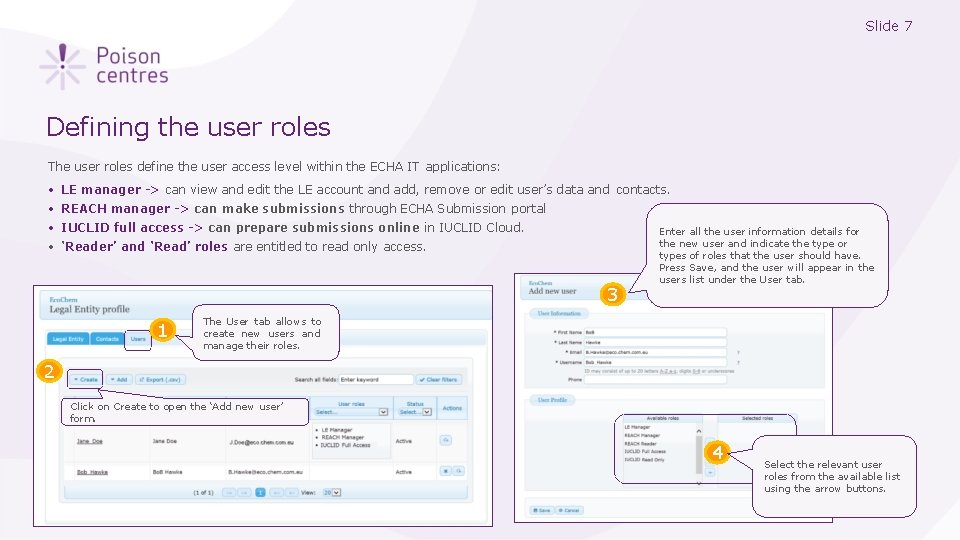
Slide 7 Defining the user roles The user roles define the user access level within the ECHA IT applications: • • LE manager -> can view and edit the LE account and add, remove or edit user’s data and contacts. REACH manager -> can make submissions through ECHA Submission portal IUCLID full access -> can prepare submissions online in IUCLID Cloud. ‘Reader’ and ‘Read’ roles are entitled to read only access. 3 1 Enter all the user information details for the new user and indicate the type or types of roles that the user should have. Press Save, and the user will appear in the users list under the User tab. The User tab allows to create new users and manage their roles. 2 Click on Create to open the ‘Add new user’ form. 4 Select the relevant user roles from the available list using the arrow buttons.
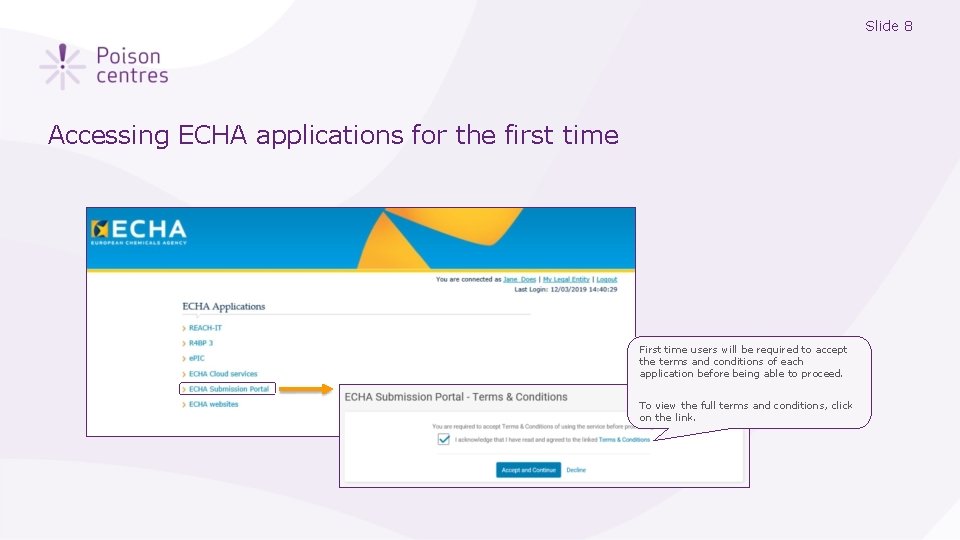
Slide 8 Accessing ECHA applications for the first time First time users will be required to accept the terms and conditions of each application before being able to proceed. To view the full terms and conditions, click on the link.
Slide 9 Portale di presentazione ECHA per le notifiche del centro antiveleni Una guida alla navigazione nel portale di invio ECHA; evidenziando i tre pilastri del processo di notifica; creazione di dossier, presentazione di fascicoli e ricerca di notifiche. Version 1. 3 October 2019
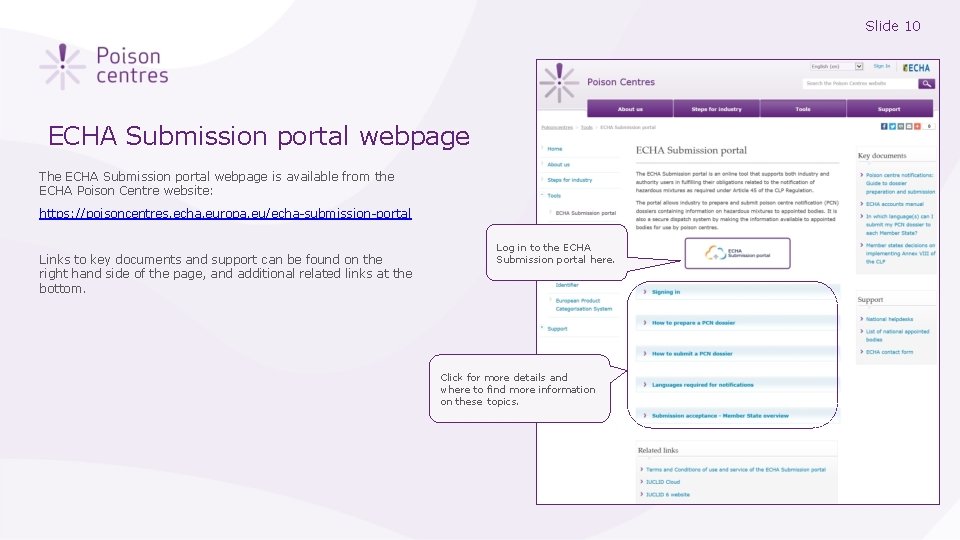
Slide 10 ECHA Submission portal webpage The ECHA Submission portal webpage is available from the ECHA Poison Centre website: https: //poisoncentres. echa. europa. eu/echa-submission-portal Links to key documents and support can be found on the right hand side of the page, and additional related links at the bottom. Log in to the ECHA Submission portal here. Click for more details and where to find more information on these topics.
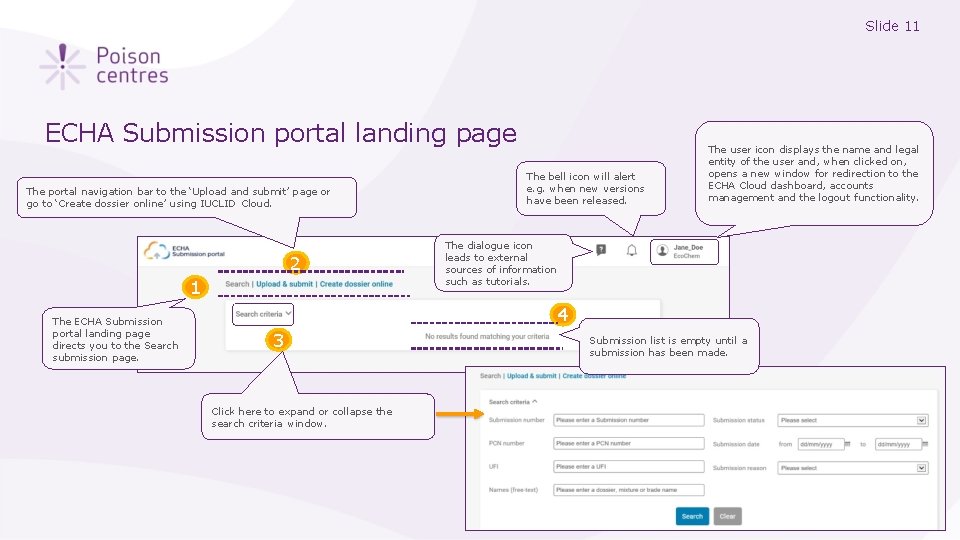
Slide 11 ECHA Submission portal landing page The portal navigation bar to the ‘Upload and submit’ page or go to ‘Create dossier online’ using IUCLID Cloud. 2 1 The ECHA Submission portal landing page directs you to the Search submission page. The bell icon will alert e. g. when new versions have been released. The user icon displays the name and legal entity of the user and, when clicked on, opens a new window for redirection to the ECHA Cloud dashboard, accounts management and the logout functionality. The dialogue icon leads to external sources of information such as tutorials. 4 3 Click here to expand or collapse the search criteria window. Submission list is empty until a submission has been made.
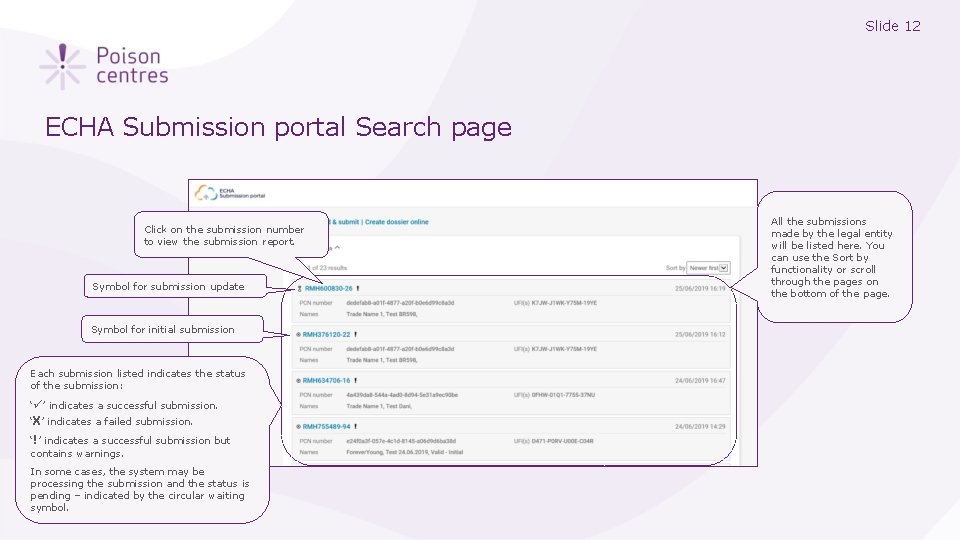
Slide 12 ECHA Submission portal Search page Click on the submission number to view the submission report. Symbol for submission update Symbol for initial submission Each submission listed indicates the status of the submission: ‘ ’ indicates a successful submission. ‘X’ indicates a failed submission. ‘!’ indicates a successful submission but contains warnings. In some cases, the system may be processing the submission and the status is pending – indicated by the circular waiting symbol. All the submissions made by the legal entity will be listed here. You can use the Sort by functionality or scroll through the pages on the bottom of the page.
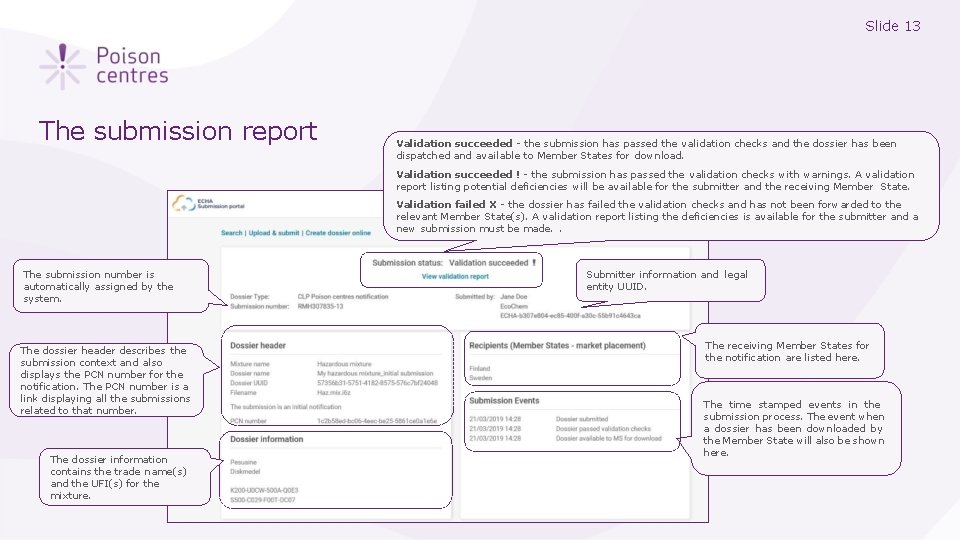
Slide 13 The submission report Validation succeeded - the submission has passed the validation checks and the dossier has been dispatched and available to Member States for download. Validation succeeded ! - the submission has passed the validation checks with warnings. A validation report listing potential deficiencies will be available for the submitter and the receiving Member State. Validation failed X - the dossier has failed the validation checks and has not been forwarded to the relevant Member State(s). A validation report listing the deficiencies is available for the submitter and a new submission must be made. . The submission number is automatically assigned by the system. The dossier header describes the submission context and also displays the PCN number for the notification. The PCN number is a link displaying all the submissions related to that number. The dossier information contains the trade name(s) and the UFI(s) for the mixture. Submitter information and legal entity UUID. The receiving Member States for the notification are listed here. The time stamped events in the submission process. The event when a dossier has been downloaded by the Member State will also be shown here.
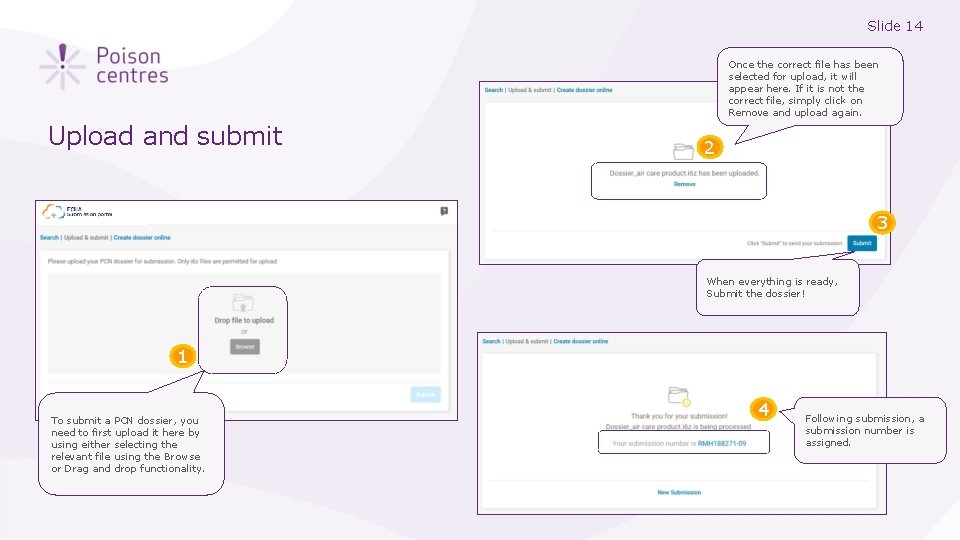
Slide 14 Once the correct file has been selected for upload, it will appear here. If it is not the correct file, simply click on Remove and upload again. Upload and submit 2 3 When everything is ready, Submit the dossier! 1 To submit a PCN dossier, you need to first upload it here by using either selecting the relevant file using the Browse or Drag and drop functionality. 4 Following submission, a submission number is assigned.
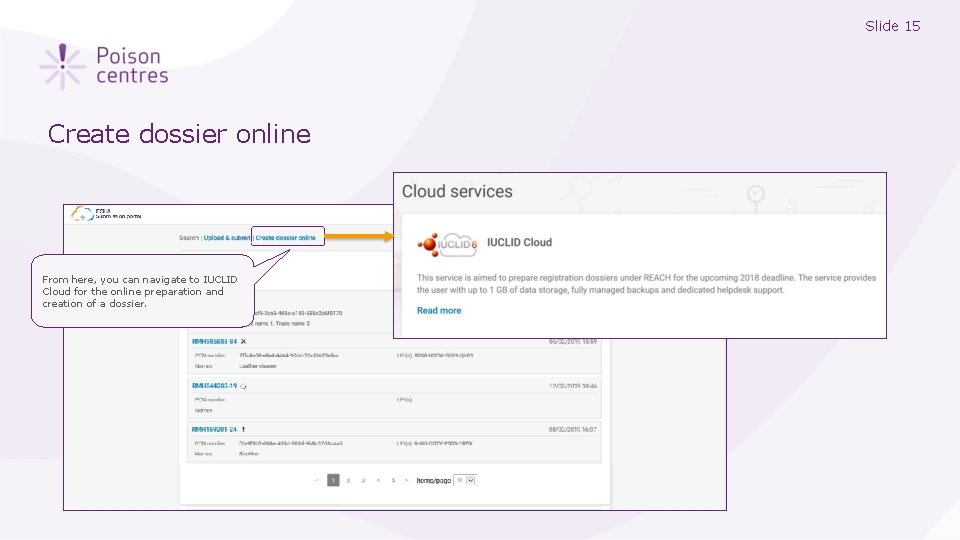
Slide 15 Create dossier online From here, you can navigate to IUCLID Cloud for the online preparation and creation of a dossier.
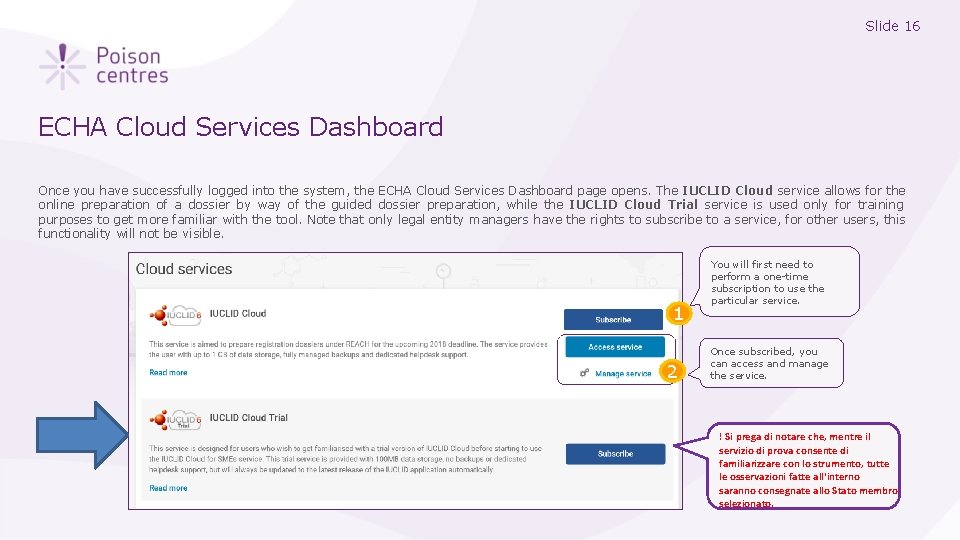
Slide 16 ECHA Cloud Services Dashboard Once you have successfully logged into the system, the ECHA Cloud Services Dashboard page opens. The IUCLID Cloud service allows for the online preparation of a dossier by way of the guided dossier preparation, while the IUCLID Cloud Trial service is used only for training purposes to get more familiar with the tool. Note that only legal entity managers have the rights to subscribe to a service, for other users, this functionality will not be visible. 1 2 You will first need to perform a one-time subscription to use the particular service. Once subscribed, you can access and manage the service. ! Si prega di notare che, mentre il servizio di prova consente di familiarizzare con lo strumento, tutte le osservazioni fatte all'interno saranno consegnate allo Stato membro selezionato.
Slide 17 Preparazione guidata dei fascicoli per le candidature al PCN Una panoramica delle caratteristiche e delle funzionalità di IUCLID Cloud per aiutarti a iniziare con la preparazione, la convalida e la creazione di un dossier PCN. Version 1. 3 October 2019
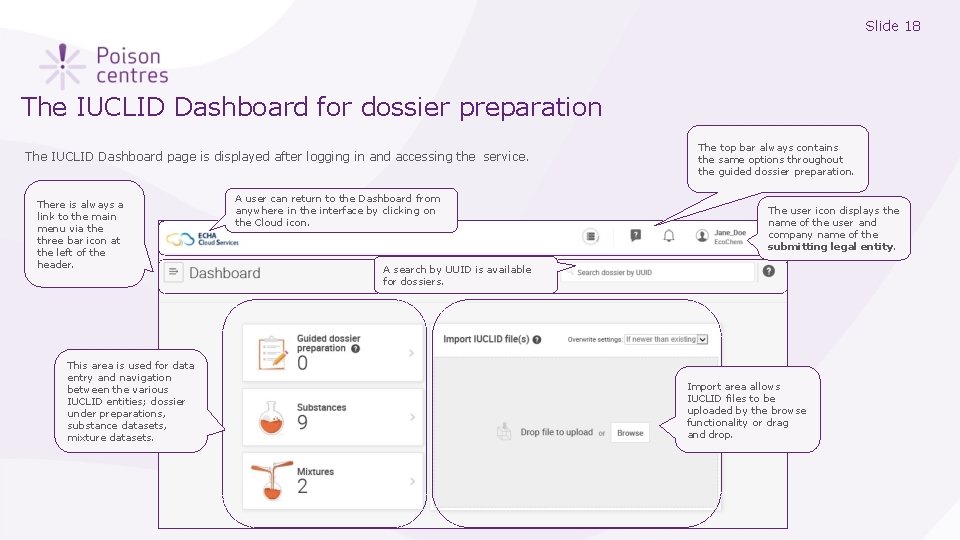
Slide 18 The IUCLID Dashboard for dossier preparation The IUCLID Dashboard page is displayed after logging in and accessing the service. There is always a link to the main menu via the three bar icon at the left of the header. This area is used for data entry and navigation between the various IUCLID entities; dossier under preparations, substance datasets, mixture datasets. A user can return to the Dashboard from anywhere in the interface by clicking on the Cloud icon. The top bar always contains the same options throughout the guided dossier preparation. The user icon displays the name of the user and company name of the submitting legal entity. A search by UUID is available for dossiers. Import area allows IUCLID files to be uploaded by the browse functionality or drag and drop.
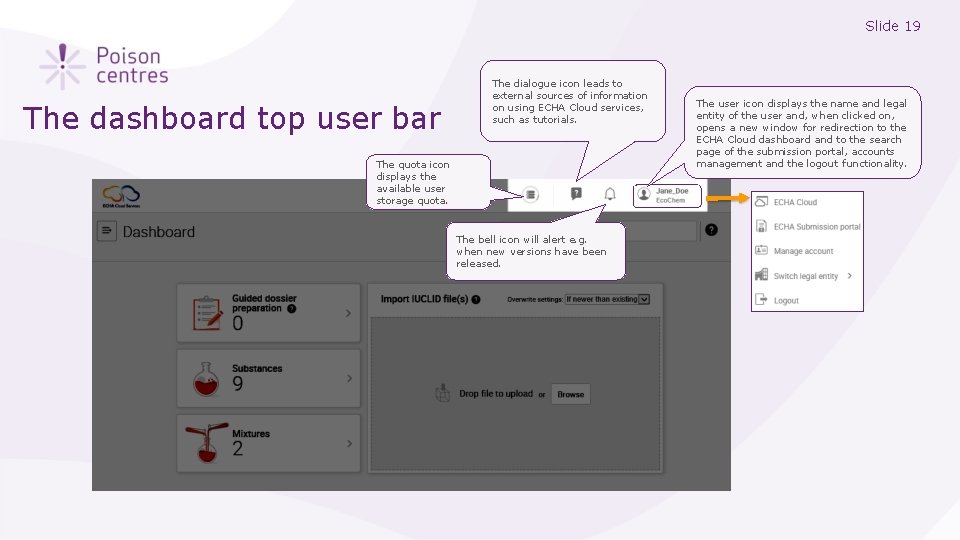
Slide 19 The dashboard top user bar The dialogue icon leads to external sources of information on using ECHA Cloud services, such as tutorials. The quota icon displays the available user storage quota. The bell icon will alert e. g. when new versions have been released. The user icon displays the name and legal entity of the user and, when clicked on, opens a new window for redirection to the ECHA Cloud dashboard and to the search page of the submission portal, accounts management and the logout functionality.
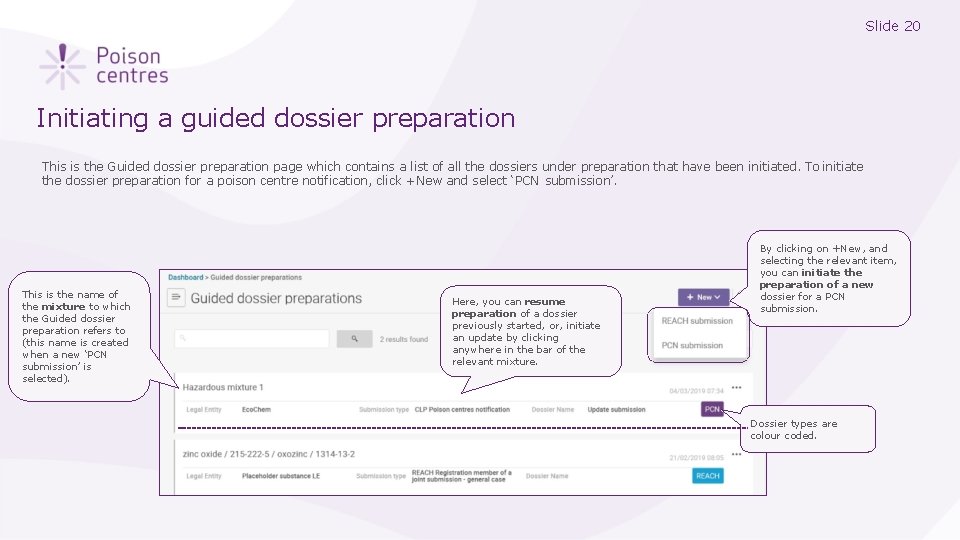
Slide 20 Initiating a guided dossier preparation This is the Guided dossier preparation page which contains a list of all the dossiers under preparation that have been initiated. To initiate the dossier preparation for a poison centre notification, click +New and select ‘PCN submission’. This is the name of the mixture to which the Guided dossier preparation refers to (this name is created when a new ‘PCN submission’ is selected). Here, you can resume preparation of a dossier previously started, or, initiate an update by clicking anywhere in the bar of the relevant mixture. By clicking on +New, and selecting the relevant item, you can initiate the preparation of a new dossier for a PCN submission. Dossier types are colour coded.
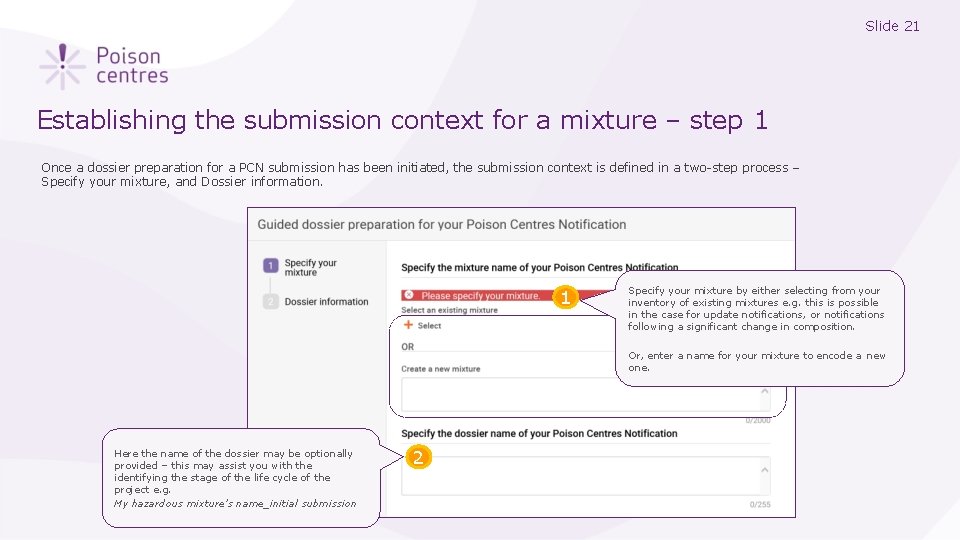
Slide 21 Establishing the submission context for a mixture – step 1 Once a dossier preparation for a PCN submission has been initiated, the submission context is defined in a two-step process – Specify your mixture, and Dossier information. 1 Specify your mixture by either selecting from your inventory of existing mixtures e. g. this is possible in the case for update notifications, or notifications following a significant change in composition. Or, enter a name for your mixture to encode a new one. Here the name of the dossier may be optionally provided – this may assist you with the identifying the stage of the life cycle of the project e. g. My hazardous mixture’s name_initial submission 2
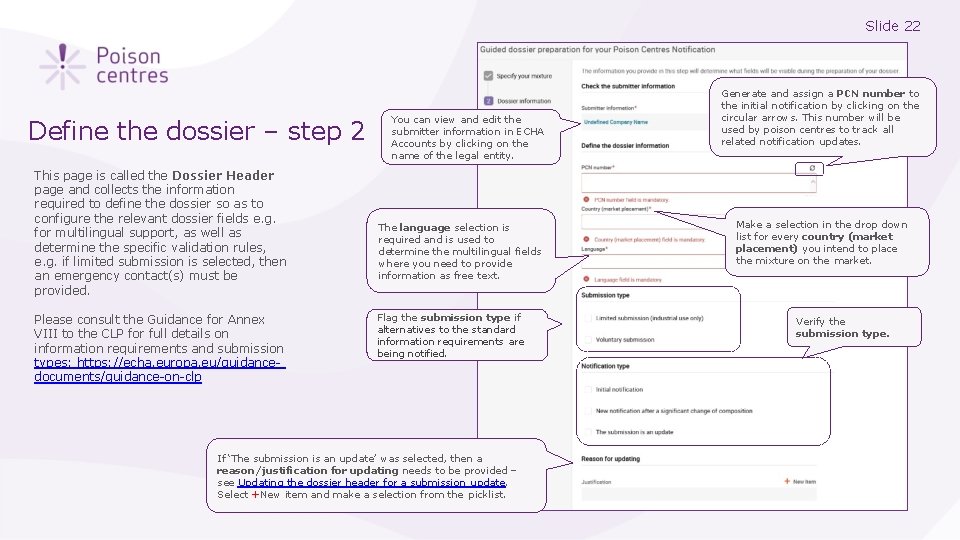
Slide 22 Define the dossier – step 2 This page is called the Dossier Header page and collects the information required to define the dossier so as to configure the relevant dossier fields e. g. for multilingual support, as well as determine the specific validation rules, e. g. if limited submission is selected, then an emergency contact(s) must be provided. Please consult the Guidance for Annex VIII to the CLP for full details on information requirements and submission types: https: //echa. europa. eu/guidancedocuments/guidance-on-clp You can view and edit the submitter information in ECHA Accounts by clicking on the name of the legal entity. The language selection is required and is used to determine the multilingual fields where you need to provide information as free text. Flag the submission type if alternatives to the standard information requirements are being notified. If ‘The submission is an update’ was selected, then a reason/justification for updating needs to be provided – see Updating the dossier header for a submission update. Select +New item and make a selection from the picklist. Generate and assign a PCN number to the initial notification by clicking on the circular arrows. This number will be used by poison centres to track all related notification updates. Make a selection in the drop down list for every country (market placement) you intend to place the mixture on the market. Verify the submission type.
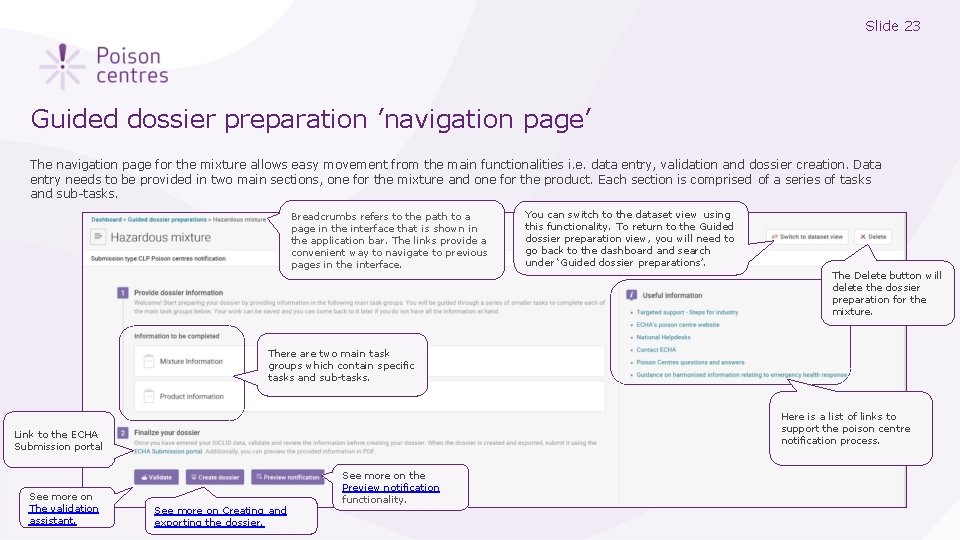
Slide 23 Guided dossier preparation ’navigation page’ The navigation page for the mixture allows easy movement from the main functionalities i. e. data entry, validation and dossier creation. Data entry needs to be provided in two main sections, one for the mixture and one for the product. Each section is comprised of a series of tasks and sub-tasks. Breadcrumbs refers to the path to a page in the interface that is shown in the application bar. The links provide a convenient way to navigate to previous pages in the interface. You can switch to the dataset view using this functionality. To return to the Guided dossier preparation view, you will need to go back to the dashboard and search under ‘Guided dossier preparations’. The Delete button will delete the dossier preparation for the mixture. There are two main task groups which contain specific tasks and sub-tasks. Here is a list of links to support the poison centre notification process. Link to the ECHA Submission portal See more on The validation assistant. See more on Creating and exporting the dossier. See more on the Preview notification functionality.
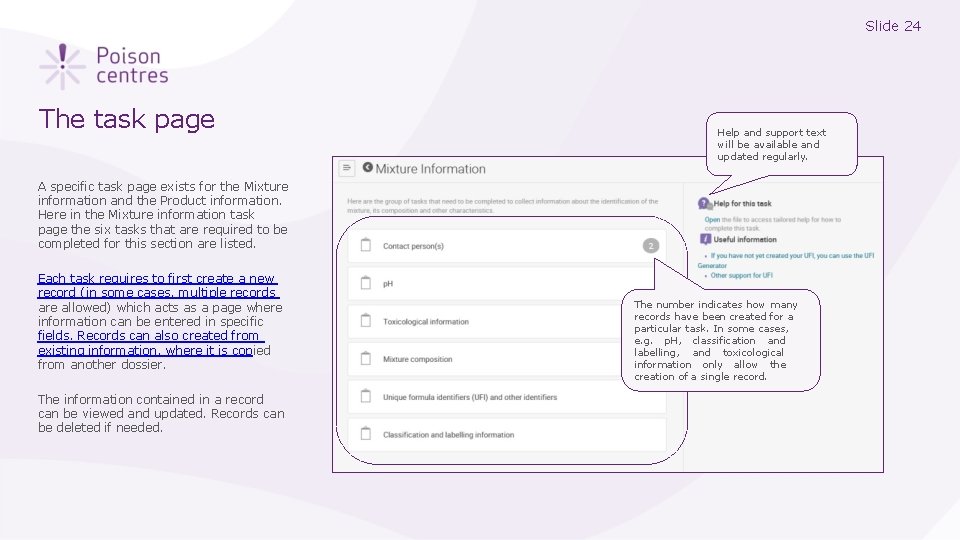
Slide 24 The task page Help and support text will be available and updated regularly. A specific task page exists for the Mixture information and the Product information. Here in the Mixture information task page the six tasks that are required to be completed for this section are listed. Each task requires to first create a new record (in some cases, multiple records are allowed) which acts as a page where information can be entered in specific fields. Records can also created from existing information, where it is copied from another dossier. The information contained in a record can be viewed and updated. Records can be deleted if needed. The number indicates how many records have been created for a particular task. In some cases, e. g. p. H, classification and labelling, and toxicological information only allow the creation of a single record.
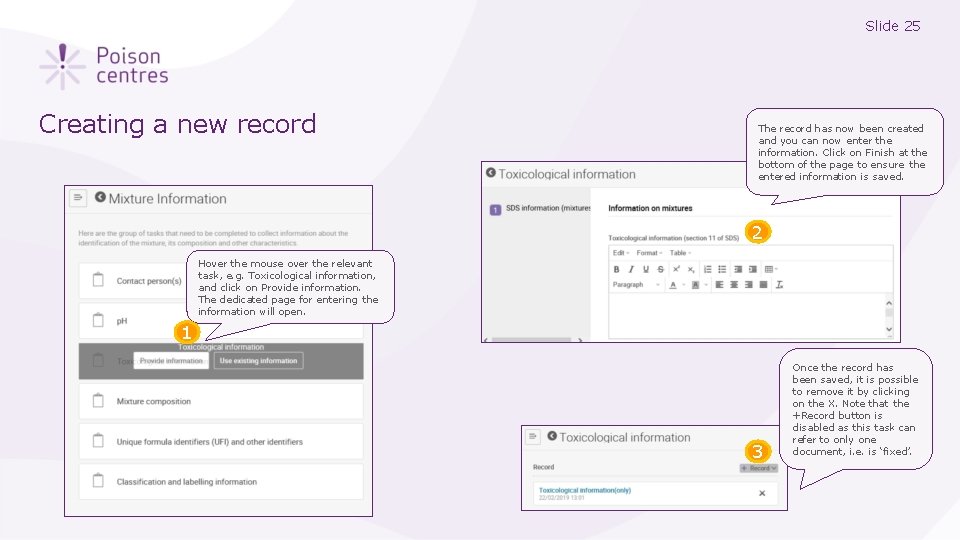
Slide 25 Creating a new record The record has now been created and you can now enter the information. Click on Finish at the bottom of the page to ensure the entered information is saved. 2 Hover the mouse over the relevant task, e. g. Toxicological information, and click on Provide information. The dedicated page for entering the information will open. 1 3 Once the record has been saved, it is possible to remove it by clicking on the X. Note that the +Record button is disabled as this task can refer to only one document, i. e. is ‘fixed’.
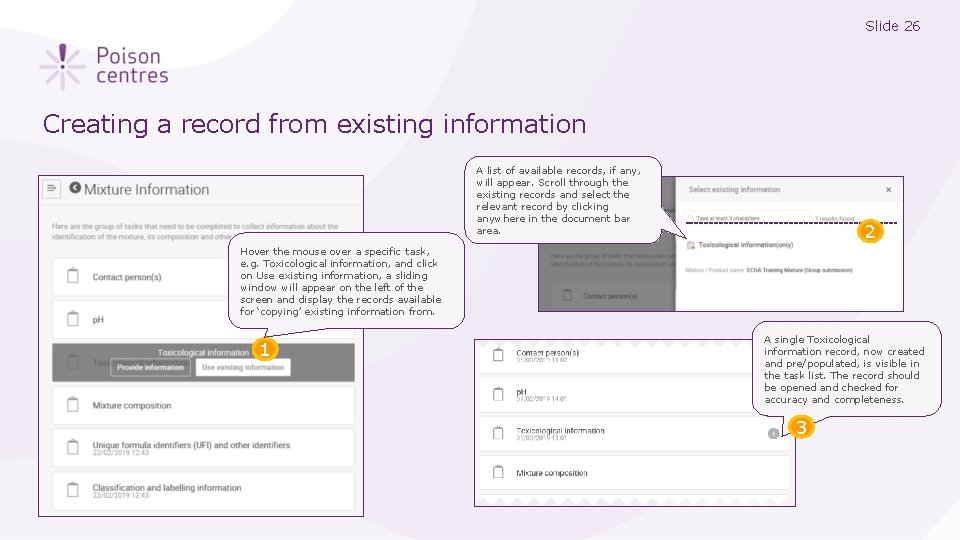
Slide 26 Creating a record from existing information A list of available records, if any, will appear. Scroll through the existing records and select the relevant record by clicking anywhere in the document bar area. 2 Hover the mouse over a specific task, e. g. Toxicological information, and click on Use existing information, a sliding window will appear on the left of the screen and display the records available for ‘copying’ existing information from. 1 A single Toxicological information record, now created and pre/populated, is visible in the task list. The record should be opened and checked for accuracy and completeness. 3
Slide 27 Dossier preparation: ‘Mixture information’ An overview of how to use IUCLID to complete the tasks in the Mixture information section for the preparation of a PCN dossier. Full details on the information requirements can be found from the Guidance on harmonised information relating to emergency health response at: https: //poisoncentres. echa. europa. eu/guidance Version 1. 3 October 2019
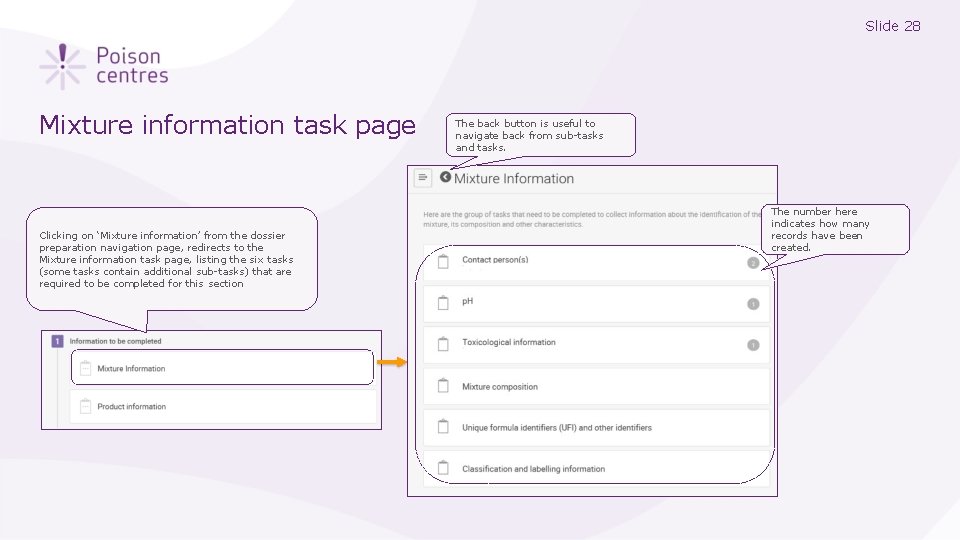
Slide 28 Mixture information task page Clicking on ‘Mixture information’ from the dossier preparation navigation page, redirects to the Mixture information task page, listing the six tasks (some tasks contain additional sub-tasks) that are required to be completed for this section The back button is useful to navigate back from sub-tasks and tasks. The number here indicates how many records have been created.
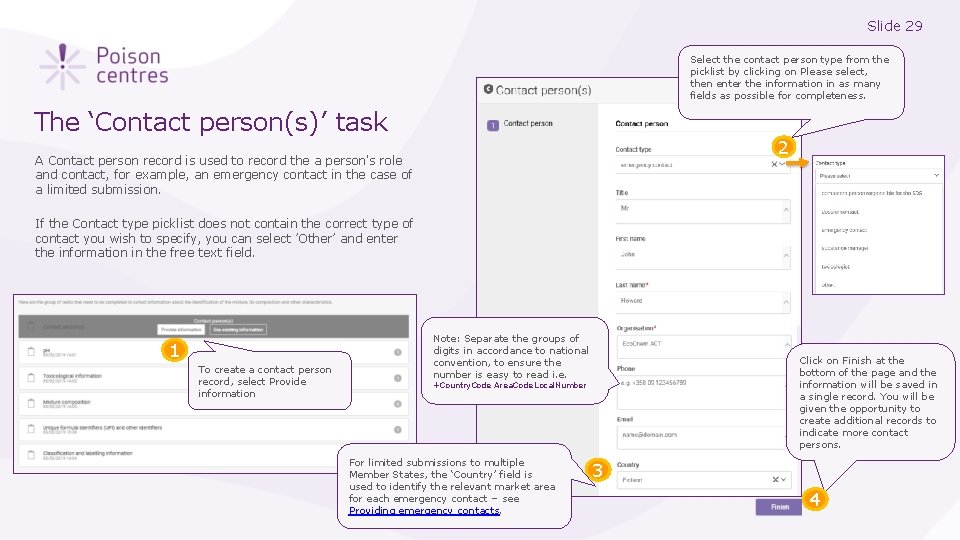
Slide 29 Select the contact person type from the picklist by clicking on Please select, then enter the information in as many fields as possible for completeness. The ‘Contact person(s)’ task 2 A Contact person record is used to record the a person's role and contact, for example, an emergency contact in the case of a limited submission. If the Contact type picklist does not contain the correct type of contact you wish to specify, you can select ’Other’ and enter the information in the free text field. 1 To create a contact person record, select Provide information Note: Separate the groups of digits in accordance to national convention, to ensure the number is easy to read i. e. Click on Finish at the bottom of the page and the information will be saved in a single record. You will be given the opportunity to create additional records to indicate more contact persons. +Country. Code Area. Code Local. Number For limited submissions to multiple Member States, the ‘Country’ field is used to identify the relevant market area for each emergency contact – see Providing emergency contacts. 3 4
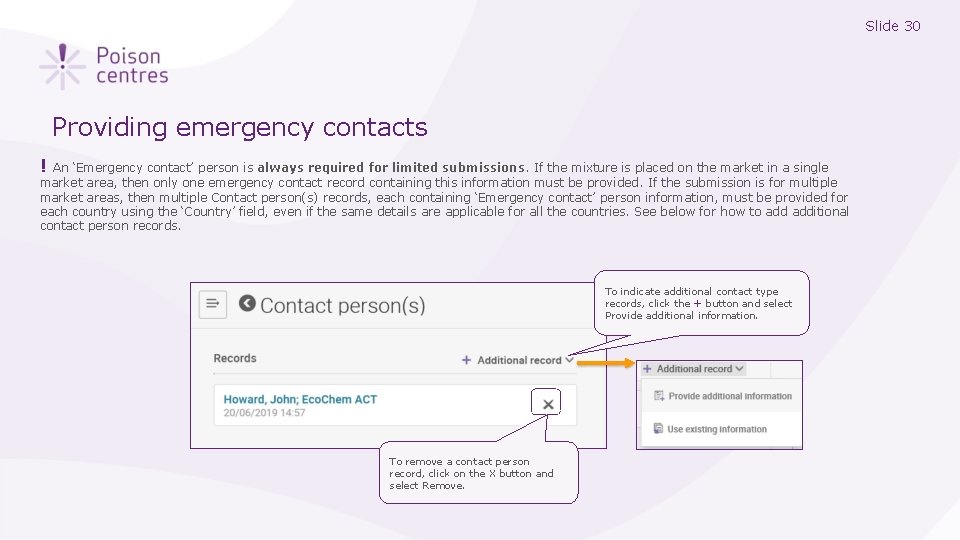
Slide 30 Providing emergency contacts ! An ‘Emergency contact’ person is always required for limited submissions. If the mixture is placed on the market in a single market area, then only one emergency contact record containing this information must be provided. If the submission is for multiple market areas, then multiple Contact person(s) records, each containing ‘Emergency contact’ person information, must be provided for each country using the ‘Country’ field, even if the same details are applicable for all the countries. See below for how to additional contact person records. To indicate additional contact type records, click the + button and select Provide additional information. To remove a contact person record, click on the X button and select Remove.
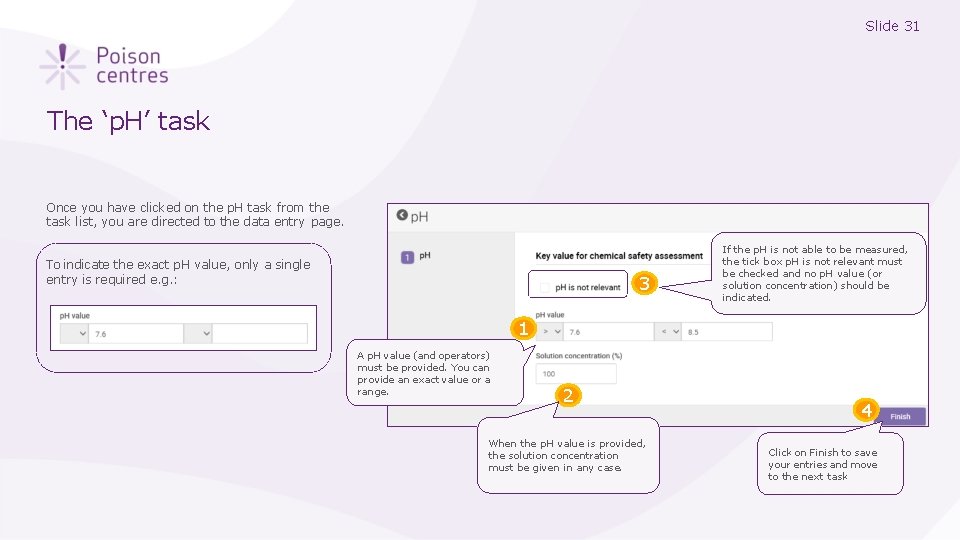
Slide 31 The ‘p. H’ task Once you have clicked on the p. H task from the task list, you are directed to the data entry page. To indicate the exact p. H value, only a single entry is required e. g. : 3 If the p. H is not able to be measured, the tick box p. H is not relevant must be checked and no p. H value (or solution concentration) should be indicated. 1 A p. H value (and operators) must be provided. You can provide an exact value or a range. 2 When the p. H value is provided, the solution concentration must be given in any case. 4 Click on Finish to save your entries and move to the next task
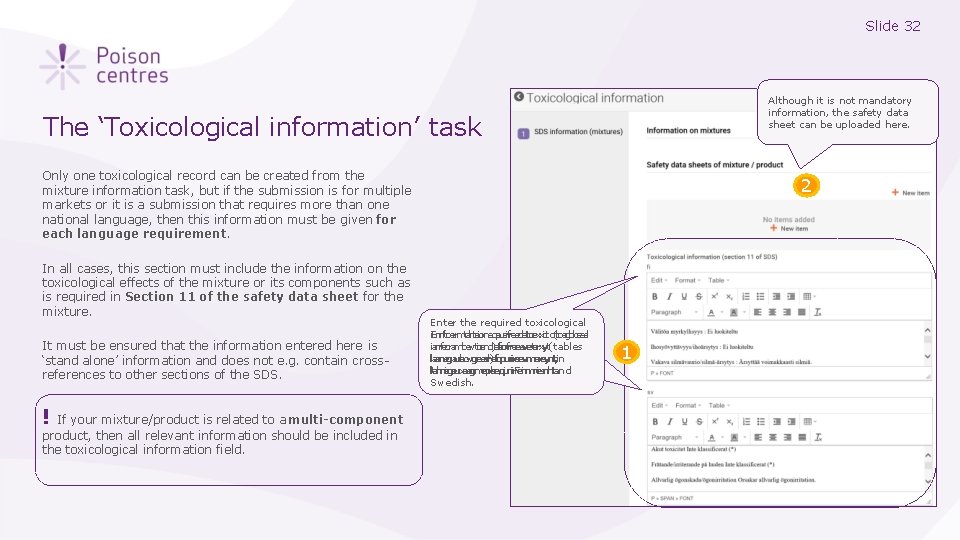
Slide 32 Although it is not mandatory information, the safety data sheet can be uploaded here. The ‘Toxicological information’ task Only one toxicological record can be created from the mixture information task, but if the submission is for multiple markets or it is a submission that requires more than one national language, then this information must be given for each language requirement. In all cases, this section must include the information on the toxicological effects of the mixture or its components such as is required in Section 11 of the safety data sheet for the mixture. It must be ensured that the information entered here is ‘stand alone’ information and does not e. g. contain crossreferences to other sections of the SDS. ! If your mixture/product is related to a multi-component product, then all relevant information should be included in the toxicological information field. 2 Enter the required toxicological i. Ennftoerrmtahteiorneqausirfreedettoexxicto(ltoagbilceasl ianrfeoramloawtioend)afsofrreeeveterxyt(tables laarnegaulaowgeedr)efqourireevmereynt, in ltahnisgeuxaagmeprlee, qiunir. Feinmniesnhta. nd Swedish. 1
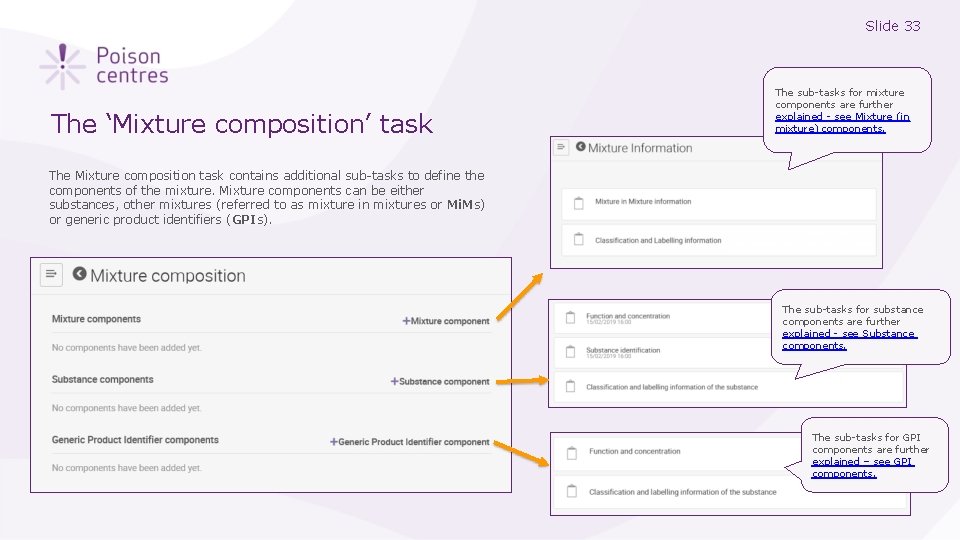
Slide 33 The ‘Mixture composition’ task The sub-tasks for mixture components are further explained - see Mixture (in mixture) components. The Mixture composition task contains additional sub-tasks to define the components of the mixture. Mixture components can be either substances, other mixtures (referred to as mixture in mixtures or Mi. Ms) or generic product identifiers (GPIs). The sub-tasks for substance components are further explained - see Substance components. The sub-tasks for GPI components are further explained – see GPI components.
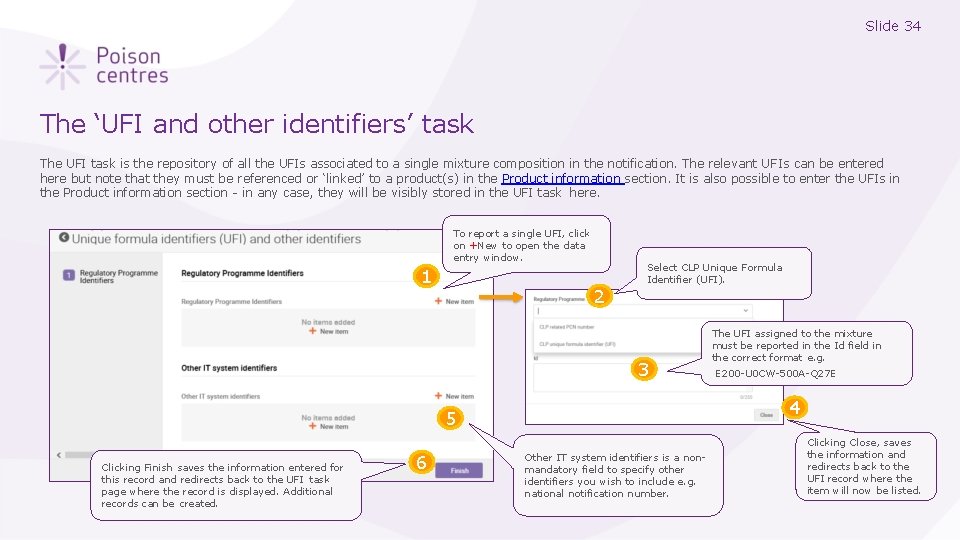
Slide 34 The ‘UFI and other identifiers’ task The UFI task is the repository of all the UFIs associated to a single mixture composition in the notification. The relevant UFIs can be entered here but note that they must be referenced or ‘linked’ to a product(s) in the Product information section. It is also possible to enter the UFIs in the Product information section - in any case, they will be visibly stored in the UFI task here. To report a single UFI, click on +New to open the data entry window. 1 2 Select CLP Unique Formula Identifier (UFI). 3 6 E 200 -U 0 CW-500 A-Q 27 E 4 5 Clicking Finish saves the information entered for this record and redirects back to the UFI task page where the record is displayed. Additional records can be created. The UFI assigned to the mixture must be reported in the Id field in the correct format e. g. Other IT system identifiers is a nonmandatory field to specify other identifiers you wish to include e. g. national notification number. Clicking Close, saves the information and redirects back to the UFI record where the item will now be listed.
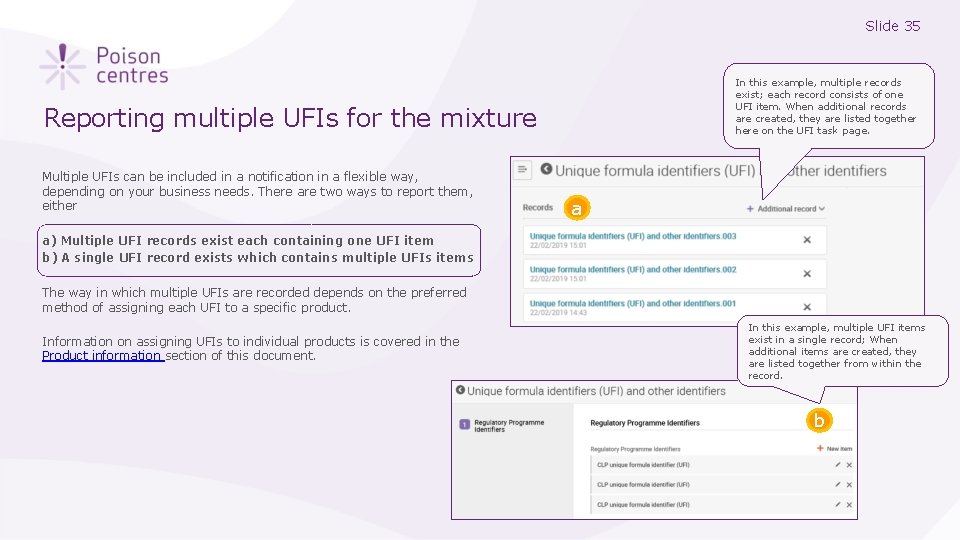
Slide 35 In this example, multiple records exist; each record consists of one UFI item. When additional records are created, they are listed together here on the UFI task page. Reporting multiple UFIs for the mixture Multiple UFIs can be included in a notification in a flexible way, depending on your business needs. There are two ways to report them, either a a) Multiple UFI records exist each containing one UFI item b) A single UFI record exists which contains multiple UFIs items The way in which multiple UFIs are recorded depends on the preferred method of assigning each UFI to a specific product. Information on assigning UFIs to individual products is covered in the Product information section of this document. In this example, multiple UFI items exist in a single record; When additional items are created, they are listed together from within the record. b
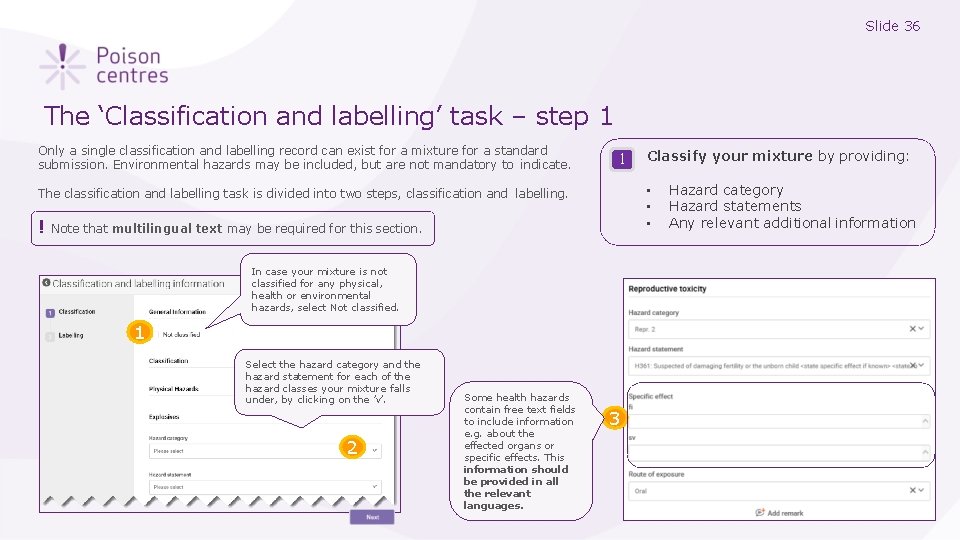
Slide 36 The ‘Classification and labelling’ task – step 1 Only a single classification and labelling record can exist for a mixture for a standard submission. Environmental hazards may be included, but are not mandatory to indicate. 1 • • • The classification and labelling task is divided into two steps, classification and labelling. ! Note that multilingual text may be required for this section. In case your mixture is not classified for any physical, health or environmental hazards, select Not classified. 1 Select the hazard category and the hazard statement for each of the hazard classes your mixture falls under, by clicking on the ’v’. 2 Some health hazards contain free text fields to include information e. g. about the effected organs or specific effects. This information should be provided in all the relevant languages. Classify your mixture by providing: 3 Hazard category Hazard statements Any relevant additional information
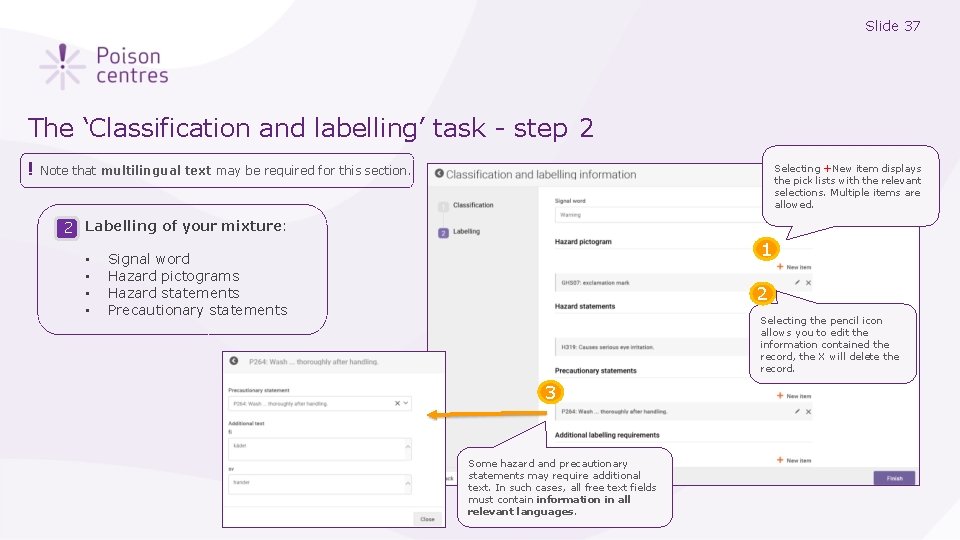
Slide 37 The ‘Classification and labelling’ task - step 2 ! Selecting +New item displays the pick lists with the relevant selections. Multiple items are allowed. Note that multilingual text may be required for this section. 2 Labelling of your mixture: • • 1 Signal word Hazard pictograms Hazard statements Precautionary statements 2 Selecting the pencil icon allows you to edit the information contained the record, the X will delete the record. 3 Some hazard and precautionary statements may require additional text. In such cases, all free text fields must contain information in all relevant languages.
Slide 38 Reporting mixture (in mixture) components An overview of how to use IUCLID to complete the sub-tasks for mixture (in mixture) components. Full details on the information requirements can be found from the Guidance on harmonised information relating to emergency health response at: https: //poisoncentres. echa. europa. eu/guidance Version 1. 3 October 2019
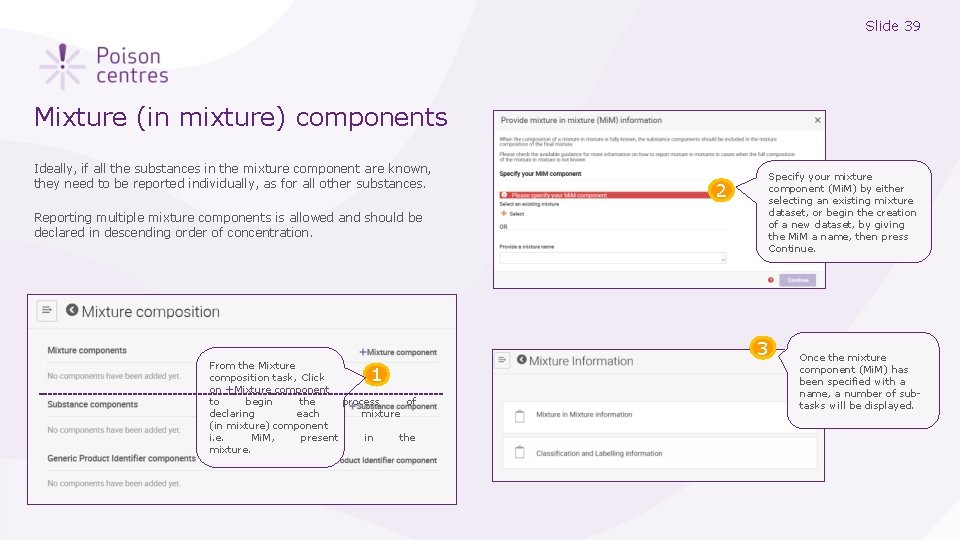
Slide 39 Mixture (in mixture) components Ideally, if all the substances in the mixture component are known, they need to be reported individually, as for all other substances. Reporting multiple mixture components is allowed and should be declared in descending order of concentration. 2 Specify your mixture component (Mi. M) by either selecting an existing mixture dataset, or begin the creation of a new dataset, by giving the Mi. M a name, then press Continue. 3 From the Mixture composition task, Click on +Mixture component to begin the process of declaring each mixture (in mixture) component i. e. Mi. M, present in the mixture. 1 Once the mixture component (Mi. M) has been specified with a name, a number of subtasks will be displayed.
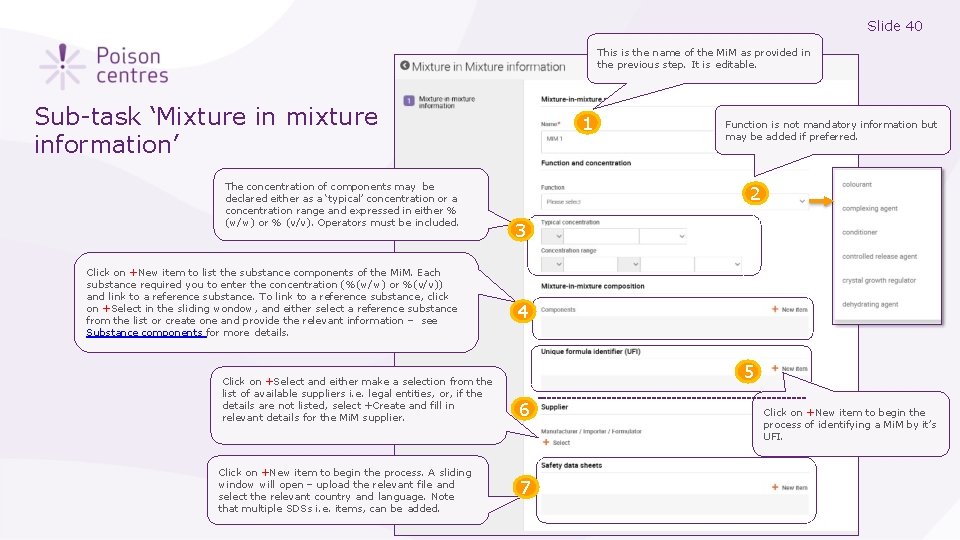
Slide 40 This is the name of the Mi. M as provided in the previous step. It is editable. Sub-task ‘Mixture in mixture information’ The concentration of components may be declared either as a ‘typical’ concentration or a concentration range and expressed in either % (w/w) or % (v/v). Operators must be included. Click on +New item to list the substance components of the Mi. M. Each substance required you to enter the concentration (%(w/w) or %(v/v)) and link to a reference substance. To link to a reference substance, click on +Select in the sliding wondow, and either select a reference substance from the list or create one and provide the relevant information – see Substance components for more details. Click on +Select and either make a selection from the list of available suppliers i. e. legal entities, or, if the details are not listed, select +Create and fill in relevant details for the Mi. M supplier. Click on +New item to begin the process. A sliding window will open – upload the relevant file and select the relevant country and language. Note that multiple SDSs i. e. items, can be added. 1 Function is not mandatory information but may be added if preferred. 2 3 4 5 6 7 Click on +New item to begin the process of identifying a Mi. M by it’s UFI.
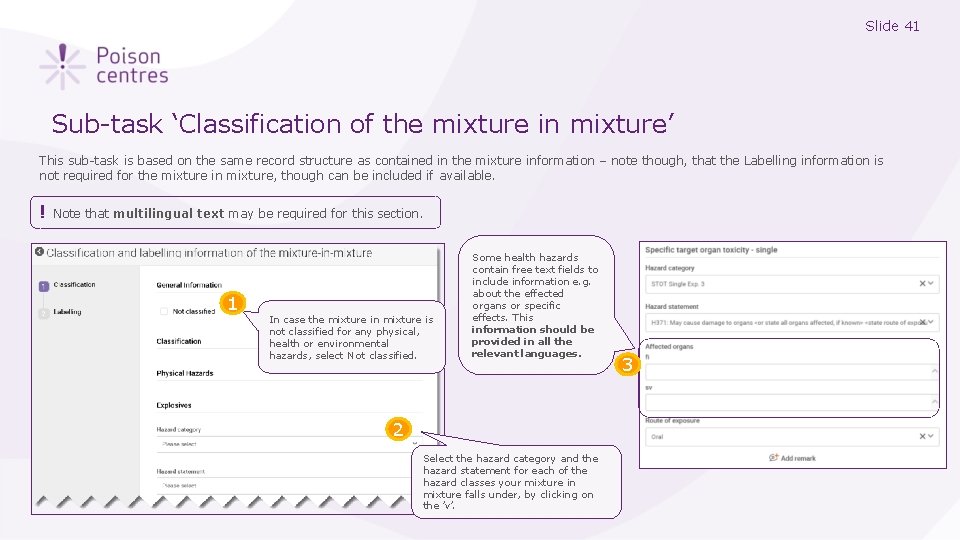
Slide 41 Sub-task ‘Classification of the mixture in mixture’ This sub-task is based on the same record structure as contained in the mixture information – note though, that the Labelling information is not required for the mixture in mixture, though can be included if available. ! Note that multilingual text may be required for this section. 1 In case the mixture in mixture is not classified for any physical, health or environmental hazards, select Not classified. Some health hazards contain free text fields to include information e. g. about the effected organs or specific effects. This information should be provided in all the relevant languages. 2 Select the hazard category and the hazard statement for each of the hazard classes your mixture in mixture falls under, by clicking on the ’v’. 3
Slide 42 Reporting substance components An overview of how to use IUCLID to complete the sub-tasks for substance components. Full details on the information requirements can be found from the Guidance on harmonised information relating to emergency health response at: https: //poisoncentres. echa. europa. eu/guidance Version 1. 3 October 2019
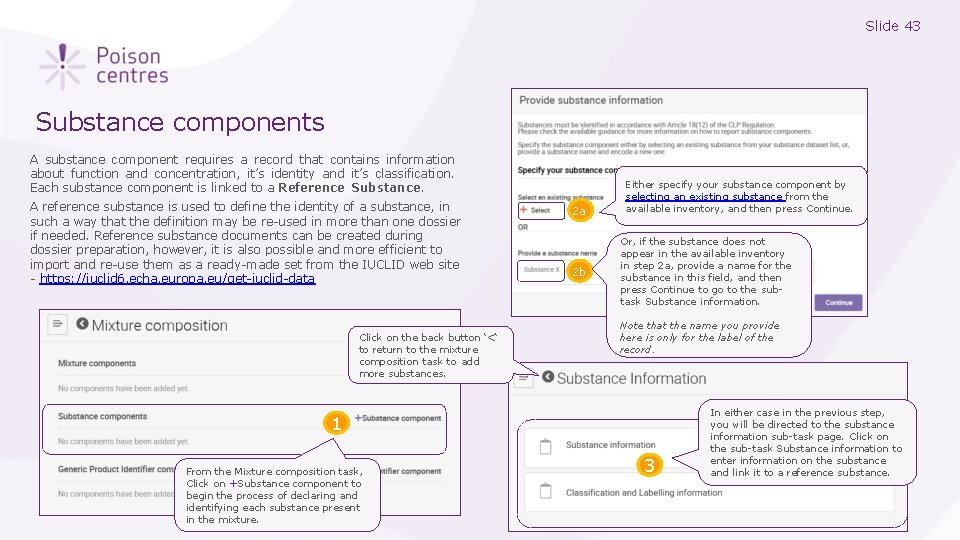
Slide 43 Substance components A substance component requires a record that contains information about function and concentration, it’s identity and it’s classification. Each substance component is linked to a Reference Substance. A reference substance is used to define the identity of a substance, in such a way that the definition may be re-used in more than one dossier if needed. Reference substance documents can be created during dossier preparation, however, it is also possible and more efficient to import and re-use them as a ready-made set from the IUCLID web site - https: //iuclid 6. echa. europa. eu/get-iuclid-data Click on the back button ‘<‘ to return to the mixture composition task to add more substances. 2 a 2 b Either specify your substance component by selecting an existing substance from the available inventory, and then press Continue. Or, if the substance does not appear in the available inventory in step 2 a, provide a name for the substance in this field, and then press Continue to go to the subtask Substance information. Note that the name you provide here is only for the label of the record. 1 From the Mixture composition task, Click on +Substance component to begin the process of declaring and identifying each substance present in the mixture. 3 In either case in the previous step, you will be directed to the substance information sub-task page. Click on the sub-task Substance information to enter information on the substance and link it to a reference substance.
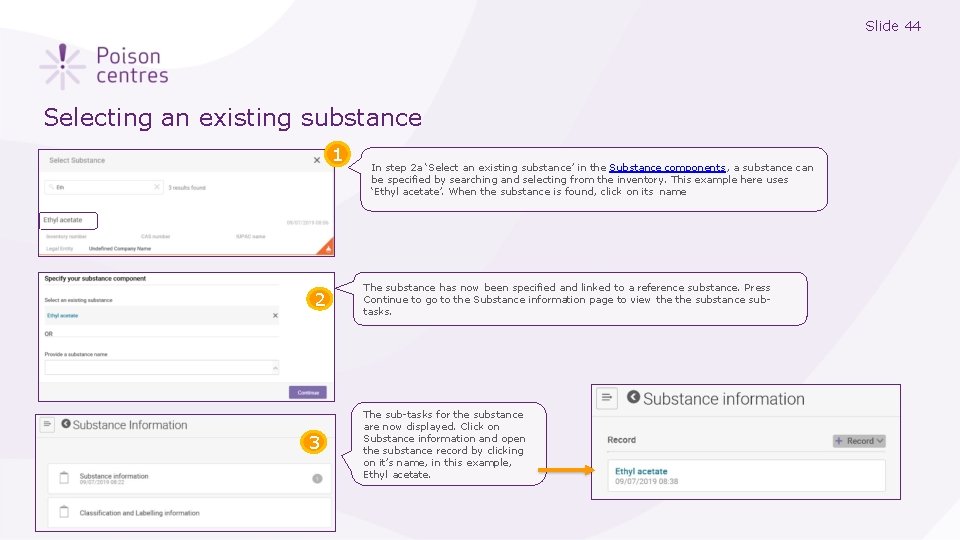
Slide 44 Selecting an existing substance 1 2 3 In step 2 a ‘Select an existing substance’ in the Substance components, a substance can be specified by searching and selecting from the inventory. This example here uses ‘Ethyl acetate’. When the substance is found, click on its name The substance has now been specified and linked to a reference substance. Press Continue to go to the Substance information page to view the substance subtasks. The sub-tasks for the substance are now displayed. Click on Substance information and open the substance record by clicking on it’s name, in this example, Ethyl acetate.
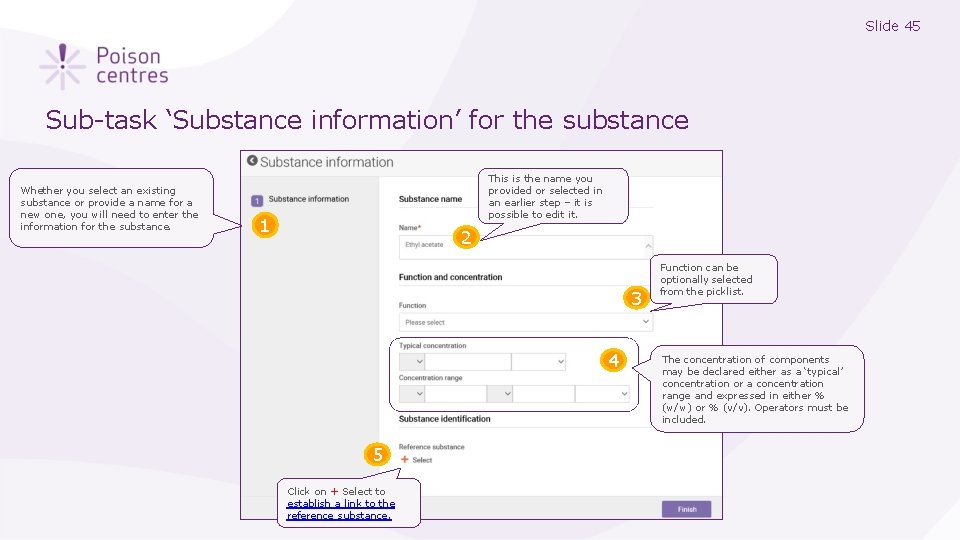
Slide 45 Sub-task ‘Substance information’ for the substance Whether you select an existing substance or provide a name for a new one, you will need to enter the information for the substance. This is the name you provided or selected in an earlier step – it is possible to edit it. 1 2 3 4 5 Click on + Select to establish a link to the reference substance. Function can be optionally selected from the picklist. The concentration of components may be declared either as a ‘typical’ concentration or a concentration range and expressed in either % (w/w) or % (v/v). Operators must be included.
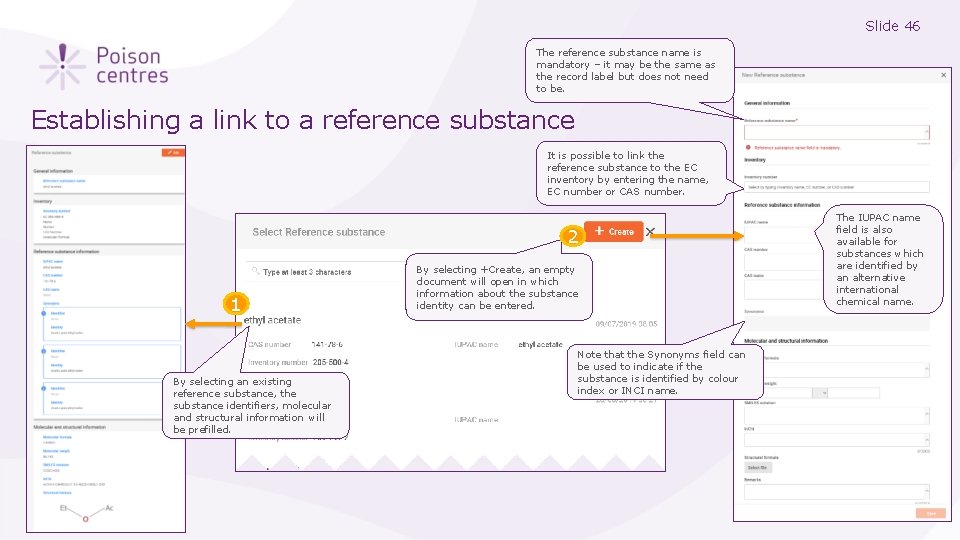
Slide 46 The reference substance name is mandatory – it may be the same as the record label but does not need to be. Establishing a link to a reference substance It is possible to link the reference substance to the EC inventory by entering the name, EC number or CAS number. 2 1 By selecting an existing reference substance, the substance identifiers, molecular and structural information will be prefilled. By selecting +Create, an empty document will open in which information about the substance identity can be entered. 3 Note that the Synonyms field can be used to indicate if the substance is identified by colour index or INCI name. The IUPAC name field is also available for substances which are identified by an alternative international chemical name.
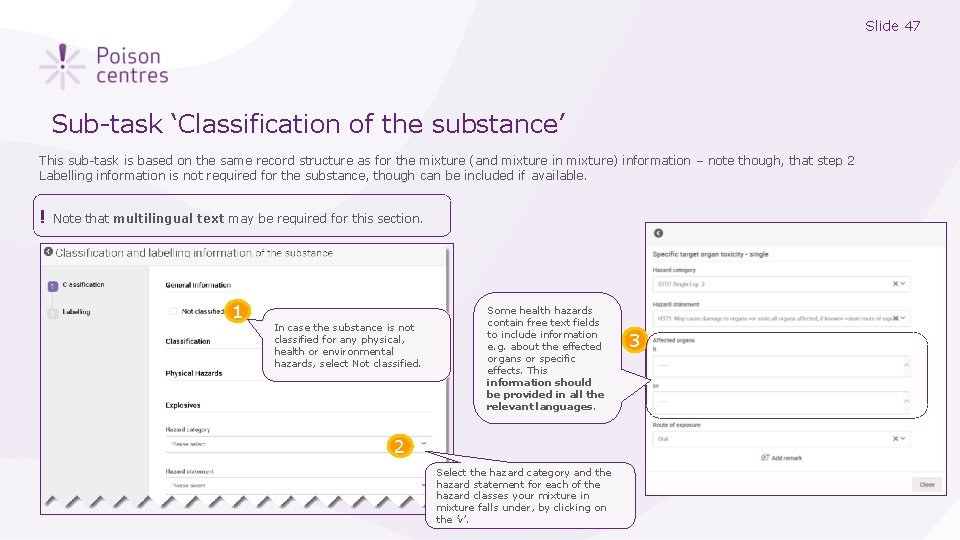
Slide 47 Sub-task ‘Classification of the substance’ This sub-task is based on the same record structure as for the mixture (and mixture in mixture) information – note though, that step 2 Labelling information is not required for the substance, though can be included if available. ! Note that multilingual text may be required for this section. 1 In case the substance is not classified for any physical, health or environmental hazards, select Not classified. Some health hazards contain free text fields to include information e. g. about the effected organs or specific effects. This information should be provided in all the relevant languages. 2 Select the hazard category and the hazard statement for each of the hazard classes your mixture in mixture falls under, by clicking on the ’v’. 3
Slide 48 Reporting generic product identifier components An overview of how to use IUCLID to complete the sub-tasks for generic product identifier (GPI) components. Full details on the information requirements can be found from the Guidance on harmonised information relating to emergency health response at: https: //poisoncentres. echa. europa. eu/guidance Version 1. 3 October 2019
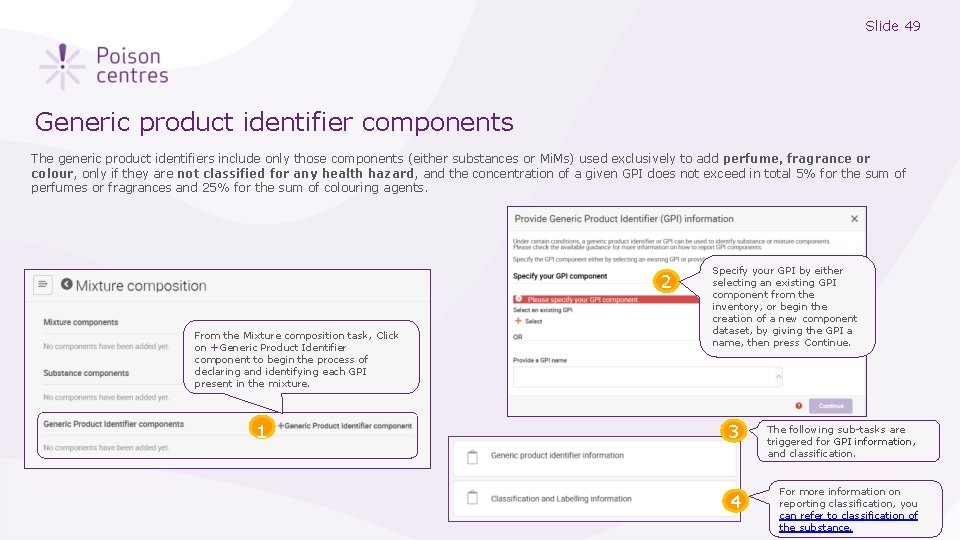
Slide 49 Generic product identifier components The generic product identifiers include only those components (either substances or Mi. Ms) used exclusively to add perfume, fragrance or colour, only if they are not classified for any health hazard, and the concentration of a given GPI does not exceed in total 5% for the sum of perfumes or fragrances and 25% for the sum of colouring agents. 2 From the Mixture composition task, Click on +Generic Product Identifier component to begin the process of declaring and identifying each GPI present in the mixture. 1 1 Specify your GPI by either selecting an existing GPI component from the inventory, or begin the creation of a new component dataset, by giving the GPI a name, then press Continue. 3 The following sub-tasks are triggered for GPI information, and classification. 4 For more information on reporting classification, you can refer to classification of the substance.
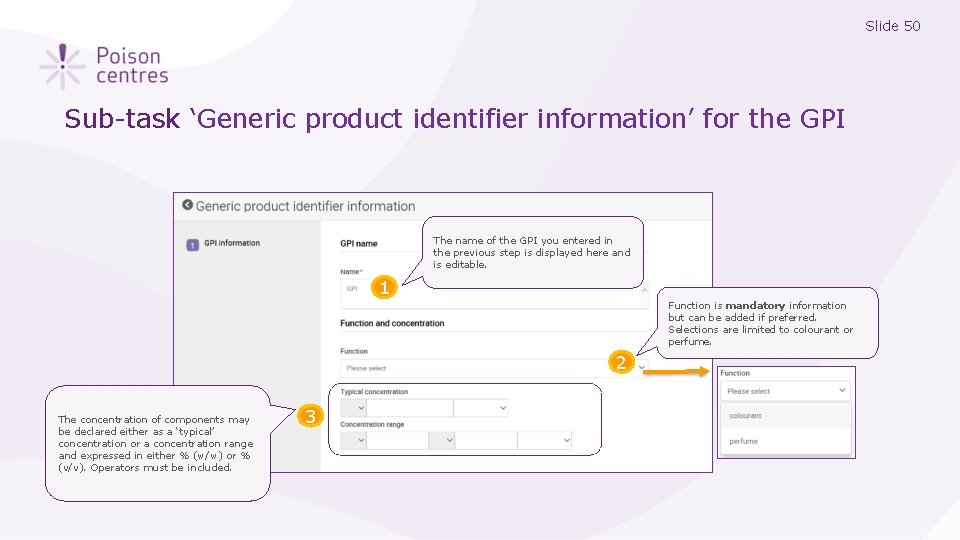
Slide 50 Sub-task ‘Generic product identifier information’ for the GPI The name of the GPI you entered in the previous step is displayed here and is editable. 1 Function is mandatory information but can be added if preferred. Selections are limited to colourant or perfume. 2 The concentration of components may be declared either as a ‘typical’ concentration or a concentration range and expressed in either % (w/w) or % (v/v). Operators must be included. 3
Slide 51 Dossier preparation: ‘Product information’ An overview of how to use IUCLID to complete the tasks and sub-tasks in the Product information section for the preparation of a PCN dossier. Full details on the information requirements can be found from the Guidance on harmonised information relating to emergency health response at: https: //poisoncentres. echa. europa. eu/guidance Version 1. 3 October 2019
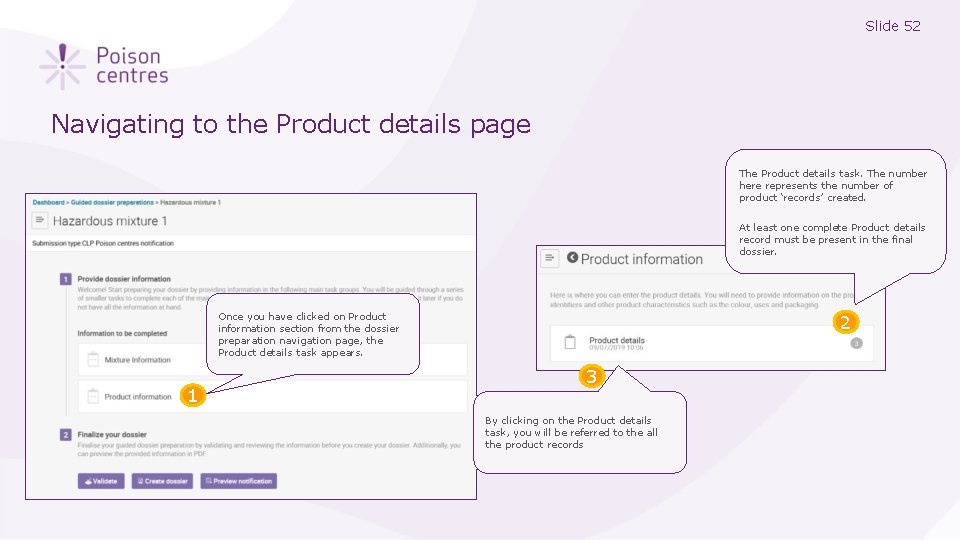
Slide 52 Navigating to the Product details page The Product details task. The number here represents the number of product ‘records’ created. At least one complete Product details record must be present in the final dossier. Once you have clicked on Product information section from the dossier preparation navigation page, the Product details task appears. 1 2 3 By clicking on the Product details task, you will be referred to the all the product records
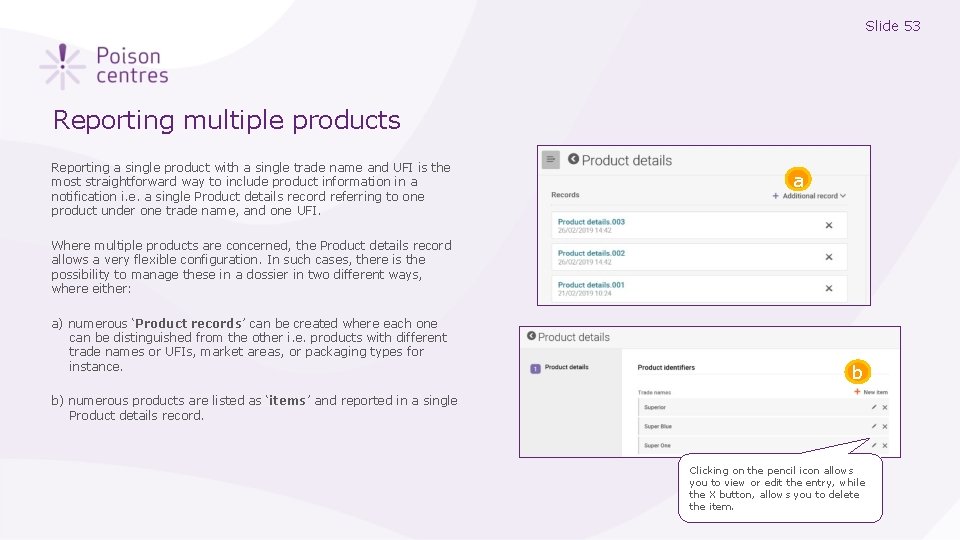
Slide 53 Reporting multiple products Reporting a single product with a single trade name and UFI is the most straightforward way to include product information in a notification i. e. a single Product details record referring to one product under one trade name, and one UFI. a Where multiple products are concerned, the Product details record allows a very flexible configuration. In such cases, there is the possibility to manage these in a dossier in two different ways, where either: a) numerous ‘Product records’ can be created where each one can be distinguished from the other i. e. products with different trade names or UFIs, market areas, or packaging types for instance. b b) numerous products are listed as ‘items’ and reported in a single Product details record. Clicking on the pencil icon allows you to view or edit the entry, while the X button, allows you to delete the item.
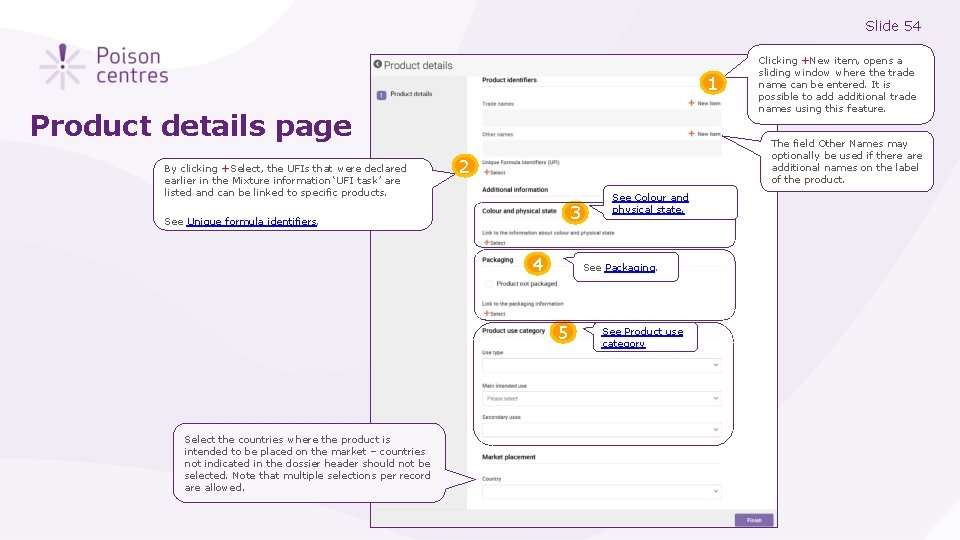
Slide 54 1 Product details page By clicking +Select, the UFIs that were declared earlier in the Mixture information ‘UFI task’ are listed and can be linked to specific products. The field Other Names may optionally be used if there additional names on the label of the product. 2 3 See Unique formula identifiers. 4 See Colour and physical state. See Packaging. 5 Select the countries where the product is intended to be placed on the market – countries not indicated in the dossier header should not be selected. Note that multiple selections per record are allowed. Clicking +New item, opens a sliding window where the trade name can be entered. It is possible to additional trade names using this feature. See Product use category
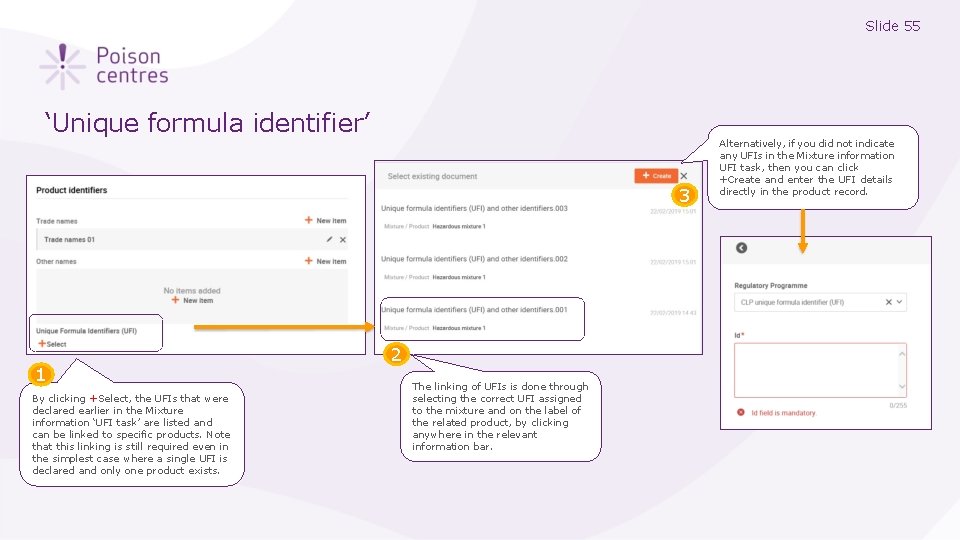
Slide 55 ‘Unique formula identifier’ 3 1 By clicking +Select, the UFIs that were declared earlier in the Mixture information ‘UFI task’ are listed and can be linked to specific products. Note that this linking is still required even in the simplest case where a single UFI is declared and only one product exists. 2 The linking of UFIs is done through selecting the correct UFI assigned to the mixture and on the label of the related product, by clicking anywhere in the relevant information bar. Alternatively, if you did not indicate any UFIs in the Mixture information UFI task, then you can click +Create and enter the UFI details directly in the product record.
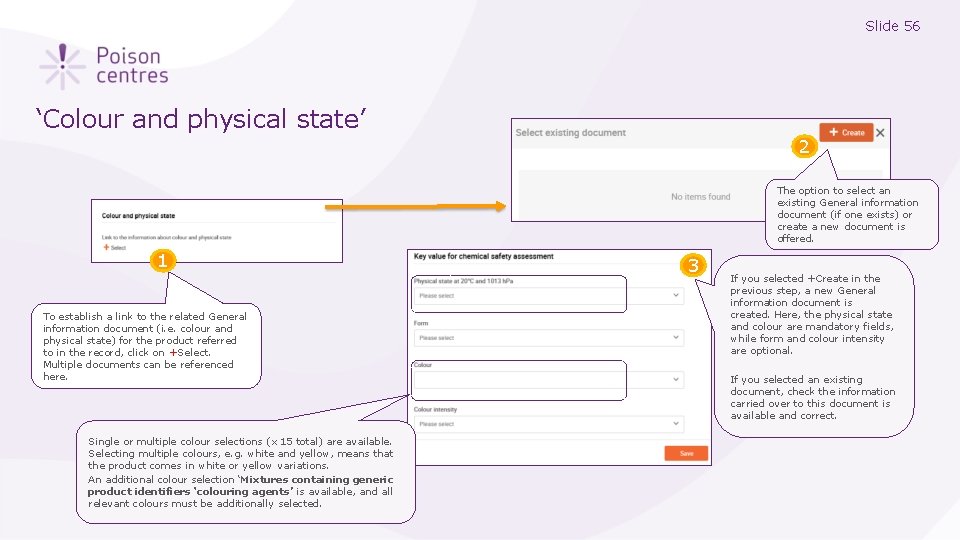
Slide 56 ‘Colour and physical state’ 2 The option to select an existing General information document (if one exists) or create a new document is offered. 1 To establish a link to the related General information document (i. e. colour and physical state) for the product referred to in the record, click on +Select. Multiple documents can be referenced here. Single or multiple colour selections (x 15 total) are available. Selecting multiple colours, e. g. white and yellow, means that the product comes in white or yellow variations. An additional colour selection ‘Mixtures containing generic product identifiers ‘colouring agents’ is available, and all relevant colours must be additionally selected. 3 If you selected +Create in the previous step, a new General information document is created. Here, the physical state and colour are mandatory fields, while form and colour intensity are optional. If you selected an existing document, check the information carried over to this document is available and correct.
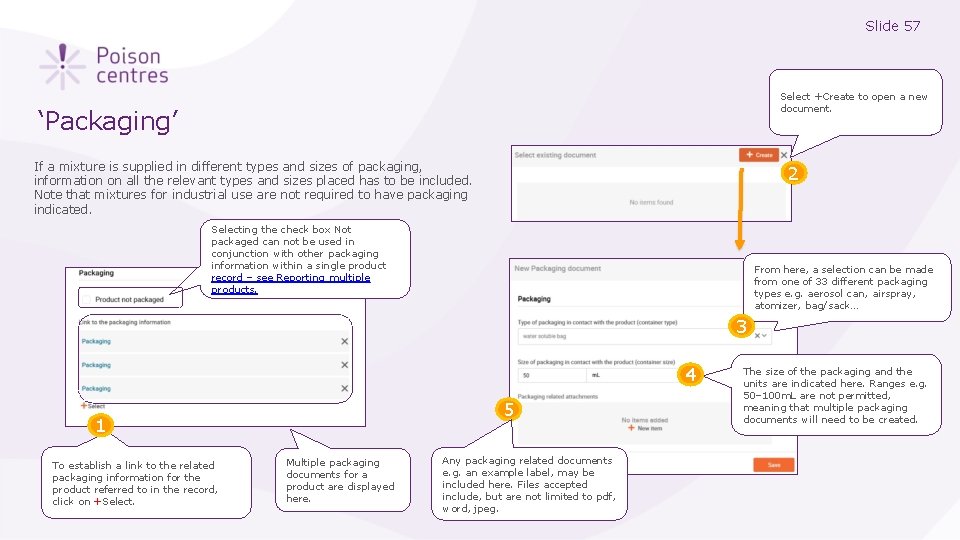
Slide 57 Select +Create to open a new document. ‘Packaging’ If a mixture is supplied in different types and sizes of packaging, information on all the relevant types and sizes placed has to be included. Note that mixtures for industrial use are not required to have packaging indicated. 2 Selecting the check box Not packaged can not be used in conjunction with other packaging information within a single product record – see Reporting multiple products. From here, a selection can be made from one of 33 different packaging types e. g. aerosol can, airspray, atomizer, bag/sack… 3 4 5 1 To establish a link to the related packaging information for the product referred to in the record, click on +Select. Multiple packaging documents for a product are displayed here. Any packaging related documents e. g. an example label, may be included here. Files accepted include, but are not limited to pdf, word, jpeg. The size of the packaging and the units are indicated here. Ranges e. g. 50– 100 m. L are not permitted, meaning that multiple packaging documents will need to be created.
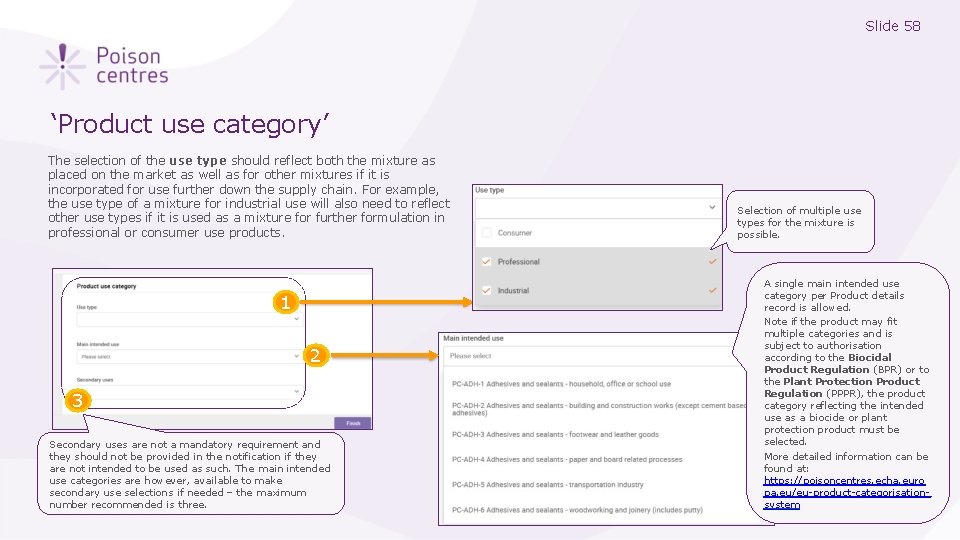
Slide 58 ‘Product use category’ The selection of the use type should reflect both the mixture as placed on the market as well as for other mixtures if it is incorporated for use further down the supply chain. For example, the use type of a mixture for industrial use will also need to reflect other use types if it is used as a mixture for further formulation in professional or consumer use products. 1 2 3 Secondary uses are not a mandatory requirement and they should not be provided in the notification if they are not intended to be used as such. The main intended use categories are however, available to make secondary use selections if needed – the maximum number recommended is three. Selection of multiple use types for the mixture is possible. A single main intended use category per Product details record is allowed. Note if the product may fit multiple categories and is subject to authorisation according to the Biocidal Product Regulation (BPR) or to the Plant Protection Product Regulation (PPPR), the product category reflecting the intended use as a biocide or plant protection product must be selected. More detailed information can be found at: https: //poisoncentres. echa. euro pa. eu/eu-product-categorisationsystem
Slide 59 Validate information, create dossier and preview notification An explanation of the functionalities to finalise the dossier preparation process; validate, create a dossier, and preview notification. Version 1. 3 October 2019
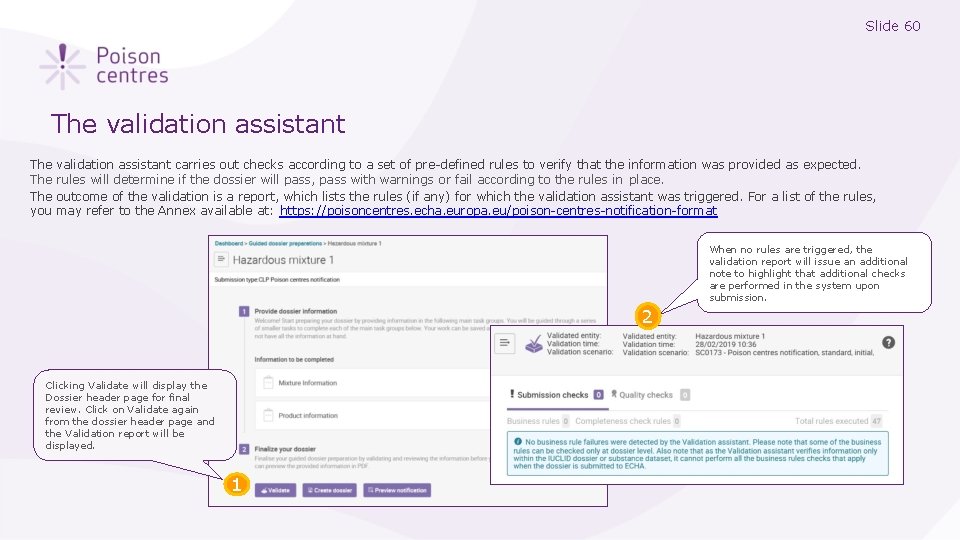
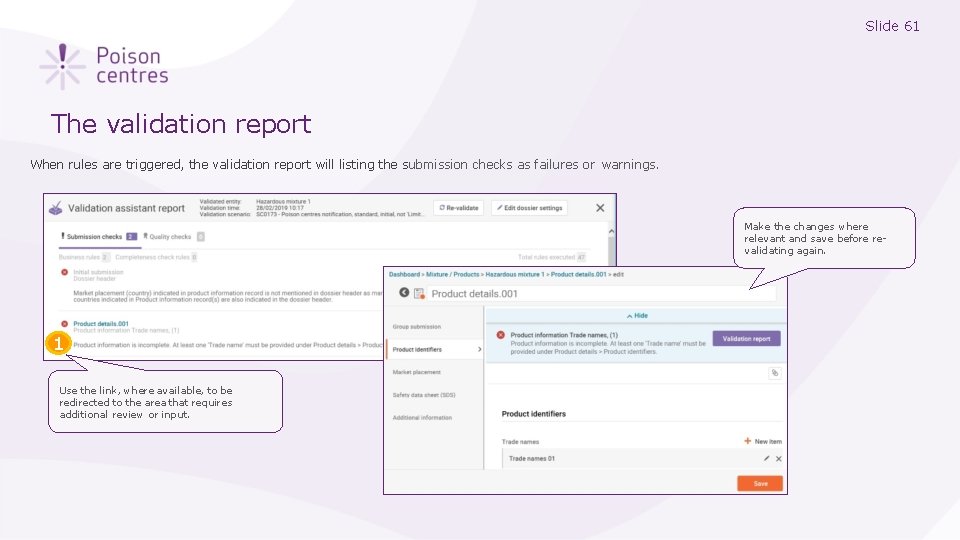
Slide 60 The validation assistant The The you validation assistant carries out checks according to a set of pre-defined rules to verify that the information was provided as expected. rules will determine if the dossier will pass, pass with warnings or fail according to the rules in place. outcome of the validation is a report, which lists the rules (if any) for which the validation assistant was triggered. For a list of the rules, may refer to the Annex available at: https: //poisoncentres. echa. europa. eu/poison-centres-notification-format When no rules are triggered, the validation report will issue an additional note to highlight that additional checks are performed in the system upon submission. 2 Clicking Validate will display the Dossier header page for final review. Click on Validate again from the dossier header page and the Validation report will be displayed. 1
Slide 61 The validation report When rules are triggered, the validation report will listing the submission checks as failures or warnings. Make the changes where relevant and save before revalidating again. 1 Use the link, where available, to be redirected to the area that requires additional review or input.
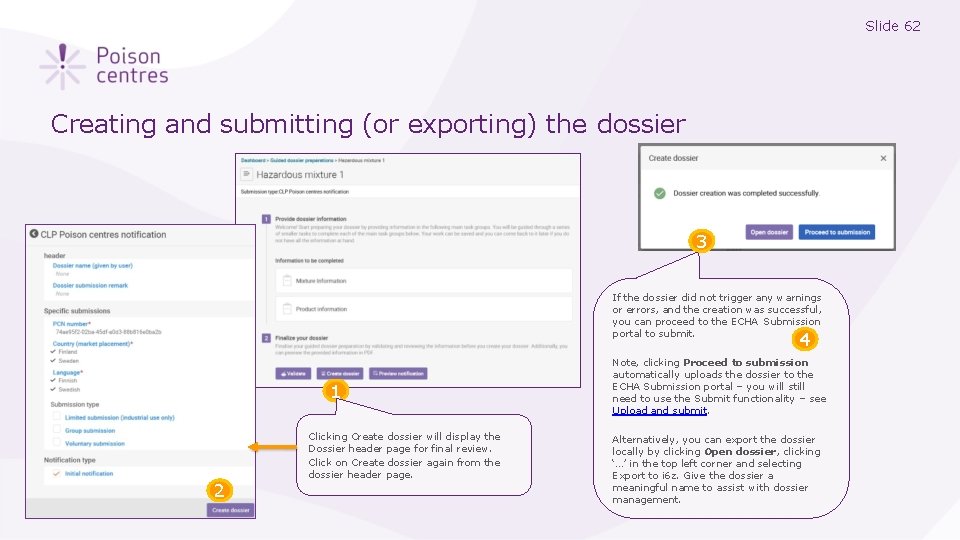
Slide 62 Creating and submitting (or exporting) the dossier 3 If the dossier did not trigger any warnings or errors, and the creation was successful, you can proceed to the ECHA Submission portal to submit. 4 1 2 Clicking Create dossier will display the Dossier header page for final review. Click on Create dossier again from the dossier header page. Note, clicking Proceed to submission automatically uploads the dossier to the ECHA Submission portal – you will still need to use the Submit functionality – see Upload and submit. Alternatively, you can export the dossier locally by clicking Open dossier, clicking ‘…’ in the top left corner and selecting Export to i 6 z. Give the dossier a meaningful name to assist with dossier management.
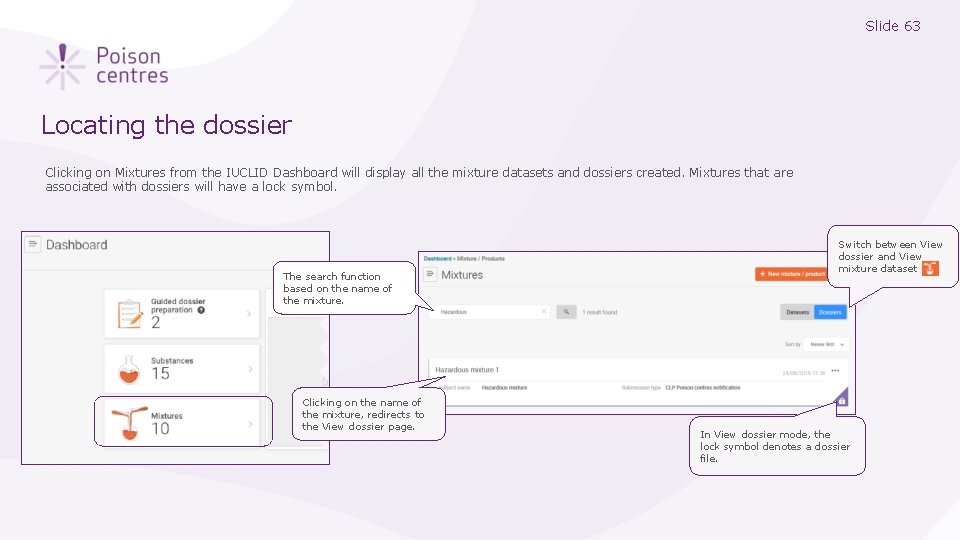
Slide 63 Locating the dossier Clicking on Mixtures from the IUCLID Dashboard will display all the mixture datasets and dossiers created. Mixtures that are associated with dossiers will have a lock symbol. The search function based on the name of the mixture. Clicking on the name of the mixture, redirects to the View dossier page. Switch between View dossier and View mixture dataset In View dossier mode, the lock symbol denotes a dossier file.
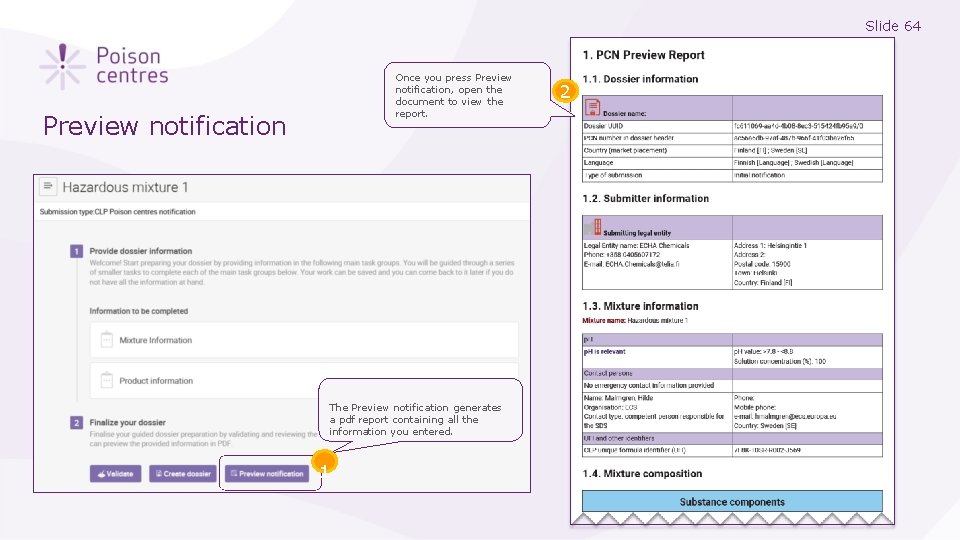
Slide 64 Once you press Preview notification, open the document to view the report. Preview notification The Preview notification generates a pdf report containing all the information you entered. 1 2
Slide 65 Updating dossier information An explanation on how to prepare for a dossier update. Version 1. 3 October 2019
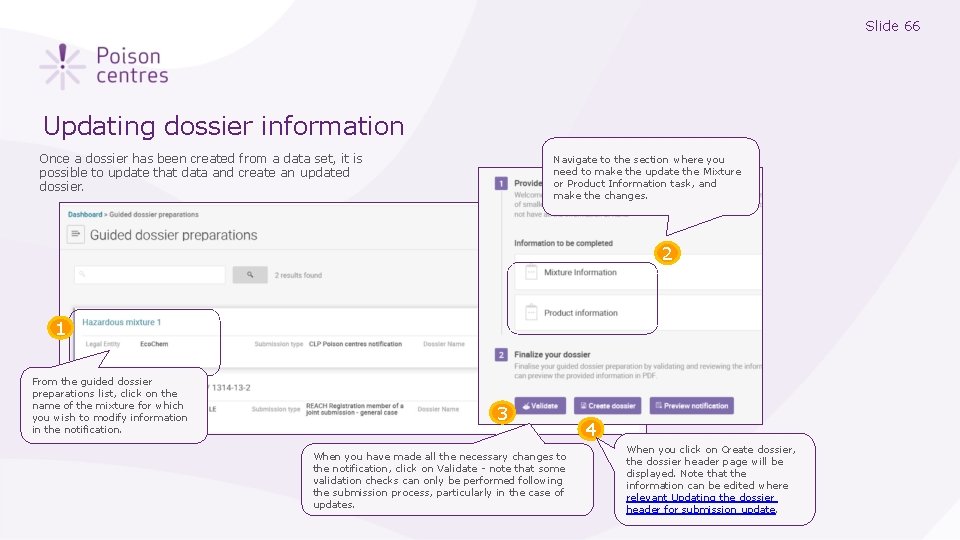
Slide 66 Updating dossier information Once a dossier has been created from a data set, it is possible to update that data and create an updated dossier. Navigate to the section where you need to make the update the Mixture or Product Information task, and make the changes. 2 1 From the guided dossier preparations list, click on the name of the mixture for which you wish to modify information in the notification. 3 When you have made all the necessary changes to the notification, click on Validate - note that some validation checks can only be performed following the submission process, particularly in the case of updates. 4 When you click on Create dossier, the dossier header page will be displayed. Note that the information can be edited where relevant Updating the dossier header for submission update.
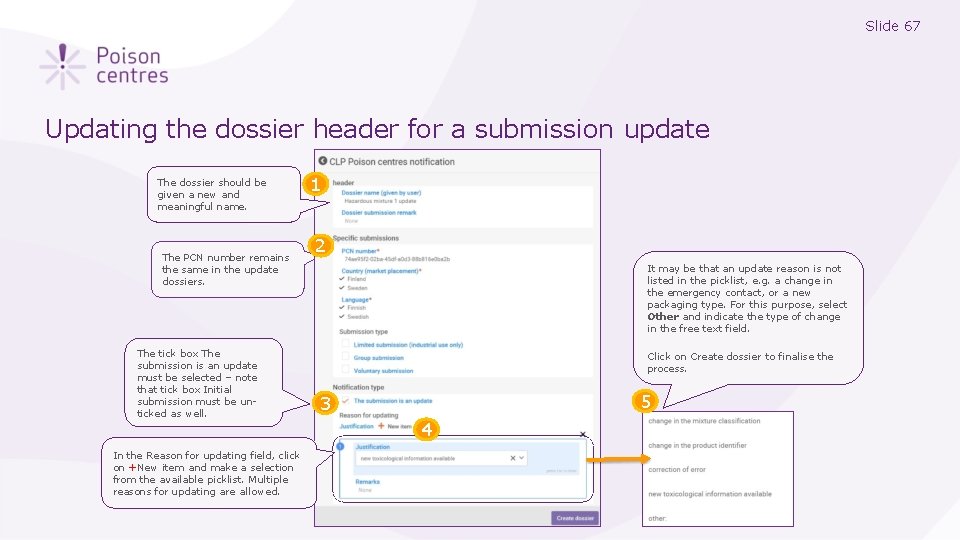
Slide 67 Updating the dossier header for a submission update The dossier should be given a new and meaningful name. The PCN number remains the same in the update dossiers. 1 2 It may be that an update reason is not listed in the picklist, e. g. a change in the emergency contact, or a new packaging type. For this purpose, select Other and indicate the type of change in the free text field. 3 The tick box The submission is an update must be selected – note that tick box Initial submission must be unticked as well. In the Reason for updating field, click on +New item and make a selection from the available picklist. Multiple reasons for updating are allowed. Click on Create dossier to finalise the process. 3 4 4 5
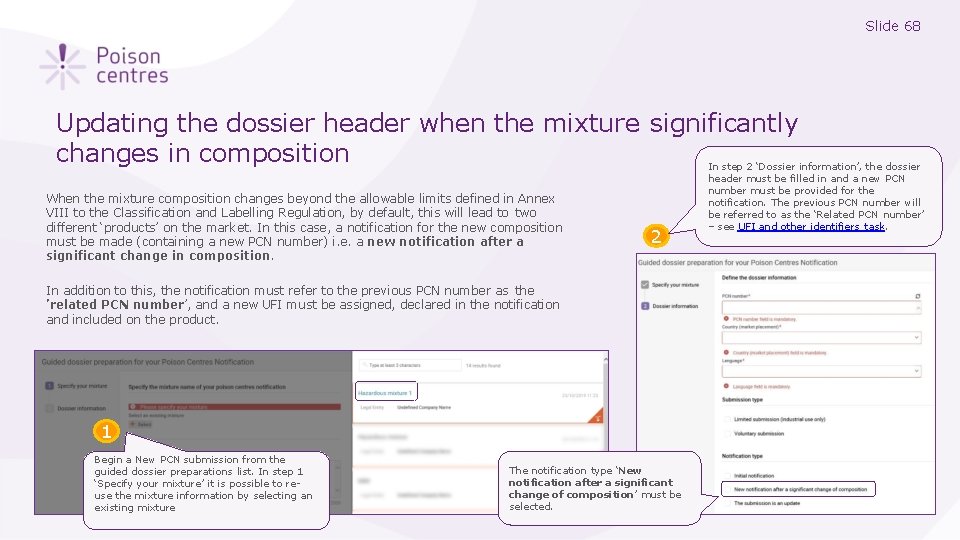
Slide 68 Updating the dossier header when the mixture significantly changes in composition When the mixture composition changes beyond the allowable limits defined in Annex VIII to the Classification and Labelling Regulation, by default, this will lead to two different ‘products’ on the market. In this case, a notification for the new composition must be made (containing a new PCN number) i. e. a new notification after a significant change in composition. 2 In addition to this, the notification must refer to the previous PCN number as the ’related PCN number’, and a new UFI must be assigned, declared in the notification and included on the product. 1 Begin a New PCN submission from the guided dossier preparations list. In step 1 ‘Specify your mixture’ it is possible to reuse the mixture information by selecting an existing mixture The notification type ‘New notification after a significant change of composition’ must be selected. In step 2 ‘Dossier information’, the dossier header must be filled in and a new PCN number must be provided for the notification. The previous PCN number will be referred to as the ‘Related PCN number’ – see UFI and other identifiers task.
Slide 69