
PM 5000 QR Code Feature Unlocking Meter Insights
- Slides: 11
PM 5000 QR Code Feature Unlocking Meter Insights
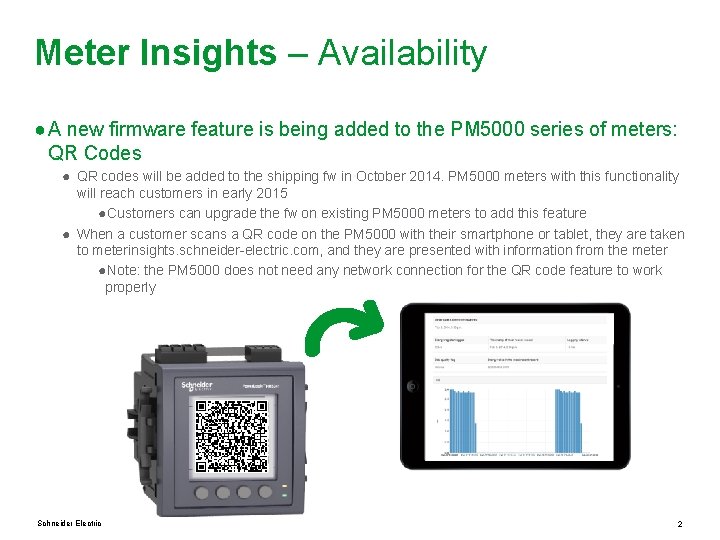
Meter Insights – Availability ● A new firmware feature is being added to the PM 5000 series of meters: QR Codes ● QR codes will be added to the shipping fw in October 2014. PM 5000 meters with this functionality will reach customers in early 2015 ●Customers can upgrade the fw on existing PM 5000 meters to add this feature ● When a customer scans a QR code on the PM 5000 with their smartphone or tablet, they are taken to meterinsights. schneider-electric. com, and they are presented with information from the meter ●Note: the PM 5000 does not need any network connection for the QR code feature to work properly Schneider Electric 2
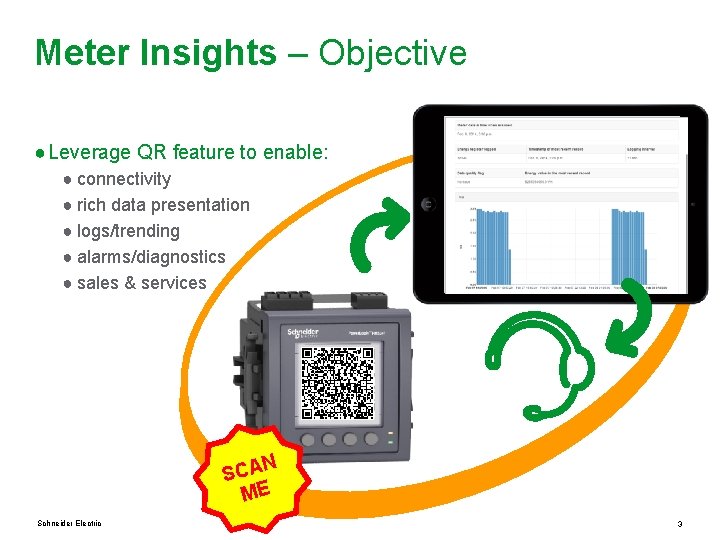
Meter Insights – Objective ● Leverage QR feature to enable: ● connectivity ● rich data presentation ● logs/trending ● alarms/diagnostics ● sales & services N SCA ME Schneider Electric 3
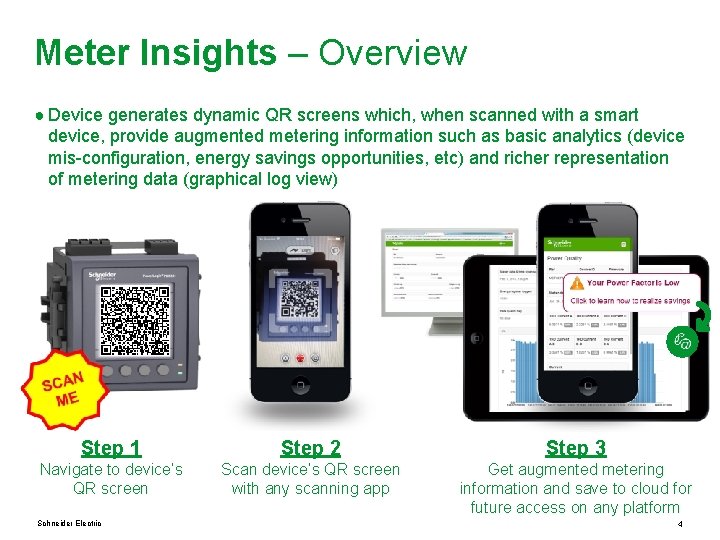
Meter Insights – Overview ● Device generates dynamic QR screens which, when scanned with a smart device, provide augmented metering information such as basic analytics (device mis-configuration, energy savings opportunities, etc) and richer representation of metering data (graphical log view) Step 1 Step 2 Step 3 Navigate to device’s QR screen Scan device’s QR screen with any scanning app Get augmented metering information and save to cloud for future access on any platform Schneider Electric 4
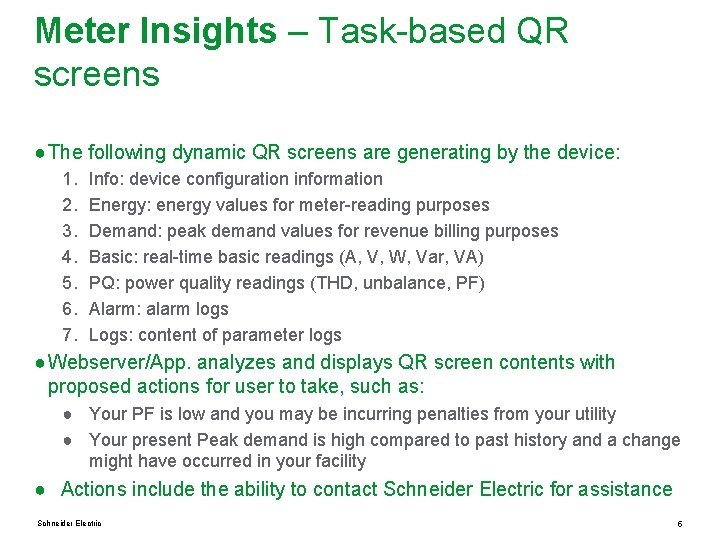
Meter Insights – Task-based QR screens ● The following dynamic QR screens are generating by the device: 1. 2. 3. 4. 5. 6. 7. Info: device configuration information Energy: energy values for meter-reading purposes Demand: peak demand values for revenue billing purposes Basic: real-time basic readings (A, V, W, Var, VA) PQ: power quality readings (THD, unbalance, PF) Alarm: alarm logs Logs: content of parameter logs ● Webserver/App. analyzes and displays QR screen contents with proposed actions for user to take, such as: ● Your PF is low and you may be incurring penalties from your utility ● Your present Peak demand is high compared to past history and a change might have occurred in your facility ● Actions include the ability to contact Schneider Electric for assistance Schneider Electric 5
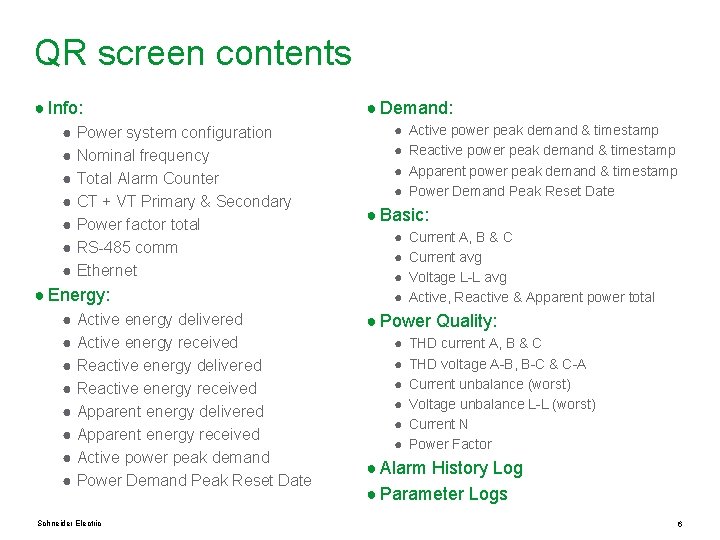
QR screen contents ● Info: ● Power system configuration ● Nominal frequency ● Total Alarm Counter ● CT + VT Primary & Secondary ● Power factor total ● RS-485 comm ● Ethernet ● Energy: ● Active energy delivered ● Active energy received ● Reactive energy delivered ● Reactive energy received ● Apparent energy delivered ● Apparent energy received ● Active power peak demand ● Power Demand Peak Reset Date Schneider Electric ● Demand: ● ● Active power peak demand & timestamp Reactive power peak demand & timestamp Apparent power peak demand & timestamp Power Demand Peak Reset Date ● Basic: ● ● Current A, B & C Current avg Voltage L-L avg Active, Reactive & Apparent power total ● Power Quality: ● ● ● THD current A, B & C THD voltage A-B, B-C & C-A Current unbalance (worst) Voltage unbalance L-L (worst) Current N Power Factor ● Alarm History Log ● Parameter Logs 6
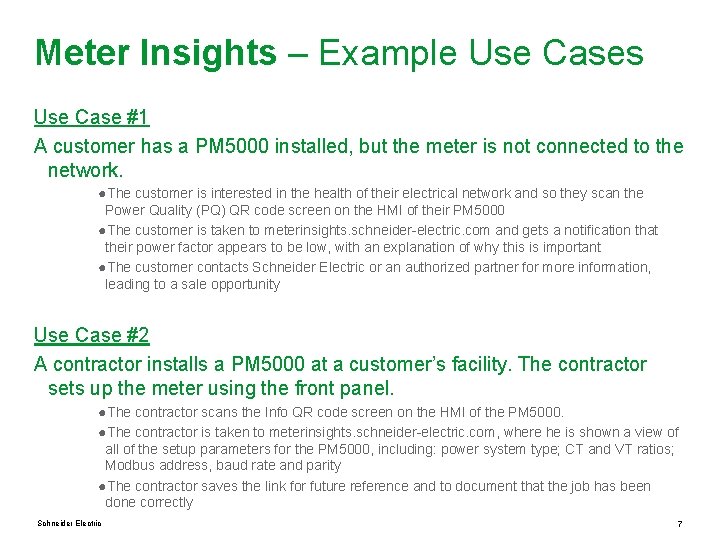
Meter Insights – Example Use Cases Use Case #1 A customer has a PM 5000 installed, but the meter is not connected to the network. ●The customer is interested in the health of their electrical network and so they scan the Power Quality (PQ) QR code screen on the HMI of their PM 5000 ●The customer is taken to meterinsights. schneider-electric. com and gets a notification that their power factor appears to be low, with an explanation of why this is important ●The customer contacts Schneider Electric or an authorized partner for more information, leading to a sale opportunity Use Case #2 A contractor installs a PM 5000 at a customer’s facility. The contractor sets up the meter using the front panel. ●The contractor scans the Info QR code screen on the HMI of the PM 5000. ●The contractor is taken to meterinsights. schneider-electric. com, where he is shown a view of all of the setup parameters for the PM 5000, including: power system type; CT and VT ratios; Modbus address, baud rate and parity ●The contractor saves the link for future reference and to document that the job has been done correctly Schneider Electric 7
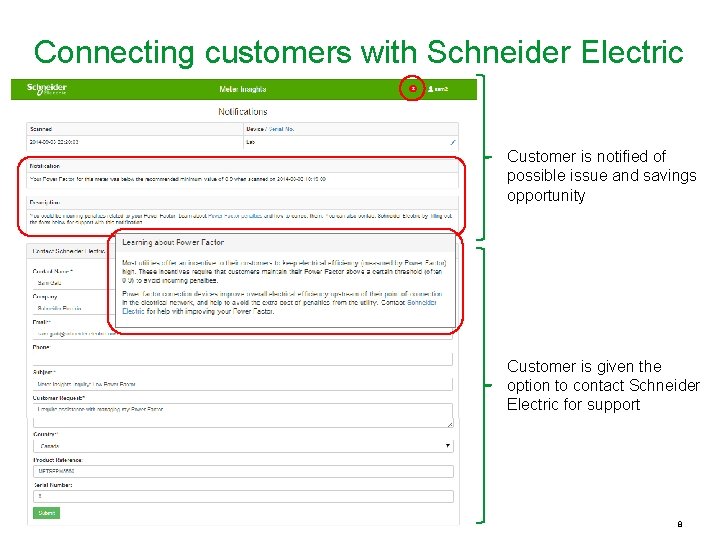
Connecting customers with Schneider Electric Customer is notified of possible issue and savings opportunity Customer is given the option to contact Schneider Electric for support Schneider Electric 8
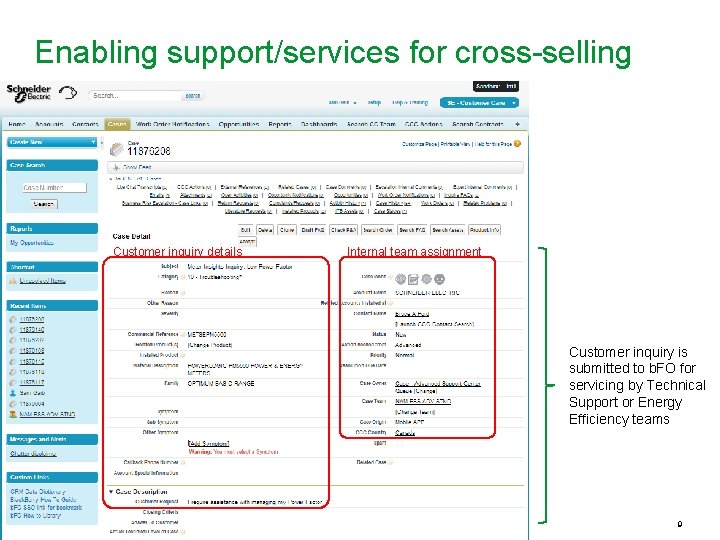
Enabling support/services for cross-selling Customer inquiry details Internal team assignment Customer inquiry is submitted to b. FO for servicing by Technical Support or Energy Efficiency teams Schneider Electric 9
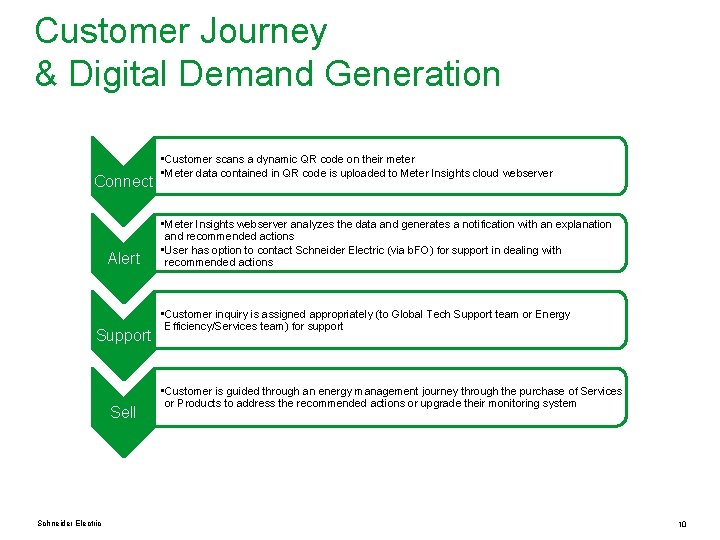
Customer Journey & Digital Demand Generation Connect Alert Support Sell Schneider Electric • Customer scans a dynamic QR code on their meter • Meter data contained in QR code is uploaded to Meter Insights cloud webserver • Meter Insights webserver analyzes the data and generates a notification with an explanation and recommended actions • User has option to contact Schneider Electric (via b. FO) for support in dealing with recommended actions • Customer inquiry is assigned appropriately (to Global Tech Support team or Energy Efficiency/Services team) for support • Customer is guided through an energy management journey through the purchase of Services or Products to address the recommended actions or upgrade their monitoring system 10
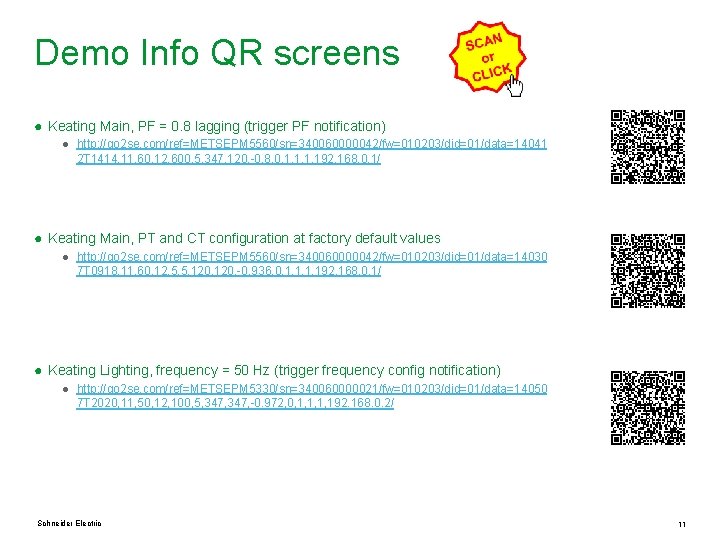
Demo Info QR screens ● Keating Main, PF = 0. 8 lagging (trigger PF notification) ● http: //go 2 se. com/ref=METSEPM 5560/sn=340060000042/fw=010203/did=01/data=14041 2 T 1414, 11, 60, 12, 600, 5, 347, 120, -0. 8, 0, 1, 192. 168. 0. 1/ ● Keating Main, PT and CT configuration at factory default values ● http: //go 2 se. com/ref=METSEPM 5560/sn=340060000042/fw=010203/did=01/data=14030 7 T 0918, 11, 60, 12, 5, 5, 120, -0. 936, 0, 1, 192. 168. 0. 1/ ● Keating Lighting, frequency = 50 Hz (trigger frequency config notification) ● http: //go 2 se. com/ref=METSEPM 5330/sn=340060000021/fw=010203/did=01/data=14050 7 T 2020, 11, 50, 12, 100, 5, 347, -0. 972, 0, 1, 192. 168. 0. 2/ Schneider Electric 11