
PLUG IT IN 7 Protecting Your Information Assets
- Slides: 32
PLUG IT IN 7 Protecting Your Information Assets 1
1. How to Protect Your Assets: The Basics 2. Behavioral Actions to Protect Your Information Assets 3. Computer-Based Actions to Protect Your Information Assets 2
>>> 1. Explain why it is critical that you protect your information assets. 2. Identify the various behavioral actions you can take to protect your information assets. 3. Identify the various computer-based actions you can take to protect your information assets. 3
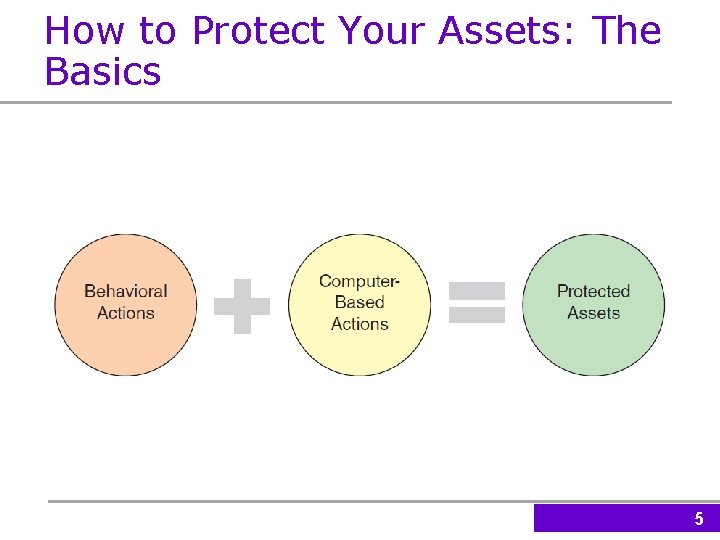
PI 7. 1 How to Protect Your Assets: The Basics • Business travel • Working from home • Various activities at our favorite hotspot • Industrial strength IS security from work • Attacks on a home network 4
How to Protect Your Assets: The Basics 5
Actions to PI 7. 2 Behavioral Protect Your Information Assets • General Behavioral Actions • What to Do in the Event of Identity Theft 6
General Behavioral Actions • Never provide personal information to anyone in any format • Protect your Social Security number • Use credit cards with your picture on them • Write “Photo ID Required” on the back of credit cards 7
General Behavioral Actions (Continued) • Use virtual credit cards • Pay very close attention to your credit card billing cycles • Receive your credit card bills electronically • Only use the last four digits of your credit card account when paying by check 8
General Behavioral Actions (Continued) • Limit your use of debit cards • Use secure, private mailbox/PO Box • Use a cross-cut or confetti shredder to dispose of old mail & records • Sign up for a proactive protection service (e. g. , lifelock. com, trustedid. com, cardcops. com) 9
What to Do in the Event of Identity Theft • Review instructions from the Federal Trade Commission (FTC) and immediately take the actions outlined in the following slides. 10
What to Do in the Event of Identity Theft (continued) Step 1: • Place an Initial Fraud Alert by contacting all three credit reporting agencies (Equifax, Experian, Transunion) • Keep a detailed record of all communication (phone calls, letters, e-mail) 11
What to Do in the Event of Identity Theft (continued) Step 2: • Order credit reports from all three nationwide credit reporting companies. • Keep detailed records of everything you requested and received 12
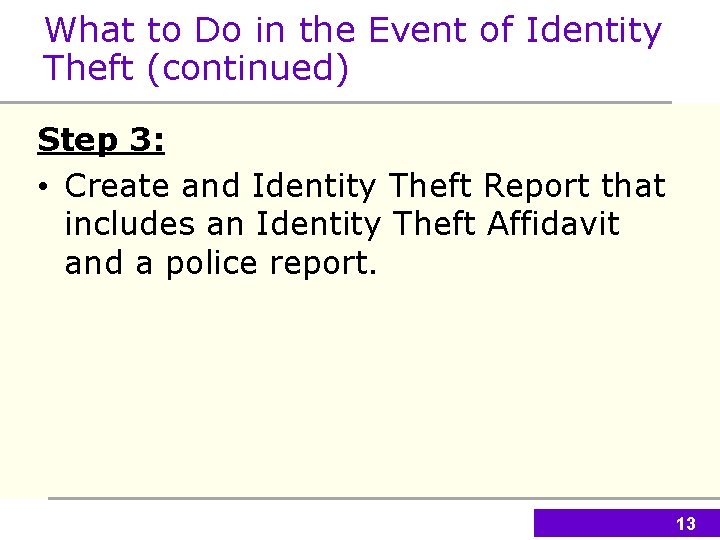
What to Do in the Event of Identity Theft (continued) Step 3: • Create and Identity Theft Report that includes an Identity Theft Affidavit and a police report. 13
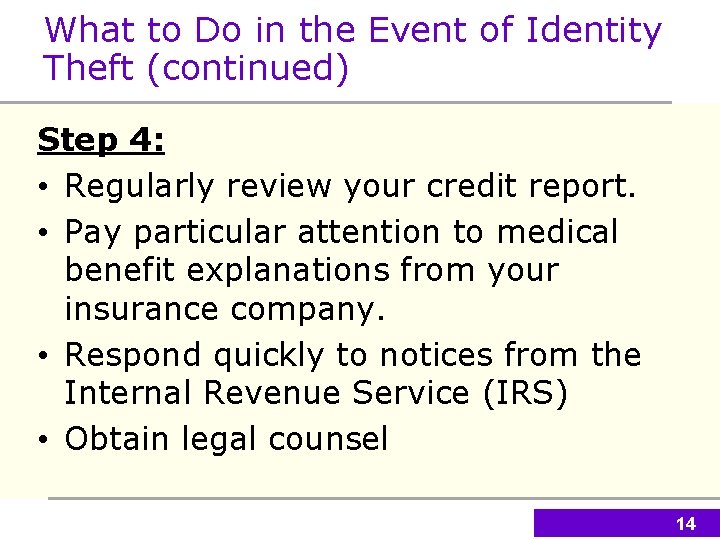
What to Do in the Event of Identity Theft (continued) Step 4: • Regularly review your credit report. • Pay particular attention to medical benefit explanations from your insurance company. • Respond quickly to notices from the Internal Revenue Service (IRS) • Obtain legal counsel 14
PI 7. 3 Computer-Based Actions to Protect Your Information Assets • Determining Where People Have Visited on the Internet Using Your Computer • The Dangers of Social Networking Sites • Determining if Your Computer is Infected 15
Actions to PI 7. 3 Computer-Based Protect Your Information Assets (Continued) • Computer Actions to Prevent Malware Infections • Protecting Your Portable Devices and Information • Other Actions You Can Take On Your Computer • Protecting Your Privacy 16
Actions to PI 7. 3 Computer-Based Protect Your Information Assets (Continued) • Preparing for Personal Disasters • Wireless Security • Mobile Security 17
Determining Where People Have Visited on the Internet Using Your Computer Other people who may use your home computer may not practice “Safe Computing” practices • Review the browser history • Require a password for users on your home computer 18
The Dangers of Social Networking Sites • Never post personal information about yourself or your family • Deleted photos, posts, and messages can be copied and reposted by others • Use the “Privacy Settings” to maintain control over your information 19
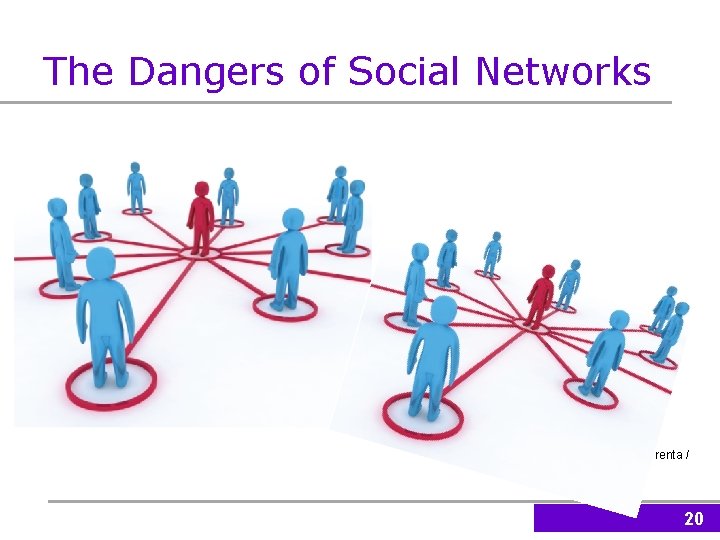
The Dangers of Social Networks (Source: Jure Porenta / Shutterstock) 20
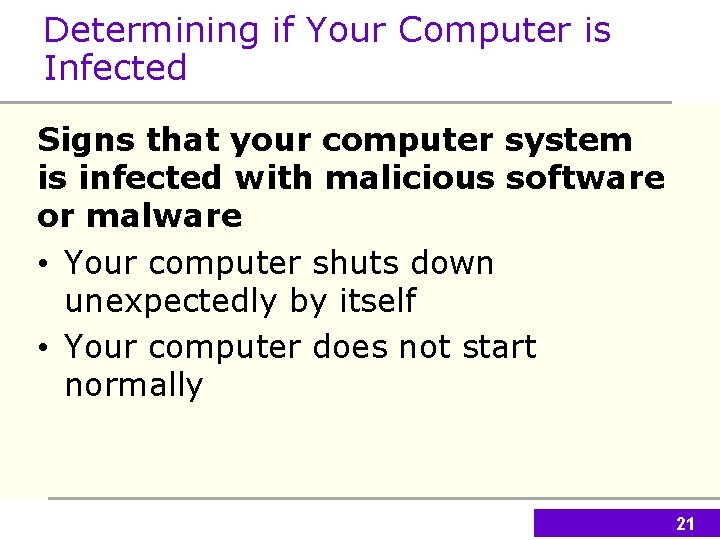
Determining if Your Computer is Infected Signs that your computer system is infected with malicious software or malware • Your computer shuts down unexpectedly by itself • Your computer does not start normally 21
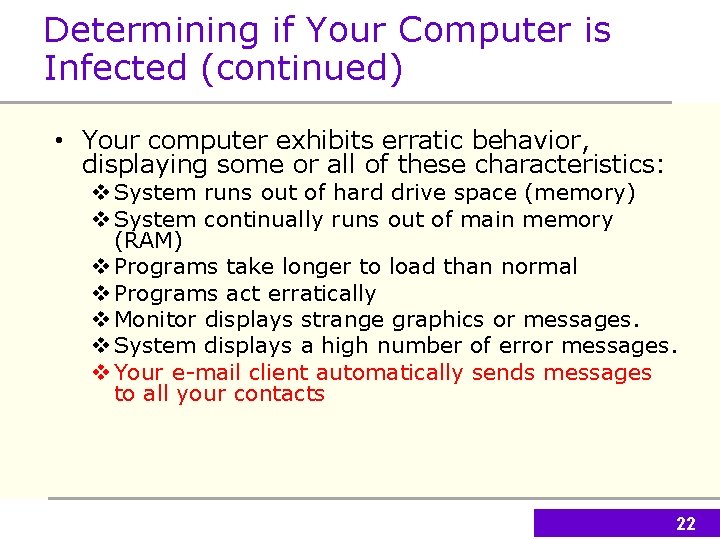
Determining if Your Computer is Infected (continued) • Your computer exhibits erratic behavior, displaying some or all of these characteristics: v System runs out of hard drive space (memory) v System continually runs out of main memory (RAM) v Programs take longer to load than normal v Programs act erratically v Monitor displays strange graphics or messages. v System displays a high number of error messages. v Your e-mail client automatically sends messages to all your contacts 22
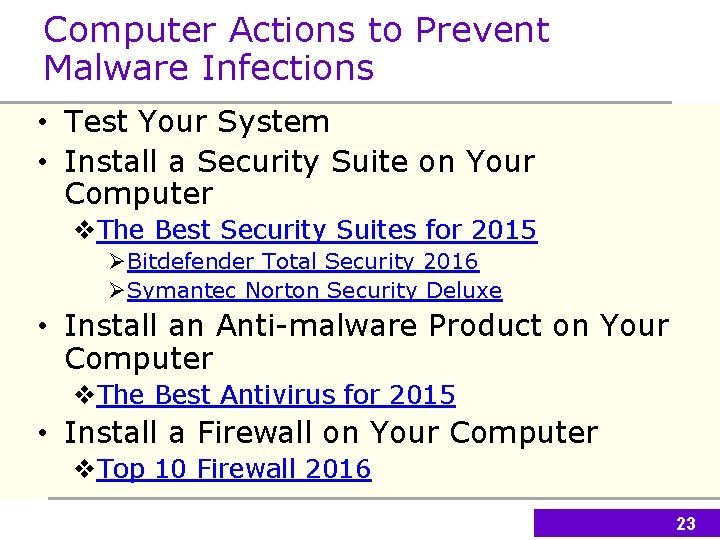
Computer Actions to Prevent Malware Infections • Test Your System • Install a Security Suite on Your Computer v. The Best Security Suites for 2015 ØBitdefender Total Security 2016 ØSymantec Norton Security Deluxe • Install an Anti-malware Product on Your Computer v. The Best Antivirus for 2015 • Install a Firewall on Your Computer v. Top 10 Firewall 2016 23
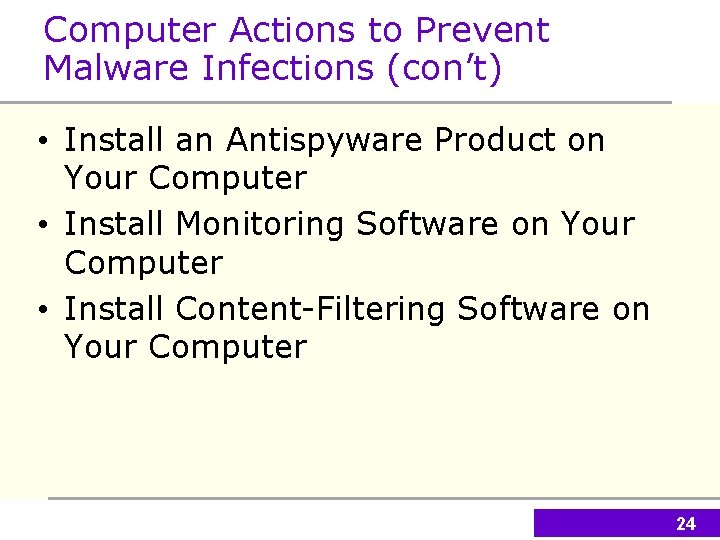
Computer Actions to Prevent Malware Infections (con’t) • Install an Antispyware Product on Your Computer • Install Monitoring Software on Your Computer • Install Content-Filtering Software on Your Computer 24
Computer Actions to Prevent Malware Infections (con’t) • Install Antispam Software on Your Computer • Manage Software Patches • Use a Browser Other Than Internet Explorer v. What is the Safest Web Browser? • Use an Operating System Other Than Windows 25
Protecting Your Portable Devices and Information • Keep portable devices in an inconspicuous container/carrier • Do not leave portable devices unattended in plain view • Use alarms • Two-factor authentication • Use data encryption on portable devices 26
Other Actions You Can Take On Your Computer • How to detect a worm: P. 535, also 532 • How to detect a Trojan Horse v. A little bit technical v. Detecting and Removing Trojan Horses • How to detect fake Web Sites: P. 536; plus hover mouse over the link and check the real URL on the lower-left corner of the browser’s window 27
Protecting Your Privacy • Use strong passwords • How to adjust your privacy settings on your computer • How to surf the Web anonymously • How to e-mail anonymously • Erasing your Google search history 28
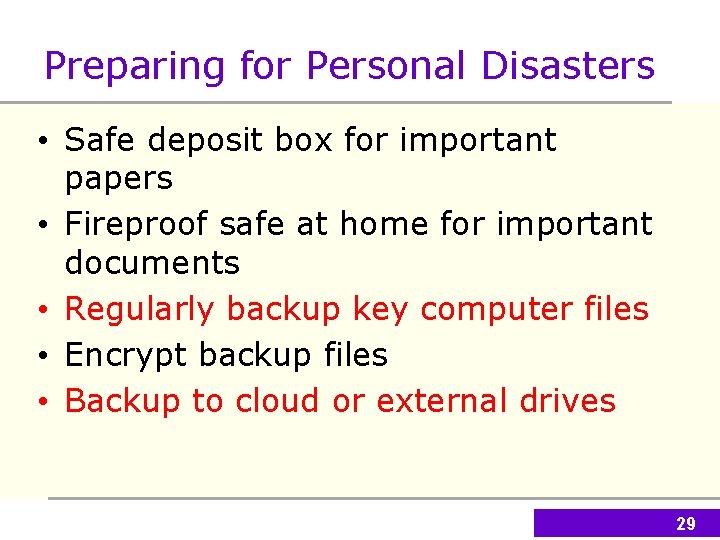
Preparing for Personal Disasters • Safe deposit box for important papers • Fireproof safe at home for important documents • Regularly backup key computer files • Encrypt backup files • Backup to cloud or external drives 29
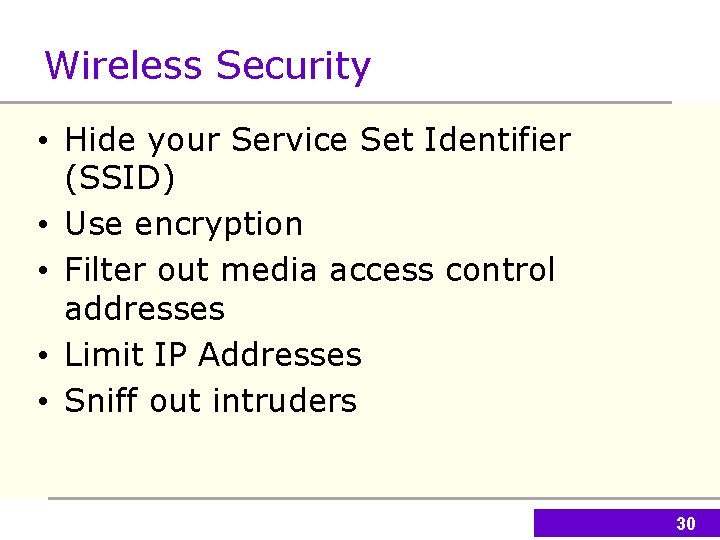
Wireless Security • Hide your Service Set Identifier (SSID) • Use encryption • Filter out media access control addresses • Limit IP Addresses • Sniff out intruders 30
Wireless Security (continued) • Using a Public Hotspot • Test your wireless network • Wireless security software 31
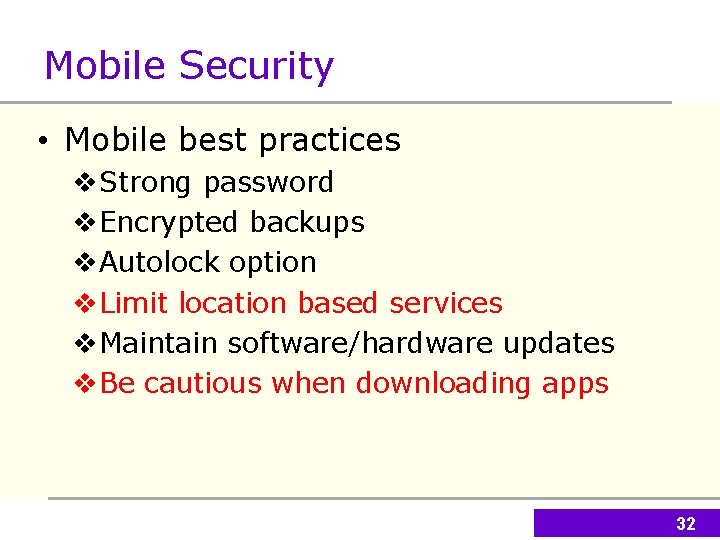
Mobile Security • Mobile best practices v. Strong password v. Encrypted backups v. Autolock option v. Limit location based services v. Maintain software/hardware updates v. Be cautious when downloading apps 32