
Please view the Web Portal Public User Navigation
Please view the Web Portal: Public User Navigation Tutorial first before viewing this tutor ARIZONA MIGRANT EDUCATION PROGRAM Web Portal: MEP User Tutorial
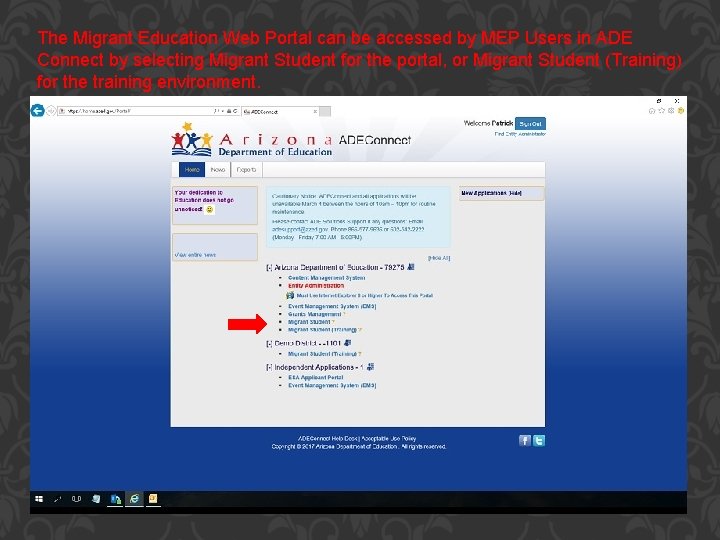
The Migrant Education Web Portal can be accessed by MEP Users in ADE Connect by selecting Migrant Student for the portal, or Migrant Student (Training) for the training environment. ADE CONNECT
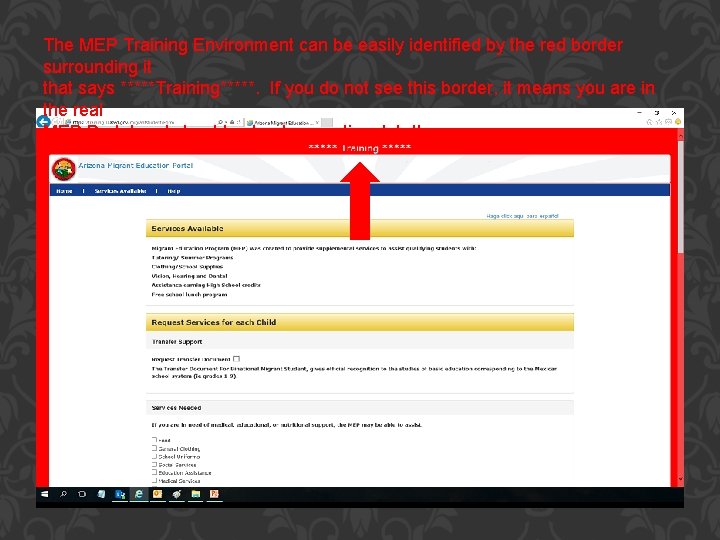
The MEP Training Environment can be easily identified by the red border surrounding it that says *****Training*****. If you do not see this border, it means you are in the real MEP Portal and should not enter practice data!! TRAINING
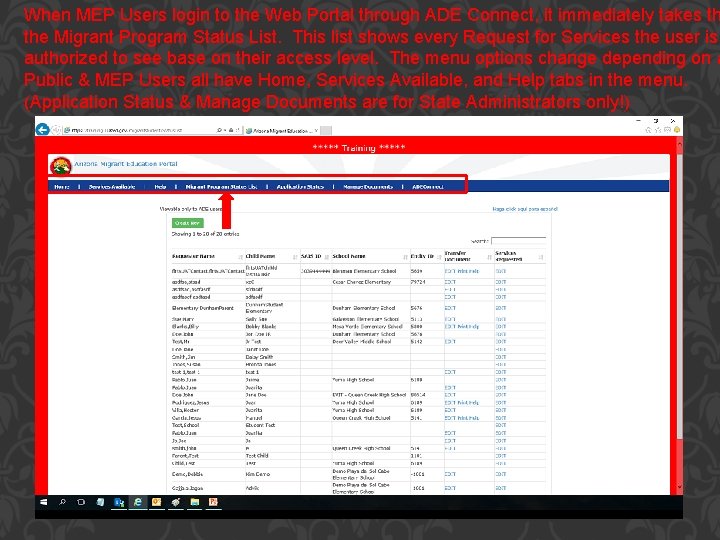
When MEP Users login to the Web Portal through ADE Connect, it immediately takes th the Migrant Program Status List. This list shows every Request for Services the user is authorized to see base on their access level. The menu options change depending on a Public & MEP Users all have Home, Services Available, and Help tabs in the menu. (Application Status & Manage Documents are for State Administrators only!) TRAINING 2
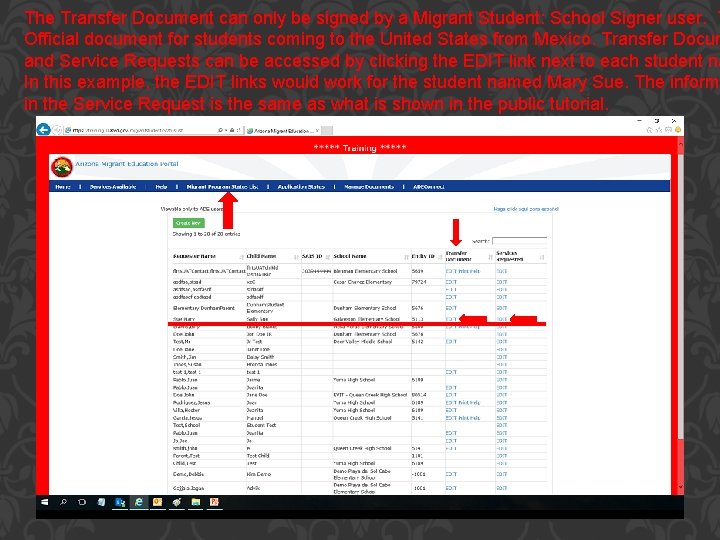
The Transfer Document can only be signed by a Migrant Student: School Signer user. T Official document for students coming to the United States from Mexico. Transfer Docum and Service Requests can be accessed by clicking the EDIT link next to each student na In this example, the EDIT links would work for the student named Mary Sue. The informa in the Service Request is the same as what is shown in the public tutorial. MIGRANT PROGRAM STATUS LIST
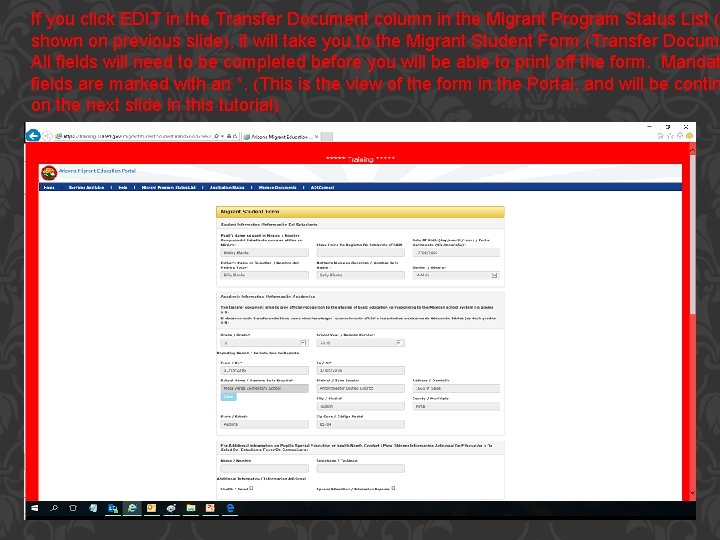
If you click EDIT in the Transfer Document column in the Migrant Program Status List (a shown on previous slide), it will take you to the Migrant Student Form (Transfer Docume All fields will need to be completed before you will be able to print off the form. Mandat fields are marked with an *. (This is the view of the form in the Portal, and will be contin on the next slide in this tutorial) TRANSFER DOCUMENT 1
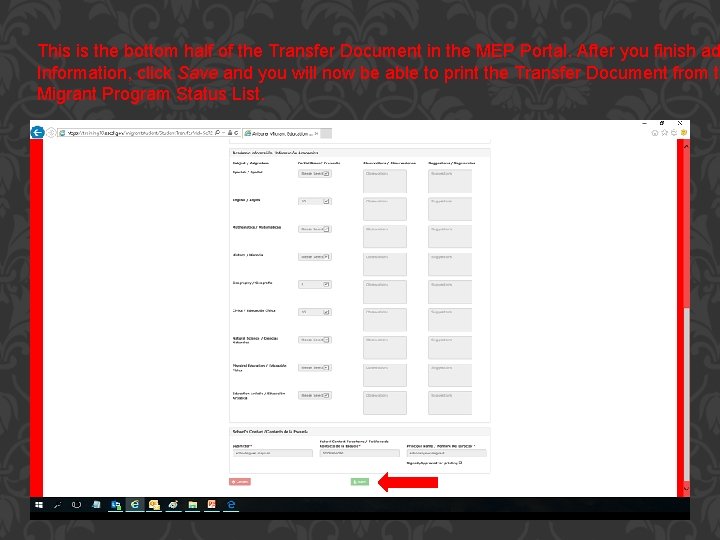
This is the bottom half of the Transfer Document in the MEP Portal. After you finish ad Information, click Save and you will now be able to print the Transfer Document from th Migrant Program Status List. TRANSFER DOCUMENT 2
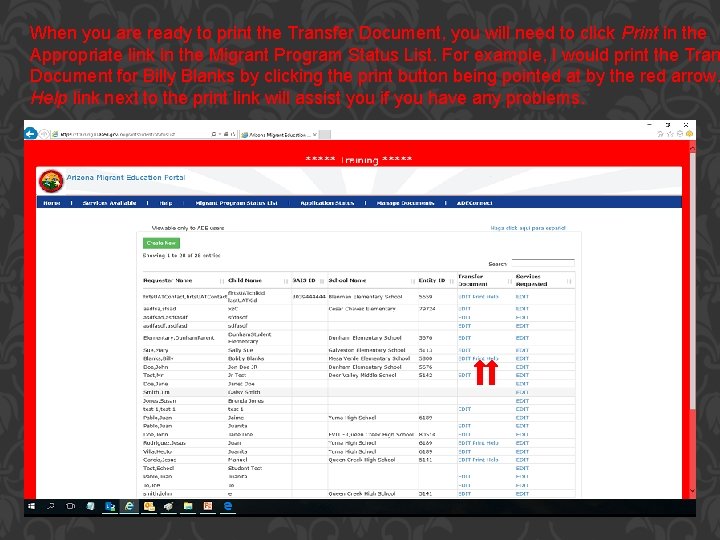
When you are ready to print the Transfer Document, you will need to click Print in the Appropriate link in the Migrant Program Status List. For example, I would print the Tran Document for Billy Blanks by clicking the print button being pointed at by the red arrow. Help link next to the print link will assist you if you have any problems. TRANSFER DOCUMENT MENU
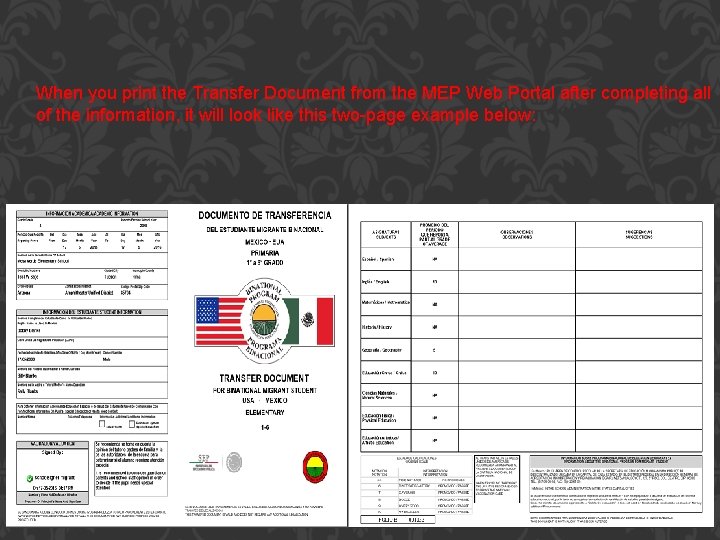
When you print the Transfer Document from the MEP Web Portal after completing all of the information, it will look like this two-page example below: TRANSFER DOCUMENT PRINTED
CONTACT INFO If you need any additional help with the MEP Web Portal, please contact Patrick Bohanan at: Patrick. Bohanan@azed. gov (602) 364 -1805 You can also view the Portal User Guide at the Arizona Migrant Education Program We for additional clarification on user roles and portal operation.
- Slides: 10