
Please play this as a Slide Show it
- Slides: 19
• Please play this as a Slide Show – it will be helpful
SKYLINE LIBRARY MLA Intro Part II
1) Please log on a computer - If you haven’t been on a school computer this year, this is your login info - Username: up to FOUR letters of your last name, up to THREE letters of your first, TWO digit grad year - Password: seven-digit ASB number 2) Get our your library homework (the ‘bookmark’) 3) Open the web and then… 4) Go to the Skyline Library page via SHS main page > Library on right under Student Resources (or www. msbacon. com) 5) And get out your notes from yesterday. 6) Thank you!
SOME NOTES Three Main Rules of the Library… • Do NOT eat or drink (water’s okay) in the library • Do NOT reshelf your books • Be respectful and ask for help! • Get out headphones if you have them.
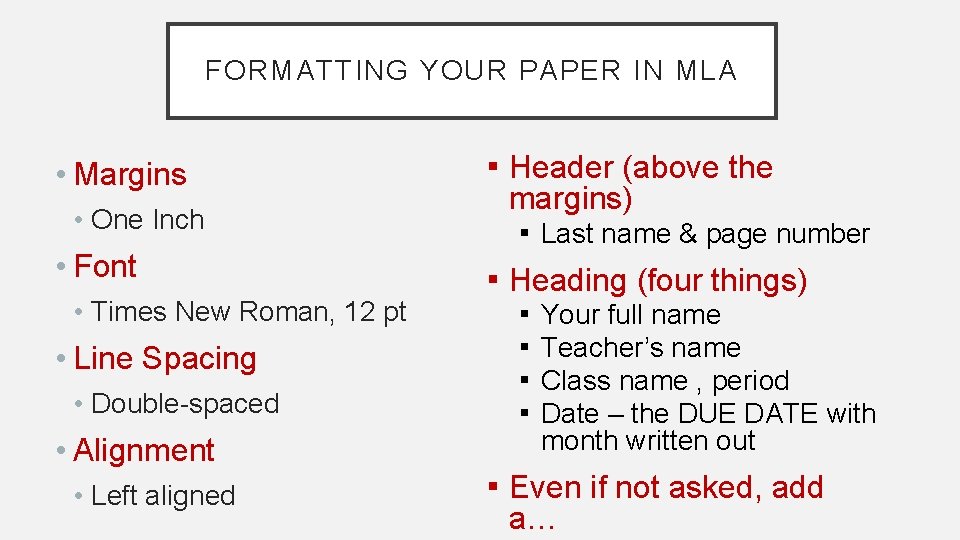
FORMATTING YOUR PAPER IN MLA • Margins • One Inch • Font • Times New Roman, 12 pt • Line Spacing • Double-spaced • Alignment • Left aligned ▪ Header (above the margins) ▪ Last name & page number ▪ Heading (four things) ▪ Your full name ▪ Teacher’s name ▪ Class name , period ▪ Date – the DUE DATE with month written out ▪ Even if not asked, add a…
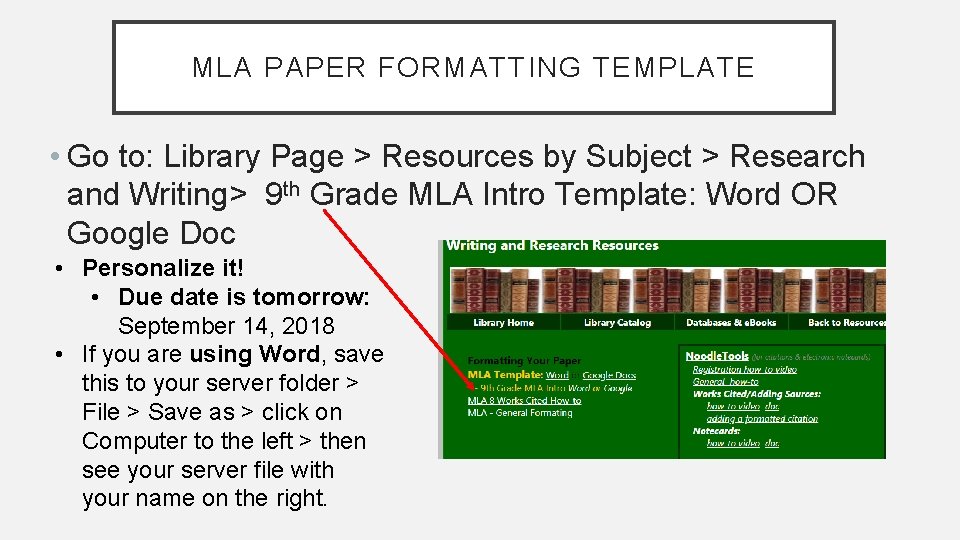
MLA PAPER FORMATTING TEMPLATE • Go to: Library Page > Resources by Subject > Research and Writing> 9 th Grade MLA Intro Template: Word OR Google Doc • Personalize it! • Due date is tomorrow: September 14, 2018 • If you are using Word, save this to your server folder > File > Save as > click on Computer to the left > then see your server file with your name on the right.
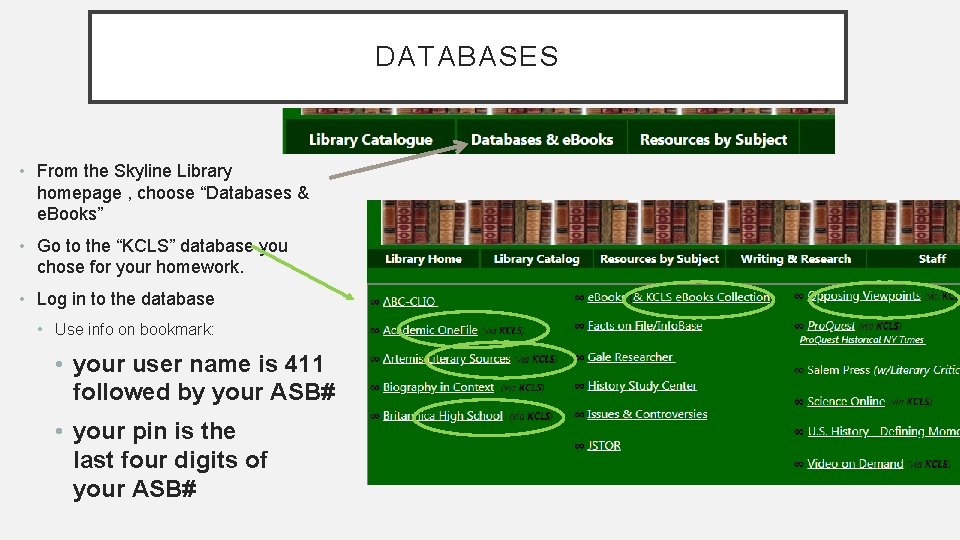
DATABASES • From the Skyline Library homepage , choose “Databases & e. Books” • Go to the “KCLS” database you chose for your homework. • Log in to the database • Use info on bookmark: • your user name is 411 followed by your ASB# • your pin is the last four digits of your ASB#
SEARCH FOR A TOPIC IN DATABASE • Search for anything that you will be studying this year in Language Arts or Social Studies. • From the results list, open any article. • Then find the citation…
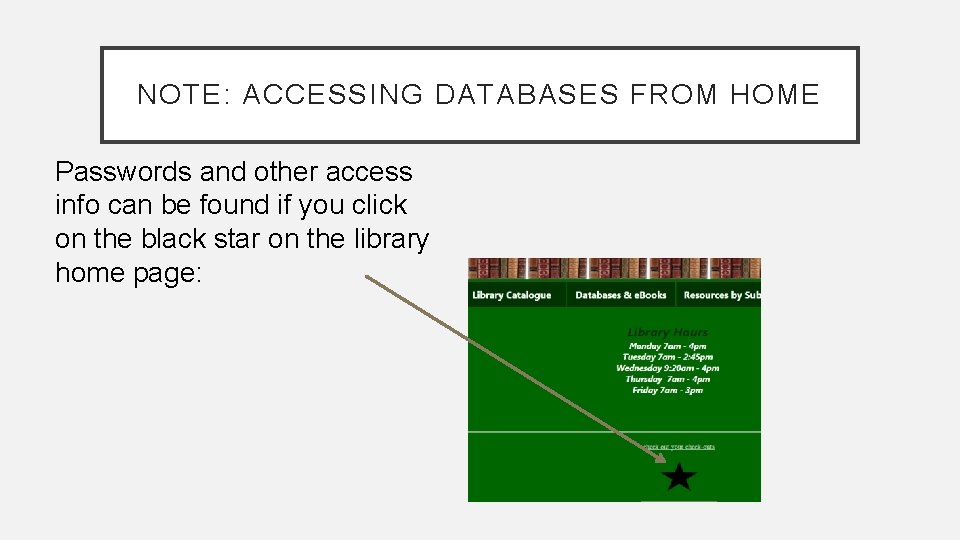
NOTE: ACCESSING DATABASES FROM HOME Passwords and other access info can be found if you click on the black star on the library home page:
NOODLETOOLS • Login to Noodle. Tools • You signed up for an account for homework if you didn’t already have an account. • Create a new Project…
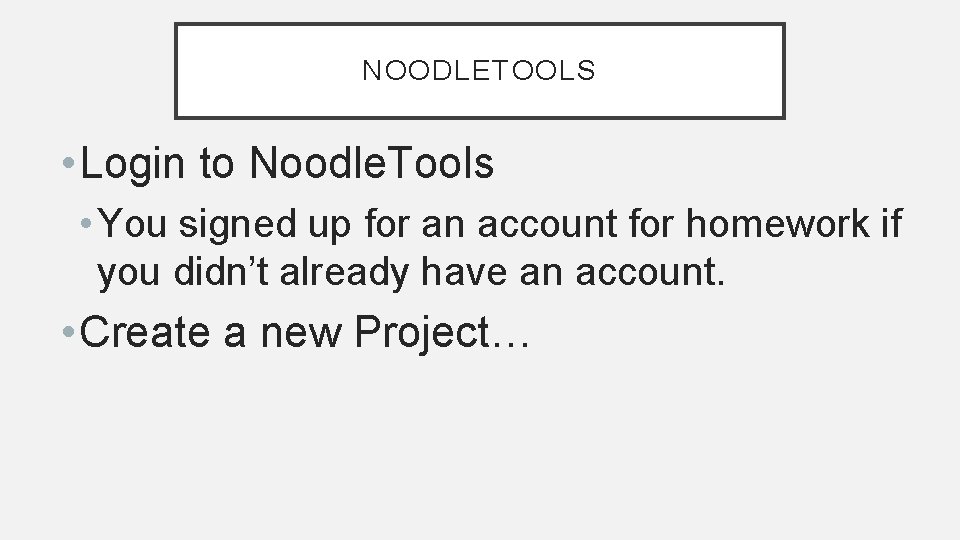
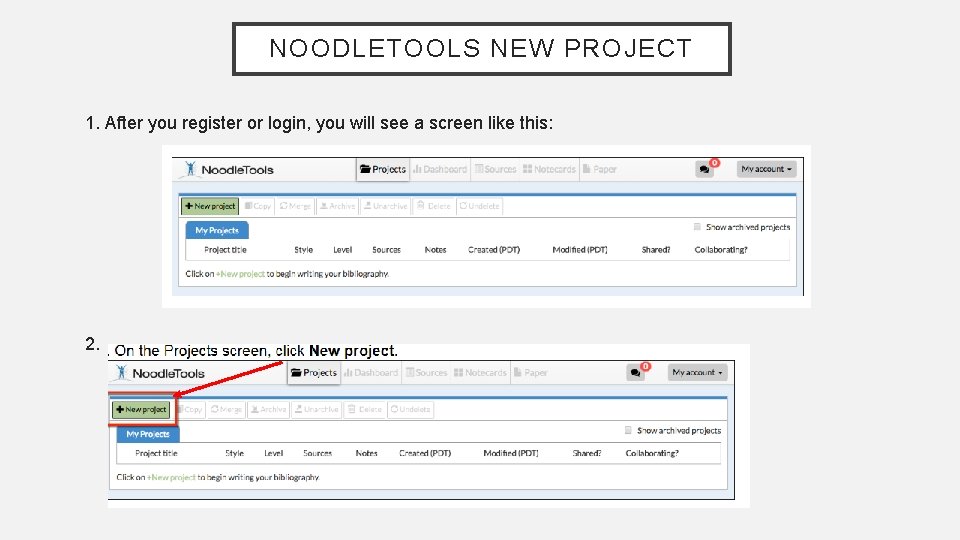
NOODLETOOLS NEW PROJECT 1. After you register or login, you will see a screen like this: 2.
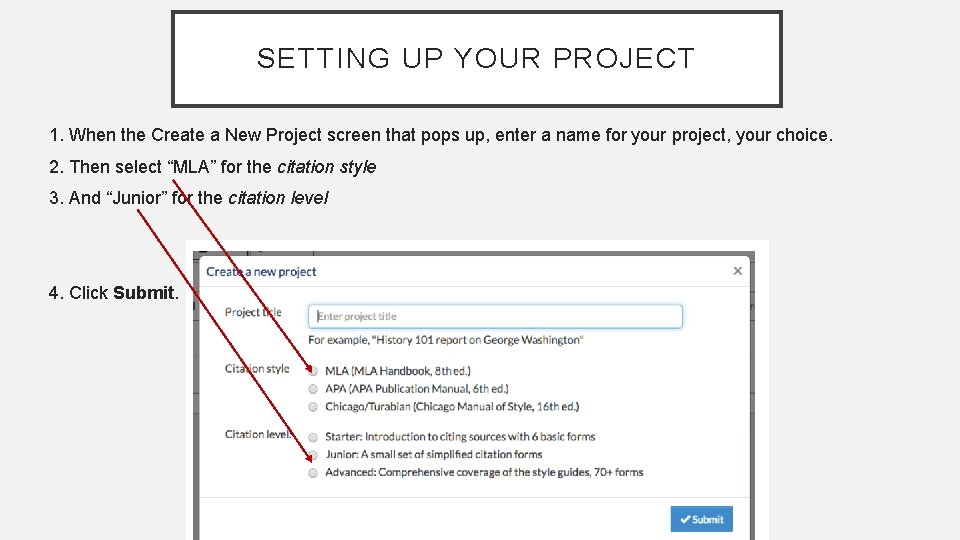
SETTING UP YOUR PROJECT 1. When the Create a New Project screen that pops up, enter a name for your project, your choice. 2. Then select “MLA” for the citation style 3. And “Junior” for the citation level 4. Click Submit.
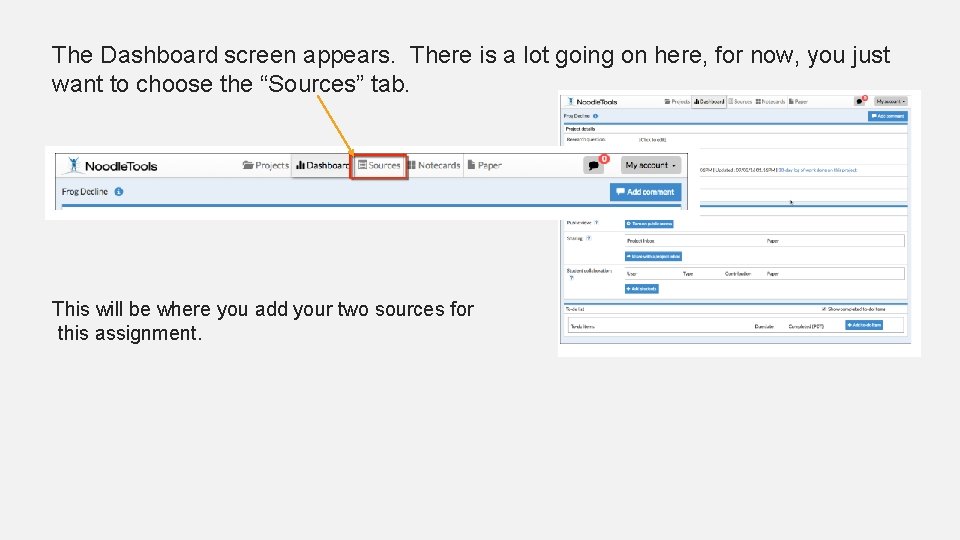
The Dashboard screen appears. There is a lot going on here, for now, you just want to choose the “Sources” tab. This will be where you add your two sources for this assignment.
ADDING SOURCES TO NOODLETOOLS & MAKING A WORKS CITED PAGE General Instructions: 1. You are going to add two sources to your new project • One database (copy and pasting citation) • One book (using the ISBN number) For #1 and #2, you will be watching a how-to video; that’s why you need your headphones. - If you need headphones, there are some at the front desk 2. You are going to make a works cited page with these two sources from Noodle. Tools. 3. You are going to copy and paste this works cited to your 9 th Grade MLA Intro Template that you already made. 4. You will decide what the in-text citation should be for both sources. 5. You will print this out and turn it in.
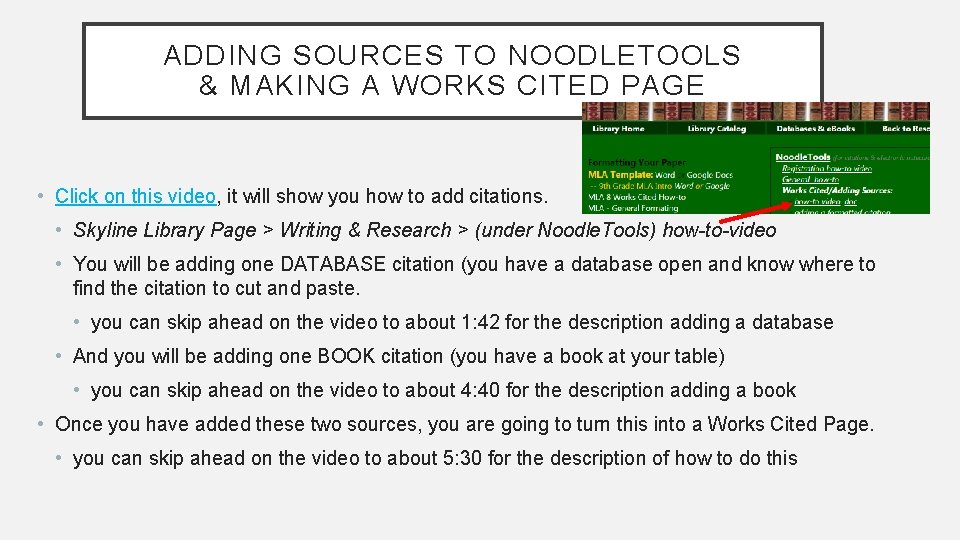
ADDING SOURCES TO NOODLETOOLS & MAKING A WORKS CITED PAGE • Click on this video, it will show you how to add citations. • Skyline Library Page > Writing & Research > (under Noodle. Tools) how-to-video • You will be adding one DATABASE citation (you have a database open and know where to find the citation to cut and paste. • you can skip ahead on the video to about 1: 42 for the description adding a database • And you will be adding one BOOK citation (you have a book at your table) • you can skip ahead on the video to about 4: 40 for the description adding a book • Once you have added these two sources, you are going to turn this into a Works Cited Page. • you can skip ahead on the video to about 5: 30 for the description of how to do this
COPY AND PASTE YOUR WORKS CITED • Second to last step! • Copy and paste the citations in your new Word or Goolge document on to the 2 nd page of your open MLA 9 th grade template.
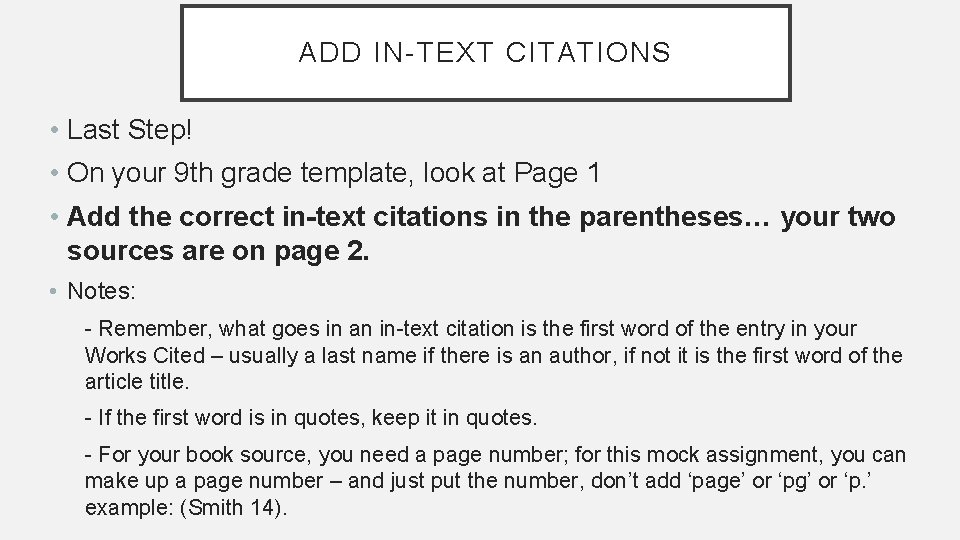
ADD IN-TEXT CITATIONS • Last Step! • On your 9 th grade template, look at Page 1 • Add the correct in-text citations in the parentheses… your two sources are on page 2. • Notes: - Remember, what goes in an in-text citation is the first word of the entry in your Works Cited – usually a last name if there is an author, if not it is the first word of the article title. - If the first word is in quotes, keep it in quotes. - For your book source, you need a page number; for this mock assignment, you can make up a page number – and just put the number, don’t add ‘page’ or ‘pg’ or ‘p. ’ example: (Smith 14).
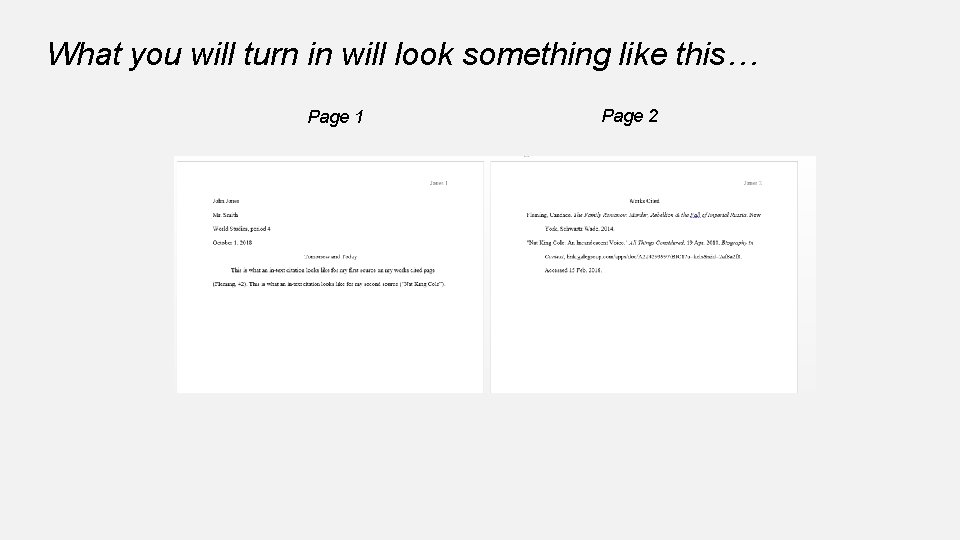
What you will turn in will look something like this… Page 1 Page 2
PRINT IT! • Now print the assignment! • Our printer automatically prints double-sided so • Turn it in in the pile by the printer • If you don’t finish today, please finish tonight and turn in tomorrow.