
Planning a coastal walk using Digimaps Learning Objective
Planning a coastal walk using Digimaps Learning Objective: To introduce the tools used in Digimaps Login to Digimaps for Schools
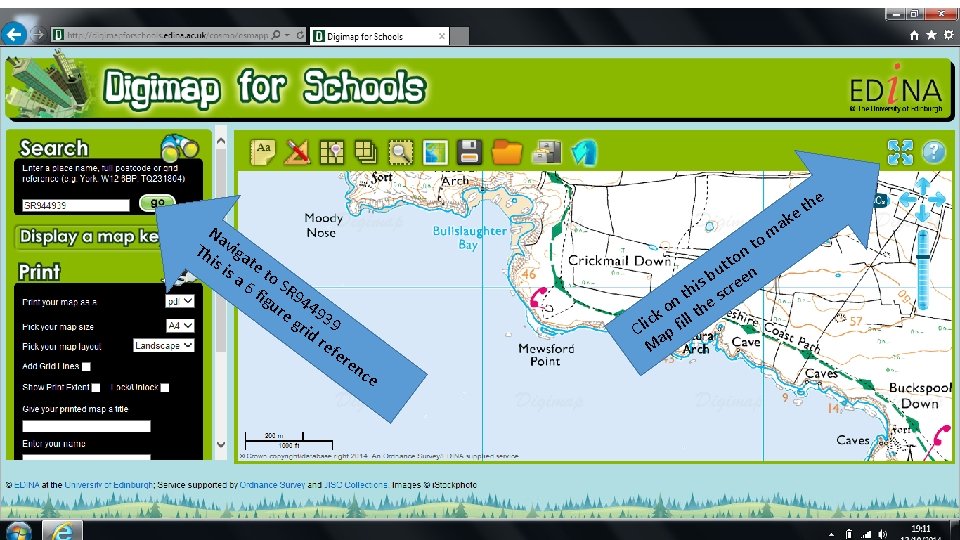
Na Th viga is is te to a 6 S fig R 94 ur 49 e g 39 rid re fer k a m o en nt o tt n u b ee s i th scr n o the k c ll Cli ap fi M ce e h et

Us yo e th uh e av grid e t re he fe co ren rre ce ct to ca ol r p to ar ch ks ec k Task: Checking grid reference and changing the scale Use the scale to zoom in and out. Zoom out to a small scale map to see the location in relation to the rest of Britain. Zoom back in to the appropriate scale. You must be able to see the two car parks at SR 925946 and SR 966930 iled) a t e ore d ail) to m – scale less det e g r + (la ll scale – e h t Use e – (sma. h le and t e the sca g chan

An no ta tio ns to olb a r Task: Drawing a line You are going to plan a route between the two car parks following the green dashed line with the diamonds on it. (The symbol for a National Trail (path)) Use the draw line tool found in the annotations toolbar to mark out your route. Choose your line style and colour. Dr mo aw dir use line ec b too tio utt l. n. on To Do. C dr ub lic aw le k e th cli ac e ck h t lin to im e c fin e y lic ish ou k t th ch he l an ef ine ge t
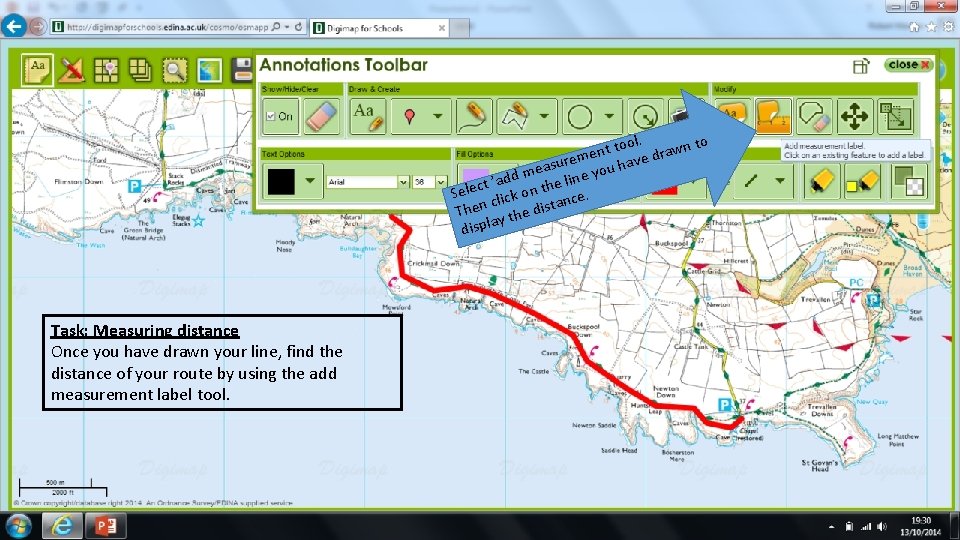
l. t too drawn to n e urem ou have s a e dd m he line y a ’ t c Sele lick on t nce. c a Then y the dist a displ Task: Measuring distance Once you have drawn your line, find the distance of your route by using the add measurement label tool.
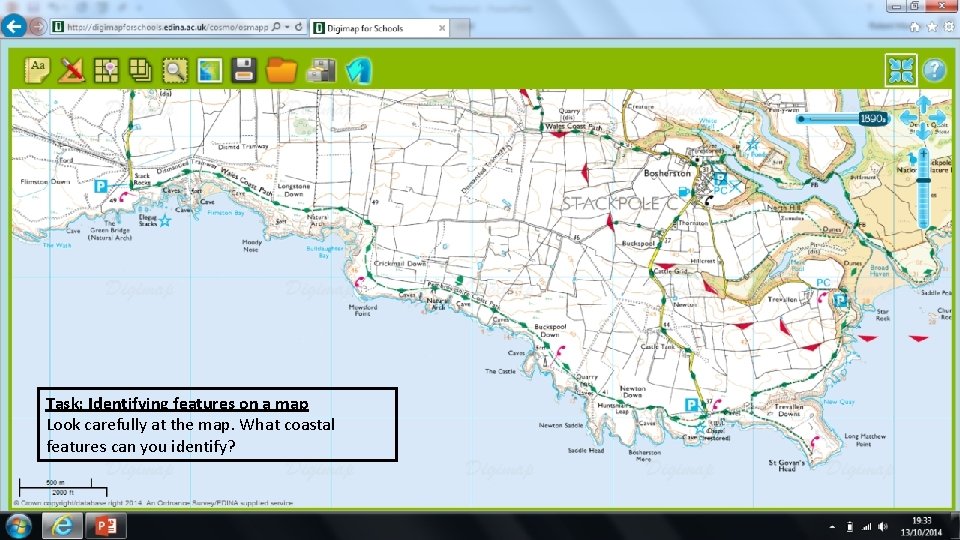
Task: Identifying features on a map Look carefully at the map. What coastal features can you identify?
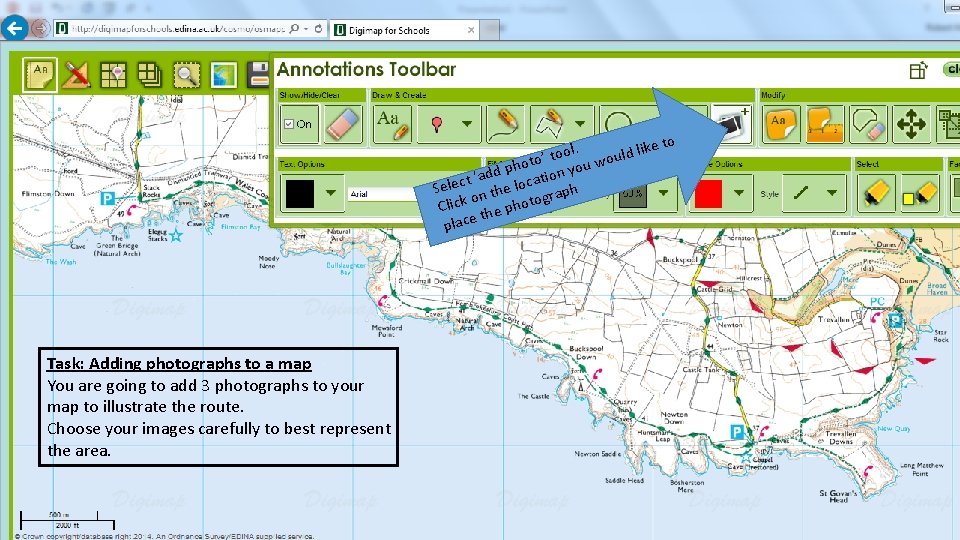
e to k. i l l o d o l to’ t ou wou o h p ny dd o a i ‘ t t a c c Sele n the lo raph g o Click the photo place Task: Adding photographs to a map You are going to add 3 photographs to your map to illustrate the route. Choose your images carefully to best represent the area.
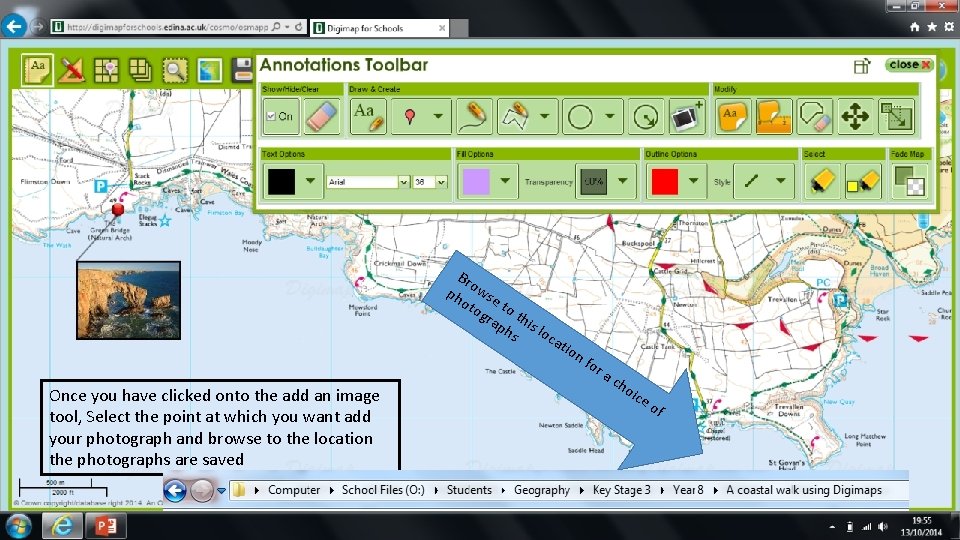
Bro ph wse oto to gra th ph is lo s ca tio Once you have clicked onto the add an image tool, Select the point at which you want add your photograph and browse to the location the photographs are saved nf or ac ho ice of
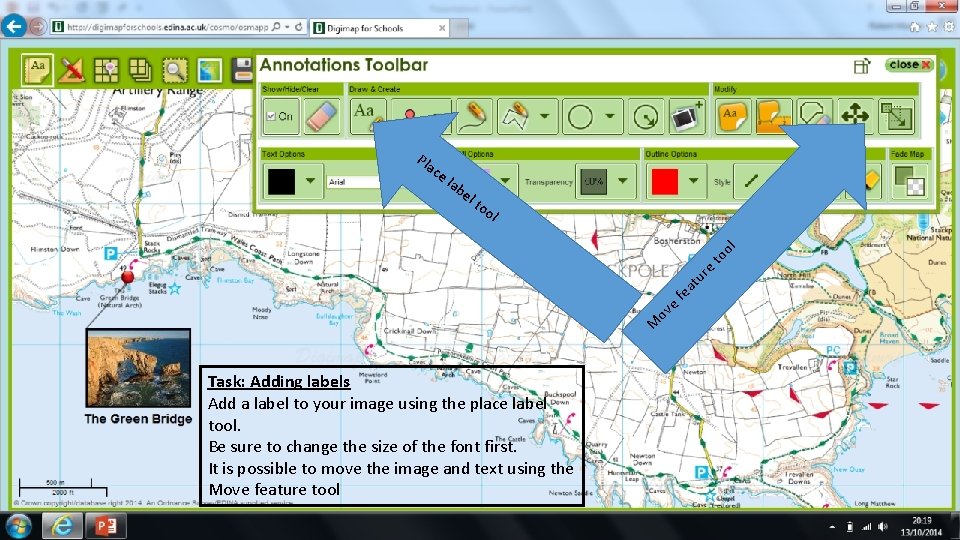
Pla lab el to ol M ov e fe at ur e to ol ce Task: Adding labels Add a label to your image using the place label tool. Be sure to change the size of the font first. It is possible to move the image and text using the Move feature tool
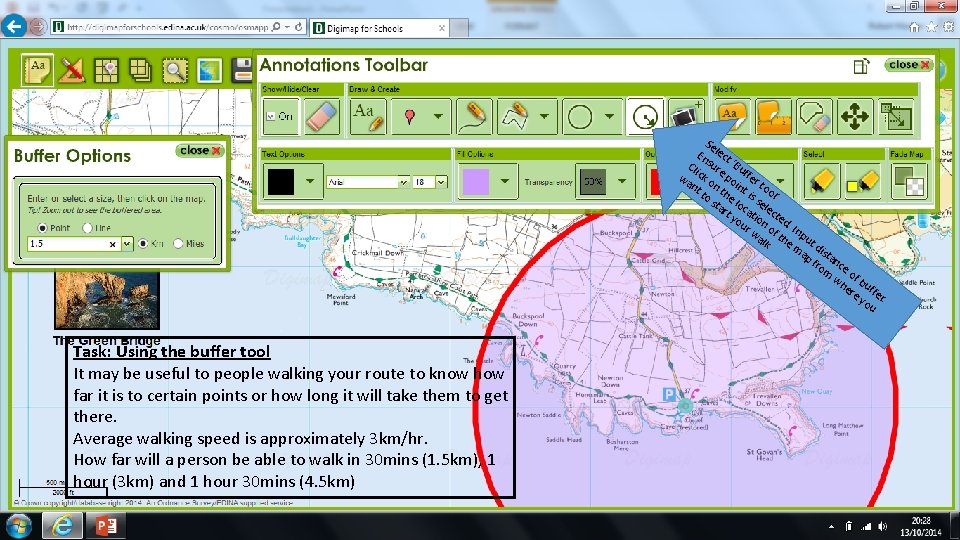
Se En lect Cl sur ‘Bu wa ick o e po ffer nt n t int too to he is l sta loc sel ’ e rt at ct yo ion ed ur. wa of th Inpu lk e m t d ap ista fro nce m wh of b er uffe e y r. ou Task: Using the buffer tool It may be useful to people walking your route to know how far it is to certain points or how long it will take them to get there. Average walking speed is approximately 3 km/hr. How far will a person be able to walk in 30 mins (1. 5 km), 1 hour (3 km) and 1 hour 30 mins (4. 5 km)
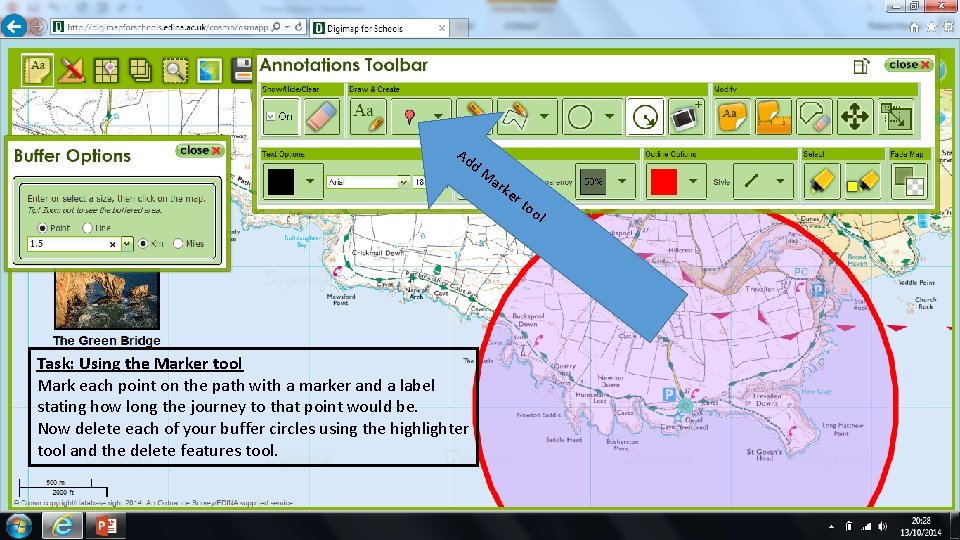
Ad d. M ar ke rt oo Task: Using the Marker tool Mark each point on the path with a marker and a label stating how long the journey to that point would be. Now delete each of your buffer circles using the highlighter tool and the delete features tool. l
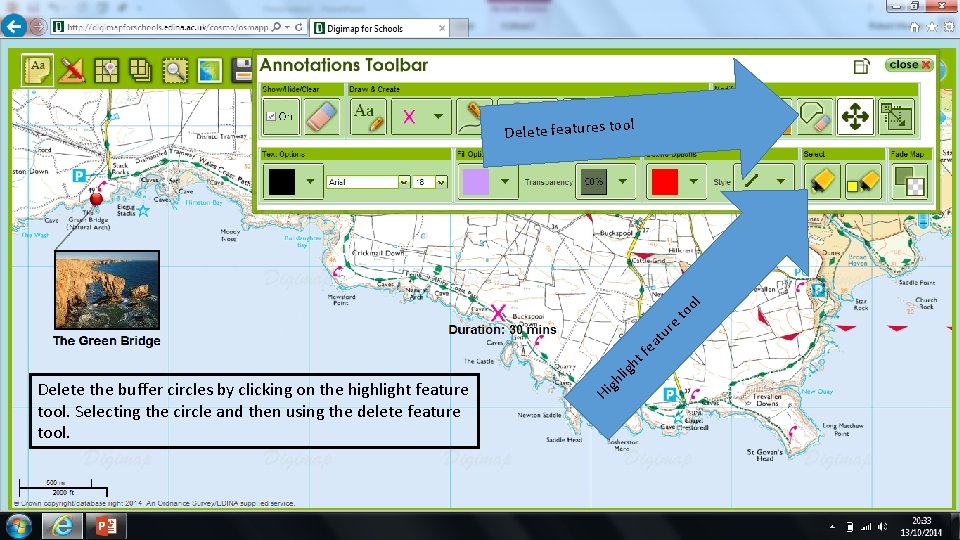
ol gh Hi Delete the buffer circles by clicking on the highlight feature tool. Selecting the circle and then using the delete feature tool. lig h tf ea t ur e to o l Delete features to
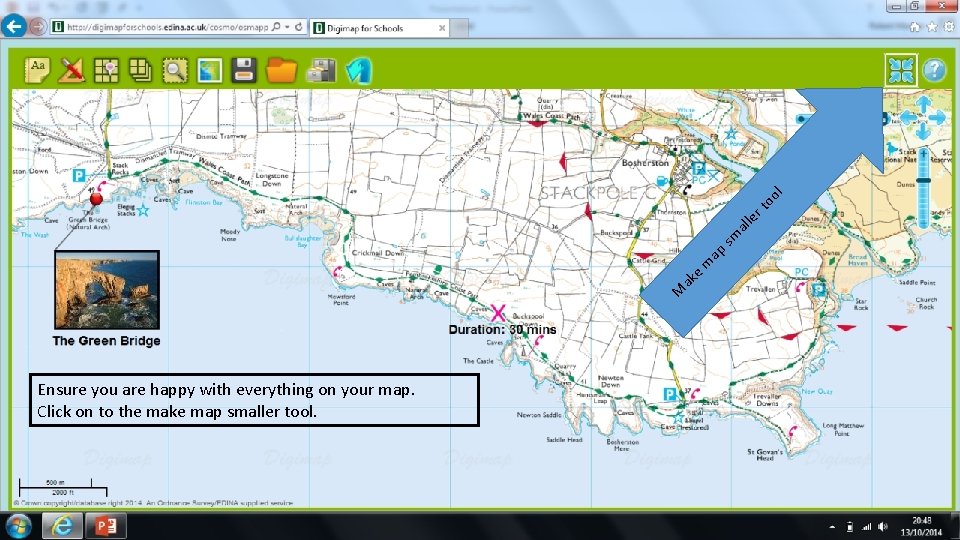
oo l rt le sm al ap m e ak M Ensure you are happy with everything on your map. Click on to the make map smaller tool.
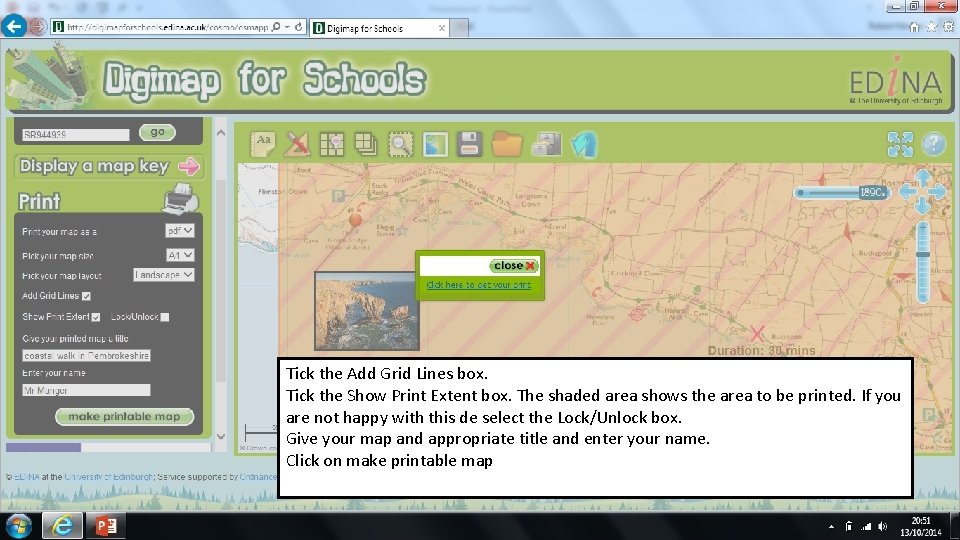
Tick the Add Grid Lines box. Tick the Show Print Extent box. The shaded area shows the area to be printed. If you are not happy with this de select the Lock/Unlock box. Give your map and appropriate title and enter your name. Click on make printable map
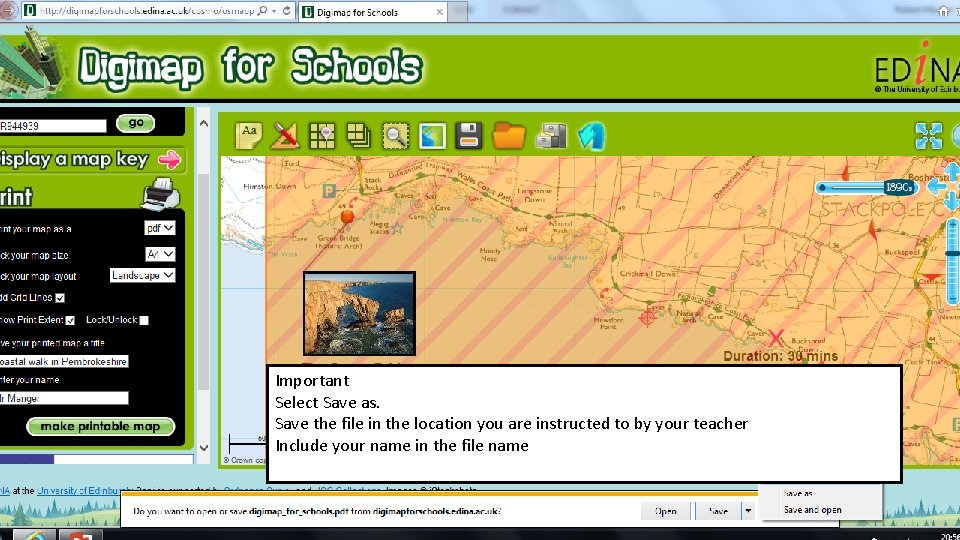
Important Select Save as. Save the file in the location you are instructed to by your teacher Include your name in the file name
- Slides: 15