
Pixels and colours Bit depth Activity objective To
Pixels and colours Bit depth
Activity objective • To learn how a computer knows what colour a pixel should be on a raster image
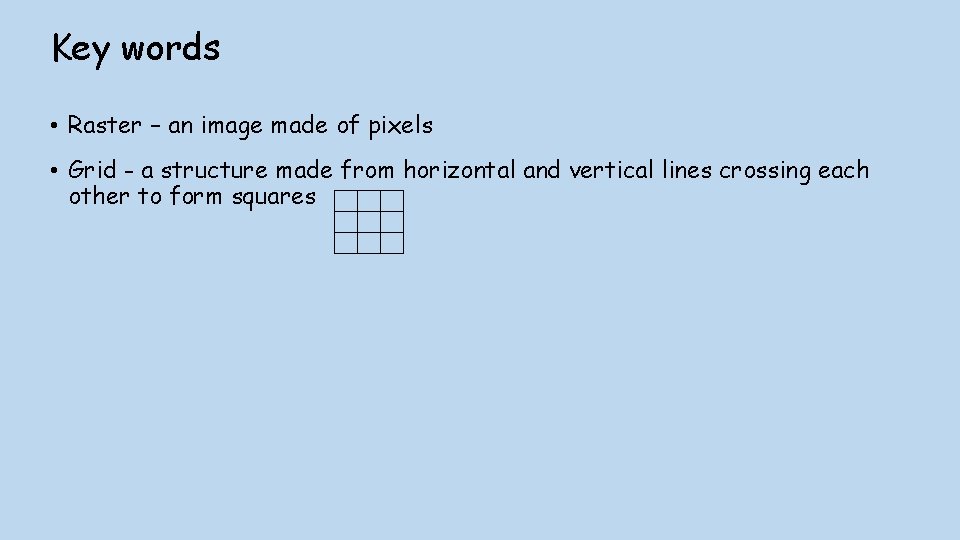
Key words • Raster – an image made of pixels • Grid - a structure made from horizontal and vertical lines crossing each other to form squares
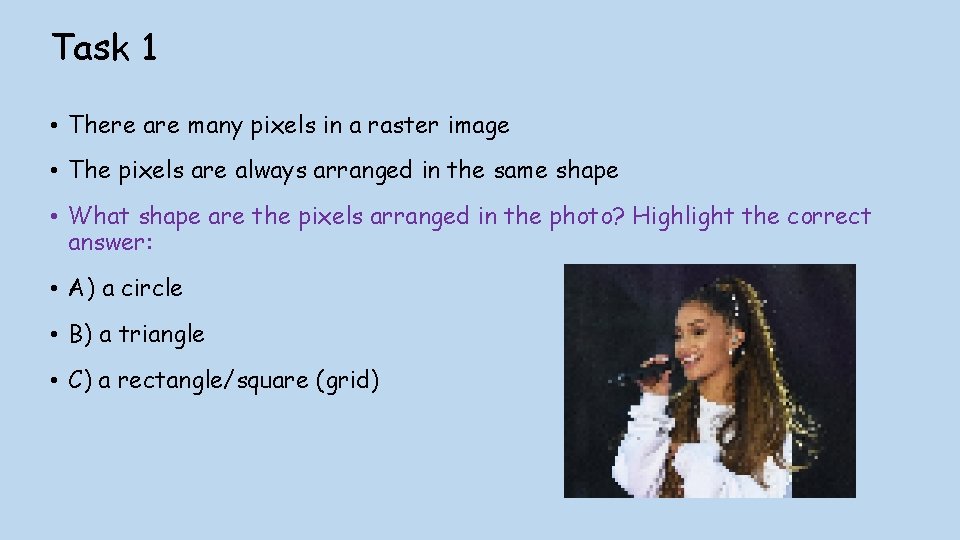
Task 1 • There are many pixels in a raster image • The pixels are always arranged in the same shape • What shape are the pixels arranged in the photo? Highlight the correct answer: • A) a circle • B) a triangle • C) a rectangle/square (grid)
Task 1 - Answer • C) a rectangle/square grid
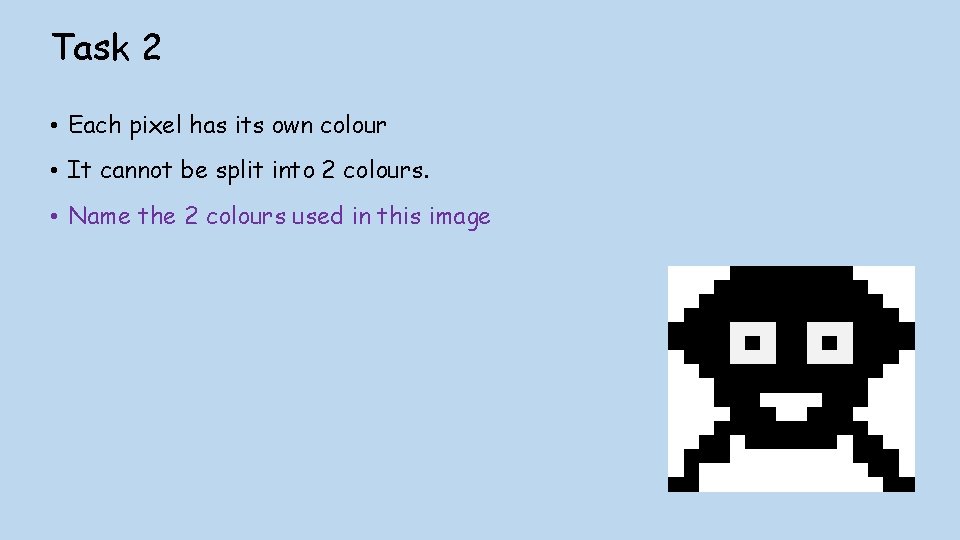
Task 2 • Each pixel has its own colour • It cannot be split into 2 colours. • Name the 2 colours used in this image
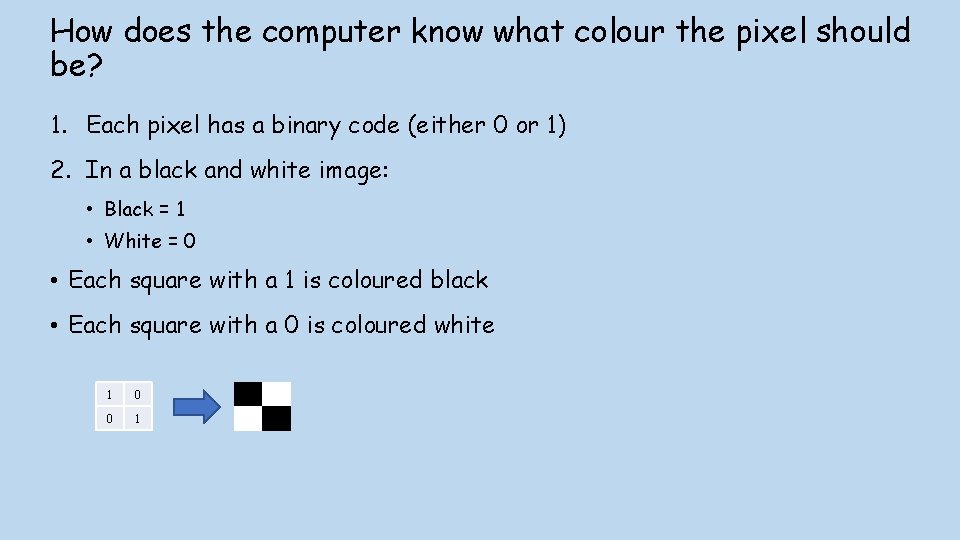
How does the computer know what colour the pixel should be? 1. Each pixel has a binary code (either 0 or 1) 2. In a black and white image: • Black = 1 • White = 0 • Each square with a 1 is coloured black • Each square with a 0 is coloured white 1 0 0 1
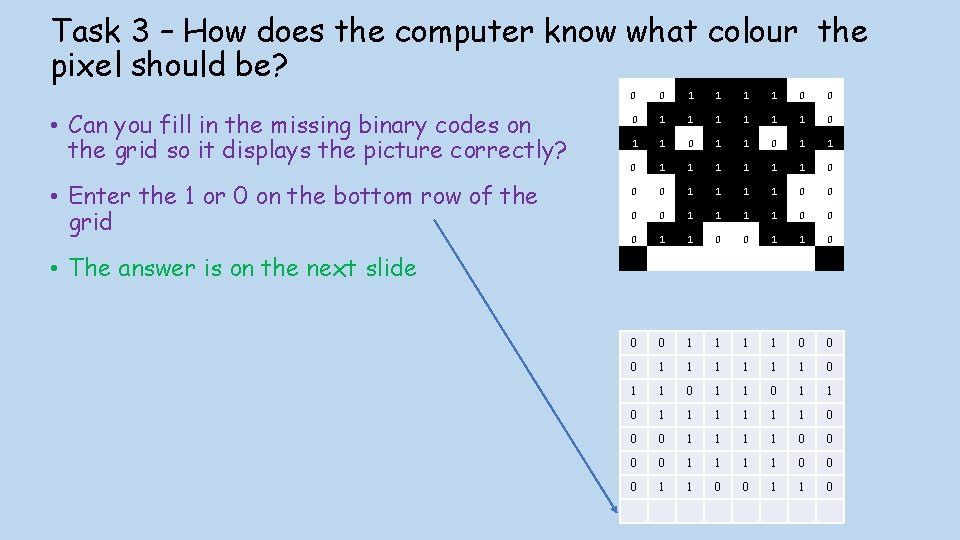
Task 3 – How does the computer know what colour the pixel should be? • Can you fill in the missing binary codes on the grid so it displays the picture correctly? • Enter the 1 or 0 on the bottom row of the grid • The answer is on the next slide 0 0 1 1 0 0 0 1 1 1 0 1 1 0 1 1 0 1 1 1 0 0 0 1 1 0 0 0 1 1 0 0 0 1 1 1 0 1 1 1 0 0 0 0 1 1 0
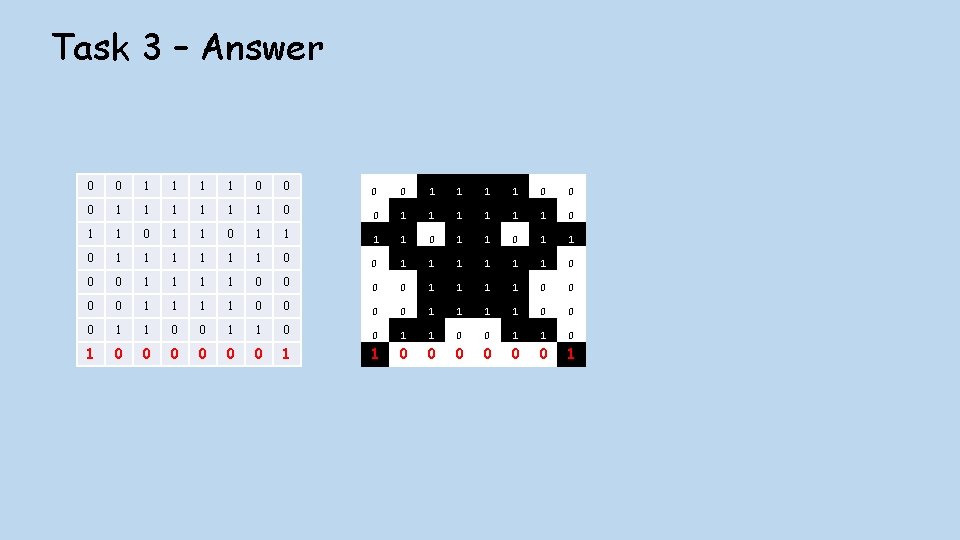
Task 3 – Answer 0 0 1 1 0 0 0 0 1 1 0 0 0 1 1 1 0 1 1 0 1 1 1 1 1 1 0 0 0 0 1 1 1 1 0 0 0 1 1 0 0 1 1 0 0 0 1
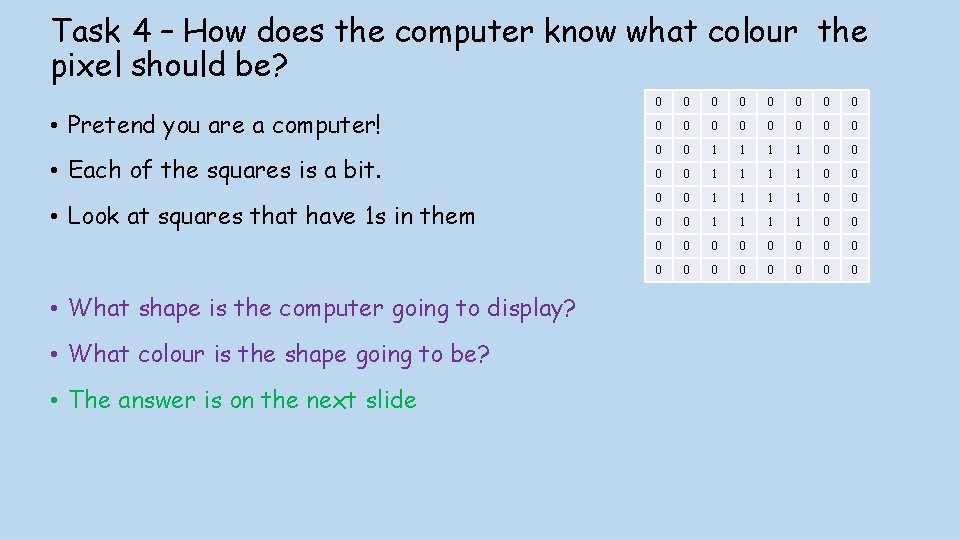
Task 4 – How does the computer know what colour the pixel should be? • Pretend you are a computer! • Each of the squares is a bit. • Look at squares that have 1 s in them • What shape is the computer going to display? • What colour is the shape going to be? • The answer is on the next slide 0 0 0 0 0 1 1 1 1 0 0 0 0 0 0 0
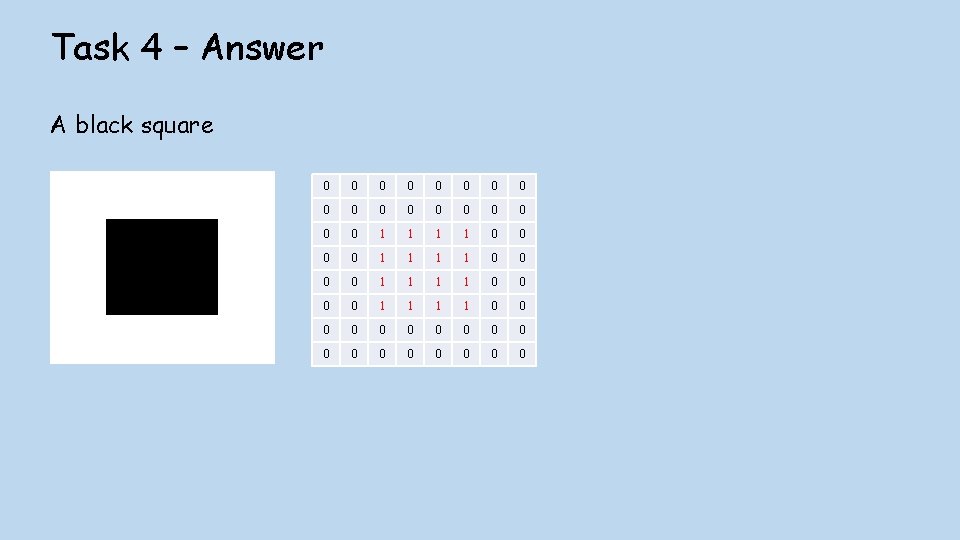
Task 4 – Answer A black square 0 0 0 0 0 0 1 1 1 1 0 0 0 0 0 0
Task 5 - Create your own raster image 1. Open the Excel spreadsheet called “Squared sheet example” 2. Read the instructions on the spreadsheet 3. Upload your pixel image
Task 6 – Binary digits (bits) • Bits are used to store data on a computer • It is the smallest unit of measurement in computing (like mm ) • EVERYTHING is called “data” on a computer • Images are data • Text is also data. • One bit can store a 0 or a 1 1. If a pixel is black what value will the bit store?

Task 6 – Answer 1. The bit will store a 1
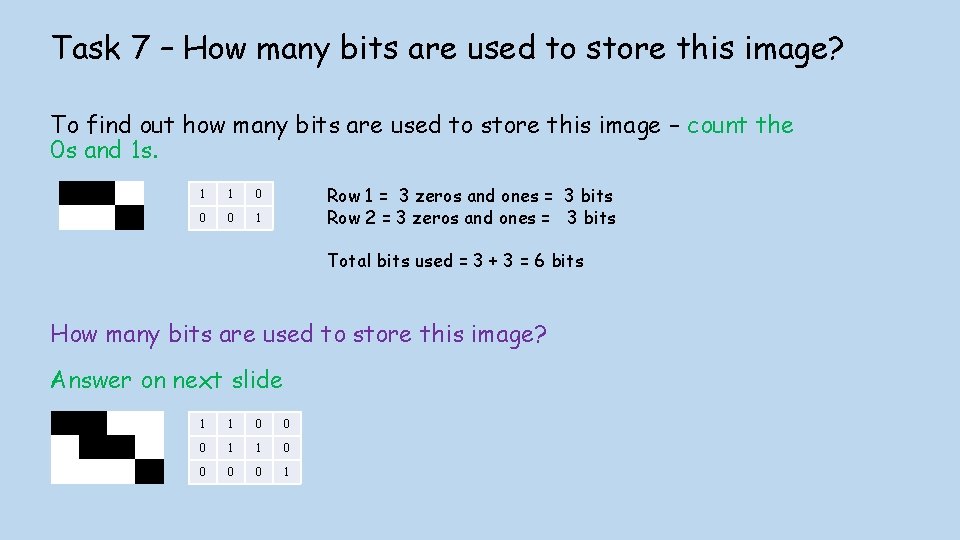
Task 7 – How many bits are used to store this image? To find out how many bits are used to store this image – count the 0 s and 1 s. 1 1 0 0 0 1 Row 1 = 3 zeros and ones = 3 bits Row 2 = 3 zeros and ones = 3 bits Total bits used = 3 + 3 = 6 bits How many bits are used to store this image? Answer on next slide 1 1 0 0 0 1 1 0 0 0 0 1
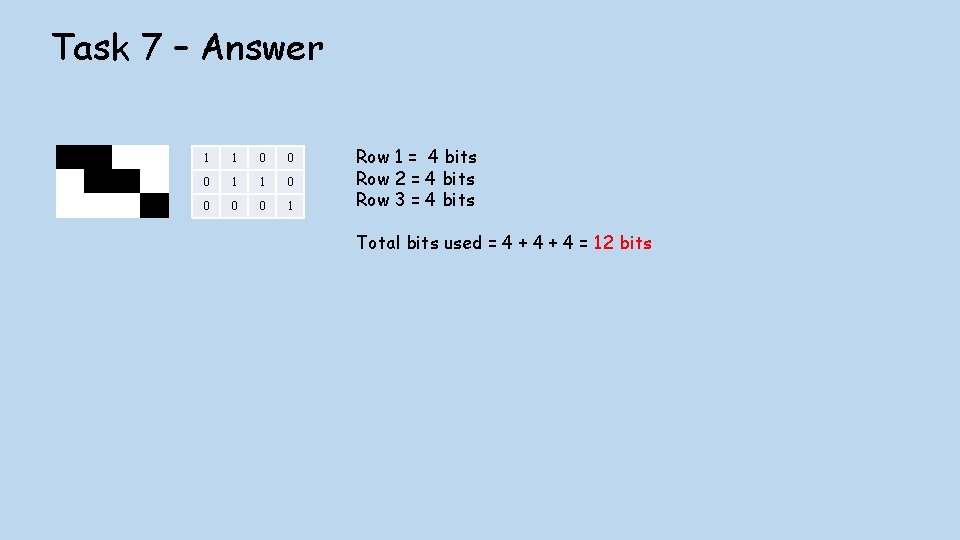
Task 7 – Answer 1 1 0 0 0 1 1 0 0 0 0 1 Row 1 = 4 bits Row 2 = 4 bits Row 3 = 4 bits Total bits used = 4 + 4 = 12 bits
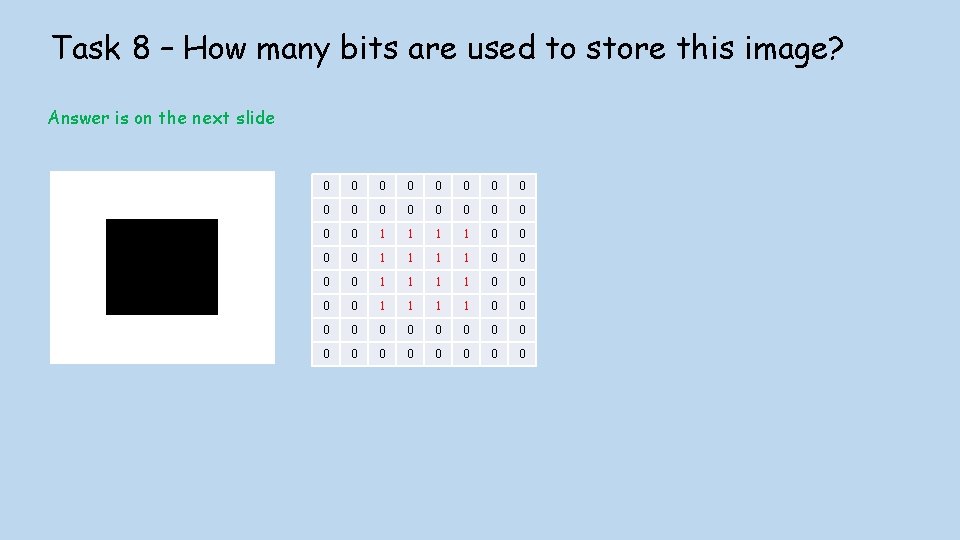
Task 8 – How many bits are used to store this image? Answer is on the next slide 0 0 0 0 0 0 1 1 1 1 0 0 0 0 0 0
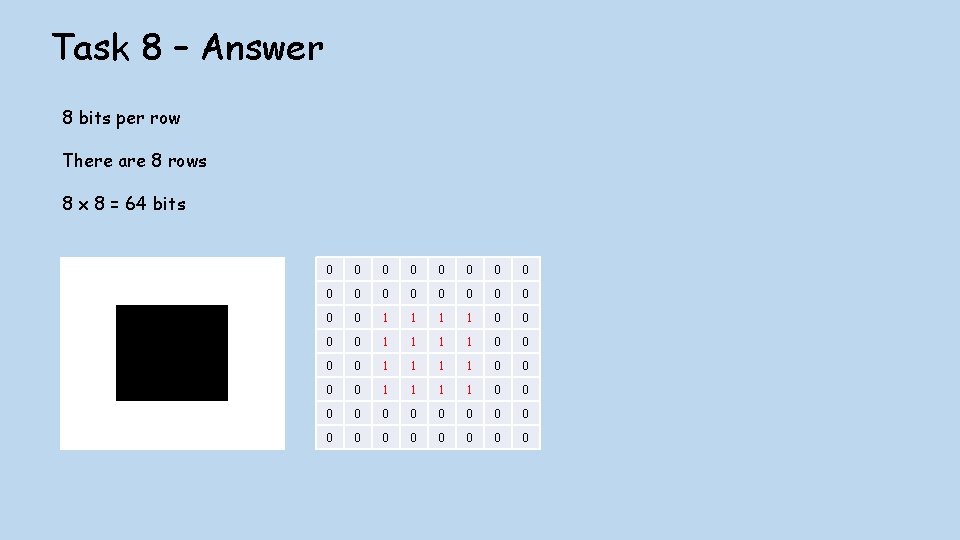
Task 8 – Answer 8 bits per row There are 8 rows 8 x 8 = 64 bits 0 0 0 0 0 0 1 1 1 1 0 0 0 0 0 0
Extension - Bit depth • How can computers use more colours? • Using 1 bit per pixel means 2 colours can be used • I. e. 0 = white 1 = black • How can we use 4 colours?
- Slides: 19