
Pins Align Inst Pins To Top If you

- Slides: 5
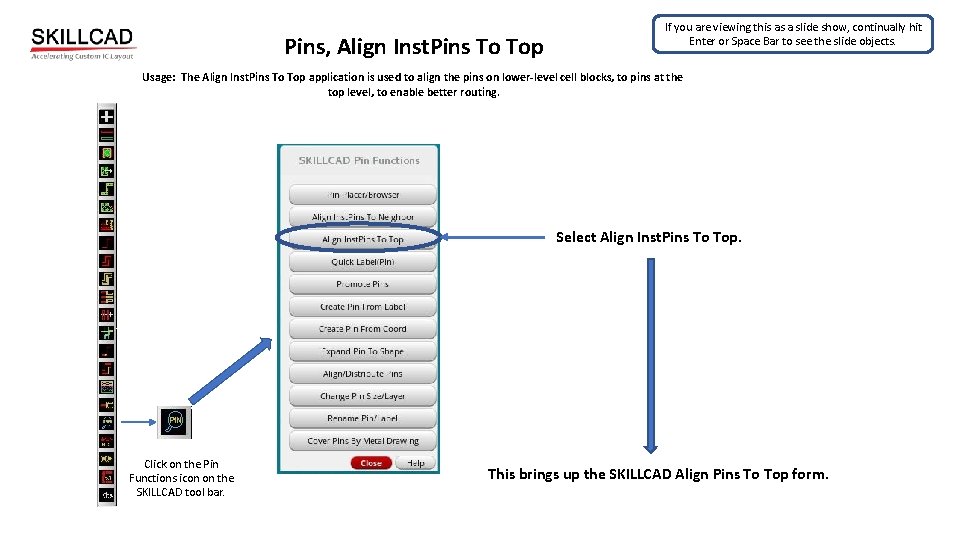
Pins, Align Inst. Pins To Top If you are viewing this as a slide show, continually hit Enter or Space Bar to see the slide objects. Usage: The Align Inst. Pins To Top application is used to align the pins on lower-level cell blocks, to pins at the top level, to enable better routing. Select Align Inst. Pins To Top. Click on the Pin Functions icon on the SKILLCAD tool bar. This brings up the SKILLCAD Align Pins To Top form.
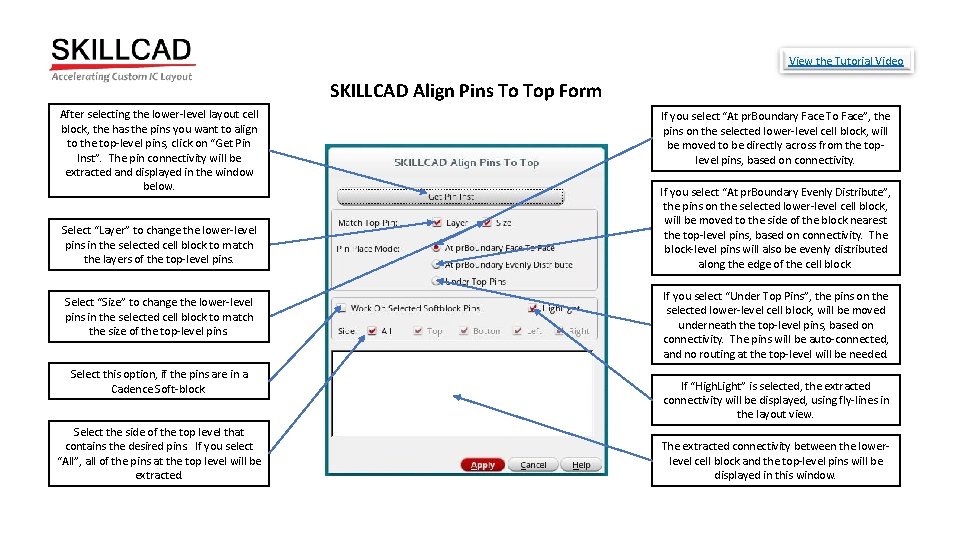
View the Tutorial Video SKILLCAD Align Pins To Top Form After selecting the lower-level layout cell block, the has the pins you want to align to the top-level pins, click on “Get Pin Inst”. The pin connectivity will be extracted and displayed in the window below. Select “Layer” to change the lower-level pins in the selected cell block to match the layers of the top-level pins. Select “Size” to change the lower-level pins in the selected cell block to match the size of the top-level pins. Select this option, if the pins are in a Cadence Soft-block. Select the side of the top level that contains the desired pins. If you select “All”, all of the pins at the top level will be extracted. If you select “At pr. Boundary Face To Face”, the pins on the selected lower-level cell block, will be moved to be directly across from the toplevel pins, based on connectivity. If you select “At pr. Boundary Evenly Distribute”, the pins on the selected lower-level cell block, will be moved to the side of the block nearest the top-level pins, based on connectivity. The block-level pins will also be evenly distributed along the edge of the cell block. If you select “Under Top Pins”, the pins on the selected lower-level cell block, will be moved underneath the top-level pins, based on connectivity. The pins will be auto-connected, and no routing at the top-level will be needed. If “High. Light” is selected, the extracted connectivity will be displayed, using fly-lines in the layout view. The extracted connectivity between the lowerlevel cell block and the top-level pins will be displayed in this window.
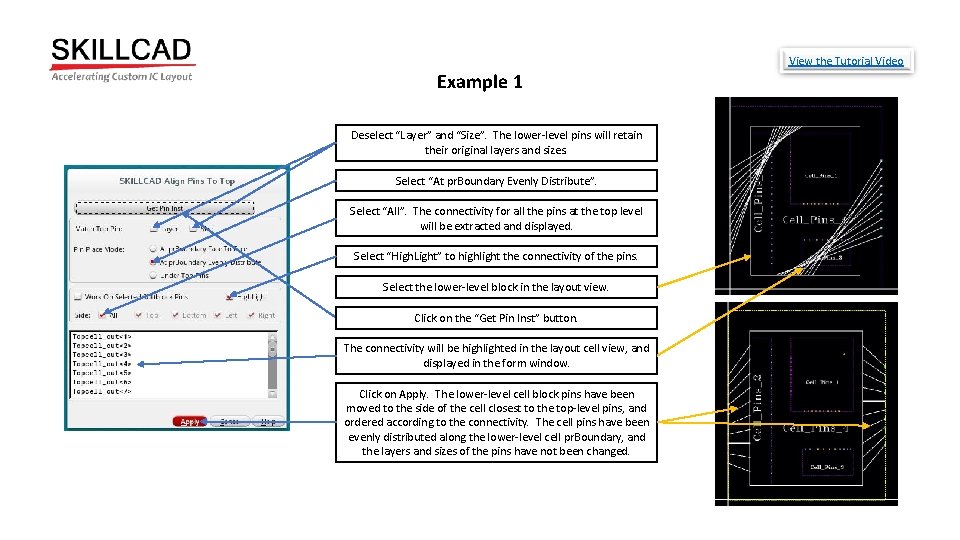
View the Tutorial Video Example 1 Deselect “Layer” and “Size”. The lower-level pins will retain their original layers and sizes. Select “At pr. Boundary Evenly Distribute”. Select “All”. The connectivity for all the pins at the top level will be extracted and displayed. Select “High. Light” to highlight the connectivity of the pins. Select the lower-level block in the layout view. Click on the “Get Pin Inst” button. The connectivity will be highlighted in the layout cell view, and displayed in the form window. Click on Apply. The lower-level cell block pins have been moved to the side of the cell closest to the top-level pins, and ordered according to the connectivity. The cell pins have been evenly distributed along the lower-level cell pr. Boundary, and the layers and sizes of the pins have not been changed.
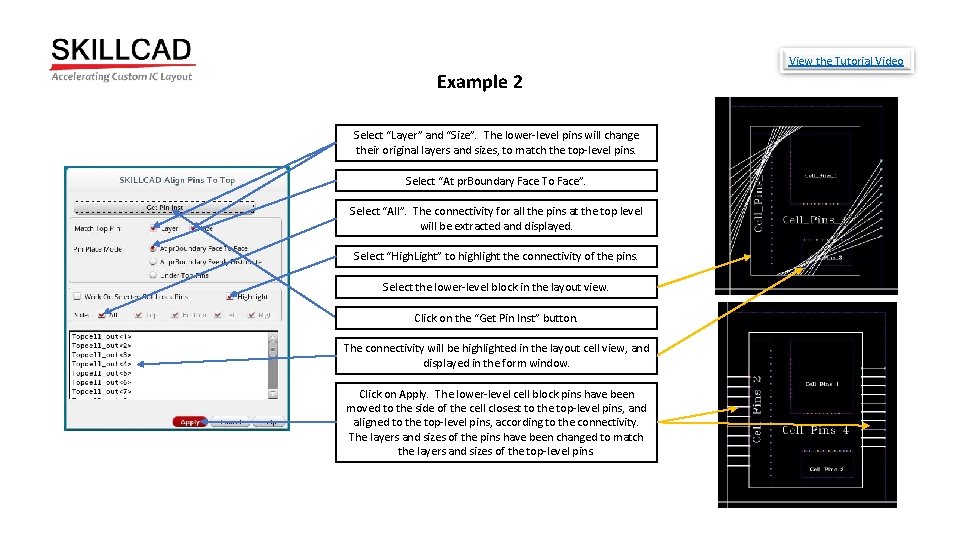
View the Tutorial Video Example 2 Select “Layer” and “Size”. The lower-level pins will change their original layers and sizes, to match the top-level pins. Select “At pr. Boundary Face To Face”. Select “All”. The connectivity for all the pins at the top level will be extracted and displayed. Select “High. Light” to highlight the connectivity of the pins. Select the lower-level block in the layout view. Click on the “Get Pin Inst” button. The connectivity will be highlighted in the layout cell view, and displayed in the form window. Click on Apply. The lower-level cell block pins have been moved to the side of the cell closest to the top-level pins, and aligned to the top-level pins, according to the connectivity. The layers and sizes of the pins have been changed to match the layers and sizes of the top-level pins.
View the Tutorial Video To View Examples of the SKILLCAD Pin Functions, Align Inst. Pins To Top Application, Please View the Tutorial Video.