
Photoshop Elements Introduction Getting to Know Photoshop Elements
- Slides: 10
Photoshop Elements Introduction – Getting to Know Photoshop Elements Better
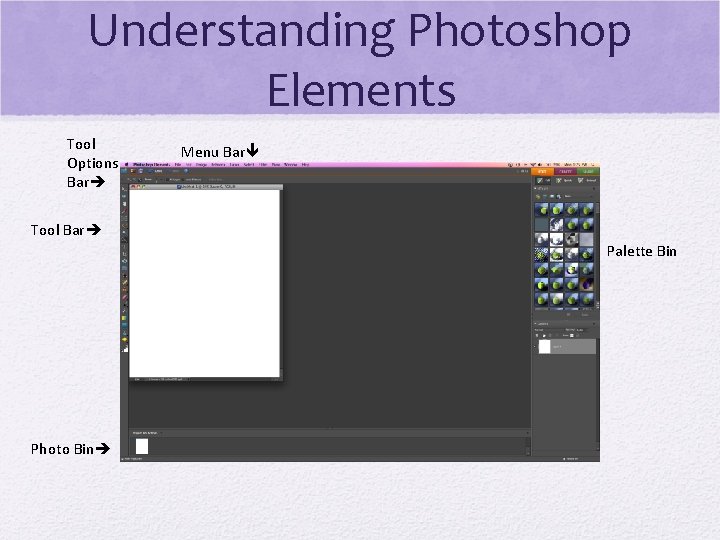
Understanding Photoshop Elements Tool Options Bar Menu Bar Tool Bar Palette Bin Photo Bin
Tool Bar
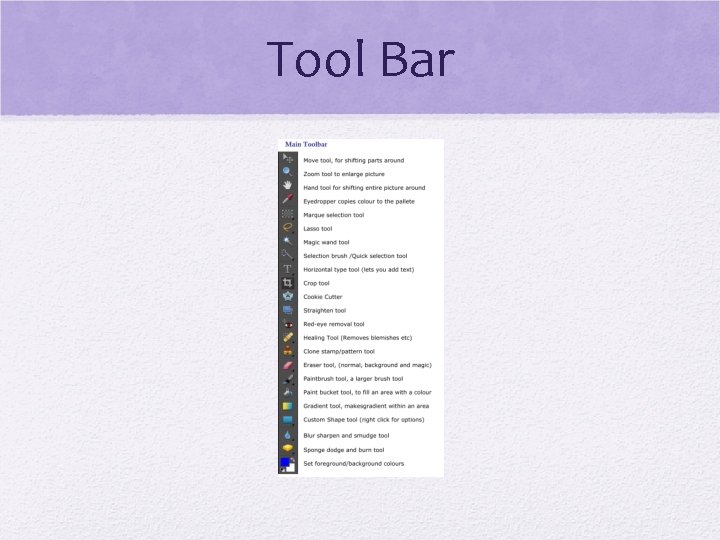
Photoshop Elements • Tool Bar • • Move Tool (arrow) Zoom Tool (looks like magnifying glass) Hand Tool ( looks like hand) Eye. Dropper (eyedropper) Marquee Tool (square and circle – dotted lines) Lasso Tool (lasso, magnetic and polygonal) Magic Wand Tool
Photoshop Elements • Tool Bar • • Quick Selection (also Brush selection Type Tool (letter “T”) Crop Tool Cookie Cutter Tool Straighten Tool Red Eye Removal Tool Spot Healing Tool (also brush healing tool)
Photoshop Elements • Tool Bar • Clone Stamp Tool (also pattern stamp tool) • Eraser Tool (also background and magic eraser) • Brush Tool (also impressionistic brush tool, color replacement tool, and pencil tool) • Bucket tool • Gradient Tool • Shape Tool (also line tool)
Photoshop Elements • Tool Bar • Blur too (also sharpen and smudge tools) • Sponge tool (also dodge and burn tools)
Photoshop Elements • Menu Bar • • • File Edit Image Enhance Layer • Menu Bar Continued • • • Select Filter View Window Help
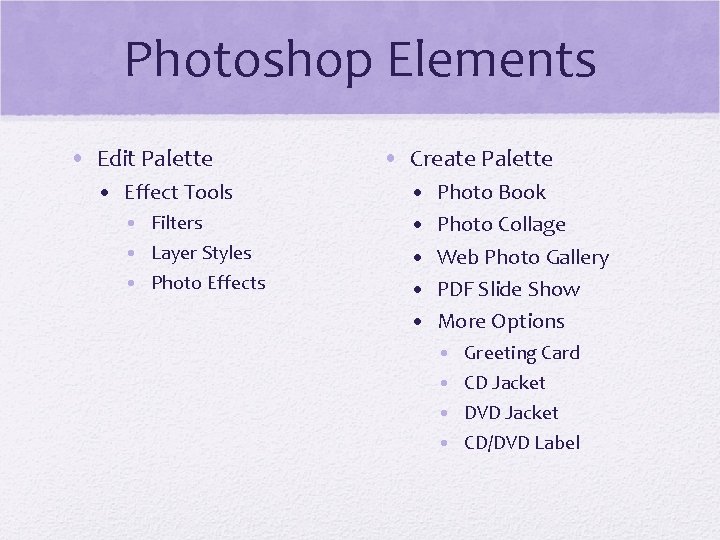
Photoshop Elements • Edit Palette • Effect Tools • Filters • Layer Styles • Photo Effects • Create Palette • • • Photo Book Photo Collage Web Photo Gallery PDF Slide Show More Options • • Greeting Card CD Jacket DVD Jacket CD/DVD Label
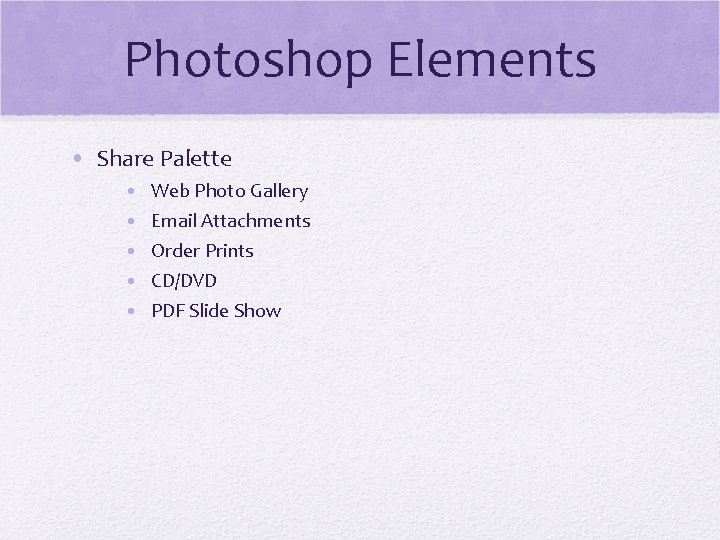
Photoshop Elements • Share Palette • • • Web Photo Gallery Email Attachments Order Prints CD/DVD PDF Slide Show