
PES CES Training Tyrone Ware FDOT Specifications Estimates



- Slides: 29
PES & CES Training Tyrone Ware FDOT Specifications & Estimates Office Estimating Systems Support Section
Outline of Training Trns • port Modules Roles and Control Groups Steps in Creating and Estimating Projects and Proposals Project Review Creating an Addendum after Advertisement Re-letting Rejected Bids / No Bids Received Other topics / questions you wish to cover?
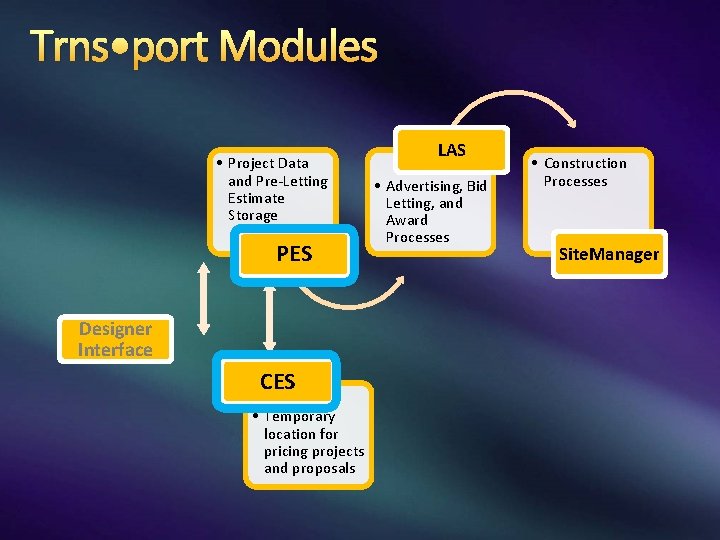
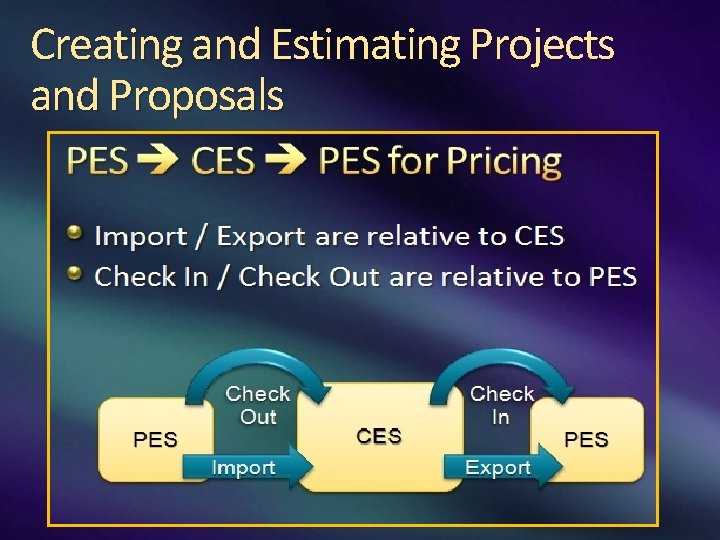
Trns • port Modules • Project Data and Pre-Letting Estimate Storage PES Designer Interface CES • Temporary location for pricing projects and proposals LAS • Advertising, Bid Letting, and Award Processes • Construction Processes Site. Manager
Trns • port Modules PES (Proposal and Estimates System) – Preconstruction project data storage module PES contains: Project and Proposal definitions (description, contract time, work type, etc. ) Estimate Pay items and quantities, usually from the Designer Interface Unit Prices Other PES functions: Revisions, prior to advertisement Addendums, after advertisement
Trns • port Modules CES (Cost Estimating System) – Pricing module CES contains libraries for historical pricing, based on: Time period (6, 12, 18 month and 3 years history) All Bidders or Awarded Only Contract time (>729 days) Libraries give customized pricing through regressions and averages
Security: Roles and Control Groups
Security: Roles and Control Groups Security Coordinator’s Duties: Provide users with system access to PES, CES, and Designer Interface Request “confidential” access for District users Ensure appropriate access has been given and that unauthorized users do not have access to the system (assigning of Roles). District Estimates Staff Duties: Provide users with project/proposal access at appropriate times in the work flow.
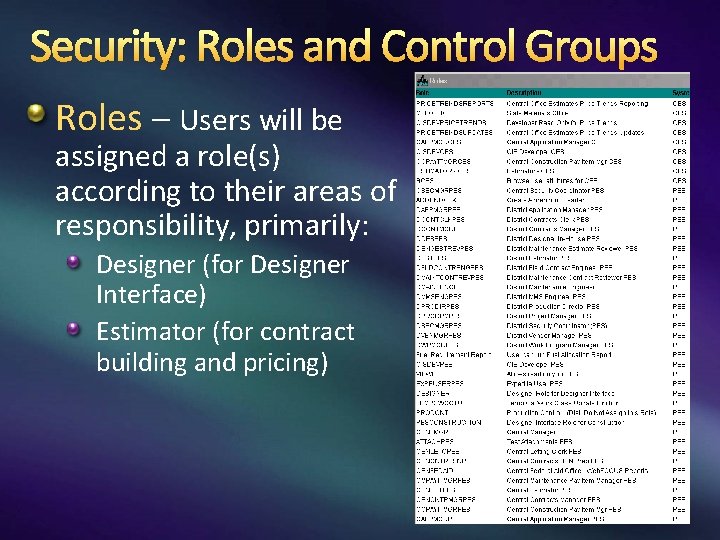
Security: Roles and Control Groups Roles – Users will be assigned a role(s) according to their areas of responsibility, primarily: Designer (for Designer Interface) Estimator (for contract building and pricing)
Security: Roles and Control Groups – Used to determine who will have access to a project/proposal at given times in the work flow. Projects are assigned a control group (for example CD 07): C=Construction (as opposed to M=Maintenance) D=District project (project control resides in the District) 07 = Managing District Number Design firms are assigned a staff code (for example, V 777) The design firm’s staff code is appended at appropriate times when they need access to the project (for example, CD 07 V 777) Design firm’s staff code is not appended to proposals.
Security: Roles and Control Groups How is a Control Group Assigned? When the transfer from FM via TSO is performed by the District Estimates staff, the initial Control Group is automatically assigned by: FM phase number (for example, 52=Construction) Managing District (for example, 07= District 7) When the project and proposal records are passed to the next user group for processing, the District Estimates staff assigns the appropriate Control Group to transfer control.
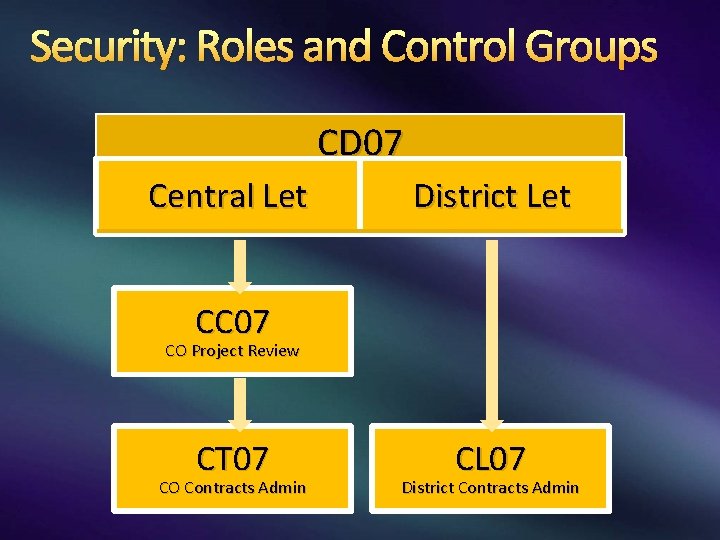
Security: Roles and Control Groups CD 07 Central Let District Let CC 07 CO Project Review CT 07 CO Contracts Admin CL 07 District Contracts Admin
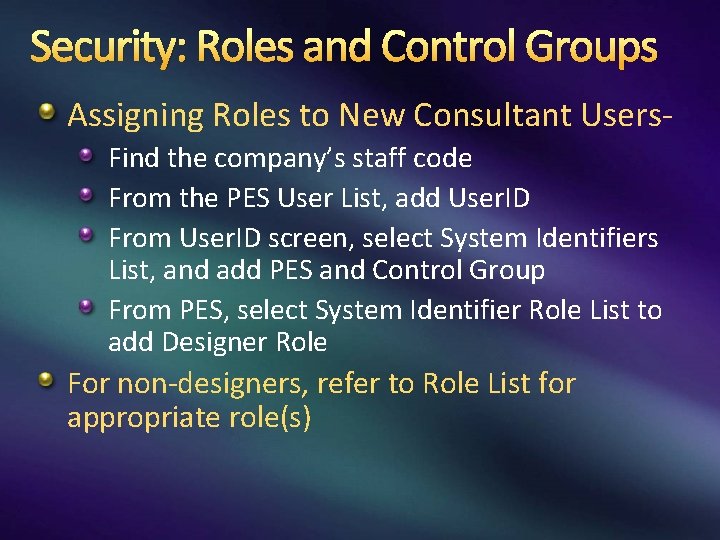
Security: Roles and Control Groups Assigning Roles to New Consultant Users. Find the company’s staff code From the PES User List, add User. ID From User. ID screen, select System Identifiers List, and add PES and Control Group From PES, select System Identifier Role List to add Designer Role For non-designers, refer to Role List for appropriate role(s)
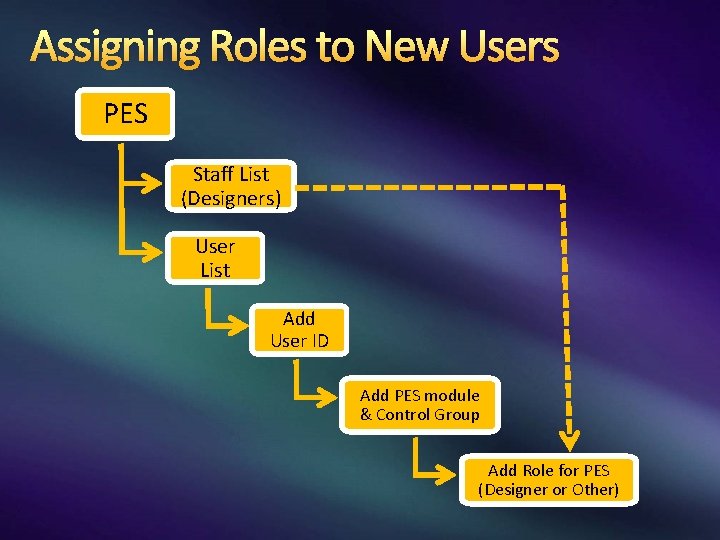
Assigning Roles to New Users PES Staff List (Designers) User List Add User ID Add PES module & Control Group Add Role for PES (Designer or Other)
Security: Roles and Control Groups demo
Steps in Creating and Estimating Projects and Proposals
Steps in Creating and Estimating Projects and Proposals Create Project / FM Interface Add Pay Items / Designer Interface Estimate Project in CES Generate Project Reports for Verification Create Proposal Estimate Proposal in CES Final Preparation for Letting
Creating and Estimating Projects and Proposals Step 1: Create project There are 3 ways to create a project: FM Interface (recommended method) Manual entry from menu bar Copy existing project Assign Project to appropriate control group Step 2: Add pay items and quantities There are 2 ways to enter data: Designer Interface (recommended method) Directly into PES (FDOT Estimates staff only)
Creating and Estimating Projects and Proposals Step 3: Estimate Project In CES, use libraries and regressions/averages models (recommended method for initial pricing) In PES, manually enter prices obtained from another source (override based on project conditions) Step 4: Run Project Reports for Verification Project Edit Report Project Summary of Pay Items Step 5: Create Proposal In PES, right click, “Add Proposal” Attach project(s) to proposal
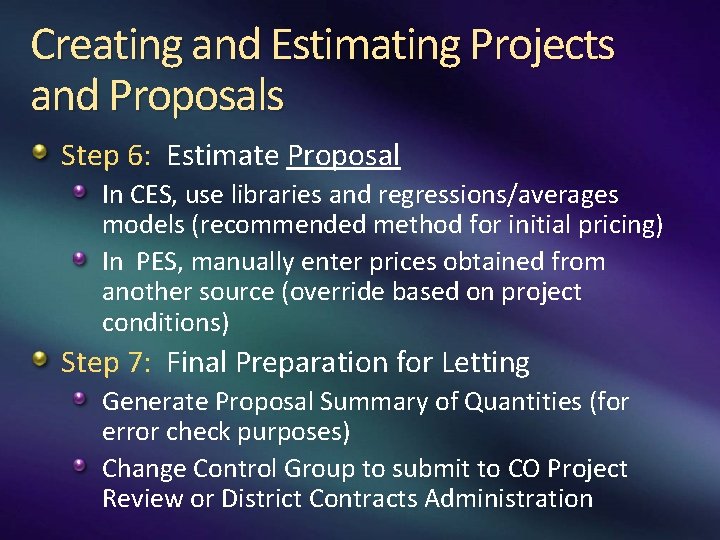
Creating and Estimating Projects and Proposals Step 6: Estimate Proposal In CES, use libraries and regressions/averages models (recommended method for initial pricing) In PES, manually enter prices obtained from another source (override based on project conditions) Step 7: Final Preparation for Letting Generate Proposal Summary of Quantities (for error check purposes) Change Control Group to submit to CO Project Review or District Contracts Administration
Scope Alternates
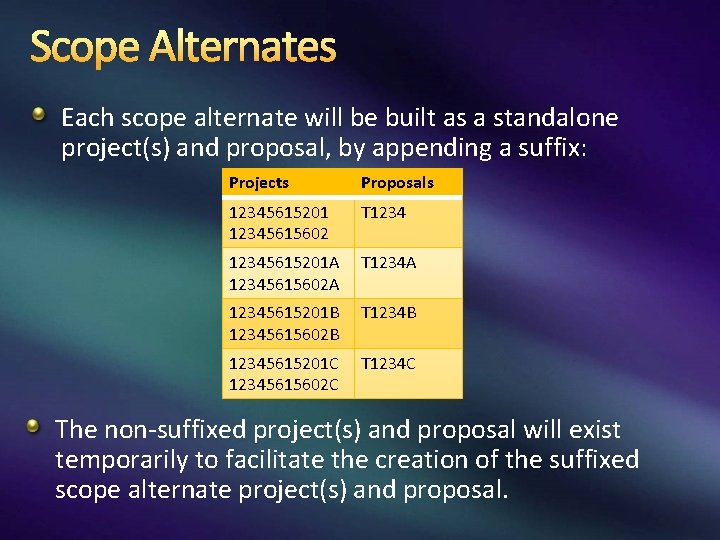
Scope Alternates Each scope alternate will be built as a standalone project(s) and proposal, by appending a suffix: Projects Proposals 12345615201 12345615602 T 12345615201 A 12345615602 A T 1234 A 12345615201 B 12345615602 B T 1234 B 12345615201 C 12345615602 C T 1234 C The non-suffixed project(s) and proposal will exist temporarily to facilitate the creation of the suffixed scope alternate project(s) and proposal.
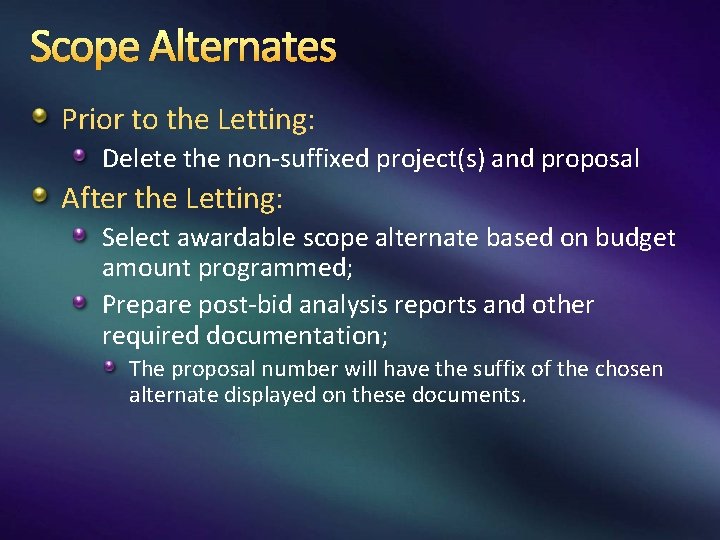
Scope Alternates Prior to the Letting: Delete the non-suffixed project(s) and proposal After the Letting: Select awardable scope alternate based on budget amount programmed; Prepare post-bid analysis reports and other required documentation; The proposal number will have the suffix of the chosen alternate displayed on these documents.
Scope Alternates Contracts Administration will run a script to identify the chosen alternate in Trns • port. This will occur after all post-bid documents are complete, and prior to Technical Awards Committee meeting. The script will strip the suffix from the chosen alternate; Alternates not chosen will move to DSS as rejected projects. Before the script is run for Trns • port, the Executive Summary will display: All the alternates, with suffixes. After the script is run for Trns • port, the Executive Summary will display: The chosen alternate without a suffix, and the other alternates with suffixes.
Creating and Estimating a Project / Proposal demo
Reviews, Addendums, and Re-lets
CO Project Review (Relative to Trns • port) Performed only on Tallahassee-let proposals; A limited QA review, intended to identify errors or omissions that would prevent proposal from being let (“show stoppers”); In Trns • port, look for: Correct Contract/Calendar Days, for MOT ; Correct Structure Work Class, for pre-qualification; FA number matches contract documents; Correct rounding of Initial Contingency Amount Quantities of 1 replaced with quantities in plans. More in-depth QA review is performed after letting.
Addendums after Advertisement Before creating an Addendum: Open the Proposal, and run the process “Generate Section and Line Numbers (Inquiry)”, and print it for later reference *. Create the Addendum Header, with a description of the change. Modify addendum items as needed: Changes and Deletes Adds require a Project Line Number and a Proposal Line Number *.
Re-letting Proposals Contracts Office will: Change the Letting Status to “Rejected”, and include a reason; Disassociate the project(s) from the Proposal. Project(s) can then be handled as any other project in PES. They can be: Re-estimated; Associated with a new Proposal number (cannot reuse a Proposal number).
Questions and Open Discussion