
Personalizing Learning with the One Note Class Notebook
Personalizing Learning with the One. Note Class Notebook Amanda Glover @AGlover 4 EDU MIE Expert | Teacher | STEM Led Teacher | Instructional Designer | NCCE Professional Learning Specialist

QUICK TIPS: Getting started! Navigation Organization Favorite Features Classroom Examples Beginning your One. Note Class Notebook Journey
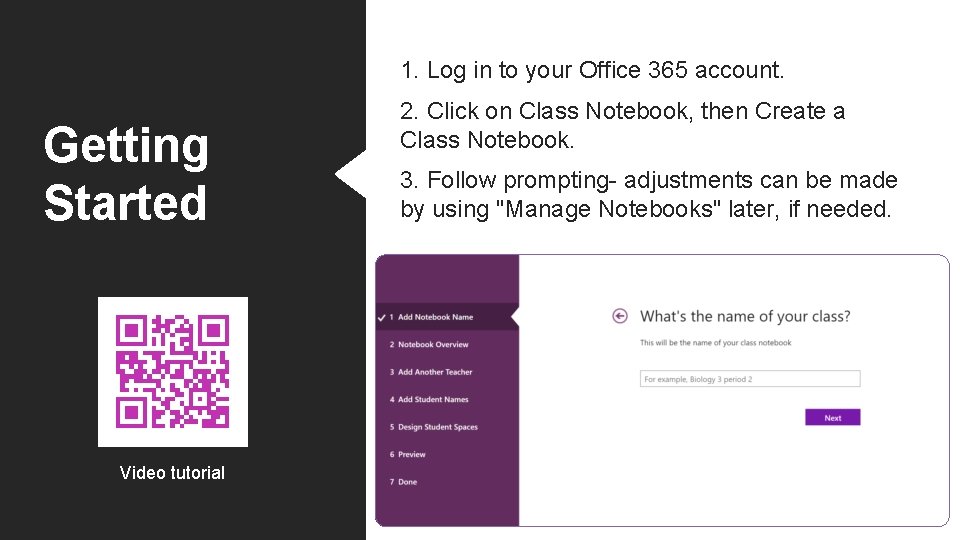
1. Log in to your Office 365 account. Getting Started Video tutorial 2. Click on Class Notebook, then Create a Class Notebook. 3. Follow prompting- adjustments can be made by using "Manage Notebooks" later, if needed.
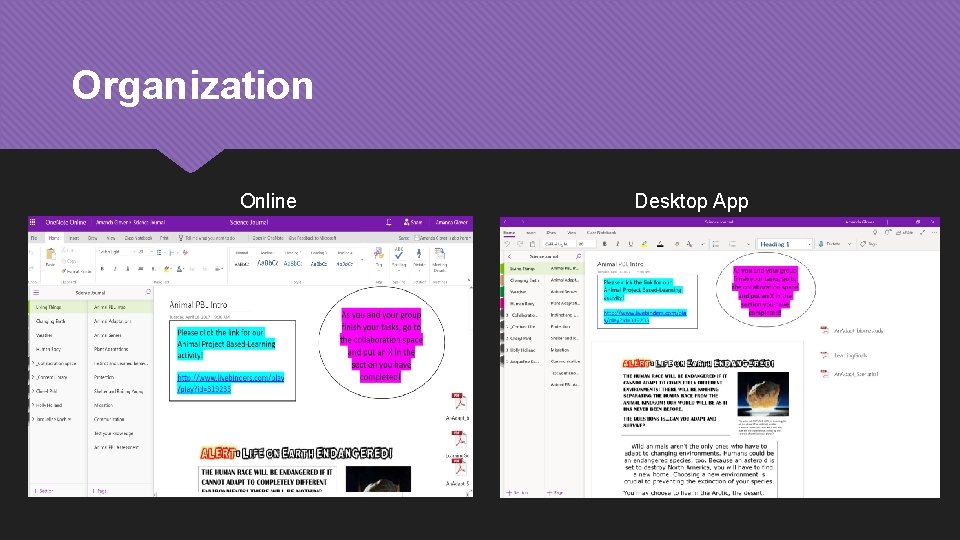
Organization Online Desktop App
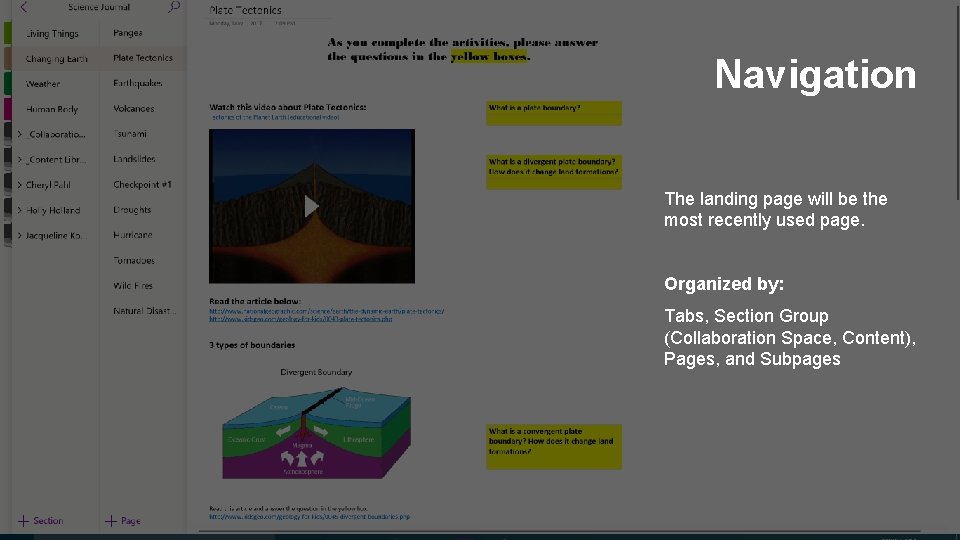
Navigation The landing page will be the most recently used page. Organized by: Tabs, Section Group (Collaboration Space, Content), Pages, and Subpages
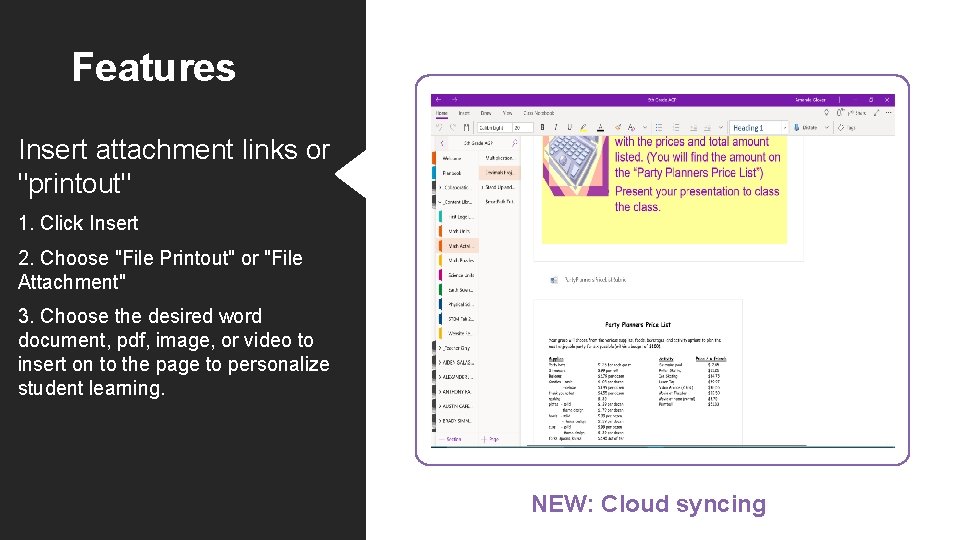
Features Insert attachment links or "printout" 1. Click Insert 2. Choose "File Printout" or "File Attachment" 3. Choose the desired word document, pdf, image, or video to insert on to the page to personalize student learning. NEW: Cloud syncing
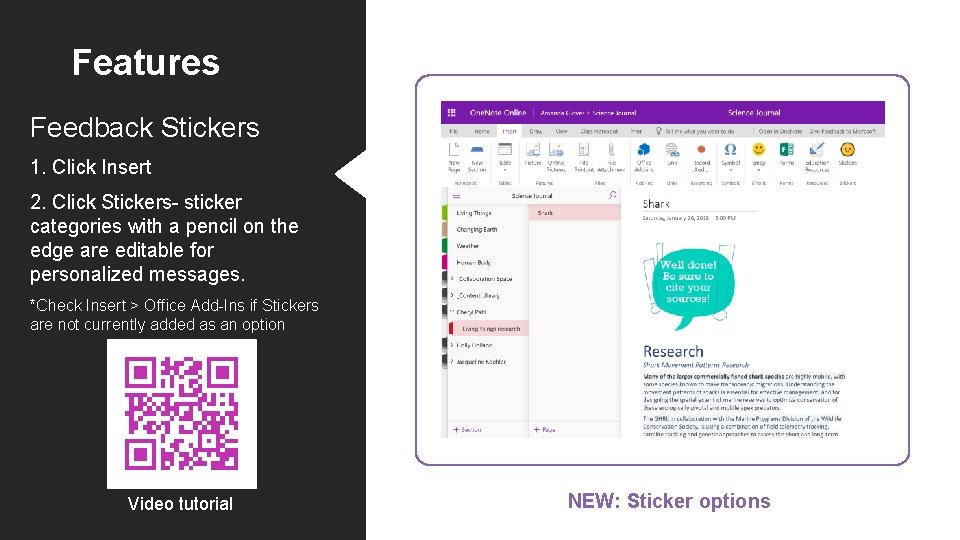
Features Feedback Stickers 1. Click Insert 2. Click Stickers- sticker categories with a pencil on the edge are editable for personalized messages. *Check Insert > Office Add-Ins if Stickers are not currently added as an option Video tutorial NEW: Sticker options
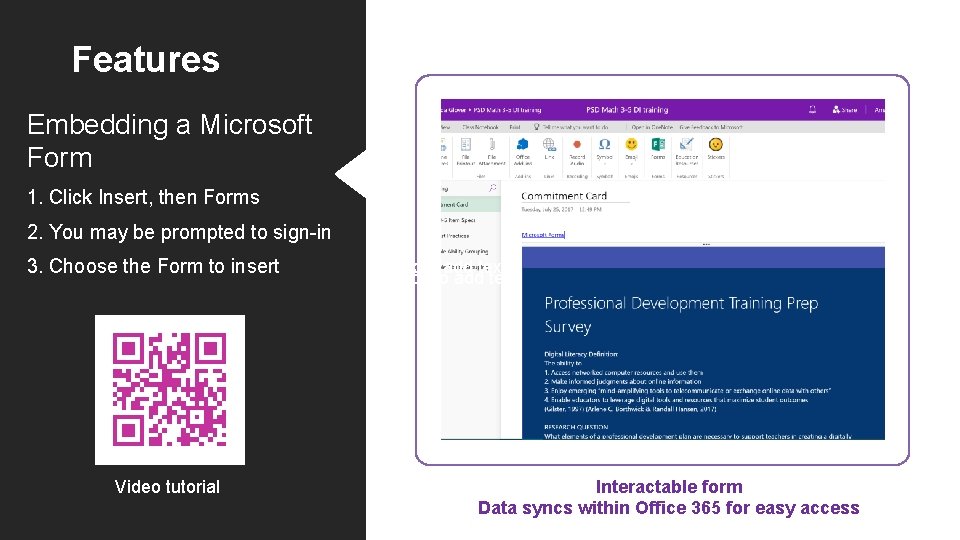
Features Embedding a Microsoft Form 1. Click Insert, then Forms 2. You may be prompted to sign-in 3. Choose the Form to insert Video tutorial Click to add text Interactable form Data syncs within Office 365 for easy access

Features Cross Notebook Distribution 1. Click Class Notebook 2. You may choose Distribute Page, or Distribute New Section 3. Select the Notebook and Section to distribute to Video tutorial Click to add text EASY CONTENT SHARING!
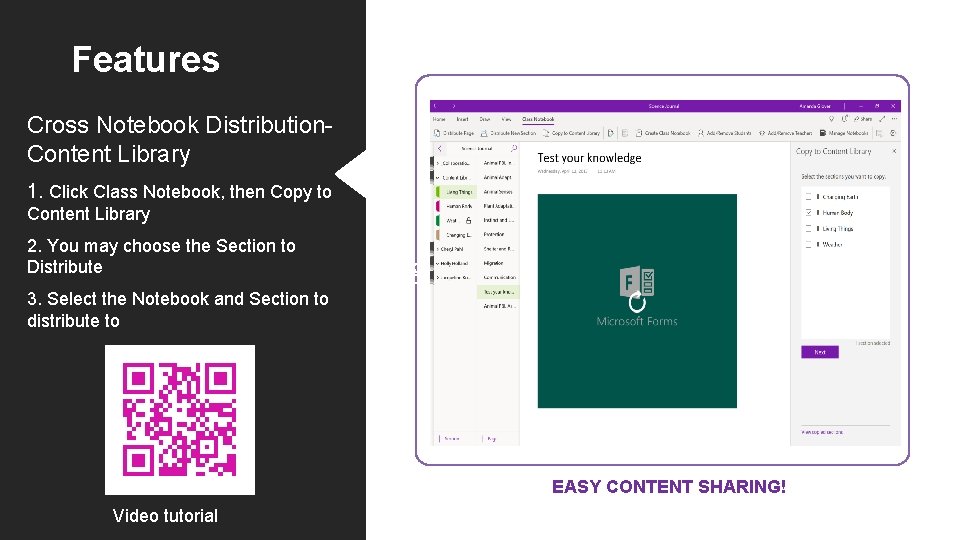
Features Cross Notebook Distribution. Content Library 1. Click Class Notebook, then Copy to Content Library 2. You may choose the Section to Distribute Click to add text 3. Select the Notebook and Section to distribute to EASY CONTENT SHARING! Video tutorial
Classroom Examples Digital STEM FAIR Digital Reading Log with audio recording Project-based Learning with group collaboration Lock and Unlock levels (gamify!) Team planning and data analysis Classroom newsletters/podcasts School-wide data or committee This Photo by Unknown author is licensed under CC BY-SA-NC.
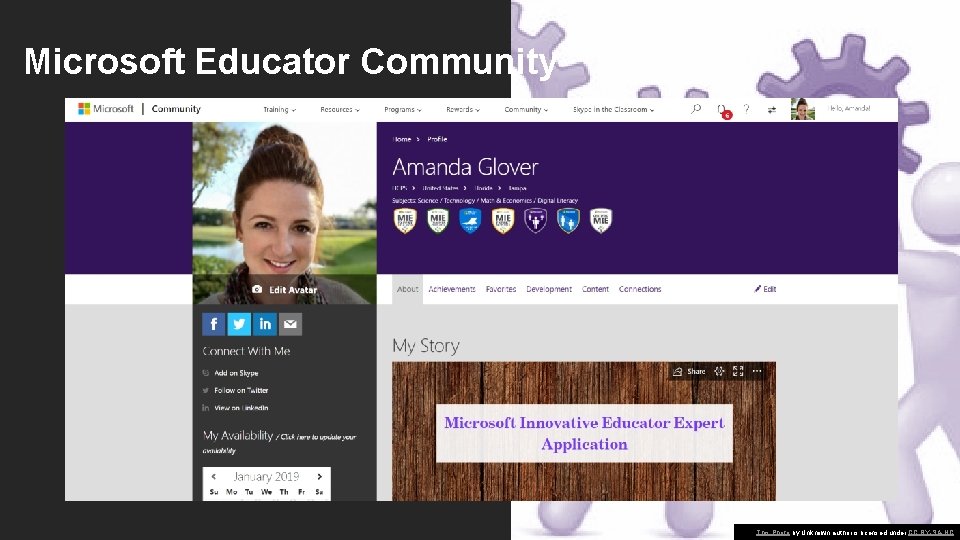
Microsoft Educator Community This Photo by Unknown author is licensed under CC BY-SA-NC.
Amanda Glover AGlover 4 EDU. com @AGlover 4 EDU Thank you!
- Slides: 13